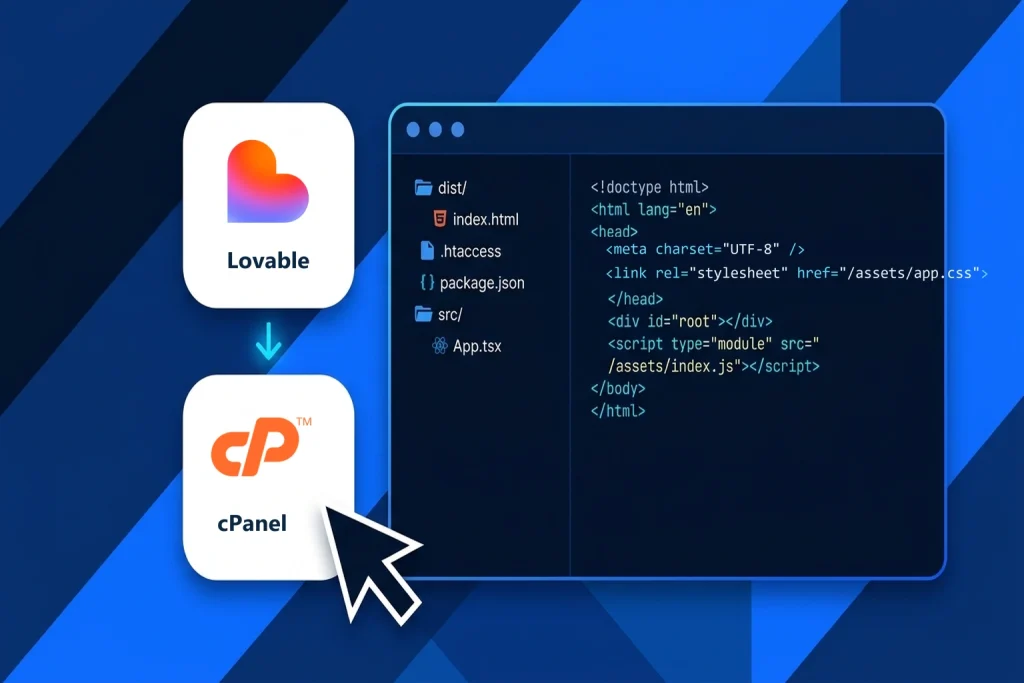
To deploy a Lovable website to cPanel hosting, you export your project to GitHub, compile the React and Vite source code into a production static bundle (the dist/ folder) using npm run build, add an Apache .htaccess rewrite rule for client-side routing, and upload the compiled files into your cPanel public_html directory. Because Lovable projects use standard open-source web technologies—React, TypeScript, Vite, and Tailwind CSS—you have complete ownership of your code and can host the frontend on any standard Linux cPanel account.
Key Takeaways: Never upload raw Lovable source files (such as src/App.tsx or package.json) directly into public_html; browsers cannot execute uncompiled TypeScript. Always configure your VITE_* environment variables before running npm run build, upload only the contents inside the generated dist/ folder, and include a .htaccess file so refreshing sub-pages like /dashboard or /pricing does not trigger a 404 error.
Using DirectAdmin instead of cPanel? If your hosting account or Aveshost Fully Managed VPS uses the DirectAdmin control panel, follow our companion step-by-step tutorial on how to deploy a Lovable website to DirectAdmin hosting, which covers DirectAdmin’s domains/yourdomain.com/public_html/ directory path, and the Evolution File Manager
Table of Contents
How Lovable Websites Work on cPanel Hosting
When you build a web application in Lovable, the platform generates a modern Single Page Application (SPA) powered by Vite, React, Tailwind CSS, and shadcn/ui. During development inside Lovable—or inside an AI IDE like Google Antigravity or Cursor—a Node.js dev server compiles TypeScript and JSX on the fly.
In production, however, a compiled Vite app does not require a running Node.js server. Running npm run build packages your entire application into static HTML, CSS, and JavaScript assets inside a dist/ folder. Your Aveshost cPanel Web Hosting server (running Apache or LiteSpeed) delivers those static files over HTTPS with near-zero server overhead, while dynamic features—such as user logins, database queries, and serverless edge functions—continue communicating directly with your Supabase or API backend from the visitor’s browser.
| Application Layer | Where It Runs After Deployment | What You Configure |
|---|---|---|
| Frontend UI (React + Vite + Tailwind) | cPanel public_html directory (Apache / LiteSpeed) | Upload compiled contents of the dist/ folder |
| Client-Side Routing (React Router) | cPanel Apache / LiteSpeed mod_rewrite | Add .htaccess rewrite rule pointing to /index.html |
| Database, Auth & Edge Functions | Supabase Cloud, Lovable Cloud, or Self-Hosted VPS | Set VITE_SUPABASE_URL & keys in .env before build |
| Custom Domain & SSL Certificate | cPanel Domains + AutoSSL (Let’s Encrypt) | Point domain DNS to cPanel & whitelist URL in Supabase |
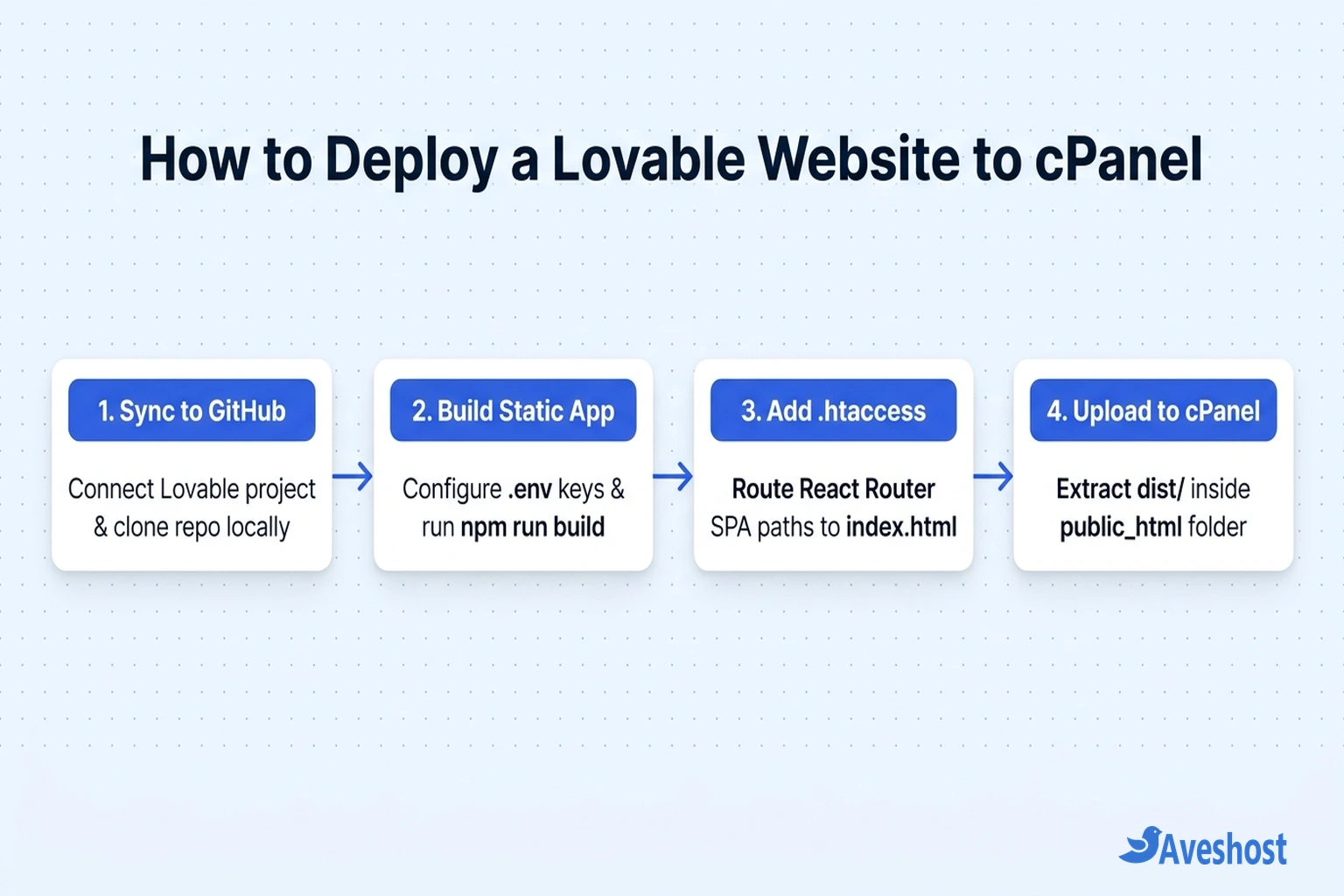
Prerequisites Before You Deploy a Lovable Website to cPanel
Before starting the deployment, make sure you have the following four items ready so your build and upload finish in under ten minutes:
1. A Lovable project connected to GitHub: A free GitHub account linked to your Lovable workspace via two-way sync.
2. Node.js (v18 or v20+) and Git installed locally: Required on your computer to run npm install and npm run build (unless you automate builds with GitHub Actions).
3. An active cPanel hosting account and domain: Any Aveshost cPanel hosting plan with File Manager access and a connected domain name (or see our DirectAdmin Lovable deployment guide if your server uses DirectAdmin).
4. Your public API or Supabase credentials: If your Lovable site uses a database or authentication, keep your VITE_SUPABASE_URL and VITE_SUPABASE_PUBLISHABLE_KEY (or VITE_SUPABASE_ANON_KEY) handy.
Step 1: Sync and Export Your Lovable Project to GitHub
Lovable uses native two-way GitHub synchronization rather than a one-time static ZIP export. This means you can continue prompting Lovable in the browser while keeping a clean Git repository for production builds.
Open your project inside Lovable, click the GitHub icon in the top-right navigation bar, and select Connect to GitHub. Authorize the Lovable GitHub App, choose your personal account or organization, and click Create Repository. Once Lovable pushes the initial commit, open your local terminal and clone the repository to your computer:
After cloning the repository, inspect the project root to verify that package.json, vite.config.ts, index.html, and the src/ folder are present. Because Lovable maintains a live two-way sync with this GitHub repository, any future UI changes you generate inside Lovable will automatically appear as new commits on your default branch—making it easy to pull updates (git pull) and rebuild whenever you are ready to ship a new release.
# Clone your synced Lovable repository from GitHub
git clone https://github.com/your-username/your-lovable-project.git
cd your-lovable-project
Step 2: Configure Environment Variables and Build the dist Folder
A common mistake when developers first deploy a Lovable website to cPanel is uploading the raw GitHub repository straight to the server. Because browsers cannot execute .tsx files directly, you must compile the project into static assets first.
If your Lovable app connects to Supabase or external APIs, create a .env file in the root of your cloned project before building. Vite injects variables prefixed with VITE_ directly into the compiled JavaScript bundle at build time—if you skip the .env file, your live site may render a blank white screen.
Once your .env file is saved, run npm install followed by npm run build. Vite will compile, minify, and tree-shake your application into a new folder named dist/ containing index.html and an assets/ directory.
Keep in mind that any variable prefixed with VITE_ is embedded into the public client bundle downloaded by the browser. Never place secret server-only keys (such as a Supabase service_role key, database root password, or private Stripe secret key) inside your .env file. Store private secrets exclusively inside Supabase Edge Function secrets or backend environment variables.
# 1. Create a .env file in the project root (if using Supabase or public APIs)
VITE_SUPABASE_URL="https://your-project-id.supabase.co"
VITE_SUPABASE_PUBLISHABLE_KEY="eyJhbGciOiJIUzI1NiIsInR5cCI6IkpXVCJ9..."

# 2. Install dependencies and compile the production bundle into dist/
npm install
npm run build
Step 3: Add an .htaccess File to Fix React Router 404 Errors
By default, Lovable uses React Router (react-router-dom) for client-side navigation. When a visitor clicks a link from your homepage to yourdomain.com/about, React handles the URL change in memory. However, if that visitor refreshes the browser on yourdomain.com/about or clicks a direct link from Google Search, cPanel’s Apache or LiteSpeed web server looks for a physical folder named /public_html/about/—which does not exist—and returns a 404 Not Found error.
To solve this, create a file named .htaccess inside your local dist/ folder (right alongside index.html) that tells Apache to serve existing static files normally and route all other virtual paths back to index.html.
If you are deploying your Lovable application into a subdirectory such as https://yourdomain.com/app/ instead of the primary root domain, update two settings before uploading: add base: '/app/' inside your vite.config.ts file prior to running npm run build, and change RewriteBase / and RewriteRule . /index.html [L] in your .htaccess file to RewriteBase /app/ and RewriteRule . /app/index.html [L] so assets and deep links resolve inside the subfolder.
# Save as dist/.htaccess (and upload to /home/username/public_html/.htaccess)
<IfModule mod_rewrite.c>
  RewriteEngine On
  RewriteBase /
  RewriteRule ^index\.html$ - [L]
  RewriteCond %{REQUEST_FILENAME} !-f
  RewriteCond %{REQUEST_FILENAME} !-d
  RewriteCond %{REQUEST_FILENAME} !-l
  RewriteRule . /index.html [L]
</IfModule>
Step 4: Upload and Extract Your Build in cPanel File Manager
With your compiled dist/ bundle and .htaccess file ready, you can upload the site to cPanel in less than two minutes:
1. Zip the contents inside dist/: Open your local dist/ folder, select all files inside it (index.html, the assets/ folder, favicon.ico, and .htaccess), and compress them into deploy.zip. Do not zip the outer dist folder itself, or your site will end up at yourdomain.com/dist/.
2. Open cPanel File Manager: Log in to cPanel, open File Manager, click Settings in the top-right corner, and check Show Hidden Files (dotfiles) so .htaccess is visible.
3. Extract inside public_html: Navigate into public_html (or your addon domain’s document root), remove any default placeholder files, click Upload to upload deploy.zip, right-click deploy.zip, and select Extract. Once extracted, delete deploy.zip so your archive is not publicly downloadable.
4. Update Supabase Auth URLs (If Applicable): If your Lovable app uses Supabase Authentication, open your Supabase dashboard, go to Authentication → URL Configuration, set the Site URL to https://yourdomain.com, and add https://yourdomain.com/** under Redirect URLs so login redirects work on your live domain.
Bonus: Automate Future Updates with GitHub Actions or cPanel Git
If you frequently update your website in Lovable, manually running npm run build and uploading a ZIP file after every prompt gets repetitive. You have two clean ways to automate the pipeline:
Option A — GitHub Actions FTP/SSH Auto-Deploy (Recommended): Add a workflow file at .github/workflows/deploy.yml in your repository. Every time Lovable pushes a change to your main branch on GitHub, GitHub’s cloud runner automatically installs Node dependencies, injects your repository secrets, runs npm run build, creates .htaccess, and syncs the compiled dist/ folder straight to your cPanel server via FTPS or SSH.
Option B — cPanel Git Version Control (.cpanel.yml): If you commit your built dist/ folder or build on a staging environment, you can connect your GitHub repository directly inside cPanel → Git Version Control and add a .cpanel.yml file at the repository root that copies the compiled assets into /home/username/public_html/ on every pull.
Whether you are launching a fast marketing site, a client portal, or a full-stack SaaS frontend, pairing Lovable’s AI speed with Aveshost cPanel Web Hosting gives you predictable pricing, free Let’s Encrypt SSL, custom business email, and full control over your files. If you ever outgrow shared cPanel hosting or want to run your own self-hosted backend database alongside your frontend, you can upgrade seamlessly to an Aveshost Managed VPS or reach out to Aveshost Support for hands-on migration help.
| Deployment Issue / Symptom | Root Cause on cPanel | Exact Fix |
|---|---|---|
| Blank white page after uploading to public_html | Missing VITE_* variables at build time or uploaded raw src/ files | Create .env before running npm run build; upload only dist/ contents |
| 404 Not Found when refreshing /login or /dashboard | Apache looks for physical folders instead of React Router routes | Add the mod_rewrite .htaccess file inside public_html |
| Broken CSS/JS assets when hosted in a subfolder (/app/) | Vite defaults to root-relative (/assets/…) asset paths | Set base: ‘/app/’ in vite.config.ts and rebuild before uploading |
| Supabase login redirects back to *.lovable.app preview URL | Supabase Site URL still points to Lovable preview domain | Update Site URL & Redirect URLs in Supabase Auth settings |
# Example .cpanel.yml for cPanel Git Version Control deployment
---
deployment:
  tasks:
    - export DEPLOYPATH=/home/cpanel_username/public_html/
    - /bin/cp -R dist/* $DEPLOYPATH
    - /bin/cp dist/.htaccess $DEPLOYPATH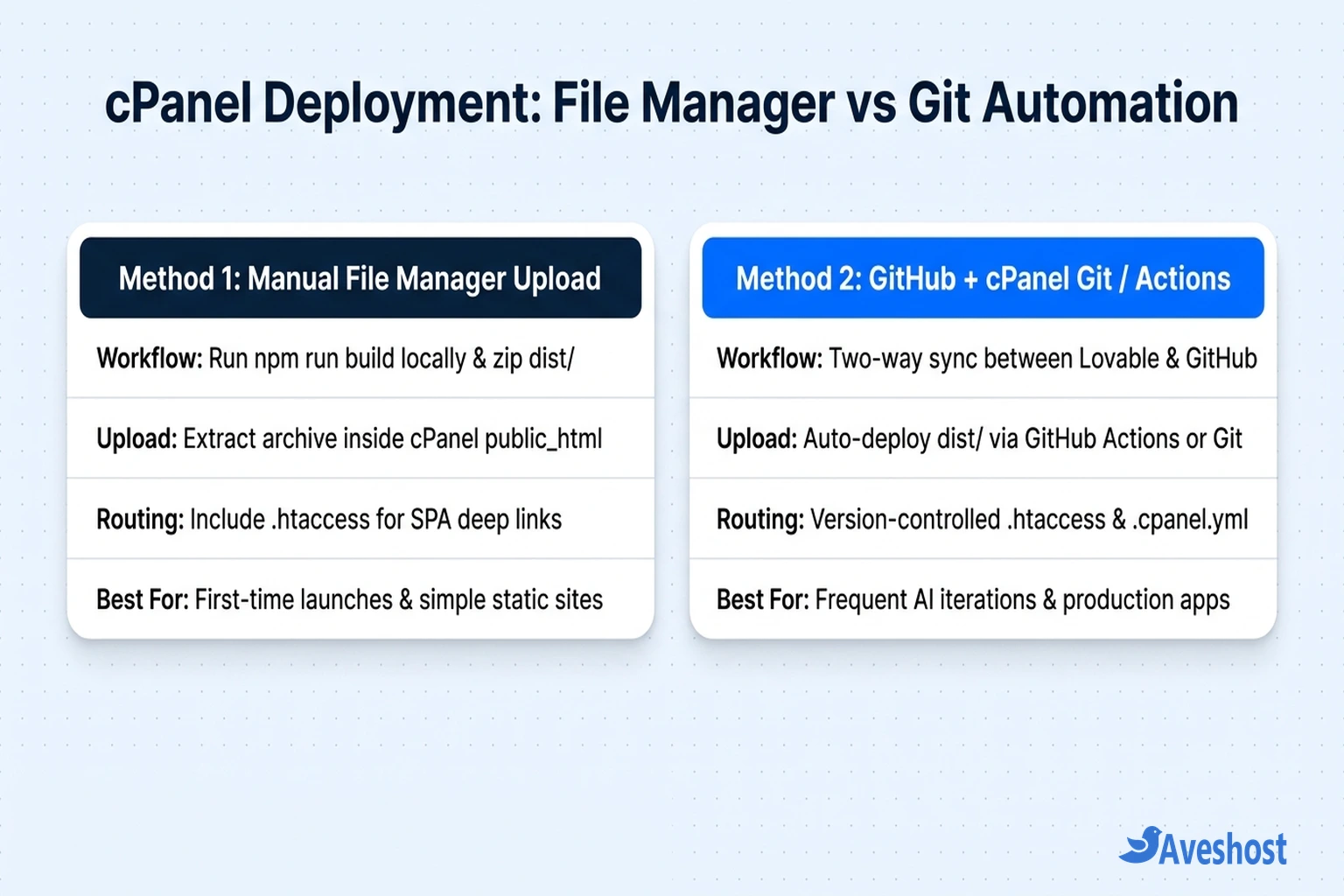
Frequently asked questions
Can I upload a Lovable GitHub repository directly to cPanel without building it?
No. A Lovable GitHub repository contains raw TypeScript (.tsx) and Vite source files that web browsers cannot execute directly. You must run npm install and npm run build locally (or via GitHub Actions) and upload only the compiled contents of the dist/ folder to cPanel’s public_html directory.
Why do sub-pages on my Lovable website show a 404 error on cPanel when refreshed?
Lovable websites are Single Page Applications (SPAs) that use React Router for client-side navigation. Without an .htaccess rewrite rule in public_html, Apache looks for a physical subfolder matching the URL path and returns a 404 error. Adding a standard mod_rewrite .htaccess rule redirects all virtual routes to index.html.
How do I deploy a Lovable website to a subfolder or subdomain in cPanel?
For a subdomain (such as app.yourdomain.com), create the subdomain in cPanel Domains and extract your dist/ files directly into that subdomain’s document root. For a subfolder (such as yourdomain.com/app/), add base: ‘/app/’ inside vite.config.ts before running npm run build, and set RewriteBase /app/ in that folder’s .htaccess file.
What happens to my Supabase database when I move a Lovable site to cPanel?
Your Supabase database, authentication, and Edge Functions remain completely intact because your Lovable frontend communicates with Supabase over HTTPS using your VITE_SUPABASE_URL and public API key. Just make sure to add your new cPanel domain under Authentication -> URL Configuration in the Supabase dashboard.
Does cPanel need Node.js enabled to run a built Lovable website?
No. Once compiled with npm run build, a Lovable application is 100% static HTML, CSS, and JavaScript. Standard Apache or LiteSpeed web servers on any cPanel hosting plan serve these files natively without requiring a persistent Node.js process on the server.