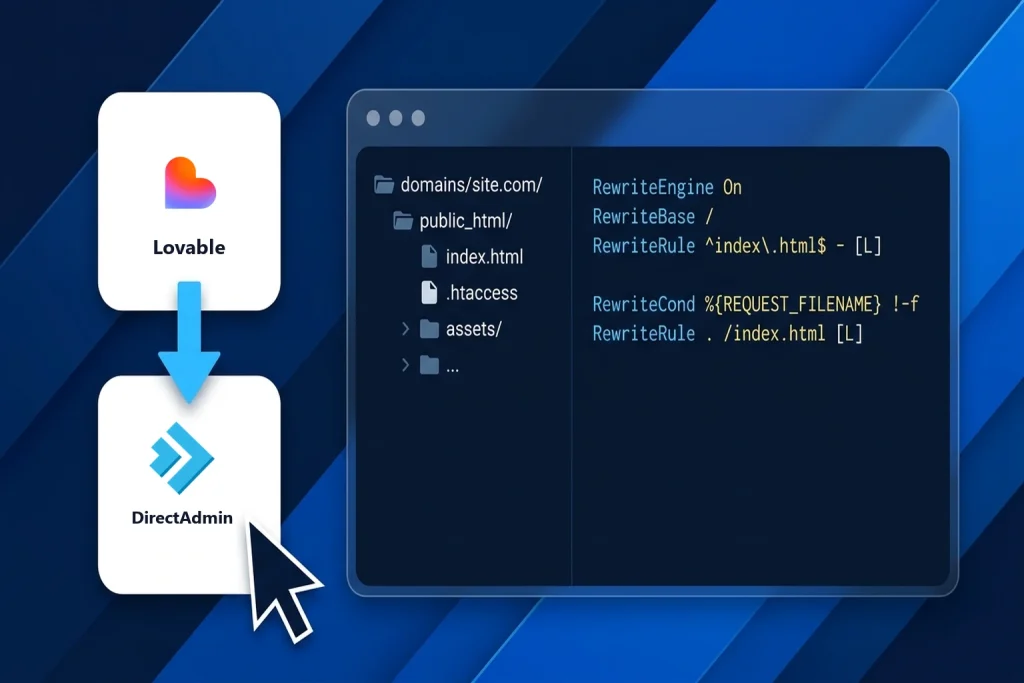
To deploy a Lovable website to DirectAdmin hosting, you sync your Lovable project with GitHub, compile the React and Vite source code into a production dist/ folder (npm run build), upload the generated static files into your DirectAdmin domain’s domains/yourdomain.com/public_html/ directory, and add an Apache or LiteSpeed .htaccess rewrite rule so client-side routes never return a 404 error.
Because Lovable builds standard Single-Page Applications (SPAs) powered by React, TypeScript, Vite, and Tailwind CSS, your finished website does not require a persistent Node.js daemon in production. Once compiled, the entire frontend consists of lightweight static HTML, CSS, and JavaScript bundles that DirectAdmin serves with near-instant response times.
Whether you are running DirectAdmin on Aveshost Fully Managed VPS Hosting or a shared DirectAdmin server , this guide walks you through every step—from exporting your code and configuring environment variables to navigating DirectAdmin’s Evolution File Manager and automating future deployments with GitHub Actions.
Table of Contents
How Lovable Websites Work on DirectAdmin Hosting
When you build an application inside Lovable, the visual preview runs on a live Vite development server (npm run dev). However, raw TypeScript (.tsx) files and node_modules/ packages are never meant to be uploaded directly to a production web server.
Instead, running npm run build tells Vite to bundle, tree-shake, and minify your entire application into a clean dist/ directory containing an entry index.html file and a fingerprinted assets/ folder. DirectAdmin’s web server (Apache, LiteSpeed Enterprise, or OpenLiteSpeed) serves those static files directly from your domain root while any database queries or user logins communicate over HTTPS with your Supabase or external API backend.
If you have previously used cPanel (covered in our guide on how to deploy a Lovable website to cPanel hosting), there is one important directory difference to keep in mind: DirectAdmin isolates every domain inside its own domains/yourdomain.com/public_html/ path rather than placing addon domains inside subfolders of a single primary public_html/ folder.
| Project Component | Where It Runs in Production | What You Configure in DirectAdmin |
|---|---|---|
| React + Vite Frontend (dist/) | DirectAdmin Web Server (Apache / LiteSpeed / OpenLiteSpeed) | Upload contents of dist/ to domains/yourdomain.com/public_html/ |
| React Router Client Links (/about, /app) | Visitor’s Browser (HTML5 History API) | Add mod_rewrite fallback to .htaccess in public_html |
| Environment Variables (VITE_*) | Compiled into JS bundle during npm run build | Set in local .env or GitHub Actions Secrets before building |
| Database & Auth (Lovable Cloud / Supabase) | External Managed or Self-Hosted Supabase Instance | Add your live DirectAdmin domain to Supabase Auth Redirect URLs |
| SSL / HTTPS Encryption | DirectAdmin Let’s Encrypt Integration | Enable free AutoSSL under Account Manager -> SSL Certificates |
Prerequisites Before Deploying to DirectAdmin
Before exporting your Lovable project, verify that you have the following four items ready so your deployment goes smoothly from start to finish:
1. An active DirectAdmin hosting account and connected domain: You need access to the DirectAdmin control panel (such as the Evolution skin included with Aveshost Fully Managed VPS plans) with your domain or subdomain added under Account Manager → Domain Setup.
2. A free GitHub account: Lovable exports and syncs source code exclusively through its native two-way GitHub integration rather than a one-off ZIP download button.
3. Node.js (v18 or newer) and Git installed on your computer: You will use these tools to clone your repository and run npm run build locally (unless you skip straight to the automated GitHub Actions method at the end of this guide).
4. Your public API or Supabase keys: If your Lovable application connects to a database or user authentication, keep your VITE_SUPABASE_URL and VITE_SUPABASE_PUBLISHABLE_KEY (or VITE_SUPABASE_ANON_KEY) ready.
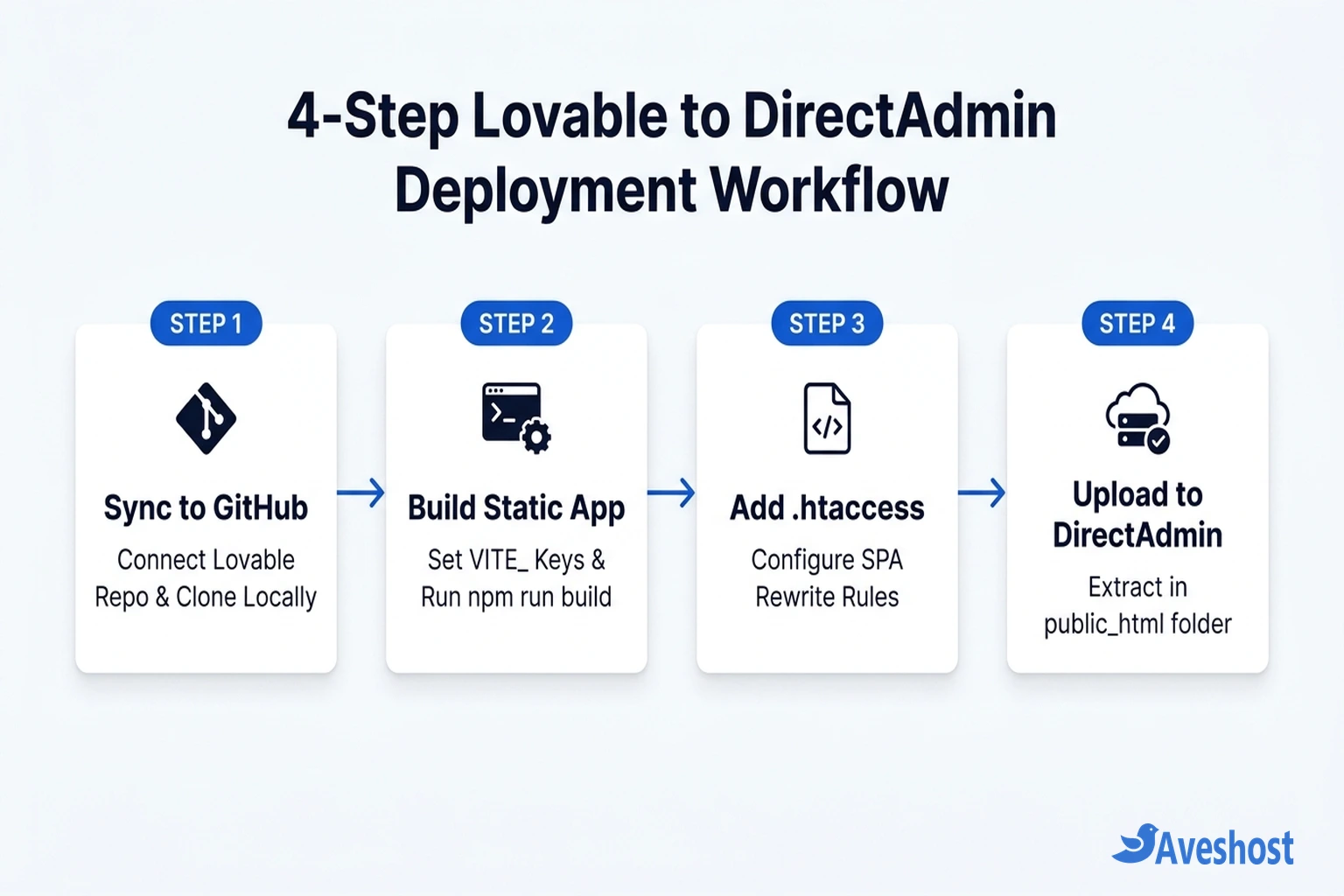
Step 1: Sync and Export Your Lovable Project to GitHub
Lovable uses live two-way GitHub synchronization so your codebase remains connected even after you self-host. Every prompt you run in Lovable pushes a clean commit to GitHub, and any code commit you push to GitHub syncs back into the Lovable editor.
To connect your project, open your application inside Lovable, click the GitHub icon in the top-right toolbar, and choose Connect to GitHub. Authorize the Lovable GitHub App on your account or organization, then click Create Repository to push your project’s source files to a new repository.
Once your repository is created on GitHub, open a terminal on your computer and clone the project locally:
git clone https://github.com/your-username/your-lovable-project.git
cd your-lovable-project
Verify that package.json, vite.config.ts, index.html, and the src/ folder are inside your newly cloned project directory before moving to the build step.
Step 2: Configure Environment Variables and Build the dist Folder
Next, configure any public environment variables your frontend requires and compile the TypeScript and React code into static assets.
If your Lovable project uses Supabase or public third-party APIs, create or verify the .env file in the root of your cloned folder (alongside package.json). Because Vite embeds variables prefixed with VITE_ into the static bundle during compilation, this .env file must be present before you run the build command:
VITE_SUPABASE_URL="https://your-project-id.supabase.co"
VITE_SUPABASE_PUBLISHABLE_KEY="eyJhbGciOiJIUzI1NiIsInR5cCI6IkpXVCJ9..."
Only place public, client-safe keys (such as your Supabase URL and publishable/anon key protected by Row-Level Security) inside .env. Never expose private server secrets like SUPABASE_SERVICE_ROLE_KEY in a frontend Vite build.
Now install your project dependencies and run the production build:
npm install
npm run build
When Vite finishes compiling, it outputs a dist/ folder in your project root containing dist/index.html and dist/assets/. Open the dist/ folder and compress the files and folders inside dist/ into a single lovable-build.zip archive. Make sure index.html is at the top level of the ZIP archive—do not zip the outer dist/ folder itself, or your website will end up nested at yourdomain.com/dist/.
Step 3: Upload and Extract Files in DirectAdmin File Manager
With lovable-build.zip ready on your computer, you can deploy it through DirectAdmin’s Evolution File Manager in less than two minutes:
1. Open the DirectAdmin File Manager: Log in to your DirectAdmin control panel, navigate to System Info & Files in the left sidebar (or dashboard grid), and click File Manager.
2. Navigate to your domain’s document root: In the File Manager directory tree, open domains, click the folder for your target domain (yourdomain.com), and open public_html (domains/yourdomain.com/public_html/). Notice that DirectAdmin also provides a public_html shortcut in your home directory, which points to your primary domain—always double-check the full path in the breadcrumb bar when managing multiple domains.
3. Delete the default DirectAdmin placeholder page: Freshly added domains in DirectAdmin contain a default index.html welcome file (and sometimes a default logo image). Select the existing index.html placeholder, right-click it, and click Remove so it does not conflict with your Lovable application’s index.html.
4. Upload and extract lovable-build.zip: Click Upload files to current directory at the top of the File Manager, drag lovable-build.zip into the upload dropzone, and click Upload. Once uploaded, right-click lovable-build.zip inside public_html, select Extract, confirm the current directory path, and click Extract. Finally, delete lovable-build.zip to keep your web root clean.
Step 4: Add an .htaccess File for React Router and OpenLiteSpeed
At this stage, your homepage (https://yourdomain.com/) will load immediately. However, if a visitor navigates to an internal React Router path such as https://yourdomain.com/pricing or https://yourdomain.com/dashboard and refreshes the browser, the web server will look for a physical /pricing folder inside public_html, fail to find one, and return a 404 Not Found error.
To fix client-side routing across all pages, create a .htaccess file directly inside domains/yourdomain.com/public_html/. In the DirectAdmin File Manager, click the + New button at the top left, select Text File → Plain Text, name the file exactly .htaccess (including the leading dot), and click Create. Right-click .htaccess, choose Edit, paste the following rewrite rules, and click Save:
<IfModule mod_rewrite.c>
  RewriteEngine On
  RewriteBase /
  RewriteRule ^index\.html$ - [L]
  RewriteCond %{REQUEST_FILENAME} !-f
  RewriteCond %{REQUEST_FILENAME} !-d
  RewriteCond %{REQUEST_FILENAME} !-l
  RewriteRule . /index.html [L]
</IfModule>
Important note for OpenLiteSpeed servers: DirectAdmin supports Apache, LiteSpeed Enterprise, and OpenLiteSpeed. While Apache and LiteSpeed Enterprise apply .htaccess changes instantaneously on the next browser request, OpenLiteSpeed only reads .htaccess files during service startup or reload. Saving .htaccess through DirectAdmin’s built-in File Manager automatically queues a background OpenLiteSpeed reload within a minute, whereas editing .htaccess over external SFTP or SSH requires clicking Reload in DirectAdmin if your changes do not appear right away.
Finally, if your Lovable app uses Supabase Authentication (such as magic links, password resets, or Google OAuth), open your Supabase dashboard, go to Authentication → URL Configuration, set the Site URL to https://yourdomain.com, and add https://yourdomain.com/** under Redirect URLs so login callbacks redirect to your DirectAdmin domain instead of a Lovable preview URL.
Automate Deployments with GitHub Actions or DirectAdmin Git Manager
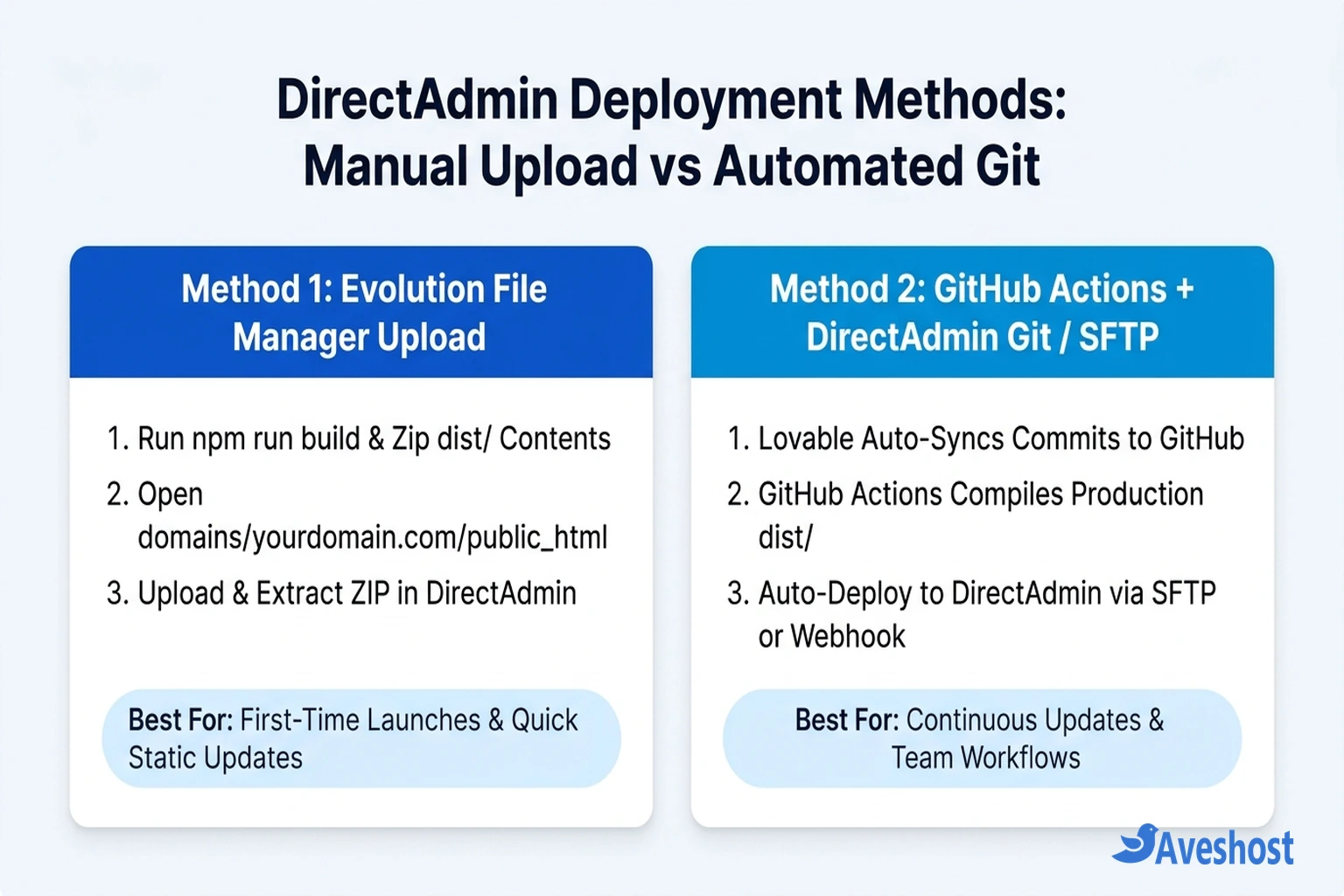
If you iterate on your website frequently inside Lovable, manually building and uploading a ZIP archive after every update can slow you down. You have two ways to automate deployments on DirectAdmin: using GitHub Actions (FTP/SFTP) or using DirectAdmin’s native Git Manager (Advanced Features → Git).
Because Lovable pushes raw TypeScript and React source code (src/) to GitHub rather than pre-built static files, DirectAdmin’s built-in Git Manager will only clone the uncompiled source unless you also run a build script on the server or commit dist/ to a deployment branch. By contrast, a GitHub Actions workflow compiles npm run build in the cloud on every push to main and automatically transfers only the finished dist/ files into /domains/yourdomain.com/public_html/.
To set up automatic GitHub Actions deployment, create .github/workflows/deploy-directadmin.yml in your repository and add your DirectAdmin FTP/SFTP details (FTP_SERVER, FTP_USERNAME, FTP_PASSWORD) plus any VITE_* variables under your GitHub repository’s Settings → Secrets and variables → Actions:
name: Build and Deploy Lovable Site to DirectAdmin

on:
  push:
    branches:
      - main

jobs:
  deploy:
    runs-on: ubuntu-latest
    steps:
      - name: Checkout repository
        uses: actions/checkout@v4

      - name: Set up Node.js
        uses: actions/setup-node@v4
        with:
          node-version: 20
          cache: npm

      - name: Install dependencies and build dist
        env:
          VITE_SUPABASE_URL: ${{ secrets.VITE_SUPABASE_URL }}
          VITE_SUPABASE_PUBLISHABLE_KEY: ${{ secrets.VITE_SUPABASE_PUBLISHABLE_KEY }}
        run: |
          npm ci
          npm run build

      - name: Add .htaccess to dist folder
        run: |
          cat << 'EOF' > dist/.htaccess
          <IfModule mod_rewrite.c>
            RewriteEngine On
            RewriteBase /
            RewriteRule ^index\.html$ - [L]
            RewriteCond %{REQUEST_FILENAME} !-f
            RewriteCond %{REQUEST_FILENAME} !-d
            RewriteCond %{REQUEST_FILENAME} !-l
            RewriteRule . /index.html [L]
          </IfModule>
          EOF

      - name: Deploy dist to DirectAdmin public_html
        uses: SamKirkland/[email protected]
        with:
          server: ${{ secrets.FTP_SERVER }}
          username: ${{ secrets.FTP_USERNAME }}
          password: ${{ secrets.FTP_PASSWORD }}
          local-dir: ./dist/
server-dir: /domains/yourdomain.com/public_html/| Deployment Method | Where npm run build Runs | Setup Effort | Best Use Case |
|---|---|---|---|
| DirectAdmin File Manager (Manual ZIP) | On your local computer | Very Low (2 minutes) | Initial site launch, landing pages, and occasional edits |
| GitHub Actions + DirectAdmin FTP/SFTP | Automatically on GitHub runners | Low (10 minutes once) | Active Lovable projects where every prompt should auto-deploy |
| DirectAdmin Native Git Manager (Webhooks) | Pre-built branch or server SSH script | Medium (Requires SSH / build branch) | VPS accounts with SSH access or repos that commit static builds |
Frequently asked questions
Where do I upload my Lovable dist files in DirectAdmin?
Upload and extract the contents of your compiled dist/ folder directly inside domains/yourdomain.com/public_html/ using DirectAdmin’s File Manager. Make sure index.html and the assets/ folder sit at the root of public_html—and delete DirectAdmin’s default placeholder index.html first.
Why do sub-pages on my Lovable site show 404 Not Found on DirectAdmin?
Lovable apps use React Router for client-side navigation, so routes like /about or /dashboard are handled by JavaScript inside index.html rather than separate folders on disk. Adding a mod_rewrite fallback rule inside domains/yourdomain.com/public_html/.htaccess routes all non-file requests to /index.html.
Why isn't my .htaccess file working immediately on DirectAdmin?
If your DirectAdmin server uses OpenLiteSpeed instead of Apache or LiteSpeed Enterprise, OpenLiteSpeed only reads .htaccess files when the web server reloads. Editing and saving .htaccess inside DirectAdmin’s Evolution File Manager triggers an automatic reload within about a minute.
Can I use DirectAdmin's built-in Git Manager to deploy a Lovable site?
DirectAdmin’s Git Manager (under Advanced Features -> Git) clones your repository directly to the server, but Lovable repositories contain uncompiled TypeScript source code rather than built HTML/JS files. For zero-touch compilation and deployment, use a GitHub Actions workflow that runs npm run build and syncs the dist/ folder to DirectAdmin.
Does DirectAdmin support Node.js or backend APIs for Lovable apps?
Your Lovable frontend compiles into static files that require no Node.js runtime on the server. If your app uses Supabase or Lovable Cloud, the browser connects directly to those external APIs over HTTPS. If you also write custom Node.js backend routes, you can run them on Aveshost Fully Managed VPS Hosting with DirectAdmin.