Learning how to install Hermes Agent on an Ubuntu VPS lets you run a persistent, self-improving AI assistant that stays online 24/7 without tying up your local laptop. Built by Nous Research, Hermes Agent combines multi-model LLM routing, persistent cross-session memory, autonomous skill creation, Model Context Protocol (MCP) tools, and a built-in messaging gateway for Telegram, Discord, and Slack.
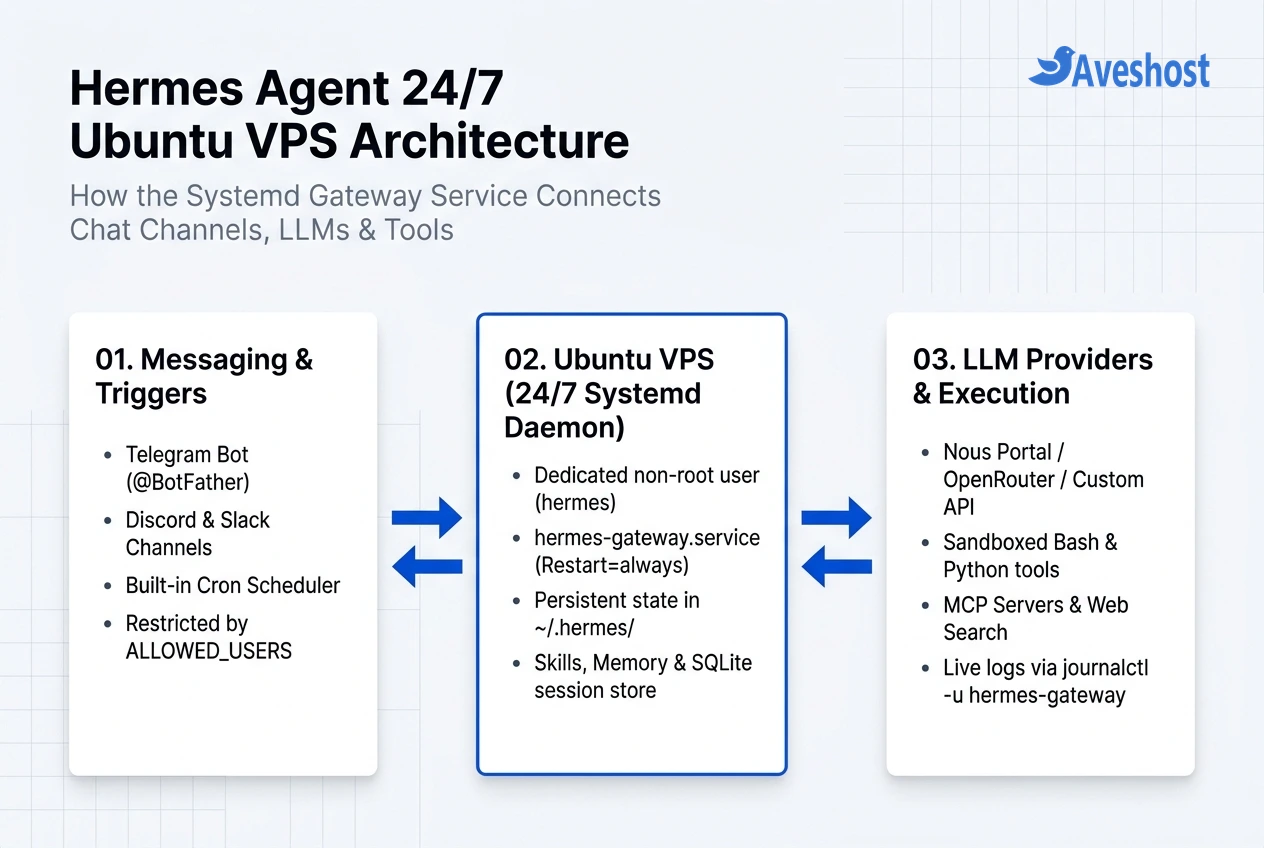
When you deploy Hermes Agent on an Aveshost Self-Managed VPS or high-frequency Aveshost VDS running Ubuntu 22.04 or 24.04 LTS, your agent can execute scheduled cron jobs, monitor infrastructure, and reply to your private Telegram or Discord messages around the clock.
In this guide, you will learn how to create an isolated non-root Linux user, install Hermes Agent via the official CLI installer, connect your LLM provider and messaging gateway, lock down access with user allowlists, and configure a self-healing systemd daemon so your agent automatically restarts after crashes or server reboots.
Table of Contents
Why Run Hermes Agent on an Ubuntu VPS with Systemd?
If you launch hermes or hermes gateway directly inside a standard SSH terminal window, Linux attaches the process to your active pseudo-terminal session. The moment your laptop goes to sleep or your Wi-Fi drops, the operating system sends a SIGHUP signal and terminates your agent.
To keep Hermes Agent running 24/7 in production, you need a process supervisor that launches the gateway at boot, captures structured logs, and restarts the agent automatically if an API timeout or out-of-memory event occurs.
Here is how the four common ways to install Hermes Agent on an Ubuntu VPS and keep it running compare:
| Execution Method | Survives SSH Disconnect? | Auto-Restarts on Crash or Reboot? | Centralized Log Rotation? | Best Use Case |
|---|---|---|---|---|
| Foreground SSH Session (hermes) | No (stops when SSH closes) | No | No | Initial setup, interactive debugging, and one-off CLI tasks |
| Terminal Multiplexer (tmux / screen) | Yes | No (dies on VPS reboot or fatal crash) | No | Short-term interactive testing over SSH |
| Systemd Service + Linger (hermes gateway install) | Yes | Yes (Restart=always & WantedBy=default.target) | Yes (via journalctl) | Recommended for 24/7 production VPS deployments |
| Docker Container (–restart unless-stopped) | Yes | Yes | Yes (docker logs) | Strict filesystem isolation or multi-container stacks |
Step 1: Prepare Your Ubuntu VPS and Create a Non-Root User
Because Hermes Agent can execute shell commands, Python scripts, and file operations, you should never run it as root. Creating a dedicated non-root Linux account (such as hermes) ensures the agent only has permission to modify its own home directory (/home/hermes).
Regarding hardware sizing, Hermes Agent itself is lightweight because LLM inference happens via API (such as Nous Portal, OpenRouter, or Anthropic). An Ubuntu 22.04 or 24.04 LTS VPS with 2 vCPU cores, 2 GB to 4 GB of RAM, and 25 GB of SSD/NVMe storage comfortably handles the Python runtime, headless browser tools, and local SQLite session memory. (If you are upgrading an older server first, see our guide on how to migrate a Linux VPS to Ubuntu.)
Connect to your VPS via SSH as root, update your system packages, enable the UFW firewall, and create the dedicated hermes user:
# 1. Update Ubuntu packages and install essential build tools
sudo apt update && sudo apt upgrade -y
sudo apt install -y curl git ufw build-essential

# 2. Allow SSH through the firewall and enable UFW
sudo ufw allow OpenSSH
sudo ufw --force enable

# 3. Create a dedicated non-root user for Hermes Agent
sudo adduser --disabled-password --gecos "" hermes
sudo usermod -aG sudo hermes

# 4. Switch into the new hermes user session
sudo su - hermes
Note that Hermes Agent’s Telegram, Discord, and Slack gateways use outbound WebSocket and HTTPS long-polling connections, so you do not need to open any extra inbound ports in UFW.
Step 2: Install Hermes Agent on an Ubuntu VPS and Verify Dependencies
Logged in as the hermes user, run the official Nous Research installation script. The installer automatically sets up the uv Python package manager, creates an isolated virtual environment, clones the repository into ~/.hermes/hermes-agent, and links the hermes executable into ~/.local/bin/hermes:
Run these commands to install Hermes Agent and verify your environment:
# 1. Run the official Hermes Agent installer script
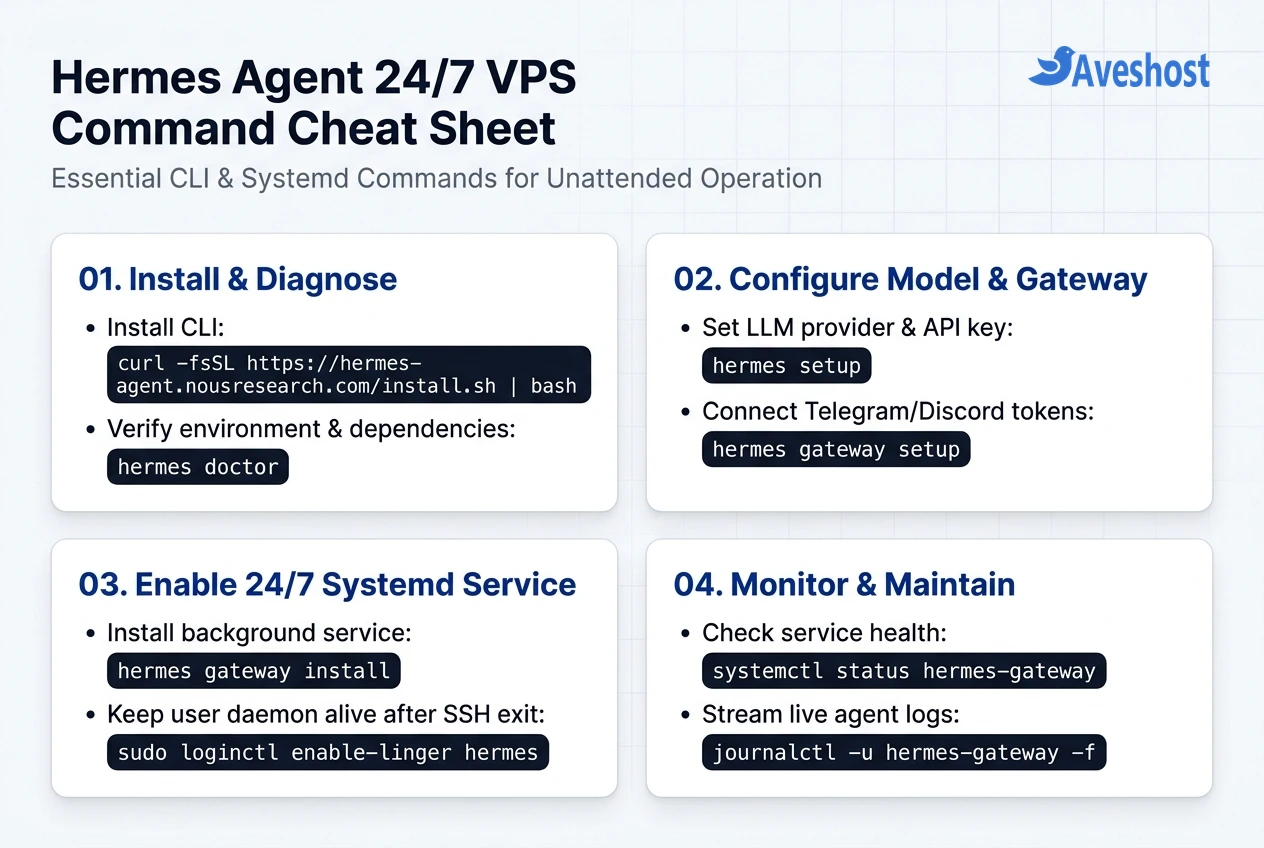
curl -fsSL https://hermes-agent.nousresearch.com/install.sh | bash

# 2. Reload your shell profile so ~/.local/bin is in your PATH
source ~/.bashrc

# 3. Run the built-in diagnostic check
hermes doctor
When hermes doctor finishes, confirm that Python, uv, Git, and the ~/.hermes/ data directory show green checkmarks before configuring your model credentials.
Step 3: Configure Your LLM Provider and Messaging Gateway
After you install Hermes Agent on an Ubuntu VPS, connect it to your preferred language model provider and set up the messaging gateway so you can chat with your agent from Telegram or Discord.
1. Configure Your LLM Provider: Run hermes setup to launch the interactive configuration wizard. You can authenticate with Nous Portal, OpenRouter, OpenAI, Anthropic, or any custom OpenAI-compatible API endpoint, and choose your default model.
2. Set Up the Messaging Gateway: Run hermes gateway setup to configure your chat platform credentials (saved inside ~/.hermes/.env).
3. Lock Down Access with ALLOWED_USERS (Critical Security Step): Anyone who discovers your Telegram bot username can message it unless you restrict access to your own numeric user ID. Always set TELEGRAM_ALLOWED_USERS (or DISCORD_ALLOWED_USERS) in ~/.hermes/.env and lock file permissions to 600:
# 1. Launch the interactive model and API key setup wizard
hermes setup

# 2. Launch the messaging gateway wizard (Telegram, Discord, Slack)
hermes gateway setup

# 3. Verify and lock down ~/.hermes/.env permissions
chmod 600 ~/.hermes/.env

# Example entries inside ~/.hermes/.env:
# OPENROUTER_API_KEY=sk-or-v1-your-key-here
# TELEGRAM_BOT_TOKEN=123456789:AAFyourBotFatherTokenHere
# TELEGRAM_ALLOWED_USERS=987654321
Before installing the background service, run hermes gateway once in the foreground and send a test message from your phone to confirm your bot replies cleanly, then press Ctrl+C to stop the foreground test. (If you also want to connect external tools, check out our guide on how to host an MCP server on a VPS or compare with our OpenClaw AI help desk guide.)
Step 4: Keep Hermes Agent Running 24/7 as a Systemd Service
Once your foreground test succeeds, you have two reliable ways to register Hermes Agent with systemd so it runs 24/7, survives SSH disconnects, and starts automatically whenever your Ubuntu VPS reboots.
Option A — Use the Built-In Gateway Service Installer + User Linger: Hermes includes a native subcommand (hermes gateway install) that creates a user-level systemd service. However, Ubuntu stops user-level services when you log out of SSH unless you enable loginctl enable-linger for the hermes user.
Option B — Create a System-Wide /etc/systemd/system/hermes-gateway.service Unit: For production servers, a system-level unit file gives you explicit control over restart delays (RestartSec=10), environment variables, and journal logging.
When you install Hermes Agent on an Ubuntu VPS, here are both systemd configurations so you can use whichever fits your server setup:
# === OPTION A: Built-in User Service + Linger ===
hermes gateway install
sudo loginctl enable-linger hermes
systemctl --user enable --now hermes-gateway

# === OPTION B: System-Wide /etc/systemd/system/hermes-gateway.service ===
sudo tee /etc/systemd/system/hermes-gateway.service > /dev/null << 'EOF'
[Unit]
Description=Hermes Agent 24/7 Gateway Service
After=network-online.target
Wants=network-online.target

[Service]
Type=simple
User=hermes
Group=hermes
WorkingDirectory=/home/hermes
Environment="PATH=/home/hermes/.local/bin:/usr/local/bin:/usr/bin:/bin"
ExecStart=/home/hermes/.local/bin/hermes gateway run
Restart=always
RestartSec=10
StandardOutput=journal
StandardError=journal

[Install]
WantedBy=multi-user.target
EOF

sudo systemctl daemon-reload
sudo systemctl enable --now hermes-gateway.service
With Restart=always and RestartSec=10 configured, Ubuntu’s init system continuously supervises the gateway process and relaunches it within 10 seconds if it ever exits unexpectedly.
Step 5: Monitor Logs, Update Hermes and Manage Memory
After enabling your 24/7 service, you can inspect live tool executions, update Hermes Agent to the latest release, and back up your agent’s learned skills and memories without losing state.
Once you install Hermes Agent on an Ubuntu VPS, all persistent data—including your configuration (config.yaml), custom skills (~/.hermes/skills/), long-term memory notes, and conversation history—lives inside /home/hermes/.hermes/.
Use these commands after you install Hermes Agent on an Ubuntu VPS to check service health, stream real-time logs, and apply updates:
# 1. Check that the Hermes gateway service is active (running)
sudo systemctl status hermes-gateway.service

# 2. Stream live execution logs and tool calls
sudo journalctl -u hermes-gateway.service -f

# 3. Pull the latest Hermes Agent release and restart the 24/7 gateway
hermes update
sudo systemctl restart hermes-gateway.service

# 4. Back up your agent's memory, skills, and configuration
tar -czf ~/hermes-backup-$(date +%F).tar.gz ~/.hermes/
Frequently asked questions
How much RAM and CPU do I need to run Hermes Agent on an Ubuntu VPS?
Because LLM inference runs through cloud APIs (such as Nous Portal, OpenRouter, or Anthropic), Hermes Agent is very lightweight. An Ubuntu 22.04 or 24.04 LTS VPS with 2 vCPU cores, 2 GB to 4 GB of RAM, and 25 GB of SSD/NVMe disk space is plenty for running the gateway, Python tools, and MCP integrations 24/7.
Why does my Hermes Agent stop responding as soon as I close my SSH window?
If you start Hermes directly in an SSH session, Linux terminates the process when the SSH connection closes. Additionally, if you installed the user-level service with hermes gateway install without enabling systemd lingering, Ubuntu stops user services on logout. Run sudo loginctl enable-linger hermes or use a system-wide unit in /etc/systemd/system/ to keep it running 24/7.
How do I stop strangers from messaging my Hermes Agent bot on Telegram or Discord?
Always set the TELEGRAM_ALLOWED_USERS (or DISCORD_ALLOWED_USERS) variable inside ~/.hermes/.env to your personal numeric user ID and restrict the file permissions with chmod 600 ~/.hermes/.env. Hermes will ignore messages from any user ID not on your allowlist.
Where does Hermes Agent store its memory, skills, and configuration on Ubuntu?
Hermes stores all persistent state inside the ~/.hermes/ directory in your user’s home folder (/home/hermes/.hermes/). This includes config.yaml, .env API keys, SOUL.md persona instructions, autonomous skills in ~/.hermes/skills/, and the local session database.
Do I need to open any firewall ports on my VPS for the Hermes Telegram or Discord gateway?
No. Both the Telegram and Discord integrations in Hermes Agent use outbound HTTPS and WebSocket connections from your VPS to the platform APIs. You only need port 22 (SSH) open in UFW for your own server administration.