
Seeing Error Establishing a Database Connection in WordPress means your site’s PHP files cannot communicate with the MySQL or MariaDB database that stores your posts, pages, user accounts, and plugin settings. Because WordPress builds every page dynamically by querying the database, a broken database link immediately takes both your public website and your dashboard offline.
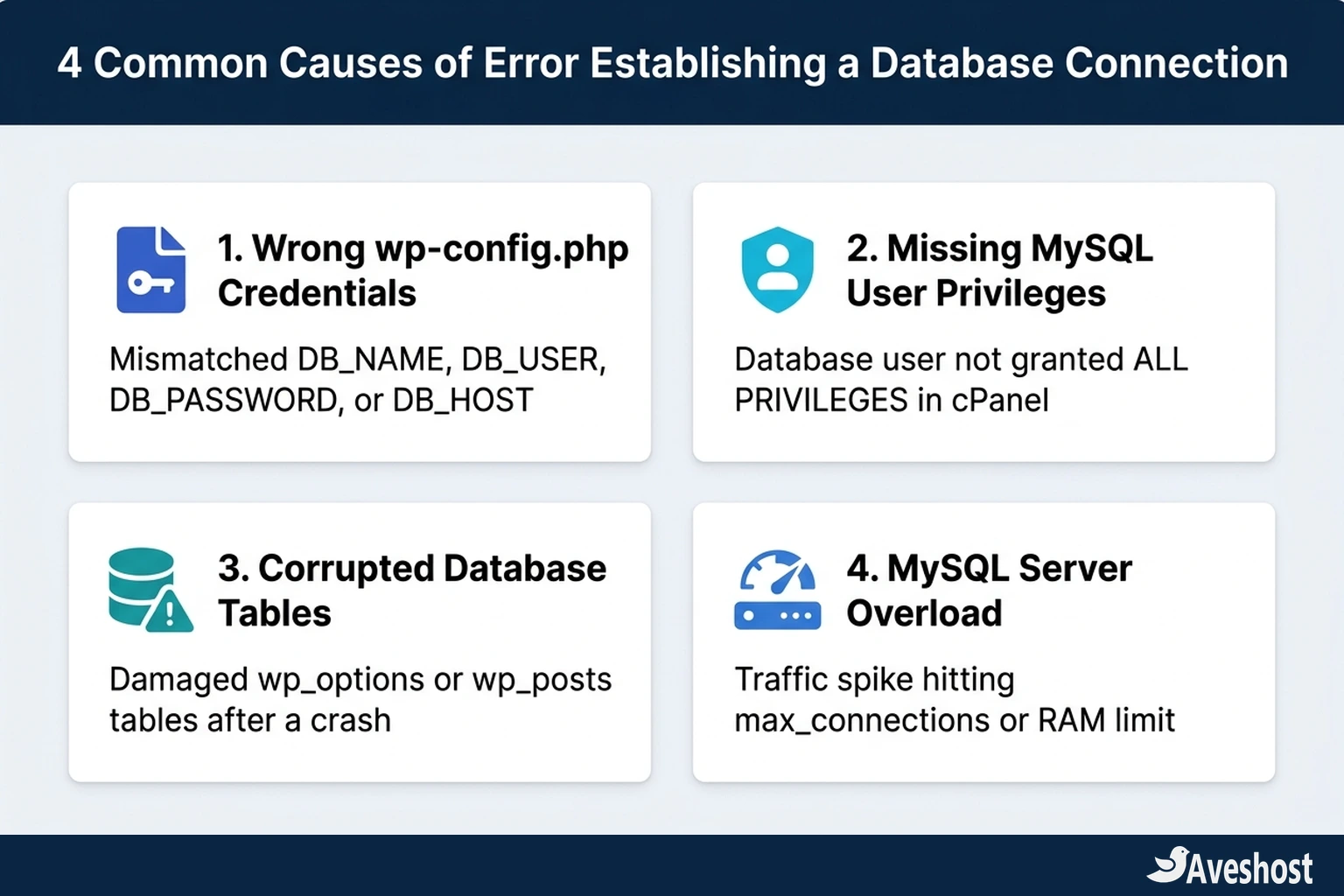
In practice, nearly every instance of Error Establishing a Database Connection comes down to one of four root causes: mismatched database credentials in wp-config.php, missing MySQL user permissions in your hosting panel, corrupted database tables after an interrupted update, or an overloaded database server. Below, we walk through the exact five-step diagnostic sequence to pinpoint the cause and get your WordPress site back online safely.
Table of Contents
What Causes “Error Establishing a Database Connection” in WordPress?
Every time a visitor requests a page on your site, WordPress reads the connection constants stored in your root wp-config.php file, opens a connection to your MySQL or MariaDB server, and fetches the required rows from tables like wp_posts and wp_options. If MySQL rejects the login, cannot read a damaged table, or refuses new connections due to resource limits, WordPress stops execution and outputs Error establishing a database connection.
Before changing any files to fix Error Establishing a Database Connection, compare the four primary causes below—and check whether the front end and /wp-admin/ show the exact same message or two different messages:
| Root Cause | Typical Trigger | Fastest Fix |
|---|---|---|
| 1. Wrong wp-config.php Credentials | Site migration, manual database password change, or typo in DB_NAME / DB_USER / DB_PASSWORD | Match all four DB constants in wp-config.php against cPanel MySQL Databases |
| 2. Missing MySQL User Privileges | Creating a new database user after migration without assigning ALL PRIVILEGES | Re-link the user to the database in cPanel and check ALL PRIVILEGES |
| 3. Corrupted Database Tables | Plugin crash, sudden server reboot, or interrupted bulk import | Run WP_ALLOW_REPAIR at /wp-admin/maint/repair.php or Repair Table in phpMyAdmin |
| 4. MySQL Server Overload or Down | Traffic surge, runaway query loop, or exhausted RAM / max_connections on a VPS | Check MySQL service status, restart mariadb/mysqld, or upgrade server resources |
Step 1: Verify Your Database Credentials in wp-config.php
An incorrect database name, username, or password in wp-config.php is the number-one cause of Error Establishing a Database Connection, especially right after migrating a site to a new host or resetting a cPanel password.
Follow these steps to inspect and sync your credentials:
1. Open File Manager in your hosting panel: Log in to cPanel (or connect via SFTP), open File Manager, and navigate to your site’s document root (usually public_html).
2. View wp-config.php: Right-click wp-config.php and select Edit. Download a quick local copy first so you have a backup before making any changes.
3. Inspect the four MySQL settings: Locate the section defining DB_NAME, DB_USER, DB_PASSWORD, and DB_HOST:
define( 'DB_NAME', 'cpaneluser_wp842' );define( 'DB_USER', 'cpaneluser_wpuser' );define( 'DB_PASSWORD', 'YourStrongPasswordHere' );define( 'DB_HOST', 'localhost' );
4. Compare against MySQL Databases in cPanel: Open cPanel → MySQL Databases (or Manage My Databases) in a second browser tab. Confirm that the exact database name and username—including your hosting account prefix, such as cpaneluser_—match what is written inside single quotes in wp-config.php. If you are unsure whether the password is still valid, click Change Password next to that MySQL user in cPanel, paste the exact same password into DB_PASSWORD in wp-config.php, and save both.
Step 2: Confirm Your MySQL User Has All Privileges in cPanel
Even when your database name, username, and password are 100% accurate, MySQL will trigger Error Establishing a Database Connection if the database user has not been explicitly granted permission to read and write to that database. This frequently happens when developers create a new database and user during a manual migration but skip the final step of linking them together.
To verify and restore user permissions in cPanel:
1. Scroll to Current Databases: Inside cPanel → MySQL Databases, look at the Current Databases table and check the Privileged Users column next to your WordPress database.
2. Add the user to the database if missing: If the column is empty—or lists a different user—scroll to Add User To Database, select your WordPress database user and database from the two dropdown menus, and click Add.
3. Enable ALL PRIVILEGES: On the Manage User Privileges screen, check the top box labeled ALL PRIVILEGES and click Make Changes. Reload your website in a private browser window to see if Error Establishing a Database Connection is resolved.
Step 3: Repair Corrupted Tables with WP_ALLOW_REPAIR or phpMyAdmin
How do you know if your tables are corrupted rather than your password being wrong? Visit your admin login URL directly at https://yourdomain.com/wp-admin/. While the public front end still shows Error Establishing a Database Connection, if /wp-admin/ displays a message saying “One or more database tables are unavailable. The database may need to be repaired”, your login credentials in wp-config.php are working, and one or more database tables need repair.
You can repair corrupted tables using either WordPress’s built-in repair tool or phpMyAdmin:
Option A — Use WordPress’s built-in WP_ALLOW_REPAIR tool: Open wp-config.php in File Manager and add the following line just above /* That's all, stop editing! Happy publishing. */:
define( 'WP_ALLOW_REPAIR', true );
Save the file and visit https://yourdomain.com/wp-admin/maint/repair.php in your browser. Click Repair Database (or Repair and Optimize Database) and wait for the script to check every table. Important security step: As soon as the repair finishes, delete define( 'WP_ALLOW_REPAIR', true ); from wp-config.php and save the file, because that repair URL is publicly accessible without a password while enabled.
Option B — Repair tables inside phpMyAdmin: Open cPanel → phpMyAdmin, click your WordPress database in the left sidebar, scroll to the bottom of the table list, check Check all, and choose Repair table from the With selected: dropdown menu.
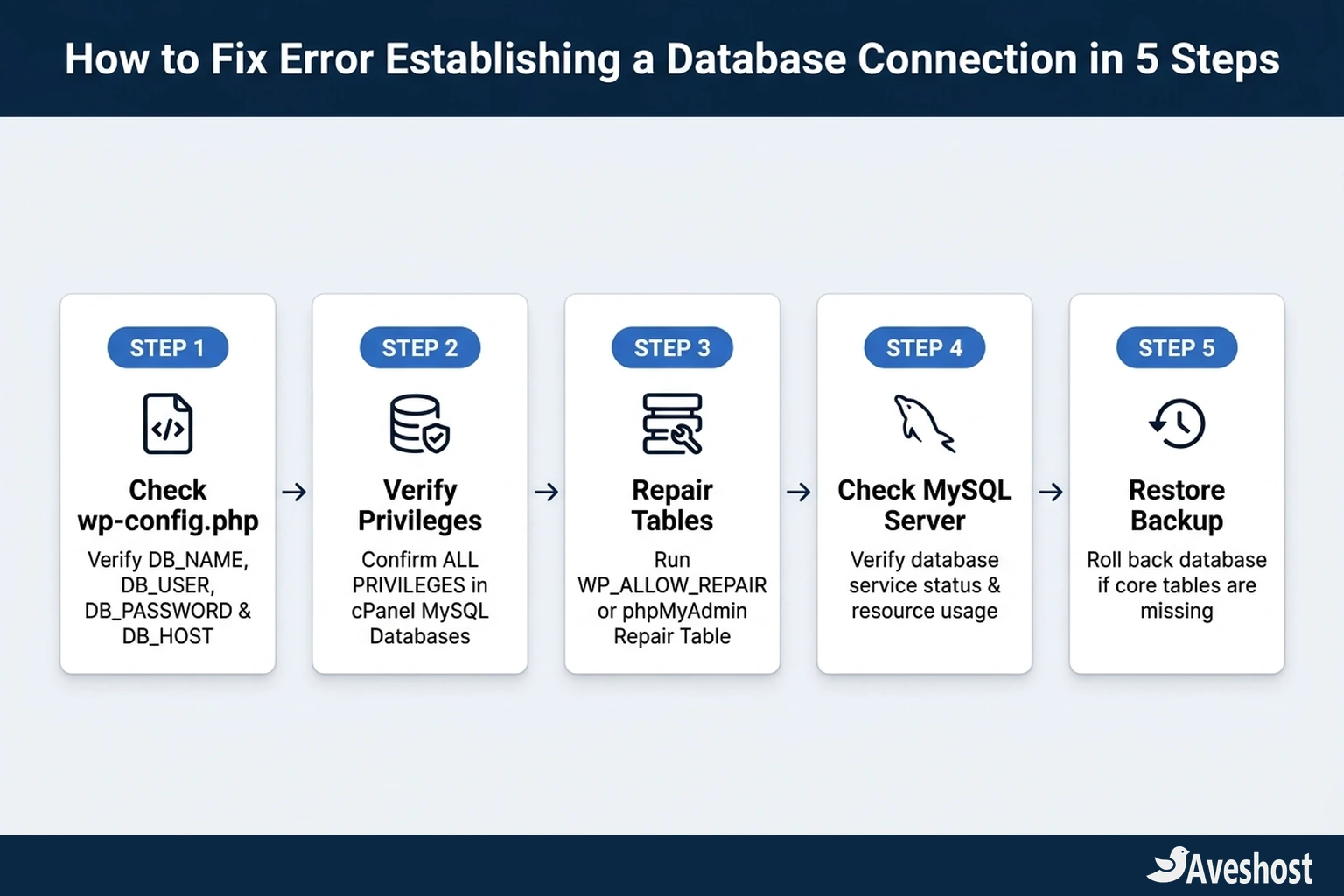
Step 4: Check Your Database Host (DB_HOST) and MySQL Server Status
On standard cPanel and DirectAdmin hosting—including Aveshost WordPress Hosting and Aveshost Shared Web Hosting—your MySQL database runs on the same physical machine as your web files, so DB_HOST in wp-config.php should be set to localhost. However, if you recently migrated your website from a provider that used an external database cluster (such as a custom hostname or IP address and port), leaving that old hostname in DB_HOST will cause Error Establishing a Database Connection.
If you manage your own Linux server on Aveshost Self-Managed VPS Hosting, a sudden traffic surge or an unindexed WooCommerce query can also cause the MySQL or MariaDB service to stop or hit its max_connections ceiling, resulting in an intermittent Error Establishing a Database Connection. Connect to your VPS via SSH and run sudo systemctl status mysql (or sudo systemctl status mariadb) to check whether the database daemon is active, and inspect df -h and free -m to make sure a full disk or out-of-memory killer event did not halt the database process.
Step 5: Restore a Recent Database Backup If Tables Are Missing
If you open phpMyAdmin and discover that core tables such as wp_options, wp_users, or wp_posts are completely missing—for example, after an accidental cleanup plugin run or a failed staging overwrite—table repair alone cannot clear Error Establishing a Database Connection or recreate deleted data.
In that situation, the cleanest recovery path is restoring a verified database backup from your hosting control panel (such as JetBackup in cPanel) or importing your latest .sql backup file inside phpMyAdmin. Always export a snapshot of the current broken database first before importing a backup so no recent records are lost.
Quick Troubleshooting Reference by Symptom
Not sure which step applies to what you see on screen when Error Establishing a Database Connection appears? Match your exact symptom in the table below to jump straight to the right fix:
| What You See on Screen | Most Likely Cause | Where to Fix It |
|---|---|---|
| Error appears immediately after migrating hosts or changing passwords | Mismatched DB_NAME, DB_USER, DB_PASSWORD, or DB_HOST | Edit wp-config.php and compare with cPanel → MySQL Databases |
| /wp-admin/ says 'One or more database tables are unavailable' | Corrupted wp_options or wp_posts table | Run WP_ALLOW_REPAIR at /wp-admin/maint/repair.php or phpMyAdmin Repair Table |
| Error happens only during peak traffic and disappears on refresh | MySQL max_connections limit or server RAM exhaustion | Enable page caching and upgrade hosting or VPS RAM |
| phpMyAdmin opens but shows zero tables inside the database | Incomplete SQL import or accidental table drop | Import your .sql backup in phpMyAdmin or restore via JetBackup |
How to Prevent Future Database Connection Errors on Your Website
Once your site is back online, a few preventative habits will keep Error Establishing a Database Connection from returning. First, avoid editing wp-config.php or resetting cPanel database passwords without updating both places simultaneously. Second, use page caching and object caching so repeat visitors do not trigger dozens of redundant SQL queries on every page view. Third, configure reliable WordPress admin email alerts—for example, by following our guide on how to use the Gmail SMTP server to send emails for free—and keep automated off-site backups active so you can roll back any failed plugin update in minutes.
If you want fast, stable database performance without worrying about manual server tuning, Aveshost WordPress Hosting, Aveshost Managed WordPress Hosting, and Aveshost Fully Managed VPS Hosting provide NVMe/SSD database storage, automated backups, and 24/7 engineering support. If your WordPress site is currently stuck on a database connection error and you want help resolving it quickly, reach out to our team via Aveshost Support.
Frequently asked questions
Why does WordPress say Error Establishing a Database Connection?
WordPress displays Error Establishing a Database Connection whenever PHP cannot connect to your MySQL or MariaDB database—most commonly due to an incorrect database name, username, password, or host in wp-config.php, missing database user privileges, corrupted tables, or an unresponsive database server.
Where is wp-config.php located in WordPress?
The wp-config.php file is located in the root directory of your WordPress installation (usually public_html in cPanel File Manager, right alongside the wp-admin, wp-content, and wp-includes folders).
What should DB_HOST be set to in wp-config.php?
On almost all cPanel, DirectAdmin, and standard Linux web hosting environments—including Aveshost—DB_HOST should be set to localhost. Only change it if your hosting provider specifically gives you an external MySQL hostname or custom port.
Is it safe to leave WP_ALLOW_REPAIR enabled in wp-config.php?
No. Because /wp-admin/maint/repair.php can be accessed by anyone without logging in, you must remove define( 'WP_ALLOW_REPAIR', true ); from wp-config.php immediately after repairing your tables.
Can a plugin or traffic spike cause Error Establishing a Database Connection?
Yes. Poorly coded plugins that run unindexed SQL queries on every page load—or a sudden surge of uncached traffic—can exhaust available MySQL connections or server memory, causing the database server to temporarily refuse new connections.