Docker and UFW need separate attention on a Linux VPS. A container published with 8080:80 can remain reachable even when UFW denies incoming port 8080. The most reliable first fix is to remove unnecessary host port mappings, bind host-only services to loopback, and filter any deliberately public Docker traffic at the correct layer.
Our recommended workflow is to inventory exposure, choose who should reach each service, change its mapping, and test from outside the VPS. A green “active” status in UFW is not proof that a container port is private.
This guide covers rootful Docker Engine with bridge networking on an Ubuntu VPS. Host networking, Swarm ingress, rootless Docker and routed container networks require their own review. Before changing firewall rules, keep your current SSH session open, confirm recovery-console access and preserve your existing configuration.
Table of Contents
1. Why Docker-published ports can bypass UFW
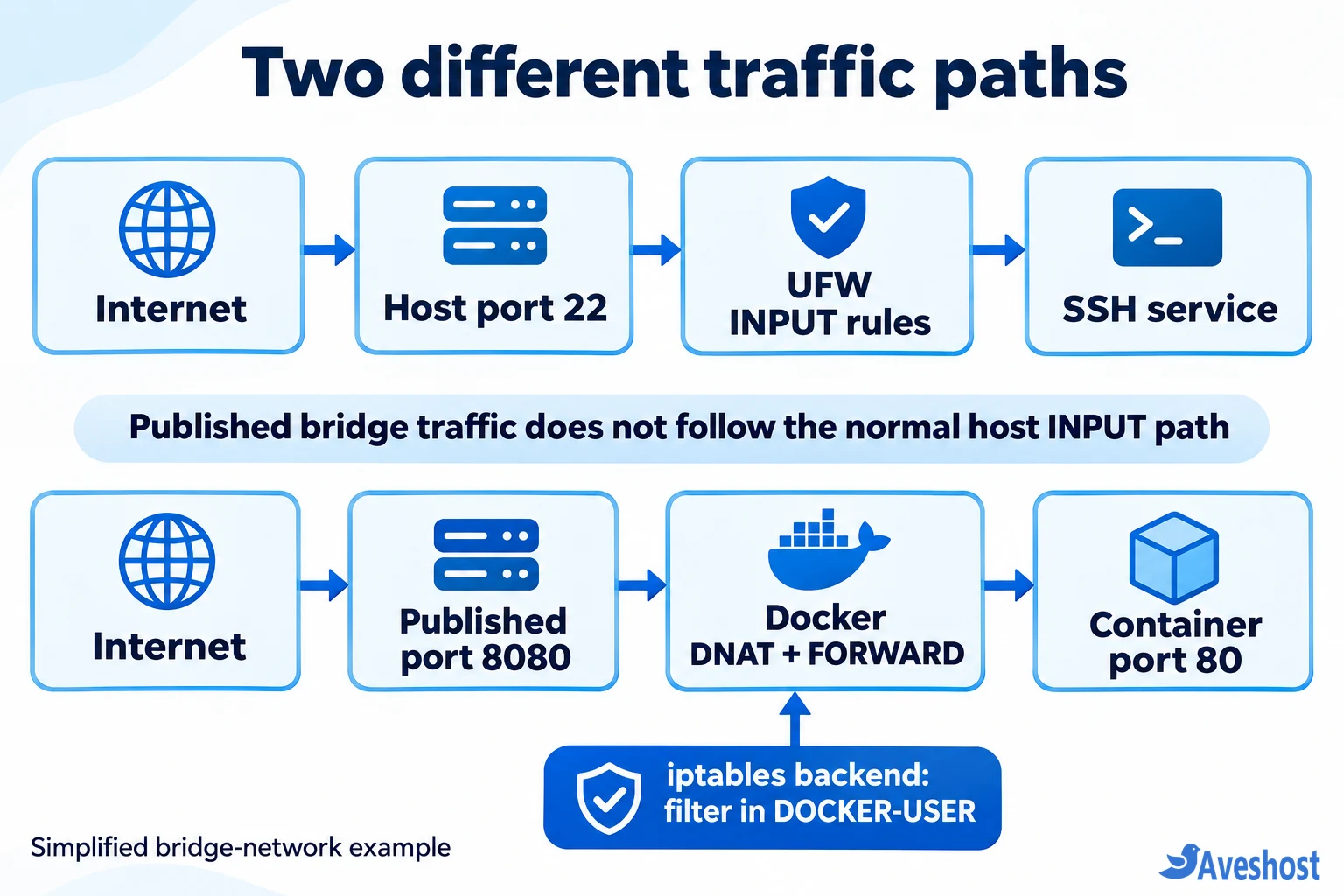
UFW commonly controls traffic addressed to services on the host through the INPUT path. Docker’s bridge port publishing uses destination NAT and forwarding rules. Container-bound packets can therefore take a different path before the usual host-service rules apply. Docker documents this UFW incompatibility.
For example, a host-installed SSH service on port 22 and a container mapped from host port 8080 to container port 80 need different checks. Adding ufw deny 8080/tcp does not establish that the Docker mapping is blocked.
Keep UFW for appropriate host-service policy. Review Docker exposure alongside it. Do not set Docker’s iptables or ip6tables options to false as a shortcut: this can break masquerading and container networking without delivering the intended protection.
2. Audit mappings, network mode and firewall backend
Start with read-only checks. Replace web with the container you are investigating:
sudo docker version
sudo docker ps --format 'table {{.Names}}	{{.Ports}}'
sudo docker port web
sudo docker inspect web --format '{{.HostConfig.NetworkMode}}'
sudo ufw status verbose
ip -br address
In docker ps, 0.0.0.0:8080->80/tcp indicates an IPv4 wildcard mapping; [::]:8080->80/tcp indicates an IPv6 wildcard mapping. A plain 80/tcp entry is an exposed container port, not by itself a host publication. The docker port command lists actual mappings.
Check the effective Compose configuration with sudo docker compose config from the project directory. Include the same override files and environment inputs used during deployment. Its rendered output can contain secrets; inspect it locally and redact it before sharing.
For backend diagnosis, inspect sudo systemctl cat docker and, if present, /etc/docker/daemon.json. Then inspect sudo iptables -S DOCKER-USER and, where available, sudo nft list ruleset. Do not infer Docker’s native backend solely from iptables --version: an nf_tables version string can mean the iptables compatibility frontend.
3. Decide which services actually need a public port
Build a short access list before editing anything. A website, its database and its administration screen rarely need identical reachability. Record the owner and intended clients for every published port.
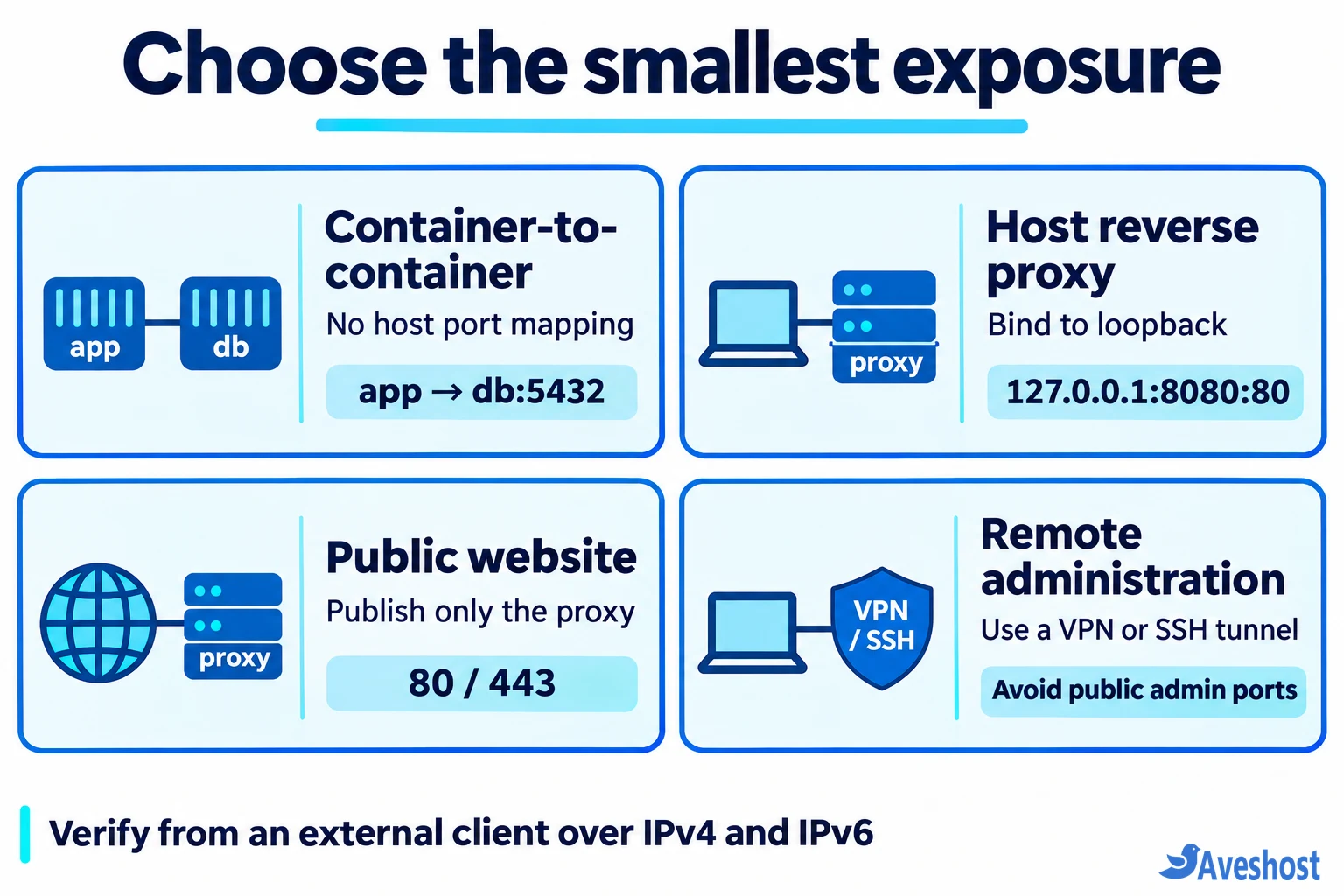
For container-to-container traffic, attach the services to an appropriate shared Docker network and use service names, such as db:5432. Remove the database’s host ports: mapping when no external client needs it. Compose networking provides service discovery; expose: is not a firewall or a host-port publication.
Limit shared-network membership too: removing a host mapping does not prevent peer containers on that network from reaching the service. Docker’s Compose networking reference describes network membership.
For remote maintenance, prefer an authenticated VPN or SSH tunnel instead of a public database or dashboard port. A deliberately public service still needs authentication, updates and application-level access controls.
| Client | Suitable arrangement | Public host mapping |
|---|---|---|
| Another container | Shared network; service-name connection | Usually none |
| Reverse proxy installed on host | Backend bound to loopback | Backend stays local |
| Visitors to a website | Public proxy with private backends | Only required web ports |
| Administrator | VPN or SSH tunnel | Avoid direct public admin port |
4. Bind host-only services to loopback
If a reverse proxy installed directly on the VPS needs to reach a container, change the mapping from 8080:80 to 127.0.0.1:8080:80. Merge this fragment into the existing service, preserving its image, volumes, environment and other settings:
services:
  app:
    ports:
      - "127.0.0.1:8080:80"
Point the host proxy at http://127.0.0.1:8080. The application inside the container normally still listens on its container interface, often 0.0.0.0:80. Binding the host side and binding inside the container are different settings.
If the reverse proxy is also a container, its 127.0.0.1 refers to itself. Put proxy and application on a suitable shared network, use an upstream such as app:80, and remove the application’s host mapping.
Without a host address, published mappings normally bind all host addresses. Review IPv6 mappings separately. Docker also warns that releases older than 28.0.0 have a same-L2 reachability issue for localhost-published ports; upgrade before relying on that boundary. See Docker’s port-publishing documentation.
For a temporary SSH tunnel, run this on your workstation, replacing the username and VPS address:
ssh -N -L 127.0.0.1:18080:127.0.0.1:8080 user@VPS_ADDRESSThen visit http://127.0.0.1:18080 locally. The SSH account must be permitted to forward connections. This example follows the OpenSSH local-forwarding syntax; the tunnel ends when that SSH connection ends.
5. Apply Compose changes without losing persistent data
Before recreation, verify backups and persistent mounts. Files stored only in a container’s writable layer can be lost when it is replaced. Arrange a maintenance window for services that cannot tolerate interruption.
Check the merged configuration for both the intended loopback mapping and any old wildcard mapping. Compose override files or a deployment platform can reintroduce ports. Edit the configuration that actually owns the deployment.
sudo docker compose config
sudo docker compose up -d --no-deps app
sudo docker compose ps
sudo docker port YOUR_APP_CONTAINER
Replace the service and container names with your own. compose up recreates a service when its configuration changes; a plain restart does not apply a changed port mapping. See the Compose up reference.
Check the website, health endpoint and database connection immediately. If rollback is needed, restore the reviewed configuration and redeploy that service. Do not use docker compose down -v for a port change; deleting volumes is unnecessary and can destroy persistent data.
6. Use DOCKER-USER for deliberate iptables filtering
For Docker’s iptables backend, user restrictions belong in DOCKER-USER, before Docker’s forwarding decisions. DNAT has already happened there, so matching the original published host port requires conntrack. Its use can add processing overhead. Follow Docker’s iptables guidance.
Here is a narrow IPv4/TCP example for a standard VPS that is not routing unrelated networks. It drops traffic entering ens3 to original destination port 8080 unless its source is 198.51.100.10. Replace the interface and documentation-only source address first; it covers that port on all destination addresses reached through the interface:
sudo iptables -I DOCKER-USER 1 -i ens3 -p tcp ! -s 198.51.100.10/32 -m conntrack --ctdir ORIGINAL --ctorigdstport 8080 -j DROPThe permitted source continues through existing rules; this does not override other restrictions. ORIGINAL direction avoids dropping return packets for container-initiated connections. Inspect rule counters and test with fresh connections from permitted and denied clients:
sudo iptables -vnL DOCKER-USER --line-numbersTo remove exactly the example rule, use the same arguments with -D:
sudo iptables -D DOCKER-USER -i ens3 -p tcp ! -s 198.51.100.10/32 -m conntrack --ctdir ORIGINAL --ctorigdstport 8080 -j DROPThis rule covers neither UDP nor IPv6. Before relying on it, review those paths and your existing rule order. Make persistence explicit using your firewall-management process, ensure the chain exists before restoring the rule, and test after Docker restarts and a reboot. Do not flush Docker’s chains.
7. Treat native nftables and host networking separately
Docker’s native nftables backend has no DOCKER-USER chain. Custom filtering belongs in separate tables and base chains at suitable hook priorities; do not edit Docker-owned tables. Docker describes support introduced in Engine 29.0.0 as experimental at the time of writing. Consult its nftables documentation for the installed release.
A chain left over from a previous iptables configuration does not prove it will keep protecting traffic after a backend switch or reboot. Do not switch backends merely to make a copied command run. Use loopback or remove publication while a qualified administrator designs the required rules.
With network_mode: host, containers share the host network namespace and port-publishing settings do not provide isolation. Audit application listeners and host firewall policy directly; see the host-network driver documentation. If a service unexpectedly uses host mode, changing its ports: list will not solve the exposure.
8. Verify Docker and UFW from outside the VPS
From an external workstation you control, test the VPS’s actual IPv4 and IPv6 addresses. For the example TCP port, using OpenBSD-style netcat:
nc -4 -vz -w 3 VPS_IPV4 8080
nc -6 -vz -w 3 VPS_IPV6 8080
A private backend should fail externally while its intended local proxy or tunnel still works. For a source allowlist, test from both permitted and denied networks. Test public HTTPS and open a second SSH session before closing the first. A test from the VPS itself does not exercise the same incoming path.
A timeout alone cannot identify which layer blocked traffic. Compare mapping output, rule counters and application health; upstream firewalls can mask a host misconfiguration. Repeat after redeployment, firewall reload, Docker restart and a planned reboot. Review UDP services separately rather than treating a TCP result as proof.
Keep UFW’s host rules aligned with the services you intentionally run, using the Ubuntu firewall guide. If an upstream VPS firewall is available, use it as another layer, with separate IPv4 and IPv6 policy.
For a deployment you maintain yourself, explore our self-managed VPS hosting. If you need help reviewing an Aveshost server, contact our support team with redacted port mappings and the intended access list. Our Docker storage troubleshooting guide covers another common VPS maintenance problem.
Frequently asked questions
Does ufw deny 8080 guarantee a Docker container is blocked?
No. A bridge-network published port can take Docker’s forwarding path instead of the host INPUT path. Remove or narrow the mapping, or apply backend-appropriate filtering, then verify externally.
Does EXPOSE in a Dockerfile publish a public port?
EXPOSE documents intended container ports. Host publication is a separate operation. Audit explicit publish flags, publish-all flags, Compose ports and deployment-platform settings.
Can another container reach a service bound to host loopback?
A host loopback binding restricts that host publication. Peer containers sharing the application network may still reach its container port directly. Control network membership and application authentication too.
Should I disable Docker iptables integration to fix UFW?
That is not a general fix. Docker relies on generated networking rules, and disabling them requires a complete replacement design. Prefer reducing published ports and applying filtering for the active backend.
Why can I still reach the old port after editing Compose?
Check whether the container was recreated, whether an override file retained the mapping, and whether another container or host process owns the port. Compare the rendered configuration with actual mappings and repeat an external test.