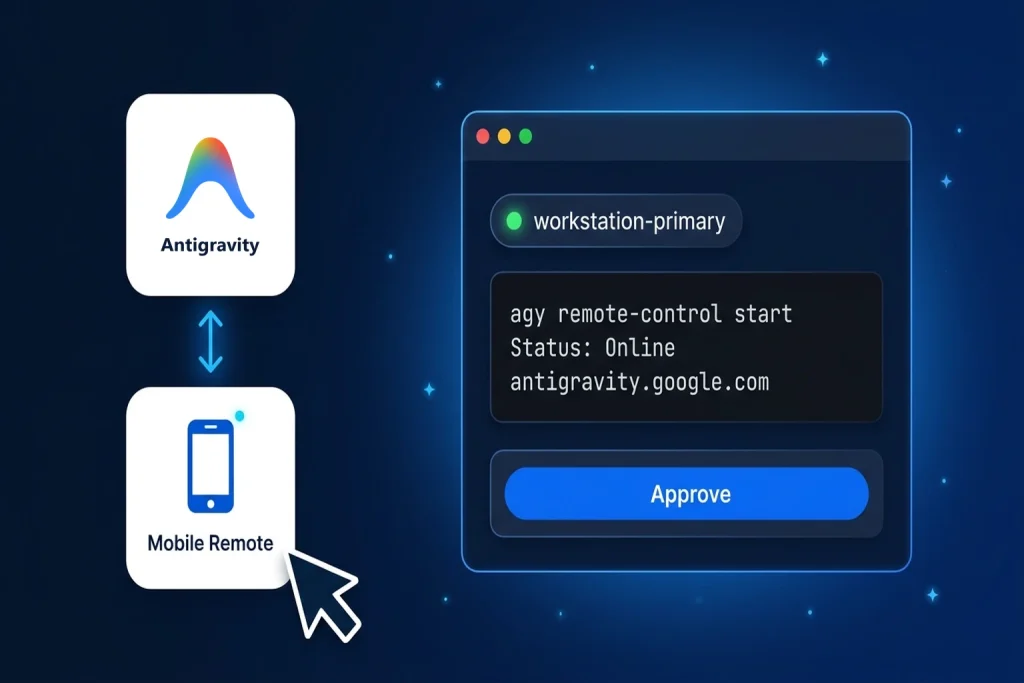
Completing an Antigravity remote mobile setup lets you monitor long-running AI coding agents, inspect live code diffs, answer clarifying questions, and approve terminal commands directly from your iPhone or Android phone while your desktop workstation or Linux server does the heavy lifting.
With Google Antigravity’s built-in Remote Control architecture, you do not need to configure router port forwarding, dynamic DNS, or complex SSH tunnels on your phone. Instead, your host machine establishes an outbound, Google-authenticated reverse tunnel that streams your active workspaces directly to the web dashboard at antigravity.google.com.
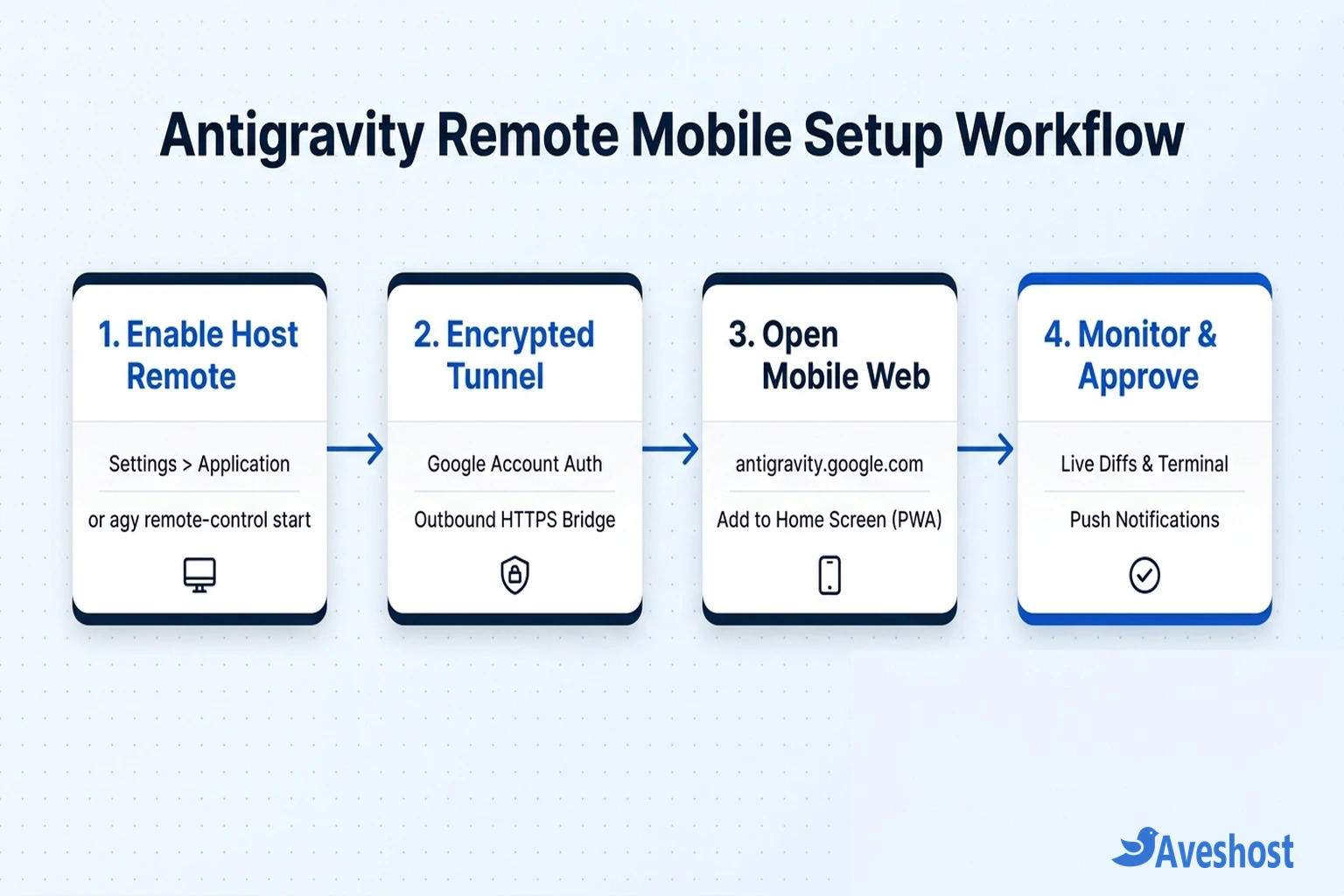
Key Takeaways: Enable Remote Control inside the Antigravity App under Settings → Application → Enable Remote Control (or run agy remote-control start in the terminal), sign in to antigravity.google.com on your mobile browser with the same Google Account, and install the dashboard to your phone’s home screen as a Progressive Web App (PWA) so you receive instant push notifications whenever an agent finishes a task or pauses for permission.
Table of Contents
How Google Antigravity Remote Mobile Access Works
As AI development agents take on multi-file refactors, end-to-end test suites, and dependency migrations, a single task can run for ten to thirty minutes. If you are already using Antigravity as your primary agent-first platform (see our comparison of Google Antigravity vs Cursor), stepping away from your desk used to mean leaving an agent stalled at a command-approval prompt until you returned.
Antigravity solves this by providing two distinct remote architectures: Remote Control (which connects your mobile browser directly to your own desktop workstation, laptop, or VPS) and Remote Agents (which runs tasks inside an isolated, Google-managed cloud virtual machine). Understanding the difference between these modes ensures you pick the right setup for your project.
| Feature | Desktop App Remote Control | CLI Headless Daemon (agy remote-control) | Cloud Remote Agents (agy –remote-agent) |
|---|---|---|---|
| Where Code & Tools Execute | Your local PC or Mac desktop app | Your local workstation or Linux VPS | Isolated Google-managed cloud VM |
| Host Power Requirement | Desktop must stay awake and online | Host machine or VPS must stay powered on | None (runs even if your laptop is off) |
| Access to Local Files & Dev Servers | Full access to local folders, Docker, and MCP | Full access to local filesystem and Git worktrees | Cloud resources only (GitHub repos & Drive files) |
| Survives Terminal Closure / Reboot | Runs while Antigravity App is open/backgrounded | Yes (starts automatically as an OS service) | Yes (persists in Google Cloud workspace) |
| Best Mobile Use Case | Monitoring active desktop UI projects on the go | 24/7 mobile access to a workstation or Linux VPS | Quick GitHub repo tasks without a running host |
Prerequisites Before You Start
Before pairing your smartphone with your coding environment, verify these four quick requirements so your connection registers cleanly on the first try:
1. Up-to-date Google Antigravity App or CLI: Install the latest version of the Antigravity desktop application or update the command-line tool by running agy update in your terminal.
2. A single shared Google Account: Remote Control authenticates sessions using zero-config Google Account identity rather than manual IP addresses or static passwords. You must sign in with the exact same Google Account on both your host machine and your mobile browser.
3. Active host power settings: If you are hosting sessions from a Windows PC or MacBook rather than an always-on Linux VPS, enable Keep computer awake and Run in background inside your Antigravity App settings so your operating system does not suspend network sockets when the screen dims.
4. Modern mobile browser (Safari or Chrome): Use Safari on iOS/iPadOS or Google Chrome on Android so you can install the Remote Control dashboard to your home screen with full Web Push notification support.
Step 1: Enable Remote Control in the Antigravity Desktop App
If you primarily work inside the graphical Antigravity 2.0 desktop application, turning on mobile access takes less than a minute from the built-in Settings panel:
1. Open Application Settings: Launch the Antigravity App on your computer and press Ctrl + , on Windows/Linux or Cmd + , on macOS (or click Settings at the bottom of the left-hand sidebar).
2. Toggle Enable Remote Control: Navigate to the Application section and switch Enable Remote Control to On.
3. Set a recognizable Device Name: In the Device Name field right below the toggle, enter a clear identifier such as workstation-primary, macbook-pro, or aveshost-vps. When you open the mobile instance switcher on your phone, this name makes it effortless to distinguish your machines.
4. Enable background wake locks: While in the Application settings panel, confirm that Keep computer awake and Run in background are enabled. This prevents your workstation from dropping its outbound connection while an agent is mid-way through a long build or browser test.
Step 2: Connect Your Phone and Install the Mobile Web App (PWA)
Once Remote Control is toggled on, your workstation immediately registers with the Antigravity Remote Control Dashboard. You do not need to install a third-party wrapper from an app store; instead, Antigravity delivers a native-feeling mobile interface and push alerts through its official Progressive Web App (PWA):
1. Open the Remote Control Dashboard on your phone: Open Safari (iPhone) or Chrome (Android) and navigate to https://antigravity.google.com.
2. Sign in and select your host machine: Log in with the same Google Account used on your desktop. Tap the Instance Switcher in the top navigation bar and select the Device Name you configured in Step 1 (for example, workstation-primary).
3. Install the app to your mobile home screen: On iPhone (Safari), tap the Share icon at the bottom of the browser, scroll down, tap Add to Home Screen, and tap Add. On Android (Chrome), tap the three-dot menu in the top-right corner and select Install app (or Add to Home screen).
4. Allow push notifications: Launch the newly added Antigravity icon directly from your phone’s home screen and grant notification permissions when prompted. Now, whenever an agent completes a task, hits a test failure, or requests tool approval, your phone receives an actionable push alert.
Step 3: Set Up Antigravity CLI Remote Control (Interactive & Headless Daemon)
If you prefer working in the terminal with the Antigravity CLI (agy) or running agents on a remote Linux server, the CLI offers two flexible ways to connect your phone: Interactive Mode for single terminal sessions and the Headless Background Daemon for 24/7 machine access.
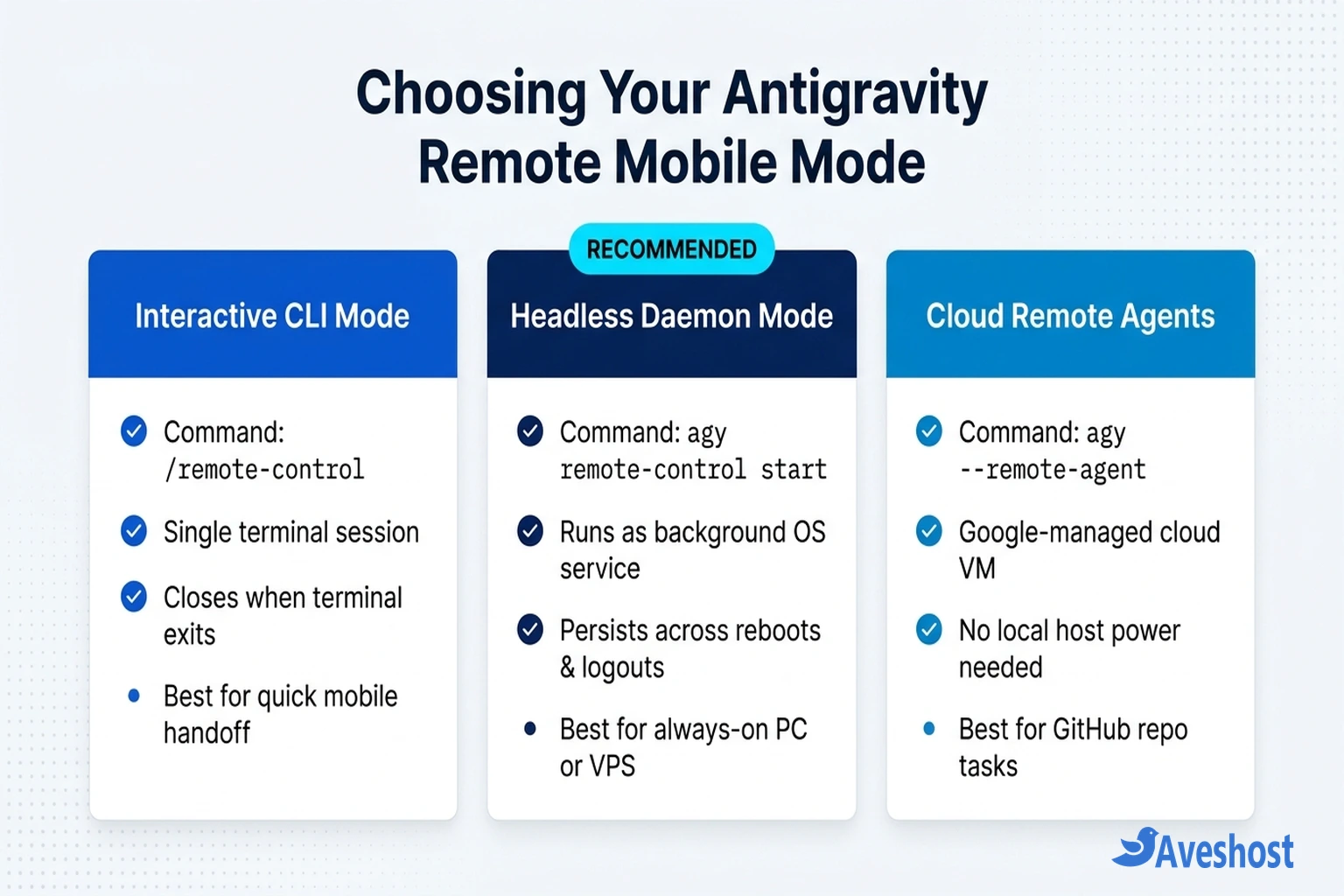
Option A — Interactive Session Handoff (/remote-control): When you are already mid-conversation inside an agy terminal session and need to step away from your desk, type /remote-control directly into the prompt box (or launch a new session with agy --remote-control). The CLI immediately opens a reverse tunnel and prints a direct mobile handoff link:
# Inside an active agy terminal session, enable Remote Control:
/remote-control

# Output:
Remote control on for this session. Hostname: devbox-swift-falcon
Open https://antigravity.google.com/r/<instance-id>?p=c%2F<conversation-id> on another device to continue this conversation.

#Or launch a brand-new CLI session with Remote Control active:
agy --remote-control

# Disconnect the remote tunnel when finished:
/remote-control off
Opening that link on your phone drops you straight into the live conversation with real-time bidirectional sync—every prompt or tool confirmation (y/n) you tap on your phone streams live into your terminal, and closing the terminal (or typing /remote-control off) cleanly closes the tunnel.
Option B — Always-On Headless Background Daemon (agy remote-control start): If you want your workstation or server to stay reachable from your phone at all times without leaving a terminal window open, register the native background service:
# Register and start the always-on headless background daemon:
agy remote-control start --name "workstation-primary"

# Verify that the daemon is running and check its instance name:
agy remote-control status

# Stop and unregister the background daemon if needed:
agy remote-control stop
When you run agy remote-control start, Antigravity registers an operating-system service—a systemd user service on Linux, a LaunchAgent on macOS, or a Scheduled Task on Windows—that automatically restarts after crashes and reboots. On Windows, open PowerShell as Administrator before running agy remote-control start if you want the daemon to start automatically at system boot before any user logs in.
| Aspect | Interactive CLI (/remote-control) | Headless Daemon (agy remote-control start) |
|---|---|---|
| Session Scope | Single open terminal window | Entire machine (background OS service) |
| Lifecycle | Disconnects as soon as the terminal closes | Persists across logouts and system reboots |
| Machine Naming | Auto-generated per session (e.g., devbox-swift-falcon) | Custom persistent name via –name flag or config.json |
| Concurrent Sessions | Multiple terminal tabs can run simultaneously | One persistent daemon service per machine |
| Mobile Entry Point | Direct conversation URL or instance switcher | Instance switcher on antigravity.google.com |
Pro Tip: Run an Always-On Antigravity Mobile Host on a Linux VPS
The biggest practical limitation of running Remote Control on a laptop is physical power: the moment you close your laptop lid on a commute or your home internet drops, your mobile dashboard loses contact with the host machine.
You can eliminate that dependency completely by installing the Antigravity CLI and its headless daemon on an Aveshost Self-Managed Linux VPS. Because a cloud VPS runs 24/7 on enterprise power and high-speed networking, registering agy remote-control start --name "aveshost-cloud-dev" turns your VPS into a permanent, pocket-accessible AI engineering workstation.
Even better, unlike cloud-only sandboxes that reset after every task, an Antigravity daemon on your own VPS retains your persistent Docker containers, local staging databases, custom Model Context Protocol (MCP) servers, and SSH deploy keys—allowing you to review code, run tests, and deploy production fixes straight from your smartphone anywhere in the world.
Troubleshooting Common Antigravity Mobile Connection Issues
If your host machine does not appear in your mobile browser or disconnects unexpectedly, run through these targeted fixes from the official Antigravity troubleshooting documentation:
1. Machine does not appear in the mobile Instance Switcher: Verify that your host computer is awake, connected to the internet, and signed in to the exact same Google Account as your phone. For headless CLI setups, run agy remote-control status on the host; if it reports an authentication expiry, run agy interactively once to refresh your sign-in, then run agy remote-control start.
2. Two similar machine names appear in the dashboard: This is normal when you enable Remote Control in both the Antigravity App editor and the CLI headless daemon on the same computer. They use separate keys in ~/.gemini/config/config.json (remoteControlHostname for the desktop editor and cliRemoteControlHostname for the CLI daemon). Rename one of them using agy remote-control start --name "my-cli-daemon" to tell them apart.
3. Interactive session disappears when you switch apps: Interactive tunnels started with /remote-control or agy --remote-control terminate immediately when the terminal process exits (/exit or Ctrl + C). Switch to agy remote-control start if you want the machine to stay online when no terminal window is open.
4. Inspecting background daemon logs: If a headless service fails to connect, check the daemon log for your operating system to pinpoint network or account policy blocks:
# Linux (systemd user service logs):
journalctl --user -u antigravity-cli-daemon -n 50

# macOS (LaunchAgent log file):
cat ~/Library/Logs/antigravity-cli-daemon.log

# Windows (PowerShell - view newest CLI daemon log):
Get-ChildItem "$env:USERPROFILE\.gemini\antigravity-cli\log\cli-*.log" | Sort-Object LastWriteTime -Descending | Select-Object -First 1 | Get-Content -Tail 50
Frequently asked questions
Is there an official Google Antigravity mobile app on the App Store or Google Play?
Google Antigravity uses an official Progressive Web App (PWA) at antigravity.google.com rather than a separate native app store download. By opening antigravity.google.com in Safari (iOS) or Chrome (Android) and selecting Add to Home Screen or Install app, you get a standalone full-screen mobile app with native push notifications.
Does my computer need to stay turned on for Antigravity Remote Control to work?
Yes. Because Antigravity Remote Control executes code, terminal commands, and local dev servers directly on your host machine, your computer (or Linux VPS) must remain powered on, awake, and connected to the internet. If you need agents to run while your laptop is turned off and you do not have a VPS, use Remote Agents (agy --remote-agent) on an eligible Google AI Pro or Ultra plan.
Do I need to open firewall ports or set up port forwarding on my router?
No. Both the Antigravity App and the agy CLI establish an outbound encrypted reverse tunnel to Google’s relay infrastructure authenticated by your Google Account. You never have to expose inbound ports on your home router or VPS firewall.
How do I approve terminal commands and review code diffs from my phone?
When an agent pauses for a tool execution confirmation or finishes an implementation plan, it sends a push notification to your mobile PWA. Tapping the alert opens the live conversation thread where you can inspect syntax-highlighted file diffs, answer multiple-choice questions, or tap Approve / Reject in real time.
What is the difference between /remote-control and agy remote-control start?
Typing /remote-control inside an active CLI session opens a temporary tunnel for that single terminal window and closes as soon as you exit the CLI. Running agy remote-control start installs a persistent background OS daemon that starts automatically at login or boot and keeps your machine accessible from your phone 24/7.