

If you’ve ever tried to open a website and been greeted by the DNS_PROBE_FINISHED_NXDOMAIN error, you know how frustrating it can be. One minute everything works fine, the next your browser says the site doesn’t exist. 😤
The good news? 10 easy ways to fix it
This error is very common, and in most cases, easy to fix — even if you’re not a developer or system administrator.
Table of Contents
In this comprehensive, beginner-friendly guide, we’ll explain:
- What the DNS_PROBE_FINISHED_NXDOMAIN error means
- Why it happens
- And step-by-step solutions you can follow to fix it on Windows, macOS, Linux, Android, iPhone, and even on servers
Let’s dive in.
What in the World is DNS_PROBE_FINISHED_NXDOMAIN Anyway?
Let’s start by demystifying that mouthful of an error message.
- DNS (Domain Name System): Think of DNS as the internet’s phonebook. When you type a website address like “https://www.google.com/url?sa=E&source=gmail&q=google.com” into your browser, your computer doesn’t instantly know where to find Google. Instead, it asks a DNS server to translate that human-friendly domain name into a computer-readable IP address (a string of numbers like 172.217.160.142). This IP address is the actual location of the website on the internet.
- PROBE_FINISHED: This part simply means your browser tried to “probe” or look up the DNS information, and it finished its attempt.
- NXDOMAIN (Non-Existent Domain): This is the crucial part. “NXDOMAIN” tells you that the DNS server couldn’t find an IP address for the domain name you tried to visit. In simpler terms, the phonebook couldn’t find a listing for the number you dialed.
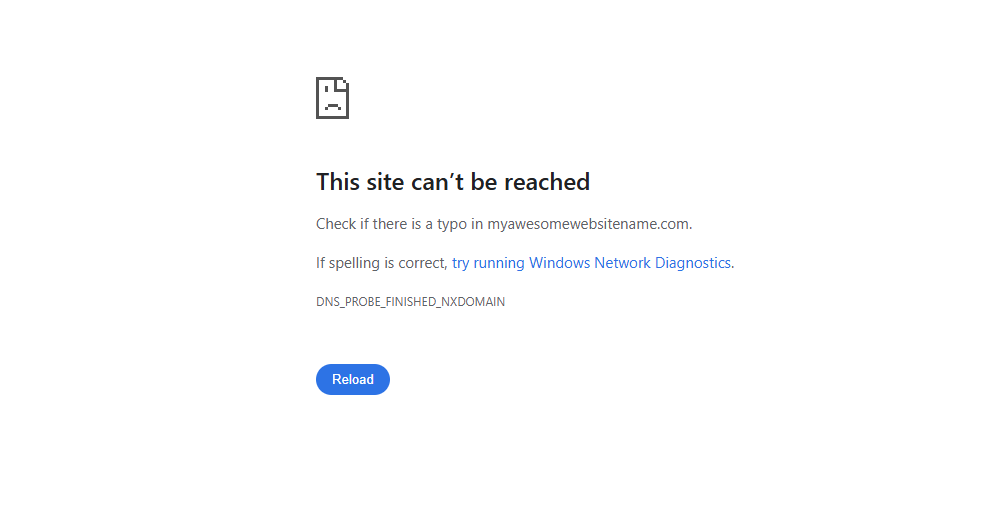
So, when you see “DNS_PROBE_FINISHED_NXDOMAIN,” it means your browser tried to find the website’s IP address, but the DNS server reported that the domain name either doesn’t exist or couldn’t be found.
In simple terms:
Your browser asked the DNS system, “Where is this website?”
And the DNS replied, “I don’t know this domain.”
Here’s what that might look like in your browser:
Common Causes of the DNS_PROBE_FINISHED_NXDOMAIN Error
Before we dive into the solutions, let’s understand some of the most common culprits behind this error:
- Domain name doesn’t exist or expired: The domain you’re trying to visit is not registered, has been deleted, or has expired. When DNS can’t find a valid domain record, it returns an NXDOMAIN error.
- DNS propagation delay (new domains): When a domain is newly registered or its DNS records are updated, it can take up to 24–48 hours for changes to propagate worldwide, during which NXDOMAIN errors may appear.
- Typo in the website URL: A small spelling mistake—such as an extra letter, missing dot, or wrong extension (.com instead of .net)—can cause DNS to look for a domain that doesn’t exist.
- DNS cache corruption: Your device stores DNS records to speed up browsing. If these cached records become outdated or corrupted, your system may try to reach an invalid IP address.
- Wrong nameservers: The domain may be pointing to incorrect, missing, or inactive nameservers. When nameservers are wrong, DNS cannot locate the domain’s records, leading to an NXDOMAIN response.
- Wrong DNS server configuration: If your device or network is using incorrect or unreachable DNS servers, domain name lookups will fail, resulting in the NXDOMAIN error.
- Internet connection or router issues: Temporary network problems, misconfigured routers, or unstable connections can prevent DNS requests from reaching DNS servers properly.
- VPN or firewall interference: VPNs, proxies, or firewall software may block or reroute DNS requests, causing the browser to fail when resolving domain names.
- Incorrect hosts file entry: The hosts file can override normal DNS behavior. If a domain is incorrectly mapped or blocked in this file, it will not resolve correctly.
- ISP DNS problems: Sometimes the issue isn’t on your device at all. Your Internet Service Provider’s DNS servers may be down, slow, or outdated, causing resolution failures.
Now that we know what we’re up against, let’s get to the good stuff – fixing it!
Step-by-Step Guide to Fixing DNS_PROBE_FINISHED_NXDOMAIN
We’ll start with the simplest solutions and move to more advanced ones. Work your way down the list until you find a fix that works for you.
Solution 1: Double-Check the URL
Seriously, do it! This is often the quickest fix. Even experienced users make typos.
- Action: Carefully re-type the URL in your browser. Pay attention to every letter, dot, and slash.
- Example: Did you type
goggle.cominstead ofgoogle.com? Orfacebookk.cominstead offacebook.com?
If a typo was the culprit, congratulations! You’ve just saved yourself a lot of troubleshooting. If not, let’s move on.
Solution 2: Check If the Domain Actually Exists
Sometimes the domain:
- Has expired
- Was deleted
- Was never registered
You can check this by:
- Using WHOIS lookup tool
- Asking the hosting provider
If the domain doesn’t exist, DNS_PROBE_FINISHED_NXDOMAIN is expected behavior.
Solution 3: Clear Your Browser’s Cache and Cookies
Your browser stores a lot of temporary data to make websites load faster. Sometimes, this data can become corrupted and lead to errors.
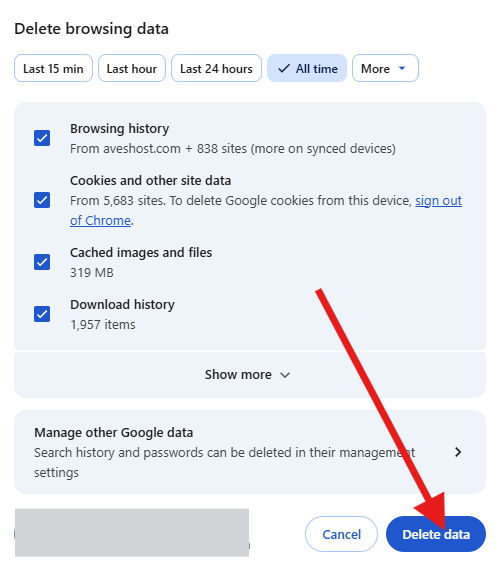
For Google Chrome:
- Click the three vertical dots (menu icon) in the top-right corner.
- Click Delete browsing data…
- In the pop-up window, select a Time range (e.g., “All time”).
- Make sure “Cookies and other site data” and “Cached images and files” are checked.
- Click Delete data.
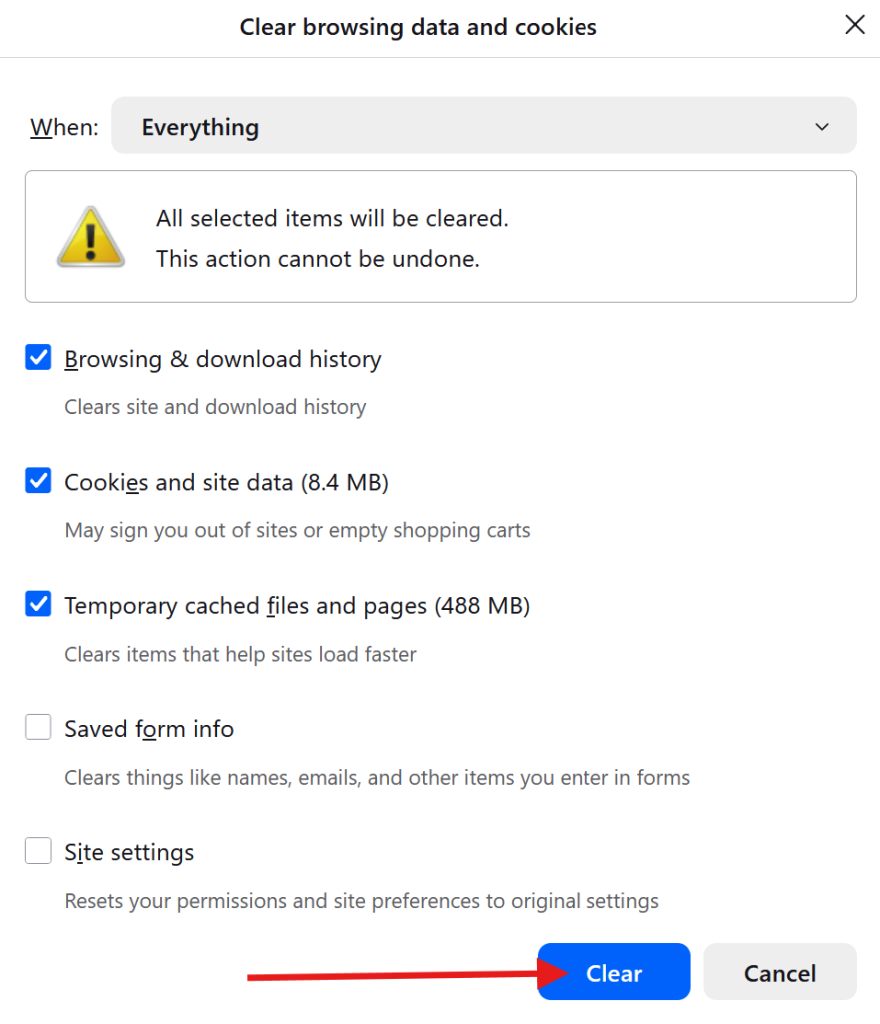
For Mozilla Firefox:
- Click the three horizontal lines (menu icon) in the top-right corner.
- Go to Settings > Privacy & Security.
- Scroll down to the “Cookies and Site Data” section and click Clear browsing data.
- Make sure both “Cookies and Site Data” and “Temporary cached files and pages” are checked.
- Click Clear.
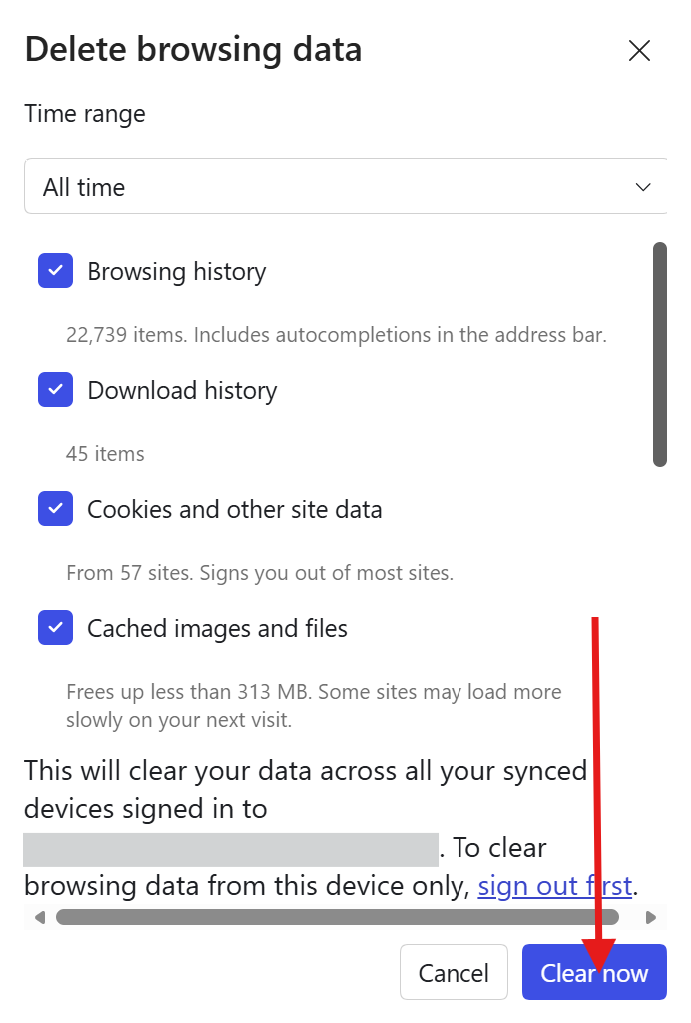
For Microsoft Edge:
- Click the three horizontal dots (menu icon) in the top-right corner.
- Go to Settings > Privacy, search, and services.
- Under “Clear browsing data,” click Choose what to clear.
- Select a Time range.
- Make sure “Cookies and other site data” and “Cached images and files” are checked.
- Click Clear now.
For Barve:
- Click the three horizontal lines (menu icon) in the top-right corner.
- Click Delete browsing data…
- In the pop-up window, select a Time range (e.g., “All time”).
- Make sure “Cookies and other site data” and “Cached images and files” are checked.
- Click Delete data.
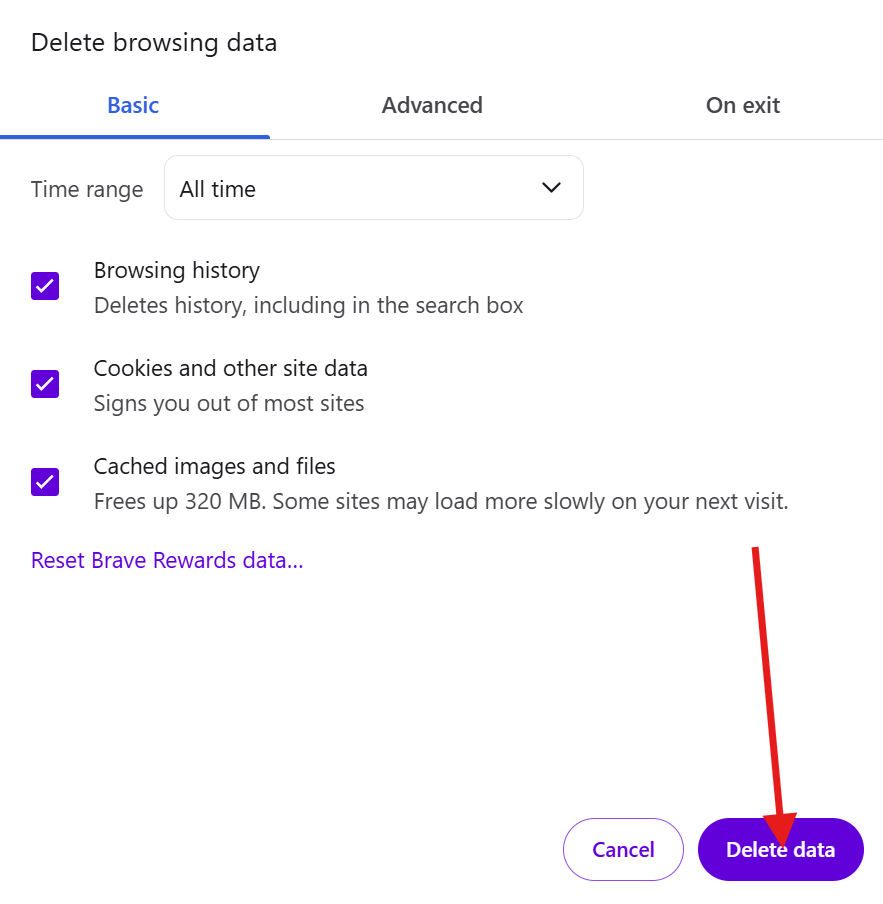
After clearing, restart your browser and try accessing the website again.
Solution 4: Flush Your DNS Cache
Just like your browser, your operating system also maintains a DNS cache. Flushing it forces your computer to request fresh DNS information, which can resolve outdated or corrupted entries.
For Windows:
- Press the Windows key + R to open the Run dialog.
- Type
cmdand press Ctrl + Shift + Enter to open Command Prompt as an administrator. (Say “Yes” if User Account Control asks for permission). - In the Command Prompt window, type the following command and press Enter:
ipconfig /flushdns - You should see a message confirming “Successfully flushed the DNS Resolver Cache.”
- Next, type these commands, pressing Enter after each one, to renew your IP address and register new DNS settings:
ipconfig /registerdns
ipconfig /release
ipconfig /renew - Close the Command Prompt and try the website again.
For macOS:
- Open Terminal (Applications > Utilities > Terminal, or search for it with Spotlight – Command + Spacebar).
- The command to flush DNS varies slightly depending on your macOS version:
macOS Big Sur, Monterey, Ventura, Sonoma:
sudo dscacheutil -flushcache;
sudo killall -HUP mDNSResponder
macOS Catalina, Mojave, High Sierra:
sudo killall -HUP mDNSRespondermacOS Sierra, El Capitan, Yosemite:
sudo discoveryutil udnsflushcaches;
sudo discoveryutil mdnsflushcaches- You’ll be prompted to enter your administrator password. Type it (you won’t see characters appear) and press Enter.
- Close Terminal and test the website.
Suggested Reading: How to Flush DNS Cache on Windows, Mac, Linux & Browsers
Solution 5: Restart Your Router/Modem
Sometimes, your networking equipment just needs a good old-fashioned reboot. This can clear any temporary glitches or outdated DNS information stored by your router.
- Action: Unplug your router and modem from the power outlet.
- Wait for at least 30 seconds.
- Plug your modem back in first, and wait until its indicator lights are stable (usually 1-2 minutes).
- Then, plug your router back in and wait until its lights are stable.
- Once everything is powered up and connected, try accessing the website again.
Solution 6: Change Your DNS Servers
If your ISP’s DNS servers are having issues, switching to a different, reliable DNS server can often resolve the “NXDOMAIN” error. Popular public DNS servers include Google DNS and Cloudflare DNS.
For Windows:
- Right-click the Start button and select Network Connections.
- Under “Advanced network settings,” click More network adapter options.
- Right-click on your active network adapter (e.g., “Ethernet” for wired, “Wi-Fi” for wireless) and select Properties.
- In the Properties window, select Internet Protocol Version 4 (TCP/IPv4) and click Properties.
- Select “Use the following DNS server addresses.”
- Enter the Preferred and Alternate DNS server addresses:
Google Public DNS:
Preferred: 8.8.8.8
Alternate: 8.8.4.4
Cloudflare DNS:
Preferred: 1.1.1.1
Alternate: 1.0.0.1- Click OK on both windows to save the changes.
- Restart your browser and try the website.

For macOS:
- Go to System Settings (or System Preferences on older macOS versions).
- Click Network.
- Select your active network connection (e.g., Wi-Fi or Ethernet) from the left sidebar and click Details (or Advanced on older macOS).
- Go to the DNS tab.
- Click the + button to add new DNS servers.
- Enter the Preferred and Alternate DNS server addresses (e.g.,
8.8.8.8and8.8.4.4for Google DNS, or1.1.1.1and1.0.0.1for Cloudflare DNS). - Click OK or Apply to save the changes.
- Restart your browser and check the website.
Solution 7: Check Your Windows Hosts File
The ‘hosts’ file is a local plain text file that maps hostnames to IP addresses. It’s often used by developers to test websites locally. If it contains incorrect or malicious entries, it can prevent you from accessing certain websites.
For Windows:
- Open File Explorer.
- Navigate to
C:\Windows\System32\drivers\etc. - Locate the file named
hosts. - Right-click on
hostsand select Open with… > Notepad. (If prompted, open with Notepad and ensure “Always use this app to open .txt files” is NOT checked). - Review the file. Most entries should be commented out (start with a
#). Look for any lines at the bottom that do not start with#and contain the domain name you’re trying to reach. - If you find such an entry, you can either delete the entire line or add a
#at the beginning of the line to comment it out. - Save the file (File > Save). If it doesn’t let you save, you might need to copy the file to your desktop, edit it there, then copy it back to the
etcfolder, overwriting the original. You might need administrator permissions for this. - Close Notepad and try the website.
For macOS:
- Open Terminal.
- Type
sudo nano /etc/hostsand press Enter. - Enter your administrator password when prompted.
- Review the file in the
nanoeditor. Similar to Windows, look for uncommented lines (not starting with#) that might be blocking the website. - To delete a line, navigate to it with the arrow keys and press
Ctrl + K. To comment out, place the cursor at the beginning of the line and type#. - To save, press
Ctrl + O, then Enter. - To exit, press
Ctrl + X. - Close Terminal and test the website.
Solution 8: Update Your Network Adapter Drivers
Outdated or corrupted network drivers can sometimes lead to connectivity issues, including DNS resolution problems.
For Windows:
- Right-click the Start button and select Device Manager.
- Expand the “Network adapters” section.
- Right-click on your network adapter (e.g., “Intel(R) Wireless-AC 9560” or “Realtek PCIe GbE Family Controller”) and select Update driver.
- Choose “Search automatically for drivers.” If Windows finds a newer driver, it will install it.
- If Windows says you have the latest drivers, you can also try visiting your computer manufacturer’s website (e.g., Dell, HP, Lenovo) or the network adapter manufacturer’s website (e.g., Intel, Realtek) to download the latest drivers directly.
- Restart your computer after updating drivers.
For macOS:
Drivers are generally handled automatically by macOS updates. Ensure your macOS is up to date (System Settings > General > Software Update).
Solution 9: Reset Network Settings (Windows Only)
If all else fails on Windows, resetting your network settings can often clear stubborn issues by reinstalling network adapters and resetting network components to their original settings.
- Right-click the Start button and select Settings.
- Go to Network & internet > Advanced network settings.
- Scroll down and click Network reset.
- Click Reset now.
- Confirm your decision when prompted. Your computer will restart.
Solution 10: How to Fix Wrong Nameservers
Wrong or missing nameservers are one of the most common causes of the DNS_PROBE_FINISHED_NXDOMAIN error, especially after domain registration or hosting changes.
Why This Happens
- Nameservers were never set after domain purchase
- Incorrect nameservers were entered
- Hosting provider nameservers were changed or removed
- Domain is pointing to old hosting nameservers
Step 1: Log in to Your Domain Registrar
Sign in to where you purchased the domain.
Step 2: Open Nameserver Settings
Locate Nameserver Settings for the domain.
Step 3: Set the Correct Nameservers
Use the nameservers provided by your hosting provider.
They usually look like:
ns1.yourhostingprovider.com
ns2.yourhostingprovider.com
Follow this guide to locate the correct nameservers for your Aveshost hosting account: Where to find Aveshost nameservers
⚠️ Make sure:
- All nameservers are entered correctly
- No extra spaces or typos
- You don’t mix nameservers from different providers
Step 4: Save Changes
Confirm and save the nameserver update.
DNS_PROBE_FINISHED_NXDOMAIN on Mobile (Android & iPhone)
📱 Android
- Toggle Airplane Mode ON/OFF
- Change DNS to Private DNS (1.1.1.1)
- Restart phone
📱 iPhone / iPad
- Reset Network Settings
- Change DNS manually under Wi-Fi
- Disable iCloud Private Relay (temporarily)
Final Thoughts
The DNS_PROBE_FINISHED_NXDOMAIN error may look confusing or even alarming at first, but it’s actually one of the most common and easiest DNS-related issues to fix. In many cases, the problem is caused by something simple—such as a typo in the URL, outdated DNS cache, or incorrect DNS or nameserver settings.
👉 Always begin with the basics: double-check the domain name, refresh your connection, and clear your DNS cache.
👉 If that doesn’t solve it, move on to checking DNS servers, nameservers, and server-side configurations, especially if you manage the website.
With the right approach and a bit of patience, most NXDOMAIN errors can be resolved quickly. In fact, many users are able to restore access within minutes and get back to browsing or managing their website without further issues
Suggested Reading:
- How to Flush DNS Cache on Windows, Mac, Linux & Browsers
- How to set up DNS records for your domain in a Cloudflare
- How to Get a Free Domain Name – Here’s How (No Tricks)
- How to Fix WordPress 404 Not Found Error: Step-by-Step
- What Is WordPress? Beginner’s Guide Explained
- How to Buy PHP Hosting: Beginner’s Guide
DNS_PROBE_FINISHED_NXDOMAIN FAQs
What does the DNS_PROBE_FINISHED_NXDOMAIN error mean?
It means your browser tried to find a website’s IP address via DNS, but the DNS server reported that the domain name either doesn’t exist or couldn’t be found.
What are the most common causes of this error?
Common causes include: the domain doesn’t exist or expired, DNS propagation delays, typos in the URL, corrupted DNS cache, wrong nameservers, incorrect DNS server configuration, internet/router issues, VPN/firewall interference, incorrect hosts file entries, or ISP DNS problems.
What is the first and simplest thing I should try to fix it?
Double-check the URL for any typos. Carefully re-type the address in your browser, paying attention to every letter, dot, and slash.
How do I clear my browser’s cache and cookies to fix this error?
In your browser settings, find the option to clear browsing data. For most browsers, you need to select a time range (like ‘All time’) and ensure ‘Cookies and site data’ and ‘Cached images and files’ are checked before deleting.
What should I do if I suspect the domain itself is the problem?
Use a WHOIS lookup tool to check if the domain is registered, active, and hasn’t expired. If the domain doesn’t exist, the error is expected.
Can a VPN or firewall cause the DNS_PROBE_FINISHED_NXDOMAIN error?
Yes, VPNs, proxies, or firewall software can block or reroute DNS requests, preventing your browser from correctly resolving the domain name.
What does NXDOMAIN stand for?
NXDOMAIN stands for ‘Non-Existent Domain.’ It’s the DNS server’s response indicating it could not find an IP address for the requested domain name.
How can my router cause this error?
Temporary network problems, a misconfigured router, or an unstable connection can prevent DNS requests from reaching the DNS servers properly, leading to the error.
What is DNS propagation delay and how does it relate to this error?
When a domain is newly registered or its DNS records are updated, it can take 24-48 hours for the changes to propagate worldwide. During this time, you might encounter NXDOMAIN errors.
Is this error specific to one operating system or browser?
No, the DNS_PROBE_FINISHED_NXDOMAIN error can occur on any device (Windows, macOS, Linux, Android, iPhone) and in any browser, as it’s related to the DNS lookup process.