
If you’ve ever wished you could see Google Analytics, Search Console, AdSense, and PageSpeed Insights data directly inside your WordPress dashboard, you’re going to love Site Kit by Google.
In this guide, I’ll walk you through exactly how to install and set up Site Kit by Google in WordPress, step by step. No jargon overload, no guesswork—just clear instructions, best practices, and tips from real-world experience.
Table of Contents
Whether you’re a blogger, business owner, or developer managing multiple WordPress sites, this guide is for you.
What Is Site Kit by Google?
Site Kit by Google is an official WordPress plugin developed by Google. It acts as a bridge between your WordPress site and key Google tools, pulling performance data directly into your WordPress admin area.
Instead of logging into multiple Google dashboards, you can see everything in one place.
Google tools supported by Site Kit:
- Google Search Console
- Google Analytics (GA4)
- Google AdSense
- Google PageSpeed Insights
- Google Tag Manager
All without touching code (in most cases).
Why Use Site Kit by Google?
Let’s be honest—most WordPress users don’t install analytics because setup feels intimidating. Site Kit removes that friction.
Key benefits:
- ✅ Official Google plugin (safe and reliable)
- ✅ Beginner-friendly setup
- ✅ No manual tracking code required
- ✅ Centralized insights inside WordPress
- ✅ Free to use
If you care about SEO, traffic, performance, or monetization, Site Kit is a no-brainer.
Before You Install: What You Need
Before we jump in, make sure you have the following ready:
- A WordPress website (self-hosted)
- Admin access to WordPress
- A Google account (Gmail or Workspace)
- Your site publicly accessible (not blocked by maintenance mode or password protection)
That’s it.
Step 1: Install Site Kit by Google in WordPress
There are two ways to install Site Kit, but we’ll use the easiest one.
Install via WordPress Dashboard (Recommended)
- Log in to your WordPress admin dashboard
- Go to Plugins → Add New
- Search for “Site Kit by Google”
- Click Install Now
- Once installed, click Activate
After activation, you’ll see a new menu item labeled Site Kit in your WordPress sidebar.
Step 2: Start the Site Kit Setup Wizard
Once activated:
- Click Site Kit in your WordPress menu
- Click Connect Google Analytics as part of your setup
- Click Sign in with Google
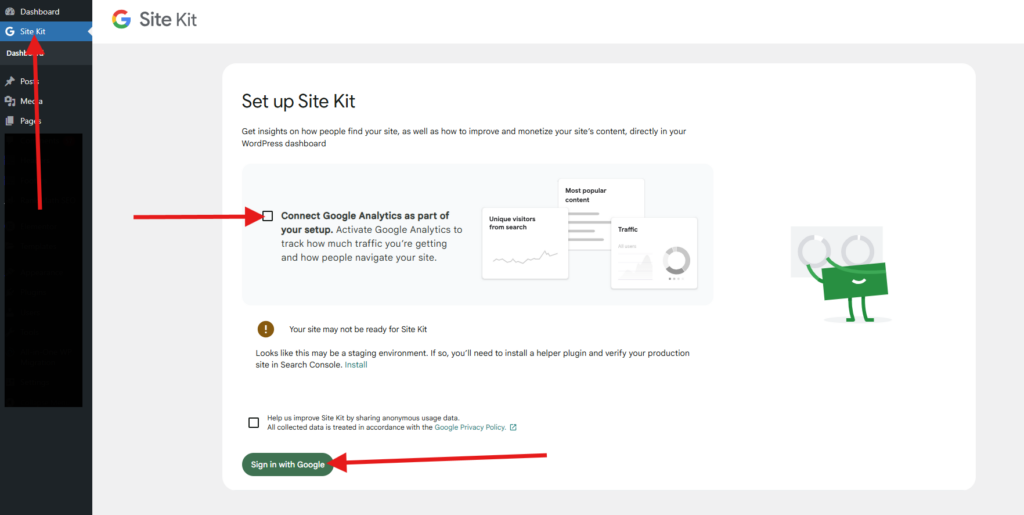
Site Kit will now guide you through the configuration process.
Behind the scenes, it’s doing three important things:
- Verifying site ownership
- Connecting Google services
- Setting up permissions securely
Step 3: Sign In With Your Google Account
You’ll be prompted to sign in to your Google account.
Important tips:
- Use the same Google account you want to manage Analytics and Search Console
- If you manage client sites, use an agency or business account
After signing in, Google will ask you to approve permissions. This is normal—Site Kit needs access to fetch data from Google services.
👉 Click Allow when prompted.
Step 4: Verify Site Ownership
If your site is not already verified in Google Search Console, Site Kit will handle this automatically.
It uses one of the following methods:
- HTML tag verification
- DNS verification (rare cases)
For most users, this happens silently in the background.
✅ No manual DNS or code editing required.
Step 5: Set Up Google Search Console
Search Console is usually the first service Site Kit connects.
Once connected, you’ll start seeing:
- Search queries
- Clicks and impressions
- Pages ranking on Google
- Indexing status
This data is incredibly useful for SEO decisions.
💡 If your site already exists in Search Console, Site Kit will automatically detect and use it.
Step 6: Set Up Google Analytics (GA4)
Now comes the most important part for most site owners—Analytics.
During setup:
- Site Kit will ask if you want to create a new Analytics property or use an existing one
- For new sites, choose Create a new account
- For existing sites, select your GA4 property
Once connected:
- Page views start tracking automatically
- No tracking code needed in your theme
- GA4 tags are injected safely by Site Kit
⏳ Note: Analytics data can take 24–48 hours to appear.
Step 7: (Optional) Connect AdSense
If your site is monetized with AdSense, Site Kit makes earnings tracking easy.
You’ll be able to see:
- Estimated earnings
- Page RPM
- Ad performance directly in WordPress
If your site isn’t approved yet, Site Kit will still connect but show limited data.
Step 8: PageSpeed Insights Integration
This is one of the most underrated features.
With PageSpeed Insights connected, Site Kit shows:
- Mobile vs desktop performance
- Core Web Vitals
- Real-world performance metrics
Perfect for:
- Speed optimization
- SEO improvements
- Hosting upgrades
Understanding the Site Kit Dashboard
Once setup is complete, head to:
WordPress Dashboard → Site Kit → Dashboard
Here you’ll find:
- Traffic overview
- Top pages
- Search impressions
- Performance scores
- Monetization stats (if enabled)
It’s designed for clarity, not data overload.
Common Site Kit Issues (And Fixes)
1. “Site Kit is not connected”
- Make sure you’re logged into the correct Google account
- Check that your site isn’t blocking bots (robots.txt)
2. Analytics not showing data
- Wait 24–48 hours
- Confirm GA4 property is selected
- Disable conflicting analytics plugins
3. Permission errors
- Reconnect Site Kit
- Ensure you’re a site admin in Google services
Best Practices When Using Site Kit
- ❌ Don’t install multiple analytics plugins (avoid conflicts)
- ✅ Use GA4 (Universal Analytics is deprecated)
- ✅ Combine Site Kit with good hosting and caching
- ❌ Don’t panic over early low data—SEO takes time
Is Site Kit by Google Enough for SEO?
For most users, yes—especially beginners and small businesses.
However, Site Kit does not replace:
- SEO plugins like Rank Math or Yoast
- Advanced event tracking setups
- Custom dashboards for large sites
Think of Site Kit as your central monitoring tool, not your entire SEO strategy.
Final Thoughts
If you’re running a WordPress site and not using Site Kit by Google, you’re missing out on valuable insights—plain and simple.
It’s:
- Free
- Official
- Easy to set up
- Beginner-friendly
And most importantly, it helps you make data-driven decisions without leaving WordPress.
Suggested Reading:
- How to Get a Free Domain Name – Here’s How (No Tricks)
- How to Make Your WordPress Website Load Under 2 Seconds
- Why Your Business Needs a Blog: Top Reasons Explained
- How to set up DNS records for your domain in a Cloudflare
- How to Fix WordPress 404 Not Found Error: Step-by-Step
- How To Buy Domain And Web Hosting With Mobile Money
How to Install and Set Up Site Kit by Google in WordPress FAQs
What is Site Kit by Google?
Site Kit by Google is an official WordPress plugin that connects your site to Google tools like Analytics, Search Console, AdSense, and PageSpeed Insights, displaying their data directly in your WordPress dashboard.
Is Site Kit by Google free to use?
Yes, Site Kit by Google is completely free to use.
What do I need before installing Site Kit?
You need a self-hosted WordPress website with admin access, a Google account, and your site must be publicly accessible (not in maintenance mode).
How do I install the Site Kit plugin?
Log into your WordPress admin, go to Plugins > Add New, search for ‘Site Kit by Google’, then click ‘Install Now’ and ‘Activate’.
Does Site Kit automatically verify my site for Google Search Console?
Yes, in most cases Site Kit handles site ownership verification automatically in the background, typically using HTML tag verification, with no manual code or DNS changes required.
Do I need to manually add tracking codes for Google Analytics?
No, once connected through Site Kit, the Google Analytics (GA4) tracking code is injected automatically. No manual code editing is required.
How long does it take for Analytics data to appear after setup?
Google Analytics data can take 24 to 48 hours to start appearing in your dashboard after setup.
Can I connect my existing Google Analytics (GA4) property?
Yes, during setup, Site Kit will ask if you want to create a new Analytics property or select an existing GA4 property to connect.
What should I do if Analytics data isn’t showing?
Wait 24-48 hours, confirm the correct GA4 property is selected in Site Kit, and ensure you don’t have other conflicting analytics plugins installed.
Does Site Kit by Google replace SEO plugins like Yoast or Rank Math?
No, Site Kit is a data monitoring tool. It does not replace full-featured SEO plugins that help with on-page optimization, sitemaps, and meta tags.