

To create a business email address in Ghana using your own domain, register or use a domain you control, choose an email hosting service, create your mailboxes and connect the domain’s email records. You can then send messages from an address such as [email protected] instead of relying on a personal address for business communication.
Your website does not have to be finished before you start. A domain can be used for email while the website is still being built, and the website and email can run on separate services. What matters is setting up the right accounts and DNS records for each service.
At Aveshost, we help businesses choose and set up domain-based email for everyday enquiries, quotations, invoices and team communication. Follow this guide to plan your addresses, create accounts, configure authentication and check that messages work in both directions. All addresses using example.com below are illustrations, not live contact details.
Table of Contents
What you need to create a business email address in Ghana
A business email address has two main parts: the name before the @ symbol and your domain after it. In [email protected], ama identifies the mailbox or address and example.com is the domain. Your email service receives, stores and sends messages for that address.
Prepare access to your domain registration account, the place where its DNS is managed and your email administration area. These can be three different systems. Knowing which account controls each part makes setup faster and prevents changes in the wrong place.
You also need a list of the people who require their own inbox, the public addresses customers should use and the devices your team will connect. Include anyone who needs access to a shared sales or support workflow rather than simply creating one password for the whole office.
Keep a recovery contact you can use independently of the new domain. If the domain expires or its email stops working, a recovery message sent only to that same domain may be difficult to receive. Keep ownership and renewal details in business-controlled records.
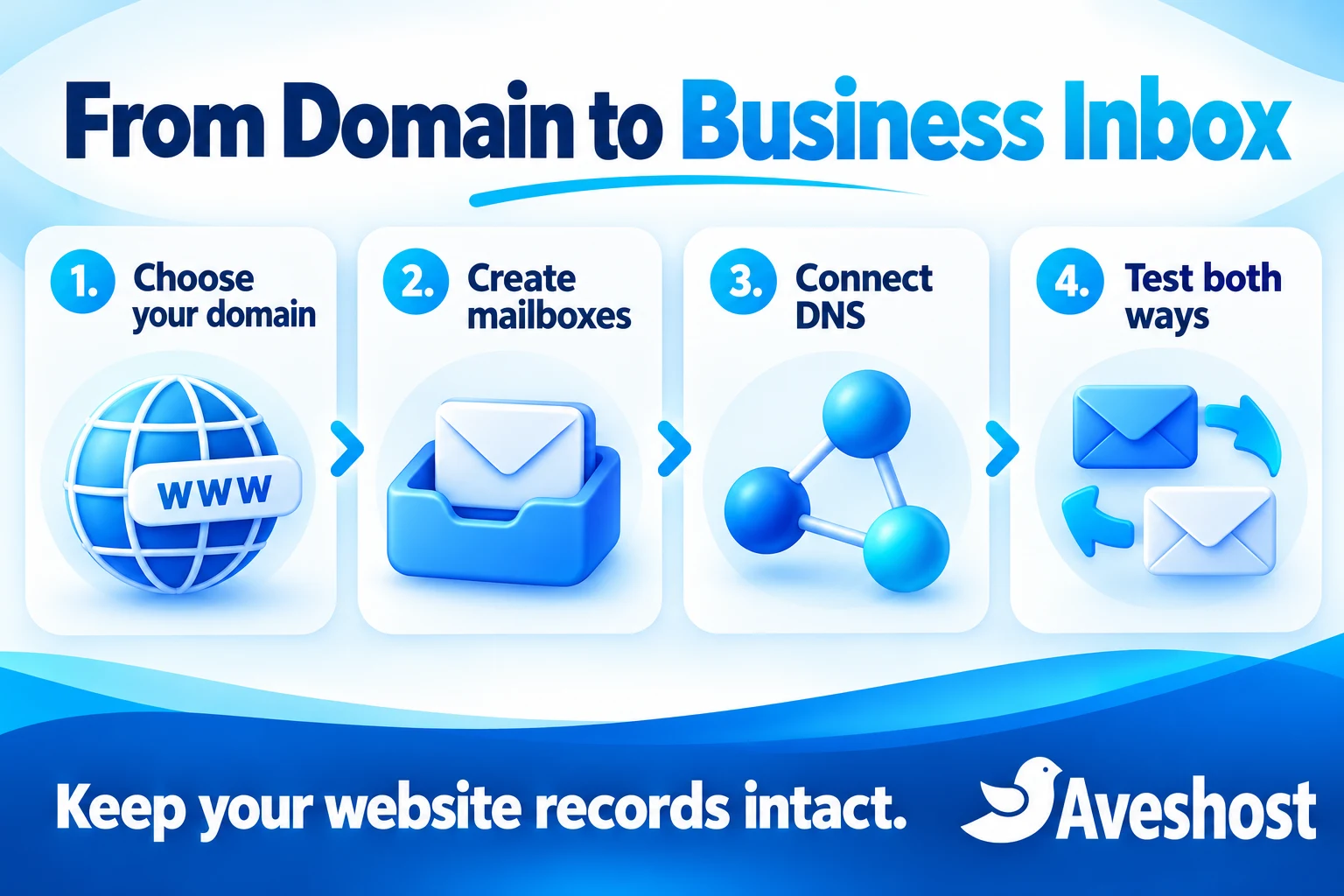
Choose and control your business domain
Choose a domain that matches your business name and is easy to read aloud. Avoid unnecessary spelling variations that customers could mistype. A familiar extension such as .com or an appropriate Ghanaian option such as .com.gh can support a clear business identity.
Search available names through Aveshost’s domain search and review the requirements for Ghanaian domain names where relevant. Register the domain under the business’s control, with accurate contact information and a reliable renewal arrangement.
If you already own a suitable domain, you can normally keep it with its current registrar and connect an email service through DNS. Transferring the registration is a separate decision. You do not need to move your website simply to use a different email platform.
Budget for domain renewal as well as email hosting. Our domain name prices in Ghana guide explains registration, renewal and transfer costs. Check the current checkout amount and renewal terms before paying; a domain and a mailbox are different services.
Record who can renew the domain and who can update DNS. If a designer or employee handles setup, keep the business as the owner and arrange appropriate access for the work. Losing control of the domain can affect the website and every address that uses it.
Choose email hosting for your team
Choose between email included with a suitable web hosting package and a dedicated business email service. Check the actual plan rather than treating every hosting account as the same. Mailbox count, storage, sending limits, collaboration features and account security all affect the choice.
Our business email page lets you compare email platforms and plans. At the time of writing, the AmailPlus by Aveshost Starter plan is listed at GH₵8 per month with one email account and a 5 GB mailbox. Confirm the selected billing term, total due and current terms at checkout.
For a team, count independent inboxes before choosing the package. An employee who needs a separate login and private messages requires a mailbox. Extra public-facing addresses may be handled with aliases where the selected service supports them; they are not automatically additional independent accounts.
Ask how storage is allocated, what happens when a mailbox is full and how email can be restored or exported. Confirm sending and attachment limits, supported applications and whether calendar or contact synchronisation needs a particular connection method.
A standard business inbox is for normal correspondence. Newsletter campaigns and large automated sending workloads need an appropriate sending service and permission-based practices. Buying more mailbox storage does not remove sending limits or guarantee that a promotional campaign will reach the inbox.
Plan your mailboxes and aliases
Use a consistent naming pattern for staff, such as [email protected] or [email protected]. Choose a pattern that will still work when the team grows or two staff members have the same first name. Agree on the format before creating many accounts.
Use role addresses where customers need a stable contact point: [email protected] for general enquiries, [email protected] for sales and [email protected] for billing. Give each role an owner and define who covers it when that person is away.
A mailbox stores messages and has its own access credentials. An alias is an additional address that delivers to an existing destination according to the service configuration. A forwarder sends incoming messages elsewhere. Neither an alias nor a forwarder automatically provides a separate inbox or permission to send as that address.
If several staff must handle the same enquiries, use the platform’s supported delegation or shared-access features, or a suitable team inbox system. Check licensing and permissions. Sharing one password makes it harder to revoke one person’s access and identify who replied.
Keep the initial structure small and maintainable. A sole trader can start with one named mailbox and a supported enquiry alias. A larger team may need separate user accounts and controlled access to departmental correspondence. Publish only addresses somebody will monitor.
| Address type | Purpose |
|---|---|
| Named mailbox | A person’s independent inbox and login |
| Role address | A stable public contact for a business function |
| Alias | An extra address delivering to an existing destination |
| Forwarder | Routes received messages to another address |
Create your business email accounts
Use the administration area supplied for the email product you ordered. A dedicated email platform can have a different dashboard from the control panel used for website hosting. Follow its onboarding instructions to add or verify your domain, create users and allocate the available licences or accounts.
For a hosting account using cPanel, open Email → Email Accounts → Create. Select the correct domain if more than one is available, enter the username, set a unique strong password and review the storage allocation. Click Create and confirm the new account appears in the list.
The official cPanel account creation guide explains the fields and optional settings. Available options depend on the provider’s configuration. The mailbox must exist on the system that will receive the domain’s email; creating an unused local mailbox does not override external MX records.
For DirectAdmin, select the intended domain, then open E-Mail Manager → E-Mail Accounts → Create Account. Enter the username and strong password, review the quota shown and click Create. The DirectAdmin email guide covers the standard interface; labels can vary with the skin and version.
Save the login details securely and give each user access through a suitable private onboarding process. Avoid sending a password to a group chat or placing it in a shared document. Create the required destination accounts before changing incoming mail routing, especially when replacing an existing email service.
Connect your domain without disrupting your website
DNS tells other systems where to find services for your domain. Edit the active DNS zone at the provider named by the domain’s authoritative nameservers. A DNS editor inside a hosting dashboard may have no public effect if another service manages the authoritative zone.
Your email provider supplies the required MX records, priorities and any verification records. Copy these exactly into the active zone. The DNS editor may use @ or a blank field for the root domain and may append the domain automatically. Read its format so the name is not accidentally repeated.
MX records direct incoming email. They do not move old messages, create mailboxes or configure the outgoing server in your phone. Follow the provider’s complete record set and remove obsolete mail routing when instructed as part of the migration plan. Multiple priorities are not a way to split staff randomly across unrelated email services.
Preserve existing website A, AAAA and CNAME records and other required records. Changing the domain’s nameservers affects responsibility for the whole DNS zone, so it requires a complete record migration. For an email-only change, update the necessary records in the current zone rather than changing nameservers unnecessarily.
If a website server still handles local delivery while email is hosted elsewhere, its mail-routing configuration may also need to be set for external delivery. Ask support to check this when website-generated messages work for outside recipients but fail for addresses on your own domain.
DNS caches refresh according to record lifetimes and resolver behaviour. Verify the published records and allow existing caches to expire. Do not promise every network will change at the same instant or repeatedly replace correct values while waiting.
| Record | Main job |
|---|---|
| MX | Direct incoming mail to the chosen service |
| SPF | Authorise sending sources |
| DKIM | Publish the key or reference used to verify signatures |
| DMARC | Apply alignment policy and support reporting |
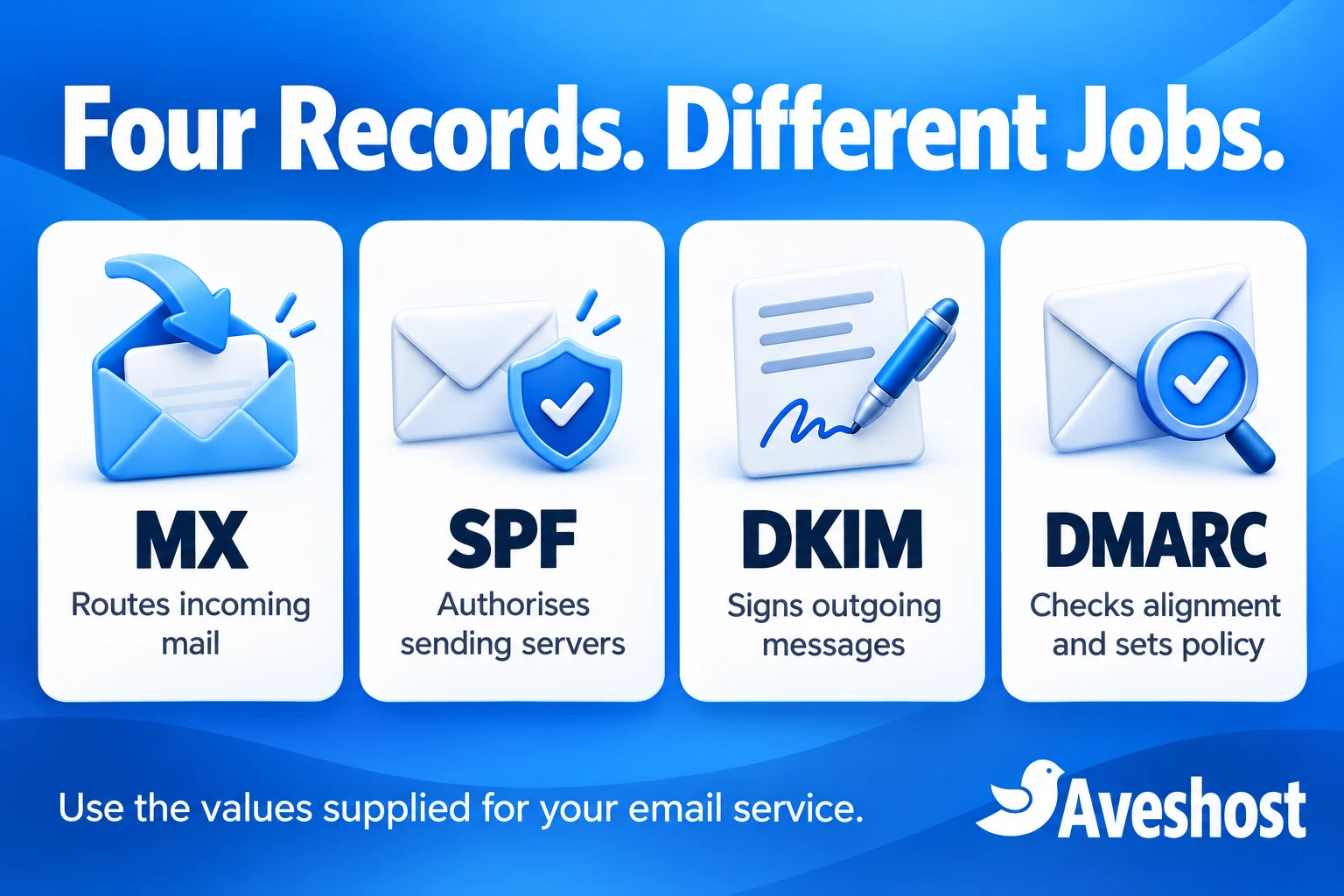
Set up SPF, DKIM and DMARC
Configure email authentication using the exact values supplied for your service. SPF identifies authorised sending sources for the envelope sender domain. DKIM adds a cryptographic signature that receiving systems can verify using a public key published in DNS.
DMARC checks whether a passing SPF or DKIM result aligns with the domain shown in the visible From address, and publishes the domain owner’s policy for failures. It also supports reporting. These records have different jobs; adding MX alone does not finish outgoing email authentication.
Publish one SPF policy for each relevant domain name and combine authorised senders correctly within that policy. Do not create a second competing SPF record when adding another sender. Have the administrator check the DNS lookup limit and remove obsolete services as part of the review.
For DKIM, publish the supplied selector record, using the record type and value specified by your email platform, and enable signing where required. For DMARC, inventory legitimate senders and verify their alignment before moving to an enforcement policy. Monitoring can help identify gaps, but a monitoring-only policy does not request quarantine or rejection.
Include website forms, invoicing software and other approved systems in this work. An invoice service can send with your domain even though it is not your staff mailbox platform. A strict policy introduced before that service is authenticated can affect legitimate messages.
Google’s email sender guidelines describe authentication and other requirements for sending to personal Gmail accounts. Authentication helps receivers assess mail; it does not guarantee inbox placement. Sender reputation, message content, recipient feedback and sending behaviour also matter.
Open webmail and connect your devices
Open the webmail address supplied in your service welcome details and sign in with the mailbox account. In cPanel, Email Accounts → Check Email opens webmail for a listed account. Bookmark the verified login page so staff do not rely on links in unexpected messages.
For a desktop or mobile mail app, use the provider’s current server names, ports, encryption settings and authentication method. Use the full email address as the username where instructed. The outgoing SMTP connection must also authenticate; receiving successfully does not prove outgoing settings are correct.
IMAP synchronises mail folders with the server, which is usually useful across a phone and computer. Deleting a message on one connected device can therefore remove it elsewhere. POP has different download and retention behaviour and should be selected only when it matches the organisation’s needs.
Enable the prescribed secure connection settings and resolve certificate or server-name errors with support. Do not disable certificate checking to force a connection. For services requiring modern authentication or an application-specific password, follow their approved process rather than weakening account security.
Email, contacts and calendars may use different sync methods. Confirm the client and protocol supported by the selected platform before promising that every app will synchronise all three. Add a concise signature with the sender’s name, role, business contact details and website.
Test delivery and fix common setup problems
Send a short message from the new business mailbox to an independent external address, then reply from that address. Repeat with more than one recipient service where practical. Check the sender address, reply behaviour and attachments, and inspect the recipient’s spam folder when a message seems missing.
Test every published role address and any authorised send-as feature separately. Test a website contact form as well: its notification may use a different sending connection from webmail. Use an authenticated sender on your own domain and place the visitor’s address in Reply-To instead of impersonating the visitor in From.
If incoming mail fails, check the mailbox exists, the domain is active, the MX records are correct and storage is available. If outgoing mail fails, check SMTP authentication, the sender permission and any service limits. Read the actual bounce or error rather than changing unrelated records.
If mail arrives in spam, inspect the message authentication results and review sending practices. Check SPF, DKIM and DMARC alignment for that actual message, not just the presence of DNS records. Keep any bounce details and message identifiers for support while removing unrelated private content.
A successful test message confirms that route at that point in time. Continue monitoring real correspondence after launch, including order notifications and password resets your business depends on. Correct any missing route before publishing the address across invoices, social profiles and printed materials.
Move existing email and protect account access
If your domain already receives business email, arrange a migration before changing MX records. List existing accounts, aliases, shared access, folder sizes, contacts and calendars. Agree which information will move and which items need a separate export or manual transfer.
Create destination accounts, take suitable backups or exports and perform an initial copy before the change. Keep the old service available during the agreed transition. Mail can still reach the old system while cached records remain, so plan a final synchronisation and verify the resulting folders before cancelling it.
Mailbox migration through IMAP normally concerns messages and folders; it does not automatically transfer every calendar, contact, rule, signature or application setting. Confirm each item with the migration team. Avoid deleting source accounts until the business has checked the required data.
Use unique passwords, protect administrator access and enable two-factor authentication where supported. Confirm which login the setting protects: control-panel 2FA does not automatically secure every webmail or mail-app connection. Keep recovery options and approved device access under review.
When someone leaves, revoke sessions and app access, remove delegated permissions and review forwarding rules. Preserve required business records through an agreed process before deleting anything. Keep domain and service renewal contacts current so an expired subscription does not interrupt communication.
Launch your business email with Aveshost
Start with the domain you want customers to recognise, the number of independent users and the storage and collaboration features your team needs. Compare the relevant options on our Aveshost business email plans page and confirm the recurring costs and selected billing term.
Before launch, check that mailboxes exist, the active DNS zone has the correct records, authentication passes for legitimate senders and webmail and approved devices work. Confirm both external replies and website notifications, then make the new addresses visible to customers.
If you need help choosing a platform or moving an existing setup, contact Aveshost with your domain, mailbox count, current email arrangement and required features. Keep passwords out of the initial enquiry; our team can guide you through the appropriate setup or migration process.
A domain-based email address gives your business a consistent identity that can stay with you as the team grows. Keep the domain renewed, accounts organised and access controlled so the address remains dependable for customers and staff.
Frequently asked questions
Can I create a business email address in Ghana without a website?
Yes. You need a domain you control and an email service. Your website can be built later or hosted separately.
Do I need a .com.gh domain for business email?
No. A suitable domain such as .com can also be used. Choose a name and extension that fit your business and meet the registration requirements.
Must I transfer my domain to Aveshost to use business email?
Not necessarily. You can usually keep the registration where it is and connect the email service through the active DNS zone.
Is a mailbox the same as an alias?
No. A mailbox has its own storage and access. An alias is an additional address that delivers to an existing destination according to the service settings.
Can my website and email use different providers?
Yes. Keep website records intact and configure the email records for the chosen mail service. Check local mail routing where relevant.
Does changing MX records move old emails?
No. Existing messages need a separate migration or export and import process. Plan the data move before changing incoming routing.
How much does Aveshost business email cost?
At the time of writing, AmailPlus Starter is listed at GH₵8 per month with one email account and a 5 GB mailbox. Confirm the current plan, billing term and checkout total.
Can I use my business email on my phone?
Yes, with a supported app and the connection settings or authentication process supplied for your platform. Confirm email, calendar and contact sync separately.
Do SPF, DKIM and DMARC guarantee inbox delivery?
No. They help authenticate and assess messages. Reputation, recipient feedback, content and sending practices also affect delivery.
Can Aveshost help with an existing email setup?
Yes. Contact our team with your domain, mailbox count and current arrangement to discuss the setup or migration work required.