
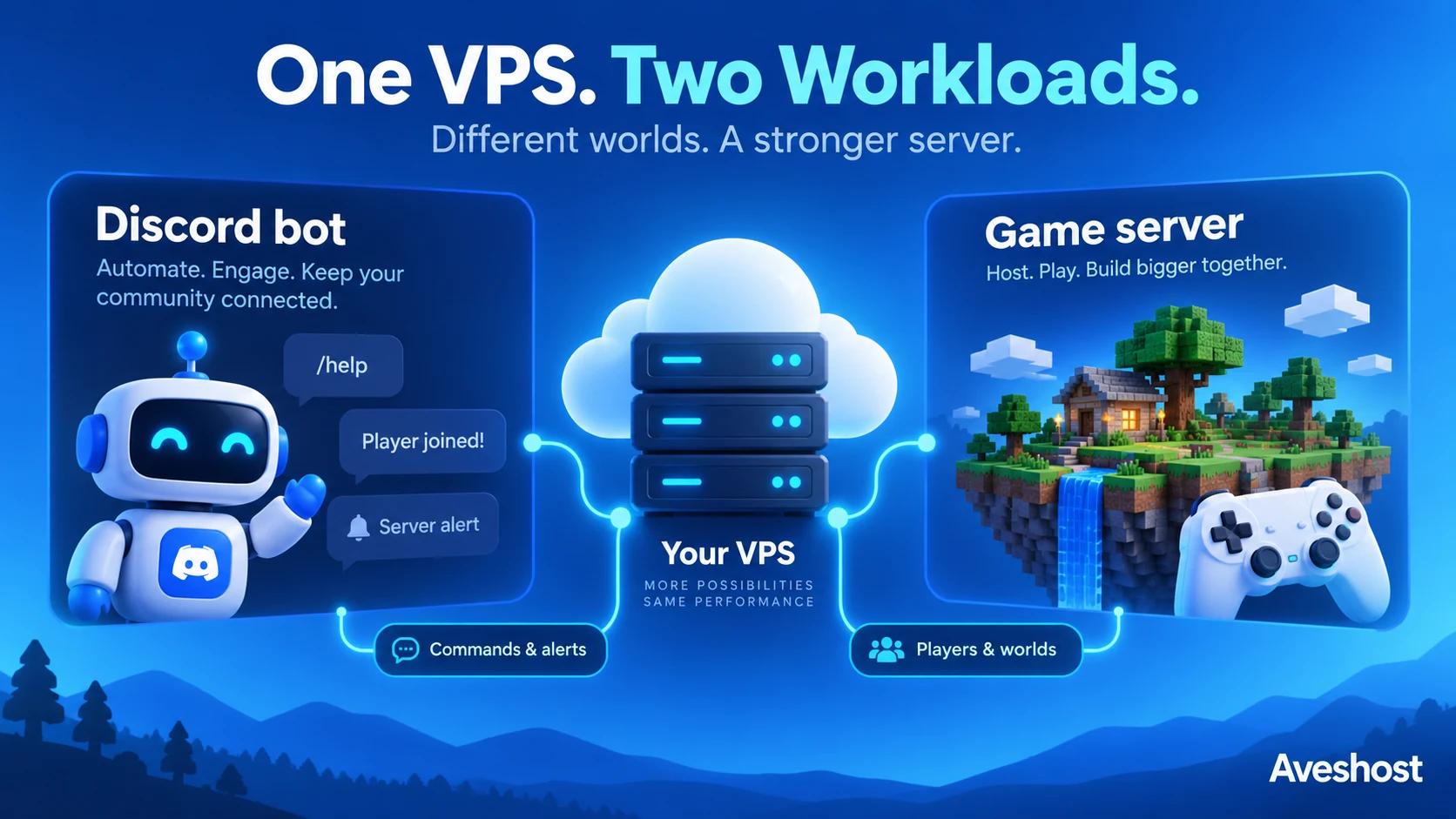
Want to host a Discord bot on VPS and keep your gaming community active when your laptop is off? A Linux VPS gives your bot or game server a place to run around the clock, independent of power interruptions at home or on campus.
For Ghanaian communities, that could mean a Discord bot handling event reminders, a private Minecraft world for friends, or a development server for an indie game. The right setup combines suitable resources, a sensible server location and reliable administration. This guide walks through a small Python Discord bot and a Minecraft Java server, with a Node.js deployment route for developers who already have a working bot.
Our examples use Ubuntu 24.04 LTS and systemd. You will need SSH access, basic command-line skills and responsibility for updates and backups on a self-managed VPS. Start with one workload, confirm it works, then add the next.
Table of Contents
Discord bots and game servers need different resources
A Discord bot processes commands, connects to Discord and may store community settings. A simple bot can use modest resources. Music, AI features, image processing and large databases increase its requirements. A game server continuously updates a shared world and must keep up with connected players. Its CPU performance, memory and network route directly affect the playing experience.
| Workload | What to prioritise | What to measure |
|---|---|---|
| Small Discord utility bot | Supported runtime, reliable process, protected token | Response time, memory use, reconnects |
| Minecraft Java community server | Strong CPU performance, adequate RAM, storage and backups | Tick performance, world growth and player latency |
| Modded or multiple game instances | More memory and CPU headroom; separate service accounts | Peak usage with your actual mods and players |
A VPS removes your home computer from the hosting chain. It does not fix a player’s weak mobile connection or guarantee uninterrupted service. Keep maintenance windows, monitoring and recovery procedures in your community plan.
Choose a VPS for your Ghanaian gaming community
For affordable game server hosting in Ghana, choose resources around the workload first. Our self-managed cloud VPS plans come with SSD storage and root access. Here are useful starting points:
| Plan | Monthly price | Resources | Starting use |
|---|---|---|---|
| Cloud VPS 1 | GH₵100 | 1 vCore, 2 GB RAM, 20 GB SSD, 1 TB traffic | A small utility bot |
| Cloud VPS 2 | GH₵170 | 4 vCores, 8 GB RAM, 100 GB SSD, 32 TB traffic | A small Minecraft world or several lightweight bots |
| Cloud VPS 3 | GH₵300 | 6 vCores, 12 GB RAM, 200 GB SSD, 32 TB traffic | More room for world growth and additional services |
Rates and product information were reviewed at the time of writing. Confirm the selected plan and available location when ordering. These are starting recommendations; player capacity depends on the game version, plugins, view distance, CPU load and player activity. An 8 GB VPS with a 4 GB Java heap leaves room for Linux and other server processes, but you still need to monitor its actual memory use.
Keep game files, backups and logs within your storage allocation. Large worlds and repeated local backups can fill a disk quickly. For a server operated by your team, self-managed hosting gives you control. If you need help with the underlying server platform, our fully managed VPS service includes DirectAdmin at no additional cost; discuss the support scope for your custom bot or game application with us.
Test latency before choosing a server location
Searching for low ping Linux VPS Ghana? Test the route used by your players before committing to a location. Geographic distance matters, but ISP routing, congestion, packet loss and jitter also influence results. A nearby server can still have an inefficient route from a particular network.
- Ask for a test address for the available location and test from the Ghanaian networks your players actually use.
- Check at busy evening hours as well as during quieter periods.
- Compare consistency and packet loss, not just the lowest single result.
- Test inside the game after deployment. Some networks block or deprioritise ICMP, so a failed ping alone does not prove a game server is unavailable.
# From a player’s Windows PC:
ping -n 20 YOUR_SERVER_IP

# From a player’s Linux or macOS machine:
ping -c 20 YOUR_SERVER_IP
Our Ghana VDS is hosted in Accra and uses local NVMe storage. It is a separate product with a different budget from the cloud VPS plans above. A local option is worth evaluating when most players are in Ghana, alongside measurements from the networks they use. A Discord bot is usually less sensitive to location than a fast-paced multiplayer game.
Prepare your Linux VPS securely
Provision a fresh Ubuntu VPS, connect over SSH and install updates. Keep a second SSH session open while adjusting firewall rules. Allow the SSH port you actually use before enabling the firewall; the example below is for the standard OpenSSH configuration.
sudo apt update
sudo apt upgrade
sudo apt install python3-venv python3-pip ufw
sudo ufw allow OpenSSH
sudo ufw enable
sudo ufw status
If SSH uses a custom port, allow that port instead of relying on the OpenSSH rule. Configure your provider firewall consistently with the VPS firewall. Use SSH keys and a normal administrative account with sudo. Keep bot and game processes under separate service users, rather than running them as root.
A Discord Gateway bot initiates its connection to Discord; it does not need a public inbound web port. Do not expose a database, administration dashboard or token file to the internet. A bot that receives HTTP interactions or payment webhooks has additional HTTPS requirements outside this Gateway example.
Create your Discord application and protect its token
Open the Discord Developer Portal, create an application and configure its bot. Install it into a server where you have permission to manage applications. Use the bot and applications.commands scopes and grant only the permissions your features need. Administrator access is unnecessary for this simple command.
Copy the bot token privately. Enable Developer Mode in Discord and copy the test server’s ID. The example registers a slash command in that test server, which is a convenient way to develop without waiting for global command propagation. Follow Discord’s application setup guidance if the installation screens change.
Treat the token like a password. Keep it out of Git repositories, screenshots, chat messages and publicly accessible files. Rotate it in the Developer Portal if it is exposed. Use a bot account, never automation of a normal user account. This example does not read message content and does not need the Message Content privileged intent. Enable additional intents only when a feature requires them.
Host a Discord bot on VPS with Python
The discord.py installation guide supports Python 3.8 and newer; Ubuntu 24.04 provides a suitable Python runtime. Use a virtual environment so bot dependencies stay separate from system packages.
sudo useradd --system --create-home --home-dir /opt/community-bot --shell /usr/sbin/nologin discordbot
sudo -u discordbot python3 -m venv /opt/community-bot/.venv
sudo -u discordbot /opt/community-bot/.venv/bin/python -m pip install --upgrade pip
sudo -u discordbot /opt/community-bot/.venv/bin/python -m pip install discord.py
sudo -u discordbot nano /opt/community-bot/bot.py
Paste this minimal slash-command bot into bot.py. It uses guild-scoped registration and the interaction API described in the discord.py command documentation.
import os
import discord
from discord import app_commands

TEST_GUILD = discord.Object(id=int(os.environ["DISCORD_GUILD_ID"]))
intents = discord.Intents.none()
intents.guilds = True

class CommunityBot(discord.Client):
    def __init__(self):
        super().__init__(intents=intents)
        self.tree = app_commands.CommandTree(self)

    async def setup_hook(self):
        await self.tree.sync(guild=TEST_GUILD)

bot = CommunityBot()

@bot.tree.command(name="ping", description="Check the community bot",
                  guild=TEST_GUILD)
async def ping(interaction: discord.Interaction):
    await interaction.response.send_message("Pong!", ephemeral=True)

bot.run(os.environ["DISCORD_BOT_TOKEN"])
Create a private environment file. Replace the placeholders with your own token and numeric Discord server ID. Do not paste those values into support tickets or publish them with the code.
sudo install -m 600 /dev/null /etc/aves-community-bot.env
sudo nano /etc/aves-community-bot.env

# File contents:
DISCORD_BOT_TOKEN=YOUR_PRIVATE_BOT_TOKEN
DISCORD_GUILD_ID=YOUR_TEST_SERVER_ID
Create /etc/systemd/system/community-bot.service with the following content. systemd reads the private environment file before starting the unprivileged service.
[Unit]
Description=Community Discord bot
Wants=network-online.target
After=network-online.target

[Service]
User=discordbot
WorkingDirectory=/opt/community-bot
EnvironmentFile=/etc/aves-community-bot.env
ExecStart=/opt/community-bot/.venv/bin/python /opt/community-bot/bot.py
Restart=on-failure
RestartSec=5
NoNewPrivileges=true
PrivateTmp=true
UMask=0077

[Install]
WantedBy=multi-user.target
sudo systemctl daemon-reload
sudo systemctl enable --now community-bot
sudo systemctl status community-bot
sudo journalctl -u community-bot -n 50 --no-pagerRun /ping in your test Discord server and check for the private “Pong!” reply. A running service alone is not proof that commands are registered correctly. After testing, record the installed package versions and keep the file with your source:
sudo -u discordbot /opt/community-bot/.venv/bin/python -m pip freeze | sudo -u discordbot tee /opt/community-bot/requirements.txt > /dev/nullFor future deployments, install from that requirements file in a new virtual environment, test changes in your development server, then restart the production service. Do not update dependencies blindly during a live community event.
Deploy an existing Node.js Discord bot
If you already have a working JavaScript bot, keep its tested package-lock.json and use npm ci for a reproducible installation. Install a supported Node.js LTS release from the official Node.js download guidance that meets your application’s requirements. At the time of writing, current discord.js documentation requires Node.js 24.17.0 or newer. Older Ubuntu repository packages may not meet that requirement.
node --version
command -v node

# Inside your deployed application directory:
npm ci
# Run the project’s documented test/start command first.
Use the same systemd pattern as the Python example, but set ExecStart to the absolute Node executable path returned by command -v node, followed by the absolute path to your app’s entry file. Set WorkingDirectory to that application’s directory. A Node installation in your personal home directory must be accessible to the service user; a system-level installation is usually simpler for a dedicated service.
Store the token in the private environment file and have your application read process.env.DISCORD_BOT_TOKEN. Choose one process manager for each bot. Running the same service through both systemd and another manager can produce duplicate connections or confusing restart behaviour.
Set up a Minecraft Java server with Paper
Minecraft Java Edition is a practical first community server. Use the official Minecraft server download or a supported server implementation such as Paper. This example uses Paper; client and server versions must be compatible. Minecraft Java and Bedrock use different server software and connection requirements.
Follow Paper’s current requirements for the version you choose. At the time of writing, Paper 26.1 and newer require Java 25; older 1.20–1.21.11 releases use Java 21. The following Ubuntu 24.04 commands install the full Java 25 JDK from Ubuntu’s repositories. If the package is unavailable, enable Ubuntu’s Universe repository and refresh the package index.
sudo apt update
sudo apt install openjdk-25-jdk
java -version
sudo useradd --system --create-home --home-dir /srv/minecraft --shell /usr/sbin/nologin minecraft
Download your chosen Paper build from its official download page and upload it to /srv/minecraft/paper.jar using SFTP. Rename the uploaded file to paper.jar and give the service user ownership. Keep a record of the exact game version and build.
sudo chown minecraft:minecraft /srv/minecraft/paper.jar
sudo -u minecraft sh -c "cd /srv/minecraft && /usr/bin/java -Xms1G -Xmx4G -jar paper.jar --nogui"
The first launch generates configuration files and stops for the EULA. Read the Minecraft EULA and, if you agree, edit /srv/minecraft/eula.txt to set eula=true. Start the same command again. Keep the foreground console open while doing the initial configuration. A 4 GB maximum heap is a starting setting for the 8 GB VPS example, not a requirement for every server.
Before making the game port public, stop the server cleanly with stop in its console. Edit server.properties to retain online-mode=true, enable white-list=true, and keep enable-rcon=false unless you have designed a protected administration method. Start it again, use whitelist add PLAYER_NAME for each authorised player, then enter stop before switching to systemd.
Create /etc/systemd/system/minecraft.service:
[Unit]
Description=Community Minecraft server
Wants=network-online.target
After=network-online.target

[Service]
User=minecraft
WorkingDirectory=/srv/minecraft
ExecStart=/usr/bin/java -Xms1G -Xmx4G -jar paper.jar --nogui
Restart=on-failure
RestartSec=10
KillSignal=SIGINT
TimeoutStopSec=120
NoNewPrivileges=true
PrivateTmp=true

[Install]
WantedBy=multi-user.target
sudo systemctl daemon-reload
sudo systemctl enable --now minecraft
sudo systemctl status minecraft
sudo journalctl -u minecraft -n 50 --no-pagerVerify that /usr/bin/java selects the required Java version if several versions are installed. Connect with a matching Minecraft Java client and check the startup logs. Before a planned reboot, test that stopping the service produces a clean shutdown and that starting it restores the world correctly.
Open the right port and control player access
Open only the port your game uses. For the default Minecraft Java configuration:
sudo ufw allow 25565/tcp
sudo ufw status| Service | Typical public inbound requirement |
|---|---|
| SSH | Your configured SSH TCP port |
| Discord Gateway bot | No inbound bot port |
| Minecraft Java | 25565/TCP by default |
| Minecraft Bedrock | 19132/UDP by default; use its own server and verify configuration |
If you change a game’s port, change the firewall rule and player connection details to match. Keep online authentication enabled and use a whitelist for private communities. A whitelist limits who joins; it does not replace software updates or protect every plugin vulnerability.
Install plugins and mods from trusted, official project sources. Review compatibility before upgrading and avoid pirated scripts or unknown “optimisation” bundles. Restrict file access between the bot and game accounts. Give community moderators only the privileges they need, and protect your hosting and Discord administrator accounts with multi-factor authentication.
Back up your worlds and keep services healthy
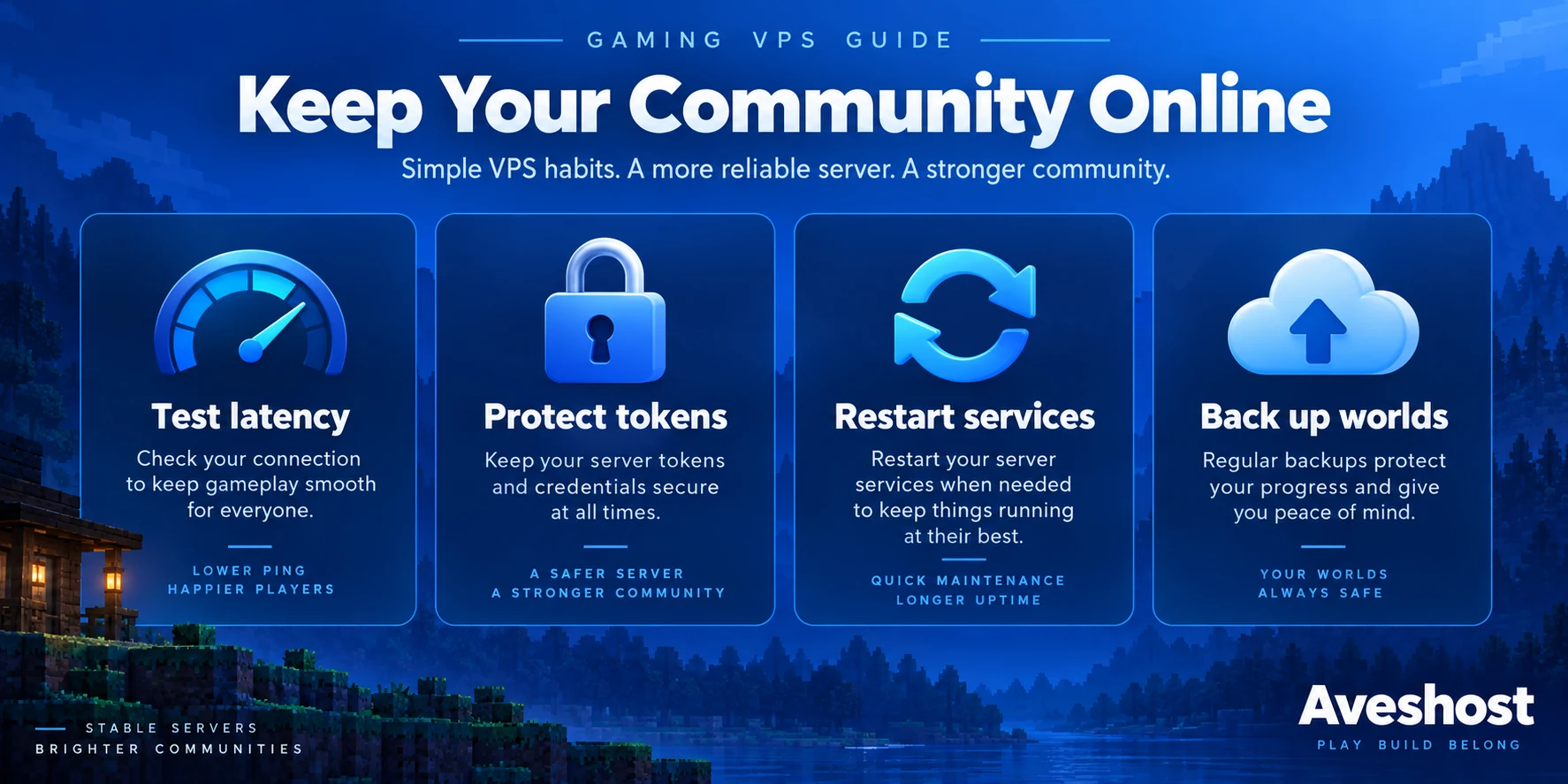
A Minecraft world is valuable community data. Keep recoverable copies of world folders, configuration, whitelist data and the exact plugin/mod list. Back up a bot’s database and source configuration too, while protecting token files separately.
- Stop the game service cleanly before a straightforward file-copy backup and confirm shutdown in its logs.
- Copy the world and configuration to a separate backup destination, then start the service again.
- Keep several versions so an unnoticed corruption does not replace your only good copy.
- Test restoring into a separate directory or test server before you need an emergency recovery.
- Monitor available disk space, RAM, CPU load and backup failures.
sudo systemctl stop minecraft
sudo journalctl -u minecraft -n 30 --no-pager
# Confirm clean shutdown, then perform your configured backup.
sudo systemctl start minecraft

free -h
df -h
sudo systemctl --failed
For online backups, use a game-aware process that coordinates world saving and file consistency; copying changing files without that coordination can produce an incomplete restore. Keep at least one backup outside the VPS. A snapshot is useful, but a recoverable external copy protects against a wider range of failures.
Schedule updates outside busy playing hours. Test game updates with your plugins, communicate the maintenance window and retain a rollback copy. For bots, watch repeated reconnects and restart loops rather than treating automatic restarts as a complete fix.
Troubleshoot lag, downtime and connection problems
| Symptom | First checks |
|---|---|
| Bot is offline | Service logs, token validity, runtime/dependencies and outbound network access |
| Slash command is missing | Correct test server ID, installation scopes and successful command sync |
| Players cannot connect | Game edition/version, server listener, correct IP/port and both firewalls |
| High ping or intermittent disconnects | Player ISP route, packet loss and peak-hour congestion |
| World lags despite good ping | CPU load, tick timings, view distance, plugins and memory pressure |
| Server stops during saving | Disk space, ownership, storage errors and shutdown logs |
Network latency and game simulation lag are different problems. Adding RAM will not repair a poor network route. Moving locations will not fix a plugin that overloads the CPU. Reduce unnecessary plugins, adjust view distance gradually and measure the effect before moving to a larger plan.
For community growth, separate heavy game instances from essential bots when they start competing for resources. Keep an incident checklist: who receives alerts, who can access backups and how players receive status updates. If you need help choosing the right Aveshost Linux VPS, contact our support team with the game, expected concurrency, mods, preferred location and budget.
Frequently asked questions
Can I host a Discord bot on VPS without keeping my laptop on?
Yes. Once deployed as a VPS service, the bot runs independently of your laptop. Its availability still depends on the VPS, application and Discord connection.
What is a good starter VPS for a small Discord bot?
Our Cloud VPS 1 offers 2 GB RAM and SSD storage for GH₵100 per month at the time of writing. Check memory and CPU use as features grow.
Can one VPS run both a Discord bot and Minecraft?
Yes, when it has enough resources. Use separate service users and leave memory for Linux. Split workloads when the game begins affecting bot reliability.
Does a Ghanaian gaming community need a server in Ghana?
A local location can help, but test the route from your players’ networks. Latency, jitter and packet loss matter more than location alone.
How much RAM does a Minecraft server need?
It depends on version, players, plugins, mods and view distance. The guide starts with a 4 GB Java heap on an 8 GB VPS, then measures real usage.
Which Java version does Paper require?
At the time of writing, Paper 26.1 and newer require Java 25. Check the official requirements for the exact Paper release you install.
Does a Discord bot need an open public port?
A Gateway bot connects outward to Discord and does not need an inbound bot port. HTTP interaction endpoints have different HTTPS requirements.
Should I give my Discord bot Administrator permission?
No. Grant only the permissions required by its features. The slash-command example does not need Administrator or Message Content access.
How do I keep my bot running after disconnecting SSH?
Run it through a configured systemd service, enable the service at boot and verify commands and logs after deployment.
Can Aveshost help me choose a gaming VPS?
Yes. Contact our support team with your game, plugins, expected player count and location needs so we can help you choose suitable resources.