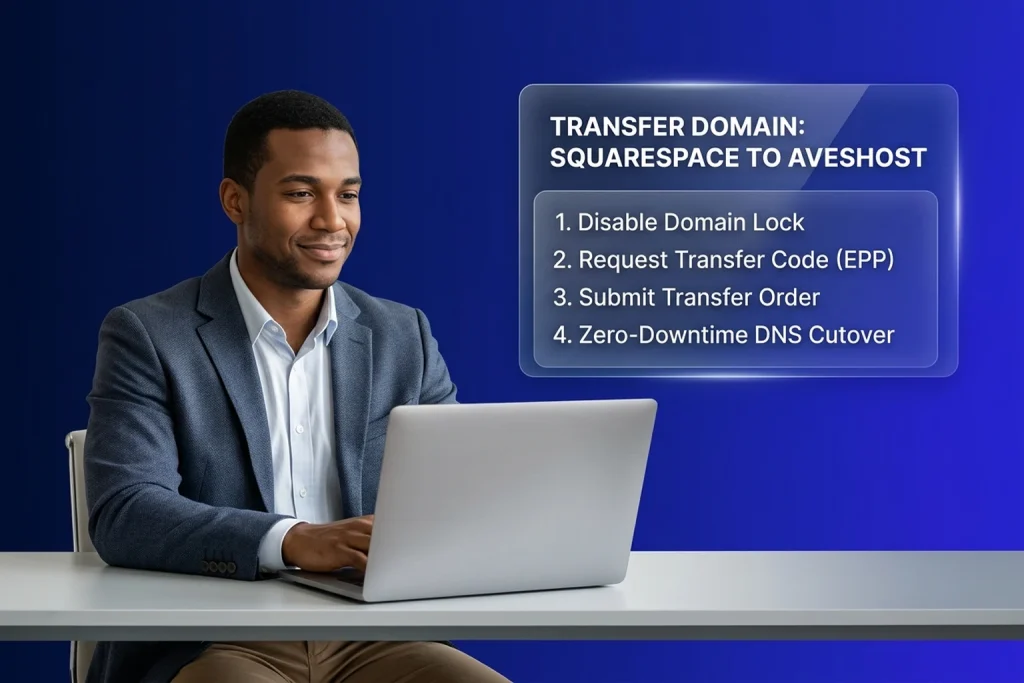
Knowing how to transfer a domain from Squarespace to Aveshost lets you consolidate your domain registration, DNS management, web hosting, and business email under one straightforward control panel. Whether you registered your domain directly on Squarespace or inherited a Squarespace Domains account after the Google Domains migration, moving your domain to Aveshost takes only a few minutes of preparation and does not require taking your website or email offline.
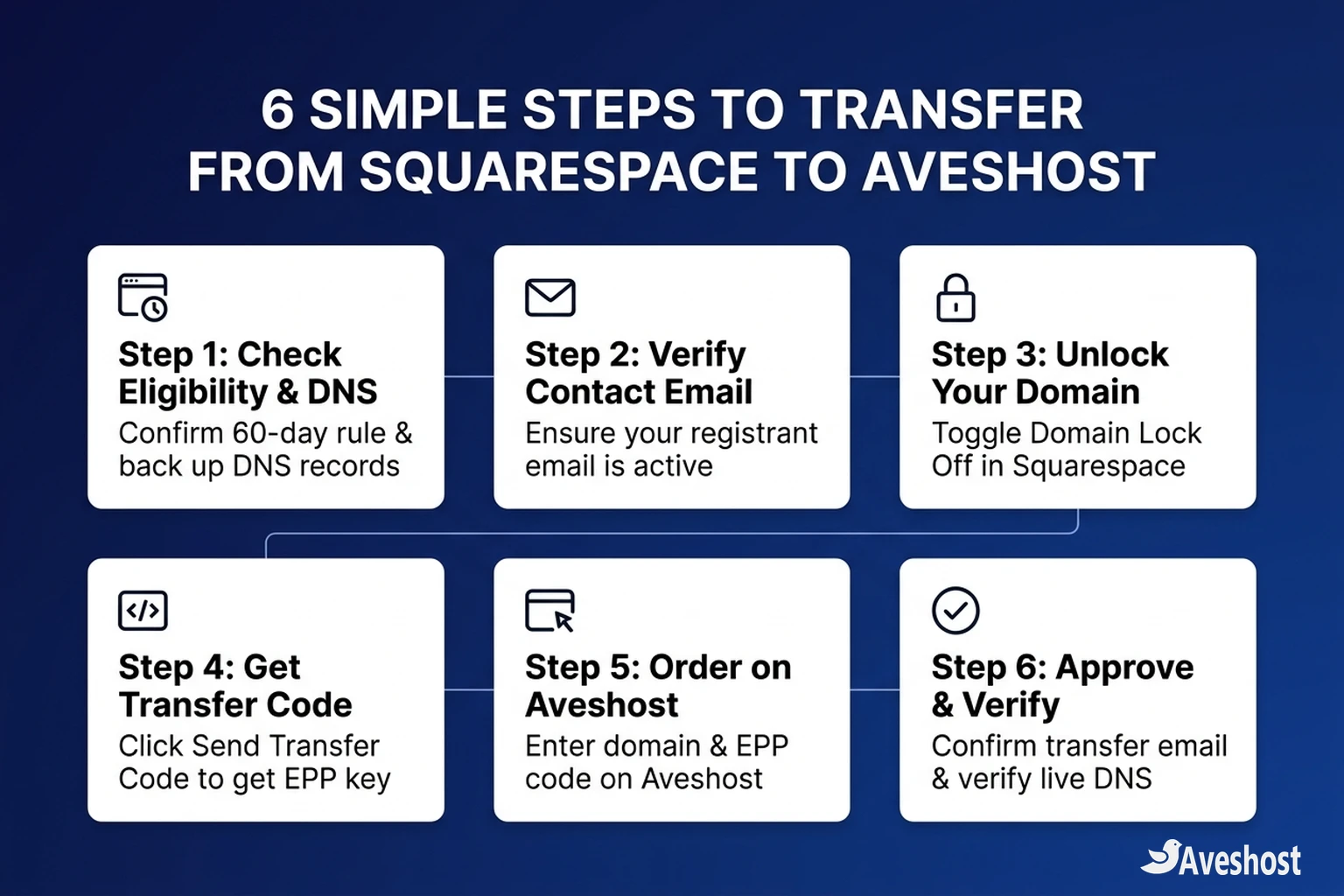
At a glance, the process comes down to unlocking your domain in the Squarespace Domains dashboard, requesting your Authorization Code (also called an EPP code or transfer key), and submitting that code on the Aveshost Domain Transfer page. A completed transfer also adds one full year to your domain’s current expiration date.
Key Takeaways:
• Check the 60-day rule first: Under ICANN transfer policy, a domain must be at least 60 days past its initial registration or last registrar transfer before it can move.
• Back up your DNS records before unlocking: Once a transfer is in progress, Squarespace freezes DNS editing inside your old dashboard until the transfer completes.
• Verify your registrant email inbox: Squarespace emails the EPP transfer code to the primary domain contact address on file.
• Your remaining registration time is preserved: Transferring to Aveshost Domains carries over your remaining registration period and adds an extra year upon completion.
Table of Contents
Why Transfer a Domain from Squarespace to Aveshost?
Many website owners originally registered domains with Squarespace—or had their domains moved there automatically when Google Domains closed—only to find that managing renewals, custom nameservers, and hosting across separate platforms adds unnecessary friction. When you transfer a domain from Squarespace to Aveshost, you bring your domain lifecycle and hosting infrastructure together in one place.
Here is what changes when you manage your domain with Aveshost:
• Predictable, transparent renewal pricing: You can review registration, renewal, and transfer rates upfront on our domain pricing page with no surprise add-on fees at renewal time.
• Unified hosting, DNS, and email management: Instead of copying DNS records back and forth between Squarespace and your hosting server, you can manage your domain, web hosting, WordPress hosting, and business email inside a single Aveshost client area.
• Full DNS and nameserver flexibility: Easily configure custom nameservers, A, AAAA, CNAME, MX, TXT, SPF, DKIM, and DMARC records, or pair your domain with external CDNs such as Cloudflare.
• Responsive 24/7 technical support: Whenever you need help diagnosing DNS propagation, SSL issuance, or email routing, our support team can see both your domain and hosting settings directly.
| Feature | Keeping Domain at Squarespace | Transferring Domain to Aveshost |
|---|---|---|
| Management Dashboard | Separate login from your Aveshost web hosting and email accounts | Single unified Aveshost client area for domains, DNS, hosting, and billing |
| Registration Extension on Transfer | Standard annual renewal at current Squarespace rate | Transfer fee includes a 1-year extension added to your current expiry date |
| DNS & Nameserver Control | DNS changes locked during outbound transfers; separate zone editor | Full DNS zone management and custom nameservers alongside your hosting |
| Website & Hosting Options | Primarily built around Squarespace’s proprietary site builder | Works seamlessly with WordPress, custom web apps, VPS, or any external host |
Pre-Transfer Checklist: What to Check Before You Start
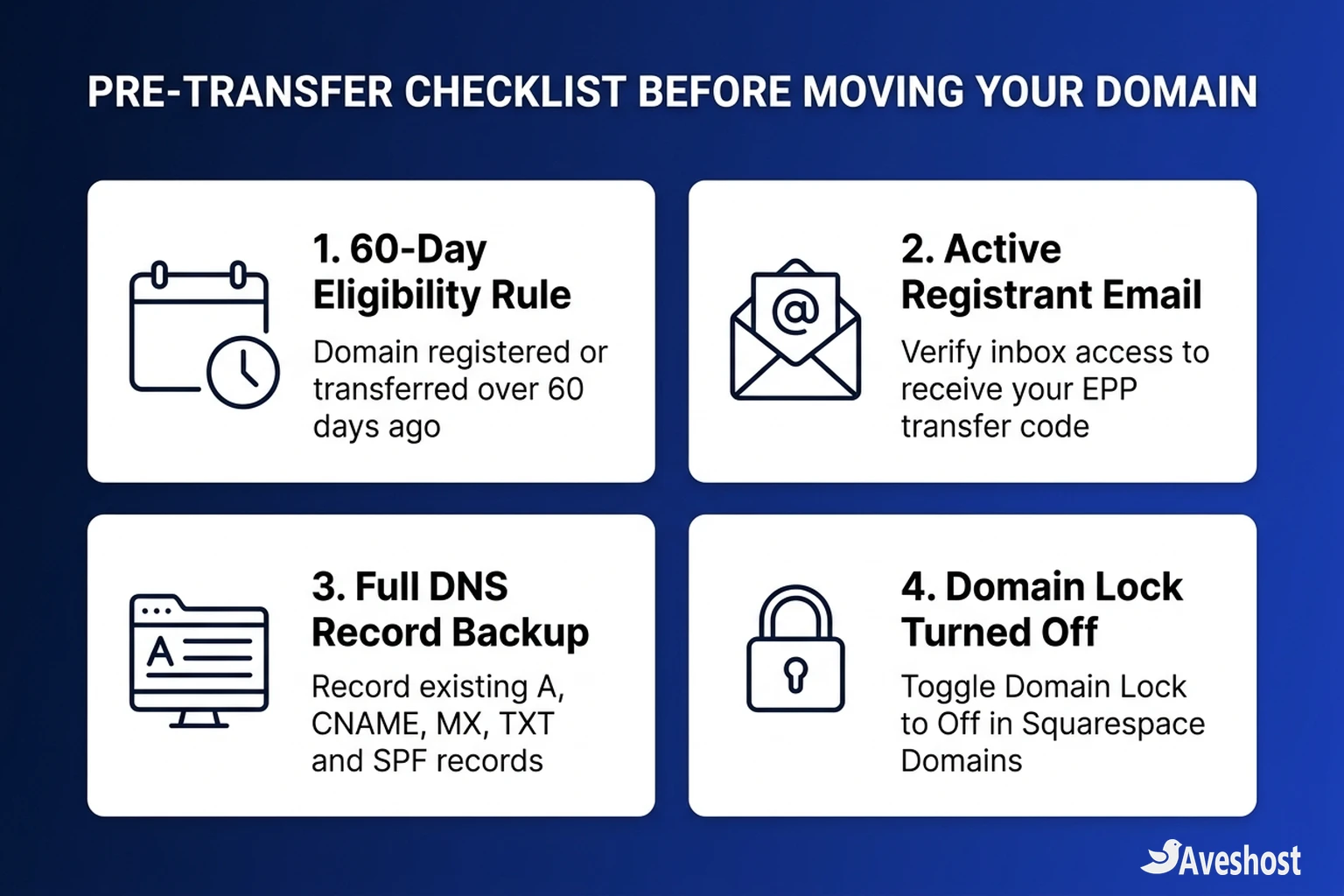
Before you click the unlock toggle in Squarespace, spend two minutes verifying four technical requirements. Checking these upfront prevents the most common causes of stalled or rejected domain transfers:
1. The 60-day ICANN lock window has passed: Domain registries enforce a mandatory 60-day lock after a domain is newly registered, transferred between registrars, or updated with a new registrant contact name or email address (unless you explicitly opted out of the contact-change lock). You can check your domain’s creation and update dates anytime using the Aveshost WHOIS Lookup tool.
2. Your domain is active and not expired: If your domain is within a few days of expiring, renew it first or initiate the transfer at least 7 to 10 days before the expiration date so the registry has enough time to complete the handover.
3. Your TLD is supported for transfer: Standard generic top-level domains (such as .com, .net, .org, .info, .biz, .io, and .ai) and supported country-code extensions can be transferred directly through the Aveshost domain transfer catalog.
4. You know whether your website and email will stay on their current servers: Transferring a domain registrar only moves the billing and administrative control of the domain name—it does not automatically move your website files or email inbox. If you want to understand how the two work together, read our guide on domain name vs. web hosting.
Step 1: Verify Transfer Eligibility and Back Up Your DNS Records
Your first action when you transfer a domain from Squarespace is to record your current DNS configuration so your live website and custom email addresses experience zero interruption during or after the move.
According to Squarespace’s official domain transfer documentation, your existing DNS records continue resolving traffic while the transfer is pending, but you cannot edit or add DNS records inside Squarespace once the transfer is underway.
Follow this quick backup routine:
• Open your Squarespace Domains dashboard: Sign in at account.squarespace.com/domains and click the domain name you plan to move.
• Click DNS in the left-hand menu: Take a screenshot or copy every custom record into a text file—including your root A record, www CNAME record, mail MX records, and any TXT records used for SPF, DKIM, DMARC, or Google/Microsoft domain verification.
• Check DNSSEC status: In the DNS settings menu, check whether DNSSEC is enabled. If DNSSEC is active and you plan to change nameservers during the transfer, turn DNSSEC off before unlocking the domain so resolvers do not reject your new DNS zone during propagation.
Step 2: Confirm Your Registrant Contact Email in Squarespace
When you request a transfer authorization code from Squarespace, they do not display the code on screen—instead, they email it to the domain’s Registrant Contact (or Administrative Contact) email address.
To verify that you have access to that inbox:
1. Open Registration Information: Inside your domain’s overview panel in Squarespace, click Registration Information (or Contact Information).
2. Check the email address on file: Make sure the email address listed under Registrant Contact is an active inbox you can open right now. Avoid using an email address tied to the same domain if your mail server is currently offline.
3. Update carefully if needed: If the email address on file is old or inaccessible, update it to a working email address and click the verification link Squarespace sends you. Keep in mind that changing the registrant email address on a gTLD can trigger an ICANN 60-day transfer lock unless you select the option to opt out of the 60-day lock when prompted.
Step 3: Unlock Your Domain in the Squarespace Domains Dashboard
By default, Squarespace places a registrar lock (clientTransferProhibited) on every domain to prevent unauthorized transfers. You must turn this lock off before Aveshost can request the domain from the registry.
Here is how to unlock your domain in Squarespace:
1. Go to your domain’s Overview tab: In the Squarespace Domains dashboard, select the domain you want to transfer.
2. Locate the Domain Lock section: Scroll down the Overview panel until you see the Domain Lock toggle.
3. Toggle Domain Lock to Off: Switch the toggle from On to Off. Within a few moments, the domain status updates to unlocked. (If you see a message stating ‘Can’t unlock domain’, the domain is still within the 60-day registration or contact-update lock period.)
Step 4: Request Your Squarespace Authorization Code (EPP Key)
With the domain unlocked, the next step to transfer a domain from Squarespace is generating your unique Authorization Code—also known as an EPP code, transfer key, or auth code.
1. Click Send Transfer Code (or Request Transfer Code): Directly below the Domain Lock toggle in your Squarespace domain overview panel, click Send transfer code.
2. Confirm the request: Squarespace will confirm that the transfer key is being generated and sent to your registrant email address.
3. Copy the code from your email inbox: Check your inbox (and your spam or promotions folder) for an email from Squarespace containing your unique transfer code. Although Squarespace notes that delivery can take up to 24 hours in rare cases, the email typically arrives within a few minutes. Copy the code exactly as shown, including any punctuation or capital letters, without trailing spaces.
Step 5: Submit the Domain Transfer Order on Aveshost
Once you have your unlocked domain and your EPP authorization code ready, you can transfer a domain from Squarespace to Aveshost in under two minutes:
1. Open the Aveshost Domain Transfer page: Go to the Aveshost Domain Transfer portal (or visit Aveshost Domains and select Transfer).
2. Enter your domain name and Authorization Code: Type your full domain name (for example, yourbusiness.com) into the Single Domain Transfer field, paste the EPP authorization code you received from Squarespace into the Authorization Code field, and click Add to Cart.
3. Configure optional add-ons and nameservers: On the Domains Configuration screen, choose whether to enable ID Protection (WHOIS Privacy) to shield your personal contact details from public lookup databases, and confirm the nameservers you want your domain to use once the transfer completes.
4. Complete checkout: Sign in to your existing Aveshost account—or create a new client profile—and complete the transfer order. Your transfer fee includes a one-year renewal extension added to your domain’s current expiration date.
Step 6: Approve the Transfer Confirmation and Verify Your DNS Settings
After you complete checkout on Aveshost, our system immediately submits the transfer request with your EPP code to the central registry, which notifies Squarespace.
Here is what happens during the final stage:
• Check for the transfer confirmation email: Squarespace sends a transfer notification email to the registrant contact address letting you know an outbound transfer has been requested. If the email includes an option to approve or expedite the transfer immediately, click the approval link to release the domain right away. Otherwise, under ICANN rules, Squarespace automatically releases the domain within 5 to 7 calendar days if you do not cancel the transfer.
• Monitor status in your Aveshost client area: Log in to your Aveshost dashboard and open Domains → My Domains. While the registry handover is in progress, the status displays as Pending Transfer. As soon as the transfer finishes, the status changes to Active and you receive a confirmation email from Aveshost.
• Verify your DNS, SSL, and email routing: Once your domain is Active on Aveshost, verify that your nameservers and DNS records match the backup you saved in Step 1. If you are also moving your website to Aveshost hosting, check that your free SSL certificate is active—see our guide on understanding SSL certificates—and send a test message to confirm your custom email is working.
How to Keep Your Website and Business Email Online Without Downtime
One of the most common worries before people transfer a domain from Squarespace is whether visitors will see an error page or incoming emails will bounce while the transfer is processing. With the right DNS approach, you can achieve zero downtime:
Scenario A: You are keeping your existing website or email host for now (Domain-only transfer). Keep your existing nameservers or recreate your saved A, CNAME, MX, and TXT records in Aveshost’s DNS Manager as soon as the transfer completes. Because Squarespace continues serving your active DNS zone throughout the pending transfer window, your site and Google Workspace, Microsoft 365, or custom mail servers remain online the entire time.
Scenario B: You are rebuilding your Squarespace website on WordPress at Aveshost. Because Squarespace uses a proprietary hosted builder, Squarespace templates cannot be copied directly as server files; instead, you rebuild or import your content into WordPress hosting on Aveshost using a temporary staging URL first. Once your new WordPress site is tested and ready—and your domain transfer is complete—point your domain’s nameservers to Aveshost for an instant, seamless switch.
Scenario C: You use Cloudflare for DNS. If your domain already uses Cloudflare nameservers, your DNS records stay intact inside Cloudflare during the entire registrar transfer—just make sure DNSSEC is disabled before starting the transfer and re-enabled afterward. You can read more in our tutorial on how to set up DNS records for your domain in Cloudflare.
Troubleshooting Common Squarespace Domain Transfer Issues
If your domain transfer runs into a roadblock, the cause is almost always one of four quick-to-fix settings. Use the table below to diagnose and resolve the issue quickly. If you also have domains at other registrars, you can follow our step-by-step guides on how to transfer your domain from GoDaddy to Aveshost, how to transfer your domain from Namecheap to Aveshost, or our general domain transfer guide.
| Issue or Error Message | Why It Happens | How to Fix It |
|---|---|---|
| “Can’t unlock domain” in Squarespace | The domain was registered, transferred, or had its registrant contact updated within the last 60 days. | Wait until the 60-day ICANN lock expires (check exact date via WHOIS), then toggle Domain Lock to Off. |
| Transfer code email has not arrived | The email went to spam, or the Registrant Contact email in Squarespace is outdated. | Check your spam folder, verify the email under Registration Information in Squarespace, and click Send Transfer Code again. |
| “Invalid Authorization / EPP Code” error | Extra spaces were copied before/after the code, or a newer transfer code was requested which invalidated the previous one. | Paste the most recent code carefully without leading or trailing spaces, or contact Aveshost support to update the EPP code on your order. |
| Transfer stuck in “Pending Transfer” for several days | Normal registry waiting period when the outbound confirmation email has not been manually approved. | Allow 5 to 7 calendar days for automatic registry release, or check your registrant inbox for an approval link from Squarespace. |
Ready to Move Your Domain? Start Your Transfer to Aveshost Today
When you transfer a domain from Squarespace to Aveshost, you gain transparent renewal pricing, full DNS control, and the convenience of managing your domain name, SSL certificates, web hosting, and professional email in one dashboard.
Unlock your domain in Squarespace, copy your EPP transfer code, and head over to the Aveshost Domain Transfer page to start your transfer today. If you want our team to check your DNS records before you move or help you set up WordPress hosting or business email, contact Aveshost Support anytime.
Frequently asked questions
How long does it take to transfer a domain from Squarespace to Aveshost?
Once you unlock your domain, enter your EPP authorization code on Aveshost, and complete checkout, the transfer typically completes within 5 to 7 calendar days. In many cases, approving the outbound transfer confirmation email sent by Squarespace can complete the handover even faster.
Will I lose the remaining time on my domain registration when I transfer to Aveshost?
No. When you transfer a generic top-level domain (such as .com, .net, or .org) to Aveshost, your existing time remaining is preserved and an additional one year (12 months) is added to your current expiration date.
Can I transfer a former Google Domains domain from Squarespace to Aveshost?
Yes. Domains that were migrated from Google Domains to Squarespace Domains follow the exact same 6-step process: sign in to the Squarespace Domains dashboard, toggle Domain Lock to Off, click Send Transfer Code, and submit the code on the Aveshost Domain Transfer page.
Does transferring my domain from Squarespace automatically move my website?
No. A domain transfer only moves your domain name registration and DNS management to Aveshost. Because Squarespace websites run on Squarespace’s proprietary platform, your website either stays connected to Squarespace via DNS records or can be rebuilt on WordPress hosting at Aveshost.
Will my business email stop working during the domain transfer?
Your email will continue working without interruption as long as your existing MX, SPF, DKIM, and DMARC records remain in place. Always back up your DNS records in Step 1 before unlocking your domain so you can verify or recreate them on Aveshost.
Why won't Squarespace let me unlock my domain?
Under ICANN rules, a domain cannot be unlocked and transferred within 60 days of initial registration, within 60 days of a previous registrar transfer, or within 60 days of a registrant contact change (unless you opted out of the contact-change lock).
Where do I find the Squarespace transfer code (EPP code)?
In the Squarespace Domains dashboard, click your domain name, toggle Domain Lock to Off, and click Send Transfer Code. Squarespace emails the authorization code to the Registrant Contact email address listed under Registration Information.
Can I edit my DNS records in Squarespace while the transfer to Aveshost is pending?
No. While your existing DNS records continue resolving traffic normally during the transfer window, Squarespace disables DNS editing inside their dashboard once a transfer is in progress. Make any urgent DNS edits before initiating the transfer.
Should I cancel my Squarespace domain before transferring it to Aveshost?
Never cancel or delete your domain in Squarespace before transferring it. Canceling a domain can take it offline or place it into redemption. Simply leave the domain active in Squarespace—it will automatically move out of your Squarespace Domains list once the transfer to Aveshost completes.
What should I do if my EPP authorization code is rejected?
Check that you copied the entire code from Squarespace’s email without any extra spaces at the beginning or end, and confirm that Domain Lock is still toggled Off. If needed, request a fresh transfer code in Squarespace and send it to Aveshost Support so we can re-submit the transfer immediately.