Seeing the message “Please unblock challenges.cloudflare.com to proceed” stops you from opening a website because your browser cannot load or execute Cloudflare’s security verification script. When you need to unblock challenges.cloudflare.com quickly, the fastest path is to verify whether Cloudflare itself is experiencing a temporary network incident, test the page in an Incognito or Private window to bypass ad-blocking extensions, switch away from filtered DNS resolvers (such as Pi-hole or AdGuard DNS) to 1.1.1.1 or 8.8.8.8, or—if you own the website—add https://challenges.cloudflare.com to your server’s Content-Security-Policy header.
In this guide, we explain what challenges.cloudflare.com does behind the scenes, how to tell the difference between a local browser block and an upstream Cloudflare outage, and how both everyday visitors and website administrators can resolve the error permanently.
Key Takeaways
- It is a legitimate Cloudflare verification endpoint:
challenges.cloudflare.comserves Cloudflare Turnstile and Managed Challenge scripts that verify browser integrity without traditional CAPTCHA puzzles. - Check Cloudflare’s status page first: When Cloudflare’s edge challenge network suffers an outage, thousands of sites display “Please unblock challenges.cloudflare.com to proceed” simultaneously even when nothing is blocked on your computer.
- Browser shields and DNS sinkholes are the top local causes: Aggressive privacy extensions (uBlock Origin, Privacy Badger, Brave Shields), filtered DNS servers (Pi-hole, AdGuard Home, NextDNS), or custom entries in your local
hostsfile frequently block the challenge script. - Website owners must allowlist the domain in CSP headers: If every visitor on your own site sees this error, your HTTP
Content-Security-Policyheader or JavaScript optimization plugin is blockinghttps://challenges.cloudflare.comfrom loading its script or iframe.
Table of Contents
What Is challenges.cloudflare.com and Why Must You Unblock challenges.cloudflare.com?
When you visit a website protected by Cloudflare—or submit a login, checkout, or contact form secured with Cloudflare Turnstile—the web page loads a lightweight JavaScript verification bundle from https://challenges.cloudflare.com (most commonly https://challenges.cloudflare.com/turnstile/v0/api.js or a challenge platform endpoint under /cdn-cgi/challenge-platform/). That script renders a small sandboxed iframe that runs non-interactive browser telemetry checks or presents a single-click “Verify you are human” checkbox before issuing a clearance token or cf_clearance cookie.
If the HTML page loads from the website’s primary domain, but the browser fails to fetch or execute the script from challenges.cloudflare.com, the fallback script embedded in the page prints the warning: “Please unblock challenges.cloudflare.com to proceed.”
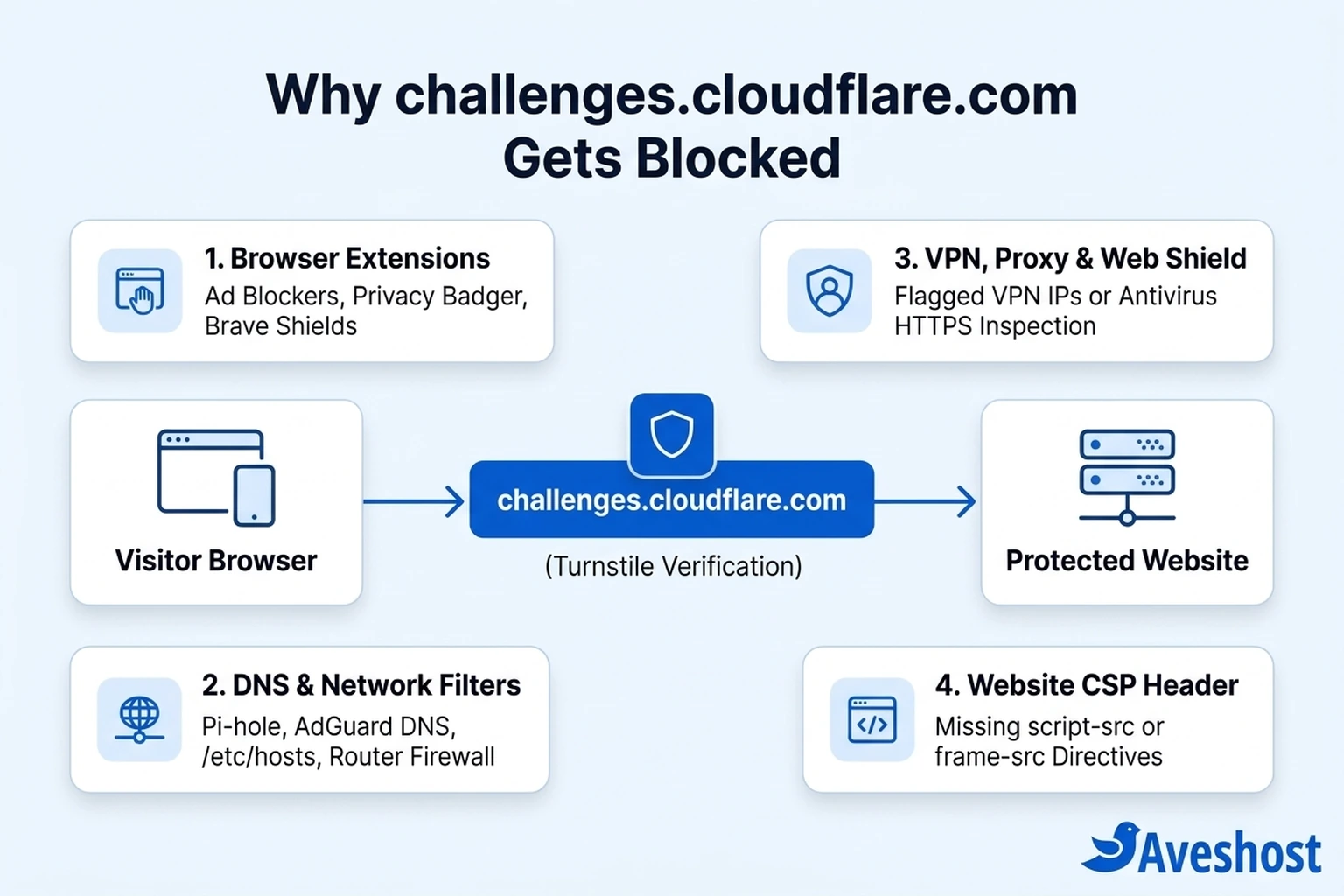
To unblock challenges.cloudflare.com effectively, you first need to know which of the four layers is stopping the request:
- Browser-Level Content Blockers: Privacy extensions, script blockers, or built-in browser shields mistake the third-party iframe from
challenges.cloudflare.comfor a cross-site tracker. - DNS & Local Network Filters: Filtered DNS servers (Pi-hole, AdGuard DNS, NextDNS, school or corporate firewalls) or a modified local
hostsfile refuse to resolvechallenges.cloudflare.com. - VPNs, Proxies & Antivirus HTTPS Inspection: Endpoint security suites that inject custom root certificates into HTTPS traffic—or VPN exit nodes flagged for automated abuse—interrupt the cryptographic challenge handshake.
- Server-Side Content Security Policy (CSP): The website owner configured a strict HTTP
Content-Security-Policyheader that forbids external scripts or iframes fromhttps://challenges.cloudflare.com.
Quick Diagnostic Matrix: Symptom vs. Root Cause
Before changing network settings at random, match what you see on screen with the diagnostic table below to jump straight to the right fix.
| What You Observe | Most Likely Cause | Fastest Fix |
|---|---|---|
| Multiple unrelated websites show the error at the exact same time | Upstream Cloudflare Turnstile or Challenge Platform outage | Check cloudflarestatus.com and wait for edge recovery (Step 1) |
| The page works in an Incognito / Private window, but fails in your normal window | Browser extension (uBlock Origin, Privacy Badger, Ghostery) or corrupted site cookies | Allowlist the site in your extensions and clear site data (Step 2) |
| Every browser on your Wi-Fi fails, but your phone’s mobile data hotspot loads the site | Filtered DNS resolver (Pi-hole, AdGuard, ISP DNS) or router firewall block | Switch DNS to 1.1.1.1 or 8.8.8.8 and flush your DNS cache (Step 3) |
| The error appears only when your VPN or antivirus “Web Shield” is active | Flagged datacenter VPN IP or TLS/HTTPS inspection breaking challenge tokens | Pause VPN/proxy or exclude browser traffic from HTTPS scanning (Step 4) |
| All visitors to your own website report the error on your login or checkout page | Restrictive Content-Security-Policy header or JS deferral plugin on your server | Add https://challenges.cloudflare.com to script-src and frame-src (Step 6) |
Step 1: Check Cloudflare System Status First
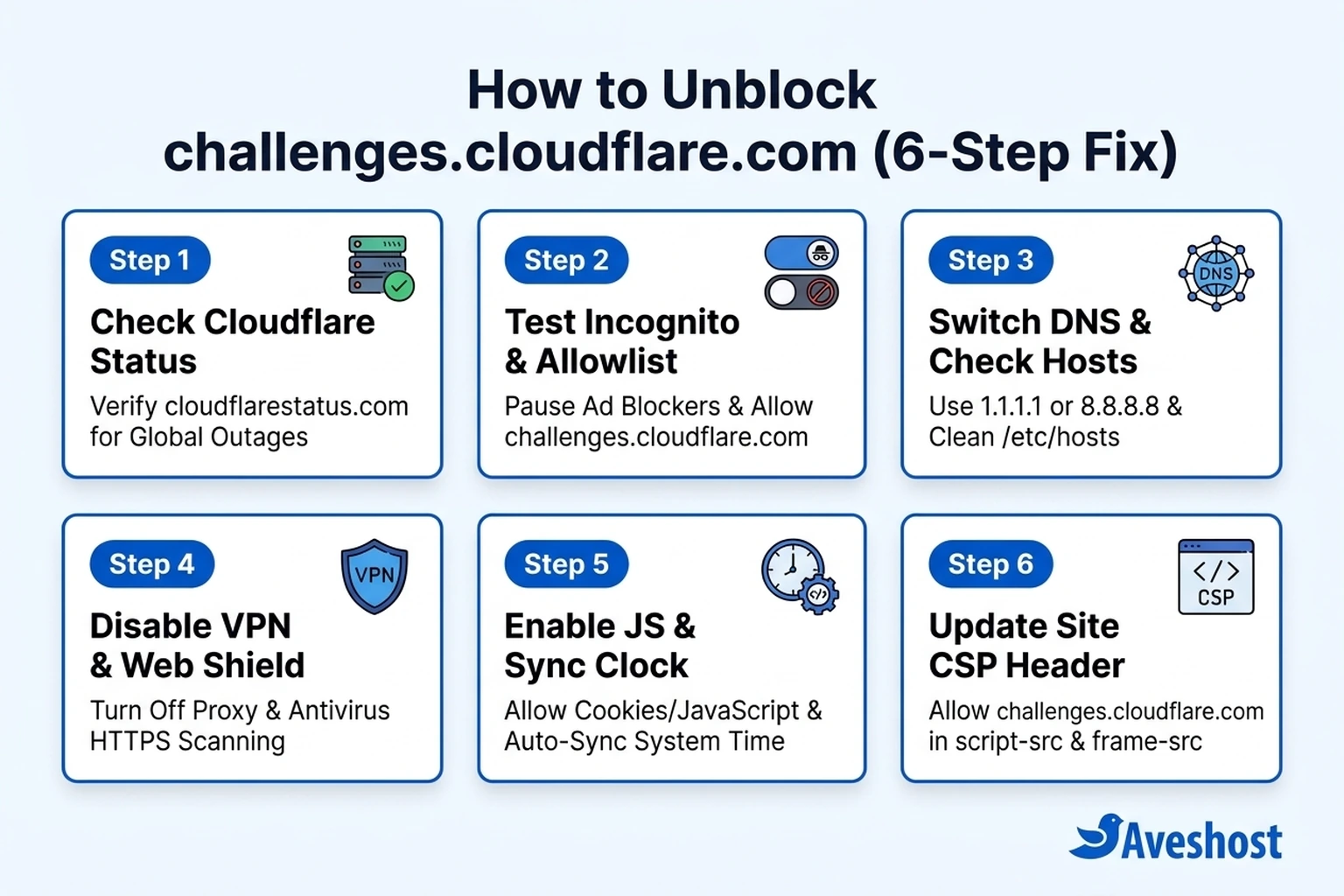
Although the message reads “Please unblock challenges.cloudflare.com to proceed,” the warning is generated by a simple client-side check that triggers whenever the challenge script fails to respond—including when Cloudflare’s own servers are unreachable. When Cloudflare’s Bot Management or Turnstile service experiences degraded performance, the browser’s request to challenges.cloudflare.com times out or returns an HTTP 5xx error, and the page blames your local connection.
- Open Cloudflare System Status (cloudflarestatus.com) in a new tab.
- Expand the Cloudflare Sites and Services section and check the status of Turnstile, Challenge Platform, Bot Management, and your nearest local Cloudflare data center.
- If an active incident is listed, do not alter your DNS, firewall, or browser configuration—your access will resume automatically as soon as Cloudflare restores the affected edge service.
Step 2: Test in Incognito Mode and Allowlist Browser Extensions
If Cloudflare’s status page shows all systems operational, the most common culprit is a browser extension or built-in privacy shield blocking third-party scripts from challenges.cloudflare.com.
- Press
Ctrl + Shift + N(Windows/Linux) orCmd + Shift + N(macOS) in Chrome, Edge, or Brave—orCtrl + Shift + Pin Firefox—to open a fresh Incognito / Private window. - Visit the website that displayed the error. If the challenge loads and passes immediately in Incognito mode, one of your installed extensions or cached cookies is blocking
challenges.cloudflare.com. - Return to your regular browser window and inspect these extensions first:
- uBlock Origin / AdBlock / AdGuard: Open the extension popup on the affected website and click the power icon to disable filtering for that site, or add
@@||challenges.cloudflare.com^$document,subdocument,scriptto your custom allowlist rules. - Privacy Badger / Ghostery / NoScript: Set
challenges.cloudflare.comto Allow (Trusted) so its script and iframe can execute. - Brave Shields / Firefox Enhanced Tracking Protection: Click the shield icon in the address bar and lower protection from Aggressive / Strict to Standard for that site.
Step 3: Switch Filtered DNS Resolvers and Check Your Hosts File
When the error persists in Incognito mode and across different browsers (for example, both Chrome and Firefox fail on the same computer), your DNS resolver or local hosts file is preventing your operating system from resolving challenges.cloudflare.com.
1. Test Resolution and Flush Your DNS Cache
Open Command Prompt (Windows) or Terminal (macOS/Linux) and check what IP address your system receives for challenges.cloudflare.com:
nslookup challenges.cloudflare.comA healthy response returns Cloudflare edge IPv4 addresses (such as 104.18.x.x or 172.64.x.x). If the response returns 0.0.0.0, 127.0.0.1, NXDOMAIN, or a sinkhole address, your DNS filter or local hosts file is blocking the domain.
2. Inspect Your Local Hosts File
- Windows: Open Notepad as Administrator and open
C:\Windows\System32\drivers\etc\hosts. - macOS / Linux: Run
sudo nano /etc/hostsin Terminal.
Look for any line referencing cloudflare.com or challenges.cloudflare.com (sometimes added by third-party ad-blocking scripts or privacy tools). Delete that line or place a # comment character at the start, then save the file.
3. Switch to Unfiltered Public DNS and Flush Cache
If you run Pi-hole, AdGuard Home, NextDNS, or a strict ISP/workplace DNS resolver, either allowlist challenges.cloudflare.com in your DNS dashboard or configure your network adapter to use an unfiltered public resolver:
- Cloudflare Public DNS:
1.1.1.1and1.0.0.1(IPv6:2606:4700:4700::1111) - Google Public DNS:
8.8.8.8and8.8.4.4(IPv6:2001:4860:4860::8888)
After updating your DNS servers, flush your operating system’s DNS cache and restart your browser:
# Windows (Command Prompt as Administrator)
ipconfig /flushdns

# macOS (Terminal)
sudo dscacheutil -flushcache; sudo killall -HUP mDNSResponder

# Linux (systemd-resolved)
sudo resolvectl flush-caches
Step 4: Disable VPNs, Proxies, and Antivirus HTTPS Web Shields
Cloudflare’s challenge engine inspects TLS fingerprints, HTTP/2 and HTTP/3 connection characteristics, and IP reputation. Two categories of desktop software frequently interfere with this handshake:
- Antivirus “Web Shield” or HTTPS Scanning: Security suites such as Kaspersky, Bitdefender, Avast, AVG, and ESET often install a local proxy certificate to decrypt and scan HTTPS traffic. Because
challenges.cloudflare.comuses strict TLS and browser attestation checks, local MITM certificate injection can cause the challenge script to fail or be blocked as suspicious. Temporarily pause HTTPS Scanning / Encrypted Web Traffic Inspection in your antivirus settings or addchallenges.cloudflare.comto its trusted exclusions list. - VPNs, Datacenter Proxies, and iCloud Private Relay: Shared VPN servers and proxy extensions route hundreds of users through the same datacenter IP address. If an IP is heavily rate-limited or if a split-tunnel VPN drops sub-resource requests to
challenges.cloudflare.com, disconnect from the VPN, refresh the page, and complete the verification on your direct connection.
Step 5: Enable JavaScript, Allow Cookies, and Sync Your System Clock
Cloudflare Turnstile and Managed Challenges rely on modern browser APIs, cryptographic timestamps, and session cookies. Check these three browser and OS settings if the domain resolves normally but still refuses to proceed:
- Enable JavaScript and Cookies: Make sure JavaScript is permitted for all sites in your browser’s privacy settings, and ensure cookies are not completely blocked (Cloudflare needs to store the
cf_clearancecookie after verification passes). - Sync Your Device Date and Time Automatically: Cryptographic challenge tokens include a strict timestamp window. If your computer or smartphone clock is off by even a few minutes, verification tokens are rejected immediately. Enable Set time automatically and Set time zone automatically in Windows Time & Language settings or macOS Date & Time settings, then click Sync now.
- Update Your Web Browser: Outdated browsers or stripped-down embedded webviews may lack the WebAssembly and WebCrypto features required by Turnstile. Update Chrome, Firefox, Edge, or Safari to the current stable release.
Step 6: For Website Owners — Fix Content Security Policy (CSP) and Script Deferral
If you are a website owner or developer and visitors report seeing “Please unblock challenges.cloudflare.com to proceed” on your WordPress login page (/wp-admin or /wp-login.php), WooCommerce checkout, or contact forms, the block is almost always caused by your own server’s HTTP security headers or a JavaScript optimization plugin.
1. Update Your Content-Security-Policy (CSP) Header
Per Cloudflare’s official Turnstile CSP documentation, if your web server, .htaccess file, or security plugin sends a Content-Security-Policy header, you must explicitly permit https://challenges.cloudflare.com across three directives: script-src, frame-src, and connect-src.
| CSP Directive | Required Value | Why Cloudflare Turnstile Needs It |
|---|---|---|
script-src | 'self' https://challenges.cloudflare.com | Allows the browser to load and execute https://challenges.cloudflare.com/turnstile/v0/api.js |
frame-src (or child-src) | 'self' https://challenges.cloudflare.com | Allows Turnstile to render its isolated verification widget iframe |
connect-src | 'self' https://challenges.cloudflare.com | Allows background token exchanges and pre-clearance requests to /cdn-cgi/ |
For example, on Apache or LiteSpeed servers (such as those powering Aveshost WordPress Hosting and Shared Web Hosting), ensure your .htaccess CSP header includes https://challenges.cloudflare.com:
<IfModule mod_headers.c>
  Header set Content-Security-Policy "default-src 'self'; script-src 'self' 'unsafe-inline' https://challenges.cloudflare.com; frame-src 'self' https://challenges.cloudflare.com; connect-src 'self' https://challenges.cloudflare.com;"
</IfModule>
If your application uses a strict nonce-based policy (CSP3), generate a dynamic server-side nonce on each request, include 'nonce-YOUR_NONCE' in your script-src directive, and add the matching nonce attribute directly to the Turnstile script tag:
<script src="https://challenges.cloudflare.com/turnstile/v0/api.js" nonce="YOUR_DYNAMIC_NONCE" async defer></script>2. Exclude Turnstile from WordPress JS Deferral and Minification
WordPress performance plugins (including LiteSpeed Cache, WP Rocket, Autoptimize, and Perfmatters) can break Cloudflare Turnstile if they combine, minify, or delay external security scripts until user interaction. Add the following exclusions in your caching plugin’s JavaScript Exclusions / Delay JS Exclusions settings, then purge all caches:
challenges.cloudflare.com
/turnstile/v0/api.js
cf-turnstile
Just as database configuration mismatches can trigger Error Establishing a Database Connection in WordPress or firewall port blocks can interrupt Gmail SMTP email delivery, overly aggressive script combination or header rules can lock real customers out of your forms. Hosting your site on Aveshost WordPress Hosting or Fully Managed VPS Hosting gives you clean LiteSpeed edge compatibility with Cloudflare and 24/7 engineering support whenever you need help auditing HTTP security headers or DNS records.
Frequently Asked Questions
Is challenges.cloudflare.com safe or is it malware?
challenges.cloudflare.com is completely legitimate and safe. It is an official domain owned and operated by Cloudflare to deliver Turnstile and Managed Challenge verification scripts that protect websites against automated bots, credential stuffing, and DDoS attacks.
Why am I seeing “Please unblock challenges.cloudflare.com to proceed” on multiple websites at once?
When the error appears across several unrelated websites simultaneously, either Cloudflare’s Challenge Platform is experiencing a temporary outage (check cloudflarestatus.com), or a device-wide setting on your computer—such as a filtered DNS server (Pi-hole, AdGuard DNS), a local hosts file rule, a VPN, or an antivirus HTTPS web shield—is blocking all traffic to challenges.cloudflare.com.
How do I unblock challenges.cloudflare.com on an iPhone or Android phone?
On iPhone or Android, test the page on mobile data instead of Wi-Fi first. If you use iCloud Private Relay (on iOS), an ad-blocking DNS profile (such as AdGuard or NextDNS), or a mobile VPN app, pause it temporarily. Also ensure JavaScript and cookies are enabled in Safari or Chrome and that your phone’s date and time are set to automatic.
How do I allow challenges.cloudflare.com in uBlock Origin or Brave Browser?
In Brave Browser, click the orange Brave Lion icon in the address bar and set Shields to Standard (or turn Shields off for that specific site). In uBlock Origin, click the extension icon and click the large blue power button to bypass filtering on the current site, or add challenges.cloudflare.com to your trusted rules.
How do I fix the challenges.cloudflare.com error on my own WordPress website?
Inspect your browser’s Developer Tools Console (F12) for Content-Security-Policy violations. Add https://challenges.cloudflare.com to your server’s script-src, frame-src, and connect-src CSP directives, and exclude challenges.cloudflare.com and /turnstile/v0/api.js from JavaScript deferral or combination in your WordPress caching plugin.