To find your default WordPress Admin Login URL, add /wp-admin/ or /wp-login.php to the end of your website’s domain name in your browser’s address bar—for example, https://yourdomain.com/wp-admin/ or https://yourdomain.com/wp-login.php. Both paths take you straight to the WordPress login screen where you enter your administrator username or email address and password.
If visiting your normal WordPress Admin Login URL shows a 404 Not Found page, redirects endlessly back to the login screen, or rejects your password without sending a reset email, a custom security plugin or database configuration issue is blocking your entry. Below, we cover every default login path for root, subdirectory, and subdomain installations, followed by five proven methods to recover full administrator access.
Table of Contents
What Is the Default WordPress Admin Login URL?
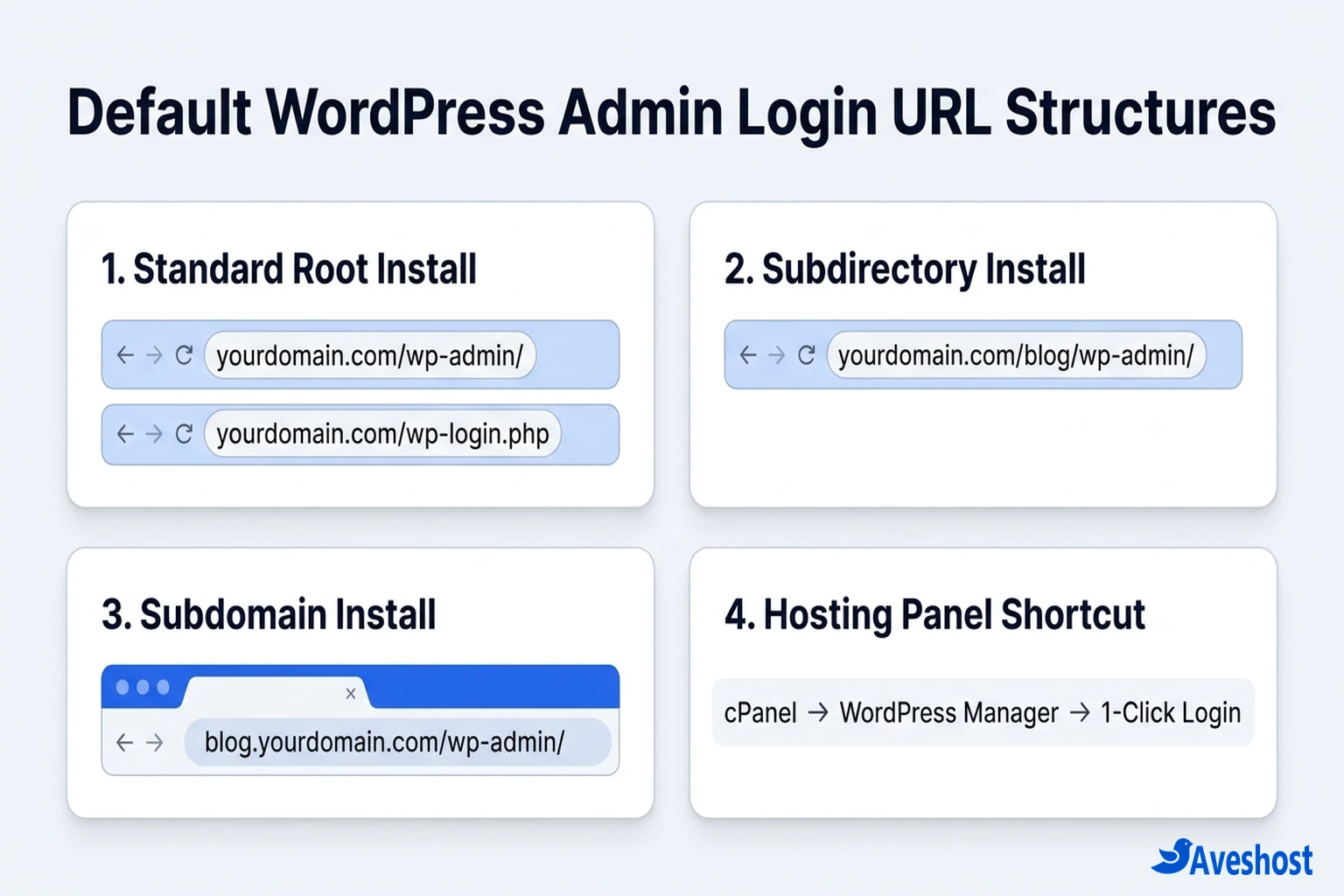
On every fresh installation, WordPress creates built-in rewrite rules and PHP entry files that route administrators to the login screen. Which exact WordPress Admin Login URL you should type depends on whether you installed WordPress in your domain’s root folder (public_html), inside a subfolder, or on a subdomain.
Use the reference table below to match your installation setup to the right login address:
| Installation Type | Primary Login URL | Direct PHP Login File |
|---|---|---|
| Standard Root Domain | https://yourdomain.com/wp-admin/ | https://yourdomain.com/wp-login.php |
| Short Redirect Aliases | https://yourdomain.com/admin/ | https://yourdomain.com/login/ |
| Subdirectory Install (e.g. /blog) | https://yourdomain.com/blog/wp-admin/ | https://yourdomain.com/blog/wp-login.php |
| Subdomain Install (e.g. blog.) | https://blog.yourdomain.com/wp-admin/ | https://blog.yourdomain.com/wp-login.php |
Method 1: Log In Instantly via cPanel WordPress Manager (No Password Needed)
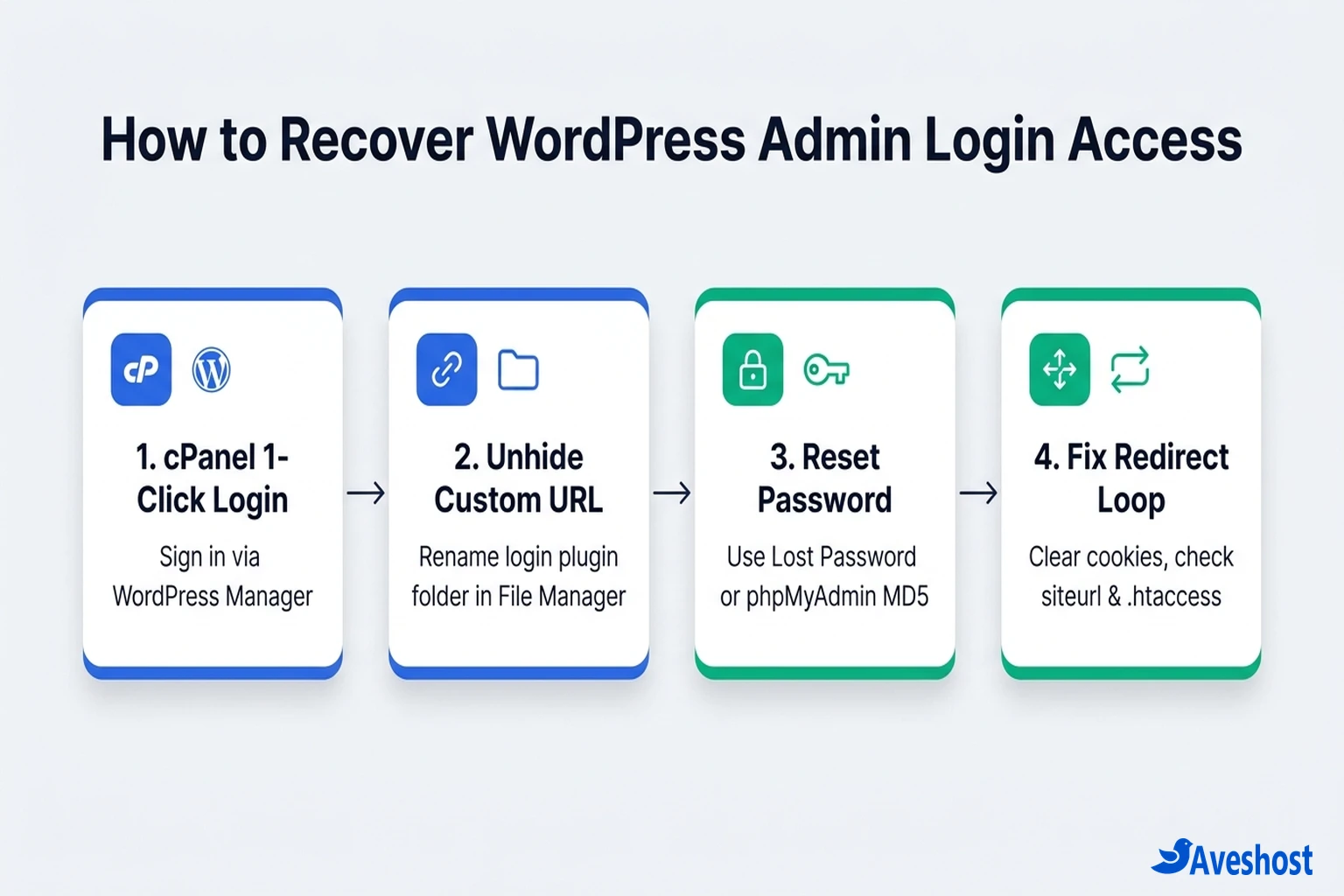
If you forgot your WordPress Admin Login URL or cannot remember your administrator password, you do not have to guess credentials on the public login screen. When your site is hosted on cPanel—including Aveshost WordPress Hosting and Aveshost Shared Web Hosting—you can sign straight into your WordPress dashboard from your hosting control panel.
Follow these steps to use the 1-click admin sign-in:
1. Open cPanel: Log in to your Aveshost client area and open cPanel.
2. Launch WordPress Manager: Scroll to the Software or Applications section and click WordPress Manager by Softaculous.
3. Click Login next to your domain: Locate your website in the installation list and click the Login button in the Admin column. Softaculous authenticates your administrator session automatically and opens your /wp-admin/ dashboard in a new browser tab without asking for a password.
Method 2: Find or Restore a Hidden Custom WordPress Admin Login URL
What if typing /wp-admin/ or /wp-login.php returns a 404 Not Found error or redirects you to your home page? That almost always means someone installed a login-hiding plugin—such as WPS Hide Login, Solid Security (formerly iThemes Security), All-In-One Security (AIOS), or Defender—to change the default WordPress Admin Login URL to a custom slug like /my-portal/ or /secret-login/.
If you no longer remember that custom login slug, you can recover your login URL in two ways using cPanel:
Option A — Look up the custom slug in phpMyAdmin (keeps the plugin active): Open cPanel → phpMyAdmin, select your WordPress database, and click the wp_options table. Use the Search tab to search where option_name equals whl_page (used by WPS Hide Login) or aio_wp_security_configs (used by AIOS). The option_value column will show the exact custom slug you need to visit.
Option B — Rename the plugin folder in File Manager (restores /wp-login.php immediately): Open cPanel → File Manager, navigate to public_html/wp-content/plugins/, right-click the folder of your login-hiding plugin (for example, wps-hide-login), and rename it to wps-hide-login-old. As soon as the folder name changes, WordPress deactivates that plugin and restores your standard https://yourdomain.com/wp-login.php address. Once you log in, you can rename the folder back and check its settings page.
Method 3: Recover Access by Resetting Your WordPress Password
When you can reach your WordPress Admin Login URL at /wp-login.php but your password is not working, start by clicking the Lost your password? link underneath the login form and entering your username or administrator email address.
If the password reset email never arrives in your inbox or spam folder, your WordPress site is likely using unauthenticated PHP mail(), which modern mail providers frequently block. (Once you regain access, configure authenticated SMTP using our step-by-step guide on how to use the Gmail SMTP server to send emails for free so password reset emails always deliver.) In the meantime, you can reset your WordPress password directly in phpMyAdmin:
1. Open the wp_users table: In cPanel → phpMyAdmin, click your WordPress database in the left sidebar and select the wp_users table (your table prefix may differ, such as wp8k_users).
2. Edit your administrator row: Locate your username under the user_login column and click Edit.
3. Set a new MD5 password hash: Find the user_pass row. In the Function dropdown menu, select MD5. In the Value text box next to it, delete the existing long hash and type your new plain-text password.
4. Save and sign in: Scroll to the bottom and click Go. Now return to your WordPress Admin Login URL (`https://yourdomain.com/wp-login.php`) and sign in with your new password—WordPress will automatically upgrade the MD5 hash to its modern cryptographic hash on login.
Method 4: Fix the WordPress Login Page Refreshing and Redirecting Loop
Sometimes your WordPress Admin Login URL loads normally and accepts your username and password, but instead of opening the dashboard, it silently redirects you right back to wp-login.php?redirect_to=.... This login redirect loop has three common causes:
1. Corrupted browser cookies or cache: WordPress relies on browser cookies to verify your login session. Test your WordPress Admin Login URL in an Incognito / Private browser window first. If it logs in cleanly there, clear your browser’s cookies and cached files for your domain.
2. Mismatched siteurl and home URLs: If you recently switched from http:// to https:// or added/removed www., a mismatch between your WordPress Address and Site Address will drop your authentication cookie. Open wp-config.php in cPanel File Manager and add these two lines just above /* That's all, stop editing! */ (replacing https://yourdomain.com with your exact canonical URL):define( 'WP_HOME', 'https://yourdomain.com' );define( 'WP_SITEURL', 'https://yourdomain.com' );
3. Corrupted .htaccess rules or conflicting plugins: In cPanel → File Manager, enable Show Hidden Files (dotfiles) under Settings, right-click .htaccess in public_html, and rename it to .htaccess.bak. Log in at /wp-login.php, then visit Settings → Permalinks and click Save Changes so WordPress generates a fresh, clean .htaccess file.
Method 5: Resolve 403 Forbidden or Database Errors on /wp-admin/
If visiting your WordPress Admin Login URL displays 403 Forbidden or blocks your IP address after too many failed login attempts, a firewall or brute-force limiter plugin (such as Wordfence, Limit Login Attempts Reloaded, or ModSecurity) has temporarily locked out your connection. You can bypass a plugin lockout immediately by signing in via cPanel → WordPress Manager or by temporarily renaming that security plugin’s folder inside wp-content/plugins/ and whitelisting your IP address once inside.
If both your public site and your WordPress Admin Login URL show a database error message instead of the login box, your PHP files cannot reach MySQL—follow our step-by-step walkthrough on how to fix Error Establishing a Database Connection in WordPress to verify your wp-config.php credentials and repair corrupted tables.
Quick Reference: WordPress Login Problems and Fastest Fixes
Use the symptom matrix below to jump straight to the right recovery method whenever you cannot sign in at your WordPress Admin Login URL:
| What Happens at the Login URL | Root Cause | Fastest Recovery Step |
|---|---|---|
| /wp-admin/ and /wp-login.php show 404 Not Found | Custom login URL plugin (e.g., WPS Hide Login) or broken .htaccess | Check whl_page in wp_options or rename the login plugin folder in wp-content/plugins/ |
| Password rejected and reset email never arrives | Forgotten password combined with unauthenticated PHP mail() | Log in via cPanel WordPress Manager or reset user_pass with MD5 in phpMyAdmin |
| Login form refreshes back to wp-login.php without an error | Stale browser cookie or mismatched WP_HOME / WP_SITEURL | Try an Incognito window and define matching WP_HOME and WP_SITEURL in wp-config.php |
| 403 Forbidden or ‘Too many failed login attempts’ | Security plugin IP lockout or firewall rule | Temporarily rename the security plugin folder via File Manager and whitelist your IP |
Best Practices to Secure Your WordPress Admin Login URL Without Getting Locked Out
Because every automated bot knows the default WordPress Admin Login URL (`https://yourdomain.com/wp-login.php`), securing your login page is essential—but you should do it in a way that never locks out your own team. First, enable two-factor authentication (2FA) and use a password manager to store both your administrator password and any custom login slug. Second, never use admin as a username; create a named administrator account and delete the generic admin user.
If you want fast, secure WordPress hosting where you always have 1-click dashboard sign-in, daily automated backups, and 24/7 technical assistance, explore Aveshost WordPress Hosting and Aveshost Managed WordPress Hosting. And if you are ever locked out of your WordPress dashboard and need a hand getting back in safely, contact our team anytime via Aveshost Support.
Frequently asked questions
What is the default WordPress Admin Login URL?
The default WordPress Admin Login URL for a standard root installation is https://yourdomain.com/wp-admin/ or https://yourdomain.com/wp-login.php (replace yourdomain.com with your actual domain name).
How do I find my WordPress login URL if it was changed by a plugin?
Log in to your hosting cPanel, open File Manager, and check public_html/wp-content/plugins/ to see which security or custom-login plugin is installed (such as wps-hide-login). You can either inspect its saved slug in the wp_options table in phpMyAdmin or rename that plugin folder to temporarily restore /wp-login.php.
Can I log in to WordPress without a password through cPanel?
Yes. If your site is managed through WordPress Manager by Softaculous (or WP Toolkit) in cPanel, you can click the Login button next to your domain to open your WordPress admin dashboard with one click, without typing a username or password.
Why does my WordPress login page keep refreshing and redirecting?
A login redirect loop is usually caused by blocked or outdated browser cookies, a mismatch between your WordPress Address (WP_SITEURL) and Site Address (WP_HOME), or a corrupted .htaccess file.
How do I reset my WordPress admin password if I do not receive the reset email?
Open cPanel → phpMyAdmin, select your WordPress database, open the wp_users table, click Edit on your administrator account, choose MD5 in the Function dropdown for the user_pass field, enter your new password in plain text, and click Go.