The Model Context Protocol (MCP) is an open standard that lets AI assistants—such as Claude, ChatGPT, Gemini, Cursor, and self-hosted agents like OpenClaw—securely read data from and execute actions on external software systems, including your WordPress website, WooCommerce store, analytics dashboard, and database. Think of the Model Context Protocol as a universal “USB-C port” for artificial intelligence: instead of building a separate custom integration for every AI model and every website plugin, a single MCP server exposes your site’s content and administrative tools in a standardized format that any MCP-compatible AI application can understand.
For website owners, agencies, and online store operators, MCP shifts AI from a passive copywriting tab where you manually copy and paste text into an authorized, context-aware assistant that can inspect live published posts, check WooCommerce inventory, audit SEO metadata, or draft native Gutenberg blocks directly inside your CMS. Below, we explain how the architecture works, the three core primitives every website owner should know, and how to connect AI to your website without compromising security.
Table of Contents
Why Model Context Protocol Matters for Website Owners
Before the Model Context Protocol was introduced by Anthropic and adopted across the broader AI ecosystem, connecting an AI model to your website meant solving the “M × N integration problem.” Every AI tool needed its own proprietary plugin or custom webhook script for WordPress, Shopify, PostgreSQL, Google Search Console, and Stripe. When you switched AI assistants or upgraded your CMS, those brittle custom glue scripts broke.
MCP replaces that fragmentation with a single open protocol built on JSON-RPC 2.0:
- Write once, connect to any AI host: When your WordPress site or backend database exposes an MCP server, you can connect to it from Claude Desktop, Cursor, VS Code, or self-hosted automation platforms like n8n and OpenClaw without rewriting a single API wrapper.
- Live website context without copy-pasting: Instead of exporting CSVs of your blog posts, internal links, or WooCommerce SKUs and uploading them into a chat window, the AI queries your site’s live structure on demand.
- Explicit permission boundaries: Unlike giving a third-party SaaS bot your primary WordPress administrator password, MCP separates read-only data inspection from state-changing actions and lets you approve or block individual tool calls before they run.
How Model Context Protocol Works: Host, Client, and Server
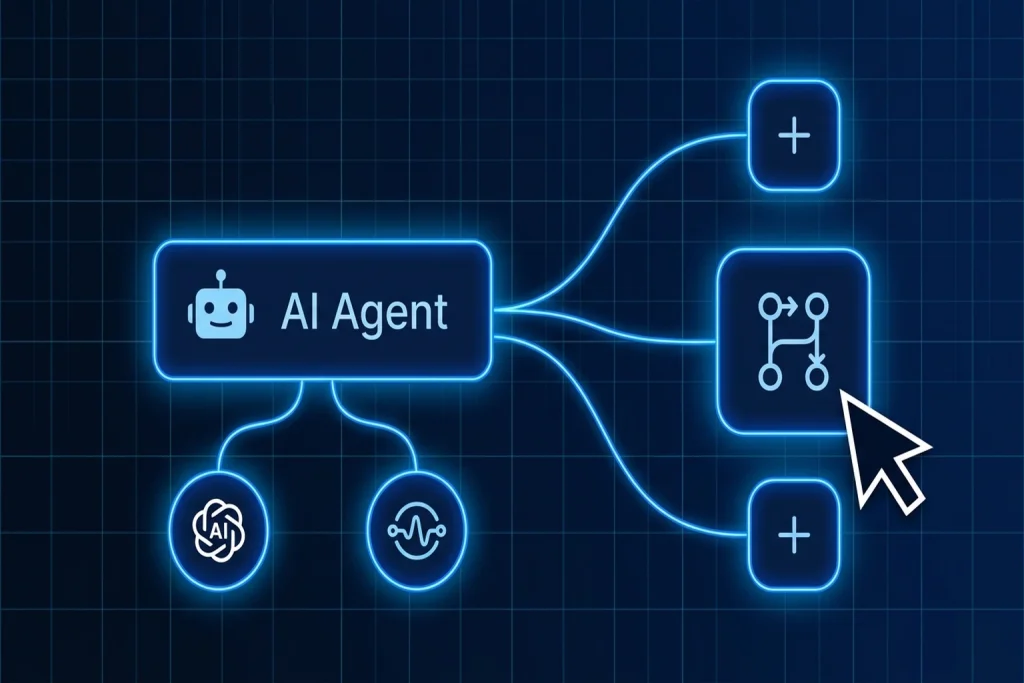
Under the hood, every Model Context Protocol connection uses a three-part architecture that separates the AI interface you type into from your website’s underlying database and administration layer:
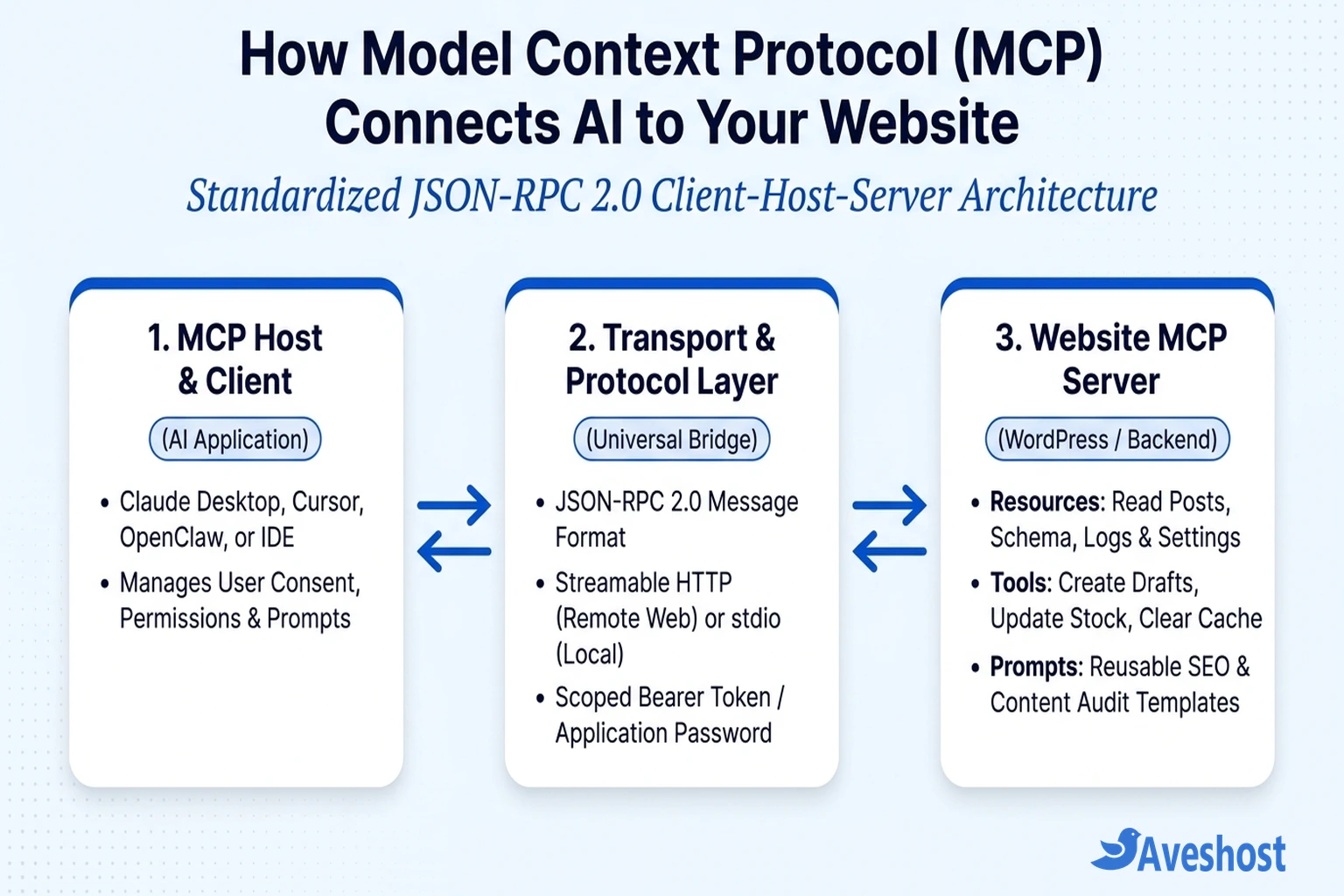
- The MCP Host (Your AI Application): The application where you interact with the AI model—for example, Claude Desktop on your laptop, an IDE like Cursor, or an autonomous OpenClaw agent running on a Linux VPS. The Host enforces security rules, manages environment credentials, and asks for your confirmation before executing sensitive operations.
- The MCP Client (The Protocol Connector): Inside the Host, a dedicated MCP Client establishes a stateful, one-to-one connection with each configured MCP Server, negotiating supported capabilities and exchanging structured JSON-RPC 2.0 requests and responses.
- The MCP Server (Your Website or Data Bridge): A lightweight service or WordPress plugin endpoint (such as
/wp-json/mcp/v1/mcp) that translates MCP requests into native WordPress REST API calls, WP-CLI commands, or SQL queries—and returns clean, structured output to the AI.
The 3 Core MCP Primitives: Resources, Tools, and Prompts
When you connect an MCP server to your website, it does not simply hand the AI raw root access. Instead, the specification organizes every capability into three distinct building blocks—called primitives—each with its own controller and risk profile.
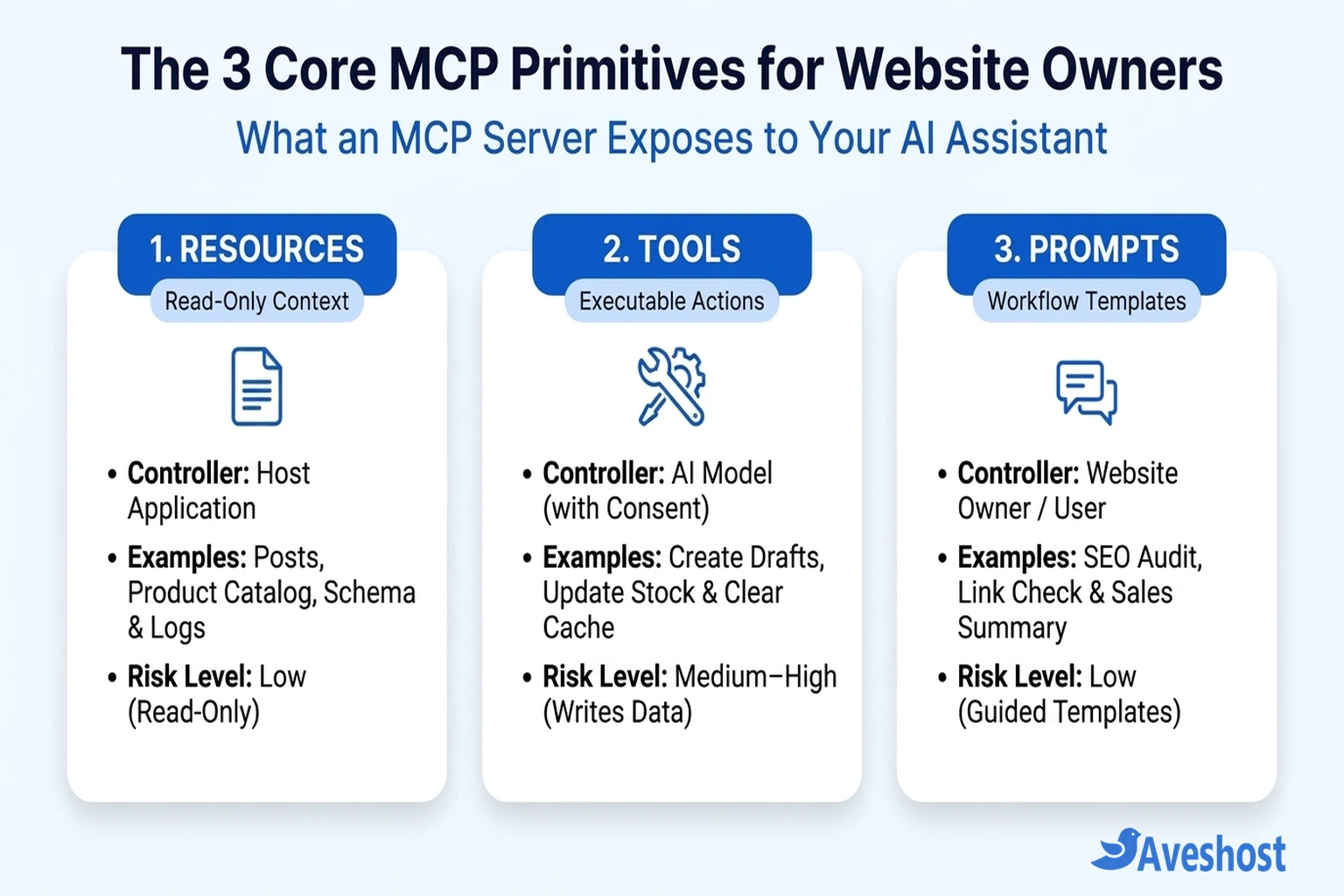
| MCP Primitive | Who Controls It | HTTP Equivalent | Website & WordPress Examples | Security Risk Level |
|---|---|---|---|---|
| Resources | Application / Host | GET (Read-Only) | Published posts, site settings, active plugin list, WooCommerce catalog, error logs | Low (No state changes) |
| Tools | AI Model (with User Consent) | POST / PUT / DELETE | Create post draft, update product price/stock, clear cache, moderate comments | Medium to High (Modifies site) |
| Prompts | User / Website Owner | Saved Workflow Macro | Standardized SEO audit checklist, internal-linking brief, weekly sales report | Low (Guides AI behavior) |
Understanding the difference between Resources and Tools is the single most important concept for website owners. If you only want an AI assistant to analyze your existing blog articles for content gaps or inspect PHP error logs, your MCP server only needs to expose Resources (or read-only lookup tools)—making it impossible for a hallucinating model to overwrite a live page.
How MCP Connects to Websites: stdio vs Streamable HTTP
How does an AI client on your computer or VPS actually talk to your website’s MCP server? The Model Context Protocol defines two primary transport mechanisms depending on where the server runs:
| Transport Type | How It Communicates | Best For | Authentication Method |
|---|---|---|---|
| Standard Input/Output (stdio) | Host spawns the MCP server as a local child process on the same machine | Local CLI bridges, local Git repos, or an AI agent running on the same VPS as your database | Local environment variables (.env) passed to the subprocess |
| Streamable HTTP | Client connects to a remote HTTPS endpoint (e.g., /wp-json/mcp/v1/mcp) using HTTP POST/GET + optional SSE | Live WordPress sites, WooCommerce stores, and remote cloud APIs behind CDNs or proxies | HTTPS + Bearer Tokens, OAuth 2.1, or WordPress Application Passwords |
In early MCP releases, remote connections relied on a dual HTTP + Server-Sent Events (SSE) transport that required holding open persistent long-lived connections—something shared hosting firewalls and reverse proxies frequently terminated. The modern Streamable HTTP transport solves this by allowing stateless or session-aware communication over a single standard HTTPS endpoint, making MCP compatible with standard WordPress hosting environments and Cloudflare proxies.
5 Practical MCP Use Cases for WordPress & Website Owners
Once your website is connected via an MCP server, everyday content, ecommerce, and technical maintenance tasks become significantly faster:
- Headless Gutenberg drafting and SEO audits: Instead of manually formatting blocks and copying meta descriptions, your AI client can read your existing category taxonomy via MCP Resources, verify internal links against your live sitemap, and push a cleanly formatted Gutenberg draft (
status: "draft") with Rank Math metadata directly to WordPress for final human review. - WooCommerce catalog and inventory updates: Store owners can ask their AI assistant to find all products with fewer than five units in stock, compare supplier CSV updates, and batch-update product descriptions or sale attributes through scoped WooCommerce MCP tools.
- Automated customer support lookup: When you build an AI help desk with OpenClaw, attaching a read-only WooCommerce or self-hosted Supabase MCP server allows your support agent to verify real-time order status and shipping tracking numbers before replying to a customer on WhatsApp or Telegram.
- Elementor and design system consistency: Design-focused MCP servers (such as Elementor’s MCP tooling) allow AI assistants to inspect global color variables, typography classes, and page structures so new landing page sections match your existing brand tokens automatically.
- Rapid troubleshooting and log inspection: When a plugin update causes a conflict, an MCP server with read access to your staging log files can correlate PHP warnings with recent plugin changes without requiring you to dig through raw server logs manually.
How to Secure MCP Connections on Your Website
Because an MCP server with write tools can modify your website’s database, you must apply strict access controls before connecting any AI client to a production site:
- Use dedicated WordPress Application Passwords and least-privilege roles: Never authenticate an MCP client using your primary root administrator password. Create a dedicated WordPress user account assigned only the role required for the workflow (such as Editor or Author for content drafting) and generate a revocable WordPress Application Password. Also ensure your WordPress admin login URL and REST endpoints are protected against brute-force traffic.
- Start with read-only Resources and staging drafts: Configure your MCP server so the AI can read published posts and create/edit drafts, while disabling destructive tools like
delete_post,delete_user, or arbitrary plugin installation on production websites. - Keep human-in-the-loop confirmation enabled: In desktop hosts like Claude Desktop or Cursor, never select “Always allow” on tools that write to your live production database or send external customer emails.
- Enforce HTTPS and IP/token restrictions: Remote Streamable HTTP MCP endpoints must always run over TLS (
https://) so bearer tokens and Application Passwords are encrypted in transit.
Where to Host MCP Servers and AI Website Workflows
How you host your MCP setup depends on whether you are connecting a desktop AI app to a single WordPress site or running 24/7 autonomous background agents:
- For WordPress and WooCommerce sites: Our fast, secure WordPress hosting and WooCommerce hosting plans support native HTTPS, Application Passwords, and REST/MCP plugin endpoints out of the box so you can connect desktop AI assistants safely.
- For custom MCP servers, OpenClaw agents, and n8n pipelines: If you are running Node.js or Python MCP bridge servers alongside OpenClaw, n8n, or PostgreSQL, deploy them on a self-managed Linux VPS or our Ghana VDS with full root SSH access and isolated Docker networking. Need help choosing the right hosting setup? Contact the Aveshost team.
Frequently Asked Questions
What does MCP stand for in AI?
MCP stands for Model Context Protocol, an open-source standard originally developed by Anthropic that defines how AI applications (hosts and clients) securely connect to external data sources (Resources), executable functions (Tools), and workflow templates (Prompts) over JSON-RPC 2.0.
How is Model Context Protocol different from a normal REST API?
A traditional REST API is custom-built for each application—meaning an AI developer has to write custom integration code for every single API’s endpoints, parameters, and authentication rules. An MCP server wraps your website’s REST API or database in a self-describing, standardized catalog of Resources and Tools that any MCP-compatible AI client can discover and use automatically.
Can I connect WordPress to Claude or Cursor using MCP?
Yes. You can either use a local Node.js WordPress MCP bridge (connecting to your site’s REST API via an Application Password) or install a WordPress MCP plugin that exposes a Streamable HTTP endpoint. Once connected, your AI assistant can inspect posts, categories, tags, and pages or create Gutenberg drafts directly.
Is it safe to enable an MCP server on a live business website?
Yes, provided you follow least-privilege security practices: use HTTPS, authenticate with a dedicated WordPress Application Password tied to a scoped user role (rather than a root administrator account), restrict the MCP server to read-only Resources and draft creation, and require human approval before executing state-changing Tools.
Do I need a VPS to use Model Context Protocol with my website?
If you only use a desktop AI client (like Claude Desktop or Cursor) to manage your WordPress site while your computer is open, standard WordPress hosting is sufficient. However, if you want 24/7 background AI agents (such as OpenClaw or n8n) to run MCP servers continuously for customer support or automated operations, you should host them on a Linux VPS.