Learning how to run OpenCode on a VPS lets you offload heavy AI coding sessions, Language Server Protocol (LSP) indexing, and test suites to an always-on Linux server while controlling the agent from your laptop, tablet, or phone. Built as an open-source, provider-agnostic AI coding agent (opencode.ai), OpenCode separates its background agent engine from its user interface so your coding sessions keep running even when you close your laptop.
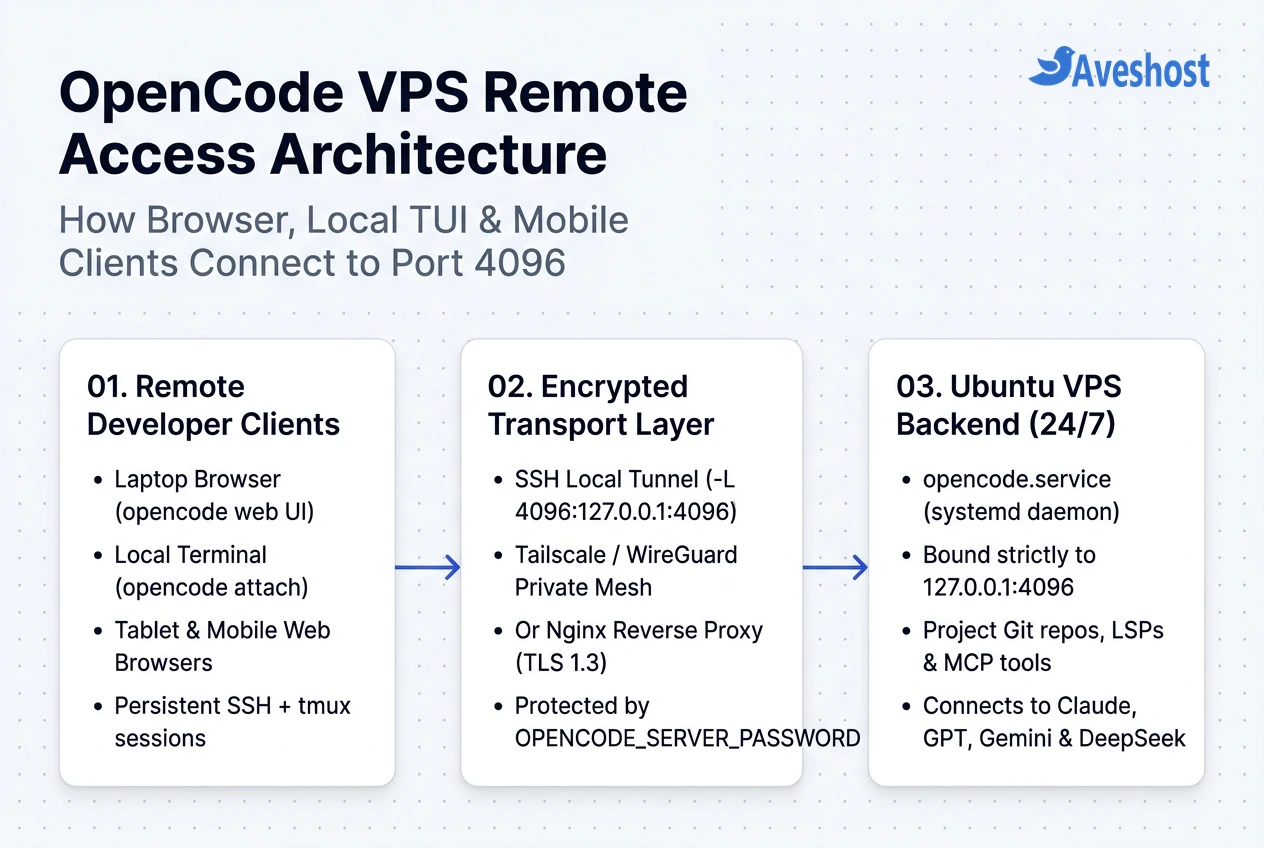
When you deploy OpenCode on an Aveshost Self-Managed VPS, you can interact with your remote codebase in three ways: through a full browser-based Web UI (opencode web), by attaching a local terminal TUI to the remote server (opencode attach), or via a persistent SSH + tmux session.
In this guide, we show you how to run OpenCode on a VPS running Ubuntu 22.04 or 24.04 LTS, lock down port 4096 with OPENCODE_SERVER_PASSWORD, run the server 24/7 with systemd, and set up secure remote access over SSH port forwarding, Tailscale, or an Nginx HTTPS reverse proxy.
Table of Contents
Why Run OpenCode on a VPS? Client-Server Architecture Explained
Most terminal AI coding tools run as a single local process that dies the moment your terminal window closes. OpenCode is architected differently: when you run opencode serve or opencode web, it launches a headless HTTP and Server-Sent Events (SSE) backend on port 4096 exposing a full OpenAPI 3.1 specification.
Because the agent runtime, file system tools, MCP integrations, and LSP servers live on your VPS, you can start a complex refactoring task from your desktop workstation, step away from your desk, and check the live diff or approve tool calls from your phone’s browser.
Here is how the four ways to run OpenCode on a VPS with secure remote access compare:
| Remote Access Method | OpenCode Command | Client Experience | Network Exposure | Best Use Case |
|---|---|---|---|---|
| 1. SSH Tunnel + Local TUI Attach | opencode serve (on VPS) + opencode attach (local) | Native keyboard-driven Terminal UI on your laptop | Zero public ports (SSH port 22 only) | Solo developers who love fast terminal keybindings |
| 2. Tailscale / WireGuard Private Mesh | opencode web –port 4096 | Full Browser Web UI & mobile companion apps | Private VPN IP only (100.x.y.z) | Seamless multi-device access from laptop, iPad & phone |
| 3. Nginx HTTPS Reverse Proxy | opencode web –hostname 127.0.0.1 –port 4096 | Browser Web UI at https://code.yourdomain.com | HTTPS (Port 443) + Basic Auth | Accessing your coding workspace from any browser anywhere |
| 4. Direct SSH + tmux Session | tmux new -s code && opencode | Remote terminal TUI inside SSH | Zero public ports (SSH port 22 only) | Quick server edits without setting up a web client |
Step 1: Prepare Your Ubuntu VPS and Install OpenCode
OpenCode itself is a fast, lightweight binary, but the projects you build—and the Language Server Protocol (LSP) processes OpenCode spawns for TypeScript, Python, Rust, or Go—need breathing room. An Ubuntu 22.04 or 24.04 LTS VPS with 2 to 4 vCPU cores, 4 GB to 8 GB of RAM, and 40 GB of SSD/NVMe disk space provides smooth performance for multi-file edits and test runs.
Because OpenCode can execute shell commands and modify files inside your project directory, always run it under a dedicated non-root Linux user rather than root. SSH into your server, enable the UFW firewall, create a developer user, and run the official OpenCode installer:
# 1. Update Ubuntu packages and install essential developer tools
sudo apt update && sudo apt upgrade -y
sudo apt install -y curl git tmux ufw unzip ripgrep build-essential

# 2. Lock down UFW firewall (allow SSH; add 80/443 only if using Nginx HTTPS)
sudo ufw allow OpenSSH
sudo ufw --force enable

# 3. Create a dedicated non-root developer user
sudo adduser --disabled-password --gecos "" developer
sudo usermod -aG sudo developer
sudo su - developer

# 4. Install OpenCode using the official install script
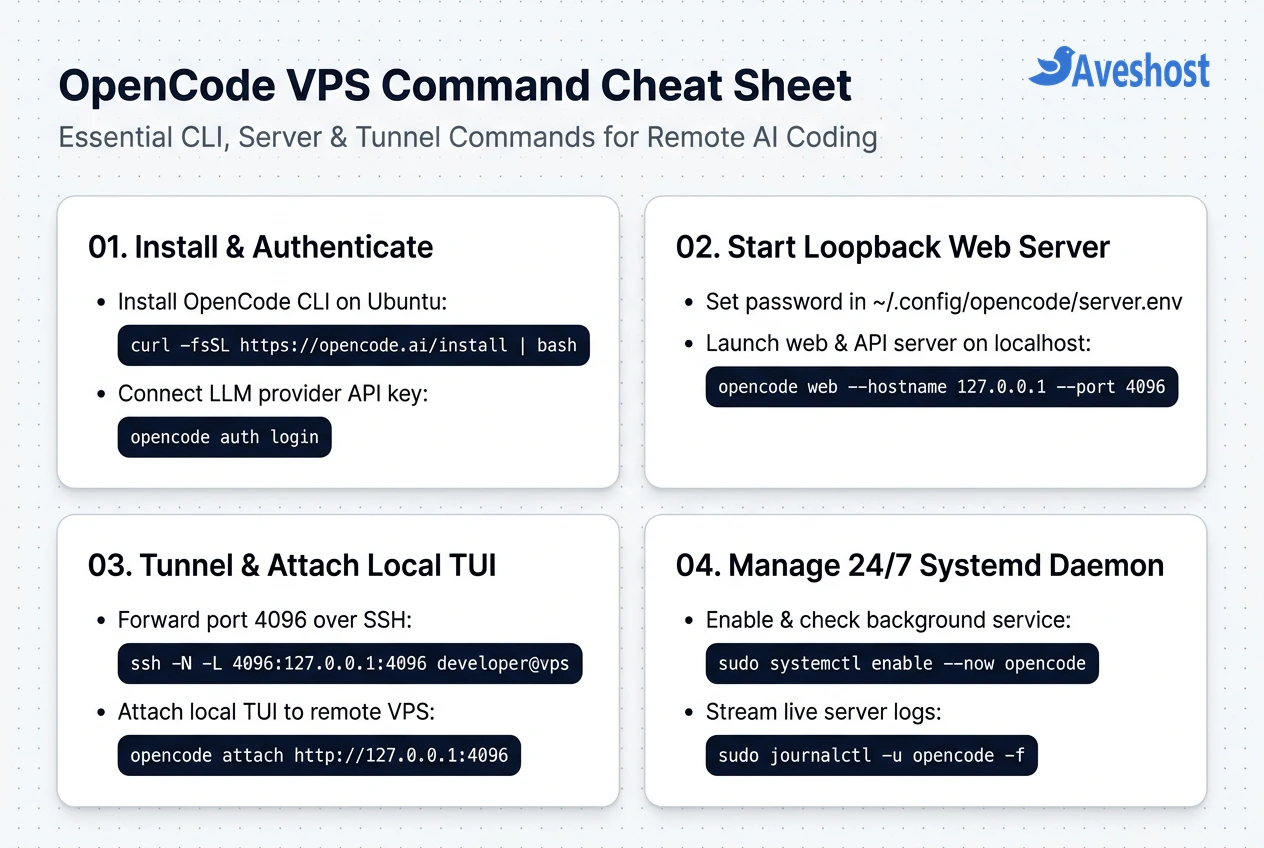
curl -fsSL https://opencode.ai/install | bash
source ~/.bashrc

# 5. Verify the installed OpenCode version
opencode --version
Next, authenticate your preferred LLM provider (such as Anthropic Claude, OpenAI, Google Gemini, DeepSeek, or OpenRouter) by running opencode auth login and selecting your provider from the interactive prompt. OpenCode stores your credentials securely in ~/.local/share/opencode/auth.json.
Step 2: Configure OpenCode Web and Serve with Password Authentication
Before you run OpenCode on a VPS as a background service, configure its built-in HTTP Basic Authentication. Both opencode web (which serves the browser UI + API) and opencode serve (headless API server for opencode attach) read two environment variables:
• OPENCODE_SERVER_PASSWORD: Sets the required password for all HTTP, SSE, and Web UI connections.
• OPENCODE_SERVER_USERNAME: Sets the HTTP Basic Auth username (defaults to opencode if omitted).
Critical Security Rule: Always bind OpenCode to loopback (--hostname 127.0.0.1) on a public VPS instead of 0.0.0.0. Binding to 127.0.0.1 guarantees that nobody on the public internet can probe port 4096 directly—all remote traffic must pass through your encrypted SSH tunnel, Tailscale interface, or Nginx HTTPS proxy.
Create a dedicated environment file at ~/.config/opencode/server.env with restricted 600 permissions:
# 1. Create the OpenCode configuration directory and project workspace
mkdir -p ~/.config/opencode ~/projects

# 2. Save your server credentials in an environment file
cat << 'EOF' > ~/.config/opencode/server.env
OPENCODE_SERVER_USERNAME=developer
OPENCODE_SERVER_PASSWORD=ChangeThisToAStrongRandomPassword99!
EOF

# 3. Restrict file permissions so only your user can read the password
chmod 600 ~/.config/opencode/server.env
Step 3: Keep OpenCode Running 24/7 as a Systemd Service
To run OpenCode on a VPS 24/7 so your coding sessions survive SSH disconnects and restart automatically if the server reboots, register it as a systemd service.
Create /etc/systemd/system/opencode.service pointing to your ~/projects workspace and your server.env credentials file:
sudo tee /etc/systemd/system/opencode.service > /dev/null << 'EOF'
[Unit]
Description=OpenCode 24/7 AI Coding Server (Web & API)
After=network-online.target
Wants=network-online.target

[Service]
Type=simple
User=developer
Group=developer
WorkingDirectory=/home/developer/projects
EnvironmentFile=/home/developer/.config/opencode/server.env
Environment="PATH=/home/developer/.opencode/bin:/home/developer/.local/bin:/usr/local/bin:/usr/bin:/bin"
ExecStart=/home/developer/.opencode/bin/opencode web --hostname 127.0.0.1 --port 4096
Restart=always
RestartSec=5
StandardOutput=journal
StandardError=journal

[Install]
WantedBy=multi-user.target
EOF

# Reload systemd, enable auto-start on boot, and launch OpenCode
sudo systemctl daemon-reload
sudo systemctl enable --now opencode.service
sudo systemctl status opencode.service
Because opencode web serves both the browser Web UI and the OpenAPI backend on port 4096, this single systemd unit supports both browser access and terminal opencode attach connections simultaneously.
Step 4: Connect Remotely via SSH Tunnel, Tailscale or Nginx HTTPS
With opencode.service listening safely on 127.0.0.1:4096, choose the remote access workflow that best fits how you work:
Method A — SSH Port Forwarding + opencode attach or Browser (Zero Extra Software): On your local laptop, open a terminal and forward local port 4096 to your VPS over SSH. You can then either open http://localhost:4096 in your browser or attach a native local OpenCode TUI directly to the remote VPS backend:
Method B — Private Tailscale HTTPS Mesh (Best for Mobile & Tablet Coding): If you use Tailscale on your VPS and phone, run sudo tailscale serve --bg 4096. Tailscale automatically provisions a private HTTPS certificate on your tailnet domain without opening any public ports on your VPS firewall.
Method C — Nginx Reverse Proxy with Let’s Encrypt HTTPS (Access from Any Device): If you want a custom domain like https://opencode.yourdomain.com, configure Nginx with proxy_buffering off so OpenCode’s real-time Server-Sent Events (SSE) stream token-by-token without lag:
# === METHOD A: Run on your LOCAL laptop to tunnel & attach ===
ssh -N -L 4096:127.0.0.1:4096 developer@your-vps-ip &
# Open http://localhost:4096 in your browser, OR attach your local TUI:
opencode attach http://127.0.0.1:4096

# === METHOD C: Nginx Reverse Proxy on the VPS for https://opencode.yourdomain.com ===
sudo apt install -y nginx certbot python3-certbot-nginx
sudo ufw allow 80/tcp && sudo ufw allow 443/tcp

sudo tee /etc/nginx/sites-available/opencode > /dev/null << 'EOF'
server {
    listen 80;
    server_name opencode.yourdomain.com;

    location / {
        proxy_pass http://127.0.0.1:4096;
        proxy_http_version 1.1;
        proxy_set_header Host $host;
        proxy_set_header X-Real-IP $remote_addr;
        proxy_set_header X-Forwarded-For $proxy_add_x_forwarded_for;
        proxy_set_header X-Forwarded-Proto $scheme;

        # Required for real-time OpenCode SSE & WebSocket streaming
        proxy_set_header Upgrade $http_upgrade;
        proxy_set_header Connection "upgrade";
        proxy_buffering off;
        proxy_cache off;
        proxy_read_timeout 3600s;
    }
}
EOF

sudo ln -s /etc/nginx/sites-available/opencode /etc/nginx/sites-enabled/
sudo nginx -t && sudo systemctl reload nginx
sudo certbot --nginx -d opencode.yourdomain.com --redirect
Looking to compare other self-hosted AI developer stacks on your VPS? Check out our tutorial on how to self-host OpenHands on a VPS for full Docker-sandboxed coding, our guide to installing Hermes Agent on an Ubuntu VPS, and our vibe coding security checklist.
Frequently asked questions
What is the difference between opencode serve and opencode web?
Both commands start the OpenCode HTTP and OpenAPI 3.1 server on port 4096. The opencode serve command runs a headless API backend intended for programmatic clients or attaching a remote terminal via opencode attach, while opencode web also serves the full browser-based Web UI so you can code directly from any web browser.
How do I password-protect OpenCode when running it on a VPS?
Set the OPENCODE_SERVER_PASSWORD environment variable (and optionally OPENCODE_SERVER_USERNAME, which defaults to opencode) before launching opencode web or opencode serve. Combine this with binding to 127.0.0.1 and accessing the server over an SSH tunnel, Tailscale, or an Nginx HTTPS reverse proxy.
Can I use my local terminal TUI while OpenCode runs on a remote VPS?
Yes. Start opencode serve or opencode web on your VPS, forward port 4096 over an SSH tunnel (ssh -L 4096:127.0.0.1:4096 user@vps-ip), and run opencode attach http://127.0.0.1:4096 on your laptop. You get the snappy local terminal UI while all file edits, language servers, and builds execute on the VPS.
How much RAM do I need to run OpenCode on an Ubuntu VPS?
OpenCode itself uses very little memory and runs on a 2 GB RAM VPS, but the Language Server Protocol (LSP) processes, compilers, and test runners it launches for TypeScript, Python, Go, or Rust require extra headroom. We recommend a 2 to 4 vCPU Ubuntu VPS with 4 GB to 8 GB of RAM.
Why is my OpenCode Web UI lagging or not streaming responses behind Nginx?
OpenCode streams token responses and tool events using Server-Sent Events (SSE). If Nginx buffers the upstream response, output appears frozen until the turn finishes. Add proxy_buffering off;, proxy_cache off;, and proxy_read_timeout 3600s; inside your Nginx location block and reload Nginx.