WooCommerce emails not sending usually comes down to a missing order trigger, a mail connection problem, or inbox filtering. Start by finding where one missing confirmation stopped. Installing an SMTP plugin helps with mail transport, but it cannot repair an order that never reached the status needed to generate its email.
In this guide, we work through the checks in order: payment and order status, notification settings, mail logs, authenticated sending, and recipient delivery. You will also learn how to test the complete checkout email journey and send order details again without disturbing fulfilment.
Table of Contents
1. Trace one missing order email
Open an affected order under WooCommerce → Orders. Record its number, creation time, current status, billing email address and relevant order notes. Identify exactly which message is missing: the store’s New order notification, the customer’s Processing order email, or a later Completed order message.
Check whether all recipients are affected or only one mailbox provider. Ask the customer to search spam and junk folders, and check business mailbox quarantine where applicable. An address typo can explain a single failure even when every other order works.
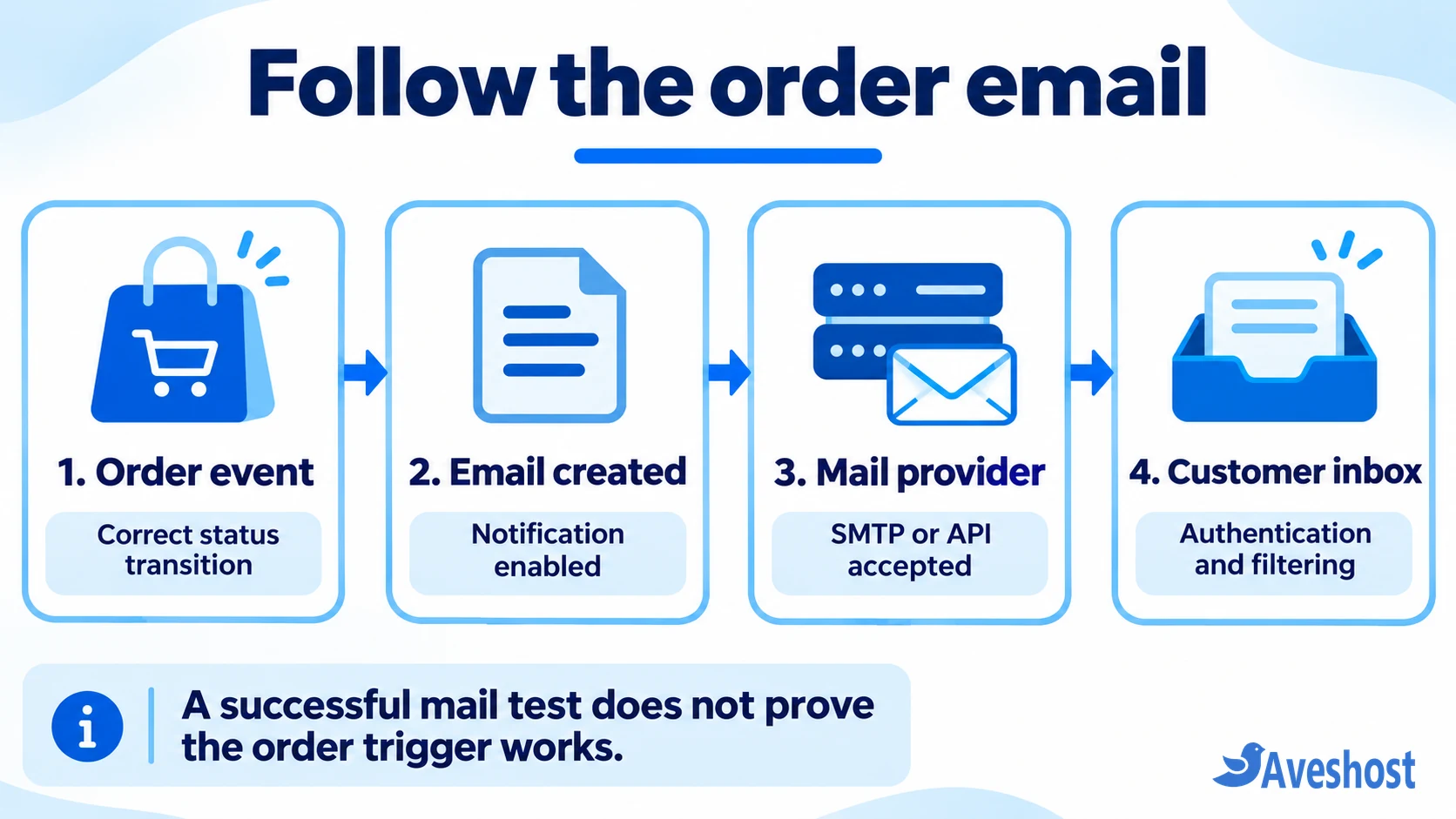
The delivery path has several checkpoints: WooCommerce creates the notification, WordPress hands it to a mail transport, the provider processes it, and the recipient system decides where it belongs. A successful WordPress wp_mail() result means the request was processed without an error; it does not prove that the customer received it.
2. Check payment and order status first
Read the order notes alongside the payment gateway’s transaction record. If the gateway confirms payment but WooCommerce still shows Pending payment, investigate the gateway’s webhook or callback connection. Review its official instructions and error logs. An SMTP change will not fix a payment update that never reached the store.
WooCommerce’s order status documentation distinguishes Pending payment, Processing, On hold and Completed. Processing normally means payment has been received and fulfilment remains; Completed means fulfilment is finished. Orders containing only products that are both virtual and downloadable can skip Processing.
Use the actual order history to decide which customer notification was expected. Do not mark a live order paid or Completed simply to force an email: status changes can affect stock, fulfilment and connected services. Confirm payment in the gateway account before making any payment-related correction.
| What you find | What to investigate |
|---|---|
| Paid in the gateway, still Pending payment | Gateway callback, webhook delivery and order notes |
| Processing, customer message missing | Processing order notification and billing email |
| Completed, completion message missing | Completed order notification and delivery logs |
| Only the store notification is missing | New order recipients and their mailbox filtering |
3. Verify WooCommerce email settings
Go to WooCommerce → Settings → Emails and open the relevant notification. Check that it is enabled and save any correction. Review the configured recipients for store-facing messages. Customer order messages use the order’s billing email, so changing the WordPress administrator address does not redirect them.
Check the sender name and From address, including any overrides in your mail plugin. Use an address on a domain you control and have authorised with your sending provider. Keep the customer’s address as the recipient; do not use it as the From address.
The official email settings reference explains each notification. Processing order follows payment, Completed order follows completion, and Order Details is a manually sent message. A template preview checks presentation, so continue with a real notification test after checking these settings.
4. Use logs to locate the failure
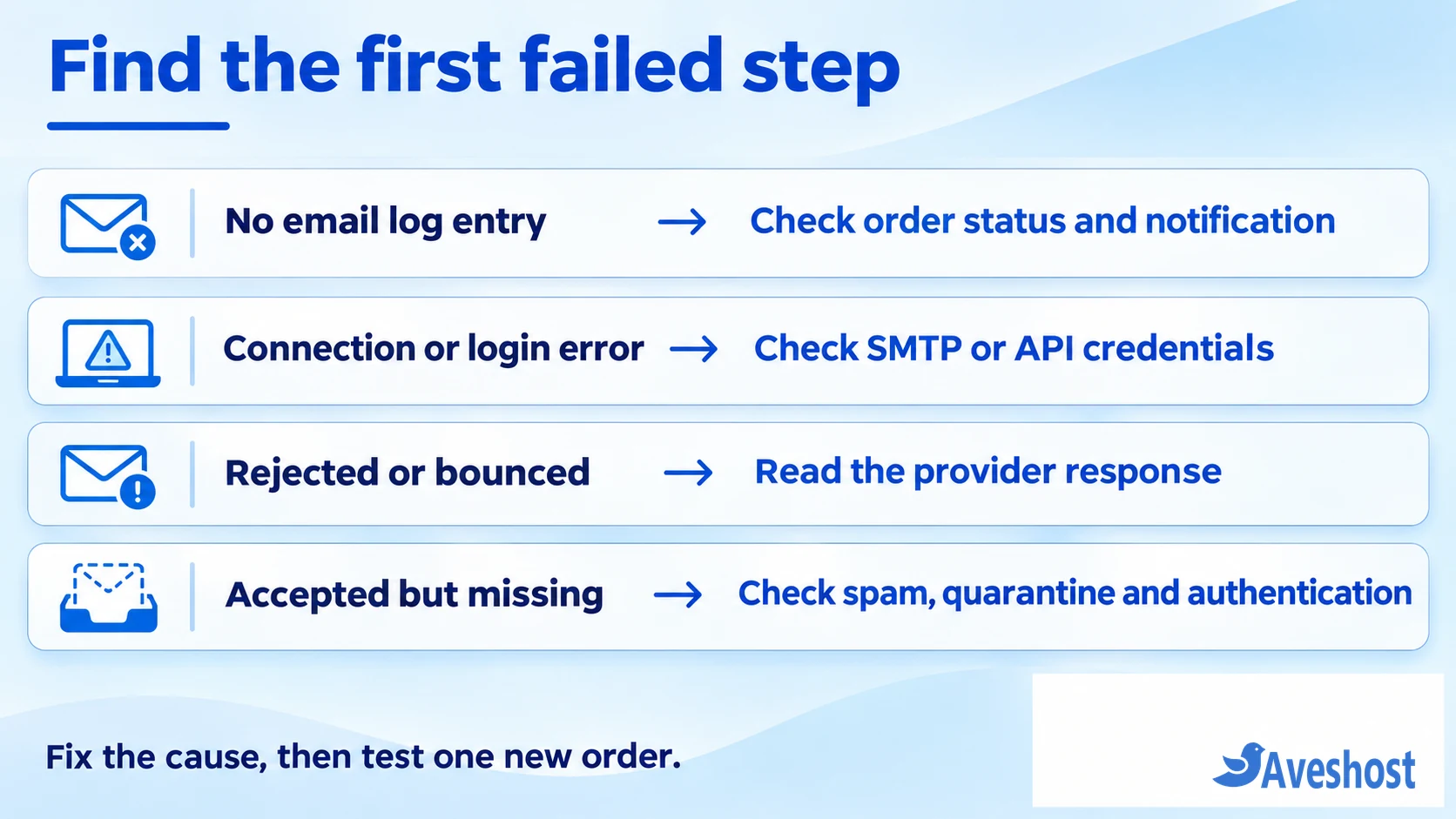
If your existing mail integration provides logs, search by the affected order’s time and recipient. Otherwise, enable a suitable mail logger temporarily before a controlled test. Logging is not retroactive, and some integrations bypass particular loggers, so a missing entry is a clue to investigate rather than conclusive proof that nothing ran.
A WordPress log entry shows activity at that logger’s checkpoint. The provider’s activity log offers another checkpoint: look for acceptance, authentication errors, rejection, deferral, bounce or suppression. Follow the exact response text instead of repeatedly clicking resend.
An invalid recipient needs an address correction; an exhausted allowance needs an account or sending-volume fix; a suppressed address needs its underlying bounce or complaint resolved before the provider’s supported recovery process. Even a provider’s Delivered event usually indicates acceptance by the receiving server, not placement in the inbox.
Order emails can contain names, addresses and purchase details. Restrict log access, avoid storing full bodies unnecessarily, and set a short retention period. Share redacted error messages with support, never SMTP passwords, API keys or complete customer exports.
5. Configure one authenticated sending route
When the notification is generated but transport fails, connect WordPress to an authenticated SMTP service or a transactional email API through a supported plugin. Choose one active mail-routing integration so competing plugins do not overwrite the sender or connection. WooCommerce explains this handoff in its email and SMTP providers guide. For Aveshost hosting with DirectAdmin, follow our guide to setting up SMTP in WordPress for mailbox creation, WP Mail SMTP configuration and a test email.
For SMTP, copy the exact hostname, username, port and encryption mode supplied by your mail provider. Port 587 commonly uses STARTTLS and port 465 commonly uses implicit TLS; use the combination your provider documents. The credential may be a mailbox password, application password or OAuth connection, depending on the service. Your WordPress login password is not an SMTP credential.
For an API integration, verify the authorised sending domain, key permissions and account status. Check whether production sending requires approval, whether recipients are restricted in a sandbox, and whether a daily quota or billing limit has been reached. Compare limits and log access before choosing a service; transactional email may carry a separate subscription or usage charge.
Send the integration’s test message to a mailbox you control. If it cannot connect, check the provider status and ask your host whether the required outbound connection is permitted. Keep TLS and certificate verification enabled. Once the test arrives, continue to a WooCommerce order test: the transport test does not exercise the checkout trigger.
6. Fix sender authentication and inbox delivery
If messages leave the provider but are rejected or filtered, verify the sending domain in the provider dashboard and the DNS service that actually hosts your domain’s records. Add the exact SPF and DKIM records it supplies. If an SPF record already exists at that hostname, merge the authorised senders into one valid SPF record rather than publishing a second competing record.
SPF authorises sending infrastructure; DKIM signs the message. DMARC checks whether a passing SPF or DKIM identity aligns with the visible From domain and publishes handling policy. Review alignment in a received test message’s authentication results. A pass for an unrelated provider domain alone does not establish DMARC alignment for your shop’s From address.
Coordinate DMARC changes with whoever manages your domain, including any newsletter or helpdesk senders. Monitor authentication before tightening enforcement. Use Google’s sender guidelines for Gmail’s current requirements, including the additional rules for bulk senders. Authentication improves trust but cannot guarantee inbox placement.
Do not change MX records as a routine outgoing-email fix: they control where incoming mail is received. Test delivery to controlled mailboxes at two different providers, inspect spam and quarantine, and compare message headers. If only one business domain is affected, its mail administrator may need to investigate filtering using the message ID.
7. Investigate conflicts and delayed jobs safely
When the trigger is correct but email generation fails, inspect WooCommerce → Status → Logs for relevant errors and the status report for outdated email template overrides. Recent changes to email customisers, payment plugins, themes or custom snippets are useful starting points.
Reproduce the problem on staging with a backup, sandbox payment credentials and outgoing messages captured or restricted to your test inbox. Test one change at a time, following the extension’s support process. Use our WordPress update guide only if its staging workflow fits your setup. Avoid disabling checkout plugins across a busy live store.
For delayed or queued notifications, check WooCommerce → Status → Scheduled Actions when the relevant extension or email implementation uses background jobs. The scheduled actions documentation describes failed-action logs and WP-Cron dependencies. Not every order email failure is a cron problem. Investigate the affected hook and error before running anything; bulk-running or deleting payment-related actions can have consequences beyond email.
8. Test the fix and resend order details
Create a fresh sandbox order with an email address you control and follow the same payment route that failed. Verify the gateway result, order status, expected store and customer notifications, provider activity and actual inbox receipt. Check that each expected message arrives once and that its order details and links are correct.
For an existing customer, verify the billing address and order state before sending anything again. The edit-order screen supports a manual Order Details email; some versions label the action as sending an invoice or order details to the customer. Read the action label carefully. This is a manual order-details message and may differ from the original Processing order confirmation; unpaid orders can include a payment link.
Send once, confirm the log and avoid cycling order statuses or issuing bulk resends. Keep watching the next genuine orders for recurring failures, quota pressure or duplicate notifications.
If the evidence points to hosting or DNS configuration, contact Aveshost support with the order timestamp, affected notification and redacted error or message ID. For a new store, explore our WooCommerce hosting and plan the mail service, DNS authentication and monitoring alongside checkout. Reliable confirmations need the entire delivery path configured.
Frequently asked questions
Why do admin order emails arrive but customer confirmations do not?
They are separate notifications with different recipients and triggers. Check the customer notification, billing email, order status and recipient-specific delivery events. Receiving the store’s New order email does not prove the customer’s message was generated or accepted.
Will an SMTP plugin fix every WooCommerce email problem?
No. It can replace a failing mail transport, but it cannot enable a disabled notification, correct a billing address or repair a missing payment callback. Locate the failed checkpoint before changing the sending integration.
Why does the SMTP test work while order emails are missing?
The test exercises the mail connection. A checkout notification also needs the appropriate order event and working WooCommerce email generation. Compare the order notes and notification settings, then run a controlled order test.
Can I use a Gmail address as my store's From address?
Use a sender identity your mail service explicitly authorises. For a branded store, a verified address on your own domain is the clearer choice. Do not put an arbitrary Gmail address into the From field while sending through unrelated infrastructure.
Can I resend confirmation without changing the order status?
You can manually send Order Details from the edit-order screen. Confirm the recipient and payment state first, and understand that it may use a different template from the original confirmation. Fix delivery before resending to avoid another failed message.