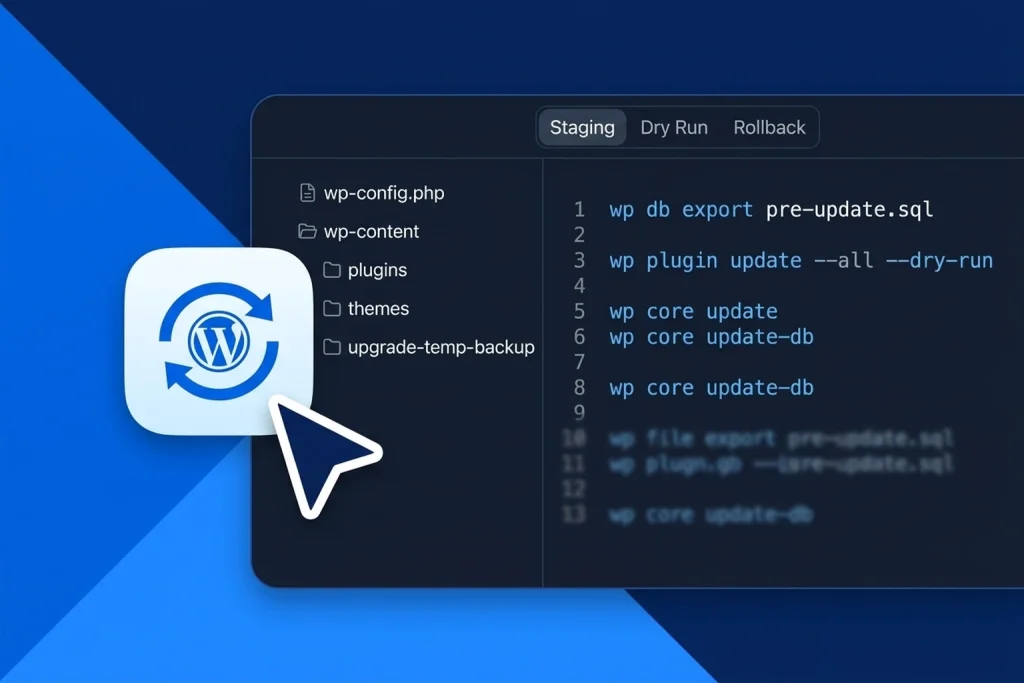
Knowing how to safely update WordPress is the difference between a five-minute maintenance routine and an unexpected Friday-afternoon outage. While every WordPress core, plugin, and theme update patches security vulnerabilities and improves performance, clicking Update All directly on a live production website can trigger fatal PHP errors, broken WooCommerce checkouts, or stylesheet regressions.
Whether your site runs on Aveshost Managed WordPress Hosting, standard WordPress Hosting, or Aveshost Shared Web Hosting with DirectAdmin, following a structured update workflow protects your revenue and search rankings.
In this guide, you will learn how WordPress handles updates behind the scenes, how to test updates in a staging environment, what to check before upgrading plugins and PHP versions, the safest order to apply updates, and how to roll back a broken update in seconds using WP Rollback or WP-CLI.
Table of Contents
Why WordPress Updates Break Sites (And What Auto-Rollback Misses)
When you update a plugin, theme, or WordPress core, WordPress downloads the new package zip, enables a temporary .maintenance lock file in your site root, swaps the directory contents inside wp-content/, and runs any required database schema migrations.
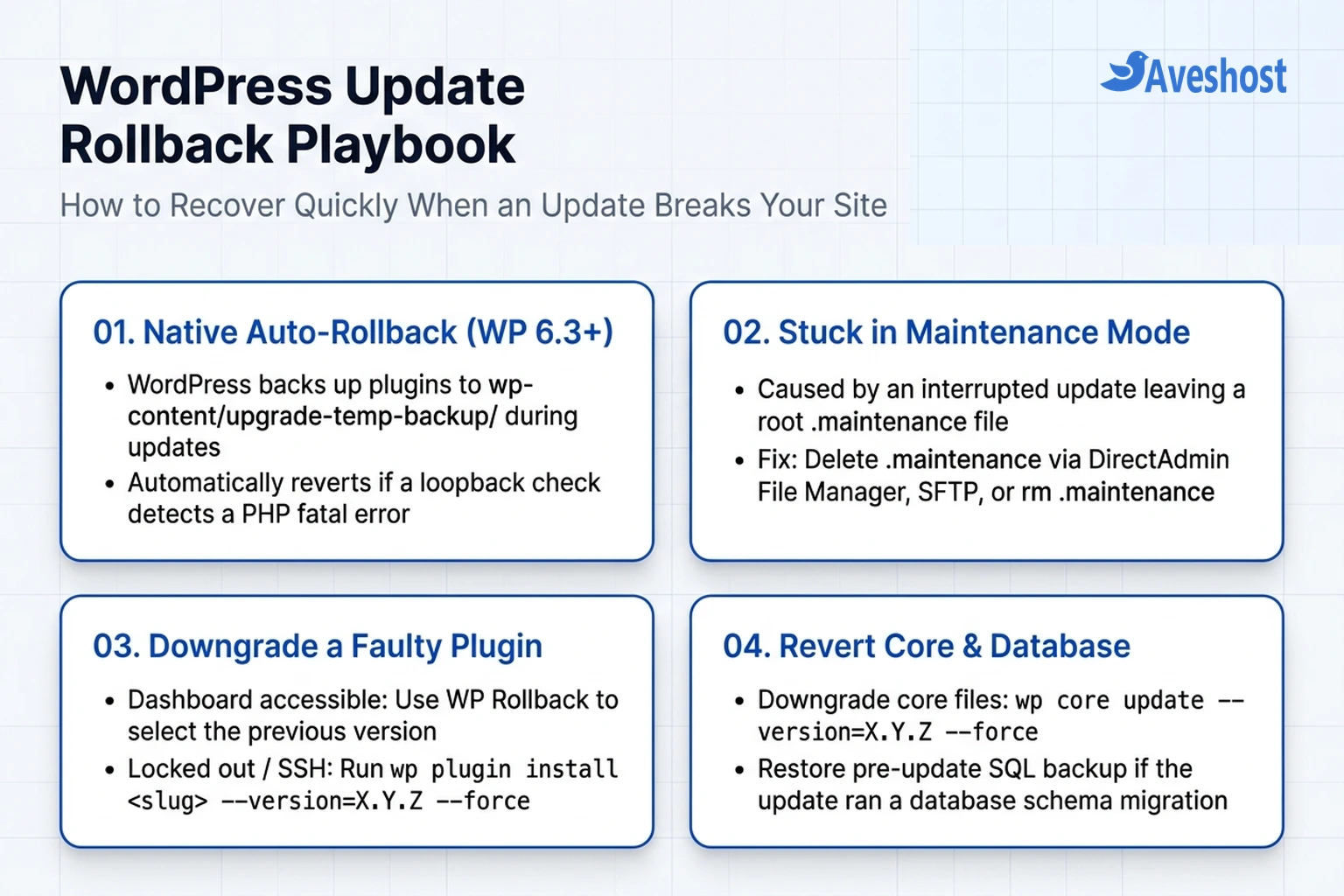
Modern WordPress releases (6.3 and newer) include a built-in safety feature called Rollback for Failed Plugin and Theme Updates. Instead of deleting the old plugin folder immediately, WordPress moves it to wp-content/upgrade-temp-backup/ and performs a loopback check to your homepage. If the new version triggers an unhandled PHP fatal error, WordPress automatically restores the backup copy.
However, relying solely on WordPress’s built-in auto-rollback is risky because it only catches catastrophic PHP crashes on your homepage. To safely update WordPress in production, you still need a human and staging workflow to catch the four most common update failures:
1. Non-Fatal Frontend & Checkout Regressions: A plugin update can return HTTP 200 OK on your homepage while breaking JavaScript event listeners on your WooCommerce checkout page, contact forms, or mobile navigation menu.
2. Database Schema Changes: Major updates to WooCommerce, Elementor, or SEO plugins frequently alter database tables in wp_options and custom tables. Downgrading the plugin’s PHP files without restoring the database leaves your site in an inconsistent state.
3. PHP Version Mismatches: Updating a plugin that drops support for an older PHP version—or upgrading your server to PHP 8.3 when a legacy theme still calls deprecated functions—causes runtime crashes on specific templates.
4. Interrupted Updates & Stuck Maintenance Mode: If a large update hits your server’s max_execution_time limit mid-extraction, WordPress leaves the .maintenance file behind and locks out all visitors.
Use this comparison table to see which failure scenarios each protection layer covers:
| Protection Layer | What It Protects Against | What It Misses | Recovery Time |
|---|---|---|---|
| WordPress Native Auto-Rollback (upgrade-temp-backup) | Immediate PHP fatal errors detected on homepage loopback | Broken CSS/JS layouts, WooCommerce checkout bugs, and database migrations | Automatic (seconds) |
| Staging Environment Pre-Test | Plugin conflicts, theme layout breaks, PHP 8.2/8.3 incompatibilities, and checkout bugs | Server-specific live caching or production API key restrictions if not mirrored | Zero live downtime (caught before production) |
| WP Rollback Plugin / WP-CLI Version Pinning | Single-plugin logic bugs or visual regressions discovered after updating | Database schema changes made by major plugin upgrades | Under 1 minute |
| Full Pre-Update Backup (Database + wp-content/) | Every failure scenario, including corrupted database migrations and core updates | Transactions or comments submitted between backup creation and restoration | 2 to 10 minutes |
Step 1: Take a Verified Full Backup Before Touching Updates
The golden rule to safely update WordPress is simple: never click update without a fresh snapshot of both your MySQL/MariaDB database and your wp-content/ directory.
While file-only rollbacks work for minor CSS or template patches, your WordPress database stores active plugin settings, serialized widget arrays, WooCommerce orders, and schema version numbers. If an update modifies those rows and fails, only a database backup can cleanly revert your site without triggering an Error Establishing a Database Connection or corrupted options.
Choose one of these three backup methods right before starting your maintenance window:
Method A — Softaculous One-Click WordPress Backup: On Aveshost Shared Web Hosting and WordPress Hosting, log into DirectAdmin, open Softaculous Auto Installer (or WordPress Manager), and click the Backup icon next to your site. Keep both Backup Directory and Backup Database selected to generate a complete one-click restore archive.
Method B — WordPress Backup Plugin to Off-Site Storage: Use a trusted backup plugin (such as UpdraftPlus or WPvivid) configured to push the SQL database and wp-content zip archives to external object storage.
Method C — Instant WP-CLI Database & File Snapshot via SSH: If you manage your WordPress site via SSH, run this two-command snapshot inside your document root (public_html):
# 1. Export a timestamped SQL backup of your WordPress database
wp db export ../pre-update-db-$(date +%H%M).sql

# 2. Create a compressed archive of wp-content and wp-config.php outside public_html
tar -czf ../pre-update-files-$(date +%H%M).tar.gz wp-config.php wp-content/
Storing the .sql and .tar.gz archives one directory above public_html ensures they are never publicly downloadable over HTTP.
Step 2: Clone and Test in a WordPress Staging Environment
A staging site is a private clone of your live WordPress installation hosted on a subdomain (such as staging.yourdomain.com) or a staging directory. Testing updates on staging first guarantees that any fatal conflict happens in private—never in front of paying customers.
On Aveshost hosting plans, you can spin up a staging environment in seconds using Softaculous: open Softaculous Auto Installer → All Installations (or WordPress Manager), click the Create Staging icon next to your live WordPress site, select a subdomain or subdirectory, and click Create Staging. Softaculous clones your files and database automatically and includes a Push to Live button once your updates pass testing.
When setting up your staging environment, verify these three rules so your test accurately mirrors production:
1. Match Your Production PHP Version: Ensure your staging subdomain runs the exact same PHP version (such as PHP 8.2 or PHP 8.3) and PHP memory limit (memory_limit = 256M or 512M) as your live site. You can also use staging to test upgrading from PHP 8.1 to PHP 8.3 before switching production.
2. Block Search Engines from Indexing Staging: In your staging dashboard, go to Settings → Reading and check Discourage search engines from indexing this site, or protect the staging subdomain with HTTP Basic Authentication so Google never indexes duplicate staging URLs.
3. Disable Live Renewal Emails and Payment Webhooks: If you run WooCommerce Subscriptions or automated CRM webhooks, enable staging mode in your payment gateway plugins so your test environment does not charge real customer cards or send duplicate emails.
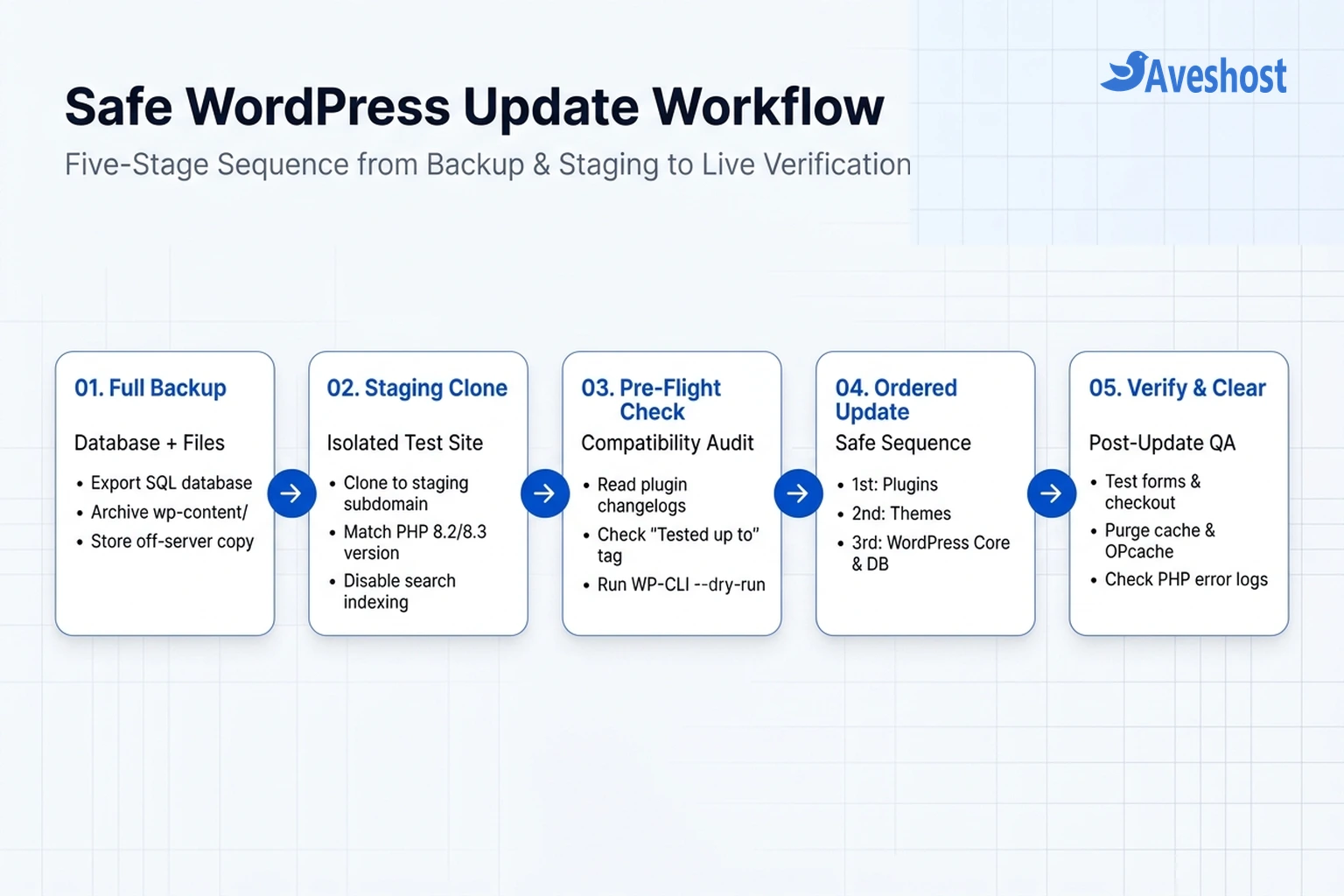
Step 3: Run Pre-Flight Plugin and Compatibility Checks
Before applying updates on staging or production, spend two minutes auditing the pending releases. Most breaking changes are announced in the release notes before you ever click update:
1. Read the Changelog (View version X.Y.Z details): In Dashboard → Updates, click the version details link next to each plugin. Look for warnings mentioning Breaking Change, Database Upgrade Required, Minimum PHP Version, or Template Override Changes.
2. Check the “Tested up to” Badge: Verify that your mission-critical plugins (payment gateways, page builders, security plugins, and WordPress passkey authentication plugins) explicitly list compatibility with your target WordPress core release.
3. Preview Pending Updates with WP-CLI --dry-run: You can inspect every pending plugin and theme version jump from the terminal without modifying a single file:
# 1. Preview all pending plugin updates without applying them
wp plugin update --all --dry-run

# 2. Preview pending theme updates
wp theme update --all --dry-run

# 3. Check available WordPress core releases
wp core check-update
Pay special attention to major version jumps (for example, 2.9.4 → 3.0.0). In semantic versioning, a major first-digit change indicates architectural or template changes that require thorough visual testing.
Step 4: Apply Updates in the Safest Order and Verify
Once your backup is saved and your pre-flight checks are complete, apply updates in a controlled sequence rather than updating core, themes, and 30 plugins simultaneously:
1. Update Standard Plugins First (In Small Batches): Update utility and content plugins first, then update heavy foundational plugins like Elementor or WooCommerce one at a time. If WooCommerce or Elementor prompts you to run a Database Update in the admin banner, complete that routine before moving on.
2. Update Your Theme Second: Update your parent theme next. (Always keep custom CSS or functions.php modifications inside a Child Theme so parent theme updates never overwrite your custom code.)
3. Update WordPress Core Last: Updating plugins and themes first ensures they already include compatibility patches for the newest WordPress core release (wp core update && wp core update-db).
4. Purge All Cache Layers and Run Post-Update QA: Immediately after updating, clear your WordPress caching plugin (WP Fastest Cache or LiteSpeed Cache), flush object cache (wp cache flush), and test your site in an incognito browser window:
• Open your homepage, blog posts, and top landing pages on desktop and mobile.
• Submit a test entry through your primary contact or quote form.
• Add a product to the cart and verify that checkout payment fields render with zero browser console errors (F12 → Console).
• Check wp-content/debug.log or your server error log for new PHP deprecation or warning notices.
Step 5: How to Roll Back a Broken WordPress Update
Even with careful preparation, a third-party plugin update can occasionally introduce a subtle bug. Here is how to recover immediately depending on what broke:
Scenario 1 — Your Site Is Stuck on “Briefly unavailable for scheduled maintenance”: Connect via DirectAdmin File Manager, SFTP, or SSH and delete the hidden .maintenance file in your WordPress root directory (public_html/.maintenance).
Scenario 2 — A Plugin Update Broke Your Layout (Dashboard Still Accessible): Install the free WP Rollback plugin from the WordPress directory, go to Plugins → Installed Plugins, click Rollback under the offending plugin, and select the previous stable version.
Scenario 3 — A Plugin or Core Update Locked You Out of WP-Admin (SSH / WP-CLI Recovery): Use WP-CLI with the --skip-plugins flag to bypass the fatal error, downgrade the faulty plugin or core version, or restore your pre-update database backup:
# 1. Remove a stuck maintenance lock file if present
rm -f .maintenance

# 2. Bypass broken plugins and downgrade a faulty plugin to its previous version
wp plugin install woocommerce --version=9.3.3 --force --skip-plugins

# 3. Downgrade WordPress core to a specific release if a core update caused a conflict
wp core update --version=6.6.2 --force --skip-plugins

# 4. Restore your pre-update SQL database snapshot if the update altered database tables
wp db import ../pre-update-db-backup.sql
No SSH Access? Open DirectAdmin File Manager or an SFTP client, navigate to wp-content/plugins/, rename the broken plugin’s folder (for example, broken-plugin-disabled) to regain instant access to /wp-admin/, and then install the previous version.
Configuring WordPress Auto-Updates Without Risking Uptime
Should you leave WordPress automatic updates enabled? The safest production policy is a hybrid approach:
Keep Minor Core Security Updates Automatic: Allow WordPress to install minor point releases (such as 6.7.1 → 6.7.2) automatically, as these exclusively patch security vulnerabilities and critical bugs without introducing breaking API changes.
Stage Major Core Releases and Complex Plugins Manually: Hold major WordPress core upgrades and mission-critical ecommerce/page-builder plugins for your scheduled staging workflow. You can enforce minor-only core auto-updates in wp-config.php with a single constant:
// In wp-config.php: Allow automatic minor security updates only (recommended for production)
define( 'WP_AUTO_UPDATE_CORE', 'minor' );
Frequently asked questions
In what order should I update WordPress core, plugins, and themes?
After taking a full database and file backup, update your plugins first (in small batches), update your themes second, and update WordPress core last. Updating plugins and themes first ensures your extensions already include compatibility patches for the newest WordPress core release.
Does WordPress automatically roll back failed plugin updates?
WordPress 6.3 and newer stores a temporary backup in wp-content/upgrade-temp-backup/ and automatically rolls back a plugin or theme if the update triggers a PHP fatal error on a homepage loopback check. However, it cannot detect broken CSS layouts, JavaScript conflicts, or broken checkout forms, which is why staging tests and full backups remain essential.
How do I fix WordPress stuck in 'Briefly unavailable for scheduled maintenance' after an update?
Log into your hosting control panel (such as DirectAdmin File Manager) or connect via SFTP/SSH, open your WordPress root folder (public_html), and delete the hidden .maintenance file. Your site will come back online immediately, after which you should verify whether the interrupted plugin update finished extracting.
Can I roll back a WordPress plugin without restoring my entire website backup?
Yes, if the plugin update did not alter your database schema. You can use the free WP Rollback plugin inside your dashboard or run wp plugin install plugin-slug –version=X.Y.Z –force via WP-CLI to downgrade a single plugin to its previous version. If the plugin ran a database migration, restore your pre-update database backup as well.
Why did my custom theme changes disappear after updating WordPress?
If you edited style.css, functions.php, or template files directly inside your parent theme folder, updating the theme overwrites the entire directory with the new version. Always place custom code inside a WordPress child theme or a site-specific plugin so theme updates never erase your customizations.