Knowing whether your website still receives PHP security updates is one of the fastest ways to prevent avoidable server compromises. Because PHP powers WordPress, WooCommerce, Laravel, and custom business applications, running an unpatched interpreter exposes your site even when your CMS core, themes, and plugins are completely up to date.
Many site owners believe their server is safe because a hosting dashboard looks green or a quick SSH check prints a modern version. In practice, your live web server can run a different PHP handler than the command line, and older branches quietly cross into end-of-life without breaking your front end.
Whether you run your site on shared web hosting, fully managed VPS hosting, or self-managed VPS hosting with Aveshost, this guide shows you how to verify the exact PHP runtime serving live traffic, match it against the official support lifecycle, check OS-level patches, hide leaky version headers, and upgrade safely.
Table of Contents
Why PHP Security Updates Matter for Live Websites
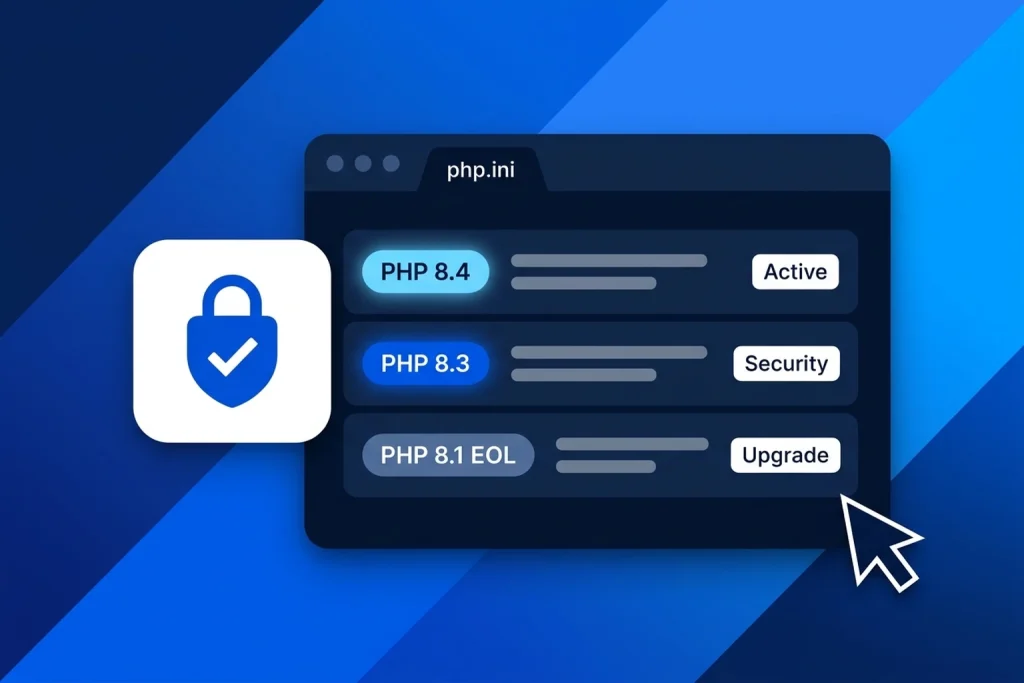
Every minor PHP branch follows a predictable maintenance lifecycle published on the official PHP Supported Versions schedule. During Active Support, the PHP team ships both regular bug fixes and security patches. Once a branch enters Security Fixes Only, it receives patches strictly for critical vulnerabilities and CVEs. After that window closes, the branch reaches End of Life (EOL) and stops receiving upstream PHP security updates altogether.
Automated scanners continuously probe public websites for outdated PHP runtimes. When a vulnerability is disclosed in an EOL branch—such as memory corruption, remote code execution in a core extension, or request-parsing flaws—attackers immediately target unpatched servers. A web application firewall can filter some exploit payloads, but it is never a substitute for running a supported PHP branch.
Upgrading off an unsupported branch also delivers tangible speed gains. Modern PHP 8.x releases provide faster OPcache execution, JIT refinements, lower memory usage per worker, and stricter type handling that surfaces silent bugs before they reach production.
| PHP Support Stage | Current Branches | What You Receive | Recommended Action |
|---|---|---|---|
| Active Support | PHP 8.5, PHP 8.4 | Full bug fixes, performance improvements, and PHP security updates | Best target for new sites and planned upgrades |
| Security Fixes Only | PHP 8.3, PHP 8.2 | Critical security patches only; no regular bug fixes | Safe for now, but plan an upgrade before EOL |
| End of Life (EOL) | PHP 8.1, PHP 8.0, PHP 7.4 and older | No official upstream security patches | Audit compatibility and upgrade immediately |
How to Check the Exact PHP Version Serving Your Website
The single most common mistake during a PHP security audit is checking the wrong binary. Linux servers frequently have multiple PHP versions installed side by side: one for SSH command-line tasks (CLI) and another running through PHP-FPM or a web server handler for live HTTP requests. Always verify the runtime actually executing visitor traffic.
• 1. WordPress Site Health: In your WordPress admin dashboard, open Tools → Site Health → Info and expand the Server accordion. The PHP version row displays the exact interpreter serving live web requests. Also inspect the Status tab—WordPress flags outdated runtimes with a critical security warning.
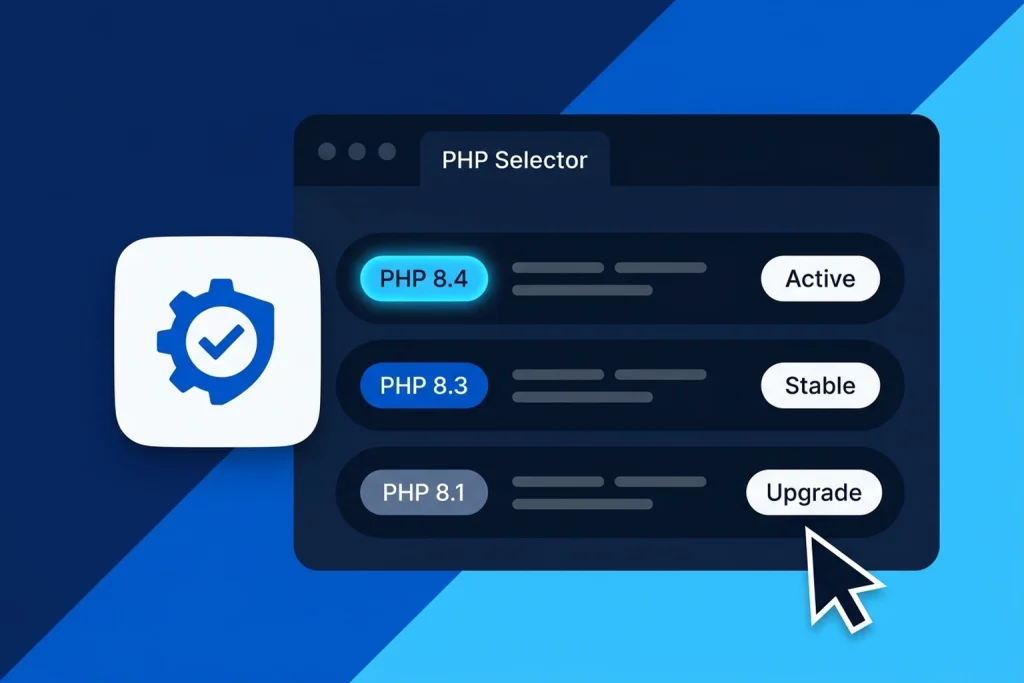
• 2. Hosting Control Panel PHP Selector: On shared web hosting, each domain or subdomain can be assigned its own PHP branch. Open your hosting control panel’s PHP selector and verify every domain—including staging subdomains and legacy microsites sharing the same account. If your site uses DirectAdmin, follow our step-by-step guide on how to change PHP versions in DirectAdmin without breaking WordPress.
• 3. CLI vs PHP-FPM on a VPS: On self-managed VPS hosting, running php -v only inspects the CLI binary. Check the active PHP-FPM service and inspect the fastcgi_pass socket in Nginx (or SetHandler in Apache) to confirm which PHP-FPM pool actually handles incoming web traffic.
# 1. Check the CLI PHP version
php -v

# 2. List active PHP-FPM services and versions
systemctl list-units --type=service | grep php
php-fpm8.4 -v 2>/dev/null || php-fpm8.3 -v 2>/dev/null

# 3. Verify which PHP-FPM socket Nginx forwards traffic to
grep -rn "fastcgi_pass" /etc/nginx/sites-enabled/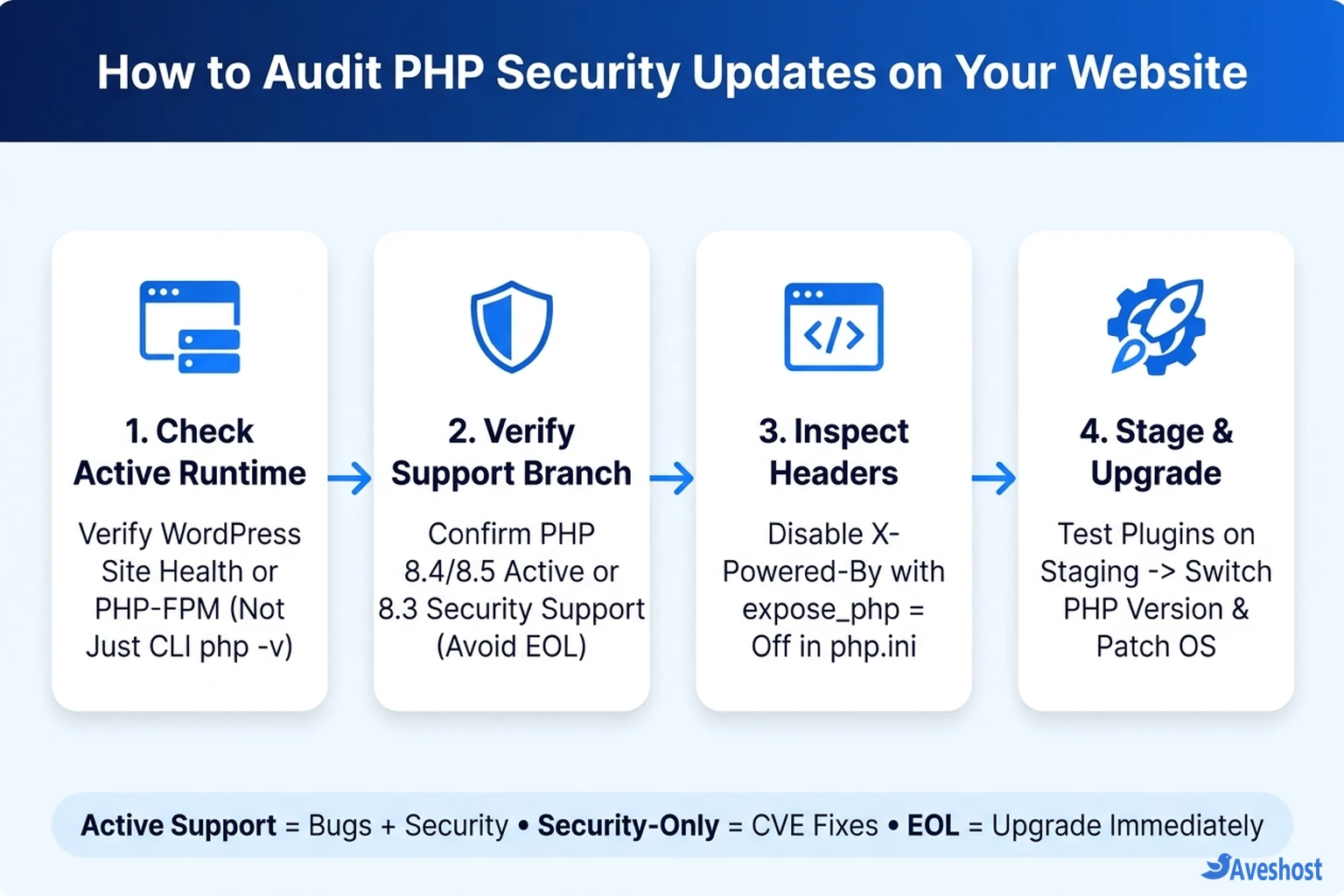
Verify OS-Level Patching and Backported Security Fixes
Checking the major.minor branch (such as PHP 8.3 or PHP 8.4) is only half of verifying PHP security updates. You also need to confirm that point releases and CVE security fixes are actually being installed and loaded into memory.
• Upstream Packages & Docker Images: Repositories such as Ondrej Sury’s PPA on Ubuntu and official Docker PHP images increment the patch number on every security release. Check that your installed patch number matches the latest release for your branch.
• Linux Distribution Backports: Enterprise Linux distributions (such as Ubuntu LTS default repositories, Debian Stable, and AlmaLinux) often keep the base minor version unchanged while backporting CVE fixes into their own package revision numbers. Check the package changelog via apt changelog or rpm -q --changelog rather than guessing from the version string alone.
• Reload PHP-FPM After Patching: Even if unattended-upgrades or dnf-automatic installs patched packages, running worker processes must be reloaded so old unpatched binaries do not stay resident in memory. Never leave a temporary phpinfo() diagnostic script on a public domain—delete it immediately after inspection so you do not leak server paths, environment variables, or loaded extensions.
# Check installed PHP packages and pending security updates (Ubuntu / Debian)
sudo apt update
apt list --upgradable | grep php
apt changelog php8.3-fpm | head -n 25

# Apply security updates and reload PHP-FPM cleanly
sudo apt upgrade -y
sudo systemctl reload php8.3-fpm
Inspect and Hide Leaky PHP Version Headers
Even when your PHP security updates are completely current, broadcasting your exact patch number in every HTTP response hands automated scanners free reconnaissance data. By default, PHP can emit an X-Powered-By header revealing the exact version string (such as PHP/8.3.x) on every dynamic page load.
Inspect your live headers in seconds using curl -I https://yourdomain.com from your terminal or the Network tab in browser DevTools. If you see X-Powered-By in the response, disable it at the PHP layer by setting expose_php = Off in your active php.ini file (as documented in the official PHP expose_php manual) and reloading PHP-FPM.
For defense in depth, strip the header at the web server layer too—using fastcgi_hide_header X-Powered-By; in Nginx or Header unset X-Powered-By in Apache. Hiding version headers does not replace timely patching, but it removes an easy fingerprinting target.
# Check whether your live site leaks X-Powered-By
curl -I https://example.com | grep -iE "x-powered-by|server"

# 1. Disable in php.ini (e.g. /etc/php/8.3/fpm/php.ini)
expose_php = Off

# 2. Defense-in-depth in Nginx (inside your server or location block)
fastcgi_hide_header X-Powered-By;

# 3. Defense-in-depth in Apache (.htaccess or VirtualHost)
Header unset X-Powered-By
How to Upgrade an Outdated PHP Version Without Breaking Your Site
If your audit uncovers an end-of-life branch like PHP 8.1, PHP 8.0, or PHP 7.4, avoid flipping the production version switch without testing first. PHP 8.2, 8.3, and 8.4 introduced deprecations—such as dynamic property warnings and stricter type signatures—that can trigger fatal errors in abandoned plugins or legacy custom code.
• 1. Take a Full Backup: Export a complete archive of your site files and database before changing your runtime.
• 2. Update CMS, Themes, and Plugins on Staging: Clone your site to a staging copy and bring your core software and extensions up to date first. If you manage a WordPress site, follow our walkthrough on how to safely update WordPress with staging and rollback checks.
• 3. Switch Staging to PHP 8.3 or PHP 8.4: Enable server-side error logging (display_errors = Off and log_errors = On) and test checkout flows, contact forms, login screens, and admin dashboards.
• 4. Fix Fatal Errors and Deprecations: Check your PHP error log for uncaught exceptions or fatal errors. Replace abandoned plugins or patch custom theme code before touching production.
• 5. Switch Production and Monitor: Apply the PHP upgrade during a low-traffic window, clear page and object caches, and watch your logs. Pairing upgrades with automated uptime monitoring in Uptime Kuma alerts you immediately if a route regresses.
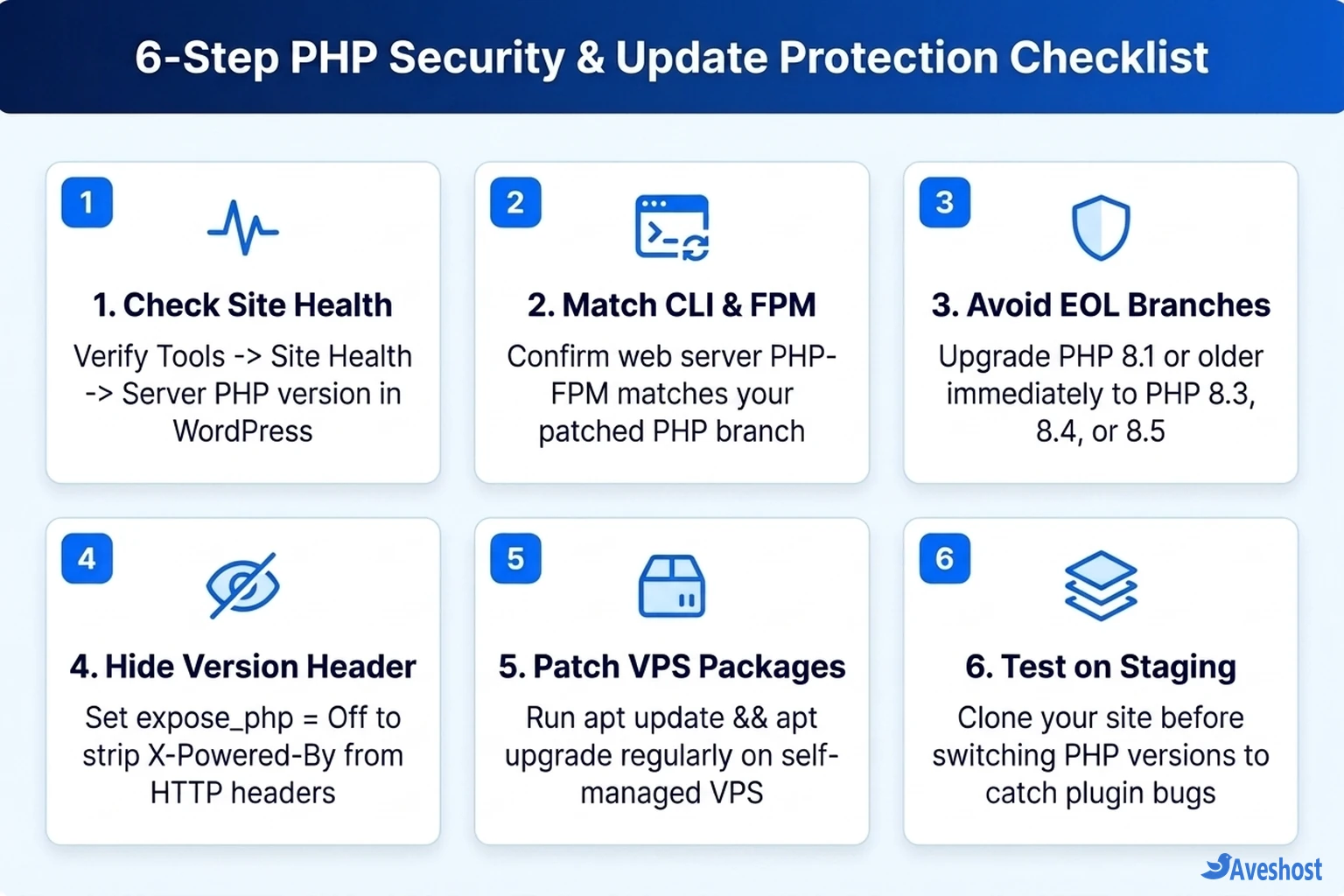
Ongoing PHP Security Updates and Protection Checklist
Keeping PHP protected is an ongoing habit rather than a one-time fix. Branches transition from Active Support to Security-Only and eventually to EOL every year, and forgotten subdomains or staging installs can silently drift onto unsupported runtimes.
Run through the six-step protection checklist below every quarter—and combine runtime patching with strong admin authentication such as adding passkey login to WordPress—so both your interpreter and your login surface stay hardened.
• Shared Web Hosting & Fully Managed VPS Hosting: Your hosting provider maintains the underlying OS packages, compiles patched PHP builds, and applies server-level CVE fixes. Your responsibility is keeping every domain assigned to a supported PHP branch and keeping your application code compatible.
• Self-Managed VPS Hosting: You own the entire stack—package repositories, apt or dnf security upgrades, PHP-FPM reloads, and branch migrations. Whether you host on shared web hosting, fully managed VPS hosting, or self-managed VPS hosting with Aveshost, scheduling a quick quarterly audit guarantees your website never falls behind on PHP security updates.
Frequently asked questions
How do I know if my website is receiving PHP security updates?
Check the exact PHP version serving live traffic using WordPress Site Health, your hosting control panel PHP selector, or your PHP-FPM socket configuration, then compare it against the official PHP Supported Versions table. PHP 8.4 and 8.5 are in Active Support, and PHP 8.3 and 8.2 receive Security Fixes Only; PHP 8.1 and older branches are end-of-life.
Why does php -v show a newer version than WordPress Site Health?
The php -v command checks the command-line (CLI) binary, while live websites usually execute through PHP-FPM or a web server handler. Servers often have multiple PHP branches installed simultaneously, so your Nginx fastcgi_pass socket or hosting PHP selector may still point to an older version even after upgrading the CLI binary.
Is PHP 8.1 still safe to use for a production website?
No. PHP 8.1 has reached end-of-life and no longer receives official upstream PHP security updates. Unless you rely on a verified enterprise Linux distribution or commercial extended-support vendor that explicitly backports CVEs for your build, test your site on staging and upgrade to PHP 8.3 or PHP 8.4.
Does hiding the X-Powered-By header protect me from PHP vulnerabilities?
No. Setting expose_php = Off or stripping X-Powered-By in Nginx or Apache only reduces version fingerprinting against automated scanners. It is a smart hardening step, but it never patches underlying vulnerabilities—you still need a supported, regularly patched PHP runtime.
Will upgrading my PHP version break my WordPress plugins or theme?
Actively maintained WordPress plugins and themes run smoothly on PHP 8.3 and PHP 8.4, but abandoned plugins or older custom code can trigger fatal errors. Always take a full backup, update WordPress core and plugins first, test the new PHP branch on a staging copy with error logging enabled, and then switch production.