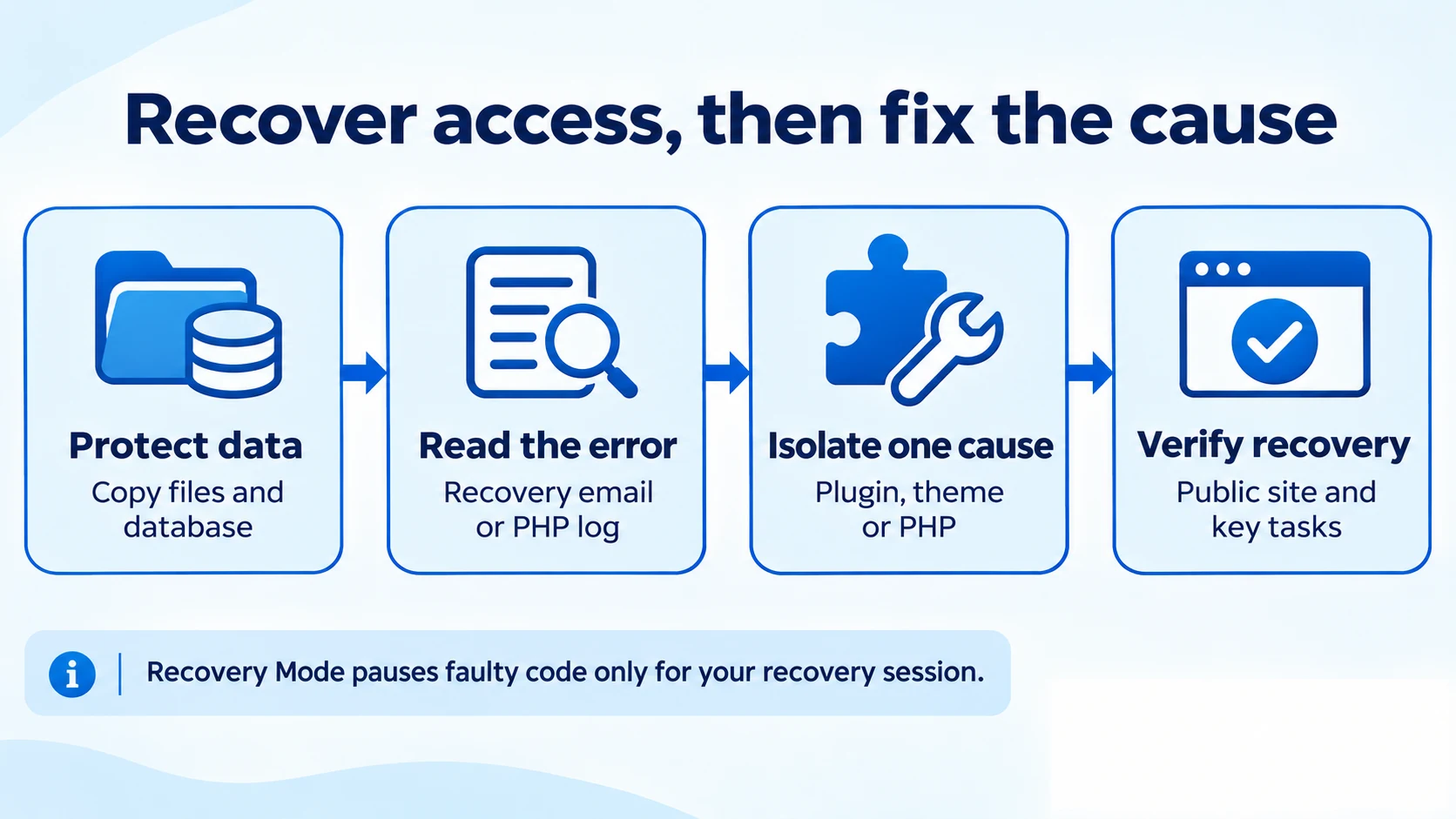
“There has been a critical error on this website” usually means a fatal PHP error stopped WordPress from completing the request. The message is a starting point, not a diagnosis. To fix the WordPress critical error, protect your data, read the recovery email or error log, and isolate the component responsible.
We recommend changing one thing at a time. Start with Recovery Mode if its email arrived; use your hosting logs and File Manager or SFTP if the dashboard is unavailable. This guide covers both routes and explains how to confirm the public site is working again.
Table of Contents
1. Protect your data and record what changed
Write down the failing URL, the action that triggers the error and when it began. Does it affect the homepage, wp-admin, checkout, or only one editor screen? Note any recent plugin update, theme edit, PHP change or deployment. A working cached homepage does not prove dynamic pages are healthy.
Before modifying files, take a current copy of the files and database through your hosting tools, and locate a known working backup. WordPress’s backup guidance explains why both parts matter. A copy of the broken site still preserves recent orders, uploads and evidence that an older backup lacks.
For a live store or membership site, coordinate downtime and stop new transactions before disruptive recovery work. Restoring an older database can remove newer orders, bookings or account changes. Choose the smallest repair that fits the evidence, and test it on staging whenever possible. Do not delete wp-content, reset the database or reinstall the entire site as the first step.
2. Use the WordPress Recovery Mode email
Check the site’s administration mailbox, including spam, for WordPress’s technical-issue notification. Read the error details, then use its recovery link and sign in with an authorised administrator account. Confirm that the link belongs to your own site’s domain and keep the token private.
The dashboard notice may identify a failed plugin or theme. Record the component and error before deactivating it or applying a verified fix. If the failure followed a custom code edit, restore the earlier working file or have the developer correct that change.
Recovery Mode pauses faulty components for your recovery session. That is not the same as fixing them for everyone: visitors may still encounter the error until you deactivate or repair the cause. Afterward, exit Recovery Mode and test in a separate logged-out browser session.
No email? Continue with hosting logs and file access. An early fatal error can prevent a mail-routing plugin from loading, so even a previously working email setup does not guarantee the recovery message will arrive. Do not wait indefinitely for the email before investigating.
3. Find the fatal error without displaying it publicly
First check the domain’s PHP or web-server error log in your hosting control panel. Reproduce the failing page once and match the newest relevant entry by timestamp. Look for the fatal error or uncaught exception, file path, line number and stack trace. A deprecation notice alone is not necessarily the error that stopped the request.
If you need WordPress logging, download a backup of wp-config.php before editing it. Update existing debug definitions rather than adding duplicates, and place them before the line that loads wp-settings.php. The example below requires a host-confirmed, writable absolute path outside the public web directory; replace ACCOUNT and the path before use.
define( 'WP_DEBUG', true );
define( 'WP_DEBUG_LOG', '/home/ACCOUNT/private/wp-errors.log' );
define( 'WP_DEBUG_DISPLAY', false );
@ini_set( 'display_errors', 0 );
Keep the fatal-error handler enabled. WordPress debugging documentation supports a custom log path; using true instead normally writes wp-content/debug.log. Such logs can expose paths and personal data if publicly accessible. If you cannot arrange private logging, ask your host for the server error entry instead.
Reproduce once, collect the relevant entry, then turn temporary debugging off and handle the log securely. If no entry appears, confirm the log path and permissions with support; a failure before WordPress initialises may appear only in the server log. Avoid repeatedly editing configuration to force output onto the public page.
4. Isolate a plugin without deleting its data
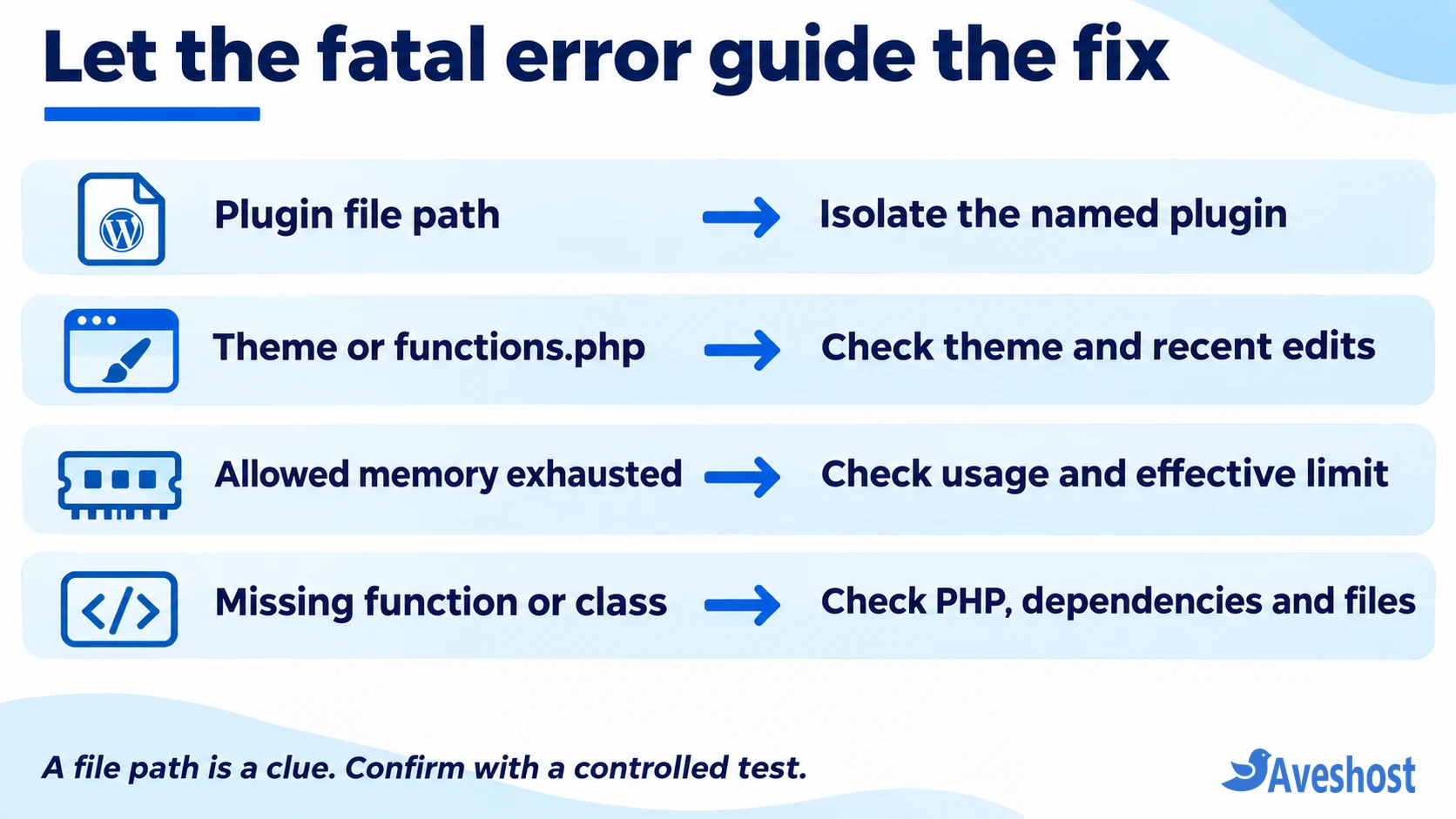
A path under wp-content/plugins/plugin-slug/ points to the plugin involved in the failure, although another component or missing dependency may have triggered it. If you can access Plugins, deactivate the named plugin and repeat the failing request. Review its compatibility requirements and support notes before updating or replacing it.
When wp-admin is blocked, use your hosting File Manager or SFTP to locate that plugin’s folder in the correct WordPress installation. Rename only that folder, for example from plugin-slug to plugin-slug.disabled. Do not delete it or rename wp-content. Retest the failing page; visit the Plugins screen once access returns so WordPress can recognise the missing component.
If the evidence does not identify one plugin, a broader test can temporarily rename wp-content/plugins to plugins.hold. Follow WordPress’s plugin deactivation procedure: open wp-admin/plugins.php while the folder is renamed, then restore the original folder name. Reactivate deliberately, one at a time, testing after each change. This can interrupt checkout, forms and other features, so use staging or a coordinated maintenance window.
Ordinary plugin-folder isolation does not cover must-use plugins, which load separately, or drop-ins such as object-cache.php. If the same fatal error remains, give the new log entry to your host or developer rather than disabling unfamiliar infrastructure files.
5. Check the theme and recent code edits
If the log identifies your theme or functions.php, compare the failure with recent edits. Restore the last working version of the specific changed file from a trusted copy. Syntax errors can come from a missing bracket, quote or semicolon; patching an unrelated line because it appears in the trace can introduce another problem.
With dashboard access, test an installed, current default WordPress theme under Appearance → Themes, preferably on staging. Record the original theme and preserve both parent and child theme files. A temporary theme switch can alter layout and theme-dependent functionality, even if the content remains in the database.
If the dashboard is inaccessible, ask your developer or host to activate a known installed fallback theme through supported recovery tools. Renaming a theme folder without checking that a usable fallback exists can leave the site broken. A snippet stored by a snippets plugin may also need that plugin’s documented safe-mode procedure; it is not necessarily stored in functions.php.
6. Check PHP compatibility and resource limits
If the error began immediately after changing PHP, compare the active domain’s version and extensions with the requirements of WordPress, its theme and the affected plugins. An undefined function can indicate a missing extension, removed API or code that loaded in the wrong order. A missing class can also indicate an incomplete installation or dependency problem.
Use our guide to changing PHP versions in DirectAdmin when that is your control panel. Reverting to the previous supported, working version can be a temporary recovery step while incompatible code is updated. Check PHP’s supported branches; an obsolete version is not a durable fix.
For an Allowed memory size exhausted error, identify which operation consumes memory and check the effective web PHP memory limit. PHP’s configuration reference explains memory_limit. Your host’s limits still apply: a WordPress constant cannot create additional server capacity or cure a loop in faulty code.
Ask support to check memory pressure, disk space, file permissions and PHP-worker errors when the logs point there. Do not make files world-writable or remove limits across the account. Change the relevant setting only, record its original value, and retest the request that failed.
| Log clue | Useful next check |
|---|---|
| Parse or syntax error | Recent file edit and exact reported location |
| Allowed memory size exhausted | Memory usage, effective limit and responsible operation |
| Undefined function or missing class | PHP compatibility, extensions, dependencies and complete files |
| Failed opening required file | File existence, installation path and permissions |
7. Repair incomplete files or restore selectively
An interrupted update can leave mixed or missing files. Reinstall the affected plugin or theme from its trusted original source, preserving any customisations and checking the vendor’s recovery instructions. Some updates also change database structures, so swapping in older files is not always a complete rollback.
If core files are implicated, an administrator with SSH can use wp core verify-checksums to compare WordPress core against official checksums. That check does not validate every plugin, upload or database record, and a trace mentioning wp-includes does not by itself prove that core is faulty.
For a wider restore, confirm the backup’s contents and recovery point first. Test a matching file-and-database set on staging, then plan how to preserve newer production data before restoring live. Keep the current copy until the recovery is verified. Unexpected modified files or unknown administrator accounts need a security investigation alongside availability recovery.
8. Verify the repair and prevent a repeat
Exit Recovery Mode, then test the homepage and the original failing URL while logged out. Check administrator login, editing and saving, forms and any important customer journey. For a store, use sandbox checkout with a controlled inbox to check payment updates and notifications without creating real charges.
Review the logs for fresh fatal errors after testing. Clear relevant page or CDN caches once the underlying repair is in place, and confirm that removed functionality has a working replacement. Restore temporary folder names carefully, leave the faulty component inactive until repaired, and disable temporary debugging.
Record the cause, version change and successful checks. Follow our safe WordPress update workflow for future changes, with a tested backup and staging review. Keep the administration email reachable and check backups before the next update.
If you need help, contact Aveshost support with the affected domain, failing URL, timestamp, recent changes and a redacted fatal-error entry. Explain what you already tested. Share credentials only through the approved support process, and keep recovery tokens and full debug logs out of public forums.
Frequently asked questions
Does a WordPress critical error mean my site was hacked?
No. Faulty code, an incompatible update, missing files or exhausted memory can cause it. Investigate unexpected file changes, unknown users or other compromise indicators, but the generic error message alone does not identify an attack.
What if I never receive the Recovery Mode email?
Check the administration mailbox and spam, then use your hosting PHP error log and File Manager or SFTP. The failure may occur before the email integration loads. Your host can help locate the fatal error without waiting for an email.
Will clearing the cache fix the critical error?
It does not repair the PHP code or resource problem behind a fatal error. A cache can serve an older working page or retain an error response, so check the original dynamic request and clear relevant caches after fixing the cause.
Will renaming a plugin folder delete its settings?
Renaming the folder prevents normal loading; it is different from deleting or uninstalling the plugin. Keep the original files and a database backup, let WordPress register the deactivation, then restore the original folder name before a controlled repair and reactivation.
Should I immediately restore yesterday's backup?
First compare the recovery point with newer orders, bookings, uploads and accounts. A targeted file repair may preserve more current data. If a full restore is necessary, preserve the current state and plan the database recovery with your host or developer.