Learning how to self-host RustDesk on your own Ubuntu VPS gives you fast, private remote desktop access without recurring TeamViewer or AnyDesk licensing limits. Instead of routing your support sessions through crowded public relay servers, your own server handles client discovery and encrypted relay traffic exclusively for your team.
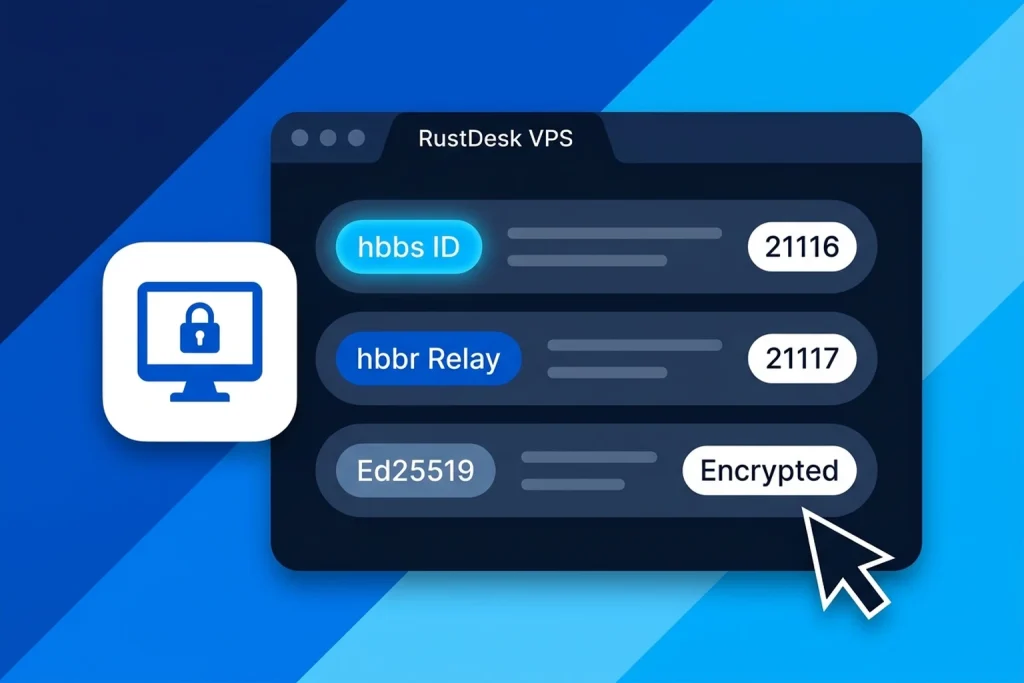
The open-source RustDesk server stack runs cleanly in two lightweight Docker containers—hbbs (the ID and rendezvous server) and hbbr (the relay server)—and easily runs alongside other services on a 1 GB or 2 GB RAM self-managed VPS hosting or fully managed VPS hosting plan from Aveshost.
In this guide, you will deploy RustDesk with Docker Compose on Ubuntu, open the exact required UFW ports, lock down your server with ENCRYPTED_ONLY=1 and an Ed25519 public key, and connect your desktop and mobile clients.
Table of Contents
How Self-Hosted RustDesk Works (hbbs vs hbbr)
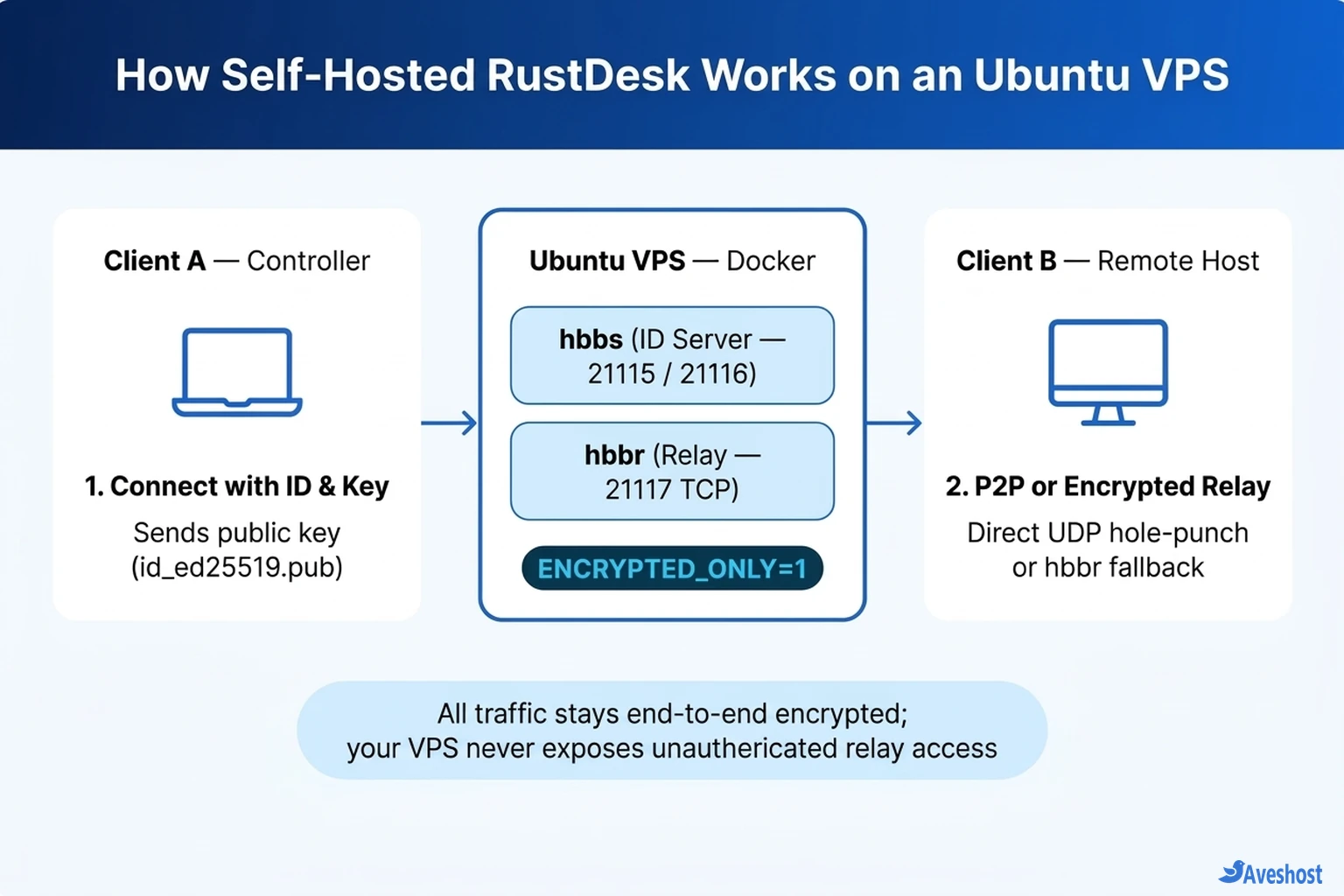
When you self-host RustDesk, your Ubuntu VPS acts as the private broker between your controller device and your remote computers. According to the official RustDesk self-hosting documentation, the server splits into two complementary services:
• hbbs (ID / Rendezvous Server): Registers client IDs, checks NAT types, and coordinates direct peer-to-peer (P2P) UDP hole-punching so two machines on friendly networks can talk directly.
• hbbr (Relay Server): Steps in automatically whenever strict corporate firewalls or symmetric NAT block direct P2P connections, relaying end-to-end encrypted traffic over TCP port 21117.
Prerequisites and Required Ubuntu UFW Firewall Ports
Before installing the containers, prepare an Ubuntu 22.04 or 24.04 VPS with Docker Engine, Docker Compose, and a non-root sudo user. If you have not hardened your server yet, our Ubuntu VPS deployment guide walks through initial SSH and firewall setup.
RustDesk requires three core ports (including both TCP and UDP on port 21116) and two optional WebSocket ports that you should keep closed unless you specifically serve the browser web client behind an HTTPS reverse proxy:
| Port & Protocol | Service | Purpose | Should You Open It? |
|---|---|---|---|
| 21115 / TCP | hbbs | NAT type test | Yes (required) |
| 21116 / TCP & UDP | hbbs | ID registration, heartbeat (UDP), and TCP hole-punching | Yes (required — both TCP and UDP) |
| 21117 / TCP | hbbr | Encrypted relay fallback service | Yes (required) |
| 21118–21119 / TCP | hbbs / hbbr | WebSocket support for browser Web Client | No (leave closed unless proxied via HTTPS) |
# Open required RustDesk ports in UFW on Ubuntu
sudo ufw allow 21115/tcp
sudo ufw allow 21116/tcp
sudo ufw allow 21116/udp
sudo ufw allow 21117/tcp
sudo ufw reload
Step 1: Deploy RustDesk Server with Docker Compose
Create a dedicated project directory such as /opt/rustdesk on your Ubuntu VPS and configure docker-compose.yml. Notice two critical production settings: passing -r your-vps-ip-or-domain:21117 to hbbs so clients know your relay endpoint, and setting ENCRYPTED_ONLY=1 on both containers.
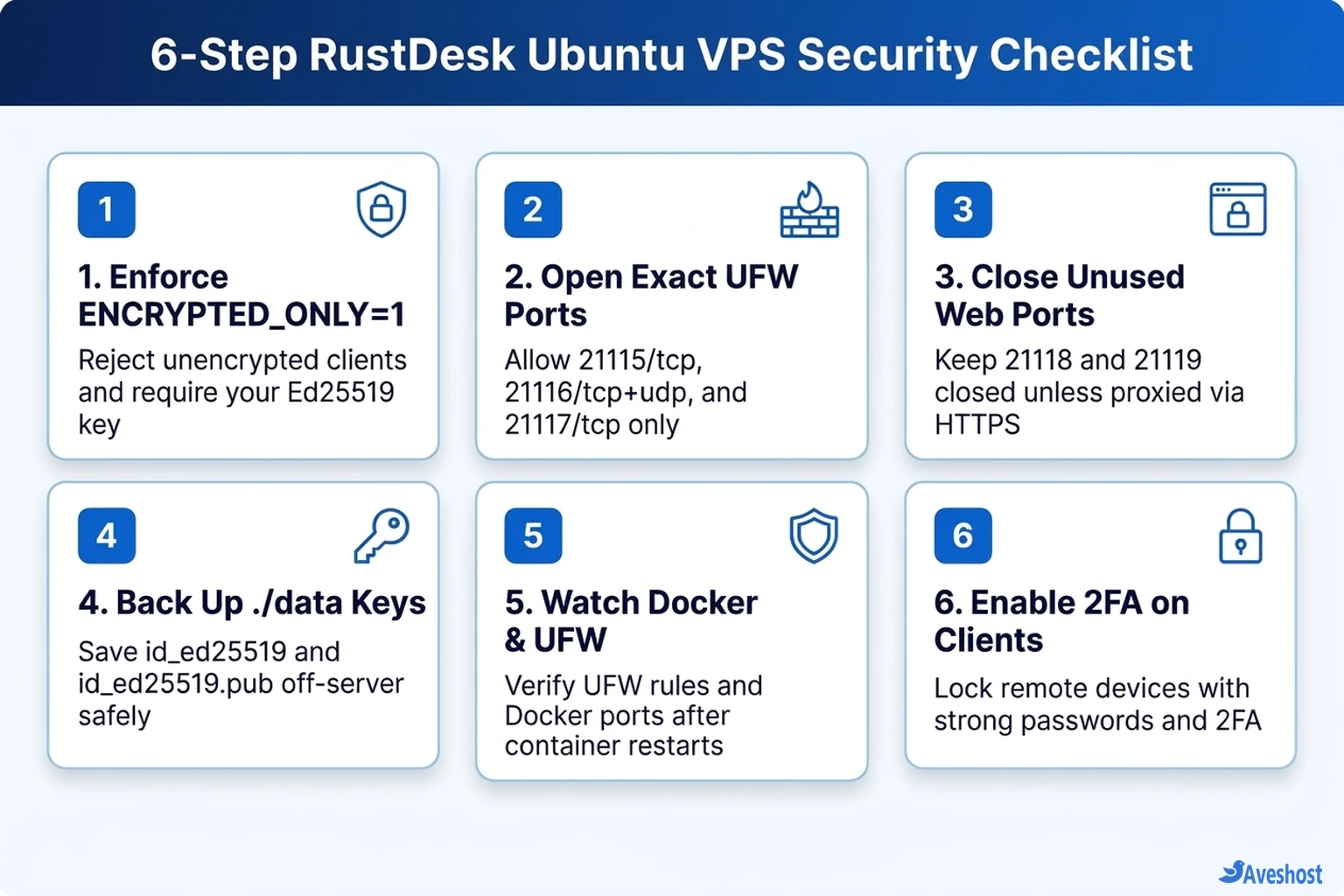
Enabling ENCRYPTED_ONLY=1 tells hbbs and hbbr to reject any unencrypted client connection and enforce your Ed25519 keypair. Without this variable, anyone who discovers your VPS IP could attempt to use your relay unauthenticated.
Once you run docker compose up -d, RustDesk automatically generates id_ed25519 (private key) and id_ed25519.pub (public key) inside ./data. Print your public key with cat ./data/id_ed25519.pub and keep it ready for your client apps.
# /opt/rustdesk/docker-compose.yml
services:
  hbbs:
    container_name: hbbs
    image: rustdesk/rustdesk-server:latest
    command: hbbs -r your-vps-ip-or-domain:21117
    volumes:
      - ./data:/root
    environment:
      - ENCRYPTED_ONLY=1
    ports:
      - "21115:21115"
      - "21116:21116"
      - "21116:21116/udp"
    depends_on:
      - hbbr
    restart: unless-stopped

  hbbr:
    container_name: hbbr
    image: rustdesk/rustdesk-server:latest
    command: hbbr
    volumes:
      - ./data:/root
    environment:
      - ENCRYPTED_ONLY=1
    ports:
      - "21117:21117"
    restart: unless-stopped
# Start RustDesk server containers and read your public key
mkdir -p /opt/rustdesk && cd /opt/rustdesk
sudo docker compose up -d
cat ./data/id_ed25519.pubStep 2: Connect RustDesk Desktop and Mobile Clients
With both containers running, configure every RustDesk client (Windows, macOS, Linux, Android, or iOS) to point at your private Ubuntu VPS instead of the public RustDesk servers:
• 1. Open Network Settings: Launch RustDesk on your device, click the three-dot menu next to your ID, and open Settings → Network (click Unlock network settings if prompted).
• 2. Enter ID and Relay Server: Set ID Server to your VPS public IP or domain name (for example, remote.yourdomain.com). You can also enter the same host in Relay Server.
• 3. Paste Your Public Key: Copy the exact string from cat ./data/id_ed25519.pub (with no extra spaces or trailing line breaks) into the Key field and click Apply.
• 4. Verify Status: Return to the main RustDesk window. The status indicator at the bottom should turn green and read Ready. Repeat this setup on any remote computer you want to access.
Step 3: Harden Your RustDesk VPS and Prevent Common Issues
Because Docker modifies iptables directly when publishing container ports, always double-check how your firewall interacts with published ports—see our guide on stopping Docker containers from exposing unexpected ports with UFW. Also monitor container logs and image layers periodically so old images do not fill your VPS disk (how to find what is using Docker disk space).
Follow the six-step security checklist below to keep your self-hosted RustDesk server locked down on Aveshost self-managed VPS hosting or fully managed VPS hosting:
Frequently asked questions
How much RAM and CPU does a self-hosted RustDesk server need?
RustDesk’s hbbs and hbbr containers are written in Rust and use very little memory—typically under 100 MB of RAM at idle. A 1 vCPU, 1 GB RAM Ubuntu VPS comfortably handles dozens of concurrent remote desktop sessions, while 2 GB RAM gives extra headroom if you run other tools.
Why does RustDesk say 'Not ready. Please check your connection' after setup?
This usually happens when port 21116/udp is blocked in UFW or your cloud security group, when the Key field in the client does not match ./data/id_ed25519.pub, or when ENCRYPTED_ONLY=1 rejects a client missing the public key.
Do I need a domain name to self-host RustDesk on a VPS?
No. You can enter your Ubuntu VPS public IPv4 address directly in the hbbs -r flag and in your RustDesk client ID Server field. However, pointing an A record such as remote.yourdomain.com to your VPS makes it easier to migrate servers later without reconfiguring every client.
Should I open ports 21118 and 21119 in UFW?
Only if you plan to host the RustDesk Web Client. Per the official RustDesk documentation, keep ports 21118 and 21119 closed unless you place them behind a properly configured HTTPS/WSS reverse proxy.
What happens if I lose my id_ed25519 key files?
If ./data/id_ed25519 and id_ed25519.pub are deleted, RustDesk generates a brand-new keypair on container restart and existing clients will fail key verification until updated. Back up the ./data directory right after your first deployment.