WordPress REST API errors can stop you saving a draft, updating a page or publishing a post. The right fix starts with the failed request: check its URL, status code and response body, then correct the authentication, routing, security or server problem it reveals.
A message such as “Publishing failed. The response is not a valid JSON response” describes what the editor received. It does not identify one universal cause. In this guide, we walk you through a practical diagnosis that protects your content and keeps your site’s access controls in place.
Table of Contents
1. Protect your content and identify the failed action
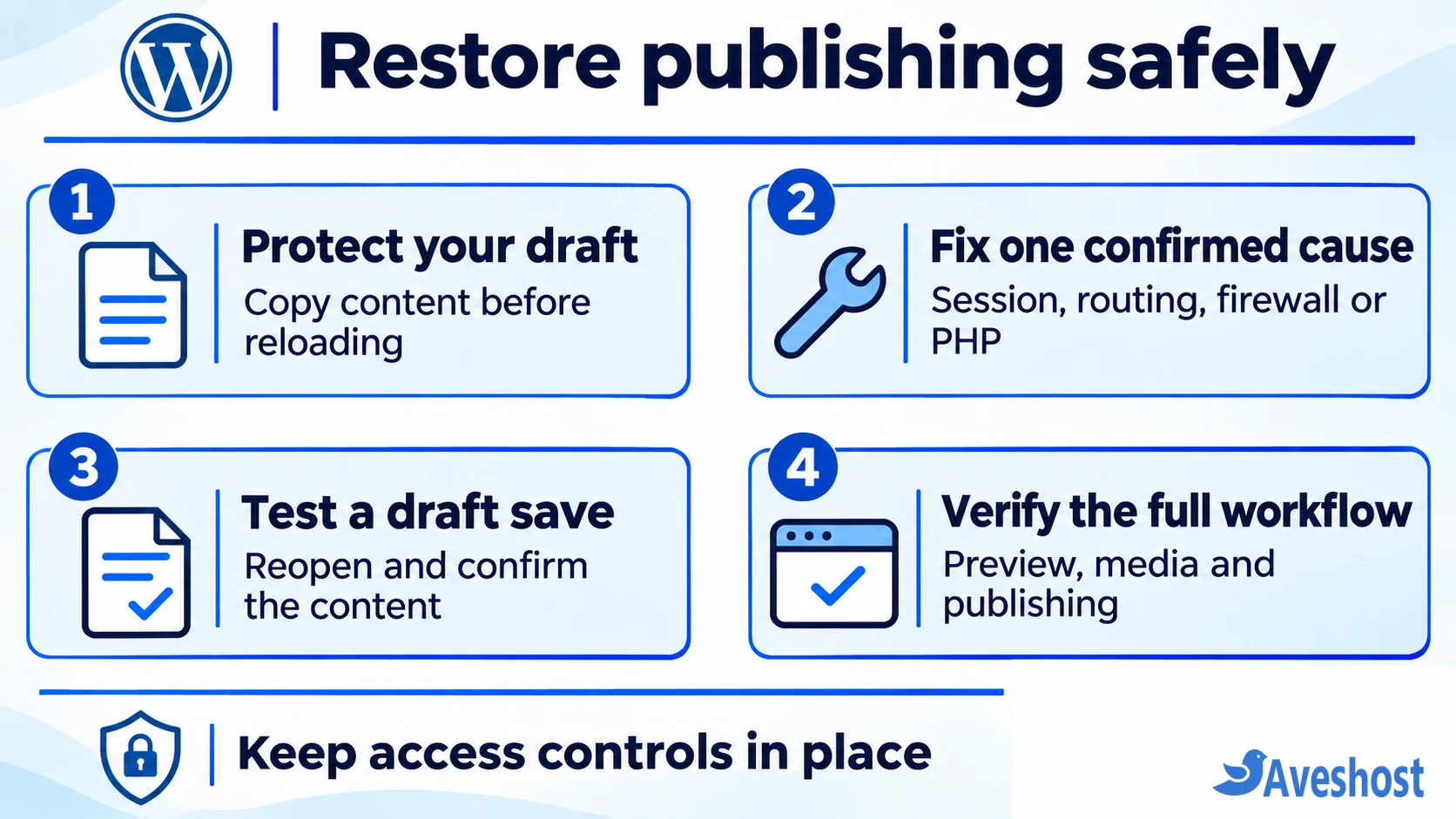
Before refreshing the editor, copy unsaved content somewhere safe. Use the editor’s Copy all blocks option where available, and keep a separate copy of important text. An autosave notification is not proof that your latest failed update reached the database.
Record the action that fails: saving a draft, publishing, changing a featured image or uploading media. Note whether it affects every post, one particular page or one user account. A request that fails only with a large upload needs a different investigation from every editor request being blocked.
The block editor uses REST requests to exchange structured data with WordPress. For example, core posts use routes under /wp-json/wp/v2/posts; existing posts include their ID. Pages, media and plugin features use other routes. The official posts API reference explains the supported operations. Inspect the route your editor actually uses.
2. Read the failed request in your browser
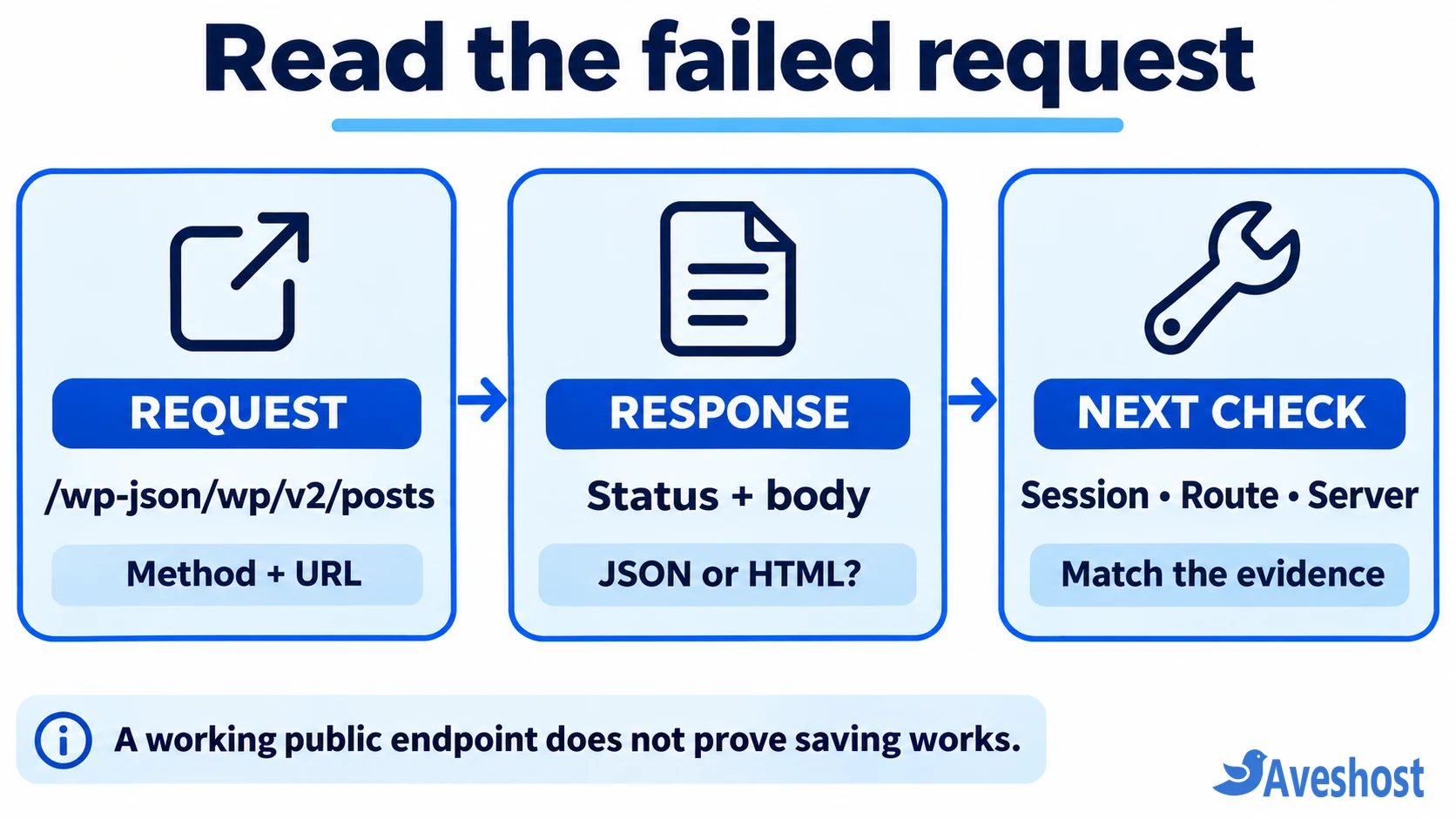
Open your browser’s developer tools and select Network. Choose Fetch/XHR if available, clear the previous entries, and repeat the failed action once. Search for wp-json or rest_route. Select the request associated with the error, rather than an unrelated analytics request.
In Headers, record the request URL, HTTP method, status and response Content-Type. In Response, inspect the returned body. A WordPress error commonly includes a machine-readable code, a message and status data. An HTML login screen, firewall challenge or PHP warning points to a different failure.
Check redirects and the final destination too. A response marked 200 can still contain HTML instead of the JSON the editor expects. If no request was sent, inspect the Console for a JavaScript error or blocked resource before changing server settings.
For a basic read-only check, open your installation’s REST root, often https://example.com/wp-json/. JSON at that address confirms that this public request reached the API. It does not prove that logged-in saves, uploads or publishing work. Sites with deliberate API access restrictions also need their intended policy considered.
3. Match WordPress REST API errors to the response
Use the status as a starting point and the response body to choose the next check. A firewall can return the same status as WordPress itself. The HTTP status reference explains the underlying meanings.
| Response | Next check |
|---|---|
| 400: bad request | Read the JSON error for an invalid parameter, missing field or malformed payload. |
| 401 or 403 | Check login, nonce and user permissions; inspect security logs if the response is a block page. |
| 404 | Separate an unknown route or missing post from a server rewrite failure. Check the exact URL and method. |
| 413 | Check request-size limits at the web server, proxy and application layers. |
| 429 | Check the rate limit and Retry-After header where supplied; reduce repeated requests. |
| 500, 502, 503 or 504 | Correlate PHP, web-server and proxy logs with the failed request. |
| 200 with HTML or broken JSON | Inspect redirects, login/challenge pages and unexpected PHP output. |
4. Fix expired sessions, nonces and permissions
For a normal dashboard editing session, WordPress uses login cookies and a REST nonce. The nonce helps protect requests against cross-site request forgery; it does not grant editing privileges. WordPress documents this in its REST authentication guide.
After protecting your draft, sign in through a fresh tab on the same site and reopen the editor. Retest a small draft save. If the response identifies an invalid nonce, a fresh editor session obtains fresh request data. Repeated failures after signing in require further checks; repeated reloading alone does not repair a configuration problem.
Confirm that the affected user can edit that post and publish that post type. Custom roles, ownership rules and plugin permissions can differ from administrator access. Fix the required capability through your site’s role configuration instead of granting every writer administrator privileges.
If only an external integration fails, check its authentication separately. Use an application password over HTTPS with an appropriately limited WordPress user where that method fits the integration. Application passwords inherit the user’s permissions; they are not individually permission-scoped tokens. Keep credentials on the server, revoke unused ones, and ask the host to check whether the Authorization header reaches PHP.
5. Check REST routes, permalinks and HTTPS
For a REST-root 404, compare the pretty-permalink URL with the query-string form at your actual WordPress installation base, such as https://example.com/?rest_route=/. If the query form returns the API index while /wp-json/ returns a server 404, investigate rewrite routing. WordPress explains these URL forms in its API discovery documentation.
With a backup available, open Settings → Permalinks and save the existing structure once. Keep the structure unchanged. On Apache, check the applicable WordPress rewrite rules and whether configuration permits them. Nginx uses its server configuration rather than .htaccess. Ask your administrator to review the installed configuration before replacing rules.
A JSON error such as rest_no_route means WordPress received the request but found no matching route for that URL and method. Check the plugin that registers the route, the correct API namespace and the request method. A missing post ID is another separate 404 condition.
Check for HTTP-to-HTTPS, www-to-non-www or login redirects in the failed request. Review WordPress Address and Site Address against your actual installation, including subdirectories. These fields can legitimately differ. Correct a confirmed mismatch with backup and recovery access available; do not make them identical blindly. Behind a reverse proxy, the administrator must also verify HTTPS detection and forwarding.
6. Resolve firewall, cache and plugin interference
If the body contains a security challenge or access-denied page, correlate its request ID and time with your CDN, security-plugin or web-application-firewall logs. A legitimate editing request can trigger a rule because of its content or method. Have the responsible administrator adjust the specific rule or exception after reviewing the request.
Keep authentication and permission checks intact. Do not make every REST route public or disable the firewall permanently to restore publishing. WordPress advises against disabling the REST API because administration features depend on it.
Review caching rules for logged-in administration, authenticated REST responses and write requests. Shared caches must not serve private responses to other visitors. After correcting a rule, purge the affected cached content and start a fresh editor session. Clearing caches without fixing the rule leaves the underlying problem in place.
For suspected plugin or theme conflicts, use a staging copy with a restorable backup. Test the relevant security, caching or editor extension first, changing one component at a time. If needed, follow the official plugin and theme conflict workflow. Keep staging emails and payments isolated from live customers. Update or replace the confirmed faulty component before applying the tested fix to production.
7. Investigate server failures and Site Health warnings
For a 5xx response, locate the matching request in PHP and web-server error logs. Check the first relevant error: a fatal plugin exception, exhausted memory, unavailable upstream or timeout. A proxy timeout identifies a waiting limit; increasing it without investigating the slow operation can leave the real fault unresolved.
Use WordPress debugging guidance to collect errors privately. Keep error display off on public responses and restrict access to logs. PHP warnings printed before JSON can break the response even when the underlying request partly succeeds. Fix their source rather than only hiding the symptom. For fatal errors, follow our WordPress critical error recovery guide.
Open Tools → Site Health → Status and expand the REST API result. Copy its exact error. The Site Health screen also provides configuration information for support. A loopback test concerns WordPress connecting back to its own site; it is distinct from your browser’s REST request. DNS, TLS, staging authentication or server access rules can affect those paths differently.
8. Verify saving and publishing before closing the issue
Start with a test draft that does not trigger customer-facing automations. Make a small change, save, reopen it and confirm the content persisted. Then test preview and a small media upload if those actions were affected. Verify publishing through your normal review process on an approved test item or staging site.
Watch the relevant Network request while testing. Confirm the expected response and content as well as the editor’s success message. Recheck the original failing action, affected user role and Site Health result. A successful administrator draft save does not prove that a restricted writer can publish.
If you need our help, contact Aveshost support with the URL, action, request time and timezone, status, sanitized error body and relevant request ID. Include recent plugin or configuration changes. Remove cookies, nonces, Authorization headers and customer data from screenshots or network exports. This gives us useful evidence without exposing access to your site.
Frequently asked questions
Why does WordPress say the response is not a valid JSON response?
The editor could not read the response as the JSON it expected. Inspect the failed request: redirects, HTML login or firewall pages, unexpected PHP output and malformed responses need different fixes. The message alone does not establish the cause.
Does a working /wp-json/ page mean the REST API is fully working?
No. It verifies that particular public request. Saving a draft, editing protected content and uploading media use their own routes, methods and permissions. Test the action and user account that originally failed.
Will saving permalinks fix every WordPress REST API error?
No. Resaving the existing structure can help with rewrite routing, especially when the query-string API root works but the pretty URL returns a server 404. It does not repair expired sessions, blocked requests, plugin exceptions or missing permissions.
Should I disable the REST API or security plugin to fix publishing?
Keep the REST API available for required administration features. Use logs and controlled staging tests to identify the responsible restriction or plugin, then correct that specific issue. Preserve authentication, permission checks and appropriate firewall protection.
Is a CORS error the same as a WordPress login error?
No. CORS concerns browser requests across origins; a login or permission failure concerns authentication and authorization. Check the actual request URL, browser message and response. Correct unintended cross-origin URLs first, and configure deliberate integrations for their approved origin and authentication method.