How to Install WordPress from cPanel
Creating a website has never been easier, and WordPress stands tall as the most popular platform for building beautiful, functional sites. Whether you’re starting a personal blog, launching a business website, or creating an online store, WordPress offers unparalleled flexibility. But how do you get started? That’s where cPanel comes in—a powerful tool that makes managing your hosting environment a breeze.
Table of Contents
In this guide, you’ll learn how to install WordPress from cPanel, configure it, and set up a secure, professional site. Let’s dive in and turn your vision into reality!
Why WordPress is the Go-To Platform for Websites
WordPress powers over 40% of the web, and for good reason. It’s open-source, which means you can customize it to your heart’s content. From sleek themes to powerful plugins, WordPress adapts to projects of all sizes and scopes. Its intuitive dashboard is perfect for beginners, while advanced users can dive into the code for deeper customizations.
Plus, the WordPress community is vast and supportive. Whatever problem you face, someone has likely solved it and shared the solution online.
The Role of cPanel in Simplifying Website Management
cPanel is the unsung hero of website management. It’s a user-friendly control panel that helps you manage every aspect of your hosting environment. With cPanel, you can handle file management, email accounts, backups, databases, and—most importantly—install WordPress with just a few clicks.
Think of cPanel as the cockpit of your hosting account. It puts everything you need at your fingertips, making even complex tasks feel straightforward.
Logging into cPanel: Your Gateway to WordPress
If you don’t have cPanel-supported web hosting, follow this guide: How to Buy Domain And Web Hosting With Mobile Money
To get started, Use the credentials sent to your email by Aveshost. If you don’t see the email in your main inbox, check your spam or junk folder. Alternatively, you can log in directly through your Aveshost Client Area. Once logged in, you’ll find a plethora of tools organized into categories. Look for the “Softaculous App Installer” or a similar option under the “Software” section.
Installing WordPress from cPanel
Using the Softaculous App Installer: The Easiest Way
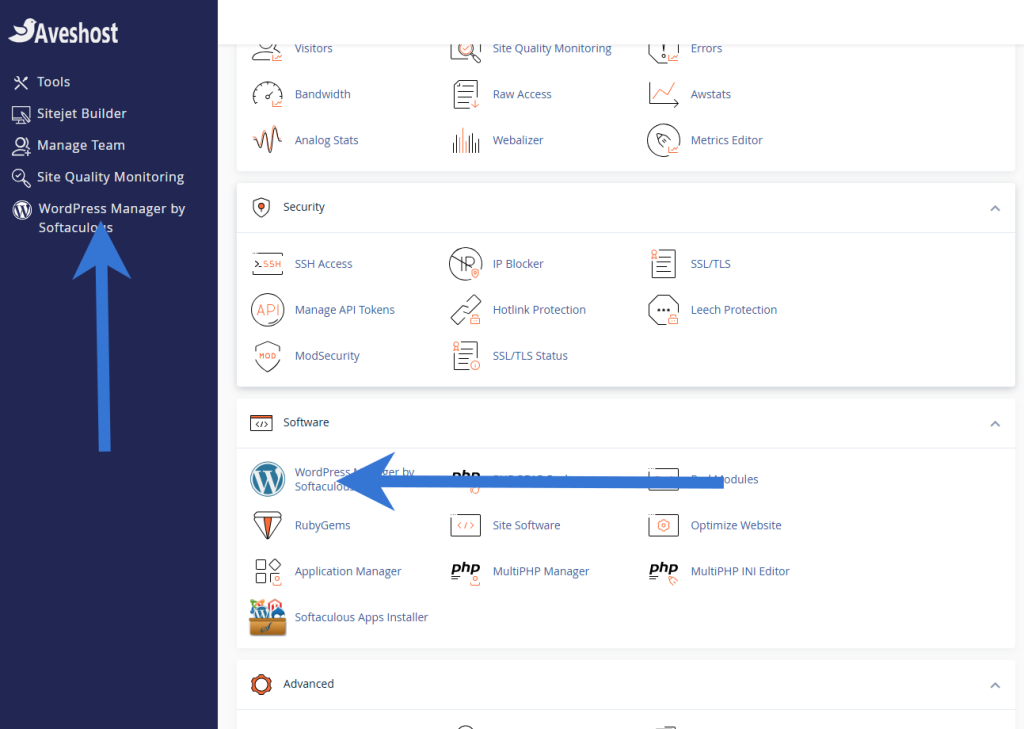
Softaculous makes installing WordPress almost effortless. Follow these steps:
- Locate Softaculous: In cPanel, find the Softaculous App Installer icon and click on it.
- Select WordPress: From the list of available scripts, choose WordPress.
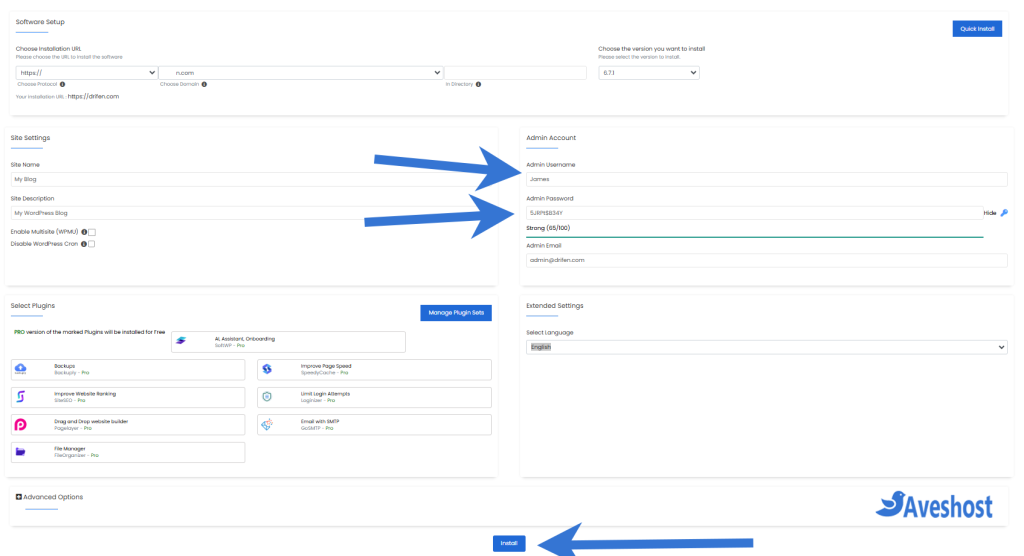
- Start Installation: Click on the “Install” button and fill out the installation form.
- Choose Protocol: Decide whether to use
httporhttps. If you have an SSL certificate, selecthttps. - Domain Selection: Pick the domain or subdomain where you want to install WordPress.
- Directory: Leave this field empty if you want WordPress installed in the root directory.
- Admin Credentials: Set up a username, password, and email for your WordPress admin account.
- Choose Protocol: Decide whether to use
- Run the Installer: Hit “Install” and let Softaculous do its magic.
Configuring WordPress After Installation
Logging into the WordPress Dashboard
Access your WordPress admin dashboard by visiting yourdomain.com/wp-admin. Log in with the credentials you set during installation. Once inside, you’ll find an intuitive interface where you can manage every aspect of your site.
Setting Up Your Site Title and Tagline
Navigate to Settings > General to define your site title and tagline. Choose a title that reflects your brand and a tagline that succinctly conveys your mission.
Securing Your WordPress Installation
Enabling SSL for a Secure Site
In cPanel, locate the “SSL/TLS Status” or “SSL/TLS” section to enable an SSL certificate for your domain. Aveshost offers a free SSL (Let’s Encrypt), activating it is as simple as a few clicks if not automatically activated already.
Setting Strong Passwords for Your Admin Panel
Never underestimate the importance of a robust password. Use a combination of uppercase and lowercase letters, numbers, and special characters. Consider using a password manager for added security.
Keeping WordPress Updated
Outdated WordPress installations are vulnerable to attacks. Regularly check for updates to WordPress, your themes, and plugins. Enable automatic updates in the dashboard to stay secure with minimal effort.
Conclusion
The Power of WordPress and cPanel Combined
With WordPress’s versatility and cPanel’s simplicity, you have a powerful combination for creating and managing your website. Together, they streamline the process, empowering you to focus on crafting engaging content and growing your audience.
Encouraging Regular Maintenance for a Smooth Experience
Websites aren’t set-it-and-forget-it projects. Schedule regular maintenance to ensure your site stays fast, secure, and up-to-date.
What’s Next: Exploring WordPress’s Advanced Features
Once your site is up and running, dive deeper into WordPress’s advanced features. Explore custom themes, plugins, and tools to elevate your site. The possibilities are endless, and your journey has just begun.
Also Read:
- How to Make Your WordPress Website Load Under 2 Seconds
- How to Fix WordPress 404 Not Found Error: Step-by-Step
- How to Redirect HTTP to HTTPS: Ultimate Guide to Secure Site
- How to Start a Blog and Make Money: Beginner’s Guide
- How to Choose a Blog Name: 107+ Niche Ideas
- How To Transfer Your Domain: A Step-by-Step Guide
What is cPanel and why is it important for installing WordPress?
cPanel is a user-friendly control panel that helps manage your hosting environment, including file management, email accounts, backups, databases, and installing WordPress with just a few clicks.
How do I log into cPanel to install WordPress?
Use the credentials sent to your email by your hosting provider (like Aveshost), check your spam folder if needed, or log in directly through your hosting client area.
What is the easiest way to install WordPress from cPanel?
The easiest way is using the Softaculous App Installer in cPanel, which allows you to install WordPress with just a few clicks by selecting WordPress from the scripts list and filling out the installation form.
What information do I need to provide during WordPress installation via Softaculous?
You need to choose protocol (http or https), select your domain or subdomain, set directory (leave empty for root), and create admin credentials (username, password, and email).
How do I access my WordPress dashboard after installation?
Access your WordPress admin dashboard by visiting yourdomain.com/wp-admin and logging in with the credentials you set during installation.
How can I secure my WordPress installation after setup?
Enable SSL certificate in cPanel, set strong passwords for admin accounts, and keep WordPress, themes, and plugins updated regularly, preferably with automatic updates enabled.
What should I do after installing WordPress to configure my site?
Set up your site title and tagline in Settings > General, explore themes and plugins, and schedule regular maintenance to keep your site fast, secure, and up-to-date.