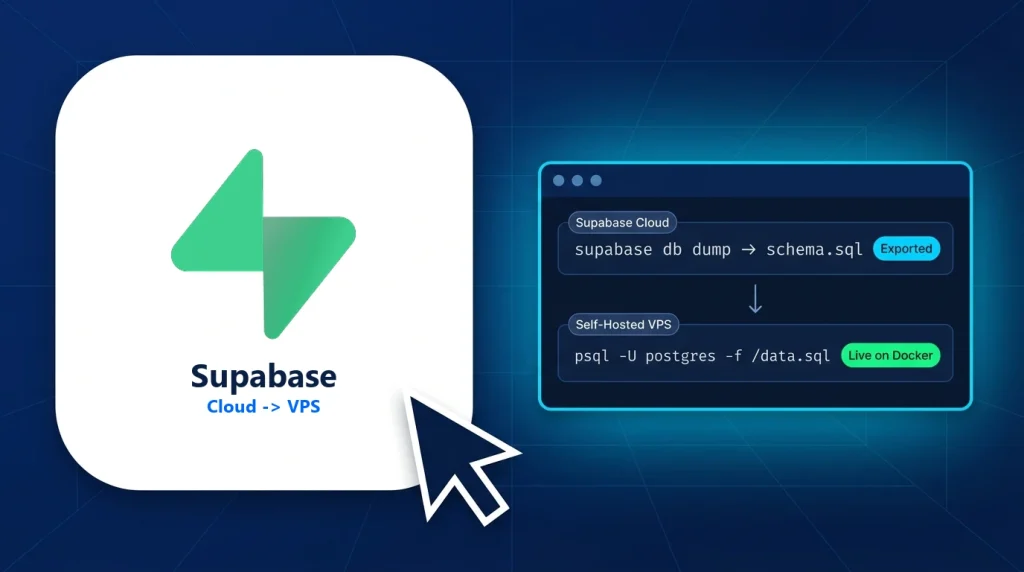
When you migrate from Supabase Cloud to a self-hosted VPS, you gain predictable monthly infrastructure costs, dedicated NVMe disk I/O, and complete ownership over your PostgreSQL database—without per-user MAU overages or paused free-tier projects.
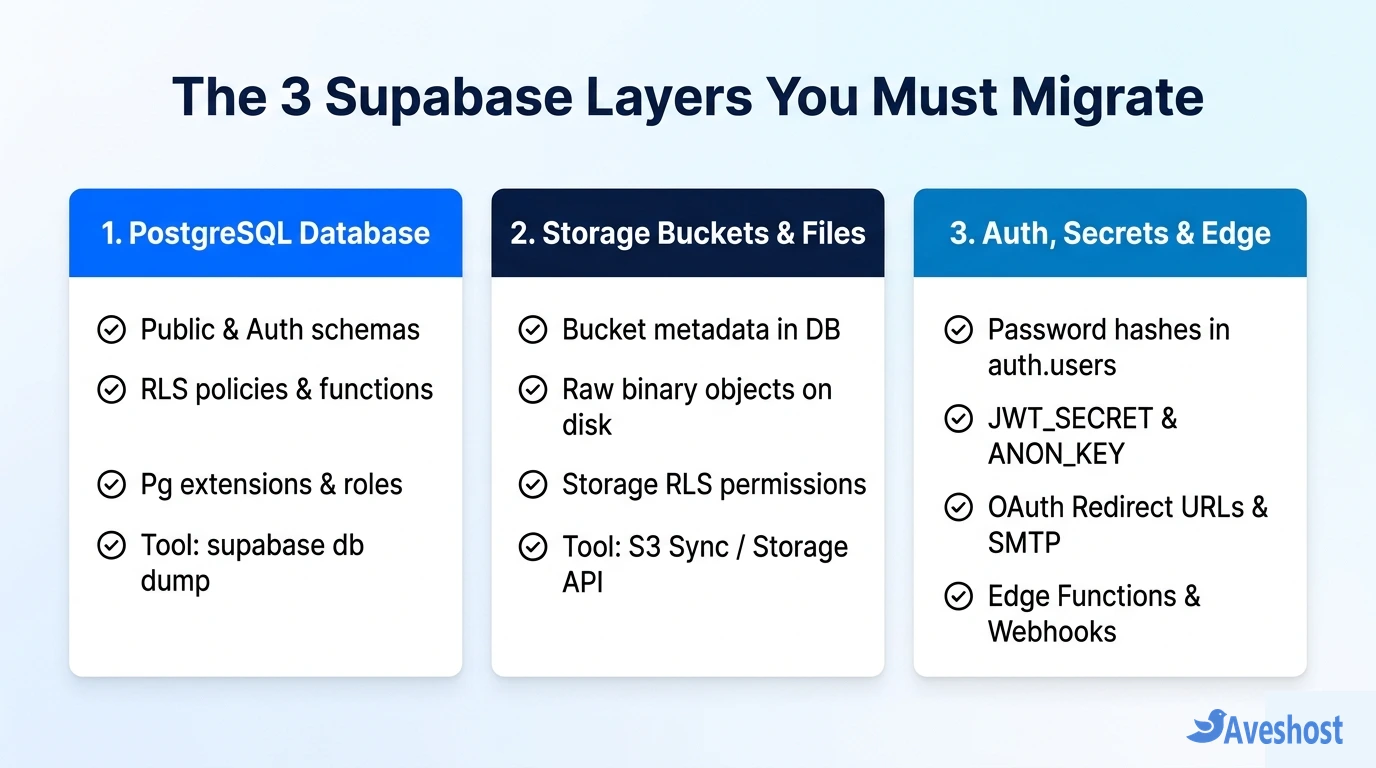
However, migrating a live Supabase backend requires more than a single raw pg_dump command. Because a Supabase project consists of three separate stateful layers—PostgreSQL schemas (public, auth, and storage metadata), raw binary files inside Storage buckets, and runtime Auth secrets (JWT_SECRET, OAuth callbacks, and Edge Functions)—each layer must be exported and restored in the right order.
Key Takeaways: Always use the official Supabase CLI (supabase db dump) rather than raw pg_dump so cloud-internal roles do not break your restore. Because auth.users and auth.identities live inside PostgreSQL, your users’ encrypted password hashes migrate automatically—and if you carry over your cloud project’s JWT_SECRET to your self-hosted .env file, even active user login sessions remain valid across cutover.
Table of Contents
What Moves When You Migrate from Supabase Cloud to a Self-Hosted VPS?
Before running any export commands, map out the exact components your application uses in Supabase Cloud and how each one maps to your self-hosted Docker stack.
If you have not provisioned your target server yet, start by deploying a fresh Docker Compose stack on an Aveshost Self-Managed Linux VPS or Fully Managed VPS using our prerequisite tutorial on how to self-host Supabase on a VPS with Docker and HTTPS.
| Supabase Layer | Where It Lives in Cloud | Migration Tool / Method | Self-Hosted VPS Target |
|---|---|---|---|
| Database Roles & Extensions | Managed PostgreSQL cluster | supabase db dump –role-only | supabase-db container (roles.sql) |
| Tables, Views, Functions & RLS | public, auth & storage schemas | supabase db dump (schema) | supabase-db container (schema.sql) |
| Table Rows & User Accounts | public.* and auth.users tables | supabase db dump –data-only –use-copy | supabase-db container (data.sql) |
| Storage Binary Files | Supabase Cloud S3 object storage | S3 Sync (rclone / AWS CLI) or Storage API | volumes/storage/ or self-hosted MinIO/S3 |
| JWT Secrets & OAuth Callbacks | Cloud Project API & Auth Settings | Manual .env & OAuth Console update | /opt/supabase/docker/.env & Studio |
| Edge Functions | Supabase Cloud Deno runtime | Copy supabase/functions/ directory | volumes/functions/ on VPS |
Step 1: Prepare the Supabase CLI and Cloud Connection String
Why not run a standard pg_dump directly against your cloud database? Supabase Cloud attaches managed internal roles (such as supabase_admin and cloud pooler permissions) that do not exist in the open-source self-hosted Docker image. The Supabase CLI automatically strips cloud-only ownership flags and produces clean, portable SQL scripts.
On your local workstation (or directly on your target Ubuntu VPS), ensure Docker is running and verify that the Supabase CLI and PostgreSQL client tools are installed:
# Install PostgreSQL client tools (psql) on Ubuntu/Debian
sudo apt update && sudo apt install -y postgresql-client

# Verify Supabase CLI via npx (or install globally)
npx supabase --version
Next, open your Supabase Cloud Dashboard, click Connect at the top of your project, and copy your Session Pooler connection string (port 5432, which supports IPv4 connections cleanly). Store it in an environment variable in your terminal, replacing [YOUR-PASSWORD] with your actual database password:
Step 2: Export Roles, Schema, and Data from Supabase Cloud
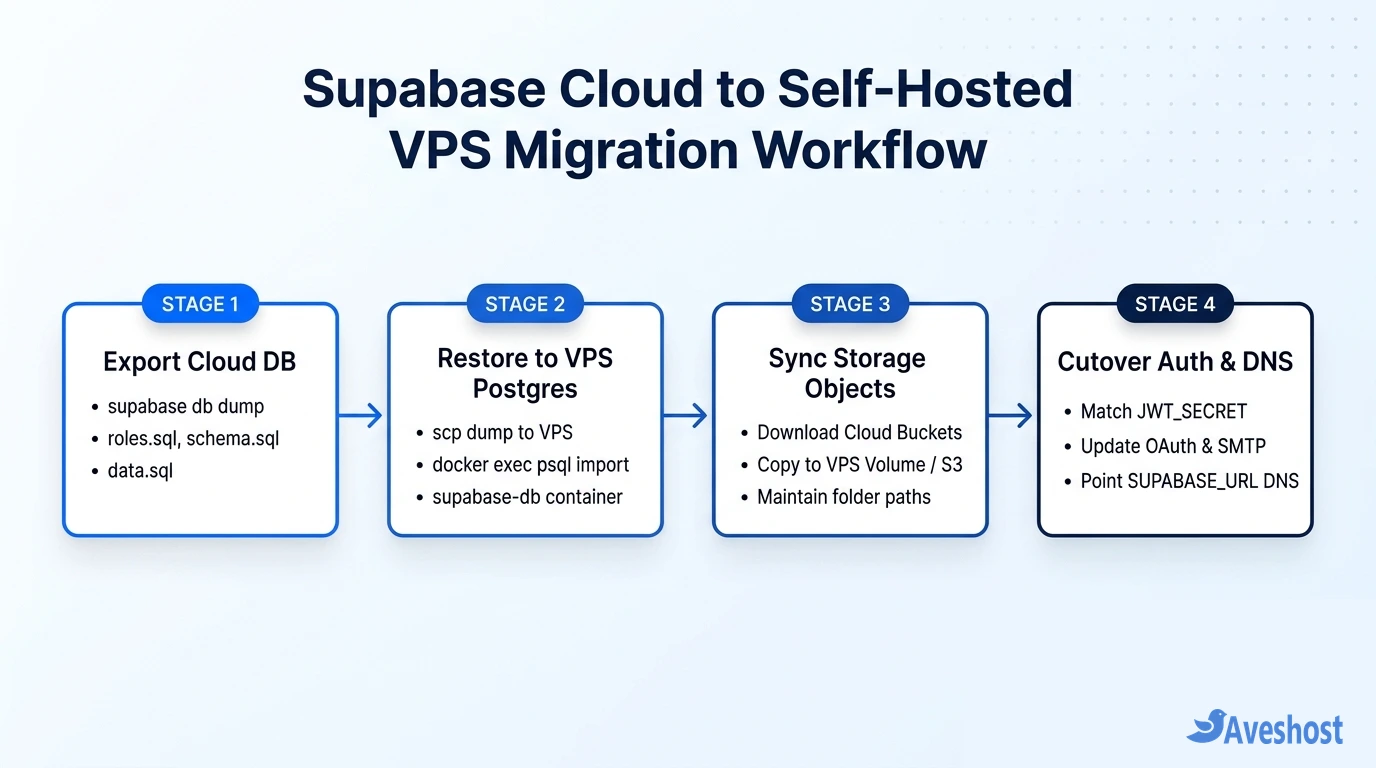
For a reliable production migration, schedule a brief maintenance window or put your frontend in read-only mode so no new rows are written while the dump runs. Then export your cloud database into three separate SQL files—roles.sql, schema.sql, and data.sql:
export CLOUD_DB_URL="postgresql://postgres.abcdefghijklm:[YOUR-PASSWORD]@aws-0-eu-central-1.pooler.supabase.com:5432/postgres"

# 1. Export custom database roles
npx supabase db dump --db-url "$CLOUD_DB_URL" -f roles.sql --role-only

# 2. Export schemas, tables, RLS policies, triggers, and functions
npx supabase db dump --db-url "$CLOUD_DB_URL" -f schema.sql

# 3. Export all table data (including auth.users and storage metadata) using COPY
npx supabase db dump --db-url "$CLOUD_DB_URL" -f data.sql --use-copy --data-only
Splitting the dump into three files makes troubleshooting effortless: if your cloud project uses a specialized PostgreSQL extension (such as pgvector, pg_cron, or postgis), you can inspect schema.sql before loading millions of rows in data.sql.
Step 3: Restore the Database into Your Self-Hosted VPS Container
If you ran supabase db dump on your laptop, copy the three SQL files to your target VPS using scp (the same encrypted transfer workflow we use when migrating a Linux VPS to a new Ubuntu server). Once the files are on your VPS, copy them into the running supabase-db container and execute them in order:
# Copy the dump files from your workstation to your VPS
scp roles.sql schema.sql data.sql [email protected]:/tmp/

# On your VPS: copy files into the running supabase-db container
docker cp /tmp/roles.sql supabase-db:/tmp/roles.sql
docker cp /tmp/schema.sql supabase-db:/tmp/schema.sql
docker cp /tmp/data.sql supabase-db:/tmp/data.sql

# Restore roles, schema, and data sequentially with session_replication_role=replica
docker exec -i supabase-db psql -U postgres -d postgres -f /tmp/roles.sql
docker exec -i supabase-db psql -U postgres -d postgres -f /tmp/schema.sql
docker exec -i supabase-db psql -U postgres -d postgres \
  -c "SET session_replication_role = replica;" \
  -f /tmp/data.sql \
  -c "SET session_replication_role = origin;"
Why set session_replication_role = replica during the data import? When importing data.sql, foreign-key constraints and ON INSERT triggers (for example, a trigger that automatically creates a public.profiles row whenever a user is inserted into auth.users) would otherwise fire a second time and cause duplicate-key errors. Running the data import in replica mode suppresses triggers during bulk loading and re-enables them immediately afterward.
After data.sql finishes, reset your auto-incrementing sequences and clean up the temporary SQL files inside the container.
Step 4: Migrate Supabase Storage Buckets and Binary Objects
Restoring schema.sql and data.sql copies your bucket definitions (storage.buckets), file metadata rows (storage.objects), and Storage Row-Level Security (RLS) policies into PostgreSQL. However, the actual binary files (user avatars, PDFs, product images) are stored in Supabase Cloud’s S3 object storage and must be transferred separately.
Method A — Sync via Supabase Cloud’s S3 Endpoint (rclone or AWS CLI): In your Supabase Cloud Dashboard, navigate to Project Settings → Storage and generate S3 Access Keys. If your self-hosted VPS uses local Docker volume storage (/opt/supabase/docker/volumes/storage), you can pull all bucket files directly into the matching local folder structure using rclone or the AWS CLI:
Method B — Download and Re-upload via the @supabase/supabase-js Storage API: If you prefer to migrate through the Storage REST API (or if your self-hosted stack uses local disk storage), run a short Node.js script on your VPS using both projects’ SERVICE_ROLE_KEY tokens to list and copy every object across buckets.
# Using AWS CLI with your Supabase Cloud S3 credentials to download bucket objects
export AWS_ACCESS_KEY_ID="your_cloud_s3_access_key"
export AWS_SECRET_ACCESS_KEY="your_cloud_s3_secret_key"

aws s3 sync s3://avatars /opt/supabase/docker/volumes/storage/stub/stub/avatars \
  --endpoint-url https://abcdefghijklm.supabase.co/storage/v1/s3 \
  --region eu-central-1
Step 5: Preserve Auth Users, JWT Secrets, OAuth, and Edge Functions
One of the biggest reliefs when migrating from Supabase Cloud to a self-hosted VPS is that users do not need to reset their passwords. Because Supabase Auth (GoTrue) stores encrypted bcrypt password hashes in auth.users and social login mappings in auth.identities, all user credentials were already restored in Step 3.
To make the transition completely seamless, configure these four runtime settings in /opt/supabase/docker/.env on your VPS:
1. Match your JWT_SECRET (optional zero-logout cutover): If you copy the exact JWT_SECRET from your Supabase Cloud project (Project Settings → API → JWT Settings) into your VPS .env file, existing JWT access and refresh tokens stored in your users’ browsers remain valid after you switch your API URL. If you generate a brand-new JWT_SECRET instead, your database users still keep their passwords, but they will be prompted to sign in once.
2. Update OAuth Redirect URIs: In Google Cloud Console, GitHub Developer Settings, or Apple Developer Portal, add your new self-hosted callback URL (https://api.yourdomain.com/auth/v1/callback) alongside your old https://<project-ref>.supabase.co/auth/v1/callback URI.
3. Configure Production SMTP: In /opt/supabase/docker/.env, set SMTP_HOST, SMTP_PORT, SMTP_USER, SMTP_PASS, and SITE_URL so confirmation emails, magic links, and password resets send from your domain.
4. Copy Edge Functions: Copy any TypeScript functions from your project’s supabase/functions/ directory into /opt/supabase/docker/volumes/functions/ on your VPS and restart the stack with docker compose up -d.
| Environment Variable (.env) | What to Set During Cloud-to-VPS Cutover | Impact if Mismatched |
|---|---|---|
| JWT_SECRET | Copy from Cloud JWT Settings (or generate new 40+ char secret) | Changing it logs out active browser sessions once |
| ANON_KEY & SERVICE_ROLE_KEY | Signed with your chosen JWT_SECRET | 401 Unauthorized on Kong API Gateway requests |
| SITE_URL | Your production frontend URL (e.g., https://yourdomain.com) | Auth magic links & redirects point to localhost:3000 |
| API_EXTERNAL_URL | Your self-hosted HTTPS API URL (e.g., https://api.yourdomain.com) | OAuth callback URLs fail provider validation |
Step 6: Cut Over Your Frontend Client and Verify the Migration
Once your database, Storage objects, and .env secrets are in place on your VPS, run a final verification checklist before pointing your live frontend traffic to the new server:
1. Verify row counts and RLS policies: Open your self-hosted Supabase Studio dashboard (or run SELECT count(*) FROM auth.users; in psql) and confirm that your table row counts and Row-Level Security policies match your cloud project.
2. Update your frontend environment variables: Whether your frontend is a Next.js app or a React/Vite project hosted via our guide on deploying a Lovable website to cPanel hosting, update VITE_SUPABASE_URL (or NEXT_PUBLIC_SUPABASE_URL) to https://api.yourdomain.com and update VITE_SUPABASE_ANON_KEY to your VPS’s ANON_KEY.
3. Keep Supabase Cloud as a 48-hour fallback: Do not delete your Supabase Cloud project immediately after cutover. Leave it paused or in read-only standby for 48 to 72 hours while you monitor your VPS logs (docker compose logs -f auth rest storage), and if you are evaluating other open-source stacks down the road, bookmark our comparison of managed and self-hosted Supabase alternatives.
Frequently asked questions
Will my users have to reset their passwords when migrating from Supabase Cloud to a self-hosted VPS?
No. User accounts and encrypted bcrypt/argon2 password hashes are stored inside the auth.users table in PostgreSQL. When you export and restore your database using supabase db dump, all user accounts and passwords migrate intact. Furthermore, if you reuse your cloud project’s JWT_SECRET on your self-hosted VPS, existing logged-in browser sessions stay active without requiring users to sign in again.
Why should I use supabase db dump instead of raw pg_dump?
Running a raw pg_dump against Supabase Cloud includes cloud-specific internal roles, permissions, and managed schema ownership flags that cause permission errors when restored into the standard self-hosted Docker image. The official supabase db dump CLI command filters out cloud-only metadata and exports clean roles.sql, schema.sql, and data.sql files.
Does supabase db dump also export my Supabase Storage files?
No. The database dump exports your bucket definitions (storage.buckets), file metadata rows (storage.objects), and Storage RLS policies, but the actual binary files (images, PDFs, videos) live in object storage. You must sync those binary files separately using Supabase Cloud’s S3-compatible endpoint (via aws s3 sync or rclone) or a Storage API script.
How much VPS RAM and storage do I need to migrate a production Supabase project?
A complete self-hosted Supabase Docker stack runs PostgreSQL, Kong, GoTrue (Auth), PostgREST, Realtime, Storage, and Studio. We recommend an Aveshost Linux VPS with at least 4 GB to 8 GB of RAM, 2+ vCPU cores, and NVMe SSD storage sized at 3x your current database plus Storage bucket footprint.
Can I migrate from Supabase Cloud with zero downtime?
For most small-to-medium databases (under 10 GB), a brief 5-to-15-minute maintenance window using supabase db dump and psql is the simplest and safest method. For large 24/7 databases requiring near-zero downtime, you can configure PostgreSQL logical replication (CREATE PUBLICATION on Supabase Cloud and CREATE SUBSCRIPTION on your VPS) to stream live changes until the moment you switch your frontend URL.