
A Forex VPS in Ghana lets you run MT4 or MT5 on a remote Windows server, so your trading terminal does not depend on your home computer staying powered and connected. You manage the desktop remotely, while the terminal and its configured Expert Advisors run inside the hosted Windows environment.
For a trader in Accra, Kumasi or another part of Ghana, dumsor or a local internet interruption can disconnect a home-based terminal at an inconvenient time. Moving that terminal to our Windows VPS in Ghana removes those local dependencies from the running application. You still need a working connection to log in, inspect it or make manual changes.
The best setup combines suitable resources, a measured connection to your broker, secure remote access and a tested restart procedure. This guide covers those decisions, our prices in Ghana cedis and an eight-step MT4/MT5 setup. A VPS supports operational continuity; execution and trading outcomes still depend on the broker, market conditions and your strategy.
Table of Contents
Why use a Forex VPS in Ghana?
An Expert Advisor, or EA, is software that runs inside a trading terminal. If the computer running the terminal shuts down, its local calculations and terminal-side actions stop. A mobile trading app can help you view an account, but it does not replace the Windows desktop environment running that EA.
On a Windows VPS, the terminal runs on the hosted server. Your laptop or phone is the remote-control device. Closing the remote desktop connection normally leaves the server session running, provided the application remains open and session policies do not log it off.
An illustrative Ghanaian trading setup
Imagine a trader running an EA on a home laptop. During a power interruption, the laptop battery runs out and the router stops. The terminal disconnects. With the EA running on a VPS instead, that local outage does not directly shut down the hosted terminal. The trader can reconnect later through a charged device and mobile data to check its status.
This distinction matters for terminal-side automation. Broker-held orders and protections operate according to the broker’s rules, while features such as an EA’s calculations or terminal-managed trailing behaviour may require the terminal to remain connected. Know which parts of your workflow run locally and which are held at the broker.
“24/7” refers to keeping the server and terminal environment available, not to every instrument trading continuously. Forex instruments commonly have scheduled trading sessions, and individual brokers publish their own market hours and maintenance arrangements. Keep the terminal operating through the periods your workflow requires.
What makes the best VPS for MT4 and MT5?
Choose a VPS around the terminals, charts, indicators and EAs you actually run. A basic terminal with a few charts needs a different resource budget from several terminals with intensive indicators. Backtesting and optimisation can also consume far more CPU than ordinary live operation.
| Selection factor | Why it matters | What to check |
|---|---|---|
| Windows compatibility | MT4/MT5 and dependencies need a compatible environment. | Supported Windows version, terminal requirements and EA dependencies. |
| CPU and memory | Busy charts and automation can consume resources. | Measured use with your actual terminals, charts and indicators. |
| Broker connectivity | The terminal must reach the correct broker server reliably. | Connection status, latency, packet loss and stability. |
| Remote Desktop access | You need a secure way to manage the terminal. | Access controls, session behaviour and recovery route. |
| Static IP | Provides a consistent server address for appropriate access arrangements. | Broker or EA licensing requirements, firewall policy and account security. |
| Support and recovery | A stopped terminal needs a clear response. | Monitoring, restart procedure, backups and support contact. |
Leave memory for Windows itself, updates and routine administration. Monitor after adding an EA or extra chart to size your plan for the terminals you actually run. Separate heavy backtesting from live terminals when it competes with the resources needed for normal operation.
Our Ghana Windows VPS gives you administrator and RDP access, SSD storage and a static IPv4 address. It is a self-managed environment: you configure the trading terminal, EAs and routine checks. Our support team can help with hosting questions and the appropriate server configuration.
Choose your location around broker latency
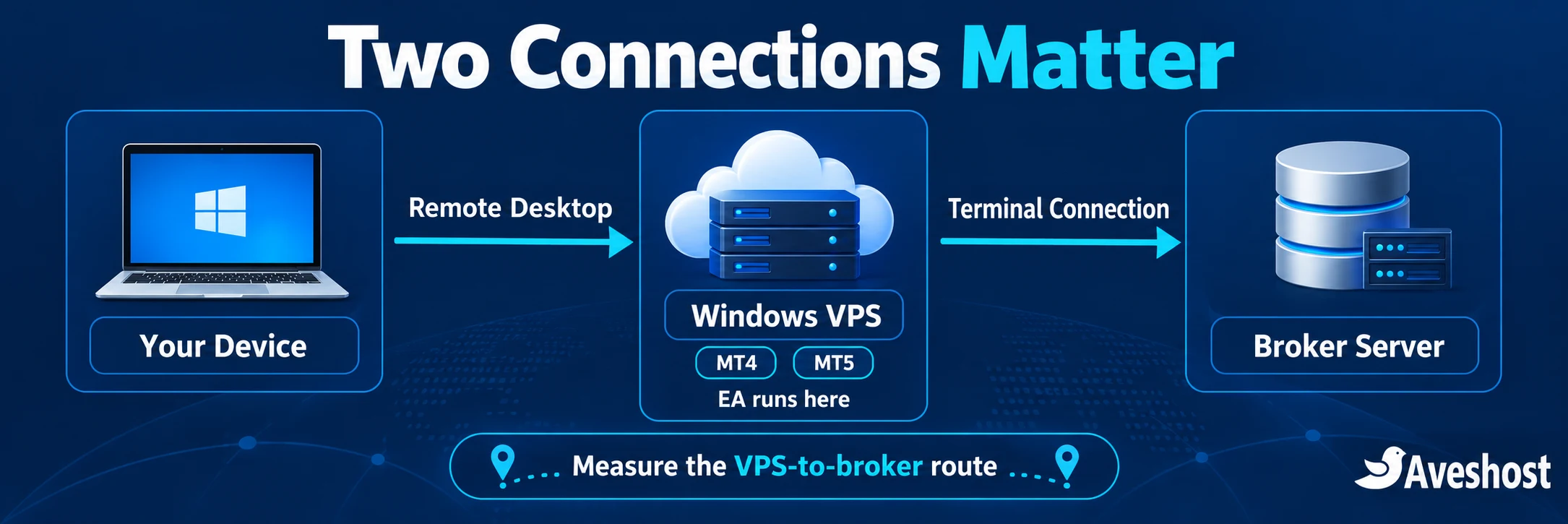
Two connections matter: the path from your device to the VPS, and the path from the VPS to your broker’s trading server. The first affects the feel of remote desktop access. The second is relevant when the hosted terminal communicates with the broker.
A Ghana-hosted VPS can suit local access and hosting preferences, but the best broker route depends on where that broker’s server is and how the network is routed. Choose by measurement rather than geography alone. Share the broker server’s hostname and your requirements with our team when discussing location options; never send your trading password.
- Connect the terminal to the exact broker server used by your account.
- Check its connection and latency information from the VPS.
- Observe stability at the times you actually use the platform.
- Use a simple network test as supporting evidence, recognising that ICMP ping may be blocked.
- Watch terminal logs for repeated reconnects or timeouts.
A ping value is a network measurement, not an order-execution guarantee. The broker’s processing, market liquidity, instrument settings and order conditions also affect what happens after a request is sent. Do not choose a VPS based on an unmeasured “1 ms” or “zero slippage” promise.
If your workflow prioritises a broker endpoint outside Ghana, discuss another suitable location with us. For local hosting, our Ghana Windows VPS options provide a clear starting point. Confirm the actual broker connection before moving a live workflow.
Our Windows VPS plans in Ghana cedis
| Ghana Windows VPS plan | Monthly price | CPU / RAM / SSD | Planning direction |
|---|---|---|---|
| WC 1 | GH₵600.00 | 2 vCPU / 4 GB / 100 GB | A lighter terminal workload after testing |
| WC 2 | GH₵1,100.00 | 4 vCPU / 8 GB / 200 GB | More headroom for additional charts or terminals |
| WC 3 | GH₵1,800.00 | 6 vCPU / 12 GB / 300 GB | A larger measured workload |
These are the Ghana cedi prices displayed on our Windows VPS in Ghana page at the time of writing. The plans list one static IPv4 address, administrator/RDP access and Windows Server options. Windows Server 2022 is the default listed on the page. Review your chosen billing, operating-system and add-on options for the final checkout total.
Treat the table as a resource comparison. It does not assign a guaranteed terminal count or broker latency to a plan. Begin with your expected workload, observe CPU, memory and storage use, then upgrade when the application needs more capacity.
For budgeting, WC 1 at GH₵600 per month totals GH₵7,200 over twelve months before additional services or costs. Include EA licences, backup arrangements and any other required software in your own operating budget. Choose hosting for the workflow it supports rather than expecting it to create trading profits.
Set up MT4 or MT5 on your VPS in 8 steps
1. Choose your Windows VPS
Select a suitable plan and supported Windows environment from our Windows VPS plans. Decide on the required location, resources and backup arrangements. Keep the server address and access instructions in a secure place.
2. Connect through Remote Desktop
On a Windows computer, open Remote Desktop Connection and enter the server address supplied with your service. Use the assigned username and complete the connection using your private credentials. From other devices, use a supported Microsoft remote-desktop client appropriate to that platform.
Verify that you are connecting to the expected server. Protect remote access with strong credentials, Network Level Authentication where supported and a suitably restricted firewall or VPN arrangement. Microsoft’s Remote Desktop guidance explains the access requirements.
3. Prepare and update Windows
Apply required operating-system updates before setting up the live terminal. Confirm date, time and the intended user account. Review power and session settings so the terminal environment is not unexpectedly suspended or logged off. Keep a recovery access route available while making security changes.
Plan updates and reboots around the workflow and broker’s schedule. Do not disable security updates permanently to avoid restarting. Install only the tools the server needs, and leave the firewall and endpoint protection active.
4. Install your broker’s MT4 or MT5 terminal
Download the appropriate installer from your broker’s genuine website or the official software source. Install the terminal in the VPS desktop environment, not on the local device you are using for RDP. Confirm whether your account and EA require MT4 or MT5 before proceeding.
MT4 and MT5 use different EA formats and programming environments. An MT4 EA cannot simply be copied into MT5 and expected to work. Check the developer’s compatible version and any licensing or dependency instructions. Use separate installation directories and shortcuts when configuring multiple terminal instances.
5. Connect a demo account and check the broker server
Start with a demo account to validate the setup. Select the correct broker server, enter the demo credentials and confirm connection status, chart updates and logs. An investor or read-only login is not appropriate for an EA that needs trading permission.
Keep account credentials private. Do not give hosting support your trading password or send screenshots that expose sensitive account details. If a server issue needs investigation, provide the terminal error message, time and relevant non-sensitive logs.
6. Add your EA and its required settings
Use the terminal’s File → Open Data Folder command to find the data directory. Place the compatible EA in the appropriate MQL4/Experts or MQL5/Experts location, following the developer’s instructions. Refresh the Navigator or restart the terminal as required, then attach the EA to the intended chart and load its tested settings.
Automated trading needs permission at both the terminal and EA level. MT4 commonly labels its toolbar control AutoTrading; MT5 labels vary by build and commonly use Algo Trading. Check the active permission state and the Experts and Journal tabs. Follow the official MT4 EA settings and MT5 EA guide for the platform you use.
Only allow DLL imports or external WebRequest destinations when the trusted EA actually requires them. Review its licences, broker symbols, timeframe and other operational settings. Preserve protective account-change settings while testing; a demo-to-live switch deserves a fresh review before automation is enabled.
7. Test disconnection and restart behaviour
Disconnect the RDP window while leaving the terminal open. Reconnect and check that the terminal, charts and EA remained active. Then test a controlled reboot using the demo setup and confirm the complete restart procedure restores the right account, profile and automation state.
A desktop shortcut in the user Startup folder launches after that user signs in; it does not by itself create a running session after a reboot. A scheduled launch also needs the correct user context and access to the terminal’s data. Test your chosen method in the actual environment and avoid unattended automatic sign-in unless its security implications are properly addressed.
8. Confirm the final configuration before live use
Review the account, broker server, symbols, charts, permissions, licence status and monitoring. Keep only the intended execution instance active for each strategy. Stop the old local EA instance before moving that same workflow to the VPS, so two copies do not submit duplicate actions.
Moving from demo to live changes the account context and can change platform permissions or EA behaviour. Recheck everything after switching. Hosting continuity does not validate an EA’s strategy or remove market risk; the trader remains responsible for the workflow enabled on the account.
Keep your terminal running after disconnecting
Closing the remote-desktop window disconnects your view. Signing out ends the Windows user session and can close its applications. Shutting down or restarting Windows stops the terminal until the tested recovery procedure brings it back.
| Action | Typical effect | What to do |
|---|---|---|
| Disconnect the RDP window | Session usually remains running. | Confirm session policies and test terminal continuity. |
| Sign out of Windows | Applications in that session close. | Avoid signing out when that session runs the terminal. |
| Close MT4 or MT5 | Terminal-side automation stops. | Keep the intended terminal open. |
| Reboot the VPS | Running applications stop during restart. | Use a planned restart and verified recovery procedure. |
| Lose home internet | Your remote-control connection drops. | Check later from a working connection; the hosted terminal has its own network path. |
Check idle-session and disconnected-session policies for your server arrangement. Some environments terminate sessions after a configured interval. Reconnect to the same intended session and verify the active process instead of launching another terminal copy every time you log in.
A mobile device is useful for checking the account or accessing the VPS during a local outage, subject to its app and connection capabilities. Keep a charged device and mobile data as your management fallback. Our cloud continuity guide for Ghana explains this device-and-connectivity layer.
Secure your trading VPS and credentials
A trading terminal can contain stored credentials, licence files and automated actions. Treat the VPS as a sensitive working environment. Use a unique strong Windows password, control who can connect and keep account recovery information protected.
- Restrict Remote Desktop access using an appropriate firewall policy, VPN or supported access gateway.
- Use Network Level Authentication where supported and keep the remote-access software maintained.
- Keep Windows and endpoint protection updated.
- Install terminals, EAs and utilities only from trusted sources.
- Avoid unrelated browsing, email attachments and downloads on the trading server.
- Protect broker credentials and enable supported account security controls.
- Review saved passwords and access if an administrator or service user changes.
A static IP is useful for a stable server address and appropriate allowlisting. It does not secure the server by itself. If an EA licence binds to an IP address or machine identity, check the licence procedure before migration, cloning or restoring to another environment.
Keep support requests focused on server facts. You can share an error code, connection issue or timestamp without sharing the trading password, private keys or full account details. If credentials are exposed, follow the account provider’s recovery process and review access promptly.
Monitor, back up and maintain your setup
Check more than whether you can open the Windows desktop. A reachable VPS can still have a closed terminal, disconnected broker account or disabled EA. Monitor the complete chain: server, session, terminal, broker connection and automation state.
- Review the terminal’s Experts and Journal tabs for recurring errors.
- Watch CPU, memory and disk use while the real chart workload is running.
- Test connection-loss and automation alerts supported by your platform or EA.
- Schedule update and reboot checks with a responsible person.
- Keep your VPS subscription and software licences current.
- Avoid running resource-intensive optimisation jobs alongside a sensitive live workload.
Back up the EA files, presets, profiles, templates and configuration needed to rebuild the setup. Protect any copy containing saved credentials. A restored snapshot can also contain an active terminal configuration; bring it up carefully so it does not duplicate an already-running execution instance.
Document which profile and charts should be open, which account is intended, how automation is enabled and how to confirm it is healthy. Review the procedure after terminal upgrades, EA changes or broker-server changes. Test a restore in a demo environment to confirm the backup starts correctly.
MT5 provides configurable event and push-notification features in its platform settings. Test notifications on the device you expect to use. Alerts that rely on the terminal itself may not arrive when that terminal has stopped, so include a separate server-health check where appropriate.
Troubleshoot common MT4 and MT5 VPS problems
| Problem | Possible cause | First check |
|---|---|---|
| Terminal says no connection | Wrong broker server, credentials or a network issue. | Check exact account server, connection status and Journal messages. |
| EA attached but not acting | Permissions, configuration, licence, symbol or market session. | Inspect terminal and EA settings plus Experts logs; identify the cause of inactivity before changing the hosting configuration. |
| Automation stops after account switch | Protective platform settings or new account requirements. | Recheck the intended account and permissions deliberately. |
| Terminal closed after disconnect | Sign-out or session-timeout policy. | Review Windows session behaviour and repeat a demo test. |
| Terminal missing after reboot | No valid session/startup arrangement. | Run the documented restart procedure and verify the process. |
| High CPU or slow RDP | Heavy indicators, testing jobs or insufficient headroom. | Inspect Task Manager and pause non-essential resource-heavy work. |
| Duplicate actions | Multiple execution instances for the same workflow. | Identify the intended active instance and stop unintended copies. |
When asking our team for help, include the VPS identifier, issue time, current resource use and the relevant non-sensitive error. Broker-side account or order questions belong with the broker, while EA-specific logic and licensing questions may require its developer. This helps each issue reach the right place quickly.
Your Forex VPS launch checklist
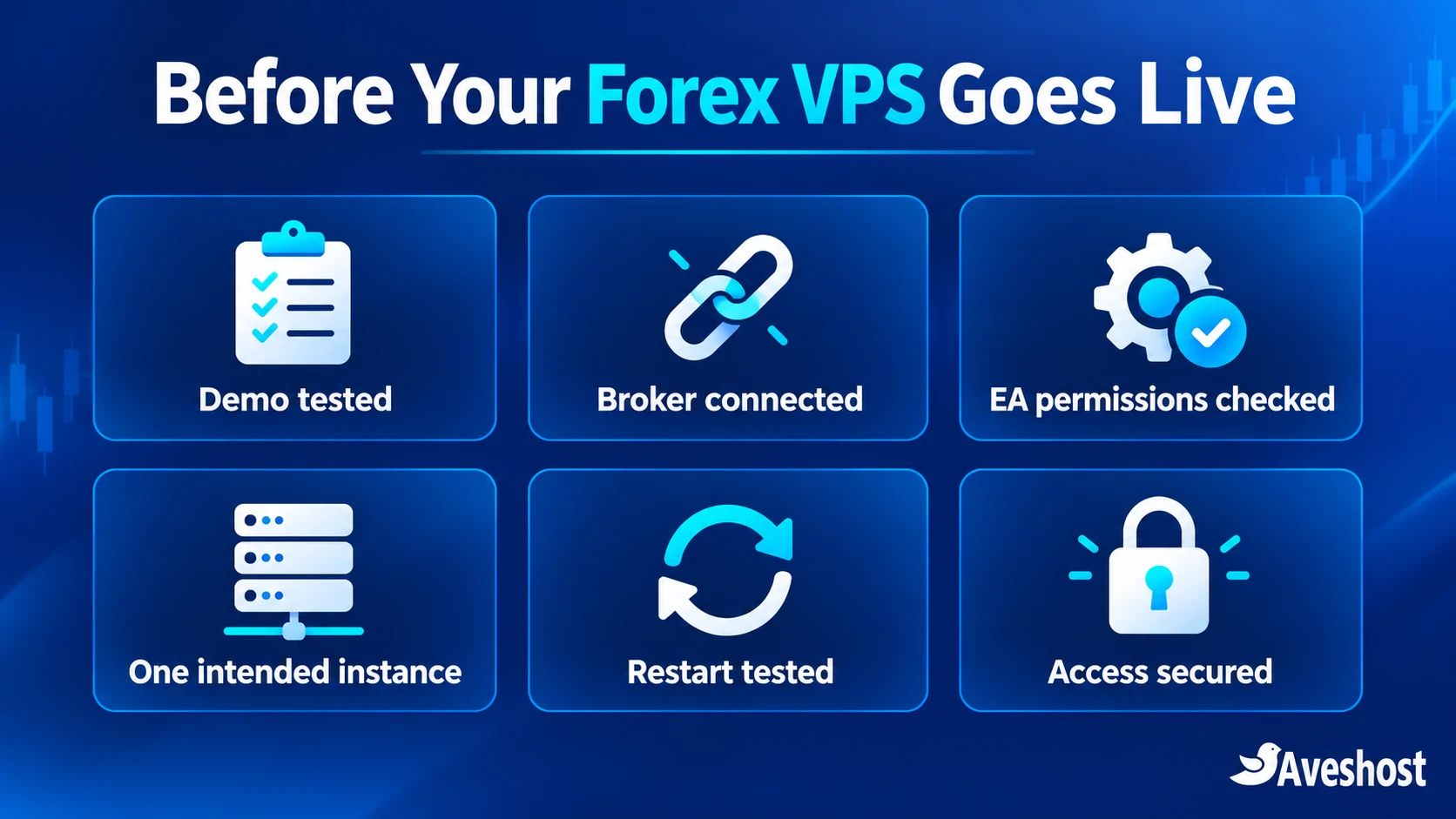
- The Windows plan fits the measured terminal workload.
- The correct broker server has been tested from the VPS.
- MT4/MT5 and EA versions are compatible.
- The demo setup passed connection, RDP disconnect and restart tests.
- The account, chart, symbol, profile and automation permissions are correct.
- Only the intended execution instance is active.
- Remote access and credentials are protected.
- Terminal and server health checks are in place.
- Configuration backups and the recovery procedure are usable.
- Updates, renewals and licence expiry are planned.
Ready to run your terminal independently of your home computer? Choose our Windows VPS in Ghana or contact our team with your terminal count, expected workload and preferred location. We can help you choose the hosting environment for your setup.
Frequently asked questions
What is a Forex VPS?
A Forex VPS is a hosted server environment used to run a trading terminal and related software. With a Windows VPS, MT4 or MT5 runs on the remote desktop rather than depending on your home computer remaining powered and connected.
Can MT4 and MT5 run on our Windows VPS in Ghana?
You can install a compatible MT4 or MT5 desktop terminal in the Windows VPS environment. Check the terminal, EA and dependency requirements, then validate the setup on a demo account before moving a live workflow.
Does my EA keep running when I close Remote Desktop?
Disconnecting usually leaves the Windows session and open applications running. Signing out or a session policy that ends the session can close the terminal. Test the actual session behaviour and keep the intended terminal open.
Does the VPS keep trading when my home internet drops?
The hosted terminal has its own network path to the broker. A home connection failure does not directly stop that terminal, but you need a working connection to manage it. Server, platform and broker conditions still affect operation.
Is a Ghana VPS always the lowest-latency choice for my broker?
Choose the location using measurements to your actual broker server. Local RDP access and VPS-to-broker connectivity are different paths. Ask our team about location options and test the intended endpoint.
How much does a Windows Forex VPS in Ghana cost?
The plans shown in this guide are WC 1 at GH₵600, WC 2 at GH₵1,100 and WC 3 at GH₵1,800 per month. Check the current plan page and selected options for your checkout total.
How many MetaTrader terminals can I run?
There is no fixed count based only on the plan name. Charts, indicators, EAs and testing jobs affect resource use. Measure CPU, memory and storage with your real workload and leave room for Windows and maintenance.
Can I use an MT4 EA in MT5?
MT4 and MT5 use different EA formats and environments. Use the version your developer provides for the selected platform and follow its installation and licensing instructions.
Will MetaTrader restart automatically after a VPS reboot?
It needs a tested startup and user-session arrangement. A Startup-folder shortcut launches after user sign-in and does not create a session by itself. Verify the terminal, account, profile and permissions after a controlled demo reboot.
Does a VPS guarantee better trading results?
A VPS supports the running environment and reduces dependence on your local device and connection. It does not guarantee returns, eliminate slippage or validate a strategy. Execution also depends on broker and market conditions.