Understanding the real Supabase VPS requirements before you provision a server is the easiest way to avoid silent Linux Out-Of-Memory (OOM) crashes, sluggish API responses, and unexpected disk exhaustion. Unlike a standalone PostgreSQL server that can comfortably idle on 1 GB of memory, self-hosted Supabase deploys an integrated microservices stack of roughly a dozen Docker containers.
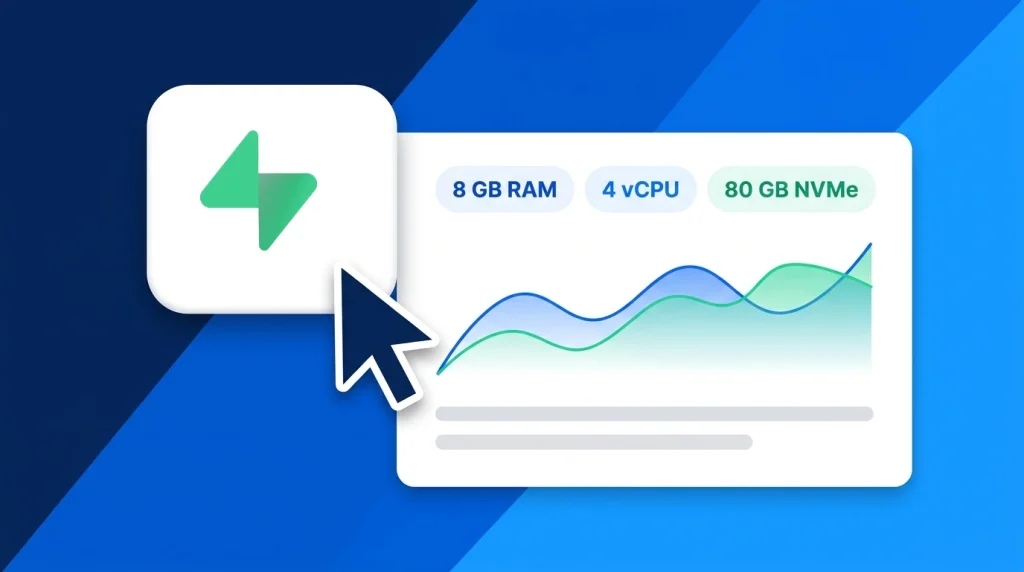
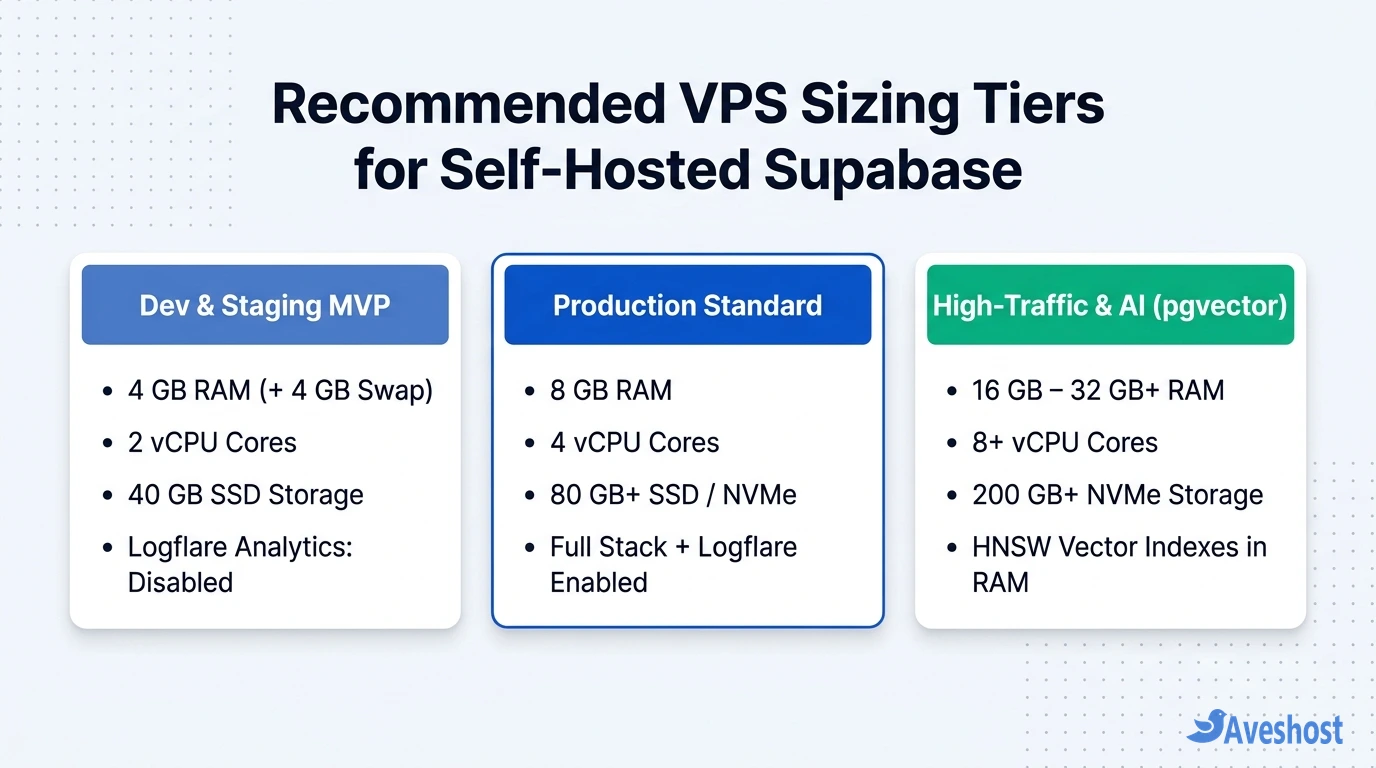
At a bare minimum, you need 4 GB of RAM, 2 vCPU cores, and 40 GB of SSD storage to run a stable development, staging, or light MVP instance of self-hosted Supabase. For a production application—especially if you enable the built-in Logflare analytics engine, serve concurrent Realtime WebSockets, or run on-the-fly image transformations—we recommend starting with 8 GB of RAM, 4 vCPU cores, and at least 80 GB of fast SSD or NVMe storage.
In this guide, we break down what every container in the self-hosted Supabase Docker stack actually consumes, how to size your RAM, CPU, and disk space for different workloads (including AI embeddings with pgvector), and how to tune your Linux VPS so your backend stays fast under load.
Table of Contents
Quick Answer: Minimum vs Recommended Supabase VPS Specs
When you deploy self-hosted Supabase on a Linux VPS, your baseline hardware footprint is determined by the Docker Compose services running in the background—even before your first user signs in. If you size your server as if it were only running PostgreSQL, the Linux kernel OOM killer will eventually terminate either your database container (supabase-db) or your API gateway (supabase-kong) during a traffic spike.
Use the sizing matrix below to match your workload to the right VPS tier right from day one:
| Workload Tier | RAM | CPU | Storage | Stack Configuration & Best Use Case |
|---|---|---|---|---|
| Minimum (Dev / Staging / MVP) | 4 GB (+ 4 GB Swap) | 2 vCPU Cores | 40 GB SSD | Core stack only (Logflare disabled); internal tools, staging servers, and early MVPs |
| Recommended Production | 8 GB | 4 vCPU Cores | 80 GB–120 GB SSD/NVMe | Full stack + Logflare enabled; production SaaS apps, mobile backends, and multi-tenant databases |
| High-Concurrency Production | 16 GB | 8 vCPU Cores | 160 GB–250 GB NVMe | Heavy Realtime WebSockets, dynamic imgproxy image resizing, and high-throughput REST/Auth APIs |
| AI & Vector Search (pgvector) | 32 GB+ | 8–16 vCPU Cores | 250 GB+ NVMe | Large HNSW vector indexes kept in RAM, RAG pipelines, and heavy analytical queries |
Why Self-Hosted Supabase Needs More RAM Than Plain PostgreSQL
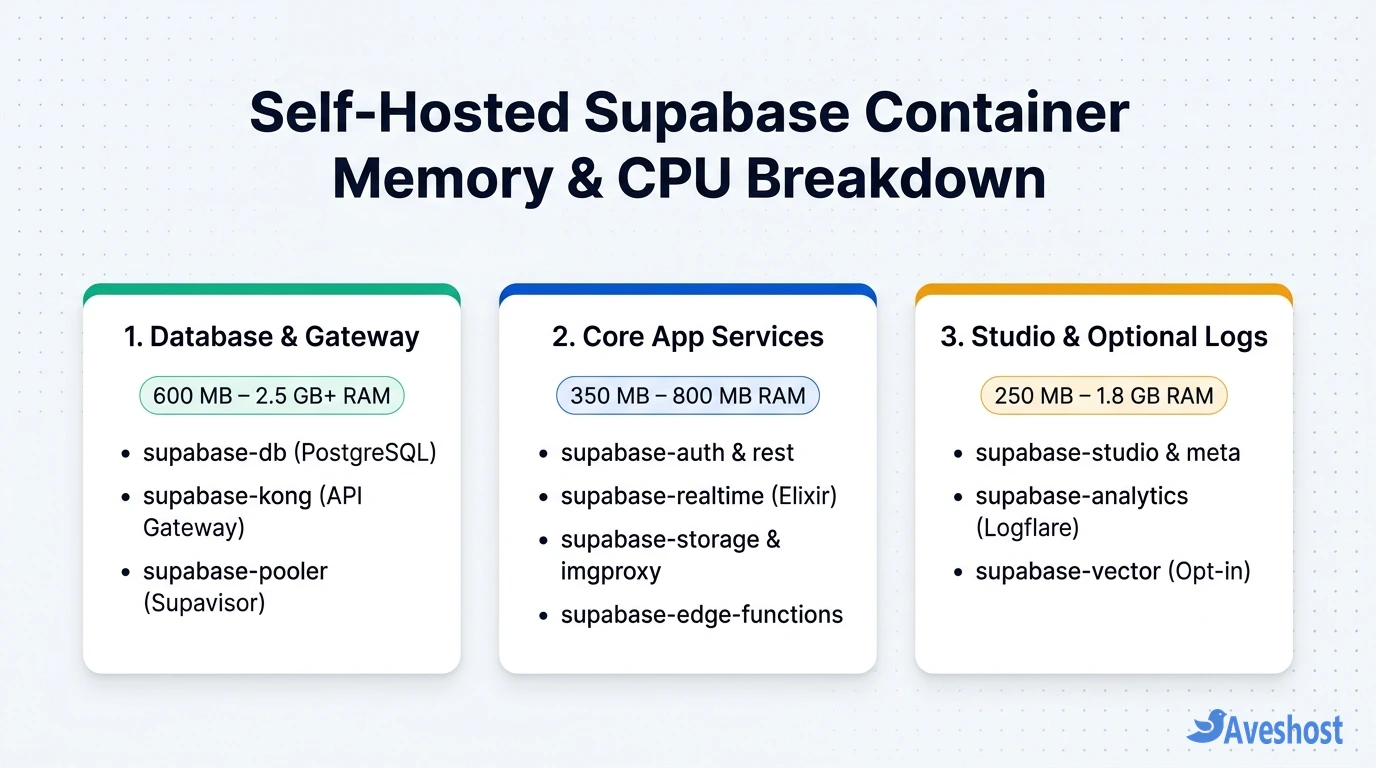
Many developers are surprised when a fresh docker compose up -d consumes 1.8 GB to 3.2 GB of RAM with zero active users. That footprint makes sense once you inspect the official Supabase Docker architecture: instead of a monolithic binary, Supabase coordinates separate containers written in C (PostgreSQL), Lua/Nginx (Kong), Go (GoTrue Auth), Haskell (PostgREST), Elixir/Erlang BEAM (Realtime, Supavisor, and Logflare), Rust (Vector), and TypeScript/Node/Deno (Studio and Edge Functions).
Each runtime maintains its own memory heap, garbage collector, and connection pool. Here is what each container in the stack consumes at idle and under normal production load:
| Docker Container | Role in the Stack | Idle RAM | Active Production RAM | Primary Resource Driver |
|---|---|---|---|---|
| supabase-db | PostgreSQL 15/17 database + extensions | 350 MB | 1 GB – 8 GB+ | shared_buffers, active connections, and index cache |
| supabase-kong | API Gateway & request router | 180 MB | 300 MB – 900 MB | Worker processes and concurrent HTTP/WebSocket routing |
| supabase-realtime | Elixir Phoenix WebSocket server | 150 MB | 250 MB – 700 MB+ | Concurrent open WebSocket channels and WAL broadcast rate |
| supabase-pooler | Supavisor connection pooler (Elixir) | 130 MB | 200 MB – 450 MB | Pooled client connections and transaction multiplexing |
| supabase-storage + imgproxy | Object storage API & image resizer | 140 MB | 250 MB – 800 MB+ | Concurrent file streams and on-the-fly image transformations |
| supabase-auth (GoTrue) | JWT authentication & OAuth server | 55 MB | 90 MB – 180 MB | Concurrent login bursts (CPU-bound password hashing) |
| supabase-rest (PostgREST) | Auto-generated RESTful API layer | 65 MB | 100 MB – 250 MB | Schema cache size and JSON serialisation throughput |
| supabase-edge-functions | Deno serverless function runtime | 85 MB | 150 MB – 500 MB+ | Number of isolated Deno workers and outbound API calls |
| supabase-studio + meta | Admin dashboard UI & postgres-meta | 160 MB | 220 MB – 400 MB | Active admin browser sessions and schema introspection |
| supabase-analytics + vector | Logflare & Vector log ingestion (Opt-in) | 550 MB | 900 MB – 1.8 GB | BEAM VM memory + high-volume log parsing and querying |
How Much RAM Do You Need for Self-Hosted Supabase?
Memory is the single most critical resource in your Supabase VPS requirements calculation. While CPU bottlenecks merely slow down responses for a few hundred milliseconds, running out of RAM causes the Linux kernel to abruptly kill containers—most commonly supabase-db, supabase-analytics, or supabase-kong.
Why 2 GB RAM is not enough: Even with every optional service stripped out, the core containers plus the Ubuntu operating system and Docker daemon require roughly 1.6 GB to 2.1 GB of memory at startup. The moment you open Supabase Studio or run a database migration, memory usage crosses 2 GB and triggers swap thrashing or an OOM crash.
When 4 GB RAM works well: In recent releases, Supabase moved the memory-heavy logging stack (supabase-analytics / Logflare and supabase-vector) out of the default docker-compose.yml file into an opt-in overlay file (docker-compose.logs.yml). Because a standard docker compose up -d no longer launches Logflare by default, a 4 GB RAM VPS with a 4 GB swap file can reliably run the core stack for development environments, staging servers, and low-traffic applications.
Why 8 GB RAM is the production sweet spot: Once you move a live business application onto your server—or if you enable the Logs Explorer inside Supabase Studio via docker-compose.logs.yml—8 GB of RAM gives you the headroom required for stability. On an 8 GB VPS, you can allocate 2 GB to PostgreSQL shared_buffers, allow Logflare and Vector to use 1 GB without starving other containers, and still keep 2 GB to 3 GB free for the Linux page cache.
Sizing RAM for AI and pgvector: If your application stores OpenAI, Gemini, or local embedding vectors using the pgvector extension, your memory requirements scale directly with the number and dimensionality of your vectors. High-speed HNSW (Hierarchical Navigable Small World) indexes perform best when the entire index graph fits inside RAM. For example, indexing 500,000 vectors with 1,536 dimensions (halfvec or vector) can easily require 4 GB to 6 GB of dedicated memory just for the index, making a 16 GB or 32 GB RAM server essential.
How Many vCPU Cores Does Supabase Require?
At idle, a self-hosted Supabase stack barely touches the CPU, typically hovering between 2% and 5% utilisation across cores. However, under real production traffic, five distinct operations can saturate a 1-vCPU or 2-vCPU server simultaneously:
Password Hashing in GoTrue (supabase-auth): Every user sign-up and password login computes a bcrypt or argon2 hash, which is intentionally CPU-intensive. A burst of 30 concurrent logins can pin two CPU cores at 100% for several seconds.
Dynamic Image Transformations (supabase-imgproxy): If you use Supabase Storage’s built-in image transformation parameters to resize user uploads into WebP or AVIF on the fly, imgproxy uses significant multi-threaded CPU power.
Complex PostgreSQL Queries and RLS Evaluation: Row-Level Security (RLS) policies execute on every row matched by a PostgREST query. Unindexed foreign keys or complex JWT payload checks inside RLS policies directly increase PostgreSQL CPU usage.
Elixir Realtime Broadcasts: When database changes are streamed over WebSockets via Logical Replication (wal2json), the Elixir BEAM runtime uses multiple threads to filter RLS permissions and fan messages out to connected clients.
Nightly Database Compression: Running automated Supabase database and storage backups with gzip or zstd compression adds temporary CPU load alongside live traffic.
For development and staging, 2 vCPU cores are sufficient. For any production workload serving real users, provision at least 4 vCPU cores so background tasks, image resizing, and authentication bursts never block database query execution.
Storage and Disk I/O: Sizing for Database, Buckets, Logs, and Backups
When estimating disk space for self-hosted Supabase, remember that your PostgreSQL tables are only one of four storage consumers on the host filesystem:
Docker Images & Ubuntu OS (12 GB – 18 GB): The unpacked Docker images for Postgres, Kong, Studio, Elixir, Deno, and Vector—plus Ubuntu system packages—consume around 15 GB before you store a single row of application data.
PostgreSQL Data & WAL Segments (Variable): Stored inside ./volumes/db/data. In addition to your table rows, indexes typically add 30% to 50% overhead, and Write-Ahead Log (WAL) files require several gigabytes of breathing room during heavy writes. Additionally, PostgreSQL requires at least 20% free disk space to run VACUUM and index rebuilds safely.
Supabase Storage Buckets (Variable): Unlike Supabase Cloud (which stores files in AWS S3 by default), self-hosted Supabase writes uploaded files directly to your VPS disk under ./volumes/storage unless you explicitly configure an external S3-compatible backend. If your users upload PDFs, high-resolution photos, or videos, your disk usage will grow rapidly.
Local Backup Staging & Container Logs (10 GB – 30 GB): Before your nightly backup script uploads archives to off-server object storage, it needs enough local free space to write the compressed .sql.gz and .tar.gz files.
Equally important is disk I/O speed. Because PostgreSQL commits every transaction to the Write-Ahead Log on disk and PostgREST queries rely on fast random reads, always choose SSD or NVMe storage over spinning HDDs. Start with 40 GB SSD for testing, and 80 GB to 160 GB+ SSD/NVMe for production—or pair your VPS with external S3-compatible object storage if your app handles terabytes of media uploads.
How to Optimise a Linux VPS for Self-Hosted Supabase
Once you have provisioned your server (or after you migrate from Supabase Cloud to a self-hosted VPS), three quick Linux and Docker configurations will dramatically improve stability and prevent resource exhaustion.
First, always configure a 4 GB Linux swap file with conservative swappiness (vm.swappiness=10). Swap is not a substitute for physical RAM, but it acts as a crucial safety valve during brief memory spikes (such as pulling updated Docker images or building a large PostgreSQL index) so the Linux OOM killer does not terminate your database:
# Create and activate a 4 GB swap file on Ubuntu/Debian
sudo fallocate -l 4G /swapfile
sudo chmod 600 /swapfile
sudo mkswap /swapfile
sudo swapon /swapfile
echo '/swapfile none swap sw 0 0' | sudo tee -a /etc/fstab

# Only use swap under genuine memory pressure
sudo sysctl vm.swappiness=10
echo 'vm.swappiness=10' | sudo tee -a /etc/sysctl.conf
Second, cap Docker container log growth so verbose API and database logs never fill up your SSD over time. Create or update /etc/docker/daemon.json to rotate container logs automatically at 50 MB:
{
  "log-driver": "json-file",
  "log-opts": {
    "max-size": "50m",
    "max-file": "3"
  }
}
Third, check your live per-container memory and CPU consumption at any time using docker stats --no-stream. On an 8 GB production VPS, you can also tune PostgreSQL inside your database configuration so shared_buffers uses roughly 25% of total system RAM (2GB) and effective_cache_size is set to 50%–70% (5GB), allowing frequent queries to be served directly from memory rather than disk.
Choosing the Right Aveshost VPS or VDS Plan for Supabase
Because self-hosted Supabase runs a multi-container Docker stack with persistent PostgreSQL and storage volumes, it cannot run on standard shared cPanel or DirectAdmin web hosting. You need full root SSH access and isolated kernel resources on a Linux Virtual Private Server (VPS) or Virtual Dedicated Server (VDS).
At Aveshost, you can match your Supabase deployment to two infrastructure options depending on your traffic and latency goals:
Aveshost Self-Managed VPS Hosting: Built on fast SSD storage with full root access and Ubuntu LTS support. A 4 GB RAM / 2 vCPU plan is ideal for staging environments, internal tools, and early MVPs, while an 8 GB RAM / 4 vCPU plan gives you comfortable production headroom for the complete Supabase stack.
Aveshost Ghana VDS (Accra NVMe): If your users are primarily in Ghana or West Africa and your application runs heavy database transactions, Realtime WebSockets, or pgvector queries, our Accra-based VDS plans deliver dedicated CPU cores, high-speed local NVMe storage, and ultra-low local network latency.
Best of all, starting on a smaller tier never locks you in—as your user base grows, you can scale your VPS RAM, vCPU cores, and disk capacity vertically without rebuilding your Docker stack from scratch. Need help sizing a server for your specific database workload? Contact our technical team and we will help you choose the right configuration.
Frequently asked questions
Can I run self-hosted Supabase on a 1 GB or 2 GB RAM VPS?
No. Even at idle with zero traffic, the ~11 core Docker containers in self-hosted Supabase require roughly 1.6 GB to 2.1 GB of memory. Running the stack on a 1 GB or 2 GB VPS leads to severe swap thrashing and frequent Linux Out-Of-Memory (OOM) kills. Use at least 4 GB of RAM for development and 8 GB of RAM for production.
Why is the supabase-analytics (Logflare) container using so much RAM?
Logflare runs on the Erlang/Elixir BEAM virtual machine and ingests, parses, and indexes logs from every container in your stack via Vector. Together, Logflare and Vector can consume 500 MB to 1.8 GB of RAM. In recent Supabase Docker releases, Logflare is separated into an opt-in overlay (docker-compose.logs.yml) so 4 GB servers can run the core stack without Logflare enabled.
Does Supabase Studio need to stay running in production?
Supabase Studio (supabase-studio) and its companion metadata service (supabase-meta) only provide the browser-based admin dashboard—they are not in the request path of your live application’s REST, Auth, Realtime, or Storage APIs. If you are on a tight 4 GB RAM budget, you can stop supabase-studio when you are not actively managing the database to free up roughly 150 MB to 250 MB of RAM.
How much extra RAM do I need if I use pgvector for AI embeddings?
For fast similarity searches, pgvector HNSW indexes should fit entirely in RAM alongside your standard PostgreSQL shared_buffers. As a rule of thumb, 100,000 vectors with 1,536 dimensions require roughly 800 MB to 1.2 GB of RAM for the HNSW index. If you store hundreds of thousands or millions of vectors, plan for a 16 GB or 32 GB RAM VPS.
Can I upgrade my VPS RAM and CPU later without losing Supabase data?
Yes. Because all stateful Supabase data lives in persistent Docker volumes (./volumes/db, ./volumes/storage, and ./volumes/functions), vertically scaling your VPS to a higher RAM and vCPU tier takes only a brief reboot and automatically gives your existing containers access to the upgraded hardware.