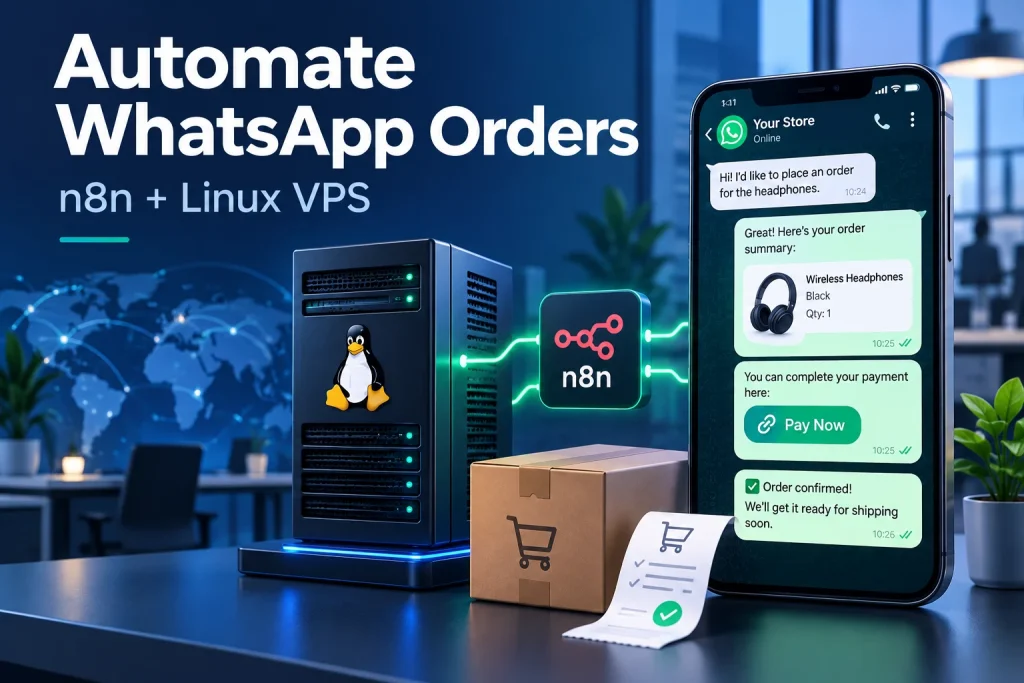
You can automate WhatsApp orders for your business using a cheap Linux VPS and spend less time sending the same updates manually. Connect your order system to send timely confirmations, secure payment links, verified receipts and delivery notifications.
In this guide, we use n8n to build the automation engine on our self-managed Linux VPS, then connect it to your shop, payment gateway and the official WhatsApp Business Platform. Follow the Docker setup and eight practical steps to create a system you can maintain as your business grows.
Table of Contents
What can you automate with WhatsApp and a Linux VPS?
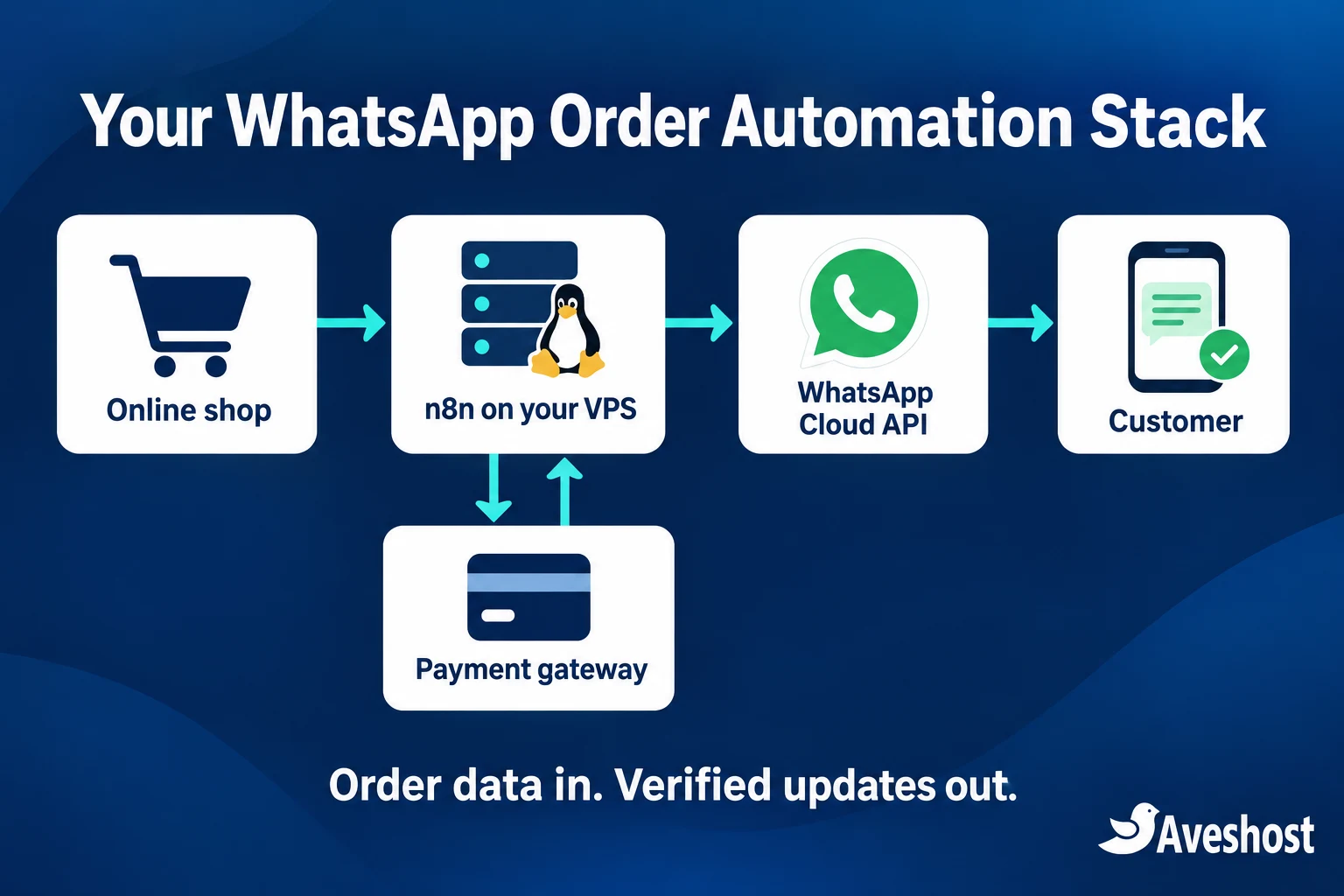
To automate WhatsApp orders, connect your order system to a workflow engine, then use a messaging API to send the right update to the right customer. Your Linux VPS runs n8n; the shop maintains order records; the payment gateway confirms money received; WhatsApp delivers the messages.
Start with three useful automations: order acknowledgement, a secure payment link for an unpaid order, and a receipt after verified payment. Add delivery updates once those are working. This approach suits online shops, service businesses and developers building integrations for clients.
| Event | Automated action | What must be checked |
|---|---|---|
| New order | Confirm items and order number | Valid customer number and messaging permission |
| Unpaid order | Send its payment link | Correct amount, currency and secure checkout URL |
| Verified payment | Send receipt or receipt link | Gateway status matches the stored order |
| Dispatch recorded | Send delivery update | Actual dispatch and tracking details |
| Customer asks for help | Route to a person | Human handover and response hours |
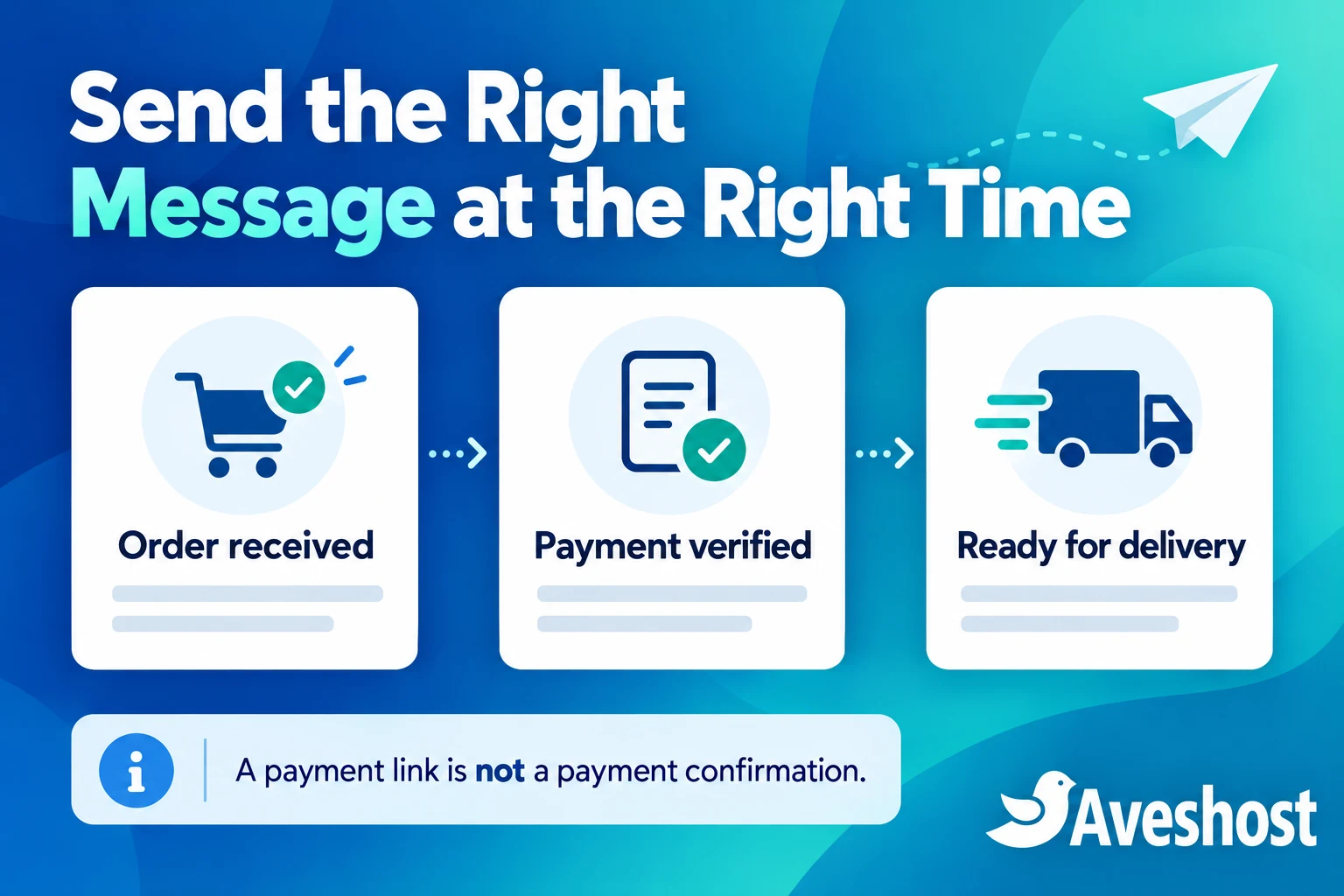
Automation should reduce repeated typing while keeping your records accurate. A payment link does not mean an order has been paid, and an API accepting a message does not mean the customer has received it. Track those events separately.
Choose your WhatsApp connection: Cloud API, Evolution API or Baileys
We recommend n8n with the official WhatsApp Cloud API for business order notifications. n8n provides the workflow editor and integration nodes. The Cloud API provides the supported messaging connection. You self-host the automation engine, while Meta operates the messaging service.
| Tool | Role | Best use |
|---|---|---|
| n8n Community edition | Connects triggers, conditions and APIs | Your own business automation on a VPS |
| WhatsApp Cloud API | Official business messaging API | Production order confirmations and receipts |
| Evolution API | REST integration layer with multiple connection types | Developers who need its additional integration features |
| Baileys | Library connecting to WhatsApp Web | Experimental projects with carefully assessed operational risk |
Evolution API supports both Cloud API and Baileys-based connections. Choosing Evolution API does not by itself tell you which connection is being used. Check the configured adapter, its maintenance requirements and its licence before deployment.
Baileys is an unofficial WhatsApp Web library, not a Meta-approved business API. Web-session changes, disconnections and account enforcement can interrupt an integration. Do not make your only business order channel depend on a linked-device session or assume an unofficial connection gives permission for bulk messaging.
n8n is fair-code software rather than unrestricted open-source software. Its Community edition can serve your internal business workflows; commercial hosting, embedding and customer access have licence conditions. Review the n8n licensing guidance before selling access to an automation service.
Choose an affordable VPS and budget for the complete system
Our self-managed cloud VPS plans give you root access to install Docker, n8n and your supporting services. You manage the operating system and application stack. A hosting control panel is not required for this tutorial.
| Plan | Advertised monthly USD price | Resources | Suggested role |
|---|---|---|---|
| Cloud VPS 1 | $9.13 | 1 vCore, 2 GB RAM, 20 GB SSD | Small proof of concept with light workloads |
| Cloud VPS 2 | $15.51 | 4 vCores, 8 GB RAM, 100 GB SSD | Our practical starting choice for n8n and PostgreSQL |
| Cloud VPS 3 | $27.38 | 6 vCores, 12 GB RAM, 200 GB SSD | More headroom for additional services or larger workflows |
Prices and product information were reviewed at the time of writing. Confirm the billing term, selected options and final checkout amount on our plans page. Our self-managed VPS plans come with SSD storage.
An approximately $10–$20 monthly VPS budget can cover a small automation server. It does not include every operating cost. Allow for your domain, backups, WhatsApp template-message charges where applicable, payment-processing fees and your time maintaining the system. Optional AI calls or a shared support inbox add their own costs.
Meta uses message-category and recipient-market pricing, with free service messaging and applicable exceptions for some utility messages. Build a budget from your expected delivered messages and current rate card. Self-hosting n8n gives you control of execution capacity; it does not remove WhatsApp policies, API rate limits or finite server resources.
Step 1: prepare your server, domain and business accounts
- Choose Ubuntu 24.04 LTS and a VPS with enough memory for n8n, PostgreSQL and a reverse proxy.
- Point an A record such as
automation.example.comto the server IPv4 address. Add an AAAA record only if IPv6 is configured correctly. - Use a sudo-enabled administrator account with SSH keys. Keep a working SSH session while changing firewall rules.
- Prepare a Meta developer account, business portfolio, WhatsApp-enabled app and a business phone number eligible for your onboarding route.
- Prepare your shop or order API, a payment gateway merchant account, a privacy notice and a way to record messaging permission.
Install Docker Engine and the Compose plugin using the official Ubuntu installation instructions. Then check the installation and install the web proxy tools:
sudo docker version
sudo docker compose version
sudo apt update
sudo apt install -y nginx certbot python3-certbot-nginx openssl
mkdir -p ~/whatsapp-automation
cd ~/whatsapp-automation
Allow your actual SSH port and HTTP/HTTPS through the host and provider firewall. This setup needs public ports 80 and 443. Keep n8n port 5678 bound to localhost and PostgreSQL private; neither needs a public firewall opening. If you already host sites on the server, preserve their proxy configuration.
Step 2: deploy n8n and PostgreSQL with Docker Compose
This is a fresh, single-instance deployment without an AI sandbox or extra messaging bridge. Create a .env file in your project directory. Replace every placeholder before starting. Set N8N_VERSION to a specific stable version from the official releases, and review its deployment requirements.
N8N_VERSION=REPLACE_WITH_STABLE_VERSION
N8N_HOST=automation.example.com
GENERIC_TIMEZONE=Etc/UTC
POSTGRES_PASSWORD=REPLACE_WITH_RANDOM_SECRET
N8N_ENCRYPTION_KEY=REPLACE_WITH_ANOTHER_RANDOM_SECRET
Run openssl rand -hex 32 twice to generate separate secrets. Save the encryption key securely: restoring database records without the matching key can leave your stored credentials unreadable. Protect the file with chmod 600 .env and keep it out of source control.
Create compose.yml:
services:
  postgres:
    image: postgres:16
    restart: unless-stopped
    environment:
      POSTGRES_DB: n8n
      POSTGRES_USER: n8n
      POSTGRES_PASSWORD: ${POSTGRES_PASSWORD}
    volumes:
      - postgres_data:/var/lib/postgresql/data
    healthcheck:
      test: ["CMD-SHELL", "pg_isready -U n8n -d n8n"]
      interval: 10s
      timeout: 5s
      retries: 10
  n8n:
    image: docker.n8n.io/n8nio/n8n:${N8N_VERSION}
    restart: unless-stopped
    ports:
      - "127.0.0.1:5678:5678"
    environment:
      DB_TYPE: postgresdb
      DB_POSTGRESDB_HOST: postgres
      DB_POSTGRESDB_PORT: 5432
      DB_POSTGRESDB_DATABASE: n8n
      DB_POSTGRESDB_USER: n8n
      DB_POSTGRESDB_PASSWORD: ${POSTGRES_PASSWORD}
      N8N_HOST: ${N8N_HOST}
      N8N_PORT: 5678
      N8N_PROTOCOL: https
      N8N_EDITOR_BASE_URL: https://${N8N_HOST}/
      N8N_WEBHOOK_URL: https://${N8N_HOST}/
      N8N_PROXY_HOPS: 1
      N8N_ENCRYPTION_KEY: ${N8N_ENCRYPTION_KEY}
      N8N_ENFORCE_SETTINGS_FILE_PERMISSIONS: "true"
      GENERIC_TIMEZONE: ${GENERIC_TIMEZONE}
      TZ: ${GENERIC_TIMEZONE}
      EXECUTIONS_DATA_PRUNE: "true"
      EXECUTIONS_DATA_MAX_AGE: 168
    volumes:
      - n8n_data:/home/node/.n8n
    depends_on:
      postgres:
        condition: service_healthy
volumes:
  postgres_data:
  n8n_data:
The current reverse-proxy guidance uses N8N_WEBHOOK_URL; older n8n versions used WEBHOOK_URL. Use the variable supported by your pinned release. The proxy-hop value of 1 assumes requests reach n8n through only the Nginx proxy in the next step. See the webhook URL configuration guide.
sudo docker compose config --quiet
sudo docker compose up -d
sudo docker compose ps
sudo docker compose logs --tail=50 n8n
curl -fsS http://127.0.0.1:5678/healthz
Use the n8n Docker documentation for release-specific options. A successful health response shows the service is reachable locally; the next step makes it reachable securely through your domain.
Step 3: put n8n behind Nginx and HTTPS
Create /etc/nginx/sites-available/automation with the configuration below, replacing the example domain. The upgrade header supports the editor’s live connection; forwarded headers tell n8n the original request used HTTPS.
server {
    listen 80;
    server_name automation.example.com;
    location / {
        proxy_pass http://127.0.0.1:5678;
        proxy_http_version 1.1;
        proxy_set_header Upgrade $http_upgrade;
        proxy_set_header Connection "upgrade";
        proxy_set_header Host $host;
        proxy_set_header X-Forwarded-Host $host;
        proxy_set_header X-Forwarded-For $proxy_add_x_forwarded_for;
        proxy_set_header X-Forwarded-Proto $scheme;
        proxy_read_timeout 300s;
    }
}
Enable the site, validate Nginx and request the certificate. These commands assume the site file has not already been enabled:
sudo ln -s /etc/nginx/sites-available/automation /etc/nginx/sites-enabled/automation
sudo nginx -t
sudo systemctl reload nginx
sudo certbot --nginx -d automation.example.com
sudo certbot renew --dry-run
Choose the HTTPS redirect when prompted. Open your HTTPS domain immediately and finish the n8n owner-account setup before advertising the endpoint. Use a strong password and available two-factor authentication. Confirm that webhook URLs show your domain and HTTPS, without port 5678.
If you later add another proxy, update trusted proxy settings to match the real request path. Avoid blanket authentication or bot challenges on webhook endpoints, because Meta and your payment gateway must reach them. Secure those endpoints with their documented signatures or credentials instead.
Step 4: connect the official WhatsApp Business Platform
In Meta’s app dashboard, open WhatsApp API Setup and begin with the test sender and an allowed test recipient. In n8n, create WhatsApp Business Cloud credentials using the access token and WhatsApp Business Account ID. The sender is selected using its phone-number ID, which is different from the business account ID.
Add a WhatsApp Business Cloud node, select the credential and sender, then send a test message to the permitted recipient. Its Send and Send Template operations cover normal replies and approved templates. Follow the credential setup and node documentation for the fields in your version.
For incoming customer messages, use the WhatsApp Trigger with its separate OAuth2 credential and Messages event. Authenticate using the Meta App ID and App Secret. Publish the workflow when testing is complete. n8n’s trigger guide explains that switching test and production webhooks can replace the callback registered for the app; use a separate test app for development alongside live orders.
Before going live, complete the onboarding requirements for your business, number and app. Replace a temporary test token with an appropriate production credential, document expiry or rotation, and test approved templates. Existing-number migration or coexistence depends on the onboarding route; do not assume QR pairing or simply copying a phone number activates Cloud API.
Step 5: build the order confirmation and payment-link workflow
For a first rollout, trigger messages from your shop’s structured order record. Taking free-text chat orders requires another layer to collect product, quantity, delivery address and explicit confirmation. Keep the shop database as the source of truth for prices and stock.
Create a workflow with this sequence: authenticated order event → retrieve order → check permission → deduplicate → choose message → send → record result. Your backend can call an n8n Webhook node with Header Auth. Use a random shared secret stored server-side, never in browser JavaScript. If your shop sends signed webhooks instead, validate the signature using its documented method before processing.
- Receive an order ID and event ID. Retrieve the actual order through an authenticated shop API rather than trusting prices or URLs supplied by the event sender.
- Normalise the recipient number to the format required by the WhatsApp node. Store the customer’s country code explicitly; do not guess it from the server location.
- Check the recorded messaging permission, opt-out flag, current order status and whether this message has already been sent.
- For an unpaid order, obtain its secure payment URL from the shop or gateway. Include the order number, total, currency and a clear next action.
- Use Send Template for an approved order-related template when required. Match each placeholder to the approved template’s order and language.
- Save the provider message ID and sending outcome against the order. Process later delivery-status events separately.
Example order acknowledgement: “Thanks, {{customer_name}}. We received order {{order_number}} for {{items}}. Your total is {{total}} {{currency}}. Complete payment at {{payment_url}}. Reply if you need help.” This is draft copy to adapt and submit where template approval is required, not a pre-approved template.
A payment link should lead to your genuine HTTPS checkout or the gateway’s hosted checkout. Do not ask customers to send card details, PINs or one-time passwords in chat. Sending a reminder should not silently recreate the order or add another charge.
Keep message selection deterministic at first. A simple If node checking status is easier to audit than an AI agent deciding whether money was received. Your bot can hand off uncertain requests to a person.
Step 6: verify payment before sending a receipt
Build a separate paid-order workflow. The trigger must be a trusted paid-order event or an authenticated gateway notification, not the customer opening a link or sending a screenshot. Recheck the transaction against the stored order before changing its status.
- Validate the gateway webhook signature against the original request body, before processing the event.
- Retrieve or verify the transaction server-side with the gateway credential. Require the final successful status.
- Compare the transaction reference, amount, currency and merchant/order association with your records.
- Apply the payment update atomically and reject an already-processed transaction.
- Create the receipt or retrieve it from your store, then send the appropriate WhatsApp update.
For example, Paystack signs webhook payloads using the x-paystack-signature header and HMAC-SHA512. Its transaction verification endpoint returns a final transaction status. Use the equivalent documented checks for your chosen gateway. A generic Header Auth secret is not a substitute for validating a gateway’s own signature.
For pay-on-delivery orders, send an acknowledgement that says payment is due on delivery. Send the paid receipt after the collection is recorded. For refunds or cancellations, use a separate approved update reflecting the actual final status.
Example receipt message: “Payment received for order {{order_number}}. Amount: {{total}} {{currency}}. Receipt: {{receipt_url}}. We will send your dispatch update when the order is ready.” Receipt URLs should not expose another customer’s documents; use access controls or suitably scoped expiring links.
Step 7: handle consent, templates and human support
Follow the WhatsApp Business Messaging Policy. Record the permission needed to contact customers and respect opt-outs. Make the checkout wording clear about order updates, and keep promotional subscriptions separate from transactional messages.
A customer message opens a 24-hour service window, reset by each new customer message. Within the open window, permitted free-form replies can be used. Outside it, use approved message templates. A website checkout alone does not open that messaging window. Keep order templates factual: adding discounts or unrelated offers can affect their category.
Give customers an easy way to stop messages and reach a person. Route “help”, disputed payments, address changes, refunds and unrecognised requests to a support queue. If your automation captures chat orders, ask customers to confirm the final items and total before creating the order. Never let a language model invent stock availability, delivery promises or refund decisions.
Step 8: test, back up and monitor your automation
Test with your own numbers and test-mode payments before contacting customers. Include unsuccessful outcomes as well as the happy path:
| Test | Expected result |
|---|---|
| Order created twice or webhook replayed | One acknowledgement for the same order event |
| Payment pending, failed or wrong amount | No paid receipt and no automatic fulfilment |
| Payment succeeds after the customer closes checkout | Verified payment updates the correct order |
| Customer opts out | Further optional WhatsApp messages stop |
| Token expires or template is rejected | Alert and human fallback |
| VPS restarts | Persistent records survive; pending work is recoverable |
| Message accepted but delivery fails | Delivery status is recorded separately |
Use durable event and message records with unique keys such as order ID plus event type. An If node followed by a send is not enough to prevent duplicates when executions overlap. Use a database uniqueness constraint or a transactional outbox so only one worker claims the notification. After an ambiguous API timeout, reconcile the result before blindly resending.
Retry transient failures with bounded backoff and alert on persistent failures. Do not repeatedly retry an invalid recipient, rejected template or withdrawn permission. Keep email or human contact available if a WhatsApp update cannot be delivered.
Back up PostgreSQL, the n8n data volume and the encryption key. Store an encrypted copy away from the running instance and test a restore. Restrict execution-history retention, redact secrets and avoid retaining complete customer chats unnecessarily. This Compose example prunes executions older than 168 hours; adjust retention to your business needs.
Pin versions, review release notes and back up before upgrades. After changing the version in .env, use sudo docker compose pull and sudo docker compose up -d, then repeat the webhook and payment tests. Do not use docker compose down -v during routine updates because it removes the named data volumes.
Watch memory, CPU, disk space, database growth and failed executions. Upgrade your cloud VPS resources when measured workload requires it. High concurrency may justify dedicated workers and a queue architecture rather than simply increasing the number of parallel workflows.
Common WhatsApp automation problems and how to fix them
| Problem | Check first |
|---|---|
| Incoming events never arrive | Public HTTPS, correct callback URL, published workflow and firewall reachability |
| n8n shows localhost webhook URLs | Public webhook variable and reverse-proxy headers for the pinned release |
| Editor loses its live connection | Nginx upgrade headers and proxy timeouts |
| Outbound message rejected | Token, sender ID, recipient, template language and service window |
| Paid receipt sent twice | Unique event keys, concurrent executions and retry reconciliation |
| Payment link shows the wrong total | Retrieve the authoritative order and create the link server-side |
| Server runs out of space | Execution pruning, logs, uploads and backup retention |
Solve connection and authentication problems before adding more workflow logic. Check the failed node’s error, the gateway event log and the corresponding order record. Logs should contain enough detail to diagnose the issue without exposing access tokens or complete customer data.
Build your WhatsApp order system on our cloud VPS
The strongest first version is a small, predictable workflow: receive a real order, send a clear payment link, verify payment and send the receipt. Add chat-based ordering, delivery updates and richer support integrations once that foundation is working.
Choose our self-managed Linux VPS hosting for the root access and flexibility to run your Docker stack. Cloud VPS 2 offers a practical starting point for the n8n and PostgreSQL deployment in this guide. Select the location and resources that fit your business, then scale from measured usage.
Need help connecting your website, order system or payment gateway? Discuss your project with us so we can plan the integration around your customer journey.
Frequently asked questions
Can I automate WhatsApp orders on a Linux VPS?
Yes. Run n8n on the VPS, connect your order system and use a messaging API such as the official WhatsApp Cloud API. Your shop should remain the source of truth for prices, stock and payment status.
Is a $10–$20 VPS enough for n8n?
It can suit a small workload. At the time of writing, our Cloud VPS 2 is advertised at $15.51 per month with 4 vCores, 8 GB RAM and 100 GB SSD. Budget separately for messaging, payment processing, backups and maintenance.
Does self-hosting make WhatsApp messages free?
No. Hosting your workflow engine does not remove Meta’s messaging charges, policies or API limits. Costs depend on the category and recipient market, with applicable free messaging exceptions.
Is n8n open source?
n8n is fair-code software. Its free Community edition has Sustainable Use License conditions. Review the licence before offering customer access, embedding it or selling it as a hosted service.
Should I use Evolution API or Baileys?
Evolution API can use either an official Cloud API connection or an unofficial Baileys-based connection. Baileys relies on WhatsApp Web and is not Meta-approved. We recommend the official connection for business order notifications.
Can I send payment links and receipts automatically?
Yes. Obtain the correct checkout link from your shop or gateway. Send a paid receipt only after authenticated server-side verification matches the transaction to the order, amount and currency.
Do customers need to message me first?
A customer message opens the 24-hour service window for permitted free-form replies. Outside that window, use approved templates and the required messaging permission. Placing a website order alone does not open the window.
Can this also collect orders directly in chat?
Yes, with an additional flow for product selection, quantity, delivery details and customer confirmation. Retrieve prices and stock from your shop API and confirm the final summary before creating an order.
Do I need cPanel for this setup?
No. This tutorial uses SSH, Docker Compose and Nginx on a self-managed Linux VPS. You administer the operating system and application services directly.
How do I prevent duplicate order messages?
Store durable event identifiers and use database uniqueness or a transactional outbox to claim notifications. Reconcile ambiguous send failures before retrying, and keep payment processing idempotent.