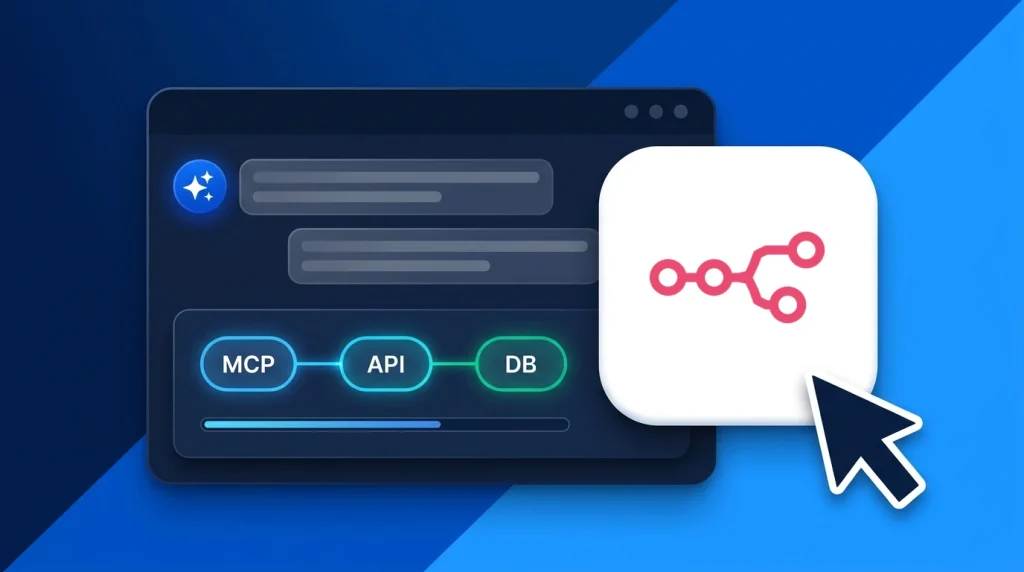
Knowing how to connect AI assistants to n8n workflows using the Model Context Protocol (MCP) lets you turn hundreds of n8n integrations—from PostgreSQL, HubSpot, and Slack to custom webhooks and ERP APIs—into callable tools inside Claude, Cursor, Google Antigravity, or OpenClaw without writing custom API glue code.
Instead of building and maintaining a separate Python or TypeScript MCP server for every SaaS tool your business uses, n8n provides a native MCP Server Trigger node and built-in Instance-Level MCP access. Once enabled, your AI assistant can discover your n8n workflows, pass structured JSON parameters, and receive real-time results over a single authenticated HTTP stream.
In this guide, we explain the two ways n8n works with MCP, walk through setting up an authenticated MCP Server Trigger workflow step by step, show how to connect your favourite AI clients, and share the reverse-proxy settings required if you self-host n8n on a Linux VPS.
Table of Contents
How n8n Connects to AI Assistants via MCP
Traditionally, if you wanted an AI assistant to trigger an n8n automation, you had to create a standard n8n Webhook node, write a custom script or OpenAPI schema on your local machine, and manually hardcode every payload field. With native n8n MCP support, n8n handles tool discovery, parameter validation, and JSON-RPC execution automatically.
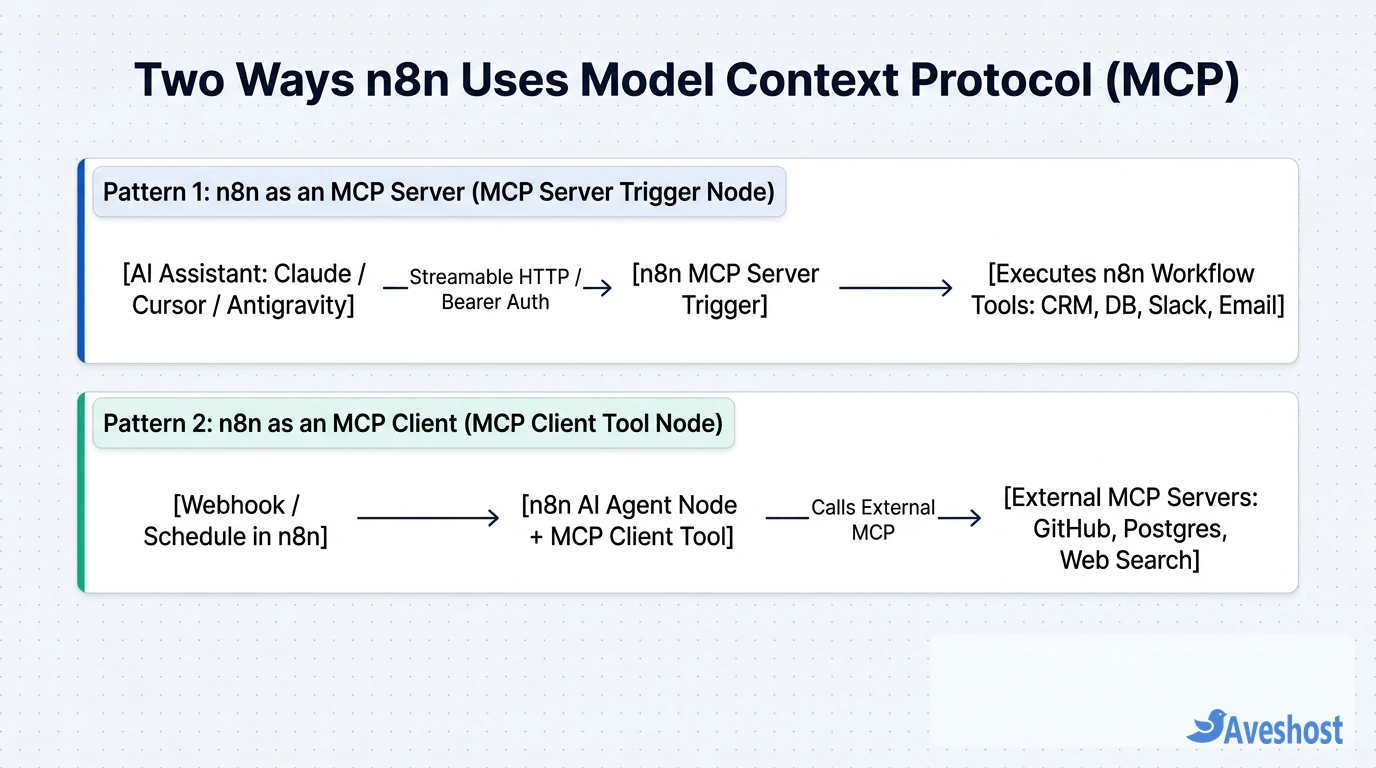
Depending on whether you want an external AI assistant to trigger n8n, or you want an internal n8n AI Agent to call external tools, n8n offers three MCP integration patterns:
| n8n MCP Pattern | Direction of Control | n8n Node / Setting Used | Authentication Options | Best Use Case |
|---|---|---|---|---|
| 1. Workflow-Scoped MCP Server | External AI Assistant -> Calls specific n8n tools | MCP Server Trigger node + Tool sub-nodes | Bearer Auth, Header Auth, or None | Exposing a curated set of CRM, DB, or DevOps tools to Cursor, Claude, or Antigravity |
| 2. Instance-Level MCP Server | External AI Assistant -> Runs any opted-in workflow | Settings -> MCP Access + ‘Available in MCP’ toggle | n8n MCP Access Token (Bearer) or OAuth2 | Letting an AI assistant search and trigger multiple production workflows across your n8n instance |
| 3. n8n as an MCP Client | n8n AI Agent -> Calls external MCP servers | AI Agent node + MCP Client Tool sub-node | Bearer Auth or custom headers | Connecting an autonomous n8n workflow to a remote VPS MCP server or GitHub/Postgres MCP |
Prerequisites for Connecting AI Assistants to n8n
Before configuring your first MCP workflow, verify three quick requirements so your connection does not fail during the handshake:
1. Recent n8n Version (1.88+ Recommended): Ensure your n8n Cloud workspace or self-hosted n8n Docker container is updated so you have access to both the MCP Server Trigger node (supporting Streamable HTTP and SSE) and the instance-level MCP settings.
2. HTTPS Endpoint for Remote Connections: If you self-host n8n on a Linux VPS, your instance should sit behind Caddy or Nginx with a valid Let’s Encrypt HTTPS certificate and WEBHOOK_URL configured properly.
3. An MCP-Compatible AI Client: You can connect from Google Antigravity, Cursor, Claude Desktop, Claude Code CLI, Windsurf, or any custom agent supporting Streamable HTTP, SSE, or the mcp-remote bridge.
Step 1: Add and Secure the MCP Server Trigger Node in n8n
The cleanest way to connect AI assistants to n8n workflows is with the MCP Server Trigger node, because it lets you bundle multiple related tools behind one isolated endpoint with its own dedicated Bearer token.
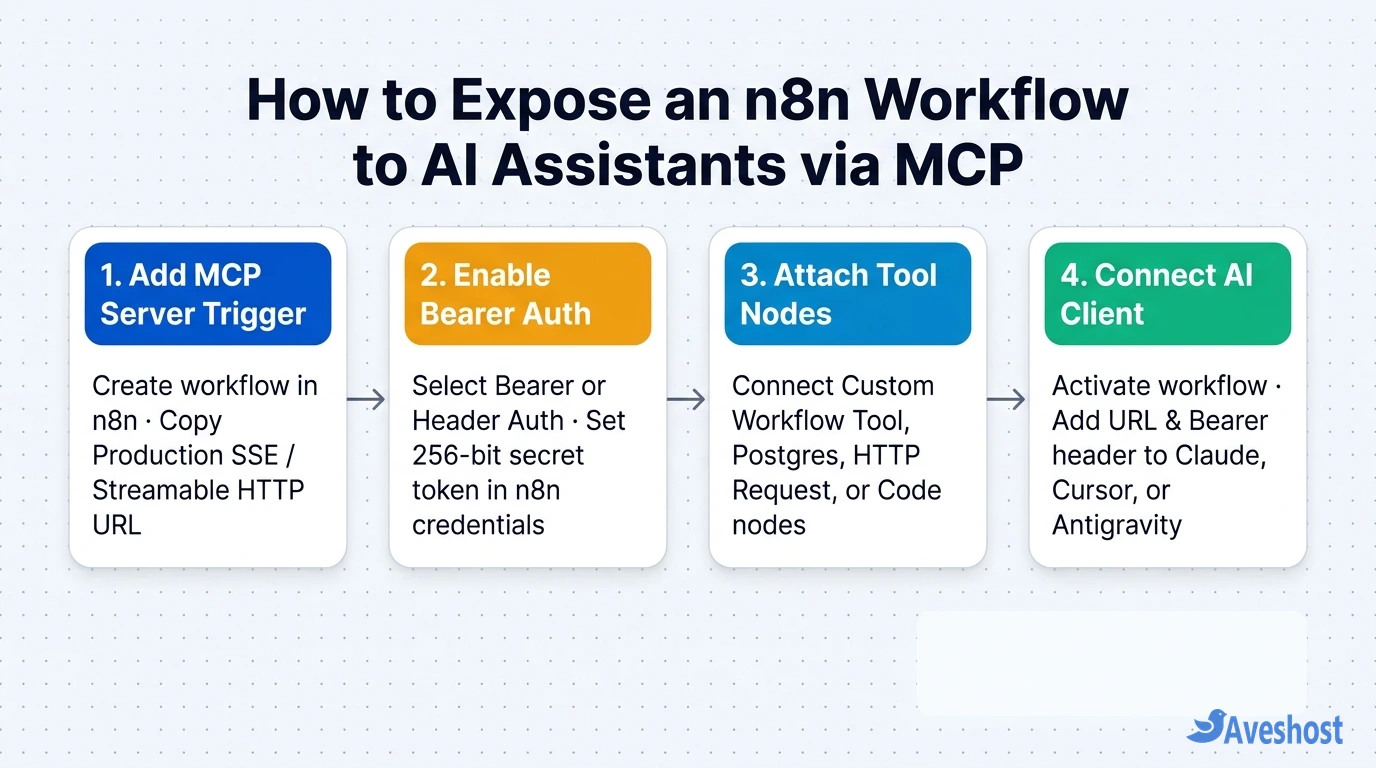
1. Create a New Workflow: Open your n8n editor, click Add first step, search for MCP Server Trigger, and add it to the canvas.
2. Copy Your Endpoint URLs: At the top of the node panel, n8n displays two URLs: a Test URL (used while clicking Listen for test event in the editor) and a Production URL (active once the workflow toggle is switched to Active). Newer n8n versions provide both a Streamable HTTP URL and a legacy SSE URL—prefer the Streamable HTTP URL whenever your AI client supports it.
3. Configure Bearer Authentication: Never leave a public n8n MCP endpoint set to Authentication: None. Change Authentication to Bearer Auth (or Header Auth), click Create New Credential, and paste a strong 256-bit secret token generated with openssl rand -hex 32.
Step 2: Attach Tool Nodes and Sub-Workflows to the Trigger
Unlike a normal n8n trigger that connects left-to-right to standard action nodes, the MCP Server Trigger has a bottom Tools port. Every tool sub-node you attach to that port becomes a distinct tool that your AI assistant can inspect and invoke on demand.
Click the + button under the Tools port on your MCP Server Trigger and choose from two types of tools:
Option A — Direct Built-In Tool Nodes: Attach nodes such as the Postgres Tool (to run parameterised read queries on your self-hosted Supabase database), HTTP Request Tool, Slack Tool, or Code Tool.
Option B — Custom n8n Workflow Tool (For Multi-Step Automations): If you want your AI assistant to trigger a complex, multi-step n8n workflow (for example: verify a customer order in WooCommerce, generate an invoice PDF, and send a WhatsApp or email receipt), attach the Custom n8n Workflow Tool (Call n8n Workflow Tool) node. Point it to a sub-workflow that starts with an Execute Workflow Trigger node.
Write Explicit Tool and Parameter Descriptions: Large language models decide when and how to call your n8n tools entirely based on the Tool Description and input schema fields you write in n8n. Instead of naming a tool workflow_1, name it lookup_customer_invoice and write a clear description such as: “Look up a customer’s latest invoice status and balance by email address. Returns invoice ID, status, and total amount.” Finally, toggle the workflow to Active in the top-right corner of n8n.
Step 3: Connect Claude, Cursor, or Google Antigravity to n8n
Once your n8n workflow is active, copy the Production URL from your MCP Server Trigger node and add it to your AI assistant’s MCP configuration file.
For Clients Supporting Direct Streamable HTTP / SSE (Google Antigravity, Cursor, Claude Code): Add your n8n endpoint URL and Bearer token header directly inside your MCP settings JSON:
{
  "mcpServers": {
    "n8n-business-workflows": {
      "serverUrl": "https://n8n.yourdomain.com/mcp/a1b2c3d4-production-id",
      "headers": {
        "Authorization": "Bearer YOUR_N8N_BEARER_TOKEN"
      }
    }
  }
}
For Local stdio-Only Desktop Clients (such as Claude Desktop via mcp-remote): If your desktop client only accepts a local command and args array in claude_desktop_config.json, use the official mcp-remote package via npx to bridge local stdio to your remote n8n HTTPS endpoint:
{
  "mcpServers": {
    "n8n-business-workflows": {
      "command": "npx",
      "args": [
        "-y",
        "mcp-remote",
        "https://n8n.yourdomain.com/mcp/a1b2c3d4-production-id",
        "--header",
        "Authorization: Bearer YOUR_N8N_BEARER_TOKEN"
      ]
    }
  }
}
Restart or reload your AI client’s MCP panel. You will immediately see all the tools attached to your n8n MCP Server Trigger listed and ready to run from natural-language prompts.
Step 4: VPS Reverse Proxy Settings for Self-Hosted n8n MCP Streams
If you self-host n8n on an Ubuntu VPS, the number-one reason an MCP connection fails or hangs mid-execution is reverse proxy buffering. Just like when you host a standalone MCP server on a VPS, n8n’s /mcp/ and /mcp-server/ routes stream JSON-RPC packets over long-lived HTTP connections.
If you run Nginx in front of your n8n Docker container (127.0.0.1:5678), add a dedicated location block or update your n8n server block so buffering is disabled and read timeouts are extended:
location ~ ^/(mcp|mcp-test|mcp-server)/ {
    proxy_pass http://127.0.0.1:5678;
    proxy_http_version 1.1;
    proxy_set_header Connection "";
    proxy_set_header Host $host;
    proxy_set_header X-Real-IP $remote_addr;
    proxy_set_header X-Forwarded-For $proxy_add_x_forwarded_for;
    proxy_set_header X-Forwarded-Proto $scheme;

    # Essential for n8n MCP Streamable HTTP & SSE
    proxy_buffering off;
    proxy_cache off;
    chunked_transfer_encoding on;
    proxy_read_timeout 3600s;
    proxy_send_timeout 3600s;
}
Also make sure your n8n Docker environment variables include WEBHOOK_URL=https://n8n.yourdomain.com/ and N8N_PROXY_HOPS=1 so n8n generates accurate public HTTPS URLs inside the MCP Server Trigger UI.
Running Always-On n8n MCP Workflows on an Aveshost VPS
When your AI coding assistant or customer support agent relies on n8n workflows for live database lookups, CRM updates, and automated notifications, your n8n instance needs predictable memory, fast disk I/O, and 24/7 uptime.
A self-hosted n8n instance running active MCP triggers, webhook queues, and PostgreSQL persistence runs smoothly on an Aveshost Self-Managed Linux VPS with 4 GB of RAM and 2 vCPU cores (or 8 GB of RAM and 4 vCPU cores if you run n8n alongside Supabase or local AI workers on the same server). If your team and customers are based in Ghana or West Africa and you want ultra-low latency between your APIs, databases, and n8n workflows, deploy on an Aveshost Ghana VDS powered by local Accra NVMe storage.
Frequently asked questions
What is the difference between the n8n MCP Server Trigger node and Instance-Level MCP access?
The MCP Server Trigger node creates a dedicated MCP endpoint for a single workflow, exposing only the specific tool sub-nodes attached to that trigger with its own custom Bearer or Header authentication. Instance-Level MCP access (enabled in n8n Settings -> MCP Access) exposes a single instance-wide endpoint that can discover and run any workflow where you have toggled ‘Available in MCP’ on.
Why does my AI assistant fail to see any tools when connected to my n8n MCP URL?
Check two common mistakes: first, make sure you toggled the n8n workflow to Active if you are using the Production URL (the Test URL only works for a single test run while clicking ‘Listen for test event’ in the editor); second, verify that you attached your nodes to the bottom Tools port of the MCP Server Trigger rather than a standard workflow branch.
Can n8n act as an MCP client to call external MCP servers?
Yes. Inside any n8n workflow that uses the AI Agent node, you can attach the MCP Client Tool sub-node to the agent’s Tools port. Enter the external MCP server’s SSE or Streamable HTTP URL and authentication credentials, and your n8n AI Agent will automatically discover and call those external tools.
Do I need n8n Cloud to use MCP, or does it work on self-hosted n8n?
Both the MCP Server Trigger node and the MCP Client Tool node are included in the free, self-hosted Community Edition of n8n as well as n8n Cloud. When self-hosting on a Linux VPS, simply place n8n behind an HTTPS reverse proxy (Caddy or Nginx) with proxy buffering disabled.
How do I prevent an AI assistant from accidentally deleting data through an n8n MCP tool?
Never expose raw, unrestricted database-delete or admin API endpoints directly as MCP tools. Instead, use the Custom n8n Workflow Tool to wrap sensitive actions inside a sub-workflow that validates inputs, restricts queries to read-only operations or specific customer IDs, or sends a Slack/Telegram approval prompt before executing destructive changes.