

Is your mailbox filling up with years of newsletters, sent attachments and unwanted messages? You can delete old emails in Roundcube using the Manage Disk Usage tool available through cPanel Webmail. It lets you work on one folder at a time and remove messages by age, size or read status.
This illustrated guide walks you from the Roundcube inbox to the cleanup controls, explains every deletion option, and shows how to apply the same steps to Trash, Spam, Sent and Inbox.
Table of Contents
Quick answer: In Roundcube, click Webmail Home, open the email address menu in the top-right corner, and select Manage Disk Usage. Find the folder you want to clean, click Manage, choose a rule such as 1 year old or more, and select Delete Permanently only after reviewing what that rule will remove.
Important: This tutorial applies to Roundcube provided through cPanel Webmail. Manage Disk Usage is a hosting control-panel feature; it is not available in every standalone Roundcube installation. Menus may look slightly different depending on your provider and screen size.
Before you delete: protect the messages you need
Permanent deletion is different from moving a message to Trash. Messages removed through Manage Disk Usage cannot be restored using Roundcube’s normal Trash recovery workflow. Do not rely on a hosting backup unless your provider has confirmed that an appropriate backup exists and can be restored.
- Back up important emails and attachments. Save invoices, account recovery messages, contracts and conversations you need to keep. Check that your saved copies actually open.
- Check the account address. Make sure you are managing the intended mailbox, especially if you use several business addresses.
- Review the folder first. Open it in Roundcube and inspect the messages before running a bulk rule. The cleanup form is not a message-by-message preview.
- Remember connected devices. When your email apps use IMAP, server-side deletions normally synchronize to them. A synchronized phone or laptop is not automatically an independent backup.
- Start with a small, low-risk folder. Trash or reviewed spam is usually easier to evaluate than your main Inbox.
The screenshots below have been edited for privacy: the example account is [email protected], and message details, mailbox counts and private identifiers are obscured. Arrows show the controls to use. No messages were deleted while preparing this guide.
Step 1: Open Webmail Home from Roundcube
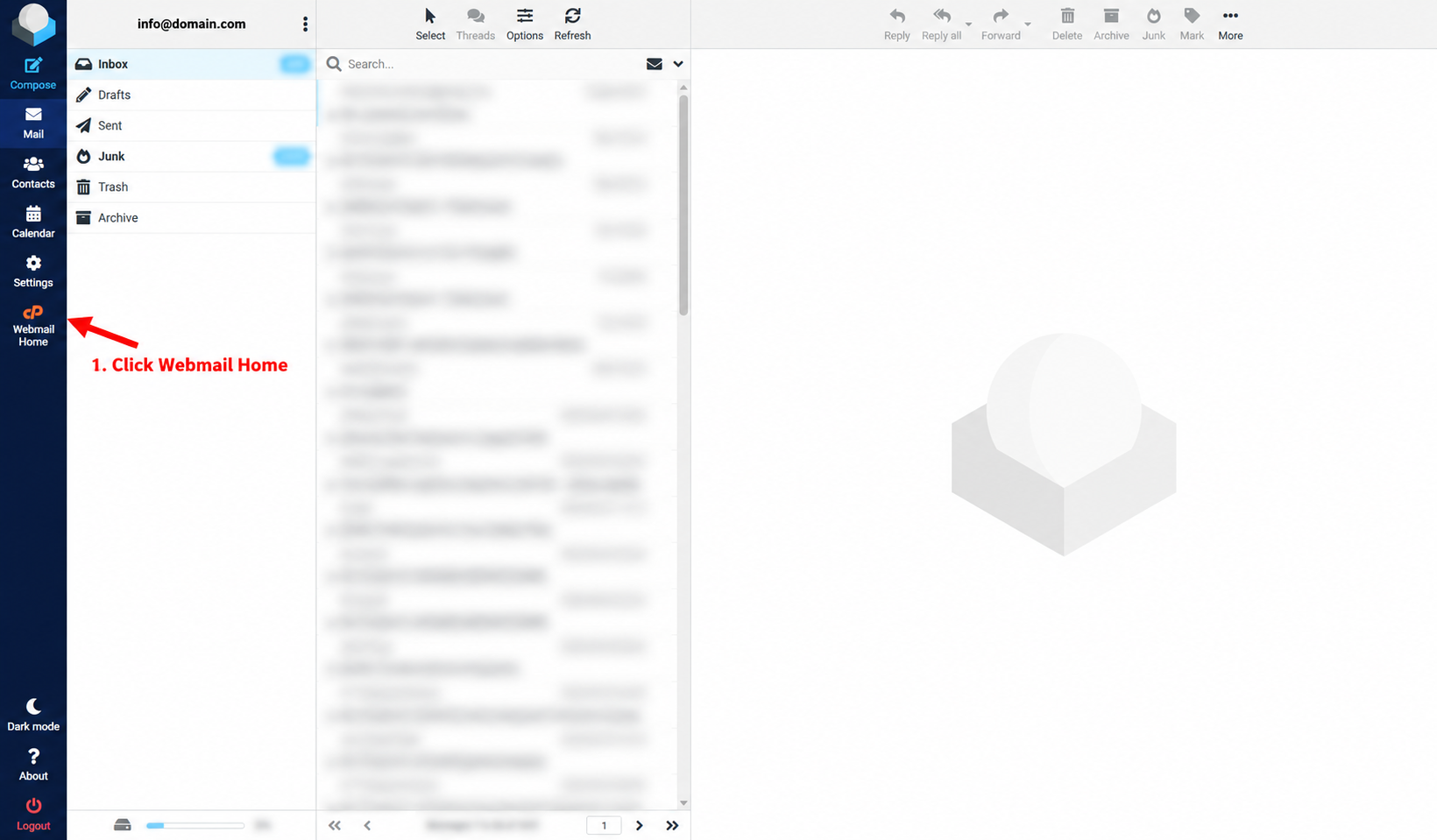
Sign in using the webmail address supplied by your hosting provider and open Roundcube. In the left-hand navigation, click Webmail Home. On a smaller screen, you may need to open the application menu to find it.
This takes you out of the inbox view and into the cPanel Webmail Home page. You do not need to select an email or click the inbox toolbar’s Delete button for this method.
Step 2: Open your email account menu
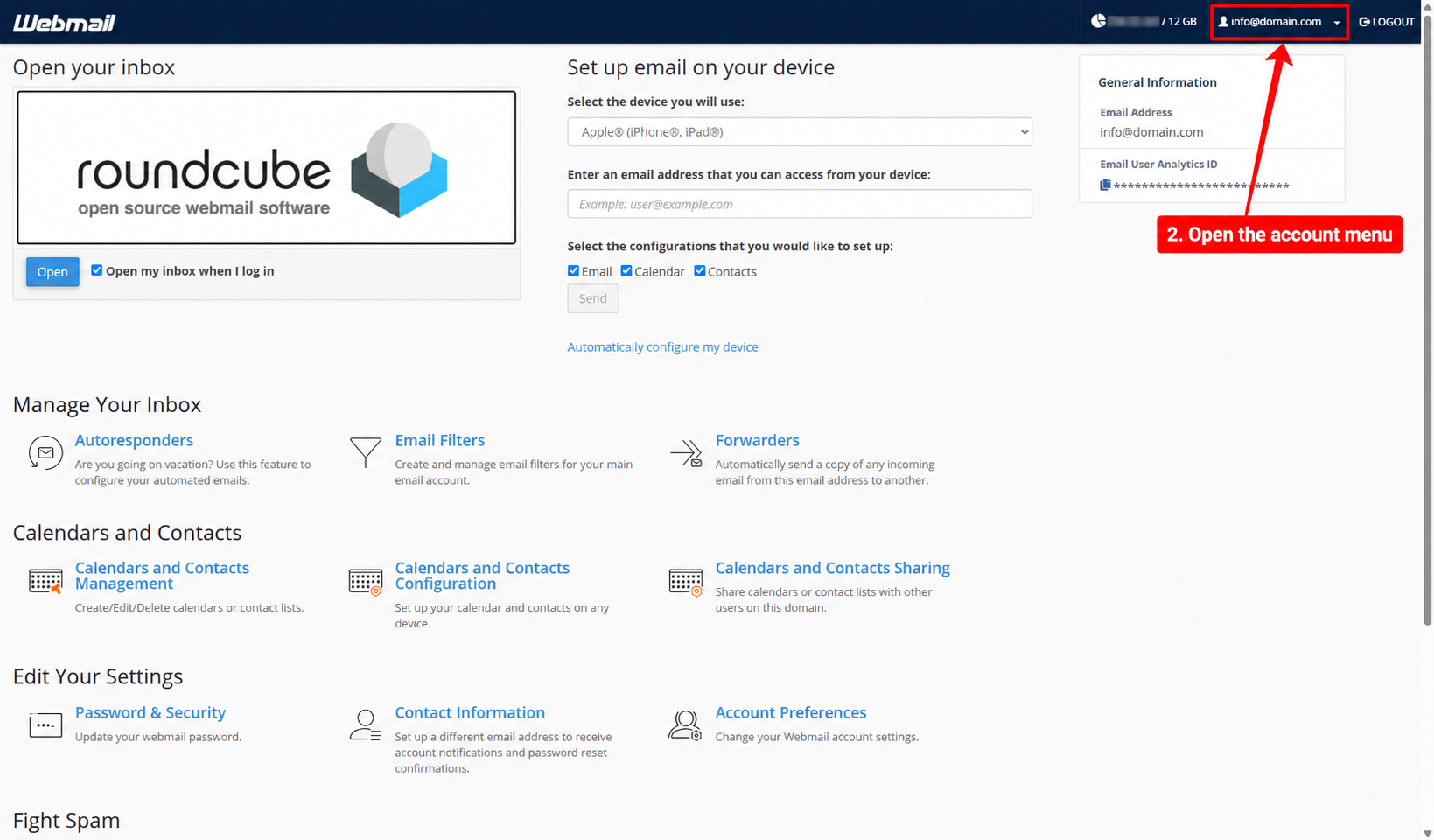
On Webmail Home, look at the top-right corner. Click your email address—for example, [email protected]—or the small arrow beside it to expand the account menu.
If Webmail Home displays a large Roundcube logo and an Open button, you are in the right place. You do not need to reopen the inbox yet.
Step 3: Choose Manage Disk Usage
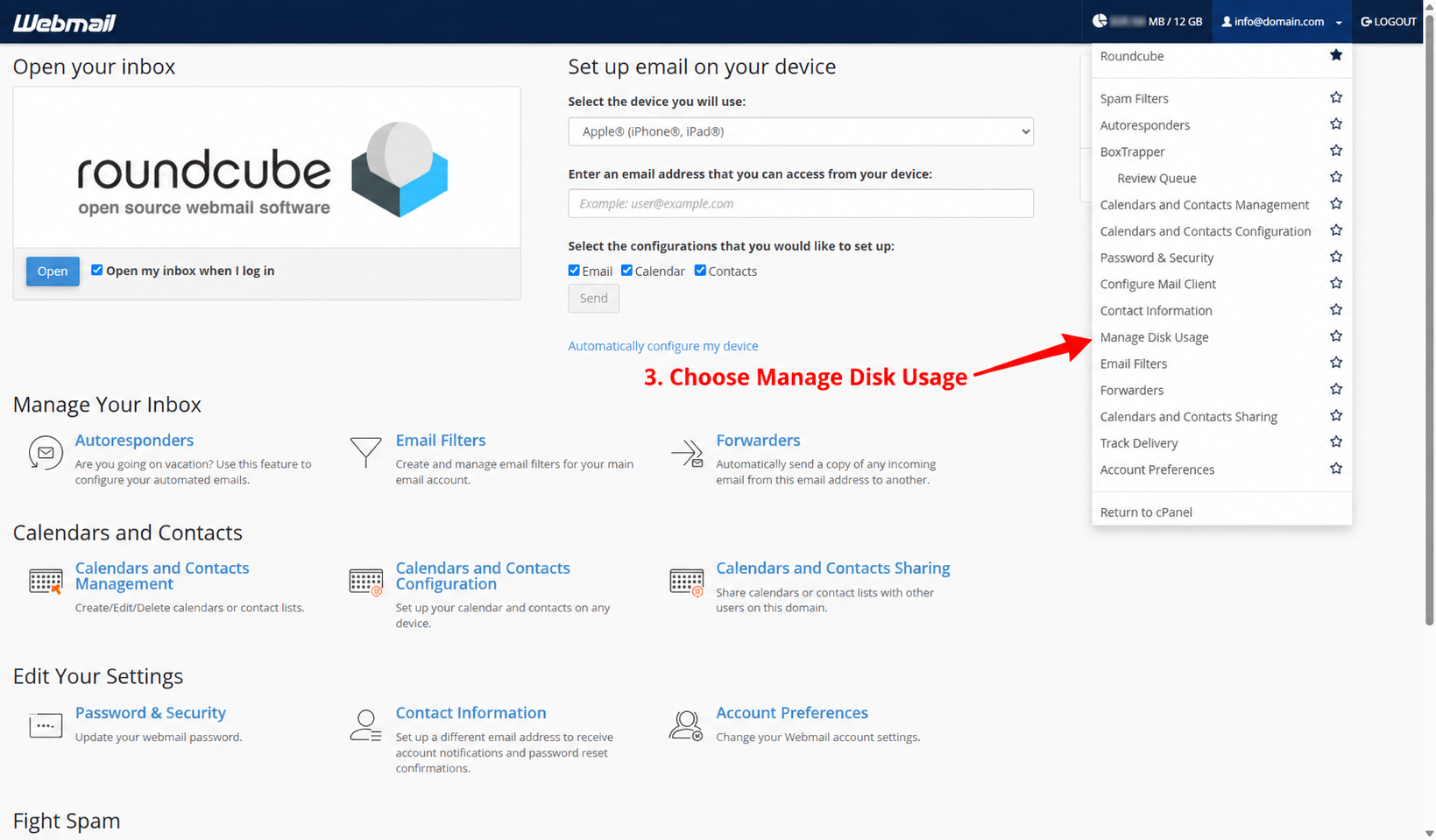
In the expanded account menu, click Manage Disk Usage. You can also find the same feature under Other Webmail Features on the Webmail Home page, if that section is available.
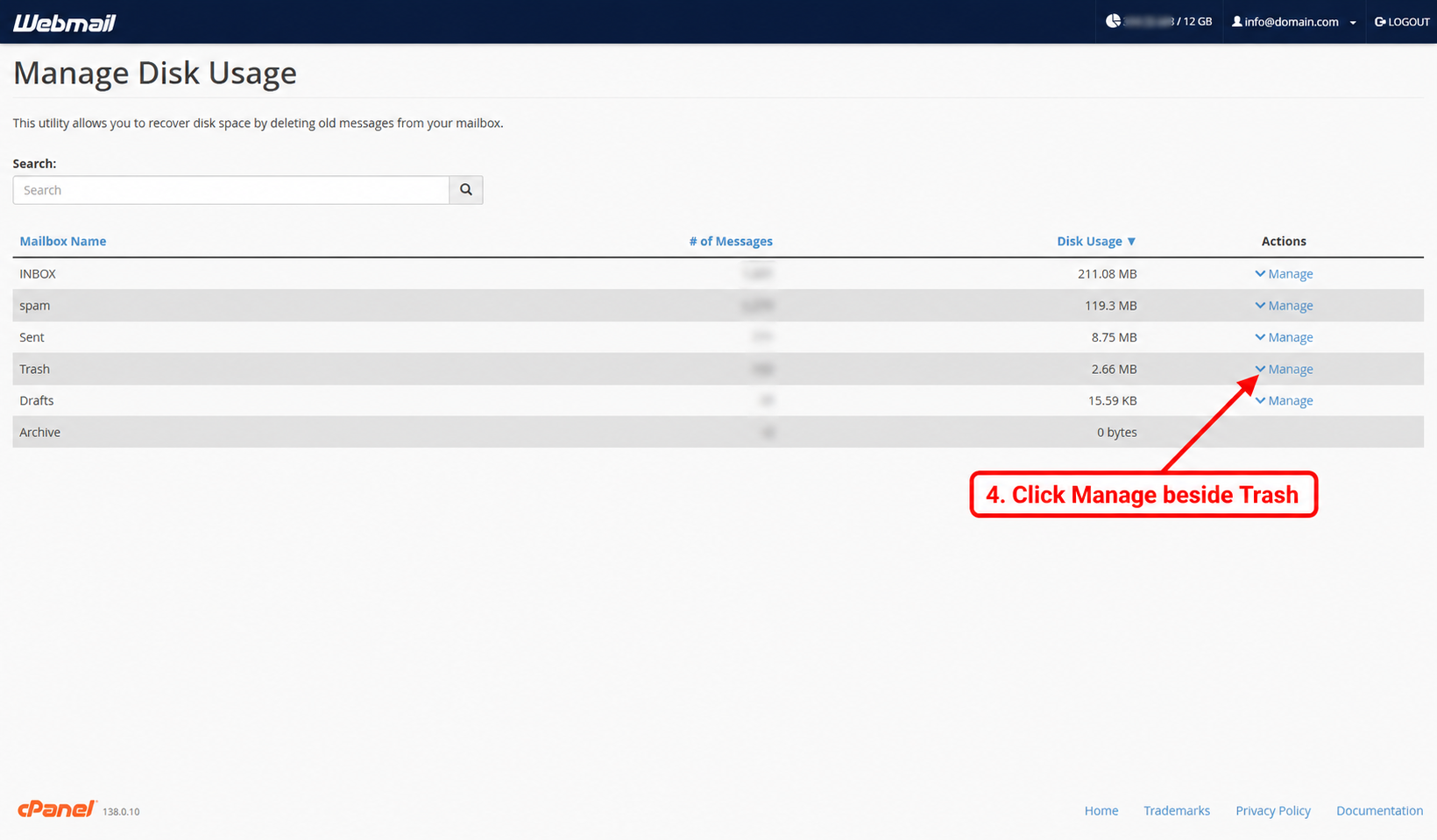
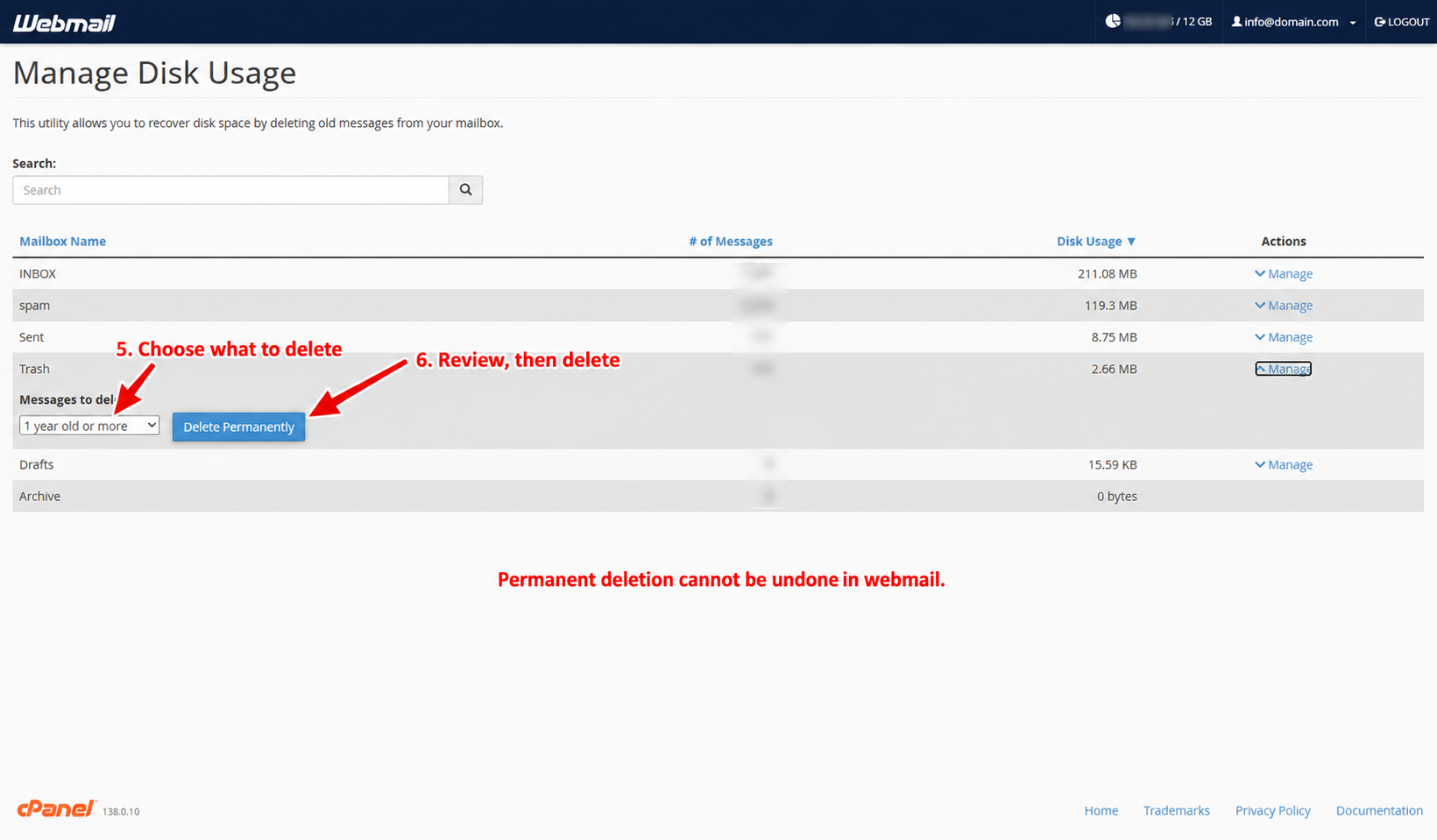
The Manage Disk Usage page lists folders in the current email account. It shows each folder’s name, message count, storage usage and available actions. The Search field on this page searches mailbox folder names; it is not a search box for message subjects or dates.
Step 4: Find the folder and click Manage
Choose the folder you want to clean. Common entries are INBOX, spam, Sent, Trash, Drafts and Archive. Roundcube may call a folder Junk while the disk usage table calls it spam.
For this example, locate Trash and click Manage in that row’s Actions column. The example shows about 2.66 MB in Trash, but your own figures will differ. The amount listed is the whole folder’s usage; a filter may remove only part of it.
Expanding Manage reveals a Messages to delete dropdown and a Delete Permanently button. Confirm that these controls belong to the folder you intended to clean. Each folder has its own action panel.
Step 5: Choose which messages to delete
Open the Messages to delete dropdown. The choices shown in this interface are listed below. Selecting a rule does not by itself delete messages; the deletion action is separate.
| Option | What it targets | When to use it |
|---|---|---|
| 1 year old or more | Messages meeting the server’s one-year age threshold in the selected folder. | Removing older mail while keeping more recent messages. Old messages can still be important, so review first. |
| 30 MB in size or more | Individual messages meeting the large-message threshold, including their attachments. | Freeing space occupied by very large emails. It does not mean deleting a folder once its total reaches 30 MB. |
| Previously viewed | Messages marked as read or seen. | Only when all read messages in that folder are safe to remove. Read does not mean unimportant, and this is not an age filter. |
| All messages | Every message in the selected folder. | Emptying a folder completely after checking its contents. It is not limited to old or read mail. |
| Custom query … | Messages matching an advanced server-side search expression. | A specific cutoff or condition not covered by the presets. Use only if you understand the query. |
To delete old emails, choose 1 year old or more. To empty the reviewed Trash folder completely, choose All messages instead. These are different operations: an age-based cleanup can leave newer messages in Trash.
Step 6: Review the selection, then delete permanently
Before clicking the button, check three things: the correct email account, the correct folder, and the correct deletion rule. Make sure any messages you need have been backed up.
When you are ready, click Delete Permanently. If your installation shows an additional confirmation prompt, read it carefully before confirming. Do not assume that every installation will offer another opportunity to cancel.
Wait for the operation to finish and read any success or error message. Avoid repeatedly clicking the button while it is processing. Return to the folder in Roundcube to check the result, and review the disk usage figures again after they refresh.
How to clean Trash, Spam, Sent and Inbox
Empty Trash
Go to Trash → Manage → All messages, then use Delete Permanently after reviewing the folder. If you only want to remove older discarded emails, use the one-year rule. Moving emails to Trash alone may leave them consuming mailbox space until they are permanently removed.
Delete old spam or junk mail
Find spam or the folder corresponding to Junk, click Manage, and choose the appropriate rule. Review it for legitimate messages that were incorrectly filtered before selecting All messages. Deleting spam clears stored messages; it does not prevent new spam from arriving.
Remove old sent messages and large attachments
Find Sent and expand Manage. The one-year option is useful for older correspondence, while the size option can target bulky messages. Save any important sent attachments first. Removing your stored sent copy does not recall the message or delete the recipient’s copy.
Clean the Inbox carefully
For INBOX, follow the same Manage-and-select process. Review or export important correspondence before applying a bulk rule. Avoid choosing Previously viewed simply because you have already opened your messages; that option can include current conversations, receipts and account information.
Use All messages for Inbox only when you deliberately intend to empty it. If you want to delete a few specific messages, use Roundcube’s normal message selection instead of a broad disk-usage rule.
Check Drafts, Archive and custom folders
Other folders can consume space too. Review saved drafts, archived mail and custom folders when planning a cleanup. Moving messages into an Archive folder within the same mailbox generally reorganizes them without removing their storage usage. Keep an independent copy outside the server mailbox if your goal is to preserve mail while freeing server space.
Optional: delete messages before a specific date
If you need a precise cutoff rather than the one-year preset, the Custom query … option accepts Dovecot mailbox search syntax. For example, BEFORE 01-Jan-2025 targets messages before that date in the selected folder. The cutoff is exclusive, and the server’s stored message date may differ from the date you expect from the displayed email header.
Do not paste a query you do not understand into a permanent-deletion form. Verify your intended date range in the mailbox and keep a backup first. For supported syntax and the built-in choices, see the official cPanel Email Disk Usage documentation and its linked Dovecot reference.
Troubleshooting common cleanup problems
I cannot find Webmail Home or Manage Disk Usage
Your provider may use another Roundcube theme or may not supply cPanel’s Webmail Home integration. Try the webmail landing page provided by your host. If you have cPanel access, look for Email Disk Usage there. Ask your provider whether the feature is enabled for your account instead of following an unfamiliar login link.
The folder still contains messages
A filter removes only matching messages. The one-year rule leaves newer mail, and the 30 MB rule leaves smaller messages. Check the selected folder and rule before deciding whether another cleanup is needed. An empty folder may not show a Manage action.
My storage usage has not decreased
First check whether matching messages were actually removed, rather than merely moved to Trash. Then refresh the page after allowing time for usage information to update. cPanel notes that cached disk usage values may not immediately reflect recent changes. If the figures remain inconsistent, contact your hosting provider with the folder name and time of the cleanup.
The operation fails or takes a long time
Read the displayed error, confirm that your webmail session is still active, and work through one folder at a time. If a large cleanup times out or repeatedly fails, ask your provider to check the mailbox rather than repeatedly submitting the same action.
Frequently asked questions
Can I recover emails after clicking Delete Permanently?
There is no normal Roundcube undo or Trash recovery for this operation. A recovery might be possible from a separate backup, but availability and retention depend on your provider and your own backup arrangements.
Does this delete the email account itself?
No. The controls described here remove matching messages from a selected folder. They are separate from deleting an email account in the hosting control panel.
Will this remove mail from my phone or Outlook?
It can. IMAP clients normally synchronize server-side deletions. Independently downloaded or exported copies may remain, depending on the application and account configuration.
Does deleting messages remove their attachments?
The attachments stored inside those messages are removed with them. A file that you previously downloaded to your computer is a separate copy.
Is deleting old emails the same as setting automatic retention?
No. This walkthrough performs a manual cleanup when you run it. It does not create a recurring deletion policy. Review your mailbox periodically and ask your host about any automatic retention features separately.
Keep mailbox space under control
Review Trash and spam regularly, save important attachments outside the mailbox, and periodically check Sent for large files. Choose the narrowest deletion rule that meets your goal, confirm the folder, and keep a usable backup before any permanent cleanup.