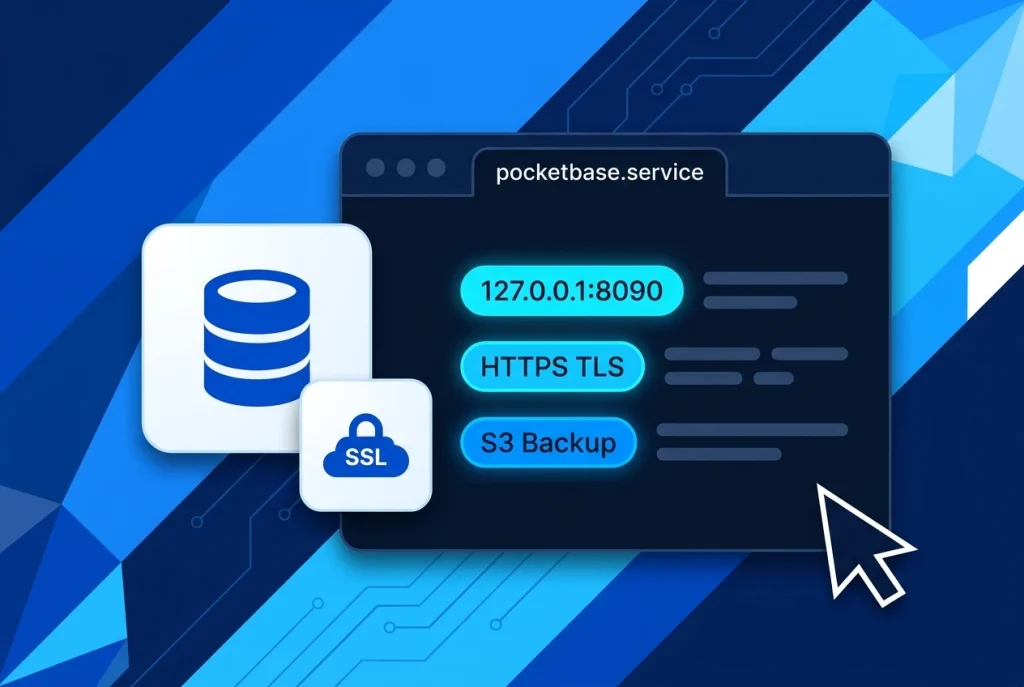
Learning how to deploy PocketBase on a VPS gives you a complete, realtime backend-in-a-box—combining an embedded SQLite database in Write-Ahead Logging (WAL) mode, REST and Server-Sent Events (SSE) APIs, OAuth2 user authentication, file storage, and a responsive Admin UI inside a single precompiled Go executable.
Because PocketBase has zero external database or runtime dependencies, it uses less than 40 MB of RAM at idle and can serve thousands of concurrent requests on an entry-level Linux server. However, moving from local laptop testing to production requires proper file-descriptor tuning, TLS termination, and safe SQLite backup automation.
In this step-by-step tutorial, you will deploy PocketBase on a VPS running Ubuntu 22.04 or 24.04 LTS, isolate it under a dedicated Linux system user, configure a self-healing systemd service, secure it behind HTTPS with Caddy or Nginx, and schedule automated off-site backups to S3-compatible storage on your Aveshost Self-Managed VPS.
Table of Contents
Why Deploy PocketBase on a VPS? Architecture and Requirements
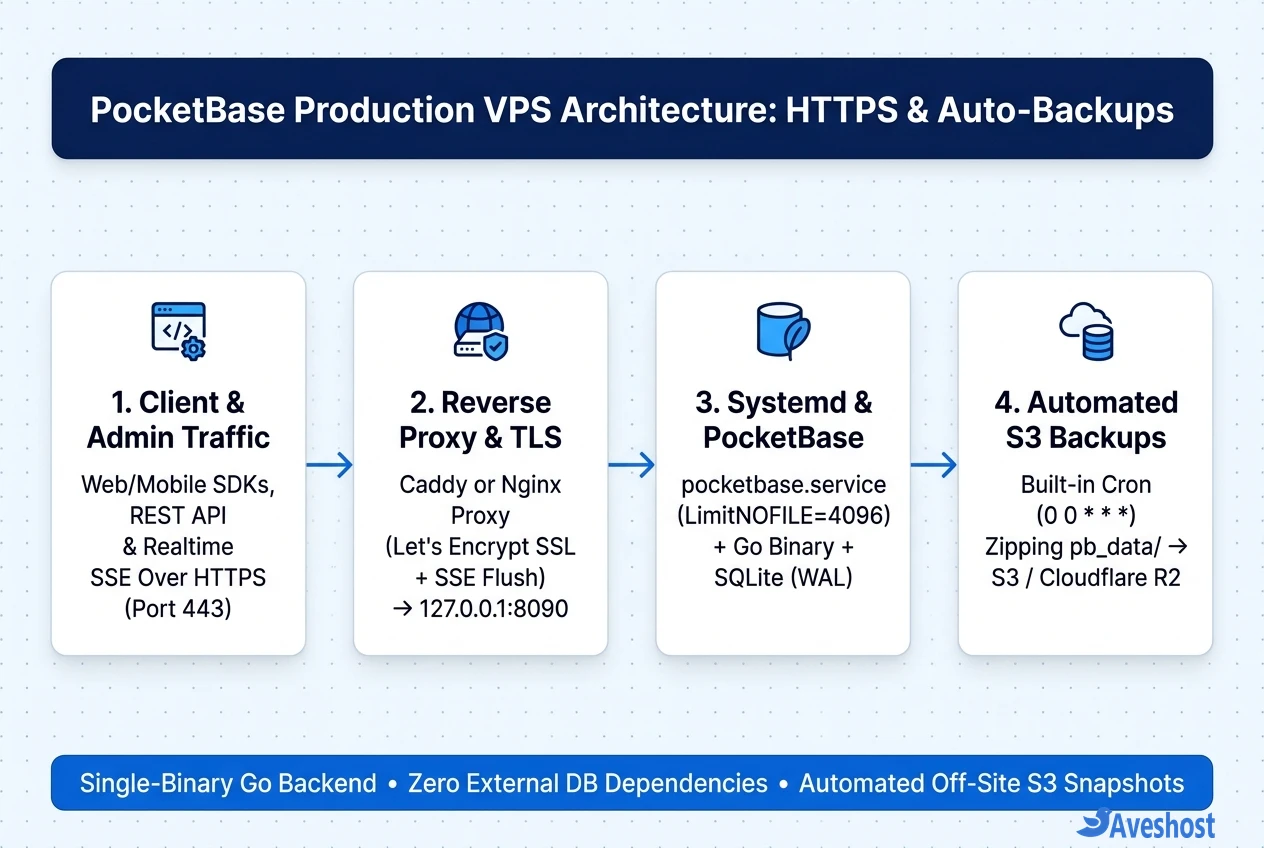
When you deploy PocketBase on a VPS, all persistent application state—including your main data.db SQLite database, request logs in auxiliary.db, uploaded user media, and local backup archives—lives inside a single directory named pb_data/.
According to the official PocketBase Going to Production documentation, pairing the single Go binary with fast NVMe SSD storage and a reverse proxy unlocks near-instant query latency without the operational overhead of a 10-container microservice stack.
| Component / Resource | Minimum Starter VPS | Recommended Production VPS |
|---|---|---|
| Operating System | Ubuntu 22.04 / 24.04 LTS or Debian 12 (x86_64 / ARM64) | Ubuntu 24.04 LTS with UFW Firewall Enabled |
| CPU & Memory | 1 vCPU / 1 GB RAM | 2–4 vCPU / 4 GB RAM (for high SSE & S3 backup zipping) |
| Disk Storage | 20 GB NVMe SSD | 40+ GB NVMe SSD + Off-Site S3 Object Storage |
| Reverse Proxy & TLS | Built-in Let’s Encrypt or Caddy on Ports 80 / 443 | Caddy or Nginx Reverse Proxy -> 127.0.0.1:8090 |
| Systemd File Limit | LimitNOFILE=4096 | LimitNOFILE=4096 to 65535 (for Realtime SSE clients) |
Step 1: Download PocketBase and Create an Isolated Linux User
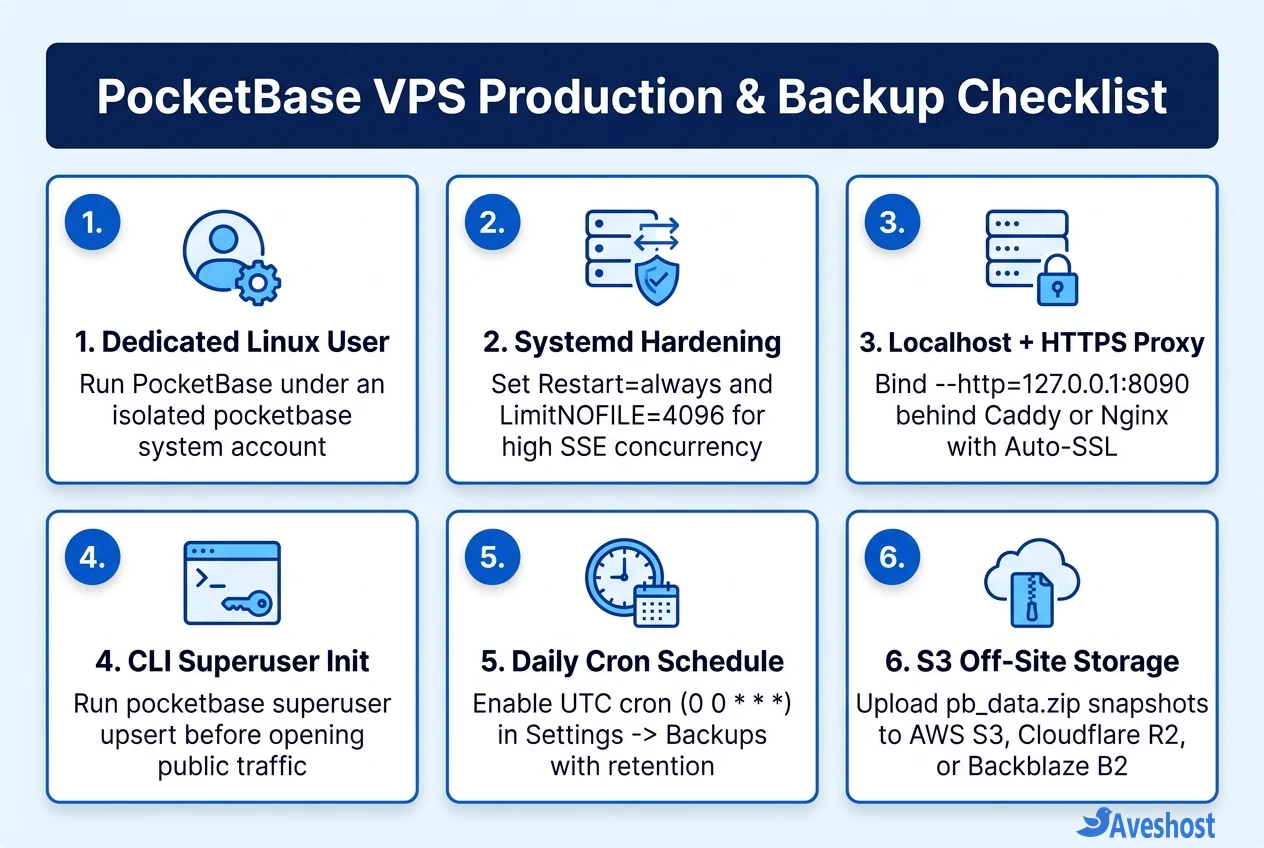
While the official quick-start example runs PocketBase from /root/pb, running web-facing services under a dedicated non-root Linux account is a much safer production practice—especially when you bind PocketBase to 127.0.0.1:8090 behind a reverse proxy.
Connect to your Ubuntu VPS via SSH, install unzip, create a dedicated pocketbase system user, and download the precompiled Linux release binary from the official PocketBase GitHub repository.
Once extracted into /opt/pocketbase, initialize your first administrator account from the command line using superuser upsert (which replaced the older admin subcommand in PocketBase v0.23+). Creating your superuser over SSH before exposing the server publicly prevents anyone from racing you to the web installer URL.
# 1. Install unzip and create an isolated pocketbase system user
sudo apt update && sudo apt install -y unzip curl
sudo useradd -r -m -d /opt/pocketbase -s /usr/sbin/nologin pocketbase

# 2. Download and extract the latest PocketBase Linux amd64 binary
PB_VERSION="0.25.9"
curl -L "https://github.com/pocketbase/pocketbase/releases/download/v${PB_VERSION}/pocketbase_${PB_VERSION}_linux_amd64.zip" -o /tmp/pb.zip
sudo unzip /tmp/pb.zip -d /opt/pocketbase/
sudo chown -R pocketbase:pocketbase /opt/pocketbase
sudo chmod +x /opt/pocketbase/pocketbase

# 3. Create your initial Superuser account before starting the server
sudo -u pocketbase /opt/pocketbase/pocketbase superuser upsert [email protected] "YourStrongPassword123!" --dir=/opt/pocketbase/pb_data
Step 2: Configure a Hardened Systemd Service with LimitNOFILE
To keep your backend online 24/7 across server reboots and unexpected crashes, wrap the binary in a systemd unit file at /etc/systemd/system/pocketbase.service.
Two settings in this unit file are essential when you deploy PocketBase on a VPS for production workloads:
• Localhost Binding (--http=127.0.0.1:8090): Binding exclusively to the loopback interface guarantees that external scanners cannot bypass your HTTPS reverse proxy to hit port 8090 directly.
• File Descriptor Tuning (LimitNOFILE=4096): Every active Realtime SSE subscription and SQLite WAL handle consumes a Linux file descriptor. Raising LimitNOFILE to at least 4096 prevents too many open files errors during traffic spikes.
# Create /etc/systemd/system/pocketbase.service
sudo tee /etc/systemd/system/pocketbase.service > /dev/null <<'EOF'
[Unit]
Description=PocketBase Production Backend
After=network.target

[Service]
Type=simple
User=pocketbase
Group=pocketbase
WorkingDirectory=/opt/pocketbase
LimitNOFILE=4096
Restart=always
RestartSec=5s
StandardOutput=append:/opt/pocketbase/std.log
StandardError=append:/opt/pocketbase/err.log
ExecStart=/opt/pocketbase/pocketbase serve --http="127.0.0.1:8090" --dir="/opt/pocketbase/pb_data"

[Install]
WantedBy=multi-user.target
EOF

# Reload systemd and start PocketBase
sudo systemctl daemon-reload
sudo systemctl enable --now pocketbase
sudo systemctl status pocketbase
Step 3: Enable HTTPS with Caddy, Nginx, or Built-In Let’s Encrypt
PocketBase gives you two clean ways to serve encrypted HTTPS traffic. If PocketBase is the only web service on your server and you do not want to manage a separate proxy, running ./pocketbase serve api.yourdomain.com (with AmbientCapabilities=CAP_NET_BIND_SERVICE in systemd) will automatically bind ports 80 and 443 and provision a free Let’s Encrypt certificate.
For most production servers, however, placing Caddy or Nginx in front of 127.0.0.1:8090 is the better long-term choice:
• Option A — Caddy (Recommended): Caddy provisions and renews Let’s Encrypt TLS certificates automatically with a 5-line Caddyfile and streams PocketBase’s Realtime Server-Sent Events (SSE) out of the box with zero buffering issues.
• Option B — Nginx + Certbot: If your VPS already runs Nginx, you must explicitly set proxy_buffering off;, proxy_cache off;, and proxy_set_header Connection ''; inside your location / block so Nginx does not buffer or drop PocketBase’s /api/realtime SSE connections.
# === OPTION A: Caddy Reverse Proxy (/etc/caddy/Caddyfile) ===
api.yourdomain.com {
    request_body {
        max_size 50MB
    }
    reverse_proxy 127.0.0.1:8090 {
        transport http {
            read_timeout 360s
        }
    }
}

# === OPTION B: Nginx Reverse Proxy (/etc/nginx/sites-available/pocketbase) ===
server {
    listen 443 ssl http2;
    server_name api.yourdomain.com;

    client_max_body_size 50M;
    ssl_certificate /etc/letsencrypt/live/api.yourdomain.com/fullchain.pem;
    ssl_certificate_key /etc/letsencrypt/live/api.yourdomain.com/privkey.pem;

    location / {
        proxy_pass http://127.0.0.1:8090;
        proxy_http_version 1.1;
        proxy_set_header Connection '';
        proxy_buffering off;
        proxy_cache off;
        chunked_transfer_encoding on;
        proxy_read_timeout 360s;
        proxy_set_header Host $host;
        proxy_set_header X-Real-IP $remote_addr;
        proxy_set_header X-Forwarded-For $proxy_add_x_forwarded_for;
        proxy_set_header X-Forwarded-Proto $scheme;
    }
}
• Client IP Forwarding: After enabling your reverse proxy, open the PocketBase Admin UI (https://api.yourdomain.com/_/), go to Settings > Application, and configure Trusted Proxy Headers (such as X-Real-IP or X-Forwarded-For) so rate limiting and audit logs record the visitor’s real IP address rather than 127.0.0.1.
Step 4: Configure Automatic Backups and Off-Site S3 Storage
Never use a naive cron job that runs raw cp or rsync on pb_data/data.db while PocketBase is live. Because SQLite operates in Write-Ahead Logging (WAL) mode, copying the database without flushing data.db-wal and data.db-shm can leave you with a corrupted backup archive.
Instead, use PocketBase’s built-in transactional backup engine inside the Admin Dashboard under Settings > Backups:
• Enable Cron Auto-Backups: Click Enable auto backups and choose a preset or enter a standard cron expression evaluated in UTC (for example, 0 0 * * * for daily backups at 00:00 UTC, or 0 */6 * * * for every 6 hours). Set Max backups to keep (such as 7 or 14) so older archives are pruned automatically.
• Store Backups Off-Site in S3 / Cloudflare R2 / Backblaze B2: Expand Store backups in S3 storage, toggle it on, and enter your S3 Endpoint, Bucket name, Region, Access Key, and Secret. Click Save changes—PocketBase will immediately verify write access and upload every scheduled .zip snapshot directly to your off-site bucket.
• Test One-Click Restore & Pre-Upgrade Snapshots: Before upgrading the PocketBase binary, click the backup icon to create a manual snapshot. If you preferred a full PostgreSQL backend or container PaaS instead of SQLite, compare our guides on Supabase VPS requirements, self-hosted Supabase backup and restore, and Dokploy vs Coolify.
Frequently asked questions
How much RAM and CPU do I need to deploy PocketBase on a VPS?
PocketBase is compiled to a single Go binary with an embedded SQLite database and uses roughly 20 MB to 40 MB of RAM at idle. A 1 vCPU, 1 GB RAM Ubuntu VPS easily handles small to medium apps, while a 2 to 4 vCPU, 4 GB RAM NVMe VPS is recommended for high Realtime SSE concurrency and fast ZIP compression during automated S3 backups.
Should I use PocketBase's built-in Let's Encrypt HTTPS or a reverse proxy like Caddy?
If PocketBase is the only web application on your VPS, its built-in Let’s Encrypt auto-TLS (./pocketbase serve api.yourdomain.com) works great with zero extra software. However, binding PocketBase to 127.0.0.1:8090 behind Caddy or Nginx is recommended for production so you can run PocketBase as an unprivileged user, host multiple subdomains on the same VPS, and customize HTTP security headers.
Why do my PocketBase Realtime subscriptions disconnect behind Nginx?
PocketBase Realtime uses Server-Sent Events (SSE) over long-lived HTTP/1.1 connections. By default, Nginx buffers upstream responses and closes idle connections after 60 seconds. Adding proxy_buffering off, proxy_cache off, proxy_set_header Connection ”, and proxy_read_timeout 360s in your Nginx location block fixes Realtime SSE drops.
Is it safe to back up PocketBase by copying the pb_data folder with rsync?
No, copying pb_data/ with plain cp or rsync while PocketBase is writing transactions can corrupt your backup because SQLite uses Write-Ahead Logging (data.db-wal and data.db-shm). Always use PocketBase’s built-in backup scheduler under Settings > Backups (or the backup REST API) so SQLite safely checkpoints the database before zipping pb_data.
How do I upgrade PocketBase on my VPS without losing data?
First trigger a manual backup in Settings > Backups. Then SSH into your VPS, stop the systemd service (sudo systemctl stop pocketbase), replace the /opt/pocketbase/pocketbase binary with the new GitHub release binary (leaving pb_data/ untouched), and restart the service (sudo systemctl start pocketbase). PocketBase automatically runs any required internal database migrations on startup.