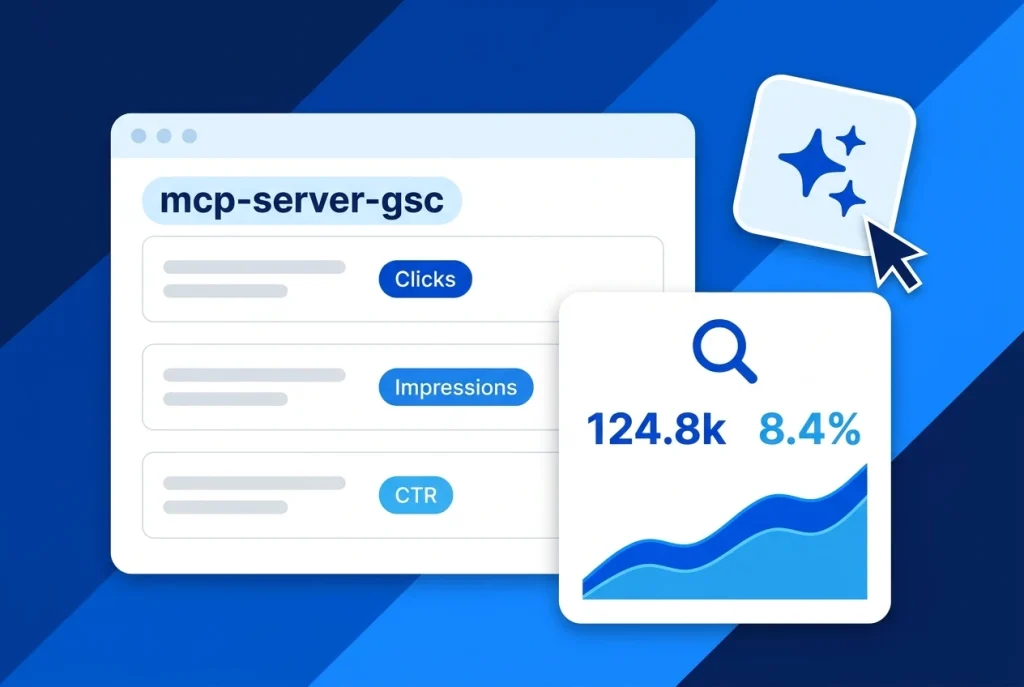
Setting up a Google Search Console MCP server transforms how you audit organic search traffic, diagnose indexing drops, and uncover high-converting keywords. Instead of exporting truncated 1,000-row CSV files from the web interface and pasting them into a chat window, the Model Context Protocol (MCP) lets AI assistants query your live Search Console API directly.
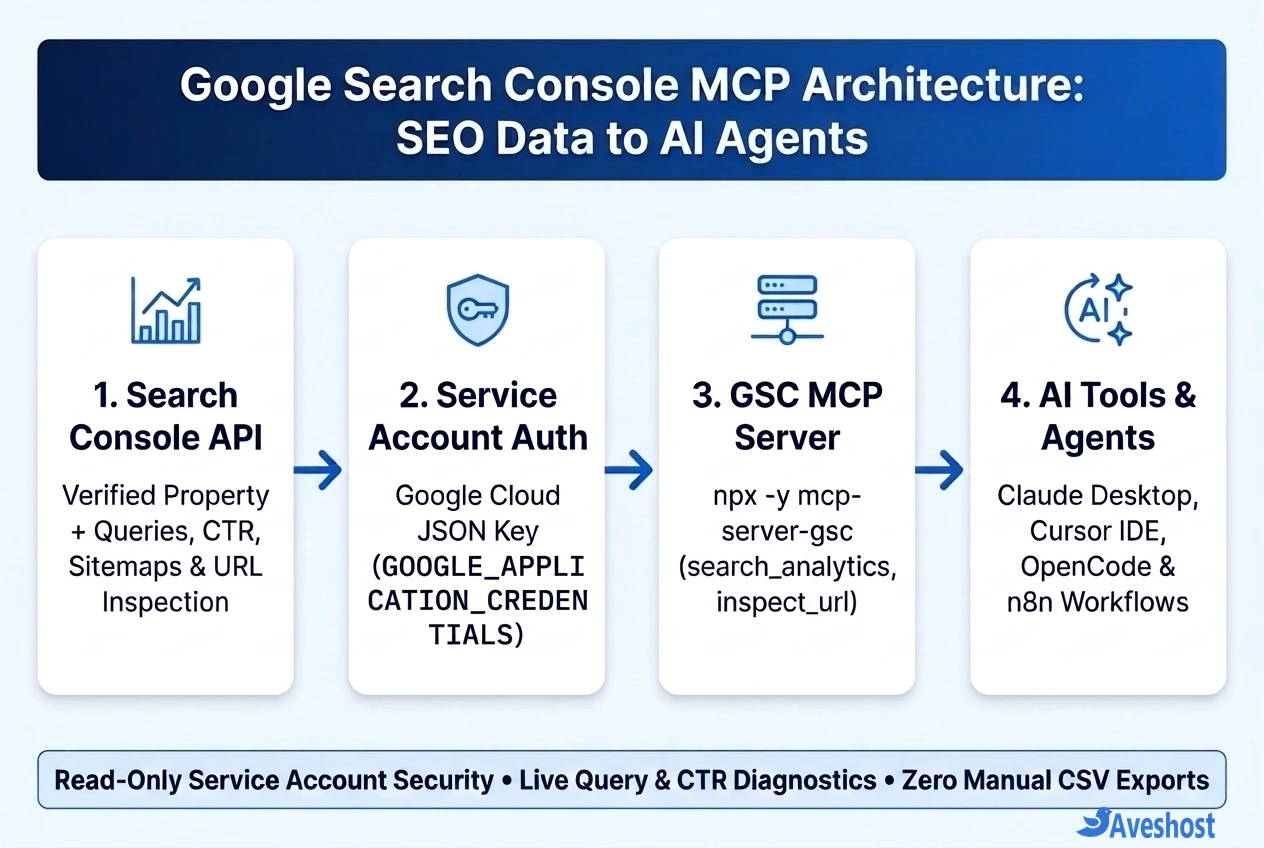
Once connected, tools like Claude Desktop, Cursor IDE, OpenCode, and n8n AI Agent workflows can pull up to 25,000 rows of query, page, country, and device performance data, inspect individual URLs for canonical or schema errors, and cross-reference your live WordPress or codebase files in seconds.
In this step-by-step tutorial, you will enable the Search Console API in Google Cloud, create a read-only Service Account JSON key, configure Google Search Console MCP in your favorite AI client, and run proven SEO prompts to grow traffic on your Aveshost WordPress or Linux VPS websites.
Table of Contents
What Is Google Search Console MCP and What Tools Does It Unlock?
A Google Search Console MCP server (such as the widely used open-source mcp-server-gsc for Node.js or google-search-console-mcp for Python) is a lightweight local or remote bridge between the official Google Search Console API and any MCP-compatible AI agent.
Unlike the browser dashboard—which caps table exports at 1,000 rows and forces you to click through one URL filter at a time—an MCP server exposes structured callable tools directly to the language model:
| MCP Tool Name | Underlying Google API Endpoint | What Your AI Assistant Can Do With It |
|---|---|---|
| list_sites | sites.list | List every verified Domain (sc-domain:) and URL-prefix property your Service Account can access |
| search_analytics | searchanalytics.query | Query clicks, impressions, CTR & position across query, page, device, country & date (up to 25,000 rows) |
| inspect_url | urlInspection.index.inspect | Check live Google index status, last crawl time, canonical URL selection & rich-result validity |
| list_sitemaps | sitemaps.list | Inspect submitted XML sitemaps, discovered URL counts, and processing warnings or errors |
| submit_sitemap | sitemaps.submit | Submit a new or updated XML sitemap URL (requires Full permission in GSC) |
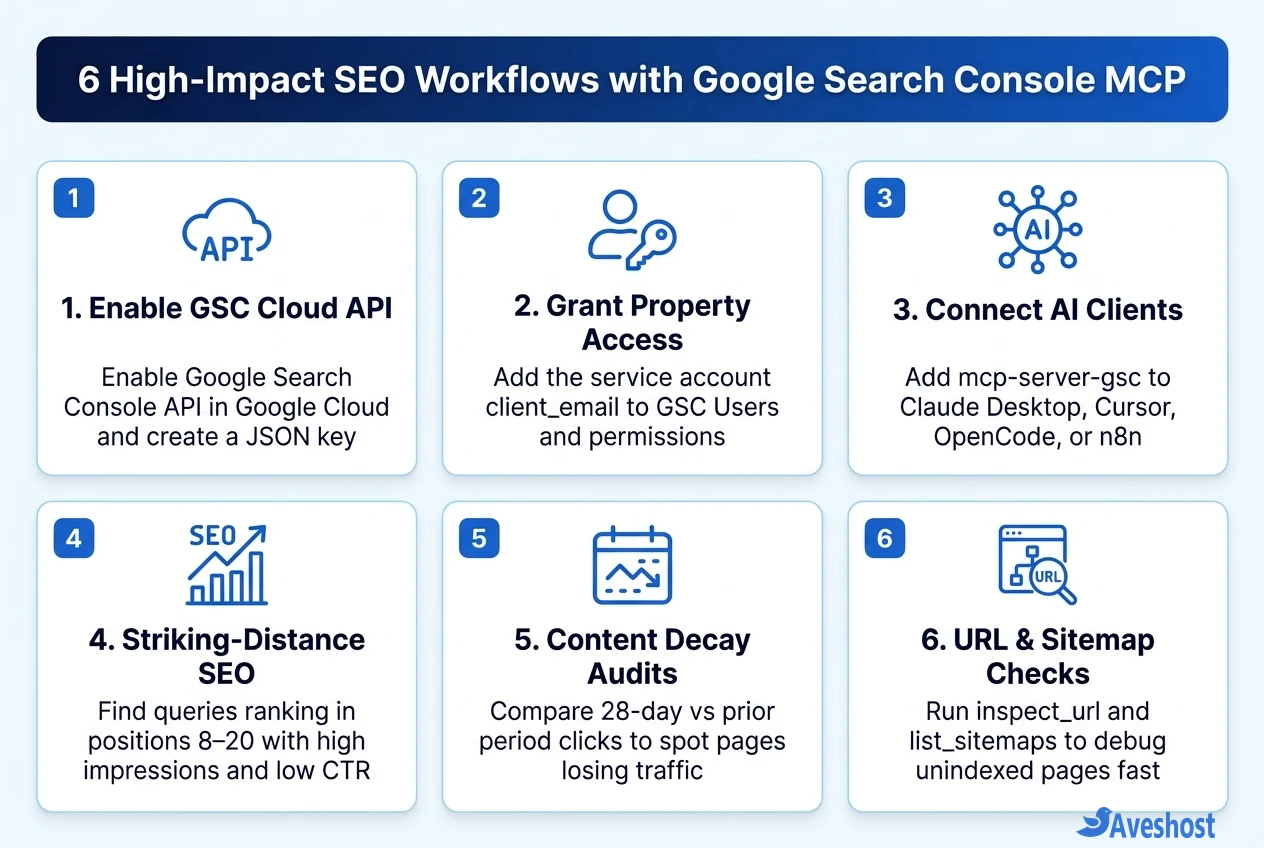
Step 1: Enable the Search Console API and Create a Service Account
The most reliable way to authenticate Google Search Console MCP is with a Google Cloud Service Account. Unlike browser OAuth tokens that expire or trigger interactive pop-ups in terminal tools, a Service Account uses a scoped JSON key that you can restrict to read-only access per website property.
Follow these steps in the Google Cloud Console:
• 1. Enable the API: Create or select a Google Cloud project, navigate to APIs & Services > Library, search for Google Search Console API, and click Enable.
• 2. Create a Service Account: Go to IAM & Admin > Service Accounts and click + Create Service Account. Name it gsc-mcp-reader, click Create and Continue, and click Done (no project-wide IAM roles are needed).
• 3. Download the JSON Key: Click your new service account email, open the Keys tab, select Add Key > Create new key, choose JSON, and save the file to a dedicated local folder such as ~/.config/gsc-mcp/service-account.json (or C:\Users\YourUser\.config\gsc-mcp\service-account.json on Windows).
Step 2: Grant Read-Only Property Access in Google Search Console
Creating a Google Cloud key alone does not grant access to your websites—you must explicitly invite the Service Account email to each Search Console property you want to query.
• 1. Copy the Service Account Email: Open your downloaded service-account.json file and copy the client_email value (formatted like [email protected]).
• 2. Add User in Search Console: Open Google Search Console, select your domain or URL-prefix property, and go to Settings > Users and permissions.
• 3. Choose Restricted Permission: Click Add user, paste the client_email address, and select Restricted permission (or Full only if you want your AI agent to submit sitemaps). Restricted permission guarantees that your MCP server can read analytics and inspect URLs without modifying property settings.
Step 3: Connect Google Search Console MCP to Claude, Cursor, and OpenCode
With Node.js (v18+) or Python (uv) installed on your workstation or VPS, you can register the Google Search Console MCP server in your AI client’s JSON configuration file.
For Claude Desktop (~/Library/Application Support/Claude/claude_desktop_config.json on macOS or %APPDATA%\Claude\claude_desktop_config.json on Windows) and Cursor IDE (.cursor/mcp.json), add the google-search-console server block pointing GOOGLE_APPLICATION_CREDENTIALS to your JSON key.
{
  "mcpServers": {
    "google-search-console": {
      "command": "npx",
      "args": [
        "-y",
        "mcp-server-gsc"
      ],
      "env": {
        "GOOGLE_APPLICATION_CREDENTIALS": "/home/ubuntu/.config/gsc-mcp/service-account.json"
      }
    }
  }
}
After saving the file, completely restart Claude Desktop or Cursor and ask: “List all Google Search Console properties available to my account.” If you want to share this MCP server across your team or connect it to cloud workflows, see our guide on how to host a remote MCP server on a VPS.
5 High-Impact SEO Workflows and Prompts to Run with GSC MCP
The real power of Google Search Console MCP appears when your AI assistant combines live search metrics with your actual page content inside Cursor, OpenCode, or Claude:
• 1. Striking-Distance Keyword Optimization (Positions 8–20): Prompt your AI: “Query search_analytics for sc-domain:yourdomain.com over the last 28 days. Find all queries ranking between position 8 and 20 with at least 300 impressions, grouped by query and page, and suggest H2 and title tag improvements.”
• 2. High-Impression, Low-CTR Title & Meta Audits: Spot pages ranking in the top 5 whose CTR has dropped below 2%—often because of Google AI Overviews in Search Console—and draft sharper meta descriptions and FAQ schema blocks.
• 3. Keyword Cannibalization Detection: Ask the assistant to group search_analytics by both query and page and flag any high-volume keyword where two or more URLs split impressions and swap rankings.
• 4. Live URL Inspection & Indexing Diagnostics: Run inspect_url across a batch of newly published blog posts to verify whether Google crawled them, accepted your canonical tag, and validated your Rank Math FAQ structured data.
• 5. Automated Weekly SEO Digests in n8n: Connect the GSC MCP server to an n8n MCP Client Tool node on your Aveshost VPS to compare week-over-week clicks and post an automated summary of rising and decaying articles to Slack or Telegram every Monday morning.
Frequently asked questions
Is it safe to connect Google Search Console MCP to Claude or Cursor?
Yes, when configured with a Google Cloud Service Account assigned Restricted (read-only) access in Search Console. The MCP server runs locally on your machine (or on your own private VPS), and the service account can only read search analytics and URL inspection data for the specific properties you share with it.
Why does my Google Search Console MCP server return an empty site list or 403 Forbidden?
In almost every case, this happens because the Service Account’s client_email (from your service-account.json file) has not been added under Settings > Users and permissions inside your Google Search Console property, or because you queried https://yourdomain.com/ when your property is verified as a Domain property (sc-domain:yourdomain.com).
Does Google Search Console MCP cost money to use?
No. Google does not charge for Google Search Console API requests, and open-source MCP servers like mcp-server-gsc are free under the MIT license. Standard API quotas allow up to 1,200 queries per minute for Search Analytics and 2,000 URL inspections per day per property.
What is the difference between Domain properties (sc-domain:) and URL-prefix properties in MCP queries?
When prompting your AI assistant or calling search_analytics, the siteUrl parameter must match your exact verification type in Search Console. Domain properties use sc-domain:example.com (without https:// or trailing slashes), whereas URL-prefix properties require the exact protocol and trailing slash, such as https://www.example.com/.
Can I run Google Search Console MCP on a VPS for automated n8n SEO reports?
Yes. You can deploy the Google Search Console MCP server on an Ubuntu VPS alongside n8n (or expose it over an authenticated HTTPS/SSE endpoint) so scheduled n8n AI agents can query 28-day search analytics, detect traffic drops, and send weekly SEO reports to Slack, Discord, or email automatically.