
In our previous tutorial we learned about how to connect Webmail to Gmail and receive emails but not able to send.
If you have not read our previous article please do so by going here How To Connect Webmail To Gmail.
In this tutorial we going to learn about how to send webmail email right from Gmail without logging to your Webmail.
Follow the simple steps to get started ;
- Login to your Gmail Account
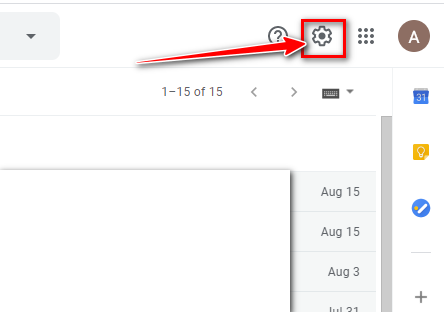
- Go to the right corner and click on the Gmail setting icon as shown below.
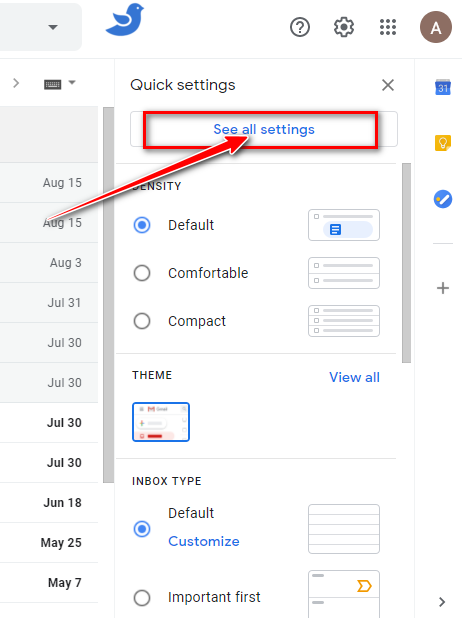
- Select See all settings from the drop-down menu
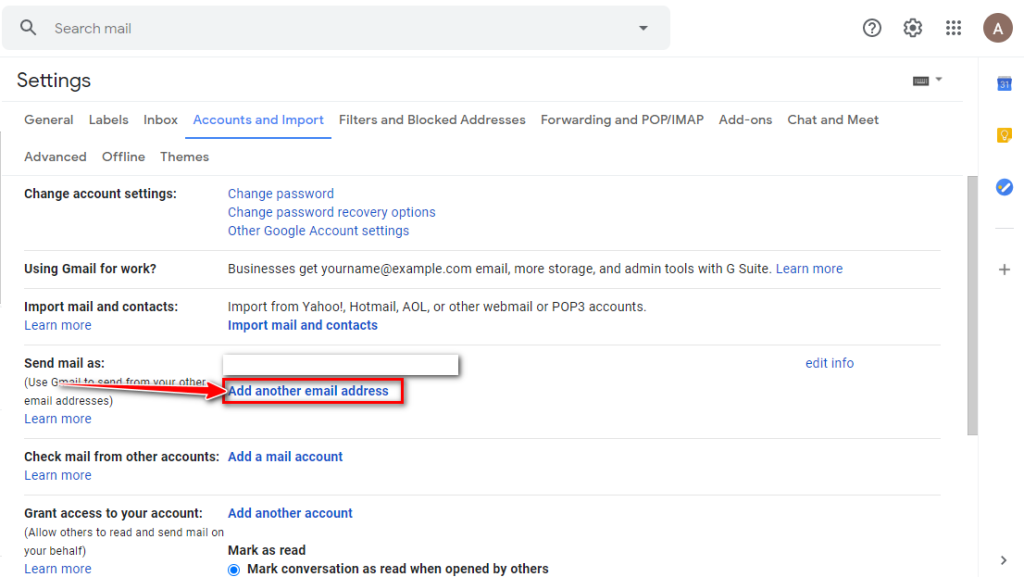
- Select Accounts and Import from the tab.
- Click on Add another email address as shown below
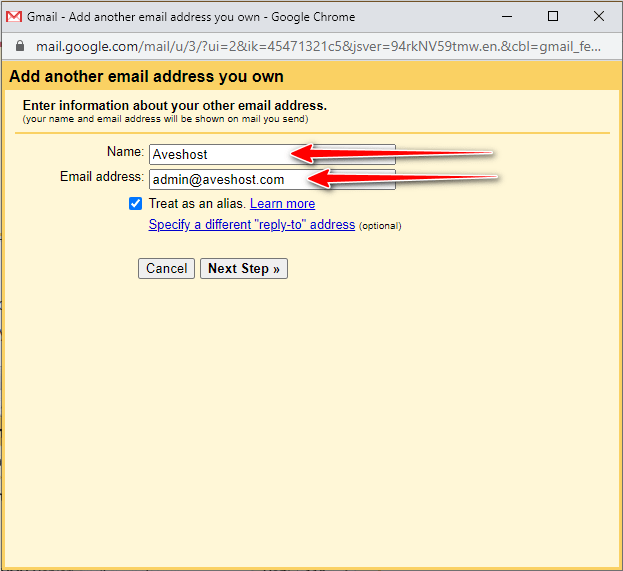
- The pop-up windows that appears enter the name and email address of the webmail email you want to link to Gmail abd click on the Next Step button.
- On the next page enter your SMTP Server if you have your hosting with Aveshost then your SMTP server will be mail.YourDomainName.com or just add mail. and your domain name. Also your port is 465 Now enter your username and password of your webmail email address
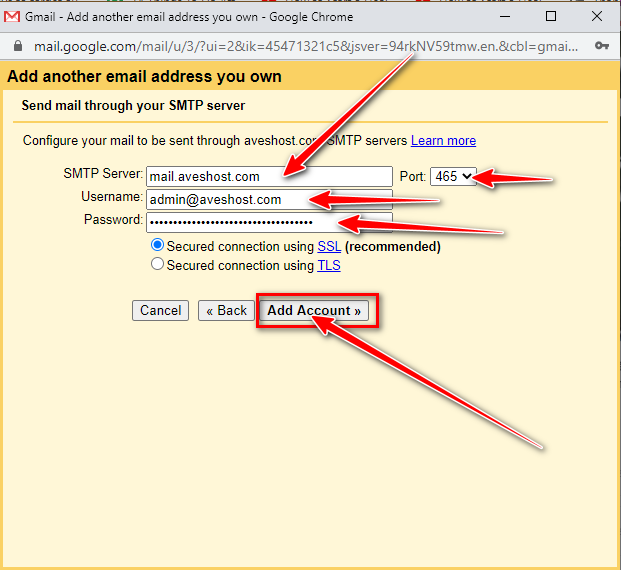
- Click on Add Account
- Now you have successfully added your Webmail to Gmail to send and receive emails all from Gmail.
- But first you will need to verify it first before it can be used, login to your Webmail a verification code will be sent there copy and paste to verify your Webmail email address.
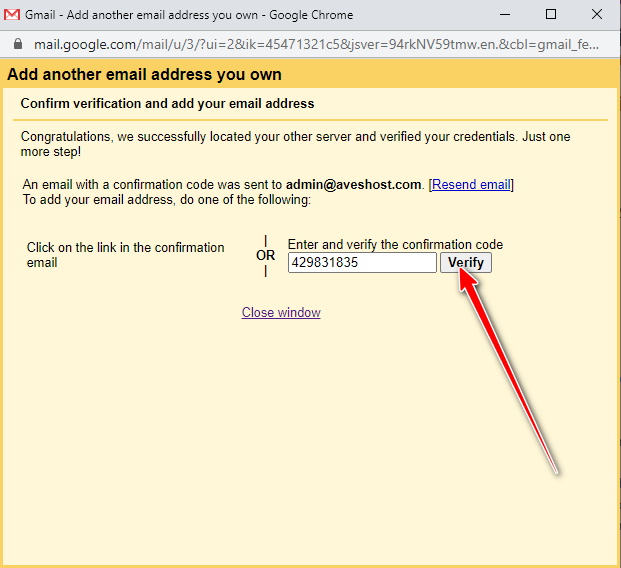
- Congratulations your email is verified
- But you will noticed that if you try to send an email by default it is still using your gmail address and not your private or Webmail email address. Let fix that…
- Now click on setting at the right corner and go to Accounts and Import. Now choose your private email and click on make default as shown below.
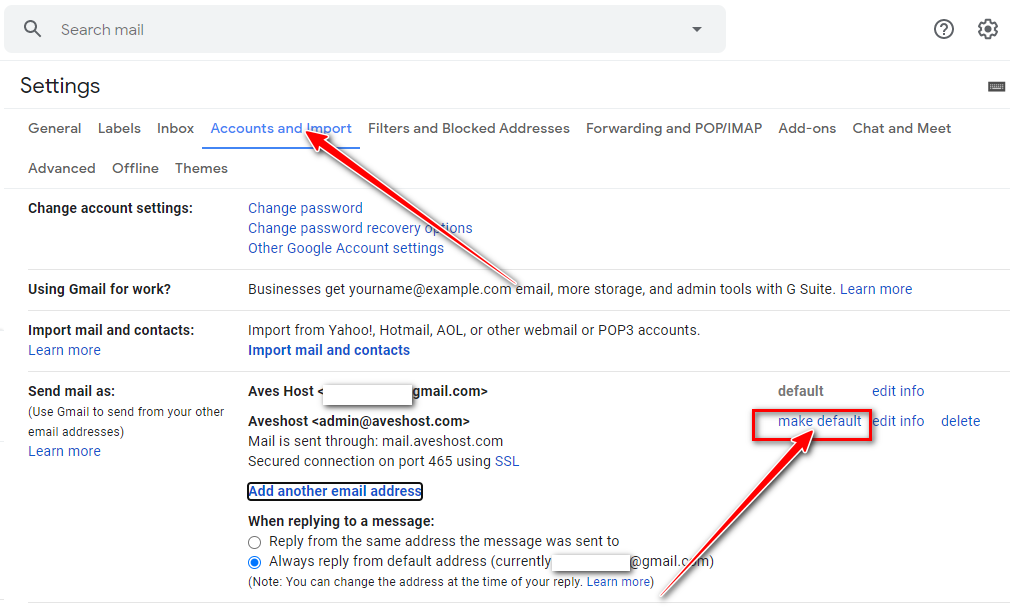
- Congratulations you have successfully configured your Webmail to Gmail to send and receive emails from Gmail.
How To Setup Webmail Email Account In Gmail To Send And Receive Emails FAQs
What is the purpose of this tutorial?
This tutorial explains how to set up a Webmail email account in Gmail to both send and receive emails directly from Gmail without logging into Webmail separately.
Where do I start the setup process in Gmail?
Log into your Gmail account, click the settings icon in the top-right corner, select ‘See all settings’, then go to ‘Accounts and Import’.
What information do I need to add my Webmail email to Gmail?
You’ll need your Webmail email address, SMTP server (e.g., mail.YourDomainName.com), port (465), and your Webmail username and password.
How do I verify the added Webmail email address?
After adding the account, a verification code will be sent to your Webmail inbox. Copy and paste this code in Gmail to verify the email address.
Why are my sent emails still showing my Gmail address by default?
By default, Gmail uses your primary Gmail address for sending. You need to manually set your Webmail email as the default sending address.
How do I set my Webmail email as the default sending address?
Go to ‘Accounts and Import’ in Gmail settings, select your Webmail email, and click ‘Make default’ to use it for sending emails.
What should I do if I haven’t read the previous tutorial?
It’s recommended to read the previous article titled ‘How To Connect Webmail To Gmail’ for context, as this tutorial builds on that by enabling sending functionality.




I’m gone to tell my little brother, that he should also visit this blog on regular basis to obtain updated from most up-to-date information.