

How to Create a MySQL Database
If you’re setting up a website that needs to store data, whether it’s a WordPress blog, an eCommerce store, or a custom web application, you’ll need a MySQL database. If you’re using cPanel, the process is straightforward! In this guide, I’ll walk you through two easy ways to create a MySQL database and user in cPanel: using the Database Wizard and the manual approach.
Table of Contents
Let’s get started!
Method 1: Using the MySQL Database Wizard (Recommended for Beginners)
The MySQL Database Wizard is the easiest way to create a database and user in cPanel. It guides you through the process step by step.
Step 1: Access the MySQL Database Wizard
- Log in to your cPanel account.
- Scroll down to the Databases section.
- Click on MySQL Database Wizard.

Step 2: Create a New Database
- In the first step of the wizard, enter a name for your new database (e.g.,
prod9). - Click Next Step.

Step 3: Create a Database User
- Enter a username (e.g.,
prod9). - Set a strong password (or use the Password Generator to create one).
- Click Create User.

Step 4: Assign Privileges to the User
- You’ll now need to assign permissions to your user.
- Check the box for All Privileges (recommended for most applications).
- Click Next Step to finish.
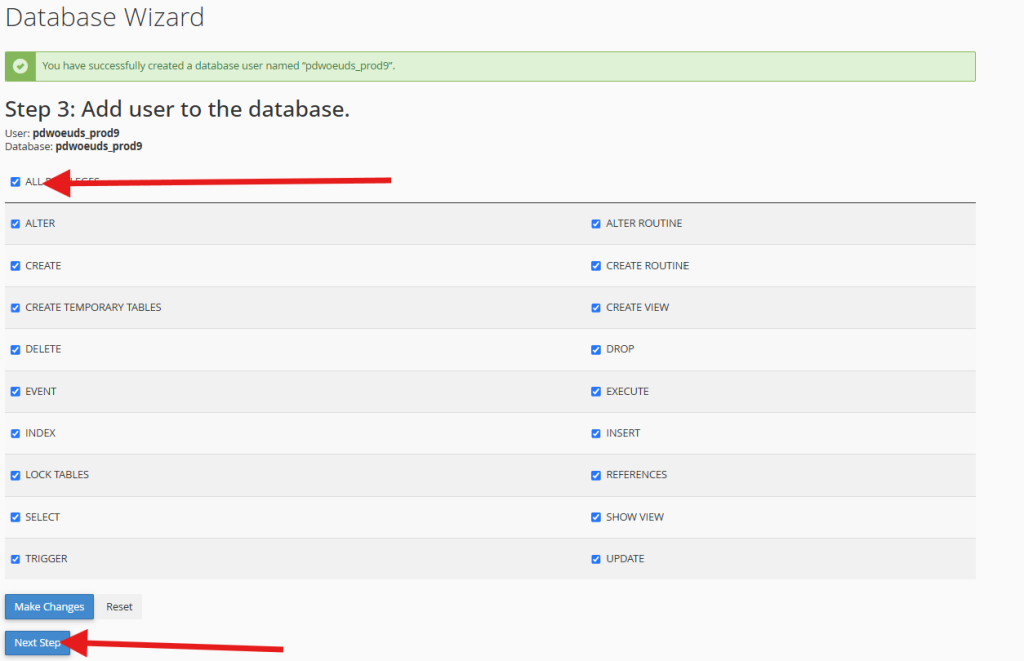
Final Result
Database Name: pdwoeuds_prod9
Database User: pdwoeuds_prod9
Database Pass: Your provided password
Database Hostname: localhost
Database PORT: 3306
🎉 Congratulations! Your new database and user have been created successfully. You can now use them to connect your website to the database.
Suggested Reading: How to Import a Database in cPanel Using phpMyAdmin
Method 2: Manually Creating a Database and User in cPanel
If you prefer more control over the process, you can manually create a database, a user, and link them together. Here’s how:
Step 1: Create a Database
- Log in to cPanel.
- Scroll to the Databases section and click on MySQL Databases.
- Under Create New Database, enter a name for your database (e.g.,
prod9). - Click Create Database.
Step 2: Create a Database User
- Scroll down to the MySQL Users section.
- Under Add New User, enter a username (e.g.,
prod9). - Set a secure password (or use the Password Generator).
- Click Create User.
Step 3: Link the User to the Database
- Scroll to the Add User to Database section.
- Select the user and database from the dropdown menus.
- Click Add.
- Assign All Privileges (recommended) and click Make Changes.
That’s it! Your MySQL database is now ready for use. 🚀
Import Your Database Using phpMyAdmin
- Go back to your cPanel dashboard.
- Locate and click on phpMyAdmin in the Databases section.
- In the left panel, find and click on the database you just created.
- At the top, click the Import tab.
- Click Choose File and select the database file from your local computer.
- Click Go to start the import process.
That’s it! Your MySQL database is now ready for use. 🚀
Final Thoughts
Whether you choose the MySQL Database Wizard or the manual method, cPanel makes it easy to create databases and users. If you’re setting up WordPress or another CMS, you’ll need these database details to complete the installation.
Need help connecting your database to your application? Reach out to Aveshost Support or Let me know in the comments! 😊
Happy coding! 🎉
Suggested Reading:
- How to Buy cPanel Hosting for Your Website: Beginner’s Guide
- How to Upload Your Website (in 3 Simple Steps)
- How to Flush DNS Cache on Windows, Mac, Linux & Browsers
- How To Transfer Your Domain: A Step-by-Step Guide
- How to Choose a Blog Name: 107+ Niche Ideas
- How to Start a Blog and Make Money: Beginner’s Guide
- How to Install WordPress from cPanel
Frequently Asked Questions (FAQs)
What are the two methods for creating a MySQL database in cPanel?
The two methods are using the MySQL Database Wizard (recommended for beginners) and the manual approach through MySQL Databases.
How do I access the MySQL Database Wizard in cPanel?
Log in to cPanel, scroll to the Databases section, and click on ‘MySQL Database Wizard’.
What privileges should I assign to a database user for most applications?
It’s recommended to assign ‘All Privileges’ to the database user for most applications.
How do I manually link a user to a database in cPanel?
Go to the ‘Add User to Database’ section in MySQL Databases, select the user and database from dropdowns, click ‘Add’, assign privileges, and click ‘Make Changes’.
How can I import a database file after creating the database?
Use phpMyAdmin in cPanel: select your database, click the ‘Import’ tab, choose your database file, and click ‘Go’ to import.