Moving from Blogger to WordPress in Ghana gives your blog room to grow into a stronger publishing business. You can build around your own domain, choose your design, add the tools you need and manage your website files and database through your hosting account.
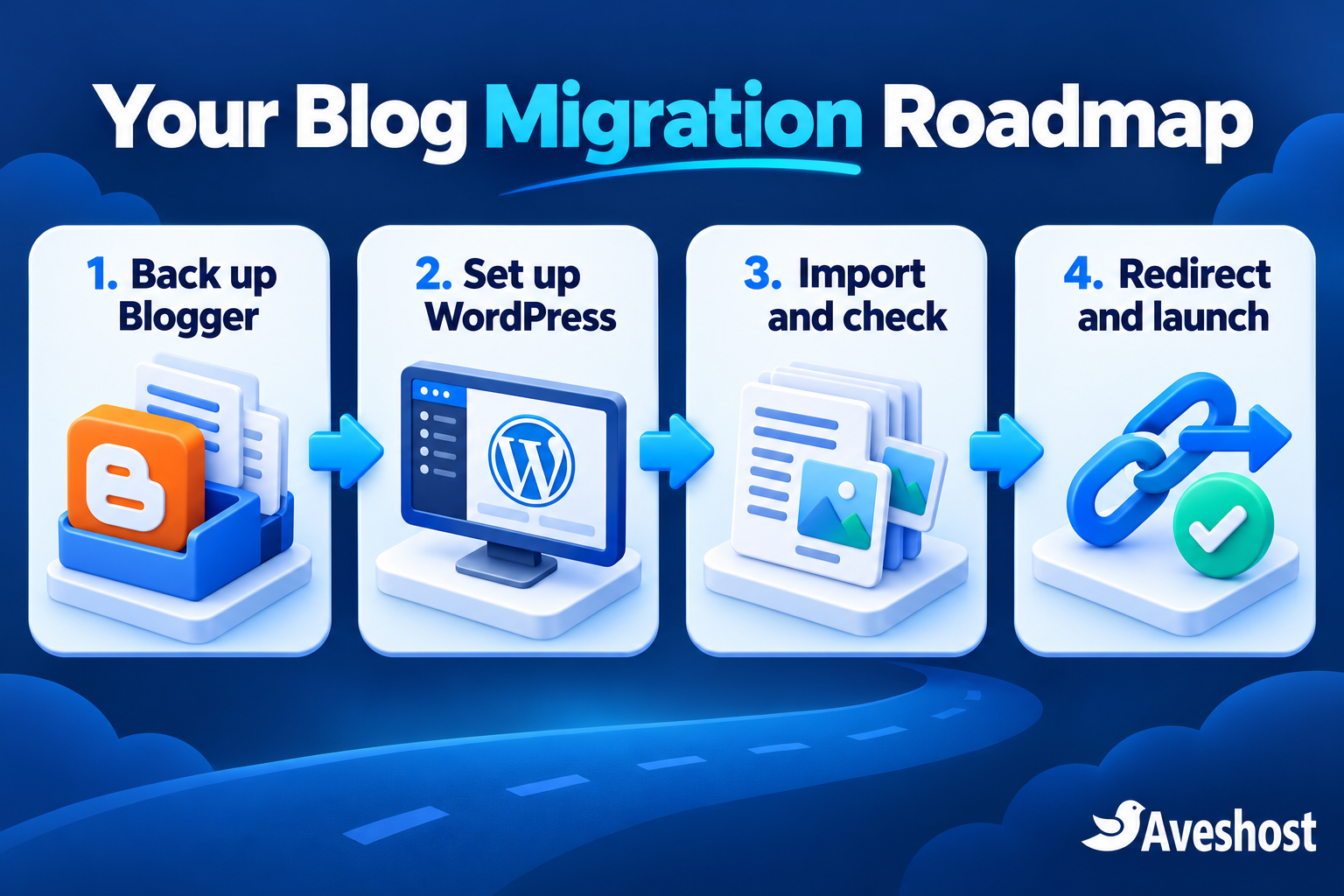
Whether you publish entertainment news in Accra, travel stories from Cape Coast or practical guides for readers across Ghana, the migration works best as a planned move. Back up your content, build WordPress first, check every important page and guide visitors from the old address to the right new article. This guide walks you through that process without requiring you to write server code.
Table of Contents
Why move from free Blogger to self-hosted WordPress?
Blogger is a useful way to start publishing without a hosting bill. You keep the rights you hold in your original writing and photographs, and the platform supports custom domains and monetisation options. The reason to move is greater control over how your publication operates and grows.
| Your priority | What self-hosted WordPress gives you |
|---|---|
| Brand identity | A website built around your registered domain, logo and editorial style. |
| Website features | Plugins for newsletters, forms, memberships, shops and publishing workflows. |
| Design flexibility | Themes and layouts you can customise for your audience. |
| Site administration | Access to your website files, database and backups through your hosting account. |
| Long-term growth | A hosting plan you can expand as your archive and readership grow. |
For example, a Ghanaian food blogger can organise recipes, build an email list and sell a recipe collection from the same website. A local entertainment publisher can create clear categories, improve article layouts and add a professional contact address for sponsors.
WordPress gives you more choices, along with responsibility for updates, security and backups. Our hosting provides the foundation; your content and publishing strategy drive the results. Moving platforms alone does not guarantee higher traffic, advertising approval or income.
Before you migrate: make a simple inventory
Keep your Blogger blog live while you prepare the new website. Work from a laptop where possible, use a dependable internet connection and download backups to a device with enough space. A large image archive can use substantial mobile data, so plan the transfer before starting it.
- Record the Blogspot address and any custom domain connected to it.
- Count published posts, pages, comments, drafts and scheduled articles.
- Save your most valuable article URLs, including pages receiving search traffic or social referrals.
- List menus, labels, sidebar widgets, contact forms, analytics, advertisements and email subscriptions.
- Save original images and downloadable files, together with licences or permissions for material you publish.
- Choose a quiet migration window and pause new publishing during the final transfer.
Create a spreadsheet with columns for old URL, new URL, content checked, images checked and redirect tested. Start with your highest-traffic articles, then work through the complete archive. This becomes your migration checklist and prevents useful pages from disappearing in the move.
Step 1: choose your domain and hosting in Ghana
Your domain is the address readers remember; hosting runs the WordPress website. If you already use a custom domain with Blogger, keep it and move its website connection when WordPress is ready. If you use only a free Blogspot address, choose a domain that matches your publication and is easy to spell.
Search for your address through our domain registration service. A .com can suit a publication with a broad audience, while an appropriate .gh extension can strengthen its Ghanaian identity. For more on choosing your address, follow our guide to domain names in Ghana.
| Our web hosting plan | Monthly price | Storage and memory | A useful starting point |
|---|---|---|---|
| Deluxe | GH₵9.00 | 1 GB NVMe SSD; 1 GB RAM | A small archive with light storage needs. |
| Professional | GH₵16.00 | 10 GB NVMe SSD; 2 GB RAM | A growing single blog with more images. |
| Enterprise | GH₵32.00 | 50 GB NVMe SSD; 3 GB RAM | A larger archive or multiple websites. |
These prices and package details were reviewed at the time of writing. Our web hosting packages show the available billing terms, included domain offer and final checkout amount. Budget for your preferred domain and any optional services alongside hosting.
Choose by the size of your image library as well as visitor numbers. WordPress can create several sizes of each uploaded photograph, so leave space for thumbnails, future articles and backups. Professional includes a one-click WordPress installer and is a practical starting point for many growing blogs.
If you prefer our team to handle WordPress maintenance, compare our managed WordPress hosting. For help choosing a plan or arranging the move, contact our support team with your Blogger address and approximate archive size.
Step 2: back up Blogger content, theme and media
Sign in to the Google account that administers your blog, then select the correct blog in Blogger. Open Settings → Manage blog → Back up content → Download. Blogger’s current backup instructions direct you through Google Takeout.
- Request and download the Blogger archive using the correct administrator account.
- Extract the downloaded archive and locate Takeout → Blogger → Blogs → your blog.
- Keep the feed.atom file and the rest of the archive together. Older Blogger backups may use an XML file.
- Open the archive to check that it contains the intended blog, and keep a second copy in a separate safe location.
Save your theme separately through Theme → the menu beside Customize → Backup → Download. The theme file is a reference for your old layout; WordPress uses its own theme system, so you will recreate the design rather than upload the Blogger theme as a WordPress theme.
Also save the original photographs, downloadable files, widget text and important page copy. A feed contains content records, but a migration is complete only when the associated media and site elements have been checked. Keep the original blog and its image sources available throughout the transfer.
Step 3: install WordPress through your hosting control panel
Log in to your hosting account and open the control panel provided with your package. In cPanel, look for Softaculous Apps Installer → WordPress → Install. In another supported panel, use its WordPress installer. The hosting welcome details identify the panel and login route for your account.
- Choose the domain or temporary testing address prepared for the migration.
- Select HTTPS after the certificate is active.
- Leave the installation directory empty to put the blog at the domain root; entering blog installs it under /blog/.
- Set the site name and a separate administrator username with a strong password.
- Use an email address you control for recovery and update notices.
- Finish the installation and sign in to the WordPress dashboard.
If your custom domain still points to Blogger, build WordPress on a staging address or a temporary access method arranged with our team. Keep the public domain connected to the working blog until the new site is ready. A hosts-file preview is another option for a developer helping you prepare the move.
For a new domain, you can build directly on the new WordPress site. Under Settings → Reading, enable “Discourage search engines from indexing this site” during preparation. This is a crawler request, so use password protection for a staging copy containing private material. Remove preparation restrictions when you launch.
Step 4: import your articles into WordPress
Use an importer that supports your source blog and current WordPress version. One practical option is Blogger Importer Extended, which connects through the Blogger API. Its current free version imports up to 20 posts/pages; larger archives require its paid option or another migration route. Drafts and scheduled posts need separate handling with this tool.
- Back up the fresh WordPress installation before importing.
- Open Plugins → Add New and search for Blogger Importer Extended. Check the publisher, compatibility and migration options, then install and activate it.
- Open Settings → Blogger Importer and follow its connection and blog-selection steps.
- Import the selected content, then review the results in Posts, Pages, Comments and Media.
- Save the import report and compare it with your original inventory.
For an older Blogger XML backup, WordPress also offers a Blogger route under Tools → Import. Check the importer’s current compatibility before using it. A Google Takeout ZIP or feed.atom file is a different input from an older XML export; use a tool that supports your file format rather than changing the filename to force an upload.
For a small blog, manual migration is a workable alternative: create each post, copy its text, upload the original images, preserve the publication date and record its new URL. Recreate pages and important drafts the same way. This takes longer, but also gives you a chance to tidy a short archive.
After an interrupted import, review the progress and duplicate-handling options before retrying. Do not run several different importers over the same live database. If the archive is large or an import stops repeatedly, send the report to our team so we can help plan the next step.
Step 5: check posts, images, comments and pages
An importer saves time; the editorial check makes the new blog ready for readers. Compare the archive counts, then open samples from different years and categories. Check an image-heavy article, a post with comments, an embedded video and a page receiving regular traffic.
- Preserve titles, publication dates and author names. Check the WordPress timezone under Settings → General; Accra uses UTC year-round.
- Review Blogger labels and organise them into sensible WordPress categories and tags.
- Check photographs in the WordPress Media Library and inspect their URLs. Download and upload any images still dependent on an old external source where your rights permit it.
- Recreate About, Contact, Privacy and other pages not transferred by your chosen method.
- Review paragraphs, tables, captions, special characters, video embeds and downloadable links.
- Compare comments and check moderation settings without exposing unnecessary personal data.
Click images as well as looking at them. A thumbnail can display correctly while the full-size image link still opens the old blog. Update internal links so readers navigate directly between the new WordPress articles.
Keep draft and scheduled content separate from the live archive until its status has been checked. Review scheduled dates before publishing; a timezone mismatch can change when an article appears.
Step 6: rebuild your layout and essential features
Choose a lightweight, mobile-friendly WordPress theme and recreate the elements readers need: your logo, category navigation, search, recent posts and a clear contact page. A familiar visual identity helps regular readers recognise the publication after the move.
Add a small set of purposeful plugins for SEO, backups, security and forms. Install one tool for each job and test its effect on the site. Rebuild Blogger widgets as WordPress blocks or supported integrations rather than pasting every old script into the new theme.
For Ghanaian readers using phones and mobile data, keep images appropriately sized, avoid heavy autoplay elements and check article pages on a typical mobile connection. Our guide to making your WordPress website load faster provides a practical optimisation checklist.
Test contact forms and delivery to your inbox. A professional address on your own domain also makes sponsor enquiries easier to manage; explore our business email packages when you are ready to add branded communication.
Step 7: map your old URLs and set up redirects
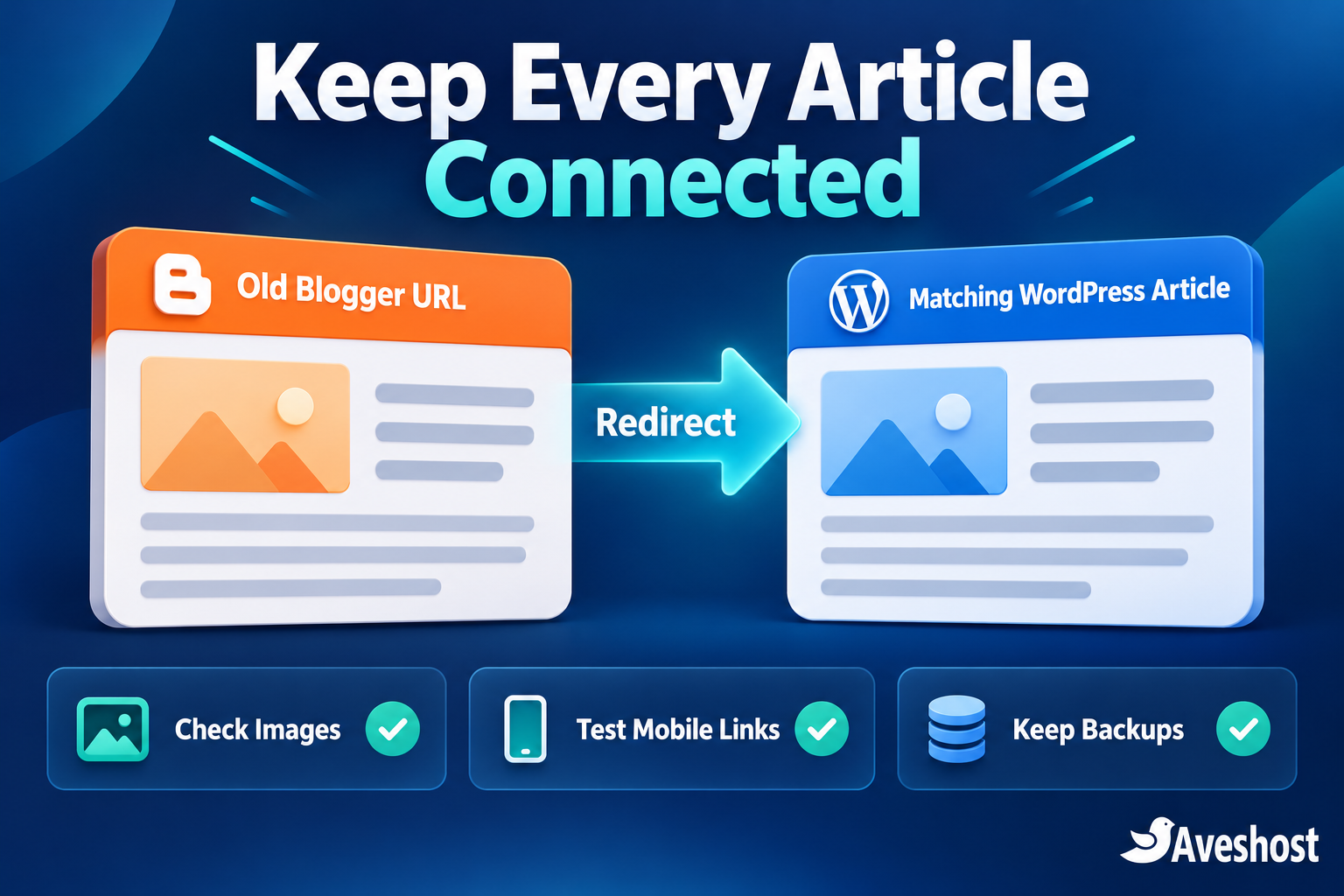
A migration should send an old article link to the matching new article. Sending every visitor to the homepage loses the context of bookmarks, social shares and search results. Use the URL spreadsheet you prepared earlier and preserve existing paths where practical.
| Old address type | What to configure |
|---|---|
| Free yourblog.blogspot.com address | A Blogger-side migration redirect mechanism, plus matching destination URLs in WordPress. |
| Your own domain connected to Blogger | Point the domain to WordPress at launch and add permanent redirects for any changed paths on the new site. |
| Changed article path | Map the exact old path to the corresponding new article, then test the result. |
Blogger commonly uses paths such as /2025/04/article-name.html. In WordPress, Settings → Permalinks lets you select a custom structure such as /%year%/%monthnum%/%postname%.html. This can reduce path changes, but check each imported slug: Blogger may have shortened a title differently. Matching the structure alone does not complete the URL map.
For a custom domain you control, your new host can return HTTP 301 or 308 redirects from old paths to new ones. Use a maintained redirect tool or ask our team to implement the mapping. Keep redirects direct, preserve meaningful query parameters and check www, non-www, HTTP and HTTPS variants.
For a free Blogspot address, a WordPress redirect plugin cannot intercept a visitor who is still on Google’s Blogger host. You need the Blogger-side instructions supplied by your migration tool, which may involve a template or browser-based redirect. Back up the theme first and test desktop and mobile URLs, including links ending in ?m=1. Confirm the redirect method’s actual behaviour; a browser redirect and an HTTP permanent redirect work differently.
Keep the old Blogger account active while its redirect mechanism is needed. Do not delete the blog or add a second redirect system over an existing working one. For custom-domain moves, retain permanent redirects for at least a year and preferably longer.
Step 8: launch WordPress and reconnect search tools
When the WordPress copy is ready, take a fresh backup and transfer any articles or comments added during preparation. Then change the domain connection or enable the tested Blogspot redirect route. Coordinate the cutover with our team if the domain is still serving the old platform.
- For a custom domain, change only the website records or nameservers required for the move. Preserve MX, SPF, DKIM and other records used by email or connected services.
- Confirm the SSL certificate works on every public website address and make HTTPS the consistent destination.
- Remove staging passwords and the search-engine discouragement setting from the public site.
- Test menus, article links, redirects, search, forms and page layouts while logged out.
- Verify the new site in Google Search Console, submit its XML sitemap and inspect important pages.
- Reconnect analytics and review advertisement settings, privacy notices and consent tools.
Use Google’s site-move guidance when URLs change. Keep verification access to the properties involved. The Change of Address tool is for eligible address moves, not every hosting change; follow the options available for your move. Search engines need time to recrawl and process new pages and redirects.
If you use AdSense, review the site and account requirements for the new address before enabling advertisements. A previous setup on Blogger does not replace the checks for a new domain. Our guide to AdSense approval and technical setup in Ghana helps you prepare the WordPress site.
After launch: monitor your blog and protect the archive
Spend the first days checking your most-read articles, redirect results, broken links and contact-form delivery. Watch Search Console for indexing and crawling issues, and compare visits over meaningful periods. Some short-term movement can occur while search systems process the migration.
| Issue | First action |
|---|---|
| Old link opens the homepage | Correct its one-to-one destination in the URL map. |
| An image is missing | Upload the original file and replace the broken source link. |
| Duplicate posts appear | Review import logs and keep the complete version before removing duplicates. |
| Contact messages do not arrive | Check form settings, authenticated sending and the receiving mailbox. |
| New pages stay excluded from search | Check staging restrictions, noindex settings, canonical URLs and sitemap entries. |
Maintain independent backups, install updates regularly and use strong account security. Confirm how to restore the site before you need a recovery. Our Cloudflare protection guide can help you add another layer of website security after the migration is stable.
Tell readers where to find the new blog, update social profiles and use the new domain in your publication materials. Then return to the work that grows a blog: useful reporting, original images, clear headlines and consistent publishing.
Ready to move your Blogger blog to WordPress?
Start with your backup and URL inventory, choose a domain and hosting package, and build the new site before switching readers across. A careful move keeps your archive organised and gives your publication a stronger home for its next stage.
Compare our web hosting packages or choose managed WordPress hosting for help with ongoing maintenance. If you want assistance with the migration, discuss your blog with our team. Send the existing address, whether you use a custom domain and the approximate number of posts so we can plan the transfer.
Frequently asked questions
Can I move from a free Blogspot address to WordPress?
Yes. Create your WordPress site, transfer your content and configure the Blogger-side route that sends old links to the matching new articles. Keep the old blog active while that redirect mechanism is needed.
Can I keep the domain I already use with Blogger?
Yes. Prepare WordPress first, then point your existing domain to the new hosting. Preserve email records and add permanent redirects for any article paths that change.
How much does hosting a WordPress blog in Ghana cost?
At the time of writing, our Deluxe plan starts at GH₵9.00 per month and Professional at GH₵16.00 per month. Budget for your domain, selected billing term and optional services, and review the final checkout total.
Does a Blogger backup contain a WordPress theme?
No. Save your Blogger theme as a layout reference, then choose and customise a WordPress theme. The two platforms use different theme systems.
Can I upload Google Takeout directly into every WordPress importer?
Choose an importer that supports the file format you have. Current Blogger Takeout archives contain feed.atom, while older backups may use XML. API-based importers connect to the source blog instead of requiring an archive upload.
Will all my Blogger pages and drafts move automatically?
The content transferred depends on the importer. Check pages, drafts, scheduled posts and comments against your inventory. Blogger Importer Extended needs separate handling for drafts and scheduled posts.
Do I need coding skills or cPanel to migrate?
You can complete the main steps through Blogger, your hosting control panel and the WordPress dashboard. Use the panel supplied with your plan; cPanel users can install WordPress through its installer. Our team can help with redirects or a larger archive.
Will migrating guarantee better Google rankings or AdSense approval?
Your content, website quality and compliance still determine those outcomes. Preserve useful URLs, configure redirects and complete the technical checks so readers and search systems can follow the move.
Should I delete my Blogger blog after the import?
Keep it available until the content, media and redirects are fully checked. A free Blogspot redirect can depend on that blog remaining active. Retain your backups and migration records.
How do I stop images breaking after migration?
Check images in the WordPress Media Library and open their full-size links. Upload missing original files where you have permission, replace old image sources and retain a separate media backup.