

A nightclub reservation website in Ghana gives guests a clear way to choose a table, pay a MoMo deposit and receive booking confirmation. For lounges, beach clubs and VIP pubs in Accra, it also gives the reservations team a dependable record of who is coming and what they have paid.
A busy night becomes harder to manage when bookings sit across phone calls, WhatsApp conversations and screenshots of transfers. A connected website brings table availability, payment records and guest communication into one process. Staff spend less time chasing deposits and more time preparing for arriving guests.
This guide explains a practical WordPress and WooCommerce setup for venues in Osu, Cantonments, Airport Residential and other parts of Accra. It covers table inventory, upfront payments, booking confirmations and the front-desk handover. Start with one venue and a small set of table packages, then expand after the workflow works reliably.
Table of Contents
Plan a nightclub reservation website in Ghana
Design the booking journey around five decisions: which table or area the guest wants, when the group will arrive, how many people are attending, what is payable now and when the reservation becomes confirmed. Put those answers on the booking page before asking for payment.
Choose one booking calendar as your operational record. Staff should enter telephone and WhatsApp reservations into the same inventory used by the website. A digital calendar cannot prevent double bookings when a separate notebook keeps selling the same table.
| Stage | Guest sees | Venue records |
|---|---|---|
| Selection | Available table, time and group size | A valid capacity request |
| Checkout | Deposit, full package price and terms | Order linked to the booking |
| Payment pending | A clear pending message | Temporary hold and payment reference |
| Confirmed | Booking reference and arrival details | Verified deposit and assigned capacity |
| Arrival | Host verifies the reservation | Check-in, table and remaining balance |
For standard packages with dependable availability, offer an immediate payment flow. For a private event or a large group requiring staff approval, use a request-first flow and collect payment after approval. Label these journeys clearly so a submitted enquiry never looks like a secured reservation.
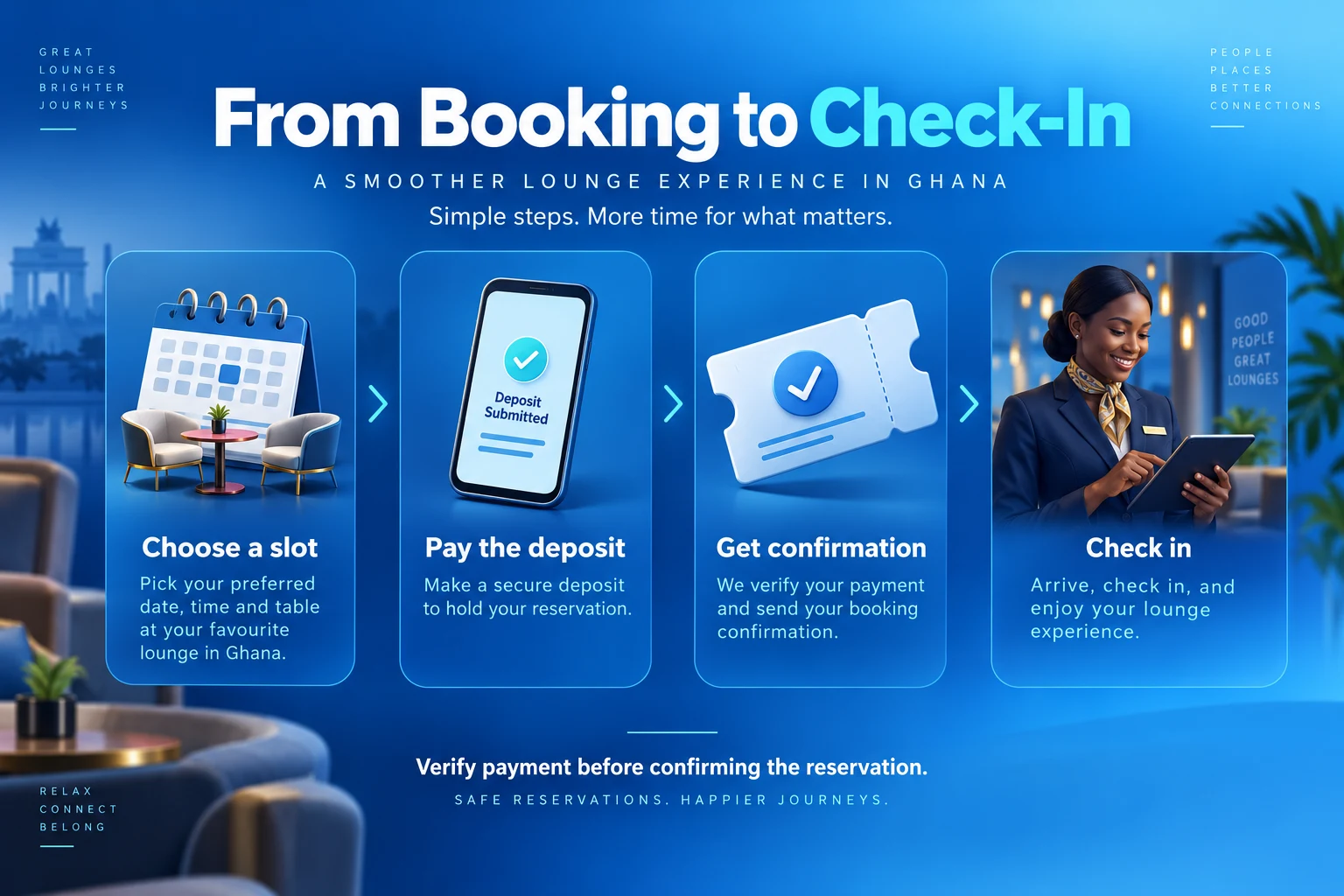
Define the table package and deposit
Decide what the deposit buys. It can be a partial payment toward a fixed table package, a reservation fee or credit against the group’s final bill. These are different offers and need different accounting and checkout wording. Explain whether entry, food, drinks, service charges or other items are included.
A straightforward starting model is a fixed table package with a partial payment. For example, a demonstration package costing GH₵1,000 could require GH₵300 today, leaving GH₵700 to pay under the venue’s stated policy. These figures illustrate the calculation; they are not Aveshost prices or a real venue offer.
If a GH₵300 reservation payment becomes credit against an open-ended food bill, describe it as a credit and define how staff apply it. WooCommerce cannot calculate an unknown final bill from a deposit setting alone. You need a tested point-of-sale handover or a controlled manual reconciliation process.
Publish arrival rules, the grace period, rescheduling deadlines and the cancellation process before checkout. State what happens if the venue cancels, weather affects an outdoor area or the group arrives with extra guests. Have the venue review its terms for its actual service and applicable obligations; a plugin setting does not decide those terms.
Keep the deposit amount visible beside the table price. Avoid a booking page that advertises a low deposit while hiding a minimum spend or mandatory charge. Guests should be able to understand the total commitment without starting a support conversation.
Build the website on a reliable foundation
Register the venue’s domain in a business-controlled account through our domain services. Keep ownership, renewals and recovery details with the business. Use a branded email address for booking messages so guests recognise the confirmation.
Choose hosting for dynamic checkout activity, database use and weekend campaign peaks. Our WooCommerce hosting is a suitable starting point to discuss for a booking store. Larger or more customised operations can evaluate our fully managed VPS hosting against their resource and support requirements.
Install WordPress, enable HTTPS and add WooCommerce. Use a lightweight mobile-friendly theme. Create pages for Tables & Reservations, Packages, Location, Contact, Booking Terms and Privacy. Show original venue photos, directions, an accessible contact route and accurate seating information.
Use the paid WooCommerce Bookings extension for time-based availability and the separately licensed WooCommerce Deposits extension for partial payments. WooCommerce core alone does not provide this complete reservation system. Budget for extension licences, hosting, domain renewal, payment fees and setup work.
Build on staging with fictional guests and test-mode payments. Check compatibility across the theme, booking extension, deposit extension, payment gateway and chosen checkout layout. Keep a record of the versions you tested before copying the setup to production.
Create bookable tables and guest limits
In WordPress, open Products → Add New, name the package and choose Bookable Product in Product data. Mark it Virtual when no physical shipping is involved. Set a fixed booking duration that matches the table session you actually sell. WooCommerce’s bookable-product guide explains these controls.
Start with one bookable product per physical table or private seating area, with capacity for one group at a time. This makes the first setup easier to audit. If you sell several packages against the same physical table, use a shared resource so each package draws from the same availability.
Give every table a clear internal label, a maximum guest count and a useful public description. “Terrace Table A — up to six guests” is easier to manage than several products all called “VIP”. Explain whether the guest selects an exact table or a seating category that the host assigns later.
Collect party size without turning each person into an independent table reservation. If you use Persons settings, review the options that multiply price, deposits or booking quantity. A six-person group reserving one table should consume the table once unless your business intentionally sells individual seats.
Handle tables that can be joined with care. Selling Table A, Table B and an A+B combination as separate products needs shared inventory logic that reserves both tables together. Start with staff-approved group bookings until that dependency is implemented and tested.
Set opening hours, booking windows and capacity
Set Settings → General → Timezone to Africa/Accra. Display venue time consistently on the calendar, checkout and confirmations. WooCommerce’s Bookings timezone settings control the customer-facing display for hour and minute bookings. Choose the venue’s time for a local table reservation.
Configure opening periods, allowed start times, advance notice and the maximum booking window. Use buffers when staff need time to clear and reset a table. The availability settings guide covers these rules and their priorities.
Define late-night sessions precisely. A reservation starting at 23:00 and ending at 02:00 crosses midnight; a guest needs the correct start day and end day in the confirmation. Test this boundary in the actual calendar and staff view. Avoid a vague “Friday night” label without a clear arrival time.
Block private events, maintenance periods and unavailable outdoor seating before publishing availability. If you release extra capacity manually, give one authorised person responsibility. Keep walk-in tables separate when the venue needs a guaranteed allocation for guests arriving without reservations.
Do not sell a table for the entire night and again for a shorter slot that overlaps it. Test adjoining sessions and any cleanup buffer. The calendar must represent the full occupancy period, including the time staff need before another group can be seated.
Configure upfront deposits and remaining balances
WooCommerce documents Bookings integration with WooCommerce Deposits. Install both extensions, configure the bookable product and apply its deposit rules. Use a required deposit when the booking offer depends on upfront payment.
For product-specific settings, edit the table package and open Product data → Deposits. Enable custom deposit settings, choose Required and select a fixed amount or percentage. Save the product and inspect the customer-facing amount. The Deposits documentation describes the current controls.
For a fixed package, show the amount payable now and the outstanding balance. The extension supports an invoice for the remainder and recording an offline balance payment. It does not automatically debit a customer’s MoMo wallet later. Choose whether the balance is paid before arrival or at the venue, then communicate that rule clearly.
This setup collects part of a purchase price. A refundable damage or security deposit is a different workflow. Do not present an ordinary partial-payment setting as a refundable authorisation hold.
Check discounts, fees and guest-count multipliers against the full package total. A coupon must not produce a deposit greater than the amount due or a confusing negative balance. Test how the deposit and linked booking appear after payment; a partially paid order is different from a fully settled package.
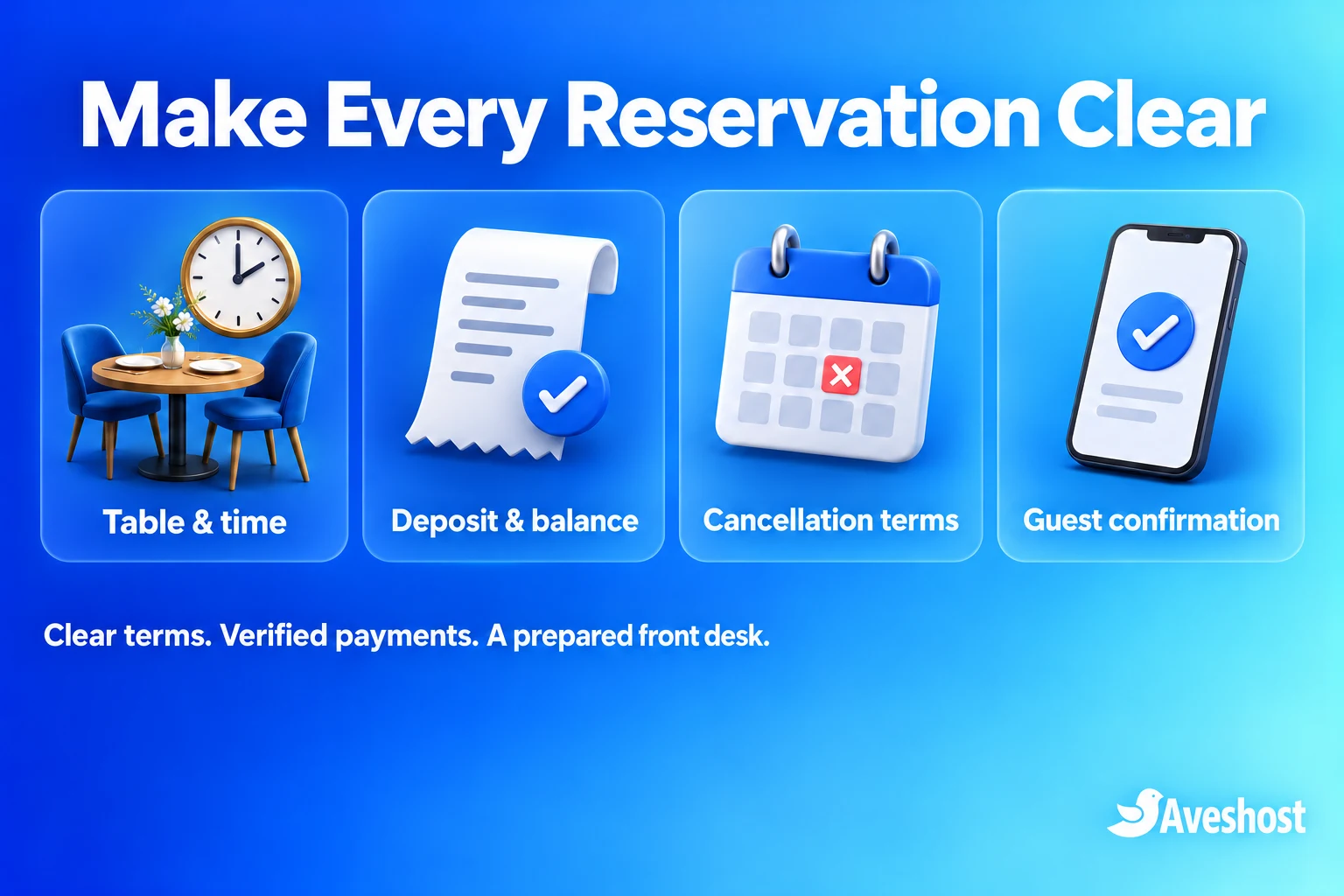
Connect MoMo payments to the booking
A verified Ghanaian Paystack merchant account provides a practical MoMo checkout route. Follow Paystack’s WooCommerce setup guide and install the gateway it recommends. Enable it under WooCommerce → Settings → Payments, add test credentials and configure the webhook address supplied by the plugin.
Enable the supported Mobile Money channel in the merchant account and test it in the chosen checkout. Set the store and transaction currency to GHS for the Ghanaian setup. Keep live secret keys in protected server-side settings, and never ask a guest to send a wallet PIN or OTP to venue staff.
Paystack’s payment-channel documentation explains the phone-authorisation stage for Mobile Money. A guest can leave the website while the result remains pending. Display “Payment pending — your reservation is not yet confirmed” until the integration receives and verifies the successful result.
For a custom integration, follow Paystack’s webhook verification guidance, validate the event and match the transaction to the expected order and amount. Process repeated events once. The browser return page, a screenshot and a guest’s transfer message are not payment confirmation.
Test the full combination of booking, required deposit and MoMo payment. Receiving money is only part of the result: the correct table must stay allocated, the recorded deposit must be accurate and the guest must receive the right confirmation.
Handle unpaid holds and delayed payments
A guest needs time to authorise a MoMo payment, but an abandoned checkout must not block a table indefinitely. Define an unpaid-hold policy and configure cleanup around your tested payment flow. Do not display a countdown unless the application genuinely enforces that deadline.
WooCommerce keeps related booking and order records with distinct statuses. Its booking and order lifecycle guide explains that in-cart and unpaid bookings can occupy availability. Ensure scheduled cleanup runs reliably and inspect both records when diagnosing a blocked table.
Keep Requires confirmation disabled for standard packages that should accept payment immediately. Enabling it creates an approval-first journey: the guest requests availability, staff approve and the guest then receives a payment link. Staff approval alone does not mean the deposit has been paid.
Handle a payment arriving after a hold expires as an exception. Recheck availability before confirming the table. If it has been sold to someone else, staff must offer an agreed alternative or follow the refund process. Never recreate the original reservation blindly after the capacity has been released.
Reconcile pending payments before cancelling them, and keep a visible review queue for uncertain results. Test two customers attempting the final table simultaneously. Only the capacity the venue actually has should become confirmed, even when both shoppers have opened the calendar.
Send useful confirmations and SMS reminders
Send the final confirmation after verified deposit payment and valid table allocation. Include the booking reference, venue, table or category, party size, start and end times, deposit received, remaining balance and contact route. State any arrival deadline and link to the terms accepted at checkout.
Keep pending, confirmed, cancelled and rescheduled messages distinct. A generic “Thank you for your order” can confuse guests when payment is still outstanding. Review the email templates on a phone and check that the sender identity and reply address belong to the venue.
Add transactional SMS when the email flow is dependable. Our Ghana SMS integration guide compares three provider options. Booking-specific SMS needs an event-aware connector or custom integration; installing a general SMS plugin does not automatically connect deposit verification to reservation confirmation.
Use a concise message such as: “Your table is confirmed. Reference LOUNGE-482. Six guests, 20:00–23:00 Ghana time. Deposit received: GH₵300. Check your email for venue details and balance.” This is sample wording for an illustrative booking, not a real confirmation.
Schedule a reminder far enough ahead for the guest to contact the venue. Check for cancellations and rescheduling before sending it, and prevent duplicate messages. Keep operational notices separate from promotional subscriptions so a reservation does not silently enrol guests in marketing.
Prepare the front desk for check-in
Prepare a restricted arrival list for each session. The host needs the guest name, reference, party size, table, time, deposit and balance status. Limit financial adjustment and refund permissions to authorised staff, and use individual accounts rather than a shared administrator login.
Verify the booking against the live record at check-in. A reference or optional QR code helps locate the reservation; it is not proof of payment by itself. If you implement QR check-in, use an opaque reference and an authenticated staff screen, without exposing guest details publicly.
Record arrival and table assignment so two staff members do not admit different groups against the same reservation. Handle an increased party size through the manager and available capacity. Do not promise that extra guests can be seated simply because the original group paid a deposit.
At settlement, apply the deposit once and record the remaining payment through the agreed process. For an open-bill credit model, retain the link between the reservation and the point-of-sale bill. A confirmation email does not replace that accounting handover.
Keep a protected contingency list for a temporary connectivity problem, with an update time and only necessary guest information. Reconcile offline arrivals and payments when connectivity returns. Remove obsolete copies under the venue’s retention policy and avoid guest lists in public group chats.
Test, secure and launch the reservation website
Test the complete mobile journey before promoting the booking link on Instagram, WhatsApp or Google Business Profile. The calendar, deposit explanation and payment controls should remain easy to use on a small screen and an ordinary mobile connection.
| Launch test | Pass condition |
|---|---|
| Successful MoMo deposit | Correct amount, valid table and one confirmation |
| Cancelled or expired payment | No misleading paid confirmation |
| Two guests seeking the last table | Capacity stays within the real limit |
| Abandoned checkout | Hold is released by the tested cleanup process |
| Late payment after expiry | Availability reviewed before any confirmation |
| Midnight session | Correct start day, end day and Ghana time |
| Refund or reschedule | Payment, booking and messages stay consistent |
| Phone or WhatsApp booking | Same table inventory updated |
| Reminder and staff check-in | Current details, no duplicate notifications |
| Backup recovery | Records restored and reconciled before accepting new deposits |
Optimise images, keep extensions maintained and exclude cart, checkout, accounts and payment endpoints from full-page caching. Verify live availability responses are not served from stale cache. A fast homepage is useful, but the booking calendar and payment result are the parts that secure the reservation.
Use two-factor authentication for administrators, limited staff permissions, HTTPS and monitored backups. Rehearse restoration in isolation with payments and notifications disabled. Our website security checklist explains the wider safeguards for a business website.
Review confirmed reservations, no-shows, payment failures and guest support requests after each busy session. Adjust arrival reminders, hold periods and package wording using those results. Deposits support commitment and planning; they do not guarantee that every guest will arrive.
Ready to build a table booking system in Ghana? Explore our WooCommerce hosting and business domains, or discuss your reservation website with our team. Share your table layout, booking hours, deposit rules and payment requirements so we can plan a suitable solution.
Frequently asked questions
What does a nightclub reservation website in Ghana need?
It needs clear table packages, accurate availability, a supported payment gateway, verified deposit confirmation, useful guest messages and a reliable staff check-in process.
Can an Accra lounge take table deposits through MoMo?
Yes, through an eligible merchant account and a compatible payment integration. Test the full reservation and deposit workflow before taking live bookings.
Does WooCommerce include table bookings and deposits for free?
WooCommerce core does not provide this complete setup. The guide uses separately licensed Bookings and Deposits extensions alongside a supported payment gateway.
Should I charge a fixed deposit or a percentage?
Choose the structure that matches the table package and show both the amount payable now and the remaining commitment before checkout.
Can the deposit become credit against the guest’s final bill?
Yes, when the venue defines that offer and implements a reliable billing handover. An open-ended final bill needs reconciliation beyond a standard partial-payment setting.
When should a table reservation become confirmed?
Confirm after the deposit is verified and the required table capacity is allocated. A screenshot or browser return page alone is insufficient.
Can staff approve a booking before taking payment?
Yes. An approval-first workflow sends the guest a payment step after staff approval. Keep its messages distinct from a paid booking confirmation.
How do I prevent double bookings?
Use one table inventory for online and staff bookings, configure capacity correctly and test simultaneous attempts for the final table. Handle late payments after an expired hold separately.
Can the website send booking SMS reminders?
Yes, with a compatible connector or custom integration tied to the correct booking and payment events. Check current status before sending reminders.
Can Aveshost help build the reservation website?
Yes. Contact our team with your venue’s tables, operating hours, deposit policy and payment requirements to discuss the website and hosting setup.