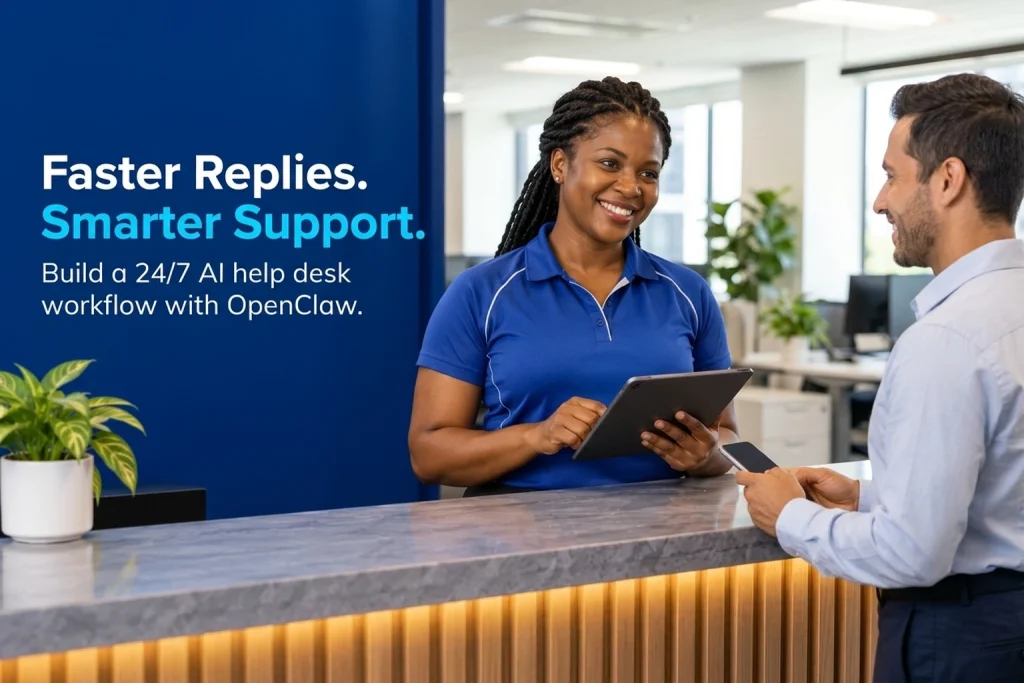
Learning how to build an AI help desk with OpenClaw gives your business a self-hosted, 24/7 support agent that can answer product questions from verified documentation, look up live order statuses, log support tickets, and hand complex issues over to a human team member—all inside the messaging apps your customers already use. Unlike rigid decision-tree widgets that trap users in frustrating loops, an OpenClaw support agent combines large language model reasoning with strict operational guardrails that you control on your own server.
Because OpenClaw runs as a persistent background Gateway, you can connect Telegram, WhatsApp, Slack, or Discord to a single unified support workspace while keeping your customer data and API credentials on your own Virtual Private Server (VPS). Below, we walk through the complete architecture and five-step workflow to deploy, configure, secure, and test an OpenClaw AI help desk.
Table of Contents
Why Build an AI Help Desk with OpenClaw Instead of a Basic Chatbot?
Traditional website chatbots rely on keyword matching or static button flows. The moment a customer asks a slightly nuanced question—such as checking why an invoice is pending or changing a delivery address—a basic script either repeats a generic FAQ link or stalls. On the other hand, third-party SaaS AI help desks often charge steep per-seat or per-resolution fees while storing every customer conversation on external multi-tenant servers.
When you build an AI help desk with OpenClaw, you get an autonomous, tool-capable support framework hosted on your own infrastructure. If you are new to the platform’s core concepts, see our foundational guide on what OpenClaw is and how self-hosted AI agents work, as well as our comparison of AI chatbots vs virtual assistants. Instead of paying per resolved ticket, you pay only for your underlying VPS and the exact model tokens your support traffic consumes.
How an OpenClaw AI Help Desk Architecture Works
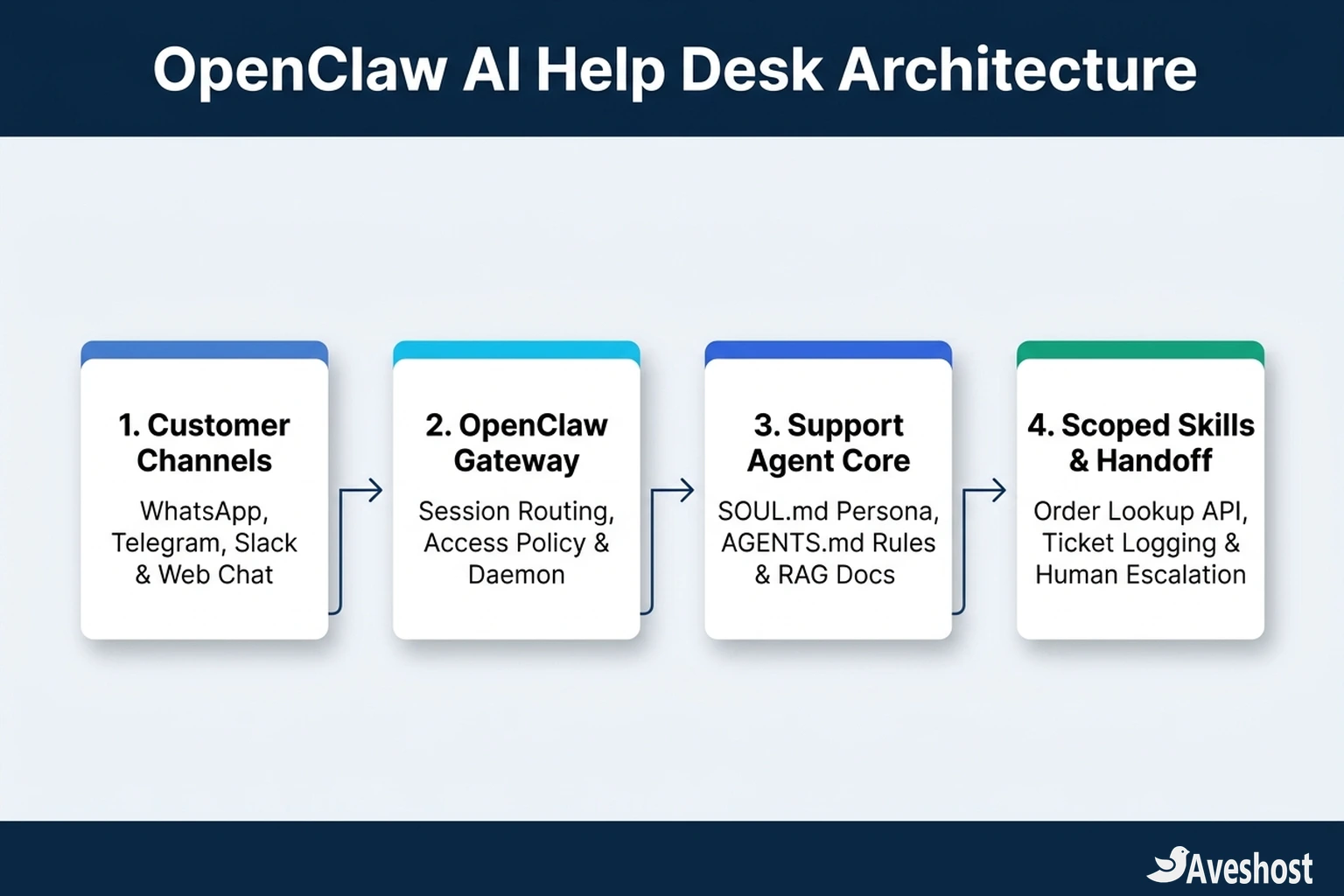
Before running any terminal commands, it helps to understand how OpenClaw’s official architecture separates incoming customer messages from agent reasoning and backend tools. A production help desk consists of four clean layers:
| Architecture Layer | Core Component | Role in Your AI Help Desk |
|---|---|---|
| 1. Customer Channels | Telegram, WhatsApp, Slack, Discord | Receives incoming customer inquiries and delivers formatted replies in real time |
| 2. OpenClaw Gateway | Background daemon & ~/.openclaw/openclaw.json | Routes channel sessions, enforces access policies, and manages rate limits |
| 3. Support Agent Core | SOUL.md, AGENTS.md & Knowledge Base Docs | Defines brand voice, strict anti-hallucination rules, and verified product documentation |
| 4. Scoped Skills & Handoff | SKILL.md modules & webhook/API scripts | Executes read-only order lookups, creates help desk tickets, and escalates to human staff |
Step 1: Deploy the OpenClaw Gateway on an Ubuntu VPS
A customer help desk must stay online around the clock, which means running it on your personal laptop is only suitable for initial testing. For production reliability, deploy OpenClaw on a Linux server such as Aveshost Self-Managed VPS Hosting with Ubuntu LTS and at least 2 vCPU cores and 4 GB of RAM.
If you have not installed OpenClaw yet, you can follow our step-by-step production guide to installing and setting up OpenClaw on Ubuntu Server. Here is the quick terminal sequence to install the CLI, connect your preferred language model provider (such as Anthropic Claude, OpenAI, or Google Gemini), and register the background Gateway daemon:
1. Install OpenClaw CLI: Connect to your Ubuntu VPS over SSH and run curl -fsSL https://openclaw.ai/install.sh | bash to install the latest release from openclaw.ai.
2. Run the onboarding wizard with daemon support: Execute openclaw onboard --install-daemon. Choose Local/Self-hosted mode, enter your LLM API key, and enable the background service so the Gateway restarts automatically after server reboots.
3. Create a dedicated support agent profile: Rather than mixing personal automation tasks with customer inquiries, isolate your help desk in its own agent profile by running openclaw agents add support-agent and verify the service is healthy with openclaw gateway status.
Step 2: Define Your Support Agent Persona and Guardrails (SOUL.md & AGENTS.md)
Out of the box, a general-purpose AI assistant tries to be helpful even when it lacks specific company facts—a habit that can lead to inaccurate refund policies or unverified pricing. When you build an AI help desk with OpenClaw, you prevent hallucinations by configuring two markdown files inside your support agent’s workspace directory (typically ~/.openclaw/workspace/): SOUL.md and AGENTS.md.
Configure SOUL.md (Voice & Boundaries): Open SOUL.md in your workspace and define the agent’s tone, empathy, and hard limits. Specify that the agent represents your company’s support team, keeps answers concise and polite, and never guesses pricing, SLA terms, or account details that are not explicitly present in the workspace knowledge base or returned by an authorized lookup tool.
Configure AGENTS.md (Standard Operating Procedure): Use AGENTS.md to give the agent a deterministic checklist for every incoming customer message:
1. Classify the inquiry first: Determine whether the customer is asking a general product/policy question, checking an order or invoice status, or reporting an urgent technical outage.
2. Search local documentation before answering: Instruct the agent to check the docs/ folder in its workspace for official refund rules, billing instructions, and troubleshooting guides.
3. Enforce mandatory human escalation triggers: Require the agent to log a ticket and hand off the conversation to a human supervisor immediately whenever a customer asks for a human agent, reports a security or billing dispute, or expresses frustration after two troubleshooting attempts.
Step 3: Load Knowledge Base Docs and Scoped Support Skills
Once your agent’s persona and operating rules are in place, give it the knowledge and tools it needs to resolve real tickets. Start by creating a docs/ subfolder inside your agent workspace and placing clean Markdown files covering your most common customer questions—for example, billing-and-refunds.md, account-setup.md, and troubleshooting-faq.md. Keep each document structured with clear headings so the agent can retrieve exact answers without scanning unrelated text.
Next, add scoped Skills (SKILL.md files) so your help desk can take safe, structured actions:
Read-only Order & Invoice Lookup Skill: Create a skill folder such as skills/order-lookup/SKILL.md that wraps a read-only API endpoint or database query script. When a customer provides their order number and email address, the skill fetches the current fulfillment or invoice status without exposing other customers’ records.
Ticket Creation & Escalation Skill: Create a second skill (skills/escalate-ticket/SKILL.md) that sends a structured webhook payload—including the customer’s handle, a two-sentence summary of the issue, and the conversation transcript—to your team’s internal Slack channel, help desk CRM, or support inbox.
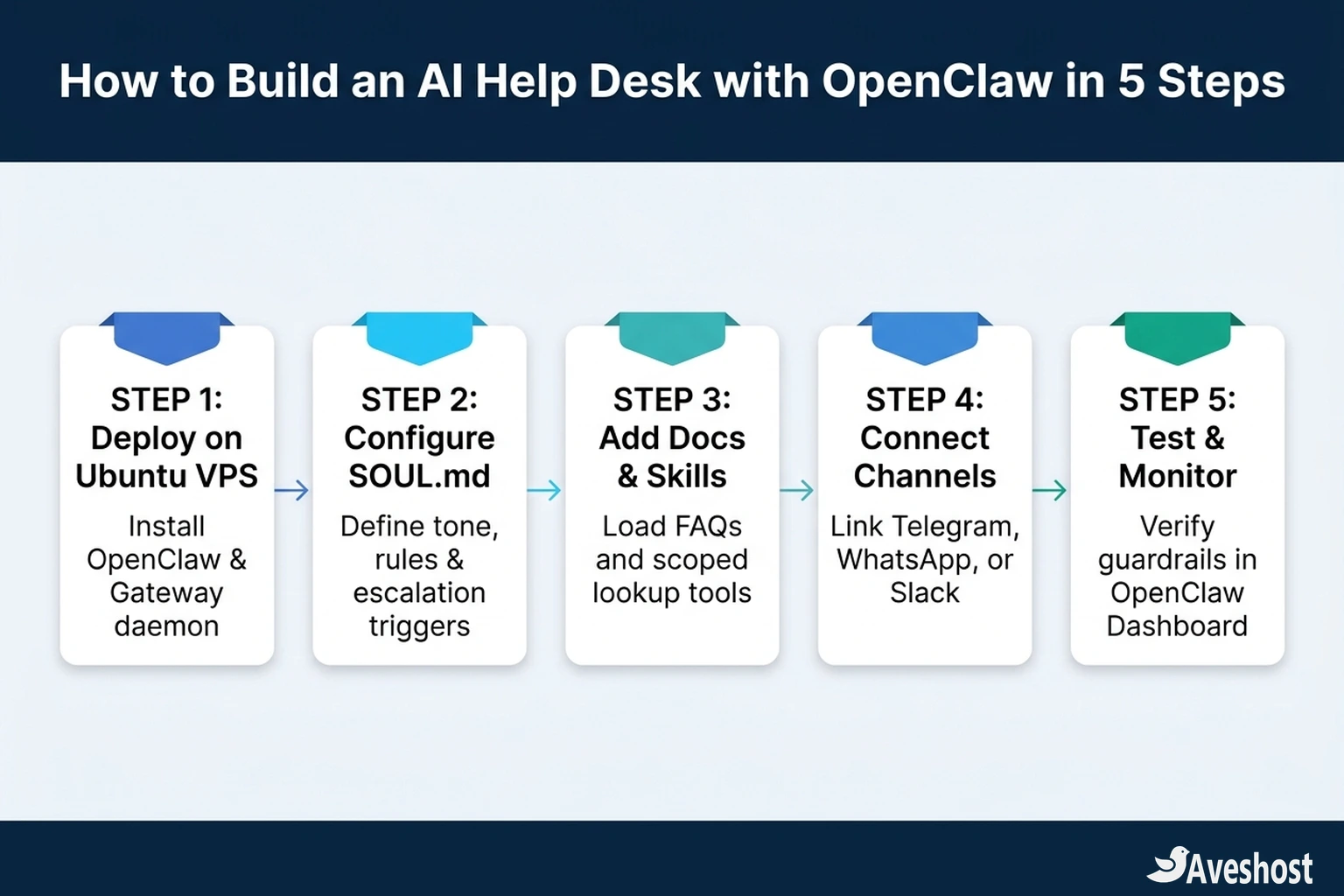
Step 4: Connect Customer Channels (Telegram, WhatsApp, and Slack)
With your agent profile, documentation, and skills ready, connect your support channels to the OpenClaw Gateway via the CLI or ~/.openclaw/openclaw.json:
Telegram Help Desk Bot: Message @BotFather on Telegram, run /newbot, and copy your HTTP API token. On your VPS, run openclaw channels add --channel telegram --token YOUR_BOT_TOKEN. Telegram bots are fast to deploy, support rich markdown formatting, and never require phone QR re-pairing.
WhatsApp Support Line: Run openclaw channels add --channel whatsapp followed by openclaw channels login --channel whatsapp, or connect a dedicated business number adapter. Using a dedicated support number ensures customer inquiries stay separate from personal chats.
Slack Internal & Customer Channels: Create a Slack app in the Slack API dashboard, enable Socket Mode to obtain an App-Level Token (xapp-...) and Bot Token (xoxb-...), and add both tokens under channels.slack in ~/.openclaw/openclaw.json. You can configure the bot to respond only when mentioned in shared client channels while forwarding escalations directly to your internal staff channel.
Step 5: Test Escalation Triggers and Lock Down Channel Permissions
Before opening your AI help desk to live customer traffic, lock down tool permissions and stress-test your guardrails. A customer-facing support agent should never have unrestricted shell execution or write access to production databases. Use this pre-launch verification checklist to audit your deployment:
| Security & Quality Check | What to Configure in OpenClaw | Why It Matters for a Help Desk |
|---|---|---|
| Restrict Shell & File Write Tools | Disable unrestricted bash/write tools on customer-facing agent profiles | Prevents prompt-injection attempts from executing server commands |
| Scope Lookup APIs to Read-Only | Require both order ID and matching email/phone in lookup skills | Stops unauthorized users from guessing sequential order numbers |
| Verify Unknown-Answer Behavior | Test questions not covered in your docs/ folder | Confirms the agent admits uncertainty and escalates instead of guessing |
| Test Human Handoff Webhook | Send ‘I need to speak to a human manager’ in Telegram/WhatsApp | Verifies your support team receives an instant alert with full context |
Host Your 24/7 OpenClaw Help Desk on an Aveshost VPS
When you build an AI help desk with OpenClaw, the responsiveness of your support bot depends on stable server uptime, fast disk I/O for session state and document retrieval, and low-latency network connectivity to messaging APIs and LLM endpoints.
Whether you are deploying a lightweight Telegram support bot or a multi-channel help desk handling WhatsApp, Slack, and webhook lookups simultaneously, Aveshost Self-Managed SSD VPS Hosting, Aveshost Fully Managed VPS Hosting, and Aveshost Virtual Dedicated Servers (VDS) give you dedicated Ubuntu resources with full root SSH access so your OpenClaw Gateway daemon runs 24/7 without interruption. If you need advice on sizing your server for your support workload, contact our team through Aveshost Support.
Frequently asked questions
Can I build an AI help desk with OpenClaw for free?
OpenClaw itself is free and open-source software. Your only ongoing costs are the Virtual Private Server (VPS) that keeps the Gateway online 24/7 and the API usage for your chosen language model (unless you run a local model on a high-spec server).
What server specs do I need to run an OpenClaw AI help desk?
For an OpenClaw Gateway connecting to cloud LLM APIs (such as Claude, OpenAI, or Gemini) across Telegram, WhatsApp, or Slack, an Ubuntu VPS with 2 vCPU cores, 4 GB RAM, and fast SSD storage comfortably handles day-to-day customer support traffic.
How do I stop my OpenClaw support agent from hallucinating policies or prices?
Define strict anti-hallucination rules in SOUL.md and AGENTS.md that require the agent to cite only verified Markdown files inside its workspace docs/ folder or live data returned by a read-only lookup skill, and to escalate any unverified question to a human.
Is it safe to expose an OpenClaw agent to public customer chats?
Yes, provided you isolate the customer support agent in its own profile, disable unrestricted shell and file-system write tools for public channels, and restrict external skills to read-only order lookups and ticket creation webhooks.
Can one OpenClaw help desk handle WhatsApp, Telegram, and Slack at the same time?
Yes. The OpenClaw Gateway daemon routes messages from multiple channels simultaneously into your support agent workspace, applying the same knowledge base, persona, and escalation rules across every platform.