Configuring SPF, DKIM and DMARC in DirectAdmin is mandatory if you want your business emails, invoices, and customer notifications to land in the primary inbox rather than the spam folder. Gmail, Microsoft Outlook, and Yahoo now enforce strict sender authentication requirements, automatically rejecting or quarantining unauthenticated domain mail.
Whether you create domain mailboxes directly on Aveshost Shared Web Hosting or an Aveshost Fully Managed VPS—both of which run the DirectAdmin Evolution control panel—or point your DirectAdmin DNS zone to a dedicated email platform like Aveshost Business Email, setting up all three DNS authentication records takes less than ten minutes once you know where DirectAdmin stores its keys.
In this guide, you will learn how SPF, DKIM, and DMARC work together, how to configure and verify each record inside DirectAdmin’s DNS Management interface, how to avoid the common Cloudflare split-quote trap when using external nameservers, and how to test your setup using dig and live email headers.
Table of Contents
How SPF, DKIM and DMARC Work in DirectAdmin
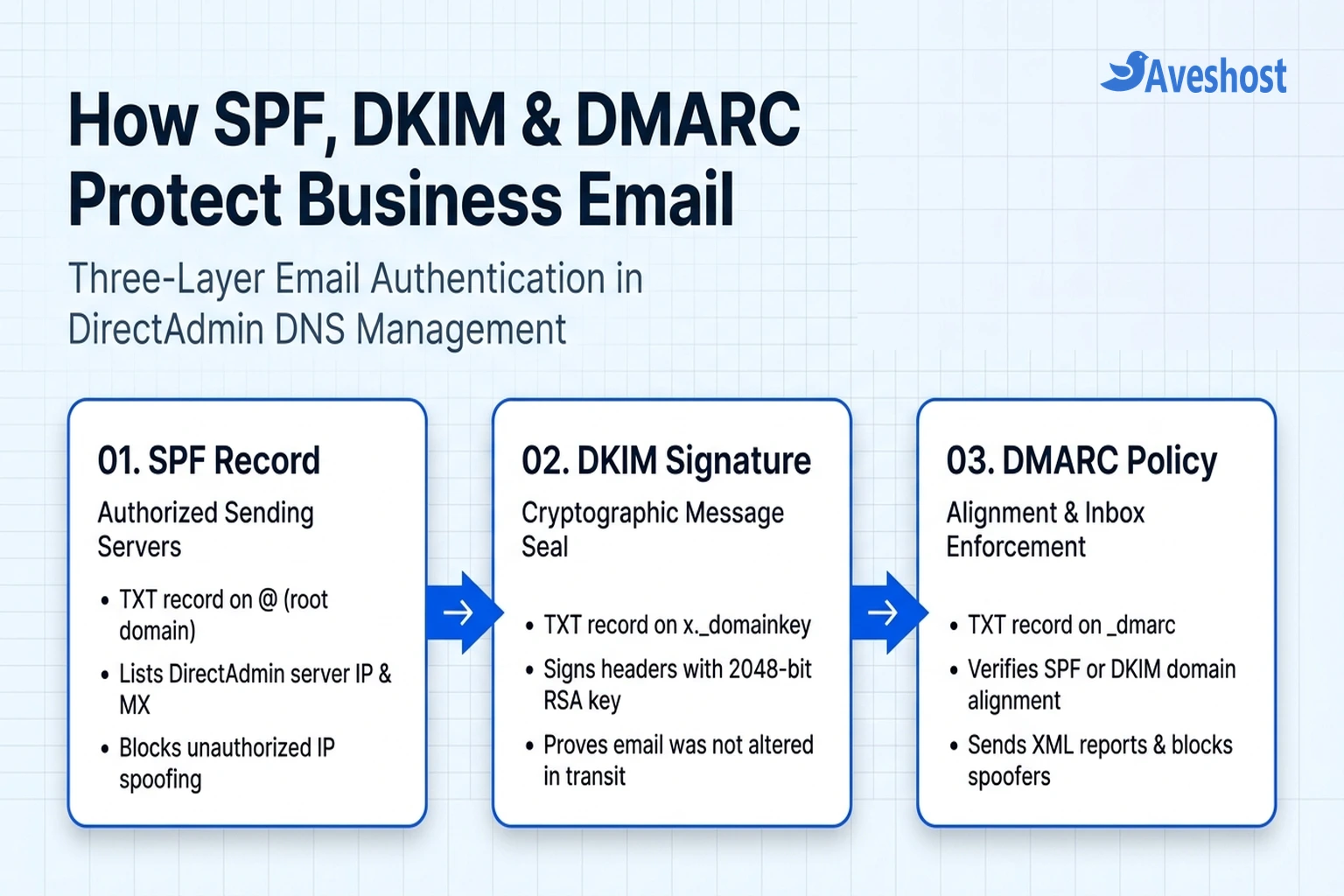
Standard SMTP was designed decades ago without built-in sender verification, which meant anyone could send an email pretending to be [email protected]. Setting up SPF, DKIM and DMARC in DirectAdmin closes that loophole by publishing three verifiable TXT records in your domain’s DNS zone:
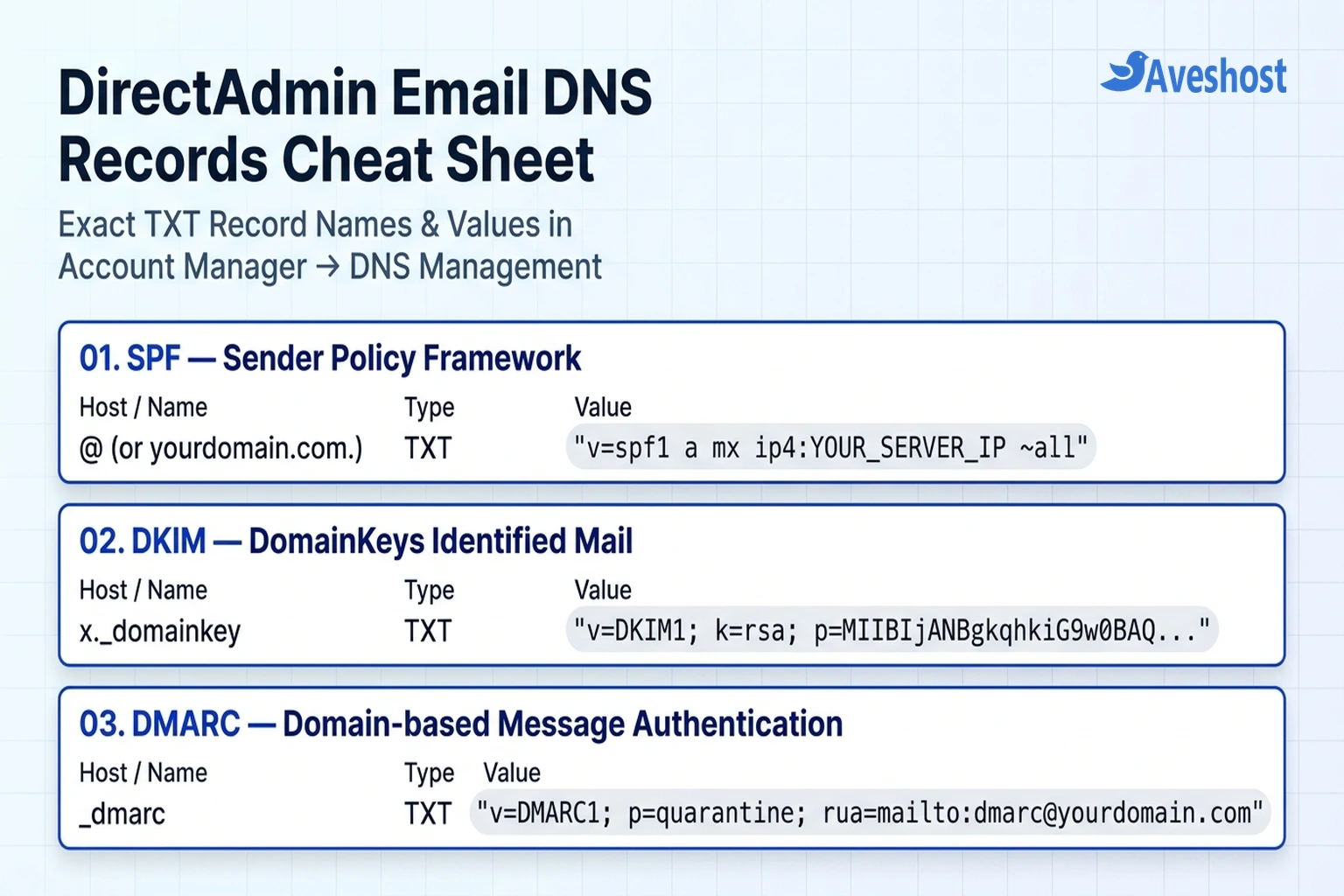
1. SPF (Sender Policy Framework): A TXT record on your root domain (@) that lists every server IP address and mail host authorized to send email on behalf of your domain.
2. DKIM (DomainKeys Identified Mail): A cryptographic digital signature attached to outgoing email headers by your DirectAdmin Exim mail server. Receiving mail servers verify that signature against a public RSA key published at x._domainkey.yourdomain.com.
3. DMARC (Domain-based Message Authentication, Reporting, and Conformance): A TXT record at _dmarc.yourdomain.com that checks whether the domain in the visible From: header aligns with your verified SPF or DKIM domain, tells receiving servers how to handle failures (none, quarantine, or reject), and sends aggregate XML diagnostic reports back to you.
Use this reference table to compare the exact DNS parameters DirectAdmin uses for each protocol:
| Protocol | DirectAdmin DNS Record Name | DNS Type | What It Verifies | Default Status in DirectAdmin |
|---|---|---|---|---|
| SPF | @ (or yourdomain.com.) | TXT | Authorizes your DirectAdmin server IP, MX, and third-party mail relays | Created automatically when domain is added |
| DKIM | x._domainkey | TXT | Cryptographically signs outgoing messages with a 2048-bit RSA key | Enabled per domain in E-mail Accounts or DNS Management |
| DMARC | _dmarc | TXT | Enforces From-header domain alignment and sends spoofing reports | Must be added via DirectAdmin’s DMARC wizard or raw TXT record |
Step 1: Check Whether DirectAdmin or an External Provider Hosts Your DNS
Before editing records inside DirectAdmin, confirm which nameservers are authoritative for your domain. This single check prevents 90% of email authentication failures:
Scenario A — Your Domain Uses Aveshost / DirectAdmin Nameservers: If your domain points directly to the nameservers for your Aveshost shared web hosting or DirectAdmin VPS plan, any change you make inside DirectAdmin under Account Manager → DNS Management goes live on the internet automatically.
Scenario B — Your Domain Uses External Nameservers (Cloudflare, Route 53, or an External Registrar): You still need to generate your DKIM key inside DirectAdmin so your mail server signs outgoing messages, but you must copy the resulting SPF, DKIM (x._domainkey), and DMARC (_dmarc) TXT records from DirectAdmin into your external DNS dashboard (such as Cloudflare DNS) for receiving mail servers to see them.
Step 2: Verify and Customize Your SPF Record in DirectAdmin
When you add a domain in DirectAdmin, the control panel automatically creates a baseline SPF TXT record that authorizes your server’s A record, MX record, and primary IPv4 address.
Follow these steps to inspect or update your SPF record in the DirectAdmin Evolution skin:
1. Open DNS Management: Log into DirectAdmin, select your domain from the top domain dropdown, and navigate to Account Manager → DNS Management.
2. Locate Your Existing v=spf1 Record: Look for the TXT record whose Name is your root domain (yourdomain.com. or @) and whose Value starts with "v=spf1.
3. Merge Any Third-Party Senders into the Same Record: Never create two separate v=spf1 TXT records on the same domain—multiple SPF records cause a permanent PermError that fails authentication immediately. Instead, combine your DirectAdmin server IP and any external transactional mailers into a single record:
Copy the appropriate SPF syntax below depending on your mail setup:
# 1. Standard DirectAdmin Business Email SPF Record (Default)
"v=spf1 a mx ip4:203.0.113.45 ~all"

# 2. DirectAdmin Mail + Google Workspace or External Transactional Relay (Single Merged Record)
"v=spf1 a mx ip4:203.0.113.45 include:_spf.google.com ~all"

# 3. Strict Fail (-all) Once All Legitimate Sending Servers Are Confirmed
"v=spf1 a mx ip4:203.0.113.45 -all"
Why Start with ~all Before -all? The tilde (~all, SoftFail) tells receiving servers to accept but mark messages from unlisted IPs while you verify all your website contact forms and billing scripts. Once you confirm every legitimate sender is listed, you can tighten it to -all (HardFail).
Step 3: Enable DKIM (x._domainkey) in DirectAdmin and Fix Split Quotes
Unlike cPanel (which uses default._domainkey), DirectAdmin uses the selector x, publishing your public key at x._domainkey.
Follow these steps to enable DKIM signing and verify your public key in DirectAdmin:
1. Enable DKIM on Your Domain: In DirectAdmin, go to E-mail Manager → E-mail Accounts. If DKIM is not yet active, click the Enable DKIM button at the top right. DirectAdmin generates a 2048-bit RSA key pair and begins signing outgoing messages from webmail and SMTP clients immediately.
2. Inspect the x._domainkey Record in DNS Management: Navigate to Account Manager → DNS Management and find the TXT record named x._domainkey.
3. Understand DirectAdmin’s Multi-String Parentheses Format: Because the DNS protocol limits a single TXT string segment to 255 characters—and a 2048-bit RSA key is roughly 400 characters long—DirectAdmin splits the record into two quoted strings inside parentheses. If you use external DNS (such as Cloudflare), strip the parentheses and middle quotes so you paste one continuous string:
# How DirectAdmin displays the 2048-bit DKIM record in DNS Management (BIND zone syntax):
x._domainkey  3600  IN  TXT  ( "v=DKIM1; k=rsa; p=MIIBIjANBgkqhkiG9w0BAQEFAAOCAQ8AMIIBCgKCAQEAu7..."
                               "...9xYzQIDAQAB" )

# How to paste it into Cloudflare or an External Registrar DNS Dashboard:
# Type: TXT
# Name: x._domainkey
# Content (single continuous line, no parentheses or internal quotes):
v=DKIM1; k=rsa; p=MIIBIjANBgkqhkiG9w0BAQEFAAOCAQ8AMIIBCgKCAQEAu7...9xYzQIDAQAB
When you paste the continuous v=DKIM1; k=rsa; p=... value into Cloudflare, Cloudflare automatically handles the 255-character RFC chunking behind the scenes without breaking the key.
Step 4: Add a Staged DMARC Policy in DirectAdmin Evolution Skin
Once SPF and DKIM are active, add a DMARC record so Gmail, Outlook, and Yahoo know how to handle messages that fail authentication and where to send daily XML alignment reports.
DirectAdmin’s Evolution skin includes a built-in DMARC record generator:
1. Open the Add Record Modal: Go to Account Manager → DNS Management and click Add Record.
2. Choose the DMARC Helper (or Raw TXT): Select Record Type: TXT and set TXT Record Type: DMARC. DirectAdmin automatically sets the record name to _dmarc.
3. Roll Out DMARC in Three Safe Stages: Never jump straight to p=reject on day one. Start in monitoring mode (p=none) for 7 to 14 days to confirm your business email accounts and WordPress SMTP plugins pass alignment, then step up to p=quarantine and p=reject:
# Stage 1 (Weeks 1–2): Monitoring Mode — Collect XML reports without blocking mail
Name:  _dmarc
Type:  TXT
Value: "v=DMARC1; p=none; sp=none; adkim=r; aspf=r; rua=mailto:[email protected]"

# Stage 2 (Weeks 3–4): Quarantine Mode — Send unauthenticated spoofing attempts to Spam
Name:  _dmarc
Type:  TXT
Value: "v=DMARC1; p=quarantine; pct=100; adkim=r; aspf=r; rua=mailto:[email protected]"

# Stage 3 (Long-Term Production): Reject Mode — Block unauthorized domain spoofing outright
Name:  _dmarc
Type:  TXT
Value: "v=DMARC1; p=reject; sp=reject; adkim=s; aspf=s; rua=mailto:[email protected]"
Step 5: Test and Verify Your DirectAdmin Email Authentication
After saving your records in DirectAdmin (or copying them to your external DNS provider), verify that all three TXT records resolve publicly and that your outgoing messages carry a valid dkim=pass signature.
Run these three dig commands from any Linux, macOS, or Windows WSL terminal (replacing yourdomain.com with your actual domain):
# 1. Verify your root SPF record
dig +short TXT yourdomain.com | grep 'v=spf1'

# 2. Verify DirectAdmin's x._domainkey DKIM public key
dig +short TXT x._domainkey.yourdomain.com

# 3. Verify your _dmarc policy record
dig +short TXT _dmarc.yourdomain.com
Finally, send a test email from Roundcube Webmail in DirectAdmin to a personal Gmail account, open the message in Gmail, click the three dots (More → Show original), and confirm that SPF, DKIM (with domain yourdomain.com), and DMARC all display PASS.
Related reading: Continue with our guide to business email compromise in Ghana for account and payment-request security, and our professional business email checklist for Ghanaian tenders for practical mailbox setup checks.
Frequently asked questions
What is the default DKIM selector in DirectAdmin?
DirectAdmin uses the selector x by default, which means your DKIM public key is published as a TXT record at x._domainkey.yourdomain.com rather than default._domainkey (used by cPanel).
Why does DirectAdmin put parentheses and multiple quotes around my DKIM record?
A 2048-bit RSA DKIM public key is around 400 characters long, while the DNS standard limits each individual TXT character string to 255 characters. DirectAdmin uses standard BIND zone syntax with parentheses and quoted chunks so the DNS server concatenates them automatically. When copying the key into Cloudflare, remove the parentheses and middle quotes so it forms one continuous string.
Why are my DirectAdmin SPF and DKIM records not showing up on MXToolbox?
If MXToolbox cannot find the records you created inside DirectAdmin, your domain is almost certainly using external nameservers (such as Cloudflare or your domain registrar’s default DNS). Copy the SPF, x._domainkey, and _dmarc TXT records from DirectAdmin’s DNS Management page into your active external DNS provider.
Can I have two SPF records in DirectAdmin if I also use Google Workspace or Mailgun?
No. Publishing more than one v=spf1 TXT record on the same domain causes a permanent DNS PermError and breaks SPF authentication completely. Always merge additional mail providers into your single existing v=spf1 record using include: tags.
Should I set my DMARC policy to p=none, p=quarantine, or p=reject in DirectAdmin?
Start with p=none for the first 7 to 14 days so you can verify that all legitimate emails from your DirectAdmin webmail, SMTP clients, and website forms pass SPF and DKIM alignment. Once confirmed, upgrade to p=quarantine and then p=reject to block domain spoofers completely.