To clean a hacked WordPress site in Ghana, you need to stop the harmful activity, recover trusted files and remove the weakness that allowed the attack. Deleting a suspicious page or changing one password is only part of the recovery. Your files, database, user accounts and connected services all need attention.
For a Ghanaian online shop, school, church or service business, a compromised website can interrupt enquiries, expose visitors to fake payment pages and damage customer trust. At Aveshost, we help you approach recovery in the right order. This guide explains what to do first, how to rebuild a trustworthy WordPress installation and how our hosting, security and backup options support your next steps.
Table of Contents
Signs your WordPress website has been hacked
A hack does not always replace your homepage with an obvious warning. Some infections send visitors to another website only on mobile, create hidden spam pages or quietly add an administrator account. Record what you see before changing the site so the investigation has a clear starting point.
| Warning sign | What to check |
|---|---|
| Unexpected redirects or pop-ups | Affected URLs, device type, browser and whether the behaviour occurs only for logged-out visitors. |
| Google or browser security warning | The Security Issues report in Google Search Console and the URLs it identifies. |
| Unknown WordPress administrators | User accounts, permissions, recent account changes and recovery email addresses. |
| Hosting restriction or malware alert | The affected paths and activity described in the hosting notice. |
| Spam pages or unfamiliar search results | Published content, database entries, sitemaps and injected links. |
| Outgoing spam or unfamiliar scheduled tasks | Email activity, WordPress scheduled events and hosting cron jobs. |
Slow loading, a plugin error or a failed payment alone does not establish a malware infection. Check the evidence and scan results before removing files. WordPress’s official hacked-site recovery guidance provides a useful incident-response reference.
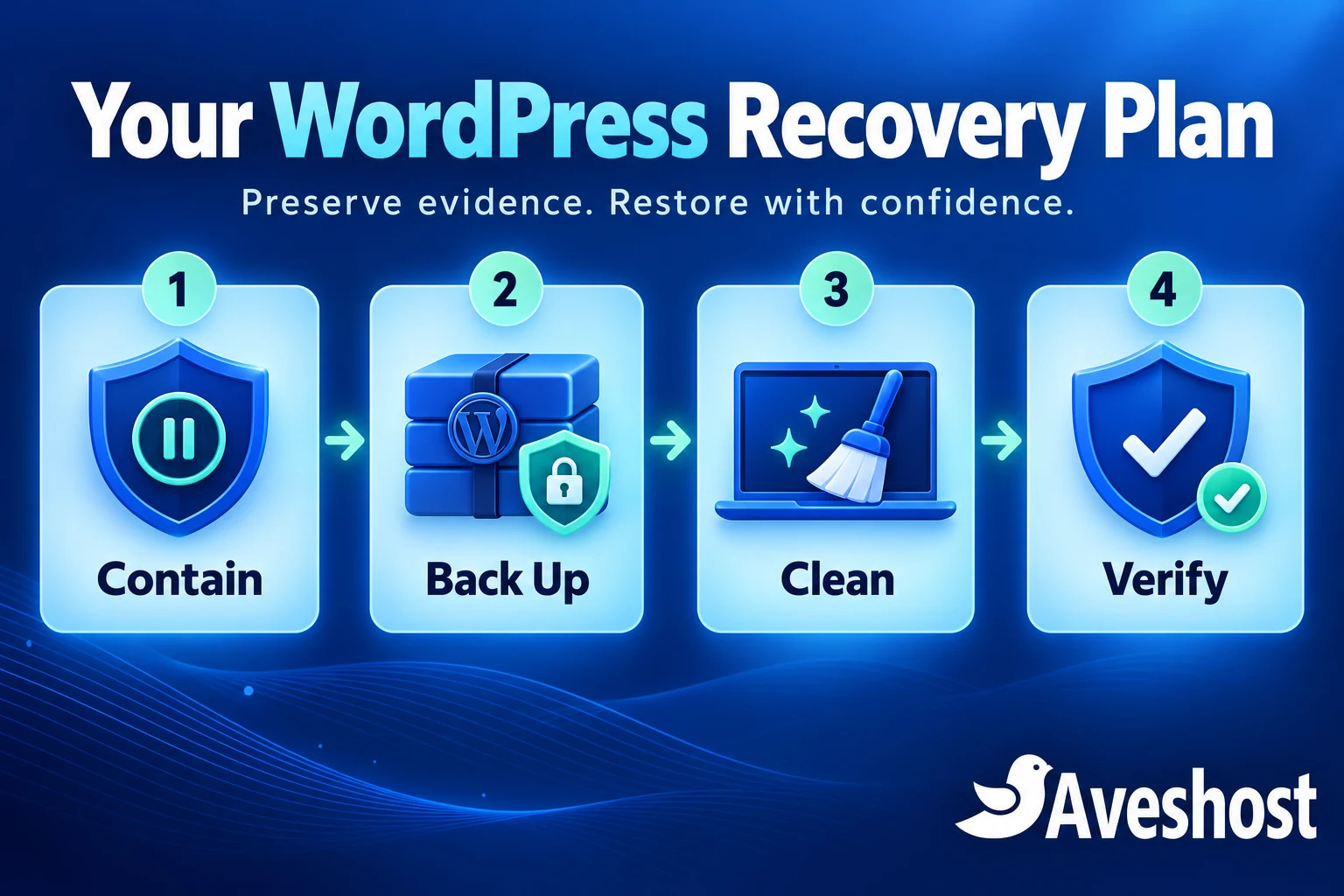
Step 1: Contain the incident and contact Aveshost
If the site is redirecting visitors, collecting information through an unauthorised form or distributing harmful content, restrict public access while recovery begins. Ask our team to help contain the affected website at the hosting level. A WordPress maintenance plugin alone may leave other infected URLs accessible.
Open a new browser tab, visit Aveshost support directly and explain the problem. Include the domain, the time you noticed it, screenshots of warnings, affected page addresses and recent changes. Use your authenticated account for service-specific details; keep passwords, API secrets and customer records out of public posts.
- Pause affected checkout, registration or upload functions until they are safe.
- Preserve access and error logs before retention limits remove useful evidence.
- Review every website installed within the affected hosting account.
- Keep a brief record of changes made during recovery.
- Use a clean, updated device to manage the incident. Scan the computer used by your website administrator too.
If your hosting account has been restricted because of malware or abusive activity, respond through the support ticket. Restrictions help contain the incident. Our team can review the reported activity and explain the checks needed before the service is reopened. Moving infected files to another account leaves the underlying problem in place.
Step 2: Preserve evidence and find a clean backup
Before cleanup, preserve a copy of the current files and database. Label it clearly as an infected incident copy and keep it outside public web access. This copy supports investigation and recovery if a later change removes important data. It is separate from the clean backup you intend to restore.
Next, locate a restore point from before the earliest evidence of compromise. Compare several backups if necessary. The day you noticed the problem may be later than the day an attacker first gained access. Inspect the selected backup and restore it in a protected environment before putting it live.
- Save website files, the database and relevant logs.
- Record backup dates, WordPress version and active plugin or theme versions.
- Keep the incident archive protected and unavailable for download from the website.
- Preserve newer orders, enquiries and uploads separately before an older restore.
- Check that your restore point includes the database as well as files.
For WooCommerce, restoring last week’s database can remove this week’s orders. Reconcile legitimate transactions and customer records carefully, and avoid sending duplicate receipts or triggering automated messages during staging. A backup is valuable only when you can restore it accurately.
Step 3: Recover control of your website accounts
Secure the accounts used to manage your business website: WordPress administrators, hosting control panel access, file-transfer accounts, domain management and the email account used for password recovery. Review delegated access and remove access that is no longer needed.
Change compromised credentials from a trusted device, enable two-factor authentication where available and revoke unfamiliar sessions, application passwords or tokens. After the website is clean, rotate affected credentials again so secrets exposed during the incident no longer work. If you change the database password, update the matching WordPress configuration at the same time.
Review administrator accounts before deleting anything. Check whether an account belongs to a legitimate team member and preserve evidence of unauthorised accounts. When removing a malicious user, handle content ownership deliberately so legitimate business content is retained.
Have your developer replace WordPress authentication keys and salts in wp-config.php to invalidate existing cookie-based logins. Also review application passwords and integration tokens separately. If attackers changed your recovery email or you cannot access the dashboard, use the verified recovery process through our support team.
Step 4: Clean a hacked WordPress site properly
A complete cleanup covers the application files, stored content and mechanisms that can recreate the infection. Work on a protected copy where possible, with public access restricted and production credentials disconnected. If you are unfamiliar with PHP or database administration, arrange technical help rather than deleting files based only on their names.
Replace WordPress core files with trusted originals. Use the official WordPress release matching the installation during recovery, then update and test the supported release before launch. Your developer should replace compromised core directories and root core files carefully, preserving the database configuration and legitimate site content. Simply copying clean files over infected folders can leave attacker-added files behind.
Reinstall plugins and themes from trusted sources. Obtain fresh copies from WordPress.org or the original developer. Preserve reviewed custom work and child-theme changes separately. Remove abandoned extensions and nulled premium downloads, which give you neither a reliable update channel nor a trustworthy source for the code. Deactivating an unwanted extension does not remove its files.
Inspect the locations attackers commonly use. Include wp-content/uploads, wp-content/mu-plugins, drop-in files such as advanced-cache.php, wp-config.php, .htaccess, .user.ini and other server configuration used by the installation. Review unexpected PHP files, redirects and code that loads before the application. Compare custom files with a trusted earlier copy.
Review the database. Inspect posts, pages, widgets, options and user records for injected scripts, spam links, changed website addresses and unauthorised accounts. The table prefix can differ from wp_. Use a database export and a controlled change process; broad search-and-replace can damage legitimate content or serialized settings.
Check scheduled work and neighbouring installations. Review WordPress scheduled events, hosting cron jobs, old website copies and any other application in the same affected account. A forgotten test site or recurring task can restore malicious code after the visible files have been cleaned.
Scan the server-side files and the public site. A browser-based scanner sees public responses; a file scanner can inspect code that visitors cannot reach. Combine those views with a review of the database and logs. A clean scanner result is one useful check, rather than a substitute for understanding and removing the entry point.
Avoid deleting every file containing terms such as base64_decode or eval. A string match is an investigation lead; its context determines what the code does. Quarantine confirmed malicious items and preserve a record of the action. Also avoid uploading a private website archive or database to an unknown online scanner.
Step 5: Restore and test your website safely
Once the files and database are trustworthy, restore them into the prepared hosting environment and patch the vulnerable component. If an abandoned plugin caused the incident, replace it. If credentials were stolen, address the exposed account and the device or process involved. Restoring an old backup without closing the entry point can lead to another infection.
Use staging with restricted access to test the recovered site. Disable real payment actions and outbound customer notifications while testing. Review the homepage, key landing pages, menus, media, forms, checkout and login flows. Compare the site as an administrator and as a logged-out visitor, including a mobile browser.
- Confirm legitimate administrators and recovery email addresses.
- Check payment destination settings and server-side payment callbacks.
- Test customer emails and remove unauthorised mail-forwarding changes.
- Inspect redirects, canonical URLs, robots rules and the XML sitemap.
- Update WordPress, themes and plugins, then repeat key business tests.
- Re-enable approved integrations and clear affected caches after cleanup.
If legitimate orders were created after the clean restore point, have the developer reconcile them before opening checkout. Keep an audit trail of what was restored and what was retained. Once launch checks pass, take a fresh clean backup and monitor file changes, logins and outgoing activity.
Step 6: Resolve Google warnings and account restrictions
If Google has flagged the site, open your verified property in Search Console and review Security & Manual Actions → Security Issues. Read each issue and inspect the sample URLs. Google explains that the examples may cover only part of the affected site, so cleanup must address the whole infection.
Seeing Chrome’s red “Dangerous site” warning? Follow our guide to fixing Chrome’s Dangerous Site warning for a closer look at what the warning means, how to investigate it and how to request a review after cleanup.
After all listed security issues are fixed and your checks pass, use Request Review. Explain the problem, the cleanup performed and the changes that prevent it recurring. Keep the description specific: for example, replaced infected files, removed injected pages, patched the vulnerable extension and secured administrator access.
Follow Google’s Security Issues report guidance. Reviews can take days or weeks; avoid submitting another request while a review is pending. A successful security review and recovery of search rankings are separate processes. Continue checking indexing and legitimate content after the warning is resolved.
Review the Manual Actions report separately if it lists an issue. Also respond to any relevant hosting or email-abuse ticket. Once recovery checks are complete, ask our support team to review restrictions affecting your service. Keep users away from flagged pages while recovery is underway.
Step 7: Prevent future WordPress malware attacks
Avoid pirated themes, nulled Elementor plugins and nulled PHP scripts
Do not install pirated WordPress themes, nulled premium plugins, nulled Elementor Pro copies or PHP scripts downloaded from piracy websites. A free premium download can come with hidden code added by somebody other than the original developer. That code can create a backdoor, giving an attacker a way to access your website without your permission.
A backdoor can create unauthorised administrator accounts, inject spam links, redirect customers to fraudulent pages or download more malware. Some infections also send spam, run unwanted background tasks or use your hosting resources for cryptomining. This activity consumes CPU, memory and disk space, slows your legitimate website and can lead to service restrictions while the harmful activity is contained.
A plugin appearing to work normally does not establish that its files are trustworthy. Hidden code can remain active while the visible design and features look correct. Removing a licence notice or bypassing activation also removes a dependable path to the developer’s supported updates.
- Download Elementor’s free version from WordPress.org, and obtain Elementor Pro directly from Elementor with a valid licence.
- Get themes, plugins and PHP scripts from their original developers or trusted official directories. Use legitimate free alternatives when a premium licence is outside your budget.
- Keep licences and security updates current, and remove extensions or scripts your website no longer needs.
- If pirated software was installed, preserve an incident copy, remove it, replace it with a trusted release and check the whole account for backdoors and injected content.
At Aveshost, we strongly encourage every website owner to use trusted, maintained software. The saving from a pirated download can quickly be outweighed by lost orders, cleanup work and damage to customer trust. Keep your website and hosting resources working for your business.
The best way to clean a hacked WordPress site is to make recovery the beginning of a stronger maintenance routine. Put a named person in charge of updates, access and backup checks so each task has an owner. A small business does not need a complicated process; it needs a consistent one.
| Protection | Practical action |
|---|---|
| Trusted software | Use legitimate themes and plugins, keep licences current and remove unused installations. |
| Updates | Apply security fixes promptly and test major changes in staging. |
| Access control | Use unique administrator accounts, strong passwords, two-factor authentication and limited permissions. |
| Malware monitoring | Review scan notifications, investigate changes and track unexpected users or pages. |
| Web application firewall | Enable and maintain application-level filtering for malicious web requests. |
| Backups | Keep automated restore points, protect backup access and test recovery. |
| Secure administration | Use HTTPS and encrypted file transfer; keep staff devices and recovery email secure. |
Do not share one administrator password among a designer, employee and agency. Give each person access appropriate to their work, then remove it when the engagement ends. Keep the domain and hosting account under your business’s control. This is especially useful for Ghanaian SMEs that rely on external developers for maintenance.
A network firewall controls connections and exposed ports. A web application firewall inspects website requests and can filter common attack patterns. Both support security, but neither makes an outdated vulnerable plugin safe to keep indefinitely. On a self-managed VPS, the administrator must maintain server updates, firewall rules, access and application security; choose managed hosting when you want our team to handle the platform maintenance.
Avoid granting world-writable permissions to solve a plugin problem. Ask your developer to set file ownership and permissions for your actual hosting environment. Disable dashboard file editing where appropriate, restrict administration access and review exposed backups or development files. WordPress’s official hardening handbook explains these controls in more detail.
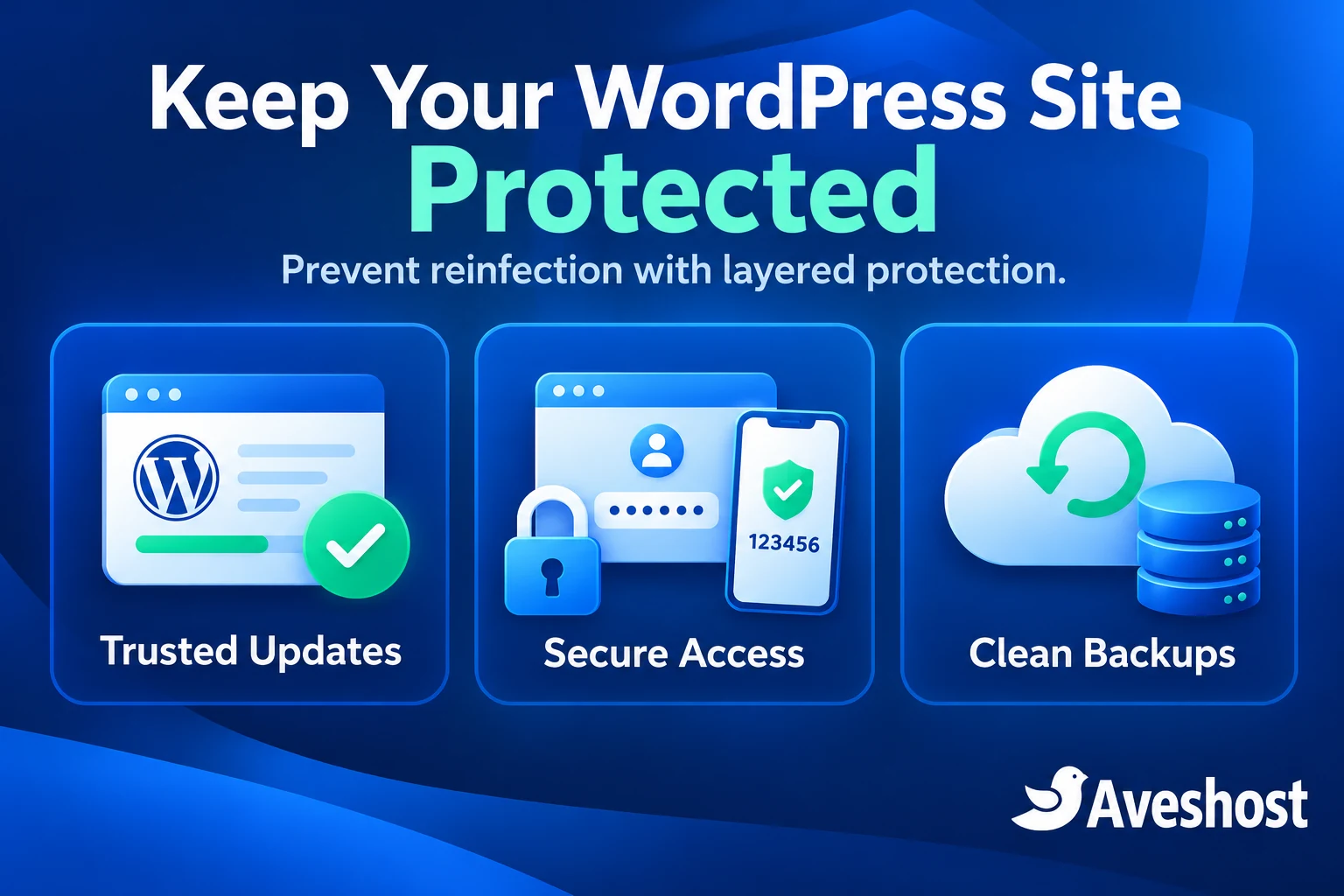
Choose Aveshost protection for your WordPress site
Our managed WordPress hosting includes automatic backups, staging, WordPress updates, malware monitoring and a web application firewall. It brings those tools together for business owners who want a managed platform for their WordPress site.
You can also add Aveshost website security with SiteLock. Choose the level that matches your needs: scanning, automatic removal or additional web application firewall protection. The comparison below uses the annual Ghana-cedi prices shown at the time of writing. Your order summary shows the selected term and total.
| Security plan | Annual price | Key protection |
|---|---|---|
| SiteLock Find | GH₵260.31 per year | Daily malware scanning and listed vulnerability checks. |
| SiteLock Fix | GH₵1,041.56 per year | File and database scans with automatic malware removal. |
| SiteLock Defend | GH₵3,124.90 per year | Malware removal with web application firewall and CDN features. |
Our CodeGuard website backup add-on provides daily automated backups, file-change monitoring and restore tools. Plan storage around your files and databases, and test a restore before an emergency. Use clean restore points together with cleanup and patching; a backup can contain malware if the infection was already present when it ran.
For website malware removal in Ghana, contact our support team with your domain and the warning you are seeing. We can discuss recovery, the security tools for your service and a managed WordPress setup for ongoing protection. If you plan to migrate, arrange cleanup and verification as part of the process so the new installation starts with trusted files and data.
Your WordPress recovery checklist
- Public access restricted while harmful activity is contained.
- Incident copy, logs and a clean restore point preserved.
- Affected credentials, sessions and delegated access reviewed.
- Core files, extensions, database and scheduled tasks checked.
- The vulnerable component or exposed access route fixed.
- Checkout, forms, email, customer records and mobile pages tested.
- Google security review requested when applicable.
- Hosting restrictions reviewed through the support ticket.
- Fresh clean backup created and monitoring enabled.
- A clear owner assigned for updates, access and restore tests.
Your website is ready to return to business when the application works, the harmful activity has stopped and the entry point has been addressed. Keep monitoring after launch. Early attention to a new file alert or unfamiliar login is easier to manage than another prolonged outage.
Frequently asked questions
Can I clean a hacked WordPress site without losing my content?
Often, yes. Preserve the files and database first, replace infected application code with trusted copies and review stored content carefully. A clean backup can help, while recent orders and enquiries need separate reconciliation.
Will changing my WordPress password remove malware?
Changing exposed credentials helps stop unauthorised access, but it does not remove infected files, database injections or malicious scheduled tasks. Complete the cleanup and close the entry point too.
Why has my hosting account been suspended for malware?
A restriction can contain harmful scripts, spam or other abusive activity. Contact Aveshost through your support account to review the notice and the checks needed for reopening.
Can I restore a backup and immediately put the website live?
Inspect and test the restore point first, patch the entry point and reconcile newer business data. An infected or vulnerable restore can bring the problem back.
Can nulled themes and plugins infect WordPress?
Yes. Untrusted modified downloads can contain malicious code and lack a dependable update path. Replace them with legitimate software from WordPress.org or the original developer.
Is a clean malware scan enough to finish recovery?
Use the scan alongside file, database, account and log checks. Remove the entry point, test the website and monitor after launch. Different scanners examine different parts of the installation.
How do I remove a Google security warning?
Fix all reported security issues across the site, test the recovery and request a review from the Security Issues report in Google Search Console. The review is handled by Google.
Does SSL prevent WordPress malware?
SSL protects data in transit. WordPress also needs trusted software, updates, secure access, malware monitoring and backups.
Does Aveshost offer WordPress security and backups?
Yes. Our managed WordPress hosting includes malware monitoring, a web application firewall and automatic backups. SiteLock security and CodeGuard backup options are also available through our services.
Can Aveshost help me recover a hacked website in Ghana?
Contact our support team with the domain and incident details. We can review your service, discuss recovery and security options, and help you plan a clean, tested WordPress setup.