
You can create a private VPN on a VPS to protect the connection between your device and a server you control. For remote workers using a café in Osu, a hotel network or an airport lounge, WireGuard adds an encrypted tunnel across a network whose configuration you do not manage.
The useful distinction is where that protection ends. Your tunnel runs to the VPS; HTTPS still protects connections from there to websites. A VPN does not remove phishing, malware or account risks, and it does not make browsing anonymous.
This guide uses a fresh Ubuntu VPS, WireGuard and UFW to build a personal internet gateway. It includes one client profile, DNS settings and verification steps. IPv4 internet traffic exits through the VPS. IPv6 traffic is routed into the tunnel and blocked in this example until you configure a proper dual-stack gateway.
Table of Contents
Understand public Wi-Fi risks in Accra
Public Wi-Fi can be convenient, but a familiar network name is not proof of who operates it. An attacker can create a lookalike hotspot or an unwanted login page. Unencrypted traffic can also expose information to people in a position to observe the connection.
Modern HTTPS already encrypts much of ordinary web browsing. Someone sharing a hotspot cannot automatically read every password sent over a correctly validated HTTPS connection. Risk increases when a user ignores certificate warnings, uses an unencrypted service or enters credentials into a fake page.
- Confirm the network name with the venue and avoid automatic connection to unknown hotspots.
- Keep your device and browser updated, and use the public-network profile where available.
- Disable unnecessary file sharing and discovery.
- Keep HTTPS enabled and stop when a certificate warning appears.
- Use mobile data or an approved work connection for particularly sensitive tasks.
These habits support secure internet browsing in Ghana whether or not you run a VPN. CISA’s public Wi-Fi guidance for travellers highlights the risks of using open networks for sensitive transactions. No specific café or airport network is being labelled unsafe in this guide.
What a private WireGuard VPN protects
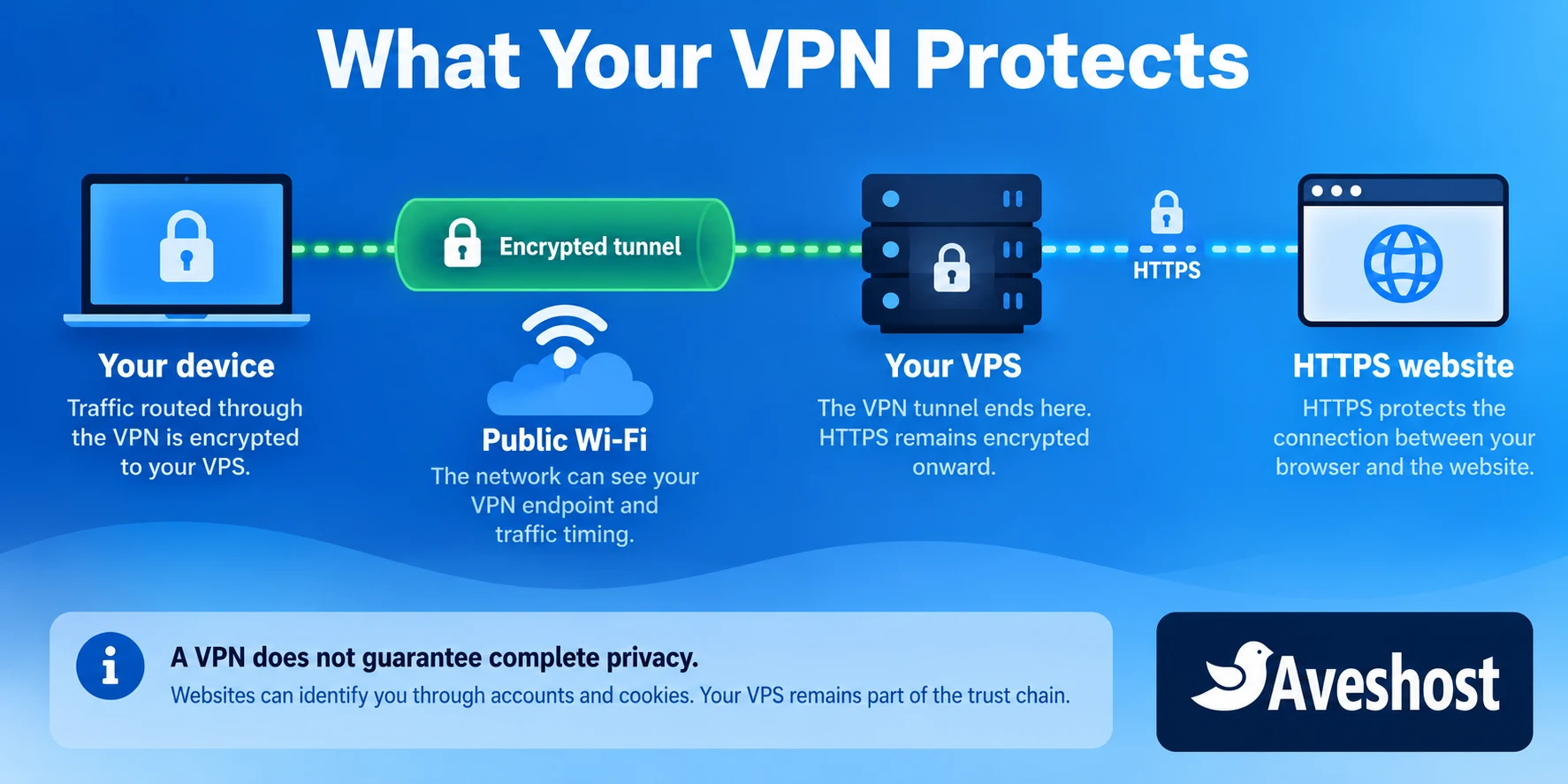
WireGuard encrypts packets between authenticated peers. With the right routes, your device sends internet traffic through that tunnel to the VPS, which forwards it onward. The local Wi-Fi network can see a connection to the VPN endpoint and traffic timing, while the tunnel protects the packet contents carried inside it.
| Layer | Protection | Remaining responsibility |
|---|---|---|
| WireGuard tunnel | Encrypts traffic between device and VPS | Correct routing, DNS and key protection |
| HTTPS | Encrypts the connection to the website | Valid certificates and the correct website |
| Device security | Limits compromise of the endpoint | Updates, safe downloads and account protection |
The VPS becomes an internet exit point, so you move some trust from the hotspot to the server environment and the network beyond it. Websites may identify you through logins, cookies or browser behaviour. Your DNS resolver may see queries, and a VPS provider is still part of the connection path.
Use a company-approved solution for work that requires corporate VPN access or managed devices. A personal WireGuard gateway does not automatically connect you to your employer’s private systems or satisfy its security requirements.
Choose hosting to create a private VPN on a VPS
Choose a Linux VPS with a public IPv4 address, root or sudo access and enough monthly transfer for your usage. Latency, network quality and traffic allowance matter more than disk space for a small personal VPN.
Our self-managed VPS plans come with SSD storage. Cloud VPS 1 offers 2 GB RAM, 20 GB SSD and 1 TB of traffic for GH₵100 per month at the time of writing. Start with measured personal use and review transfer and CPU usage before adding more devices.
VPN traffic can be counted on both sides of the gateway under the applicable traffic policy. Video calls, large downloads and streaming use more transfer than ordinary web pages. A port-speed figure is not a guarantee of the speed you will receive from an Accra hotspot.
Test the route from the networks you actually use. A nearby server can reduce distance, but congestion and the ISP route still affect performance. Ask our team about available locations and the plan that fits your usage rather than choosing only by the country label.
Prepare a fresh Ubuntu VPS
Use a fresh, supported Ubuntu server dedicated to this example. It uses UFW as the firewall manager. Do not layer these rules onto a server already managed by another firewall, Docker networking or a control panel without reviewing how those systems interact.
Before changing networking, confirm that the provider console works and keep a second SSH session open. Use SSH keys, apply updates and record your current SSH port. The sample uses port 22; replace it everywhere below if your server uses another port.
sudo apt update
sudo apt upgrade
sudo apt install wireguard ufw
ip -4 route show default
The route output identifies the outgoing interface after dev. It might be ens3, eth0 or another name. The examples below use ens3; replace it with the actual interface. Also choose a private VPN subnet that does not overlap your home, office or other VPN networks.
In the provider firewall, allow your actual SSH port and UDP 51820. Limit SSH to your administration addresses where practical, preserving console recovery. The VPN clients may roam between networks, so a fixed source-IP restriction on their UDP traffic can prevent them connecting.
Install WireGuard and create device keys
Install client apps through the official WireGuard installation page. Each device needs its own key pair. The public key identifies a peer; the private key must remain on the device or server that owns it.
On the VPS, create the server key pair in a protected root directory. These commands open a root shell for key generation, then return to your normal session:
sudo -i
install -d -m 700 /etc/wireguard
cd /etc/wireguard
umask 077
wg genkey > server.key
wg pubkey < server.key > server.pub
exit
Generate the client key pair on the client device. The official app can create a new tunnel and its keys. For a Linux client, use wg genkey and wg pubkey in a protected local directory. Exchange public keys through a trusted channel; do not send the client’s private key to the VPS.
Follow the WireGuard quick-start guide for key handling. Never paste private keys into a public support comment, article or screenshot. A QR code containing a full profile also contains sensitive credentials.
Configure the WireGuard VPS gateway
Create /etc/wireguard/wg0.conf with a protected editor. Paste the server private key from server.key into its placeholder and use the first device’s public key in the peer section. All REPLACE_WITH values must be changed before starting the service.
sudo nano /etc/wireguard/wg0.conf[Interface]
Address = 10.66.66.1/24, fd42:66:66::1/64
ListenPort = 51820
PrivateKey = REPLACE_WITH_SERVER_PRIVATE_KEY
[Peer]
# First device
PublicKey = REPLACE_WITH_DEVICE_PUBLIC_KEY
AllowedIPs = 10.66.66.2/32, fd42:66:66::2/128The private IPv4 and IPv6 addresses identify the tunnel interfaces; the IPv6 range here does not provide public IPv6 internet access. On the server, AllowedIPs contains only the addresses assigned to that specific device. Do not put 0.0.0.0/0 on every server peer.
sudo chown root:root /etc/wireguard/wg0.conf
sudo chmod 600 /etc/wireguard/wg0.conf
Add a separate peer for each additional device, assigning the next unused address, such as 10.66.66.3 and fd42:66:66::3. A unique public key and address let you revoke a lost phone without replacing every other profile.
Enable routing and configure the firewall
An internet gateway needs IPv4 forwarding and source NAT. Ubuntu’s WireGuard gateway documentation explains the routing principle. In this example, UFW owns the persistent firewall configuration.
sudo nano /etc/sysctl.d/70-wireguard-routing.confAdd the following line, save the file and load it:
net.ipv4.ip_forward = 1sudo sysctl -p /etc/sysctl.d/70-wireguard-routing.confBack up /etc/ufw/before.rules, then edit it. On this fresh server, insert this NAT block before the existing *filter section. Preserve the existing filter rules. If the file already has a *nat block, integrate the rule into that block instead of adding a second table definition. Replace ens3 with your real outgoing interface.
sudo cp /etc/ufw/before.rules /etc/ufw/before.rules.pre-wireguard
sudo nano /etc/ufw/before.rules
*nat
:POSTROUTING ACCEPT [0:0]
-A POSTROUTING -s 10.66.66.0/24 -o ens3 -j MASQUERADE
COMMITCheck that IPv6=yes is set in /etc/default/ufw so UFW applies IPv6 rules too. The routing policy below permits the chosen IPv4 VPN subnet to leave through ens3 and explicitly denies forwarded IPv6 from the tunnel. It does not publish a dashboard or DNS server.
sudo ufw default deny incoming
sudo ufw default allow outgoing
sudo ufw default deny routed
sudo ufw allow 22/tcp
sudo ufw allow 51820/udp
sudo ufw route allow in on wg0 out on ens3 from 10.66.66.0/24 to any
sudo ufw route deny in on wg0 from fd42:66:66::/64 to any
sudo ufw enable
sudo ufw reload
sudo ufw status verbose
Confirm the SSH allow rule before enabling UFW. These defaults are for the dedicated fresh server described above; they would affect other services on an existing host. Keep console access available and verify a new SSH connection before closing the old one.
sudo systemctl enable --now wg-quick@wg0
sudo systemctl status wg-quick@wg0
sudo wg show
The interface should start without configuration errors. A recent handshake normally appears after an authorised client connects and sends traffic. Do not publish command output containing sensitive details without reviewing it.
Create your private VPN client profile
Create a profile in the official client app using this template. Put the device private key in Interface and the server public key in Peer. Replace 203.0.113.10, which is a documentation-only address, with your VPS public IPv4 address.
[Interface]
PrivateKey = REPLACE_WITH_DEVICE_PRIVATE_KEY
Address = 10.66.66.2/32, fd42:66:66::2/128
DNS = 1.1.1.1

[Peer]
PublicKey = REPLACE_WITH_SERVER_PUBLIC_KEY
Endpoint = 203.0.113.10:51820
AllowedIPs = 0.0.0.0/0, ::/0
PersistentKeepalive = 25
The DNS entry is an example public resolver. Choose a resolver you trust and can reach through the VPS, and consider its privacy policy. Do not point the client at 10.66.66.1 unless you have actually installed and restricted a DNS service there.
The client’s AllowedIPs routes both address families into the tunnel. IPv4 is forwarded to the internet; IPv6 is intentionally blocked by this gateway. Removing ::/0 while the device still has native IPv6 can allow that traffic to bypass the tunnel. Verify this behaviour in your actual client.
PersistentKeepalive can help a roaming device behind NAT maintain reachability during idle periods. A 25-second interval is a common choice documented by WireGuard; it is not a speed setting. Save the profile securely, activate it and generate some traffic.
The DNS field is handled by client software. On Linux, wg-quick expects compatible resolver integration for that field; configure your distribution’s resolver or use its supported network manager. See the official wg-quick manual. Importing a file alone does not prove DNS is routed correctly.
Verify public IP, DNS and IPv6 routing
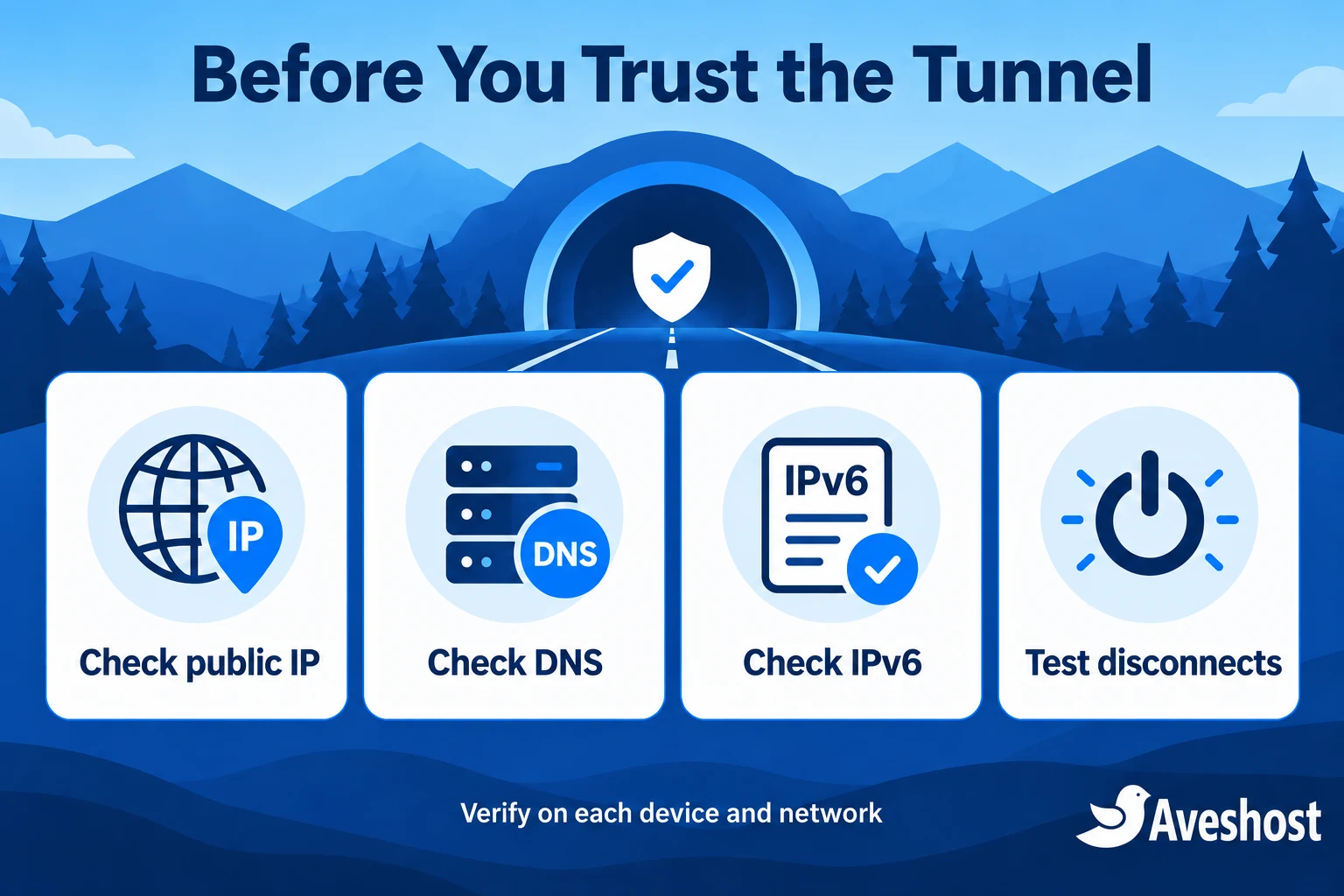
A green connected indicator is only the first check. Verify the traffic path before using the tunnel for everyday browsing. Repeat the checks after changing a client, firewall or network.
| Test | Expected result |
|---|---|
| Public IPv4 | A trusted IP-check service shows the VPS egress address |
| DNS | Queries use your chosen resolver rather than hotspot DNS |
| IPv6 | No native hotspot IPv6 internet path appears; this example blocks IPv6 |
| Handshake | The server shows a recent handshake and transfer counters |
| Disconnect behaviour | Your tested blocking policy prevents unwanted fallback traffic |
Use a trusted public IP and DNS test service, understanding that it receives your test connection. Check IPv4 and IPv6 separately. An IPv4 match does not establish that DNS or IPv6 is protected. Browser secure-DNS settings may use another resolver, so inspect those settings as part of the test.
Also test a forced outage, such as temporarily stopping the server interface while a client is connected. Watch whether internet traffic is blocked or falls back to the local connection. Then restore the service and confirm recovery. Perform this only on your own test gateway, not an employer’s production service.
Full-tunnel routes are not a universal always-on kill switch. Client apps and operating systems handle disconnects differently, and local subnet access may remain available. Configure the supported blocking or always-on options for your platform and test them. Use the public-network firewall profile to limit nearby devices.
On a captive portal network, you may need to complete its sign-in before the VPN can connect. Avoid sensitive browsing during that stage, then activate and verify the tunnel. Do not install a certificate offered by an unexpected hotspot page.
Troubleshoot your WireGuard VPS setup
| Symptom | Check first |
|---|---|
| No handshake | Public endpoint, UDP rule, matching public keys and client traffic |
| Handshake but no internet | IPv4 forwarding, NAT interface and UFW routed allow rule |
| IP access works but names fail | DNS address, client resolver integration and reachability |
| Some pages stall | Path MTU, network changes and application logs |
| Works on mobile data only | Hotspot UDP policy, captive portal or network restriction |
Review the service journal for startup errors and the interface counters for evidence of traffic. On the VPS, use:
sudo journalctl -u wg-quick@wg0 --no-pager -n 50
sudo wg show
sysctl net.ipv4.ip_forward
ip -4 route show default
sudo ufw status verbose
Do not fix routing by disabling the firewall or allowing all inbound ports. Correct the specific rule or interface. If a network blocks UDP, WireGuard may not work there; use another approved connection rather than treating a port change as a guaranteed solution.
For repeatable page stalls, investigate path MTU and test a suitable smaller value on the client after checking the network. Do not copy one value as a universal optimisation. If the VPN subnet overlaps a local network, choose a different private range and update every related rule and peer.
Maintain the VPN and browse responsibly
Keep the operating system and WireGuard tools supported and updated. Review devices regularly and remove the peer belonging to a lost or retired device from the server configuration. Apply the change to the running interface, then confirm it is also removed from the file used at restart.
Back up the protected configuration in encrypted storage, keep access limited and test recovery. Do not store private keys in a public website folder or ordinary shared document. Record the endpoint address, firewall design and device inventory without exposing secrets.
After restarting the VPS, verify the interface, NAT and client browsing again. Monitor transfer and investigate unexpected usage. A VPN server remains a public-facing system that needs maintenance; owning it gives you control and responsibility together.
Continue using HTTPS, multi-factor authentication and safe downloads. A personal VPN cannot protect a session from malware already running on the device or stop a phishing website from receiving information you voluntarily submit. For employer data, follow the organisation’s approved access policy.
Ready to create a private VPN on a VPS? Explore our Linux VPS plans or discuss your WireGuard setup with our team. Tell us your device platforms, locations, expected transfer and management needs so we can plan the right configuration.
Frequently asked questions
Can I create a private VPN on a VPS?
Yes. Use a supported Linux server with a public endpoint, WireGuard, correctly configured routing and a maintenance plan.
Does WireGuard make public Wi-Fi completely safe?
It protects traffic carried between your device and VPS. Keep HTTPS, device updates and phishing protection in place.
Does a VPN make me anonymous?
No. Websites can identify you through accounts and browser activity, and the server and DNS environment remain part of the trust chain.
What does AllowedIPs mean?
It associates addresses with a peer and influences routing. The client uses default routes here, while each server peer has only its own tunnel addresses.
Why is IPv6 blocked in this example?
The gateway provides IPv4 internet egress. IPv6 is captured and blocked to avoid a separate native IPv6 path until dual-stack routing is configured.
Can I share one profile across all devices?
Use a separate key pair and tunnel addresses per device so you can revoke one device independently.
Does the connected icon prove there are no leaks?
No. Verify public IP, DNS, IPv6 and disconnect behaviour on each device and network.
Will a VPN speed up my connection?
Not necessarily. Network routes, congestion and encryption overhead can affect performance. Test from your actual connection.
Can a private VPS VPN replace my employer’s VPN?
Only if your employer approves that design. A personal internet gateway does not automatically grant access to corporate systems.
Can Aveshost help with WireGuard setup?
Yes. Contact support with your device platforms, usage and server requirements to discuss the configuration.