

How to Create a PostgreSQL Database & User in cPanel
PostgreSQL databases allow you to store vast amounts of information efficiently, making data retrieval and management seamless. Unlike plain text files, these databases are structured and not easily readable by humans.
Many web applications, including bulletin boards, content management systems, and other dynamic platforms, rely on PostgreSQL databases.
Table of Contents
To utilize a database, you first need to create it. Additionally, only PostgreSQL users—distinct from email or system users—can access a database if they have the necessary privileges.
If you’re managing a website or an application that requires a database, cPanel makes it easy to set up and manage PostgreSQL databases. PostgreSQL is a powerful, open-source relational database system known for its robustness and scalability.
Suggested Reading: How to Set Up a MySQL Database & User in cPanel (2 Easy Methods)
Setting Up a PostgreSQL Database & User
In this guide, we’ll walk you through two methods of creating a PostgreSQL database and user in cPanel:
- Using the PostgreSQL Database Wizard (Beginner-friendly, step-by-step approach)
- Manually Creating a Database and User (For more control over the process)
No matter your level of expertise, you’ll find a method that works for you. Let’s get started!
Method 1: Using the PostgreSQL Database Wizard (Easy Way)
If you’re new to cPanel or want a quick way to set up your PostgreSQL database, the Database Wizard is the perfect tool. Follow these simple steps:
Step 1: Log into cPanel
- Open your web browser and go to your cPanel login page.
- Enter your username and password, then click Log in.
Step 2: Open the PostgreSQL Database Wizard
- In the Databases section, find and click on PostgreSQL Database Wizard.
- This will take you to a guided step-by-step process to create a database and user.

Step 3: Create a New Database
- Under Step 1: Create a Database, enter a name for your database. Example:
prod9_db. - Click Next Step.
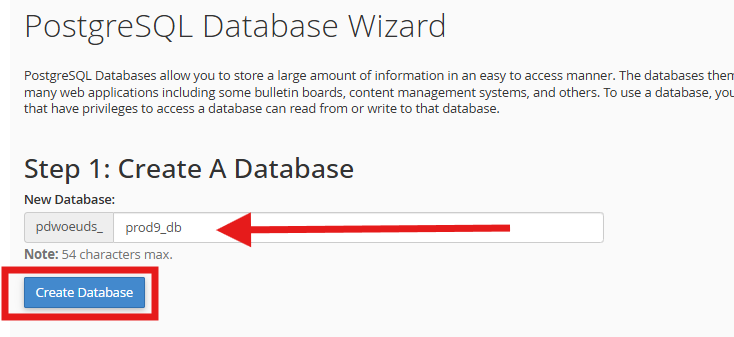
Step 4: Create a Database User
- Enter a username for the new database user.
- Set a strong password (use the password generator for security).
- Click Create User.
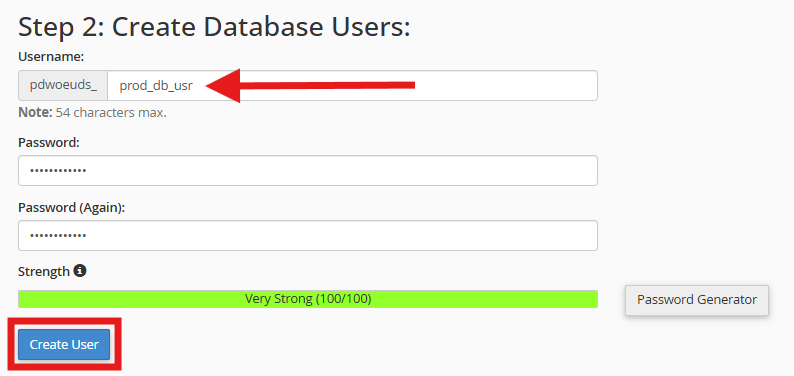
Step 5: Add user to the database
- Under Step 3: Add User to Database, ensure the correct database and user are selected..
- Click Submit.
Step 6: Completion
You’ll see a confirmation message that your database and user have been successfully created. You can now use this database for your application or website.
Final Result
DB_Name: pdwoeuds_prod9_db
DB_User: pdwoeuds_prod_db_usr
DB_Password: Your provided password
Method 2: How to Manually Create a PostgreSQL Database and User
For those who want more control over their database setup, you can manually create the database, and user.
Step 1: Log into cPanel
- Open your browser and navigate to your cPanel login page.
- Enter your username and password, then click Log in.
Step 2: Create a PostgreSQL Database
- In the Databases section, click on PostgreSQL Databases.
- Under Create a New Database, enter a name for your database (e.g.,
prod9_db). - Click Create Database.
- You’ll see a success message; click Go Back to return to the PostgreSQL Databases page.
Step 3: Create a PostgreSQL Database User
- Scroll down to the PostgreSQL Users section.
- Enter a Username for the database user (e.g.,
prod9_db_usr). - Set a strong Password (use the password generator for extra security).
- Click Create User.
Step 4: Link the User to the PostgreSQL Database
- Scroll down to the Add User to Database section.
- Select the User and Database from the dropdown menus.
- Click Submit.
Suggested Reading: How to Import a Database in cPanel Using phpMyAdmin
How to Connect to Your PostgreSQL Database
Once your database is created, you’ll need to connect to it from your application or a database management tool like phpPgAdmin. To do this:
- Find Your Database Credentials
- Database Name:
your_cpanel_username_database_name - Database User:
your_cpanel_username_database_user - Database Password: (the one you created earlier)
- Database Name:
- Access phpPgAdmin (Optional for GUI-based management)
- Go to cPanel > phpPgAdmin under the Databases section.
- Select your database and start managing tables, queries, and data.
- Connect Using a Web Application
- In your application’s configuration file, enter the database credentials:
$db_host = 'localhost';
$db_name = 'pdwoeuds_prod9_db';
$db_user = 'pdwoeuds_prod_db_usr';
$db_pass = 'your_password';
Final Thoughts
Creating a PostgreSQL database in cPanel is easy whether you use the PostgreSQL Database Wizard or manually set it up. The Wizard is great for beginners, while the manual method offers more control.
Now that you have your database set up, you can integrate it into your website, manage it using phpPgAdmin, and start building dynamic applications.
If you have any questions or run into issues, feel free to leave a comment below or reach out to Aveshost Support!
Happy coding!
Suggested Reading:
- How to Buy cPanel Hosting for Your Website: Beginner’s Guide
- How to Upload Your Website (in 3 Simple Steps)
- How To Transfer Your Domain: A Step-by-Step Guide
- How to Choose a Blog Name: 107+ Niche Ideas
- How to Redirect HTTP to HTTPS: Ultimate Guide to Secure Site
Frequently Asked Questions (FAQs)
What are the two methods for creating a PostgreSQL database in cPanel?
The two methods are: 1) Using the PostgreSQL Database Wizard (beginner-friendly, step-by-step approach), and 2) Manually creating a database and user (for more control over the process).
How do I connect my web application to the PostgreSQL database?
In your application’s configuration file, enter the database credentials: database host as ‘localhost’, and include the database name, username, and password you created in cPanel.
What is the difference between PostgreSQL users and other user types in cPanel?
PostgreSQL users are distinct from email or system users. Only PostgreSQL users with proper privileges can access a PostgreSQL database.
Can I manage my PostgreSQL database with a graphical interface in cPanel?
Yes, you can use phpPgAdmin (found in the Databases section of cPanel) for GUI-based management of your PostgreSQL database, including managing tables, queries, and data.