

Ready to migrate a cPanel website to another host, but worried about losing business emails, orders or website access? A carefully planned migration lets you prepare and test the new server while your current website continues serving visitors.
For Ghanaian businesses, the move may involve more than a WordPress installation. Your website, sales inboxes, MoMo callbacks, booking forms and domain records may depend on different services. The safest sequence is to map those dependencies, copy and test the site, synchronise changing data, then switch traffic and confirm the result.
This guide shows how to switch web host in Ghana with minimal disruption. We use “zero-downtime” as a cutover goal, with practical steps to reduce interruptions. For a busy shop or portal, keeping new transactions consistent needs additional planning; a basic file copy and DNS change cannot guarantee continuous writes.
Table of Contents
What zero-downtime migration means for your business
A hosting move and a domain transfer are different operations. Moving hosting changes where your website runs. Transferring a domain changes the registrar managing the registration. You can usually move the website while leaving the domain with its current registrar, provided you can edit the relevant DNS records.
| Website type | Practical migration approach |
|---|---|
| Mostly static brochure site | Copy and test, then switch DNS while both hosts remain available |
| Blog with occasional updates | Pause publishing briefly for the final copy |
| Shop, booking site or student portal | Coordinate a write pause or a controlled single-backend cutover |
| Website with business email | Plan website traffic and mailbox delivery separately |
Two working copies can keep pages available during DNS caching. They can also create two competing databases if both accept orders independently. The objective is to keep one authoritative source for new business activity throughout the switch. A migration plan should say who controls the change, where new data is written and what happens if verification fails.
If uninterrupted transactions are essential, arrange an application-specific cutover using techniques such as controlled proxying or replication, with a tested procedure. A short, announced pause in checkout is often a simpler option for a smaller business.
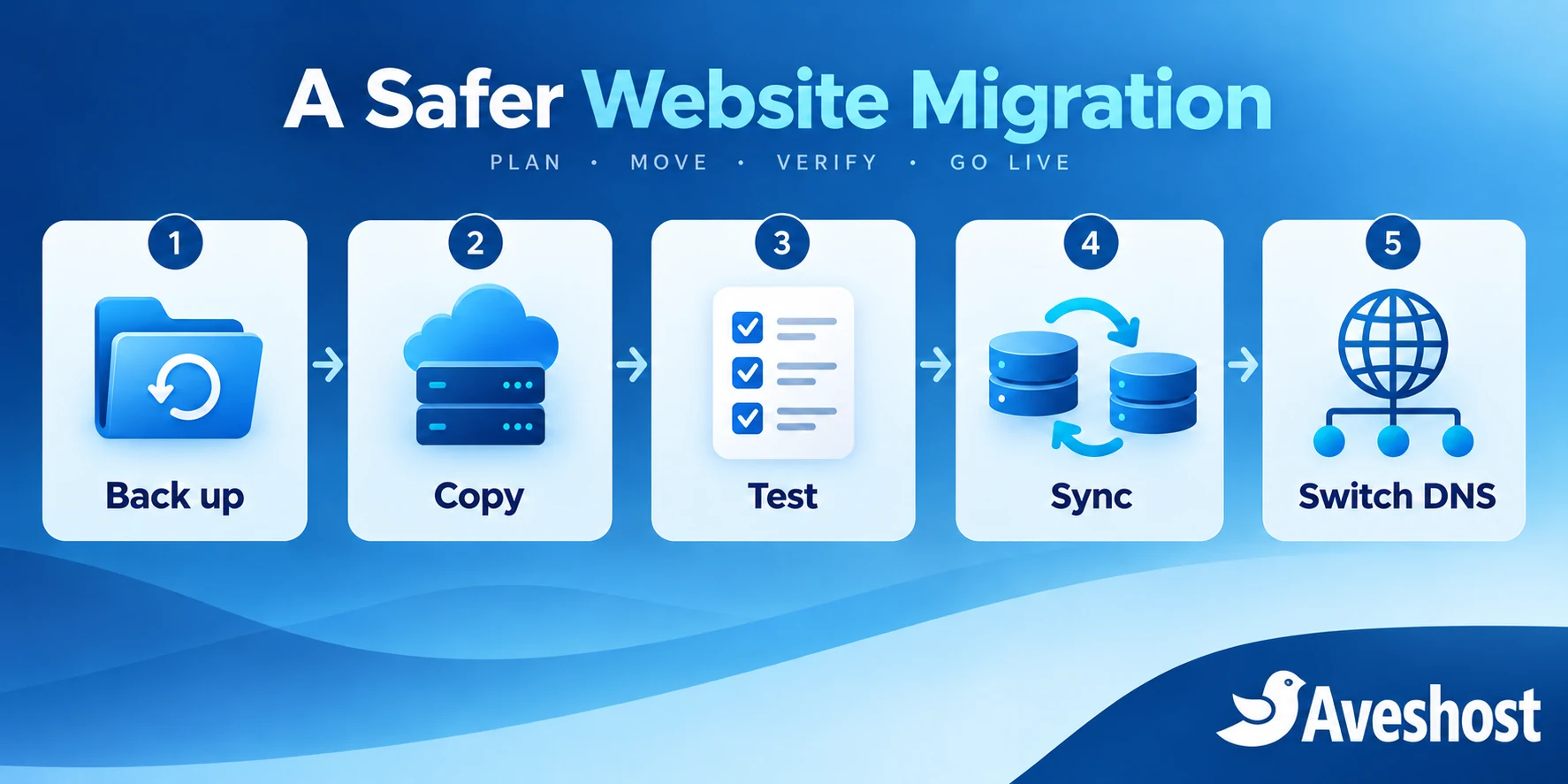
Step 1: List your website, email and DNS dependencies
Before ordering new hosting or editing DNS, write down what is running today. A five-minute inventory can prevent a missed subdomain or email record from becoming a business interruption.
- Primary domain, www address, subdomains and any additional websites.
- CMS or application version, PHP version, extensions and database type.
- Business mailboxes, aliases, forwarders, filters and mailbox sizes.
- Scheduled jobs, workers, webhooks, outbound SMTP and external API connections.
- DNS hosting, domain registrar, CDN or proxy configuration, and certificate renewal method.
- Current backups, available access and your preferred migration window.
Check who controls the domain registration and DNS. Keep your old hosting active and avoid starting a move just before its expiry. Make sure the person approving the cutover can contact both the website owner and the team handling email.
Export or record the existing DNS zone, including A, AAAA, CNAME, MX, TXT, CAA and service records. SPF, DKIM and DMARC are particularly important for business mail. If the domain uses DNSSEC, include its signing and registrar DS records in the DNS plan; an incorrectly coordinated nameserver change can make the domain fail validation.
Create a simple acceptance checklist: homepage works, admin login works, order submission succeeds, mail arrives, mail sends and backups restore. Use it on the new server before and after the switch.
Step 2: Back up files, databases and mail
Take a complete, recoverable backup before the first transfer. Store a copy outside the old hosting account. Check that the archive downloads correctly and that your database export is present. A backup held only on the server you plan to cancel is not a useful exit plan.
In cPanel, use Files → Backup or Backup Wizard to generate an available full account backup, and download it after completion. If that feature is unavailable, request it from your current host or collect the files, database exports and mail separately. The cPanel backup documentation distinguishes full and partial backups; full-account restoration normally requires host or WHM assistance.
- Website files, including uploads and configuration files.
- All required databases and the application’s database connection settings.
- Mail data plus a separate list of mailboxes and forwarding rules.
- DNS records, cron jobs and any settings outside the website directory.
- Certificates and deployment configuration where needed, stored securely.
For a dynamic application, coordinate backups so files and database records represent a consistent state. Record when the copy was taken and retain the original export separately from any edited copy. Treat account backups as sensitive: they may contain messages, password hashes and private connection settings. Transfer them through an approved secure channel, never a public download link.
Step 3: Prepare your new hosting environment
Choose the new environment around the application’s requirements and workload. A larger plan will not automatically fix an inefficient plugin or an overloaded database query. Check storage, PHP support, database compatibility, email limits, background jobs and backup arrangements.
Our web hosting supports business websites, while managed WordPress hosting is designed for WordPress sites. For custom applications or greater server control, explore our self-managed VPS and fully managed VPS options. Our fully managed VPS includes a DirectAdmin licence at no additional cost.
Create the destination account and database, configure the required runtime and arrange HTTPS for the real domain before directing visitors there. Certificate validation can use a supported pre-cutover method; have the migration team coordinate this rather than publishing an HTTPS site with an invalid certificate.
Keep the migration focused. Move the working site first, then make optional upgrades after it is stable. Changing the theme, application version, PHP major version and hosting simultaneously makes failures harder to isolate. If a runtime change is unavoidable, test it explicitly.
Step 4: Migrate a cPanel website to another host
When you migrate a cPanel website to another host, the transfer method depends on your access and the destination panel. A supported account transfer can move more settings than a manual website copy, but you still need to verify the application and mail afterwards.
For cPanel-to-cPanel moves, a hosting administrator may use WHM’s Transfer Tool. Its Live Transfer feature applies between cPanel & WHM servers and can reduce disruption through service redirection. It is not a generic feature for every panel-to-panel move, and DNS and post-transfer checks still matter.
For cPanel-to-DirectAdmin, the migration team can use supported backup conversion and restoration procedures. The DirectAdmin migration documentation identifies differences in database names and supported features. Review application connection details and any services outside the compatible transfer scope.
For a manual WordPress copy, transfer the complete site files, import the database into the new account and update wp-config.php with the destination database settings. Keep the existing domain and URLs when the public address is staying the same. Follow WordPress’s migration guidance for your setup, especially if Multisite or a domain change is involved.
Do not change every database URL to a temporary preview address just to test the server. If a genuine domain or path change is part of the project, use a WordPress-aware migration method that handles serialised data, and retain a backup. Check file ownership, rewrite rules, uploads and scheduled tasks after the copy.
Step 5: Test the new website before changing DNS
Preview the destination using the real hostname while public DNS still points to the old server. A hosts-file override on a test computer is one option: it changes resolution for that computer only. Add both the main domain and www address when both are used, then remove the override after testing.
Developers can also use curl’s documented –resolve option to direct an HTTPS request to the new server while retaining the hostname. Replace the example address with your destination IP:
curl --resolve example.com:443:203.0.113.10 -I https://example.com/The example IP is a documentation placeholder. This checks response headers and TLS behaviour for that hostname; it does not replace a full browser and application test. Keep certificate validation enabled. A certificate error should be fixed before cutover.
- Browse important pages and check images, downloads and redirects.
- Sign in as an ordinary user as well as an administrator.
- Test forms, search, cart and account functions using safe test data.
- Review database connections, log files and runtime errors.
- Confirm HTTPS, www redirects and the expected page titles and URLs.
Keep the copied environment from sending duplicate customer messages or processing live scheduled jobs during preview. Test payment connections in a controlled mode, and arrange a clear moment when production jobs become active on the destination. Avoid indexing a public staging copy; remove any temporary indexing restriction from the final production site before launch.
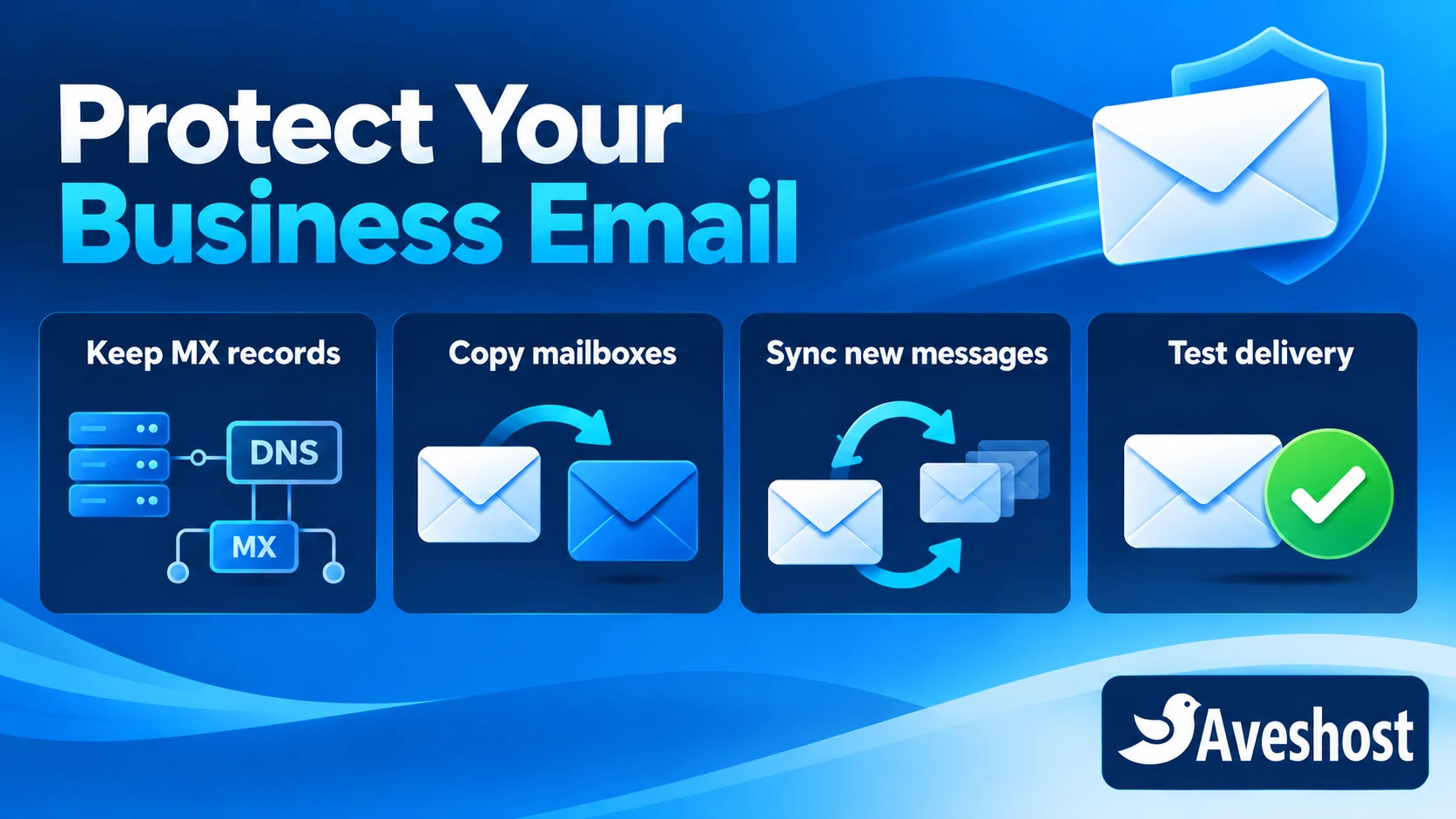
Step 6: Change web hosting without losing emails in Ghana
To change web hosting without losing emails in Ghana, first identify where your email is hosted. Moving a website does not require moving a separate business email service. If mail remains with that service, preserve its MX records, mail-related TXT records and required autodiscovery settings.
When mailboxes are moving too, create and check the destination mailboxes before changing delivery. Copy existing folders and messages, then perform another synchronisation after the mail cutover to catch messages that arrived at the old server during the transition.
| Mail component | Migration check |
|---|---|
| Mailboxes | Address, storage quota and sign-in work on the destination |
| Messages | Inbox, Sent and other folders copied and checked |
| MX records | Point to the chosen receiving mail service |
| SPF and DKIM | Match the services that send your business mail |
| DMARC | Retain the intended policy and reporting destination |
| Forwarders and filters | Recreate and test separately where necessary |
| Contacts and calendars | Export and migrate with the relevant application tools |
An IMAP migration tool such as imapsync can copy messages between compatible mailboxes and repeat synchronisation to collect later arrivals. It does not automatically transfer every contact, calendar, rule or password. Review folders and message counts, then spot-check important messages and attachments.
For mail clients using POP, some messages may exist only on a staff member’s computer. Back up and inspect those local stores before replacing account settings. With IMAP, check synchronisation and client configuration before staff resume normal use.
During overlap, use a defined email cutover procedure and keep the source available for late deliveries and the final sync. Review the receiving server’s local or remote mail routing and outbound application SMTP settings. Avoid careless forwarding between the two copies: it can create loops, duplicate messages or authentication problems.
Send and receive test messages from external accounts, check spam folders and inspect authentication results. A website loading correctly does not prove its email is working. If you want a separate mail service, see our business email hosting.
Step 7: Protect new orders and perform the final sync
The first backup is a snapshot of an earlier moment. New orders, uploads, bookings and form submissions may have arrived since it was taken. Plan a final synchronisation immediately before switching the active application.
- Choose a quieter cutover window and tell staff what changes are paused.
- Temporarily prevent new writes on the source, or use a tested mechanism that directs them to one active backend.
- Pause relevant scheduled jobs and background workers on the source.
- Export the final database and copy new or changed files consistently.
- Verify recent orders, submissions and upload counts on the destination.
- Make the destination authoritative, enable its required jobs and restore normal access.
If you pause checkout or submissions, communicate the short maintenance window clearly. Pages may remain readable while new transactions are paused, but that is not uninterrupted checkout. For a true continuous transaction cutover, a developer must coordinate the application and database, not just the DNS records.
Pay special attention to payment callbacks. A gateway may retry notifications while DNS still reaches the old server. Keep a controlled path for callbacks to reach the authoritative application, preserve transaction references and process repeated notifications safely. Reconcile payments against orders before declaring the move complete.
Do not leave two independent copies accepting orders and later overwrite one database with the other. That can discard valid customer activity. A clear single-write plan prevents that problem.
Step 8: Switch DNS and monitor both servers
DNS records are cached for their time-to-live (TTL). Lower the relevant TTL in advance where you control it, then allow the previous TTL to expire before the planned switch. Lowering it at the last moment does not shorten caches that already hold the old value.
If the existing DNS service remains available, updating only the needed A or AAAA records is often simpler than changing nameservers. Preserve email records and unrelated services. If DNS hosting is moving, prepare the complete zone at the destination before changing nameservers and coordinate DNSSEC correctly.
- Update the website’s A record and www target as required.
- Review AAAA records so IPv6 visitors do not continue reaching an unintended server.
- Change MX and mail host records only when email is part of the cutover.
- Check CDN or proxy origin settings if requests pass through another layer.
- Query the authoritative records and test from more than one network.
Different users may reach different servers while caches expire. Keep the old environment available for the planned overlap period, monitor access and mail delivery, and avoid scheduling cancellation at the exact moment of the DNS change. There is no universal waiting time that replaces these checks.
Document a rollback path before switching. Restoring old DNS is only part of rollback: if the new server has already accepted orders or messages, preserve and reconcile that data before moving traffic back. Rollback must account for the latest business activity.
Step 9: Verify performance, delivery and backups
Compare the new site against the baseline using the same important pages and similar conditions. Look at server response, page behaviour and the experience of logged-in users. A faster homepage is useful, but checkout, search and admin operations need to work too.
| Final check | What success looks like |
|---|---|
| Website and TLS | Correct pages, assets and redirects with a valid certificate |
| New transactions | Orders or submissions saved once in the active database |
| Mail delivery | Incoming and outgoing tests succeed; final source sync complete |
| Scheduled jobs | Only intended production workers are active |
| Search visibility | Production indexing rules and canonical URLs are correct |
| Security | Admin access, MFA and permissions reviewed |
| Backup recovery | New backups run and a test restore succeeds |
Set up monitoring and backups on the new environment. Old backup jobs do not automatically protect the new server. Confirm that alerts go to a working address, and record the new hosting details for the business owner.
For WordPress performance improvements after the move, follow our guide to making your WordPress website load faster. Apply optional optimisation changes after the migration is verified so you can measure their effect separately.
Cancel the old hosting only after website checks, late email synchronisation and business-data reconciliation are complete. Retain a protected recovery copy and the migration notes according to your business’s retention needs.
Move to Aveshost with free website migration
Moving from another provider? Choose Aveshost hosting and we will migrate your website, databases and emails at no additional migration cost. Our team will review the source setup, prepare the destination and coordinate the move with you.
Start by contacting Aveshost support. Tell us the domain, current control panel, approximate website and mailbox sizes, and whether the site accepts orders, bookings or other live submissions. Share access only through the secure method our team specifies; do not post credentials in public comments.
We will help you choose the right hosting service and confirm the migration scope and cutover plan. Hosting and any required third-party software remain separate from the free migration service. If you have a custom application, unusual mail setup or business-critical integration, mention it early so it is included in the review.
You do not need to cancel your existing hosting first. Keep it active while we prepare, test and verify the new environment. A well-planned move protects your business continuity and gives you a cleaner starting point for improved performance.
Frequently asked questions
Can I migrate a cPanel website to another host without changing my domain?
Yes. You can keep the same domain and public URLs while moving the website to a new hosting account. A registrar transfer is a separate operation.
Will my website stay online throughout migration?
Keeping both hosts available can preserve page access during the DNS transition. Dynamic sites need a write-consistency plan; a short checkout pause may be necessary without an advanced cutover.
Can I change web hosting without losing emails in Ghana?
Yes, with a separate email plan: preserve external mail records or copy mailboxes, switch delivery and synchronise messages that reached the old server during overlap.
Do I need to change nameservers?
Not always. If your existing DNS service will remain available, updating the required website records may be sufficient.
Does a cPanel backup restore everything automatically?
A full account restore generally needs hosting administrator assistance. Review application compatibility, DNS, mail and settings that may require separate work.
Can a cPanel website move to DirectAdmin?
Yes. Supported migration procedures can transfer compatible account data. Review database connection details and any features outside the transfer scope.
When should I cancel my old hosting?
After the new website and email are verified, the final sync is complete and recent business data has been reconciled. Keep a protected recovery copy.
Will changing DNS also move my email?
Email delivery depends on MX and related mail records. A website IP change does not automatically migrate mailbox contents.
Can I move an online shop while it receives new orders?
Yes, with a coordinated single-write cutover. Otherwise, pause new orders briefly for the final sync so transactions do not split across two independent databases.
Does Aveshost offer free website migration?
Yes. When you choose our hosting, we migrate your website, databases and emails at no additional migration cost. Contact support to confirm your setup and cutover plan.