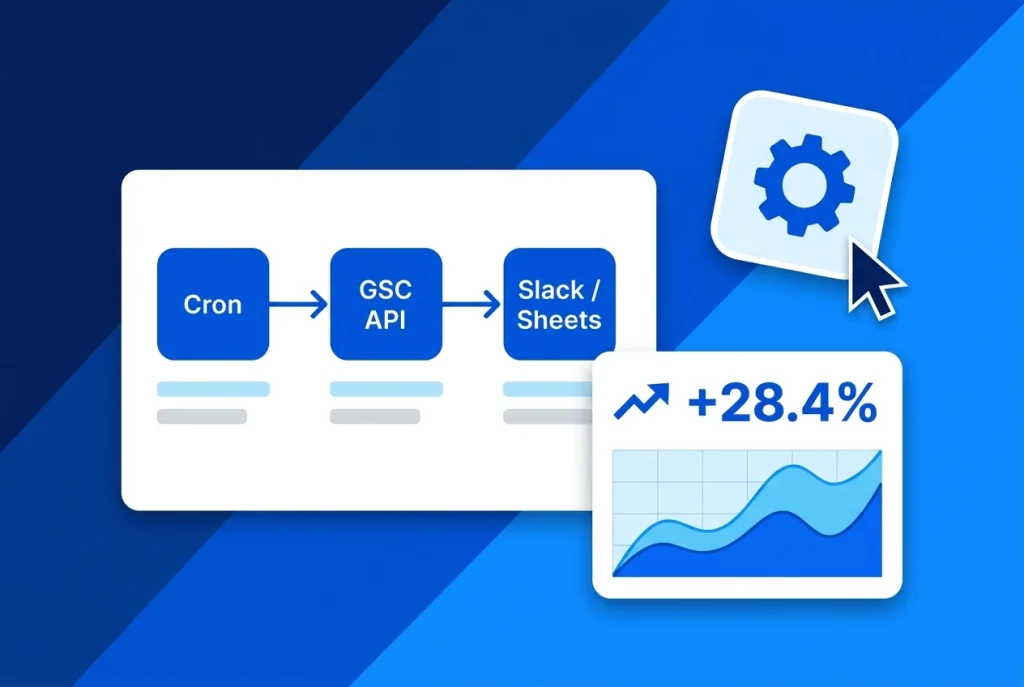
Learning how to automate SEO reports with the Search Console API and n8n eliminates hours of manual CSV exports, spreadsheet copy-pasting, and repetitive Monday morning traffic checks. Instead of logging into Google Search Console property by property and hitting the 1,000-row UI export cap, an n8n workflow pulls up to 25,000 rows per API call on a schedule.
Because n8n does not ship a dedicated built-in Google Search Console node out of the box, connecting directly to the searchAnalytics/query REST endpoint via n8n’s HTTP Request node gives you full control over dimensions, regex filters, finalized data windows, and period-over-period comparisons.
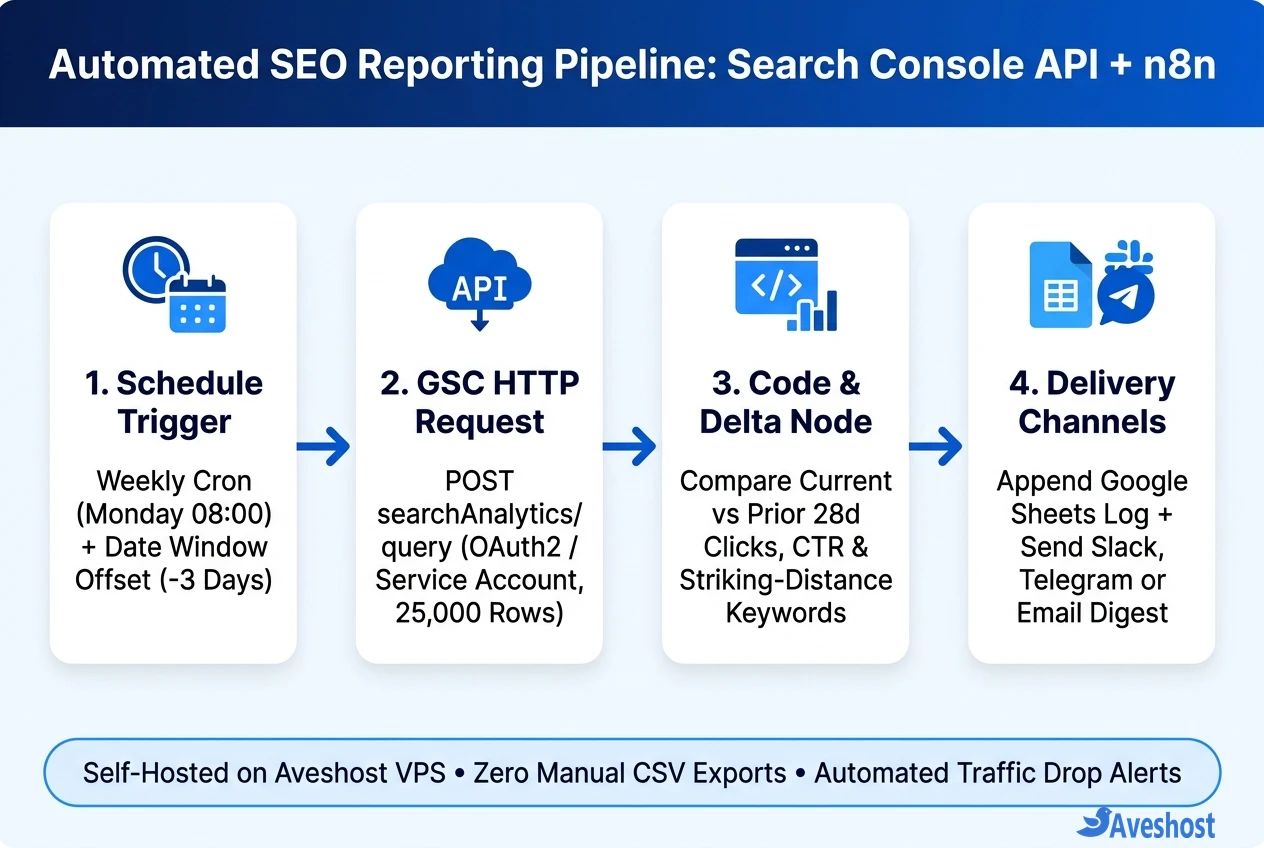
In this step-by-step guide, you will configure Google Cloud OAuth2 credentials, handle Search Console’s 2–3 day data lag in an n8n Code node, compute week-over-week click and CTR deltas, and deliver automated SEO digests to Google Sheets and Slack from your Aveshost Self-Managed VPS.
Table of Contents
Why Automate SEO Reports with the Search Console API and n8n?
Most marketing teams rely on Looker Studio dashboards that require someone to open a link and hunt for anomalies. When you automate SEO reports with the Search Console API and n8n, your server proactively detects traffic drops, content decay, and striking-distance keywords and delivers actionable summaries directly to your team.
Here is how an n8n API workflow compares to manual Search Console exports:
| Reporting Capability | Manual GSC UI Export | n8n + Search Console API Workflow |
|---|---|---|
| Rows Returned per Query | Capped at 1,000 rows in UI tables | Up to 25,000 rows per request (paginated via startRow) |
| Multi-Property Rollups | Export each domain one by one | Loop through all verified sites in one scheduled run |
| Data Freshness Control | Mixes partial recent days unless filtered | Explicit dataState: final + 3-day lag date offset |
| Anomaly & Decay Alerts | Requires manual spreadsheet formulas | Automated >20% click-drop alerts to Slack or Telegram |
| AI Summarization | Manual prompt copy-pasting | Optional LLM / MCP node drafting title & H2 fixes |
Step 1: Configure Google Cloud OAuth2 Credentials for n8n
To call the Google Search Console API from n8n, create an OAuth2 Web Application credential in Google Cloud Console (or use a Service Account if you prefer server-to-server JSON keys without user consent).
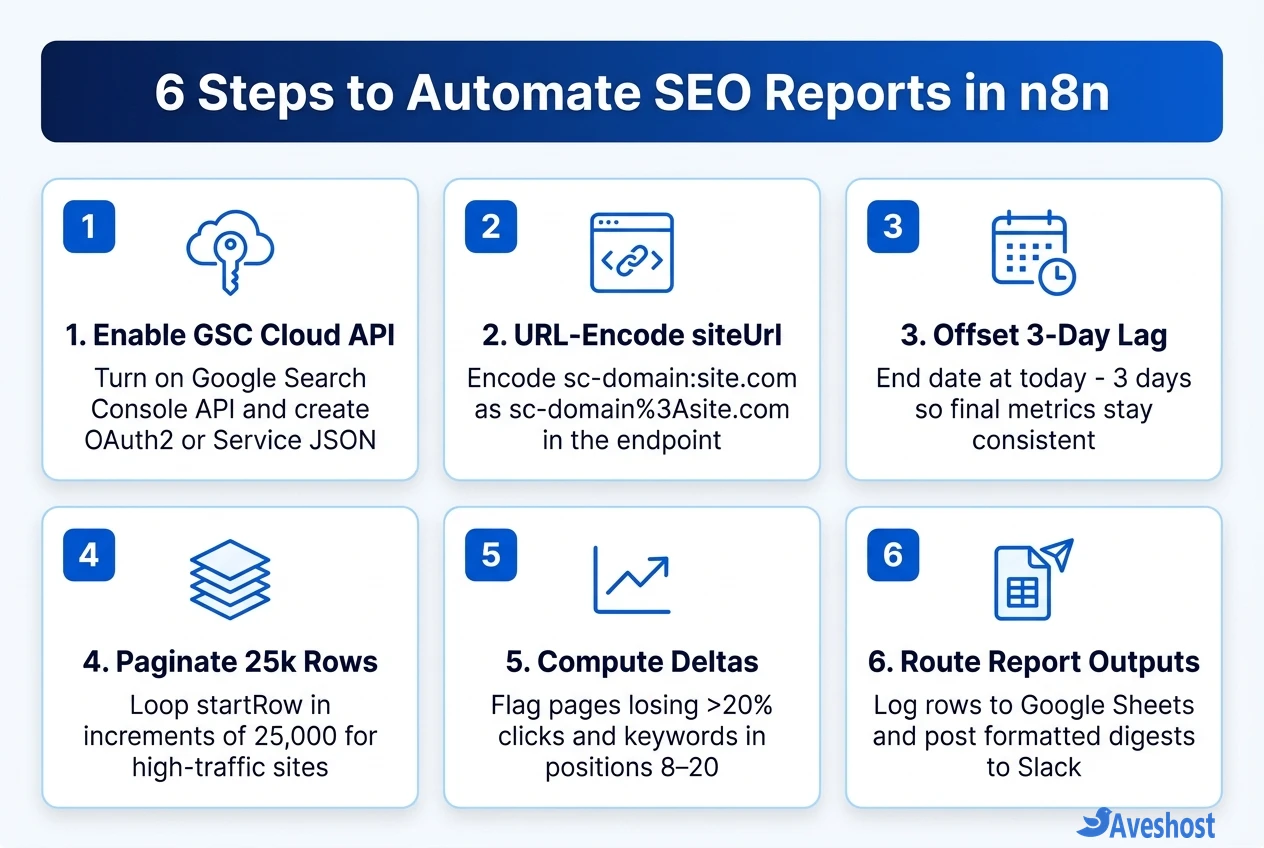
• 1. Enable the API: Open Google Cloud Console, select your project, go to APIs & Services > Library, and enable the Google Search Console API.
• 2. Create OAuth Client ID: Under APIs & Services > Credentials, create an OAuth client ID (Web application) and add your n8n callback URL (https://n8n.yourdomain.com/rest/oauth2-credential/callback) under Authorized redirect URIs.
• 3. Create the n8n Credential: In n8n, open Credentials > Add Credential > OAuth2 API. Set Authorization URL to https://accounts.google.com/o/oauth2/v2/auth, Access Token URL to https://oauth2.googleapis.com/token, and Scope to https://www.googleapis.com/auth/webmasters.readonly. Click Connect my account and authorize your Google Search Console account.
Step 2: Offset the 3-Day GSC Lag and Query searchAnalytics
A common mistake when teams first automate SEO reports with the Search Console API and n8n is querying yesterday’s date. Finalized Google Search Console metrics typically lag 2 to 3 days behind real time—querying incomplete days makes every Monday report look like traffic crashed on Friday and Saturday.
Start your workflow with a Schedule Trigger (every Monday at 08:00), followed by a Code node that sets currentEnd = today - 3 days, currentStart = today - 30 days (28 full days), and prevEnd = today - 31 days, prevStart = today - 58 days.
Next, add two HTTP Request nodes (one for the current 28-day window and one for the previous 28-day window) using your Google OAuth2 API credential. Remember to URL-encode the siteUrl path parameter: a Domain property like sc-domain:yourdomain.com becomes sc-domain%3Ayourdomain.com, while a URL-prefix property like https://yourdomain.com/ becomes https%3A%2F%2Fyourdomain.com%2F.
// HTTP Request Node: POST Endpoint URL
// https://www.googleapis.com/webmasters/v3/sites/sc-domain%3Ayourdomain.com/searchAnalytics/query

// JSON Request Body (using dynamic dates from the previous Code node)
{
  "startDate": "{{ $json.currentStart }}",
  "endDate": "{{ $json.currentEnd }}",
  "dimensions": ["query", "page"],
  "rowLimit": 25000,
  "startRow": 0,
  "dataState": "final"
}
Step 3: Calculate Traffic Deltas and Striking-Distance Keywords
Once both HTTP Request nodes return their rows arrays, add a Merge node (Wait for both inputs) followed by a JavaScript Code node to compare the current 28-day period against the prior 28-day period.
Inside that single Code node, you can extract three high-signal SEO tables in milliseconds:
• 1. Top Growing Pages: URLs with the largest positive click delta so your editorial team sees which newly published guides are gaining traction.
• 2. Content Decay Alerts: Pages that earned at least 100 clicks in the previous period and dropped by 20% or more—often caused by competitor updates or Google AI Overviews SERP shifts.
• 3. Striking-Distance Keywords (Positions 8–20): Queries ranking on page two or the bottom of page one with high impressions where updating the title tag, H2 headings, or Rank Math FAQ block can quickly unlock page-one clicks.
// n8n Code Node: Compare Current vs Prior 28-Day Search Console Rows
const currentRows = $('GSC Current 28d').first().json.rows || [];
const prevRows = $('GSC Prior 28d').first().json.rows || [];

const prevMap = new Map();
for (const r of prevRows) {
  prevMap.set(`${r.keys[0]}||${r.keys[1]}`, r);
}

const decayAlerts = [];
const strikingDistance = [];

for (const r of currentRows) {
  const [query, page] = r.keys;
  const prev = prevMap.get(`${query}||${page}`);
  if (prev && prev.clicks >= 50 && (r.clicks - prev.clicks) / prev.clicks <= -0.2) {
    decayAlerts.push({ query, page, prevClicks: prev.clicks, currClicks: r.clicks });
  }
  if (r.position >= 8 && r.position <= 20 && r.impressions >= 300) {
    strikingDistance.push({ query, page, pos: r.position.toFixed(1), impressions: r.impressions, ctr: (r.ctr * 100).toFixed(2) + '%' });
  }
}

return [{ json: { decayAlerts: decayAlerts.slice(0, 10), strikingDistance: strikingDistance.slice(0, 15) } }];
Step 4: Deliver Reports to Google Sheets, Slack, or AI Agents
With your metrics cleanly structured by the Code node, branch the output into two automated destinations so both historical tracking and weekly team visibility run hands-free:
• Append Historical Snapshots to Google Sheets: Use the native Google Sheets (Append Row) node to log weekly total clicks, impressions, average CTR, and top decaying URLs into a running audit tab for quarterly trend charts.
• Post Formatted Digests to Slack, Telegram, or Email: Send a concise Markdown summary to your marketing Slack channel or Telegram bot highlighting top winners, >20% traffic drops, and 5 quick-win keywords. If you want an AI assistant to draft specific title rewrites or inspect URLs on demand, combine this workflow with our Google Search Console MCP guide or our n8n MCP integration tutorial.
Running n8n on your own Aveshost Ubuntu VPS (or deploying it via Dokploy or Coolify) keeps all OAuth tokens and Search Console analytics private on your own server with zero per-execution SaaS markups.
Frequently asked questions
Does n8n have a built-in Google Search Console node?
No, n8n does not ship a dedicated Google Search Console node out of the box. Instead, you connect to the official Search Console REST API (https://www.googleapis.com/webmasters/v3/sites/{siteUrl}/searchAnalytics/query) using n8n’s native HTTP Request node with a Google OAuth2 API or Service Account credential.
Why do I get a 404 or 403 error from the Search Console API in n8n?
The two most common causes are forgetting to URL-encode the siteUrl in the request URL (for example, sc-domain:example.com must be written as sc-domain%3Aexample.com) or authenticating with a Google account or Service Account email that has not been added under Settings > Users and permissions in Search Console.
How do I handle Google Search Console's data delay in automated n8n reports?
Finalized Search Console metrics lag 2 to 3 days behind today’s date. Always offset your endDate by 3 days (today – 3 days) in an n8n Code node and set dataState to final in your JSON payload so weekly comparisons are never skewed by incomplete recent days.
How can I fetch more than 25,000 rows from the Search Console API in n8n?
Each searchAnalytics/query call returns up to 25,000 rows. For large sites, use an n8n loop with the startRow parameter (starting at 0, then incrementing by 25000 on each iteration) until the API returns fewer than 25,000 rows.
Should I use OAuth2 or a Service Account for Google Search Console in n8n?
OAuth2 with the webmasters.readonly scope is easiest for personal or agency accounts because it inherits all Search Console properties your Google user already owns. A Service Account is ideal for headless production servers where you want zero user token expiration—just remember to add the service account’s client_email as a Restricted user in each Search Console property.