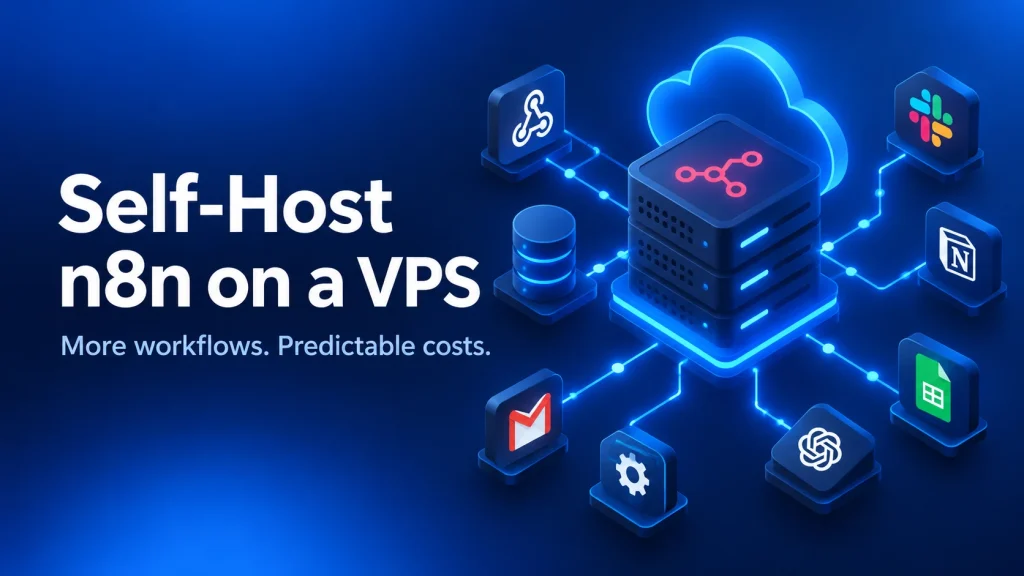
Self-host n8n on a VPS to run your workflows without a monthly per-task allowance. If your automation bill keeps rising as leads, orders and webhooks increase, moving the automation engine to your own cloud server can give you a much more predictable budget.
Our Cloud VPS 2 is currently listed at $15.51/month, with 4 vCores, 8 GB RAM and 100 GB SSD. In this guide, we show how to deploy n8n with Docker, PostgreSQL and HTTPS, build your first webhook workflow, and move existing automations over safely. You will also see what the savings look like against a $100/month subscription.
“Unlimited” here means uncapped workflow executions in n8n Community edition for permitted use. Your server still has a capacity envelope, and connected services keep their own API fees and rate limits. The goal is to pay for infrastructure that fits your workload and keep more of your automation budget working for your business.
Table of Contents
Why self-host n8n instead of paying per task?
n8n is a visual workflow automation tool. You connect triggers and actions on a canvas: receive a form submission, validate its fields, update a CRM and notify your team. Built-in integrations handle many common apps, while HTTP requests let you connect services with suitable APIs.
As n8n explains in its pricing update, Community edition keeps uncapped executions. The appeal of self-hosting is control. Your workflow engine and database run on your VPS, you choose when to update, and execution volume is governed by the resources you provision. A five-step workflow can run repeatedly without each successful action adding to a Community edition task bill. This is especially useful when small, frequent events drive your business.
- Agencies: build repeatable onboarding and reporting workflows rather than maintaining a growing pile of manual handoffs.
- Growth teams: send leads from forms to your CRM, enrich them and alert the right salesperson.
- Online stores: route order events, update inventory systems and reconcile fulfilment records.
- Automation engineers: handle authenticated webhooks, custom API calls and data transformations.
The free Community edition covers much of n8n’s functionality, but advanced collaboration and governance features are separate. SSO, projects, workflow and credential sharing, and some enterprise storage features are not all included. Review the edition comparison when choosing how a team will work together.
Use n8n within its Sustainable Use License. Internal business automation and an access-based hosted automation product are different use cases. If your agency intends to sell access to n8n or white-label the platform, discuss the commercial licensing requirements with n8n before offering that service.
How much does self-hosted n8n cost?
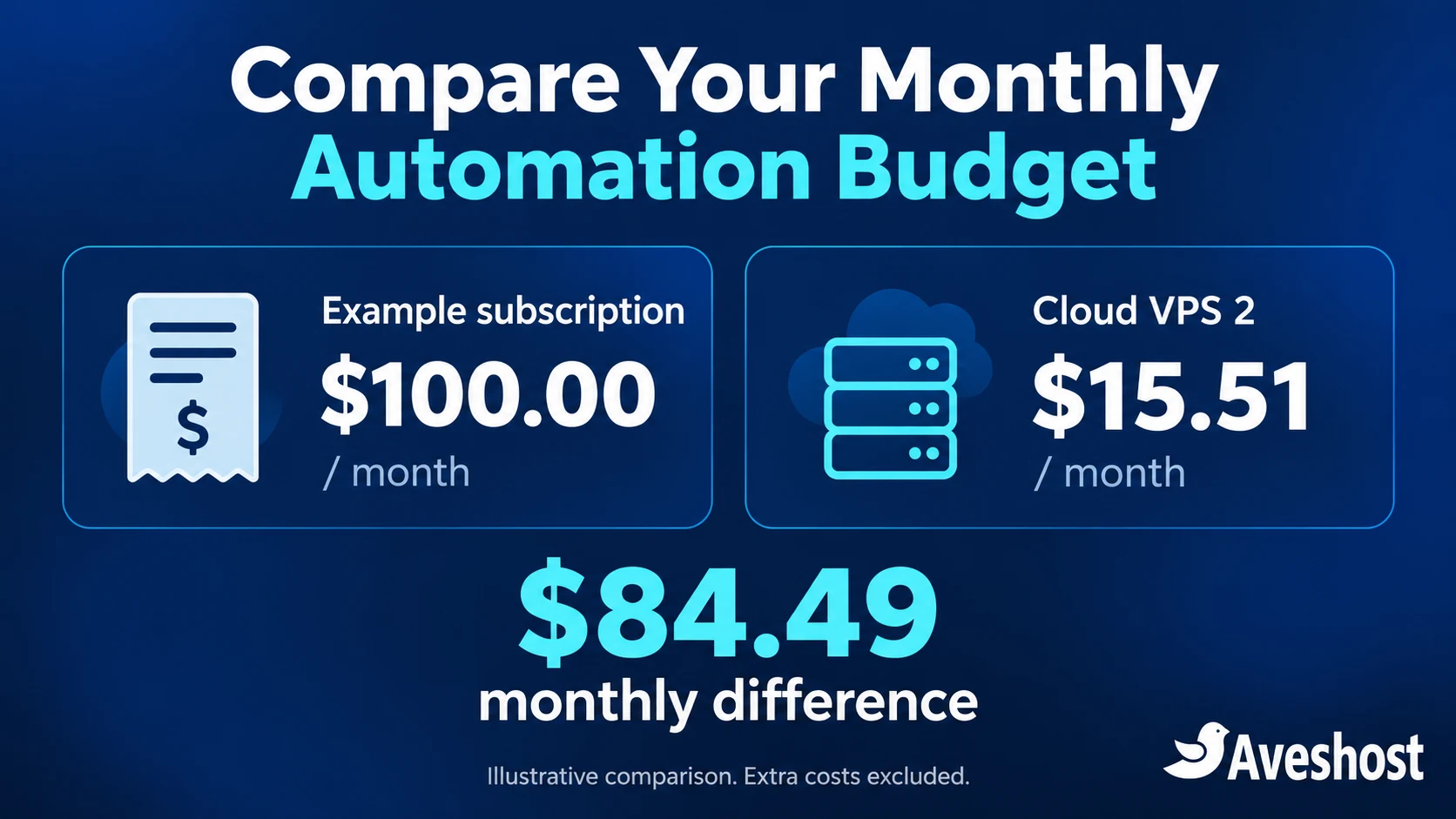
A useful cost comparison starts with your actual invoice. A Zapier task, a Make credit and an n8n workflow execution are different units, so comparing those numbers directly can mislead. Count the workflows you need, the events they process and their connected-service costs, then compare the monthly amount you would actually pay.
| Budget item | Example monthly cost | Example annual cost |
|---|---|---|
| Existing automation subscription | $100.00 | $1,200.00 |
| Our Cloud VPS 2 | $15.51 | $186.12 |
| Illustrative infrastructure difference | $84.49 | $1,013.88 |
The $100 subscription is a budgeting example, not a quoted Zapier or Make plan. At the listed VPS rate, the infrastructure difference is 84.49%. It excludes taxes, a domain, optional backups, paid n8n features, administration time and API costs. If you budget another $10/month for extra storage and operating services, the combined $25.51/month still leaves $74.49/month compared with that example bill.
Use this formula: current subscription − VPS − additional self-hosting costs = monthly saving. Keep any API charges that apply to both approaches on both sides of the comparison. If you already spend only a small amount and run a few occasional workflows, the main benefit may be flexibility rather than immediate savings.
Choose the right VPS for n8n
For the stack below, we recommend starting with our Cloud VPS 2. It gives the application, PostgreSQL, proxy and external task runner room to operate while keeping the base price inside a $10–$20 monthly budget. The smaller entry plan is best treated as a light experimentation option, not the default for this multi-container business setup.
| Self-managed plan | Compute and memory | SSD storage | Listed USD monthly price |
|---|---|---|---|
| Cloud VPS 1 | 1 vCore / 2 GB RAM | 20 GB | $9.13 |
| Cloud VPS 2 | 4 vCores / 8 GB RAM | 100 GB | $15.51 |
| Cloud VPS 3 | 6 vCores / 12 GB RAM | 200 GB | $27.38 |
| Cloud VPS 4 | 8 vCores / 24 GB RAM | 300 GB | $38.33 |
Prices were checked on 12 October 2026. Review the selected currency and final order total on our VPS plans page. Choose a location near the people and services using your workflows. Our self-managed plans include root access; you manage the operating system, Docker and application configuration.
RAM demand depends on payload sizes, concurrent executions, Code nodes and file processing. A workflow moving small JSON objects is very different from one reading large spreadsheets or generating documents. Start with representative workloads, measure peak memory and disk growth, and increase resources as the business needs them.
Prefer a preconfigured start? Our n8n hosting lists a pre-installed n8n and PostgreSQL stack with custom-domain support and automatic SSL. Its plan specifications are listed separately from the general VPS range. The tutorial below is for a fresh self-managed server where you build the stack yourself.
How to self-host n8n with Docker: 8 steps
This walkthrough uses a fresh Ubuntu 24.04 LTS VPS, Docker Compose v2, a subdomain such as n8n.example.com, and a sudo-enabled SSH account. Replace every example hostname, email and secret with your own values. Keep another SSH session available while changing firewall settings.
1. Provision the VPS and point your subdomain to it
Choose your plan, select Ubuntu 24.04 and connect using the access details supplied for your server. Create an A record for n8n pointing to the VPS IPv4 address. Add an AAAA record only if IPv6 is configured and reachable; an incorrect IPv6 record can interfere with certificate issuance.
For this direct-to-Caddy setup, keep the DNS record unproxied during setup. Confirm it resolves to the correct server before continuing. If you need a domain, use our domain search; an existing domain can use a subdomain without registering another name.
ssh your-user@YOUR_SERVER_IP
sudo apt update
sudo apt upgrade -y
2. Install Docker Engine and Docker Compose
On a fresh Ubuntu 24.04 server, install Docker from its official repository using the commands below. If Docker is already installed, check its version first and follow the official Ubuntu installation instructions for package conflicts rather than removing a working application environment.
sudo apt update
sudo apt install -y ca-certificates curl
sudo install -m 0755 -d /etc/apt/keyrings
sudo curl -fsSL https://download.docker.com/linux/ubuntu/gpg -o /etc/apt/keyrings/docker.asc
sudo chmod a+r /etc/apt/keyrings/docker.asc
sudo tee /etc/apt/sources.list.d/docker.sources > /dev/null <<EOF
Types: deb
URIs: https://download.docker.com/linux/ubuntu
Suites: noble
Components: stable
Architectures: $(dpkg --print-architecture)
Signed-By: /etc/apt/keyrings/docker.asc
EOF
sudo apt update
sudo apt install -y docker-ce docker-ce-cli containerd.io docker-buildx-plugin docker-compose-plugin
sudo docker run --rm hello-world
sudo docker compose version
The hello-world output confirms the engine can run a container. This guide keeps sudo on Docker commands, so you do not need to add your account to the Docker group.
3. Prepare the firewall and a private project directory
Allow your actual SSH port, plus HTTP and HTTPS, in both the server firewall and any upstream firewall. If SSH uses the default port, the commands below apply. Adjust the SSH rule first if you use a custom port, and verify a second SSH connection before closing your existing session.
sudo ufw allow OpenSSH
sudo ufw allow 80/tcp
sudo ufw allow 443/tcp
sudo ufw enable
mkdir -p ~/n8n
chmod 700 ~/n8n
cd ~/n8n
umask 077
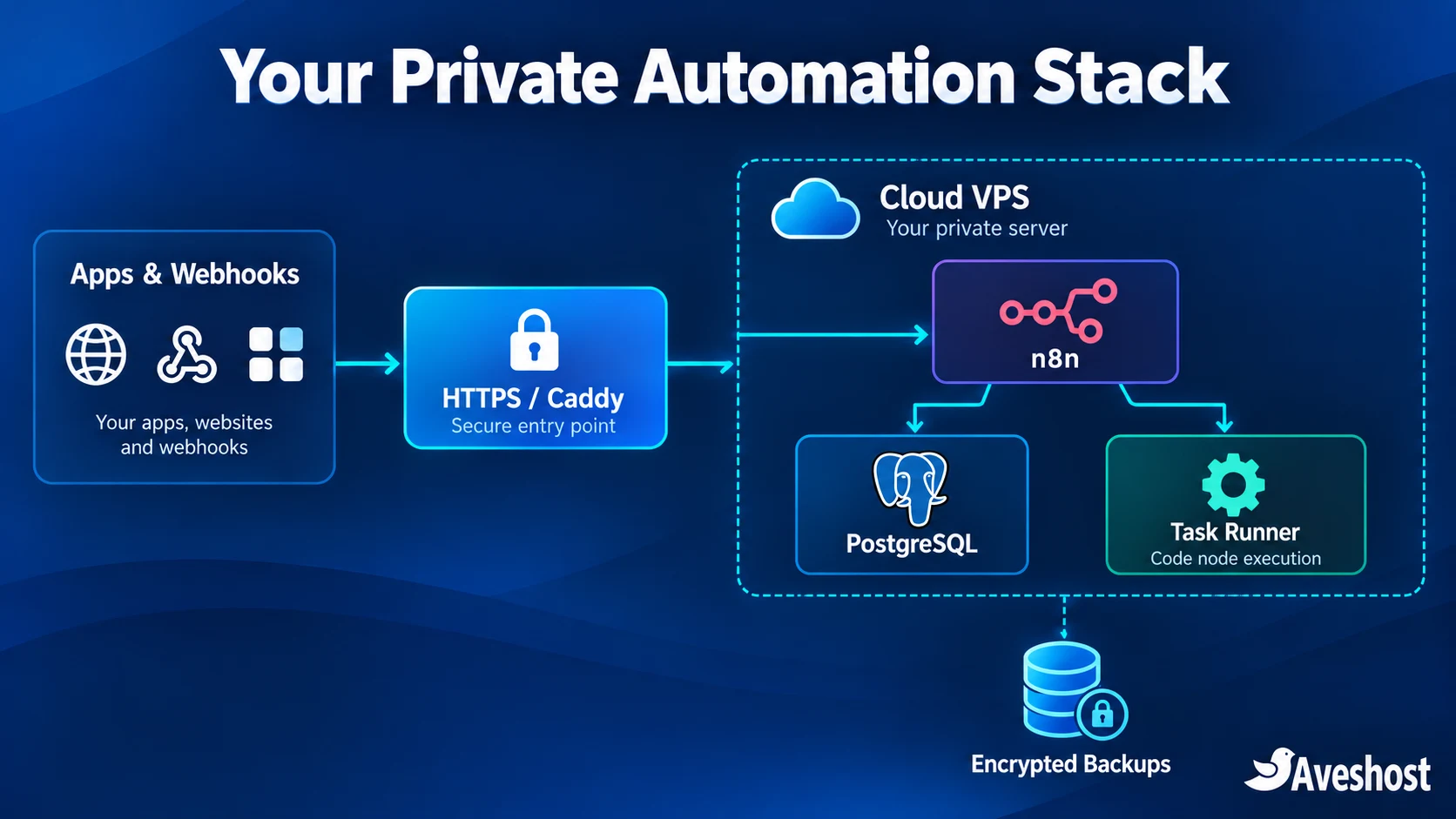
Only Caddy will publish ports to the host. PostgreSQL, n8n’s internal port and the task broker stay on the Compose network. Docker-published ports can bypass UFW rules, which is why the configuration below deliberately avoids publishing database, application and runner ports.
4. Choose a stable version and create your secrets
Find the current stable release in the official n8n releases and use its exact numeric tag for both n8n and the runner image. This example targets the current 2.x configuration, including N8N_WEBHOOK_URL. Choose a stable release at or above 2.35.0, review its release notes, and avoid beta tags for business workflows.
Generate three different secrets by running openssl rand -hex 32 three times. Put each result into the corresponding field below. Create .env with nano .env; replace REPLACE_WITH_STABLE_VERSION with the exact release number and replace the remaining placeholders.
N8N_VERSION=REPLACE_WITH_STABLE_VERSION
N8N_HOST=n8n.example.com
[email protected]
GENERIC_TIMEZONE=Etc/UTC
POSTGRES_PASSWORD=REPLACE_WITH_RANDOM_SECRET_1
N8N_ENCRYPTION_KEY=REPLACE_WITH_RANDOM_SECRET_2
N8N_RUNNERS_AUTH_TOKEN=REPLACE_WITH_RANDOM_SECRET_3
Set GENERIC_TIMEZONE to the IANA timezone your scheduled workflows should use. Preserve the original encryption key securely: changing it later prevents n8n from reading credentials encrypted with the old key. Keep .env out of public repositories and screenshots.
chmod 600 .env5. Create the Docker Compose stack
Create compose.yaml in the same directory and paste the following configuration. It uses PostgreSQL for application data, a persistent n8n directory, an external runner for Code nodes and Caddy for the public HTTPS endpoint. The starting concurrency limit of five is a tuning choice, not a throughput guarantee.
services:
  postgres:
    image: postgres:16-alpine
    restart: unless-stopped
    environment:
      POSTGRES_DB: n8n
      POSTGRES_USER: n8n
      POSTGRES_PASSWORD: ${POSTGRES_PASSWORD:?Set POSTGRES_PASSWORD}
    volumes:
      - postgres_data:/var/lib/postgresql/data
    healthcheck:
      test: ["CMD-SHELL", "pg_isready -U n8n -d n8n"]
      interval: 10s
      timeout: 5s
      retries: 10

  n8n:
    image: n8nio/n8n:${N8N_VERSION:?Set N8N_VERSION}
    restart: unless-stopped
    depends_on:
      postgres:
        condition: service_healthy
    environment:
      DB_TYPE: postgresdb
      DB_POSTGRESDB_HOST: postgres
      DB_POSTGRESDB_PORT: 5432
      DB_POSTGRESDB_DATABASE: n8n
      DB_POSTGRESDB_USER: n8n
      DB_POSTGRESDB_PASSWORD: ${POSTGRES_PASSWORD}
      N8N_ENCRYPTION_KEY: ${N8N_ENCRYPTION_KEY:?Set N8N_ENCRYPTION_KEY}
      N8N_HOST: ${N8N_HOST}
      N8N_PORT: 5678
      N8N_PROTOCOL: https
      N8N_EDITOR_BASE_URL: https://${N8N_HOST}/
      N8N_WEBHOOK_URL: https://${N8N_HOST}/
      N8N_PROXY_HOPS: 1
      GENERIC_TIMEZONE: ${GENERIC_TIMEZONE}
      TZ: ${GENERIC_TIMEZONE}
      N8N_ENFORCE_SETTINGS_FILE_PERMISSIONS: "true"
      N8N_RUNNERS_MODE: external
      N8N_RUNNERS_BROKER_LISTEN_ADDRESS: 0.0.0.0
      N8N_RUNNERS_AUTH_TOKEN: ${N8N_RUNNERS_AUTH_TOKEN:?Set runner token}
      EXECUTIONS_DATA_PRUNE: "true"
      EXECUTIONS_DATA_MAX_AGE: 168
      EXECUTIONS_DATA_PRUNE_MAX_COUNT: 10000
      EXECUTIONS_DATA_SAVE_ON_SUCCESS: none
      EXECUTIONS_DATA_SAVE_ON_ERROR: all
      N8N_CONCURRENCY_PRODUCTION_LIMIT: 5
    volumes:
      - n8n_data:/home/node/.n8n

  task-runners:
    image: n8nio/runners:${N8N_VERSION}
    restart: unless-stopped
    depends_on:
      - n8n
    environment:
      N8N_RUNNERS_TASK_BROKER_URI: http://n8n:5679
      N8N_RUNNERS_AUTH_TOKEN: ${N8N_RUNNERS_AUTH_TOKEN}
    read_only: true
    tmpfs:
      - /tmp
    security_opt:
      - no-new-privileges:true
    cap_drop:
      - ALL

  caddy:
    image: caddy:2-alpine
    restart: unless-stopped
    depends_on:
      - n8n
    environment:
      N8N_HOST: ${N8N_HOST}
      SSL_EMAIL: ${SSL_EMAIL}
    ports:
      - "80:80"
      - "443:443"
    volumes:
      - ./Caddyfile:/etc/caddy/Caddyfile:ro
      - caddy_data:/data
      - caddy_config:/config

volumes:
  postgres_data:
  n8n_data:
  caddy_data:
  caddy_config:
The runner image must match the n8n image version. The runner has no published port, no Docker socket and restricted privileges. Keep its default package allowlists narrow; only add modules you actually need. Follow the external task runner documentation and hardening guidance when extending Code node capabilities.
6. Add HTTPS with Caddy
Create Caddyfile with the following content. Caddy handles the certificate and reverse-proxies requests to n8n inside Docker. Its persistent data volume preserves certificate state across container replacements.
{
  email {$SSL_EMAIL}
}

{$N8N_HOST} {
  reverse_proxy n8n:5678
}
Caddy’s reverse proxy documentation explains this pattern. The hostname must resolve correctly and ports 80 and 443 must be reachable for the normal automatic HTTPS flow. This configuration uses one proxy hop. If you later add another proxy, revisit the webhook URL and trusted proxy settings.
7. Validate, launch and create your owner account
Validate the Compose file before starting. The quiet validation command avoids printing your expanded secrets to the terminal output.
sudo docker compose config --quiet
sudo docker compose pull
sudo docker compose up -d
sudo docker compose ps
sudo docker compose logs --tail=80 n8n caddy task-runners
Check that PostgreSQL is healthy, the application starts, Caddy obtains a certificate and the runner connects. Open your HTTPS address, complete the owner account setup promptly and use a strong unique password. Enable two-factor authentication in your account settings. Limit editor access to people who actually need to build workflows.
Test a container restart before relying on the installation. Your owner account, workflows and settings should survive because the database and application directory are persistent. This setup deliberately leaves n8n Assistant sandbox services out; they are a separate deployment topic from the basic automation engine.
8. Build and test your first production webhook
Create a workflow with a Webhook node set to POST and an easily recognisable path such as lead-intake. Configure authentication, for example Header Auth using a secret header. Add an Edit Fields node to map a small payload, then a Respond to Webhook node that returns a simple success response. Set the Webhook node’s response mode to use Respond to Webhook.
Listen for a test event and send a sample payload to the test URL shown in the editor. Inspect the mapped fields and response. Then publish or activate the workflow using the control available in your version, copy its production URL, and send the same event again. A test listener URL is not your permanent integration endpoint.
curl -X POST "https://n8n.example.com/webhook/lead-intake" \
  -H "Content-Type: application/json" \
  -H "X-Webhook-Secret: YOUR_CONFIGURED_SECRET" \
  -d '{"event_id":"demo-001","name":"Alex","email":"[email protected]"}'
Match the path and authentication header to your actual workflow. Never put real credentials into example URLs. The Webhook node documentation covers authentication and response options. Once the test works, replace the sample action with your CRM, email or reporting integration.
Build reliable high-frequency automations
Uncapped executions are most useful when workflows behave well under repetition. Imagine 30,000 events a month, each triggering validation, a lookup, a CRM update and a notification. Self-hosting removes the Community edition task allowance from that process; it does not remove the need to design each step for real-world failures.
- Prevent duplicates: retain the source event ID in durable storage with a unique constraint. If the same event arrives again, avoid creating a second order, contact or payment action.
- Respect rate limits: handle HTTP 429 responses, batch large updates and use retry delays. Retrying every failed request immediately can make a temporary problem worse.
- Authenticate incoming events: use the source service’s signature verification or a suitable secret-based method. A hard-to-guess path alone is not authentication.
- Control payload size: validate fields, reject unnecessary data and avoid loading oversized files into every workflow execution.
- Report failures: connect an error workflow to your alerting channel and record enough context to investigate without spreading secrets into logs.
When responding to a webhook before its downstream work finishes, return success only after the event is safely accepted into your processing design. A quick HTTP 200 is not proof that a CRM update or fulfilment action completed. Track important business outcomes separately from request receipt.
Monitor CPU, memory, disk space, execution duration and API error rates. Our starting limit of five concurrent production executions helps contain workload bursts; tune it from real measurements. The execution settings explain concurrency and retention controls. This example keeps error records and prunes history, so successful run history is intentionally not saved.
As your workload grows, add server resources first where measurements show pressure. For sustained parallel work, n8n queue mode introduces Redis and workers. Share the original encryption key across workers and provide each worker with its own runner. Plan binary-data handling and edition features before changing architecture.
For an optional extra protection layer, follow our step-by-step Cloudflare guide. Keep machine-to-machine webhook and OAuth callback routes accessible to legitimate clients; browser challenges on those routes can interrupt automations. Recheck proxy settings if you change the request path.
Back up and update your n8n server
A persistent volume survives container replacement; a backup helps you recover when the underlying data is lost or damaged. Protect three things together: the PostgreSQL database, the /home/node/.n8n directory, and the original encryption key. Also retain your Compose, Caddy and environment configuration securely.
For a simple maintenance-window backup, pause inbound event delivery where possible, allow in-flight executions to finish, then stop n8n and the runner while taking the database dump. The following saves a timestamped dump locally; move an encrypted copy off the VPS afterward.
cd ~/n8n
mkdir -p backups
chmod 700 backups
sudo docker compose stop n8n task-runners
sudo docker compose exec -T postgres pg_dump -U n8n -d n8n -Fc > "backups/n8n-$(date +%F-%H%M).dump"
sudo docker compose start n8n task-runners
Treat this command as one part of the backup routine: it does not archive the n8n volume or encrypt the output. Use your backup tooling to copy that volume and the protected configuration files during the same maintenance window. Schedule backups to match how much recent work you can afford to lose, and test restoration on an isolated instance with outgoing workflows disabled.
Before updates, take a recoverable backup and read release notes. Change N8N_VERSION to the chosen stable version so the application and runners move together, then run:
sudo docker compose config --quiet
sudo docker compose pull
sudo docker compose up -d
sudo docker compose ps
Verify the owner login, a production webhook, a schedule and any Code nodes after updating. Database migrations can make a simple image downgrade unsuitable; recover using the matching pre-update database and configuration when a rollback is needed. Avoid docker compose down -v on an instance whose data you intend to keep, because it removes the project’s named volumes.
Move your workflows from Zapier or Make
Move one useful workflow first instead of cancelling your existing subscription on day one. Choose a process with clear inputs and outputs, such as routing new leads to your CRM. This lets you learn the new platform while keeping your business running.
- Inventory the workflow: list its trigger, filters, transformations, credentials, retries and destination apps.
- Rebuild the logic: choose equivalent n8n nodes or API requests. Reconnect OAuth accounts and secrets rather than expecting a direct Zap import.
- Test with representative data: include missing fields, duplicate events and failed API calls. Compare the final records, not just a green execution indicator.
- Switch the trigger carefully: use a non-destructive test destination for parallel testing. Avoid having both tools send the same invoice, email or order action.
- Confirm the results: monitor a full business cycle, then remove the old workflow and review the subscription you can retire.
Keep a short operating note for each critical workflow: its purpose, owner, credentials, alert route and recovery procedure. The biggest migration benefit is a process your team understands and can maintain, alongside a more predictable infrastructure bill.
Start automating on our cloud VPS
If your task-based automation bill has outgrown the value you receive, self-host n8n on a VPS and put the workflow engine under your control. Our self-managed cloud VPS plans give you root access and a clear starting budget, with Cloud VPS 2 offering a practical foundation for the stack in this guide.
For an already configured application stack, compare our n8n hosting plans. If you need help choosing resources or planning the move, contact our support team with your workflow count, peak event volume and the type of processing you expect. Start with one working automation, protect its data and scale as your business grows.
Frequently asked questions
Is self-hosted n8n really free?
The Community edition has no software subscription fee for permitted use. You still pay for your VPS, any paid APIs or messaging services, optional backup storage and your administration time. Business and Enterprise features have separate licensing.
Does unlimited automation mean unlimited server capacity?
No. Community edition does not meter workflow executions as a monthly task allowance, but CPU, memory, storage, bandwidth and connected API limits determine what your server can handle. Size your VPS around workflow complexity and peak concurrency.
What VPS should I choose for n8n?
Our Cloud VPS 2 provides 4 vCores, 8 GB RAM and 100 GB SSD at the listed USD price of $15.51/month. It is a useful starting point for the Docker stack in this guide. Test your actual workflows and upgrade resources as volume grows.
Can I install n8n without cPanel?
Yes. Docker Compose runs directly on a Linux VPS. Our self-managed VPS gives you root access and does not include cPanel or DirectAdmin. Those panels are not required for this setup.
Can n8n replace every Zapier or Make workflow?
Many API-based automations can be rebuilt, but connectors, authentication methods, polling behaviour and data transformations differ. Map each workflow, reconnect credentials and test its outputs before switching production traffic.
Can I use n8n for an automation agency?
You can build and maintain workflows for clients within the applicable n8n license terms. Selling access to a hosted n8n platform or white-labelling it is a different business model and can require a commercial agreement. Review the license before packaging an access-based service.
Do I need a domain name and SSL?
For reliable public webhooks, use a domain or subdomain that points to your VPS and serve n8n over HTTPS. This guide uses Caddy to issue and renew certificates. The database and runner ports stay private.
How do I protect n8n credentials during backups?
Keep an encrypted backup of the PostgreSQL database, the persistent n8n directory and the original encryption key. Protect the configuration files too. A database backup without its encryption key will not recover usable stored credentials.
Do you offer a preconfigured n8n option?
Yes. Our n8n hosting page lists a pre-installed n8n and PostgreSQL stack, custom-domain support and automatic SSL. Compare that route with our general self-managed VPS plans and choose the setup that matches how you want to manage the application.
Will self-hosting eliminate AI and email API fees?
No. Running n8n on your VPS changes how the automation engine is hosted. Connected AI, SMS, email and other services continue to apply their own prices and rate limits. Include those costs when comparing your total monthly budget.