Self-host your cloud and bring everyday files, team documentation and password management onto a platform you control. With our self-managed cloud VPS, you can build a practical alternative to separate Google Drive, Notion and 1Password subscriptions using Nextcloud, Docmost and Vaultwarden.
The goal is a useful workspace: files that sync across devices, documents your team can edit together, and a password vault with clear access controls. This guide walks through the software choices, server sizing, deployment architecture, migration and recovery planning that make the move work.
You will build the stack in stages. Start with a small pilot, prove the backup and restore process, then move one workflow at a time. Our cloud VPS gives you root access and the flexibility to grow the environment around your needs.
- Files: Nextcloud for sync, sharing and organised storage.
- Documents: Docmost for collaborative pages and a team knowledge base.
- Passwords: Vaultwarden with compatible Bitwarden clients.
- Foundation: a Linux cloud VPS, HTTPS, persistent data and tested backups.
Table of Contents
What does self-hosting your cloud mean?
Self-hosting means you run the applications on your own server environment instead of relying solely on a provider’s hosted software workspace. In this guide, the server is our cloud VPS: it remains a cloud service, while you choose the applications, user accounts, storage layout and maintenance process.
This suits freelancers organising client files, remote teams building an internal wiki, and developers who want a flexible productivity stack. Your applications are available remotely, and you can choose a server region close to the people who use them.
A successful setup has an owner. That person maintains Linux and Docker, reviews updates, manages access and checks backups. These routines are part of running your cloud well. Our hosting provides the infrastructure and support contact; your application configuration defines the workspace.
Choose your Google Drive, Notion and 1Password alternatives
| Workflow to replace | Self-hosted choice | What to test before moving |
|---|---|---|
| Google Drive file storage | Nextcloud | Sync clients, sharing, storage quotas and large uploads |
| Notion documents and wiki | Docmost | Page imports, collaboration, permissions and required edition |
| 1Password password management | Vaultwarden | Import format, autofill, client sync and account recovery |
Nextcloud: your files and sharing hub
Nextcloud All-in-One packages Nextcloud with supporting services and a management interface. It is a practical deployment route for file storage, browser access and device syncing. You can organise client folders, create user accounts and choose how files are shared.
Office editing is an additional decision. Nextcloud AIO offers optional office components, but their CPU and memory needs belong in your capacity plan. Start with file sync and sharing; enable extra services when you need them and can measure their impact.
Docmost: a collaborative knowledge workspace
Docmost is well suited to procedures, meeting notes, project documentation and internal wikis. Its collaborative editor, spaces and page structure give your team a home for knowledge that would otherwise be scattered across documents.
Choose it around the work you actually do in Notion. Docmost’s paid editions include features such as Bases, SSO and MFA. If databases, advanced permissions or identity integration are central to your team, compare the edition before migrating. A strong replacement preserves the workflows your people depend on.
Vaultwarden: your self-hosted password vault
Vaultwarden is an independent, community-maintained server compatible with Bitwarden clients. It stores your vault’s encrypted data and supports familiar password-manager workflows through browser extensions, desktop applications and mobile clients.
Your team will use compatible clients rather than the 1Password application after migration. Test login, autofill, shared collections and device syncing before moving production credentials. Choose strong master passwords, enable supported two-factor authentication and keep recovery information accessible outside the vault itself.
Choose a self-managed cloud VPS
Our self-managed cloud VPS packages provide root access, SSD storage and capacity options suited to custom application stacks. This setup does not need cPanel or DirectAdmin; the self-managed plan comes without those hosting control panels.
| Plan | RAM | SSD storage | Listed monthly USD | Planning role |
|---|---|---|---|---|
| Cloud VPS 2 | 8 GB | 100 GB | $15.51 | A small pilot with modest files and concurrency |
| Cloud VPS 3 | 12 GB | 200 GB | $27.38 | More file capacity and headroom for active collaboration |
| Cloud VPS 4 | 24 GB | 300 GB | $38.33 | A larger starting capacity for heavier combined workloads |
These prices are from our plan page on 12 October 2026. Your selected location, storage, billing cycle and add-ons determine the checkout total. The site offers currency selection so you can review the amount in your preferred currency.
Treat these as planning configurations. A handful of users with small documents has a different workload from a team syncing large media files while generating previews and editing office documents. Measure concurrent activity and storage growth, then choose enough headroom for your applications.
Budget the disk for more than uploaded files. Linux, container images, databases, previews, versions and logs all use space. If your current file library is already close to 100 GB, select more storage before importing it. Leave room for temporary exports and updates, and keep backup storage separate from the live-data budget.
Plan domains, HTTPS and persistent storage
Use separate subdomains for each application, with one HTTPS reverse proxy routing requests to the right internal service. This keeps the public entry point clear and prevents several applications from competing for the same public port.
| Public address example | Application | Internal route in this design |
|---|---|---|
| cloud.example.com | Nextcloud AIO | Local Apache backend, commonly port 11000 |
| docs.example.com | Docmost | Local web service, commonly port 3000 |
| vault.example.com | Vaultwarden | Local web service, port 8000 in the example below |
Replace example.com with a domain you control. Point the subdomains to your VPS and configure valid HTTPS certificates. For this design, the reverse proxy runs directly on the same host and connects to loopback-bound backends. A proxy inside Docker needs its own documented container-network configuration; localhost inside a container refers to that container.
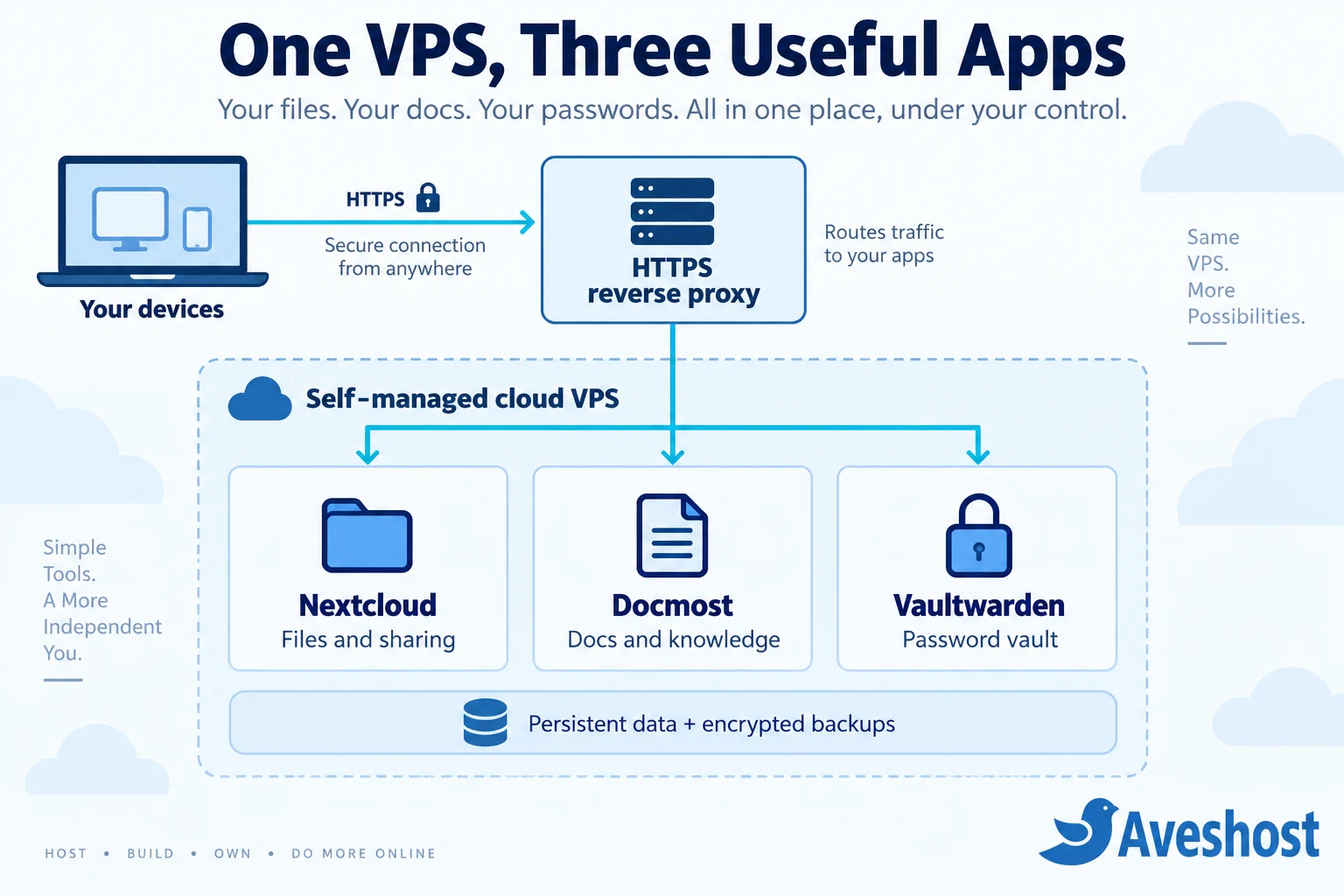
Keep databases, Redis and administrative interfaces away from public access. Nextcloud AIO controls its own supporting containers, while Docmost needs PostgreSQL and Redis. Vaultwarden can use SQLite for a small deployment. Preserve each application’s data volumes when replacing or updating containers.
Self-host your cloud in 8 practical steps
1. Prepare the cloud VPS
Choose a Linux image supported by your applications, such as Ubuntu 24.04 LTS, and access the server using SSH. Apply OS updates, use SSH keys and a suitable administrator account, and restrict administrative access. Install Docker Engine and the Compose plugin using the official Ubuntu installation instructions.
sudo docker version
sudo docker compose version
free -h
df -h
These checks confirm the Docker tools and show available memory and disk space. Create a separate configuration directory for each application and keep secrets out of public repositories. Record the server location, administrator contacts and recovery procedure.
2. Set up domains and HTTPS routing
Configure the three subdomains and the host-based reverse proxy before introducing real data. Use Caddy or another proxy supported by the projects, and follow their application-specific settings. Ensure WebSocket connections work for real-time editing and notifications.
Only the chosen public entry points should be reachable. Check Docker port publishing as well as the host firewall: a container port published on all interfaces can be reachable even when a simple firewall rule suggests otherwise. Bind backend ports to 127.0.0.1 where the host-based proxy connects locally.
3. Deploy Nextcloud for files
Follow the Nextcloud AIO reverse-proxy guide, because this VPS will host several services behind one proxy. Its default standalone setup is for a different port layout. Give Nextcloud its own hostname rather than placing it inside a subfolder.
For a proxy running directly on the same VPS, use the documented Apache backend port and the matching loopback binding. The guide describes APACHE_PORT and APACHE_IP_BINDING. Restrict the AIO management interface to administrative access, complete domain validation and start the chosen Nextcloud services.
Create your first users, set storage quotas and test a small folder from the desktop or mobile client. Confirm upload, download, rename and sharing behaviour before enabling optional office or preview services.
4. Deploy Docmost for collaborative documents
Use the official Docmost Docker Compose setup. It includes the application, PostgreSQL and Redis. Set APP_URL to your HTTPS document subdomain, generate a unique APP_SECRET and use a strong database password consistently in the database and application settings.
For the host-based proxy design here, replace the example application port mapping with 127.0.0.1:3000:3000. Keep PostgreSQL and Redis on the internal network without public port mappings. Retain the application-storage and database volumes, then create your workspace owner and invite the pilot users.
Test two users editing the same page, file attachments and the permissions for a private space. Configure the supported email settings for invitations and account messages. Review the edition requirements for any features your team will need.
5. Deploy Vaultwarden for passwords
Use the Vaultwarden installation and configuration wiki. The web vault requires HTTPS. The following Compose example keeps its backend private to the host and uses the 1.37.4 release available when this guide was prepared. Check current security updates before deployment.
services:
  vaultwarden:
    image: vaultwarden/server:1.37.4
    restart: unless-stopped
    environment:
      DOMAIN: "https://vault.example.com"
      SIGNUPS_ALLOWED: "false"
    volumes:
      - ./vw-data:/data
    ports:
      - "127.0.0.1:8000:80"
Save this as compose.yaml in the Vaultwarden directory and replace vault.example.com with your real HTTPS hostname. The ./vw-data directory stores persistent vault data. Configure the reverse proxy to route that hostname to 127.0.0.1:8000.
Public registration is disabled in this example. Configure the protected admin interface and invite approved users using the documented setup. Keep administrative access restricted, use a strong hashed admin token and configure invitation email where needed.
sudo docker compose up -d
sudo docker compose ps
sudo docker compose logs --tail=50
Run these commands from the application’s own Compose directory. In each compatible Bitwarden client, select the self-hosted server URL before signing in. Test a non-sensitive sample login and two-factor recovery before importing your main vault.
6. Connect clients and test the complete workflow
Install the file-sync and password clients you plan to use. Verify HTTPS on every application, log in from a second device and check the important workflows. Test large uploads, live document editing, vault sync and the expected access restrictions for each user.
Keep private pages and vault responses out of public caches. If you add Cloudflare, use our protection guide for the security foundations, then preserve the upload and WebSocket behaviour each application needs.
7. Configure backups before importing production data
Enable your chosen server backup option and create application-consistent backups for all three services. Store protected copies separately from the live application and keep the backup encryption keys in a safe recovery location. Perform a test restore with sample data before relying on the system.
8. Migrate a pilot and switch gradually
Pick one folder, one document space and a small set of vault entries for the first migration. Let the pilot users work in the new applications, record any issues and complete the checks below. Move the wider team only once the core workflow and recovery process are ready.
Move your files, documents and passwords safely
Move Google Drive files to Nextcloud
Export the data you need using Google’s data-download guidance or download the selected folders. Choose usable export formats for Google-native documents, then upload the resulting files through Nextcloud or its supported sync tools.
Check file counts, folder names and representative documents after import. Recreate sharing permissions and links deliberately; copied files do not automatically recreate every Google collaboration setting or revision history. Pause edits for the final transfer so recent changes are not left behind.
Move Notion pages to Docmost
Export the relevant Notion pages or workspace, then use Docmost’s import options in the destination space. Its documentation describes Markdown, HTML and Notion ZIP imports. Start with a small page tree before importing a large workspace.
Review nested pages, internal links, images, tables and attachments. Map access permissions to the new spaces. If your workflow uses complex databases or automation, test those requirements separately and select the edition and process that will support them.
Move 1Password entries to Vaultwarden
Use a supported 1Password export format and the matching import option available in your Vaultwarden web vault. Bitwarden’s 1Password import guide explains the source formats and import workflow; validate the format with the client and Vaultwarden version you deploy.
Treat the export as sensitive: common export formats contain readable credential data. Keep it on a trusted device, avoid placing it in a synced public folder, and remove temporary copies after verifying the import. Import once to avoid duplicates, then check logins, notes, attachments and shared access. Some items need separate handling.
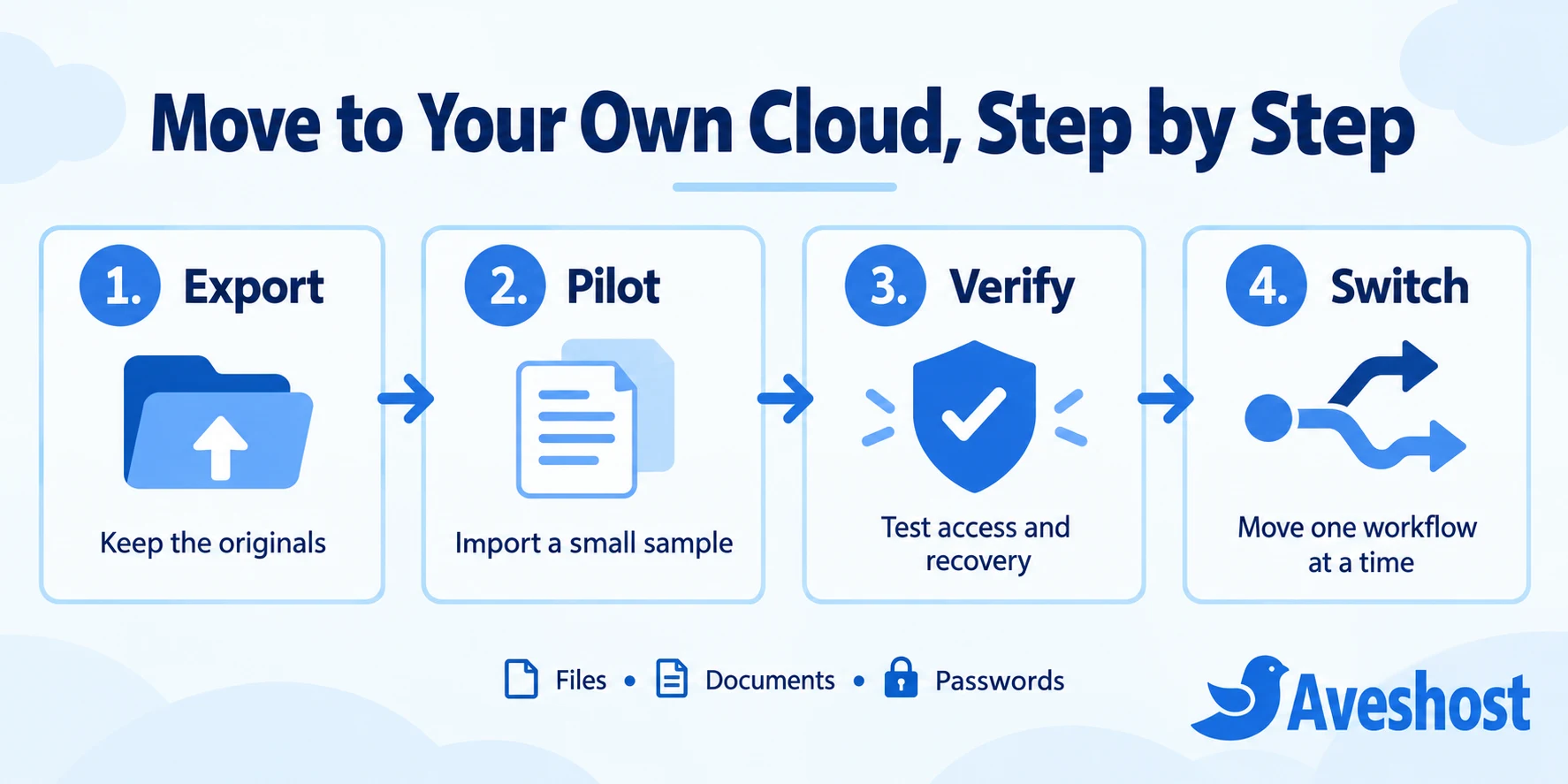
Keep the original services available during the pilot. Agree on a cutover date, tell users where new work belongs and retain appropriate exports and recovery copies. Review the old subscriptions only after the team has accepted the new workflow and the backups have passed a restore test.
Automate backups and test recovery
Use two complementary recovery layers: server-level backups for the environment and application-aware backups for its data. The Cloud VPS 2 order page offers an optional Auto Backup add-on with daily backups and the last 10 versions. Select it explicitly when configuring the plan.
| Application | Protect these items | Recovery check |
|---|---|---|
| Nextcloud AIO | Its supported backup archive, recovery key and configuration | Restore files, users and the corresponding database state |
| Docmost | PostgreSQL backup, uploaded files, configuration and secrets | Open pages, attachments and workspace permissions |
| Vaultwarden | Consistent database copy, attachments and required configuration | Log in, sync a client and open a sample attachment |
Nextcloud AIO includes a Borg-based backup workflow. Configure its destination and schedule, preserve the recovery key and verify completed backups. For Docmost, use a supported PostgreSQL backup method together with its file storage. Copying a database volume while it is changing is not a substitute for a consistent database backup.
Vaultwarden provides a built-in SQLite backup command. Use it for a consistent database copy and include attachments and configuration in the full backup plan, following its backup documentation. Protect configuration files because they can contain administrative and email credentials.
sudo docker compose exec vaultwarden /vaultwarden backupThis command addresses the Vaultwarden SQLite database; it does not by itself create a complete off-server backup. Automate the wider process, use dated retention and monitor failures. Test restoration into a separate environment so you can prove the backup contains what your team needs.
Snapshots capture a server state and can be useful before a planned change. Discuss snapshot options for your chosen configuration with our team. Use them alongside application-consistent backups, with a clear rollback point. A snapshot stored with the live environment serves a different recovery purpose from an independently protected backup copy.
Compare your monthly costs
Compare the full cost of operating the workspace rather than adding up only the software names. Include the VPS, extra storage, backup services, a domain, optional application licences and the time needed for administration.
| Cost example | Monthly USD |
|---|---|
| Cloud VPS 2, base configuration | $15.51 |
| Optional daily backup add-on | $4.24 |
| Combined configuration example | $19.75 |
This monthly checkout example uses the Germany location, 100 GB included SSD and the daily backup add-on, checked on 12 October 2026. Other selections can change the total. Domain and optional application licences are separate costs.
To compare with your subscriptions, calculate: current monthly software spend − total monthly self-hosting cost. Include only subscriptions you can actually retire after migration. Consolidating suitable services onto our cloud VPS can make costs easier to plan while giving you flexibility over storage and applications.
Keep your cloud useful and reliable
- After deployment: check HTTPS, backups, access restrictions and client syncing.
- Regularly: review failed backups, disk growth, application health and security updates.
- Before an upgrade: read release notes, take consistent backups and identify the rollback method.
- After an upgrade: test uploads, collaboration, passwords and account access.
- When users change: review groups, shared vault collections and recovery contacts.
Update one application at a time and preserve its persistent storage. Do not remove data volumes as part of routine container replacement. Keep release notes and configuration changes with your recovery documentation, and test restores on a recurring schedule.
If the workspace grows, increase CPU, RAM or storage around the measured bottleneck. You can also separate busy services as your architecture develops. Our cloud VPS gives you a path from a compact pilot to a larger environment without changing the overall self-hosting approach.
Build your own cloud with us
Your own cloud starts with a reliable foundation and a clear migration plan. Nextcloud, Docmost and Vaultwarden cover three everyday needs, while our self-managed cloud VPS gives you the root access, SSD capacity and flexibility to run them your way.
Explore our self-managed cloud VPS plans, or talk to our team about your storage, server region and backup requirements. Start with one workflow, prove the setup and expand as your needs grow.
Want to extend the workspace later? Follow our Ollama and Open WebUI guide for a private AI deployment, budgeting its resources separately from your files, documents and vault.
Frequently asked questions
Can I self-host Google Drive, Notion and 1Password themselves?
This guide uses self-hosted alternatives for those workflows: Nextcloud for files, Docmost for collaborative documentation and Vaultwarden for password management. You migrate your content into the new applications and test the features you use before switching.
Can all three apps run on one cloud VPS?
Yes, a single cloud VPS can host this stack for a modest workload. Use separate application services, persistent storage and one properly configured HTTPS reverse proxy. Measure memory, CPU and disk use as your team grows, and increase resources when needed.
Which self-managed VPS should I choose?
Cloud VPS 2 provides 8 GB RAM and 100 GB SSD as a useful starting capacity for a small pilot. Cloud VPS 3 provides 12 GB RAM and 200 GB SSD, while Cloud VPS 4 offers 24 GB RAM and 300 GB SSD. Choose around your actual files, concurrent users and enabled features.
Do I need cPanel or DirectAdmin?
No. This stack uses Linux, Docker and a reverse proxy on our self-managed cloud VPS. The self-managed plan does not include cPanel or DirectAdmin. You can manage the applications through their own interfaces after deploying them.
Is Vaultwarden the official Bitwarden server?
Vaultwarden is an independent, community-maintained server compatible with Bitwarden clients. Use the Vaultwarden documentation for server configuration and test your chosen client versions before rollout.
Does Docmost replace every Notion feature?
Docmost works well for collaborative pages, wikis and team knowledge. Check your required databases, automation and permissions against the edition you choose. Features such as Bases, SSO and MFA are listed among its paid-edition features.
Are file syncing and snapshots enough for backups?
Use application-consistent backups and test restoration. File sync can repeat a deletion across devices, while a server snapshot captures a point in time. Keep backup copies separate from the live application and protect the recovery credentials.
Are automated server backups included?
They are optional on the Cloud VPS 2 configuration reviewed for this guide. The order page offers Auto Backup with daily backups and the last 10 versions. Select the add-on explicitly and review its price in your chosen configuration.
Will self-hosting always be cheaper?
Compare the VPS, storage, backups, domain, optional application licences and administration with your current subscriptions. Consolidating suitable workflows can reduce recurring software costs, especially as users increase, but the saving depends on your workload and operating needs.
Can I add a private AI assistant later?
Yes, you can expand your self-hosted environment with additional applications when capacity allows. Follow our Ollama and Open WebUI guide, and budget separately for model memory, CPU and storage so AI workloads do not crowd out your core services.