

How to deploy and host a PHP website : The Ultimate Guide
If you’ve built a PHP website and are now wondering how to bring it online, you’re in the right place! Hosting a PHP website may seem like a daunting task at first, but with the right guidance, you’ll have your site up and running in no time.
Table of Contents
In this comprehensive guide, we’ll walk you through the entire process of hosting a PHP website, from choosing the right hosting plan to setting up a database and deploying your files. Whether you’re a beginner or have some experience with web development, this guide will make the process easy and understandable.
Video Tutorial
For an easier way to host a php website, watch the YouTube video below. If you prefer a detailed, step-by-step written guide, continue reading.
Choosing a Web Hosting Provider
The first step to hosting a PHP website is selecting a suitable web hosting provider. Aveshost is an excellent choice for PHP hosting, offering fast servers, great customer support, and affordable pricing.
Web Hosting
Web hosting is a service that allows individuals or businesses to make their websites accessible on the internet.
In simple terms:
🖥️ You upload your website files (like images, HTML, code, etc.) to a server
🌐 That server is always online and connected to the internet
👥 So when people type your domain (likeexample.com), the server shows them your site
Web hosting providers (like Aveshost) offer the server space, tools, and support needed to keep websites running smoothly.
Domain Name
A domain name is the address people type into their browser to visit your website — like aveshost.com.
It’s a human-friendly way to access a website instead of using an IP address (like 192.168.1.1). Think of it like:
📫 Domain name = Your website’s street address
🖥️ Hosting = The actual house where your website lives
You register a domain name through a domain registrar, and then link it to your hosting to make your site live.
PHP Hosting
PHP hosting is a type of web hosting that supports websites built with PHP, a popular scripting language used for creating dynamic websites like blogs, eCommerce stores, and content management systems (like WordPress).
In simple terms:
🖥️ PHP hosting lets you run websites that rely on PHP code (e.g., contact forms, user logins, databases).
Most modern hosting providers (like Aveshost 👋) offer PHP hosting with features like:
- PHP version selection
- MySQL database support
- Compatibility with CMS platforms (WordPress, Joomla, etc.)
How to Buy PHP Hosting
Go to the Aveshost Web Hosting Plans page to view the available plans and features. Click on the Order Now button and follow the steps to purchase your PHP web hosting.
If you need a step-by-step guide on how to buy PHP hosting, check out this helpful article: How to Buy PHP Hosting.
Already have a hosting plan that supports PHP? Great! You can now continue with the rest of the tutorial below.
How to Upload Your PHP Files
Once you have your hosting and domain set up, it’s time to upload your PHP website files to the server. There are different methods to do this:
Using Aveshost cPanel File Manager
Aveshost provides cPanel, where you can use the File Manager to upload your files.
- Log in to Your cPanel Account
- Open your web browser and go to your cPanel login page (usually yourdomain.com/cpanel).
- Enter your username and password.
- Navigate to the File Manager
- Once inside cPanel, look for the File Manager option under the Files section.
- Click on File Manager, then open the public_html directory (this is the root directory where your website files should go. Alternatively, you can use a subdirectory if you have created a subdomain).
- To view hidden files (such as .htaccess, .env), click on Settings in the top-right corner and enable Show Hidden Files (dotfiles).
- Upload Your Website Files
- Click the Upload button at the top of the File Manager.

- Drag and drop your website files (HTML, CSS, PHP, images, etc.), or click Select File to browse and upload them manually.
- If you’re uploading a ZIP file, right-click it once uploaded and choose Extract to unpack the contents.
- Move the Extracted Contents to public_html
- Double click on the extracted folder and inside the folder click on Select All at the top.

- Click on Move at the top of the File Manager, now delete the path
/PHP_eCom_Project(Your unzip folder name) so it should be/public_html
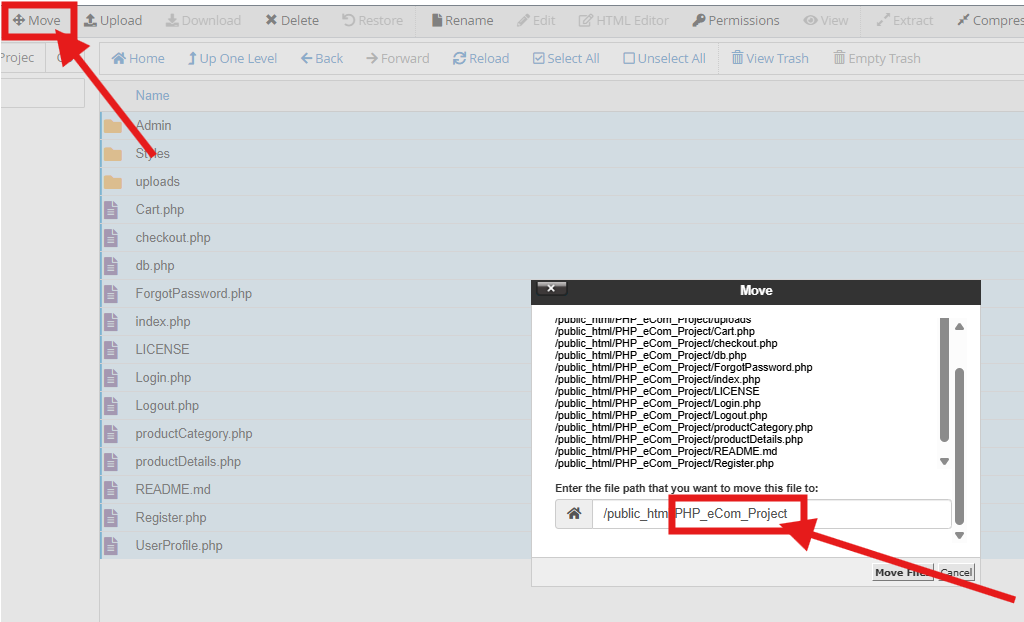
- Click on the Move Files button to move it into the public_html folder or the subdirectory folder in case you are using a subdomain.
Note: After extracting the files, delete the zip file. Once the files are moved to the public_html directory, delete the unzip folder as well.
Using FTP/SFTP
Aveshost supports FTP/SFTP connections. You can use tools like:
- FileZilla (Windows, macOS, Linux)
- Cyberduck (macOS, Windows)
- WinSCP (Windows)
Steps:
- Retrieve your FTP/SFTP credentials from the Aveshost welcome email received upon purchasing your hosting, or alternatively, create a new FTP account directly from your cPanel.
- Connect using an FTP client.
- Upload your PHP files to the
public_htmldirectory.
Set Up a Database (If Needed)
Many PHP websites use MySQL or MariaDB databases. If your PHP website requires a database, follow these steps:
Follow this step-by-step guide to learn how to create a MySQL database in cPanel: How to Set Up a MySQL Database & User in cPanel (2 Easy Methods)
1. Create a Database in Aveshost cPanel
- Open Aveshost cPanel → MySQL Databases.
- Create a new database and user.
- Assign the user to the database with full privileges.
2. Import Your Database Using phpMyAdmin
- Go back to your cPanel dashboard.
- Locate and click on phpMyAdmin in the Databases section.
- In the left panel, find and click on the database you just created.
- At the top, click the Import tab.
- Click Choose File and select the database file from your local computer.
- Click Go to start the import process.
Ensure the database connection details in your PHP files are correct.
Example config.php file:
$servername = "localhost";
$username = "cpaneluser_dbuser";
$password = "yourpassword";
$database = "cpaneluser_dbname";

$conn = new mysqli($servername, $username, $password, $database);

if ($conn->connect_error) {
    die("Connection failed: " . $conn->connect_error);
}
Test Your Website
Once your files are uploaded and database configured, visit your domain to check if everything is working. If you encounter errors:
- In cPanel, open ‘MultiPHP INI Editor’, select your domain, enable
display_errors, and click ‘Apply’. - Review error logs (
error_log) in your project directory. - Ensure database credentials are correct.
Conclusion
Hosting a PHP website may seem complex at first, but with Aveshost, the process is simple and beginner-friendly. Whether you’re launching a simple blog or a dynamic web application, following these steps will ensure a smooth deployment.
With Aveshost, you get fast, secure, and affordable PHP hosting with excellent support. Ready to get started?
🚀 Host Your PHP Website with Aveshost Now!
Suggested Reading:
- How to Buy PHP Hosting: Beginner’s Guide
- How to Upload Your Website (in 3 Simple Steps)
- How to Buy cPanel Hosting for Your Website: Beginner’s Guide
- How to Deploy Laravel Project on cPanel
- How to Deploy Angular App on cPanel: CSR & SSR Guide
- How To Deploy a Node.js App on cPanel (The Ultimate Guide)
- How to Deploy Django App on cPanel (The Ultimate Guide)
- How to Deploy Flask App on cPanel (The Ultimate Guide)
FAQs About How to Host a PHP Website
What is PHP hosting and why do I need it for my PHP website?
PHP hosting is a type of web hosting that supports websites built with PHP, a scripting language used for dynamic websites like blogs, eCommerce stores, and CMS platforms like WordPress. You need PHP hosting to run websites that rely on PHP code for features like contact forms, user logins, and database connections.
How do I choose a web hosting provider for my PHP website?
Choose a hosting provider that offers PHP support, fast servers, good customer support, and affordable pricing. The guide recommends Aveshost as an excellent choice for PHP hosting with features like PHP version selection, MySQL database support, and compatibility with CMS platforms.
What are the methods to upload PHP files to my hosting server?
You can upload PHP files using the cPanel File Manager (by logging into cPanel, navigating to File Manager, and uploading files to the public_html directory) or via FTP/SFTP using tools like FileZilla, Cyberduck, or WinSCP with credentials from your hosting provider.
How do I set up a database for my PHP website?
If your PHP website requires a database, you can create one in cPanel by accessing the MySQL Databases section, creating a new database and user, and then importing your database using phpMyAdmin. The guide provides a step-by-step tutorial for this process.
What is the difference between a domain name and web hosting?
A domain name is the address people type to visit your website (e.g., example.com), while web hosting is the service that stores your website files on a server to make them accessible online. Think of the domain as your website’s street address and hosting as the actual house where your website lives.